Table of Contents
Ezgif's online text editor can place captions over an animated GIF without removing the animation. You can style and position each text block, then specify the frames on which it appears. The service cannot edit words already baked into the image pixels; it can only add new text on top.
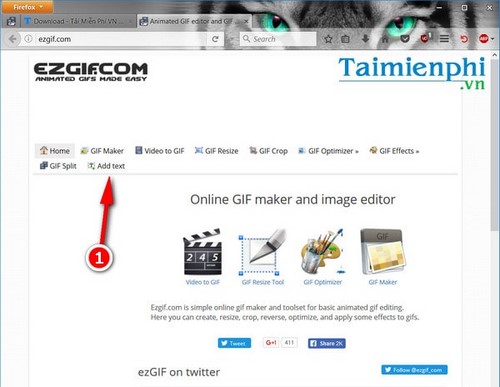
Upload the animated image
- Open the official Ezgif Add Text tool.
- Drag a file into the upload area, choose it from your device, paste it, or enter a direct image URL.
- Click Upload and wait for the editor to display the animation.
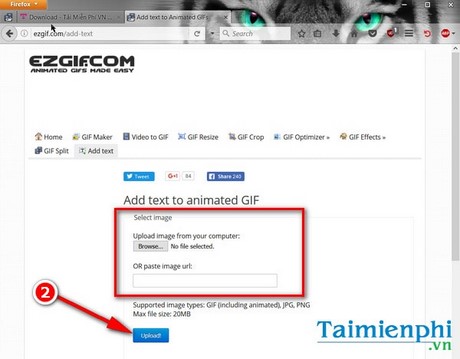
The screenshots show an older Ezgif layout with a Browse button. The current page also supports drag-and-drop and paste. Its stated upload limit is 200 MB, replacing the obsolete 20 MB limit shown in older instructions. Avoid uploading private or sensitive material to any online editor.
Add and format the caption
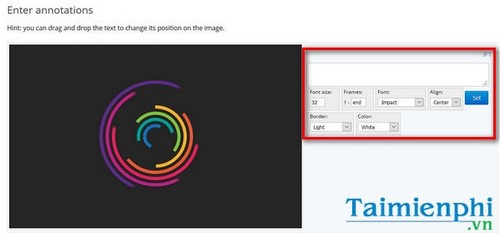
- Enter the caption in a text block. Add more blocks if the wording needs to change during the animation.
- Drag the text on the preview to position it. Choose a readable font, size, alignment, fill color, and outline color.
- Use the Frames setting for each block to define when it appears. A caption intended for the entire animation should cover the full frame range.
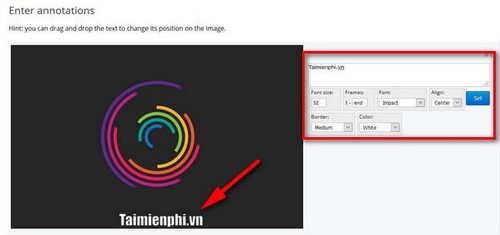
Use a contrasting outline or background when the underlying scene changes color. Keep the caption away from important controls, faces, and other visual details.
Create and save the edited GIF
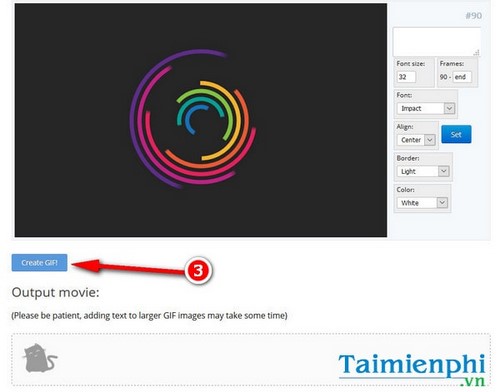
- Apply the text settings. In the legacy interface shown here, click Set for the relevant frames.
- Click Create GIF or the equivalent submit button in the current interface.
- Inspect the output. If the text is cut off or appears at the wrong time, return to the editor and adjust its position or frame range.
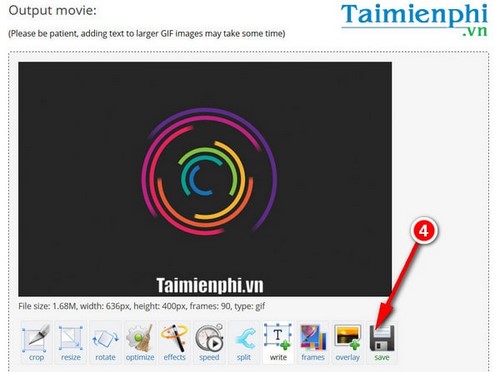
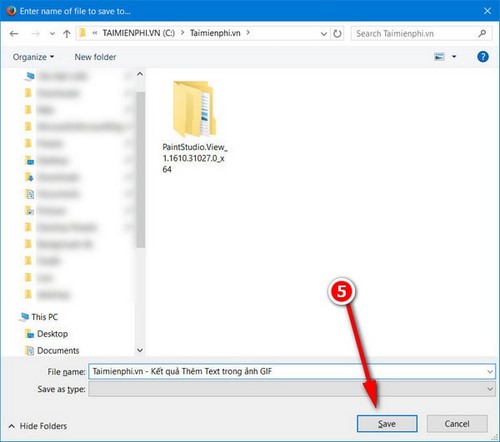
You can use the tools below the result to crop, resize, rotate, or optimize the file. Click Save when the animation, timing, and text are correct.

Make the text easier to read
- Write short captions that can be read before the frame changes.
- Use a plain typeface and strong contrast rather than decorative styling.
- Check the animation at its actual display size before sharing it.
- Optimize the result if the added text substantially increases file size.
To create the source animation first, see TipsMake's guide to making a GIF online. For desktop editing, compare the best GIF creation programs.
Related Articles
 How to Add Text to Your Animation, Add Animated Text to Gif Image5 minutes read
 Create Animated Images Online with PictureStudio3 minutes read
 How to Install IrfanView to Display Animated Images3 minutes read
 Creating Animated Videos Using Anijam AI Is Definitely Worth a Try4 minutes read
 Extract Text from Images (OCR)13 minutes read
 How to Convert Images to Text Using Google AI4 minutes read
Reader Comments 0
Sign in with email or Google to join the discussion.