Table of Contents
Windows services are background components used by the operating system, hardware drivers, security tools, and installed applications. You can start or stop a service for troubleshooting, but disabling services at random rarely produces a meaningful speed improvement and can break networking, updates, sign-in, printing, audio, or security.
Open the Services console
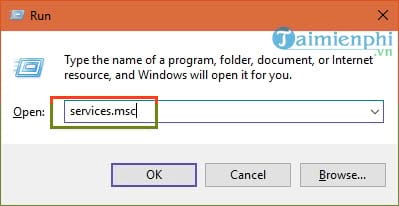
Press Windows + R, enter services.msc, and press Enter. Other supported shortcuts are listed in ways to open Services on Windows 10 and 11.
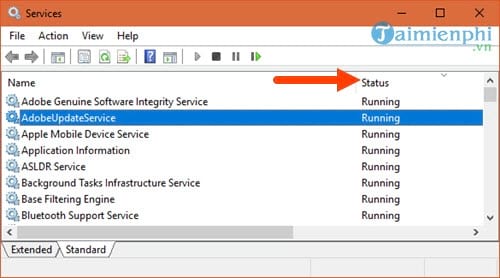
The list shows each service's display name, description, current status, startup type, and account. Select the Status heading to group running services, but remember that a blank status is normal for many on-demand services.
Understand Stop and Startup type
Double-click a service to view its properties. The controls have different effects:
- Start: launches a stopped service now.
- Stop: ends it for the current session if Windows permits. A trigger, dependency, app, or restart may start it again.
- Automatic: Windows starts it during boot or sign-in.
- Automatic (Delayed Start): Windows starts it shortly after core boot activity.
- Manual: Windows, an application, or a trigger can start it when required; it does not mean the user must always start it manually.
- Disabled: prevents the service from starting until its startup type is changed again.
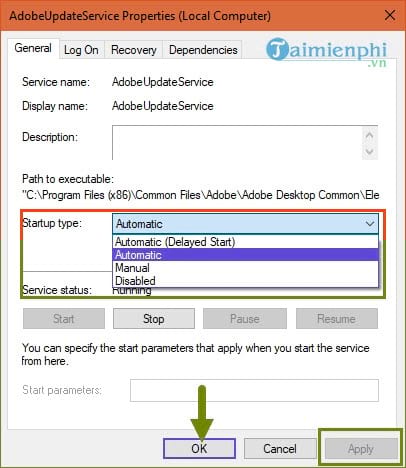
Changing the startup type does not necessarily stop a currently running service. Likewise, selecting Stop does not necessarily disable it for future boots.
Check the service before changing it
- Read the description and record the exact Service name, current startup type, and status.
- Open the Dependencies tab. A service that other components require should not be disabled casually.
- Search the software or hardware vendor's current documentation for the exact service name.
- Prefer Manual or a temporary Stop test over Disabled when you are uncertain.
- Change one service at a time, restart, and test the affected feature.
For example, an Adobe updater may be responsible for delivering security fixes, while a VMware service may provide virtual networking or USB support. Disabling either can break the associated software. Uninstalling an unused application is generally cleaner than leaving it installed with its services disabled.
Use a clean boot to diagnose conflicts
If you are trying to identify a third-party conflict, use a clean boot instead of changing services one by one without a baseline. In System Configuration, select Hide all Microsoft services before disabling third-party entries, then re-enable them in groups. The guide to performing a clean boot on Windows 11 includes the recovery steps.
A clean boot is temporary diagnosis, not a permanent performance profile. Restore normal startup after finding the offending software.
Services that should not be disabled for “optimization”
Avoid disabling core security, servicing, account, event logging, networking, storage, cryptography, installer, or device-management services. In particular, do not turn off Windows Update, Microsoft Defender services, Security Center, Event Log, Task Scheduler, RPC, or Plug and Play to save memory.
Windows often uses trigger-start and per-user services, so a service can appear only when a relevant feature is used. A short list copied from another PC cannot account for your hardware, edition, accessibility needs, organization policy, or installed applications.
Recover from a bad change
Return the service to the startup type you recorded and select Start if appropriate. If Windows will not start normally, enter Safe Mode and undo the change. On an organization-managed PC, policy may restore the required setting automatically.
If the underlying problem is slow startup, check Task Manager's Startup apps, storage health, memory pressure, and malware before changing services. Those areas usually provide clearer evidence and safer improvements.
Related Articles
 How to Enable or Disable Windows Features on Windows 105 minutes read
 How to Turn Off Unnecessary Services on Windows 106 minutes read
 How to Enable or Disable Secure Sign-in on Windows 105 minutes read
 Enable or Disable JavaScript on Chrome11 minutes read
 3 Ways to Enable and Disable Windows 11 AutoPlay3 minutes read
 Instructions to Enable // Disable Windows Firewall with Command4 minutes read
Reader Comments 0
Sign in with email or Google to join the discussion.