Table of Contents
What's Up Docker (WUD) monitors the images used by running Docker containers and tells you when a matching newer image is available. It is useful when you want visibility and notifications without automatically replacing every container as soon as an image changes.
What WUD does
WUD connects to a Docker host through a watcher, reads the image used by each watched container, and checks the appropriate registry for newer tags or digests. Its dashboard then shows the installed image and the update it found.
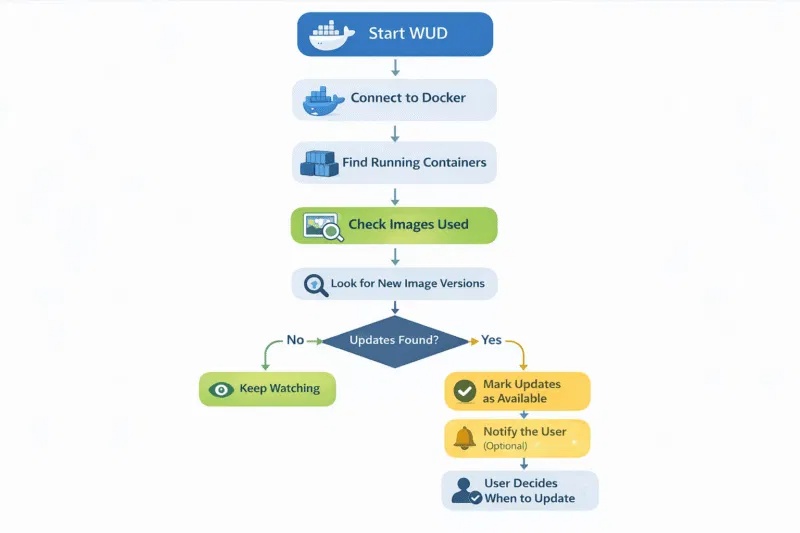
WUD separates monitoring from action. Watchers discover containers, registries provide image information, and triggers send notifications or perform configured actions. This makes it possible to review release notes, backups, and compatibility before updating an important service.
Run WUD with Docker Compose
Create a directory for the Compose project:
mkdir wud && cd wudCreate a file named compose.yaml with this configuration:
services:
  wud:
    image: getwud/wud:latest
    container_name: wud
    restart: unless-stopped
    read_only: true
    security_opt:
      - no-new-privileges:true
    environment:
      WUD_WATCHER_LOCAL_WATCHBYDEFAULT: "false"
    volumes:
      - /var/run/docker.sock:/var/run/docker.sock:ro
      - ./store:/store
    ports:
      - "127.0.0.1:3000:3000"
This example binds the dashboard to the host's loopback address, so it is not directly exposed to other computers. If remote access is required, put WUD behind an authenticated reverse proxy rather than publishing an unprotected management dashboard.
Security note: even a read-only Docker socket gives a container substantial visibility into the host's Docker environment. Run only a trusted WUD image, keep the deployment updated, and do not expose the socket or dashboard unnecessarily.
Start WUD and confirm that it stays running:
docker compose up -d
docker compose ps
docker compose logs --tail=100 wud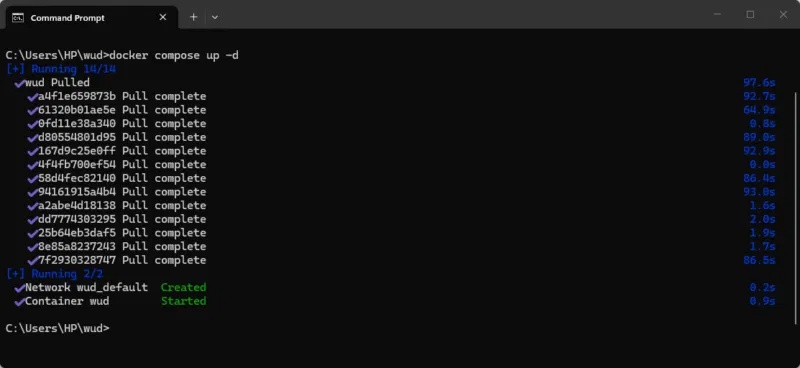
Open http://localhost:3000 on the Docker host. If Docker runs on another machine, use a secure tunnel or your authenticated proxy.
Choose which containers WUD watches
The Compose file above sets WUD_WATCHER_LOCAL_WATCHBYDEFAULT to false. Add the following label to each service you want WUD to monitor:
services:
  example:
    image: example/app:1.2.3
    labels:
      wud.watch: "true"
Recreate the target service after changing its labels. Using an explicit version tag is usually easier to reason about than relying on latest. WUD also supports tag include and exclude rules, but those should be tested against the image's actual release scheme before they are used in production.
Read the WUD dashboard
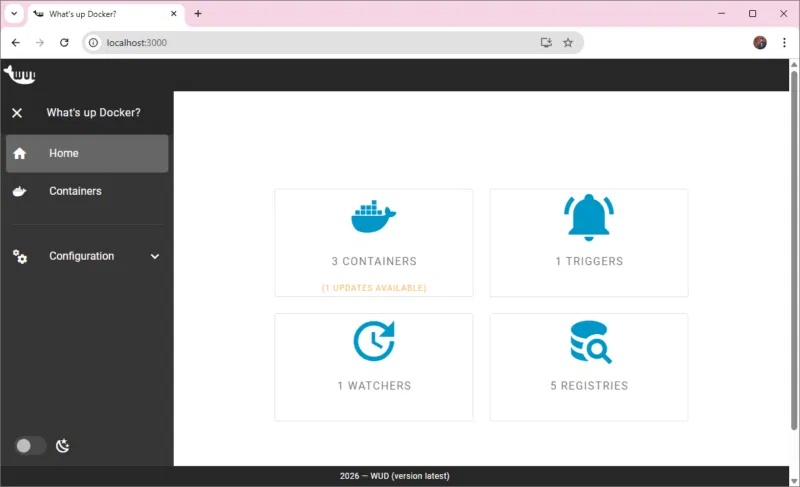
The overview summarizes containers, watchers, registries, and triggers. Start here to confirm that WUD has connected to the intended Docker host and discovered only the services you selected.
Containers
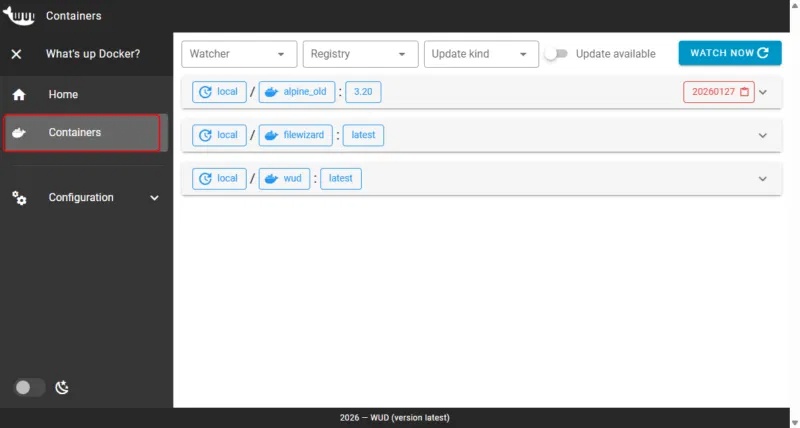
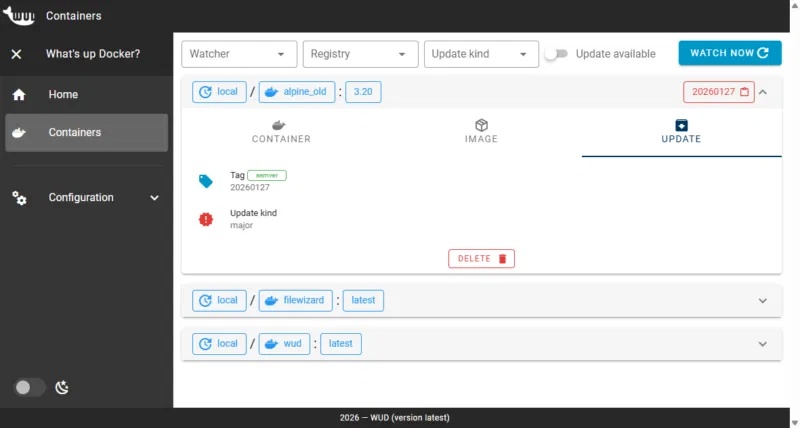
The Containers view lists each watched service, its current image, and the update status. An available update is a signal to inspect the upstream release notes; it is not proof that the new version is compatible with your configuration.
Watchers
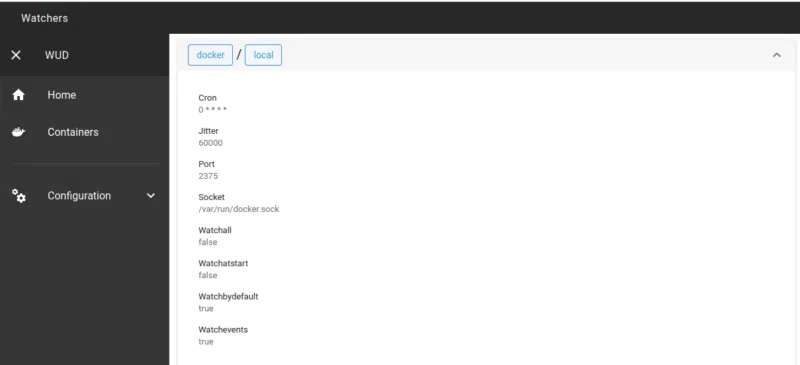
A watcher defines the Docker host WUD scans and how often it checks. Additional watchers can monitor other Docker environments, but each connection should use the narrowest access and network exposure that works for the deployment.
Registries
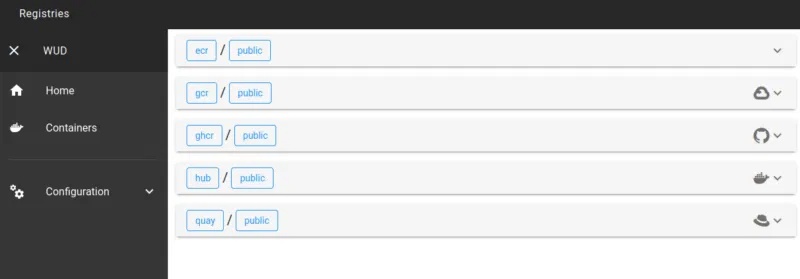
Registries are the sources WUD queries for image information, such as Docker Hub or GitHub Container Registry. Public images may work without extra configuration. Private registries require credentials; use a dedicated account or token with read-only package access where possible.
Triggers
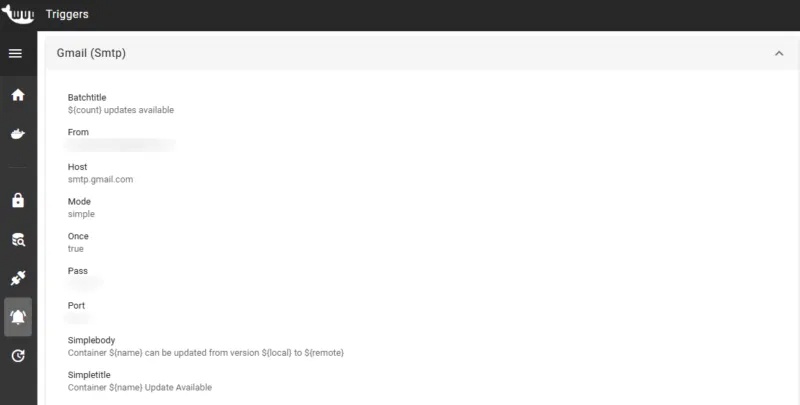
Triggers define what WUD does after it detects an update. Notification triggers can send a message through supported services or call a webhook. Update-capable triggers have greater risk because they may pull images and recreate services, so configure them only after testing backups and rollback procedures.
A safer update workflow
- Let WUD report the available image.
- Read the image maintainer's release notes and migration instructions.
- Back up persistent data and the Compose configuration.
- Pull and test the update in a non-critical environment when possible.
- Update the pinned image tag, deploy it, and verify service health.
Configuration keys and supported triggers can change between WUD releases, so verify advanced settings in the official WUD documentation. For related container work, see how SlimToolKit reduces Docker image size and compare Docker alternatives before changing a larger platform.
Related Articles
 How to Use Container Queries in CSS9 minutes read
 What Is Container Linux? Should I Use It?17 minutes read
 How to Use Docker Container7 minutes read
 Firefox Updates a Host of Exciting New Features to Entice Users3 minutes read
 How to Choose the Correct Shipping Container?6 minutes read
 Assign Structure to Diagram in Visio 2010 Using Container7 minutes read
Reader Comments 0
Sign in with email or Google to join the discussion.