Table of Contents
While using ClipChamp, you may also encounter some errors such as not being able to use ClipChamp when clicking.
ClipChamp is a built-in application on Windows 11 for you to view and edit videos. While using ClipChamp, you may also encounter some errors such as not being able to install ClipChamp or not being able to use ClipChamp when clicking. Below are some instructions on how to fix ClipChamp not working on Windows 11.
Fix ClipChamp not working via Settings
Step 1:
You Type ClipChamp in the search bar , then Click on App Settings As shown below.
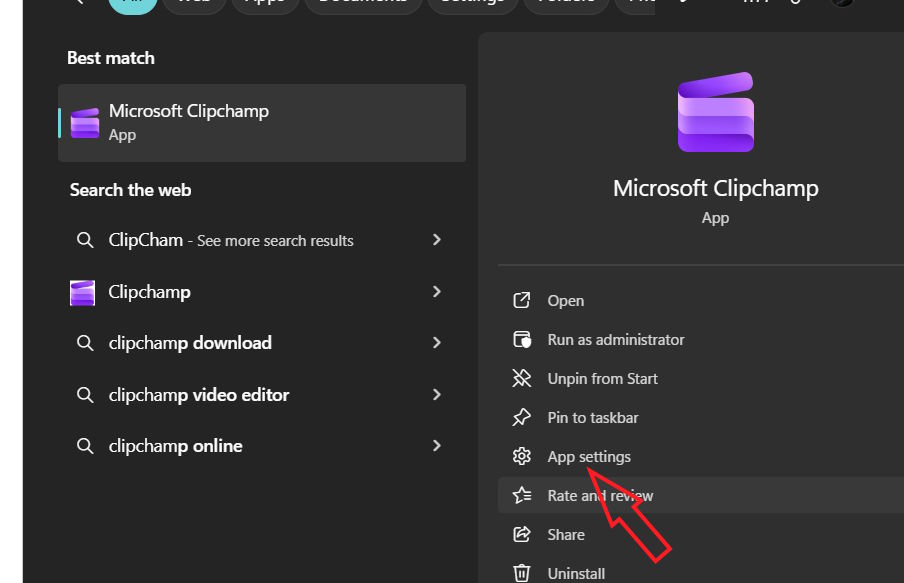
Step 2:
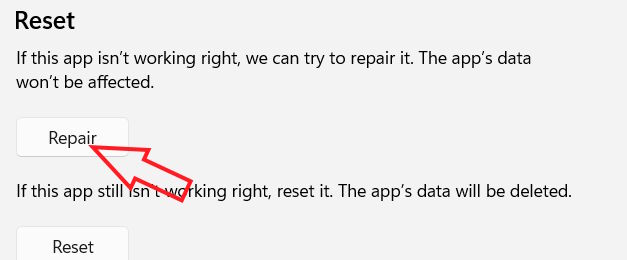
Display the ClipChamp application installation interface, Click the Repair button To repair the application that is having problems.
If ClipChamp still doesn't work, you can reset the app, which will erase all data and return it to its original default look. Tap Reset to reinstall the app.
Fix ClipChamp not working with SFC Scannow command
The SFC Scannow command automatically detects corrupted, damaged ClipChamp files and finds the correct file version.
Step 1:
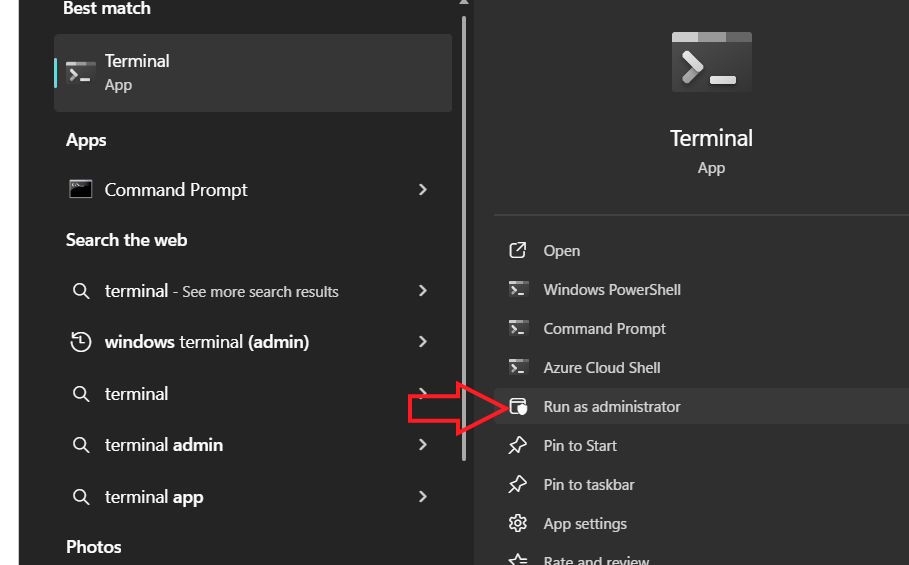
You should Open Terminal as administrator On your computer.
Step 2:
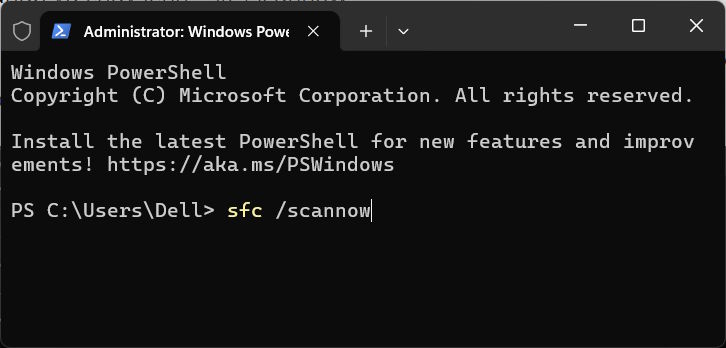
In this interface, you Enter the command sfc /scannow . Then the corrupted files will be displayed and notified on the screen. You follow the displayed instructions and Windows will automatically reload all corrupted files.
Free up computer RAM
ClipChamp requires many RAM and CPU resources to run. In some cases, ClipChamp will not run or will shut down due to lack of space. This can happen if you are using large or long videos and running other applications at the same time.
Try closing inactive programs, like Chrome or other heavy programs, to free up your computer's memory.
You can also use Task Manager to close background programs that you are not using.
- 8 Task Manager tips that Windows users should know
Turn off anti-virus or anti-scam software on Windows
If you are using third-party antivirus software, temporarily disable it and try running ClipChamp again. Alternatively, you can allow ClipChamp through your firewall.
Step 1:
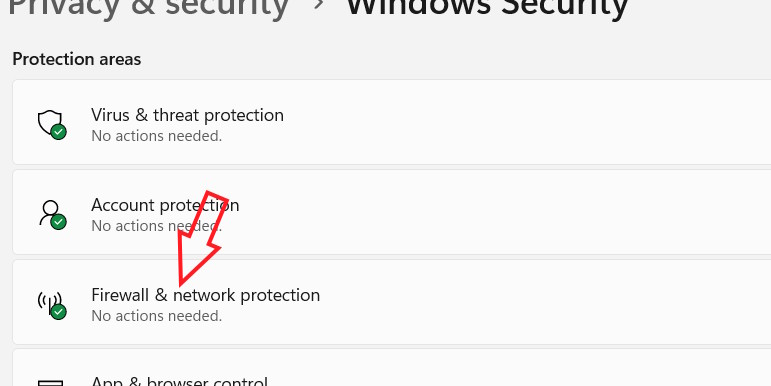
Open Settings And Select Privacy and security , then click Windows Security > Firewall & network protection .
Step 2:
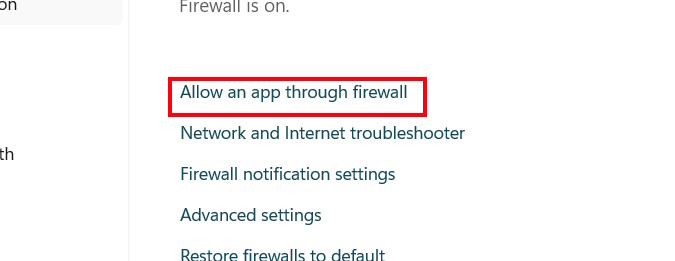
Switch to the new interface, the user selects Allow an app through firewall As shown.
Step 3:
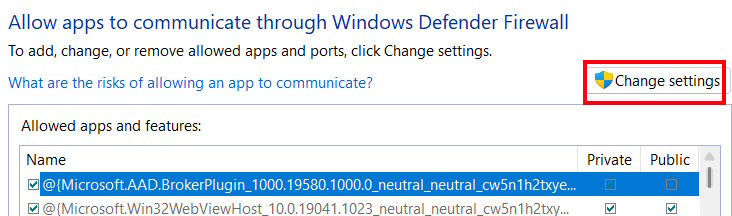
Click Change settings Again to change the settings.
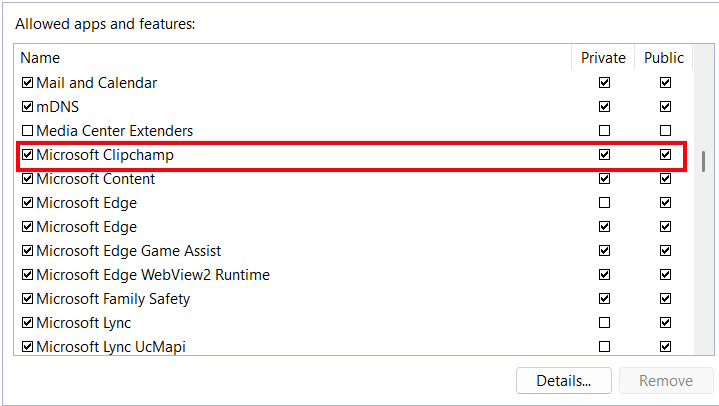
In the list below , find Microsoft ClipChamp And Select both Public and Private options . Finally, click OK to save.
FAQ
How do you fix clipchamp not working error on Windows 11: step-by-step guide?
In practical terms, while using ClipChamp, you may also encounter some errors such as not being able to use ClipChamp when clicking.
What should you check before getting started?
Review the requirements, compatible device or software version, and any warnings described in the guide before making changes.
What should you do if the steps do not work?
Repeat the steps in order, confirm that your app or system is up to date, and review the troubleshooting details provided above.
Related Articles
 Clipchamp - Clipchamp Download and Installation Guide3 minutes read
 How to Fix the Error That Clipchamp Cannot Be Installed on Windows 118 minutes read
 Why Can't Clipchamp Export Video: Key Reasons Explained4 minutes read
 How to Make Videos with Microsoft's Clipchamp7 minutes read
 How to Create and Edit Videos with Clipchamp's AI Tools: Practical Guide9 minutes read
 Instructions for Using Clipchamp to Edit Videos on Windows5 minutes read
Reader Comments 0
Sign in with email or Google to join the discussion.