Table of Contents
Discover why can't clipchamp export video and explore the main causes, risks, practical effects, and recommended actions.
Guide to fixing Clipchamp video export issues
Export video to Clipchamp web
A good way to check if a video export error is related to the application is to try exporting the video using the web version of Clipchamp. If it works, then the error is with the application; otherwise, check your internet connection.
Check the video file again
Please check your original video for any errors or missing files that might be causing the video export issue on Clipchamp.
Turn off graphics acceleration in your browser
If you use Clipchamp on Chrome or Edge web browsers, the browser's hardware acceleration feature may cause errors when exporting files.
In Chrome, go to Settings and then select System from the list that appears.
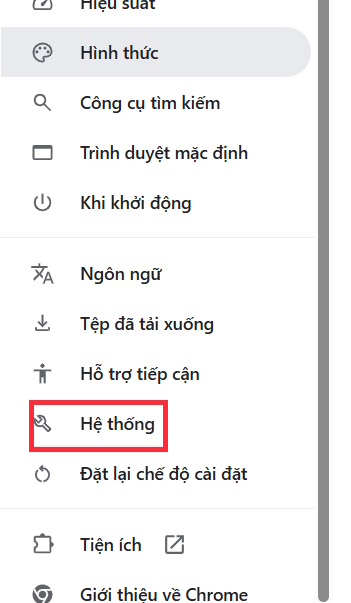
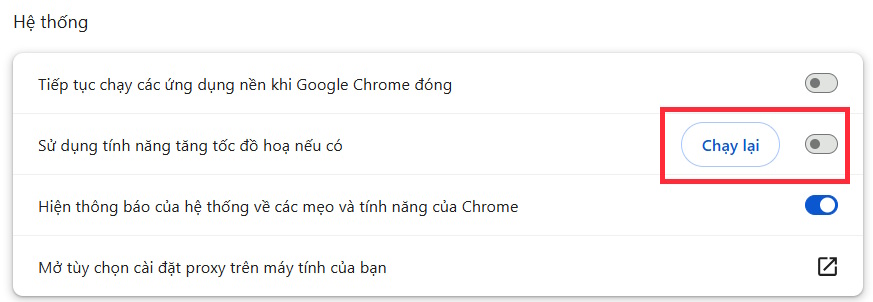
At this point, you need to turn off the "Use graphics acceleration" setting, if it's enabled.
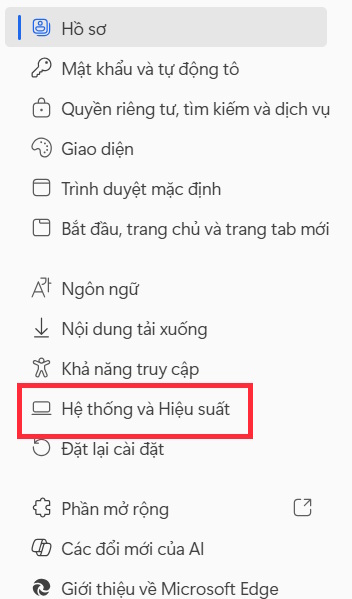
On the Edge browser, we also access Settings and then click on System and Performance .
Then, click on the "Speed Up System" option at the top.
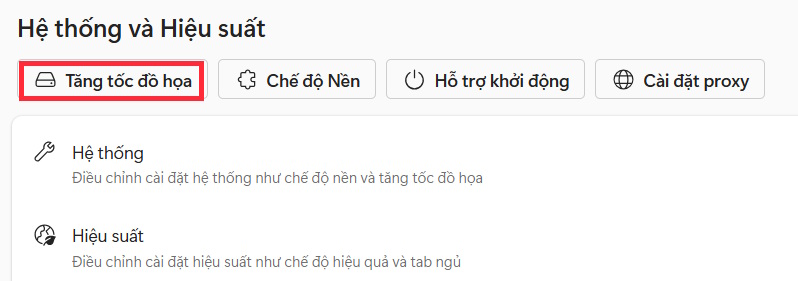
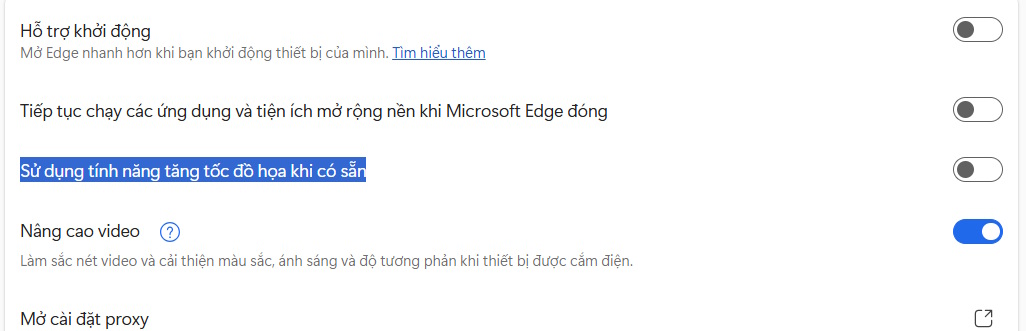
At this point, you need to turn off "Use graphics acceleration when available" .
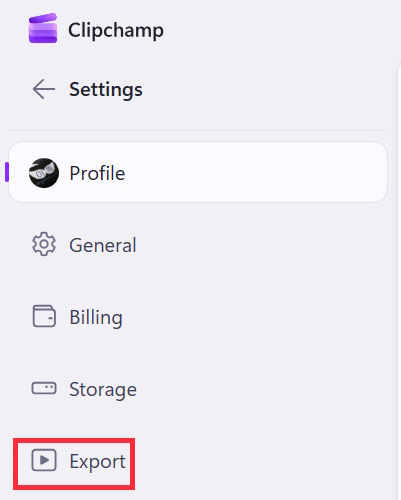
Access Clipchamp, then click the profile icon , select Settings . Next, click Export to make the necessary adjustments .
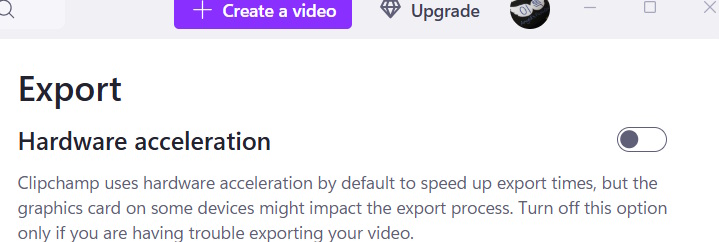
At this point, the user can also turn off Hardware Acceleration .
Final Thoughts
Use this guide as a practical checklist for why can't clipchamp export video. Work through the steps in order, verify each result, and adjust the options to match your needs.
FAQ
What do you need before following this Why Can't Clipchamp Export Video guide?
Review the required tools, accounts, settings, or materials mentioned in the article. Discover why can't clipchamp export video and explore the main causes, risks, practical effects, and recommended actions.
What are the main steps for why can't clipchamp export video?
Follow the sections in order, especially Guide to fixing Clipchamp video export issues, Export video to Clipchamp web, Check the video file again. Complete each step before continuing and verify the result as you go.
What should you do if the process does not work as expected?
Recheck the prerequisites, update the relevant app or service, review the settings, and repeat the step that caused the issue. Use any troubleshooting notes included in the guide.
Related Articles
 Clipchamp - Clipchamp Download and Installation Guide3 minutes read
 How to Make Videos with Microsoft's Clipchamp7 minutes read
 How to Easily Trim Video by Removing Transcript in Clipchamp3 minutes read
 How to Fix the Error That Clipchamp Cannot Be Installed on Windows 118 minutes read
 How to Create and Edit Videos with Clipchamp's AI Tools: Practical Guide9 minutes read
 How to Record Video with a Laptop Without Installing Software7 minutes read
Reader Comments 0
Sign in with email or Google to join the discussion.