Table of Contents
This practical guide explains how to easily trim video by removing transcript in clipchamp. Follow the steps in order, review the requirements first, and use the troubleshooting notes when a setting or option does not work as expected.
What you need to get started
To edit by cutting video transcripts in Clipchamp, you need the following:
- A personal or corporate Microsoft 365 account to access Clipchamp.
- Make sure the video has dialogue to record.
- Use Clipchamp's Windows app or a Chromium-based browser.
Note : This feature is rolling out to corporate subscribers first before individual users can get it later.
Trim video with transcript in Clipchamp
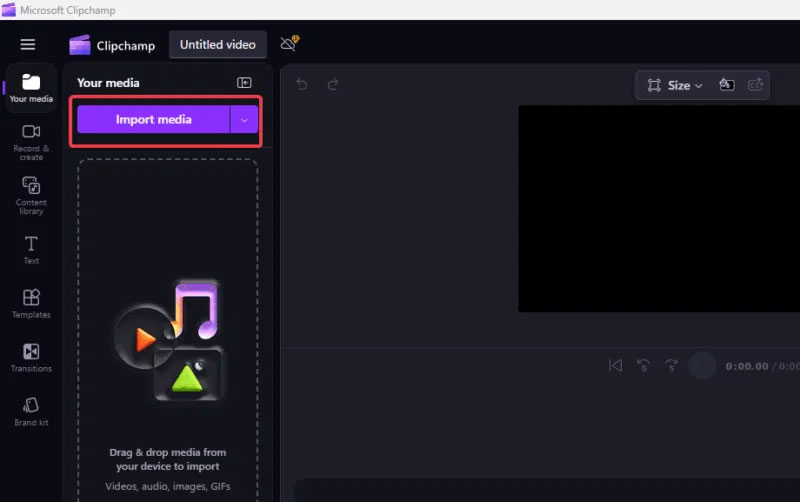
To use this feature, launch Clipchamp and click import media .
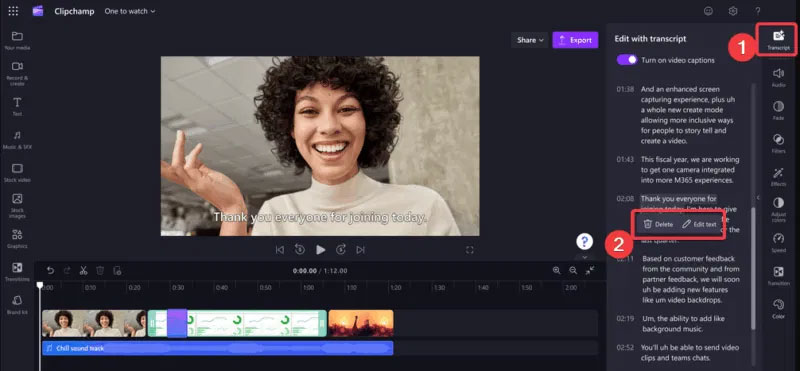
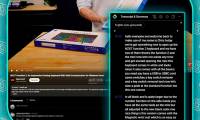
Locate the Transcript tab on the right panel and click Generate Transcript . Once the video transcript is available, highlight the unwanted parts and click Delete to automatically trim them.
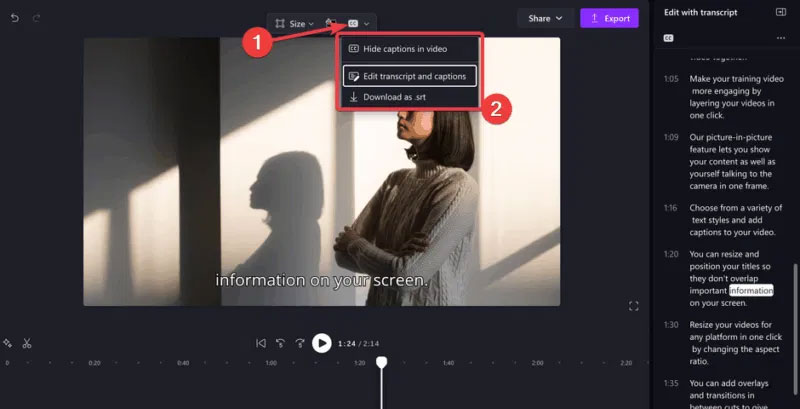
You can click the subtitles (cc) button to edit or download as a.srt file. You can also export your video to OneDrive or SharePoint.
It's easy to create clean, professional videos without having to struggle with timelines, which is one of the reasons many people find a Microsoft subscription worth it.
Tips for best results
Some things to keep in mind when trimming videos by removing transcripts in Clipchamp are:
- Use clear, high-quality audio for accurate transcription.
- Cross-check transcript for errors before editing.
- Combine with Clipchamp tools like noise reduction to improve results.
- Always save a backup copy of the original video for comparison after editing.
Video editing couldn't be easier with this transcript-based option. Quickly trim your videos by removing transcripts for professional edits for meetings, tutorials, podcasts, and other dialogue-heavy videos. Try it now and let us know your results in the comments below!
FAQ
What you need to get started?
To edit by cutting video transcripts in Clipchamp, you need the following:
What should you know about trim video with transcript in Clipchamp?
To use this feature, launch Clipchamp and click import media.
What should you know about tips for best results?
Some things to keep in mind when trimming videos by removing transcripts in Clipchamp are:
Related Articles
 Clipchamp - Clipchamp Download and Installation Guide3 minutes read
 Why Can't Clipchamp Export Video: Key Reasons Explained4 minutes read
 How to Make Videos with Microsoft's Clipchamp7 minutes read
 How to Fix the Error That Clipchamp Cannot Be Installed on Windows 118 minutes read
 How to Trim a Video on PC or Mac: Step-by-Step Guide3 minutes read
 3 AI-powered Video Transcript Creation Tools to Save Hours of6 minutes read
Reader Comments 0
Sign in with email or Google to join the discussion.