Table of Contents
PowerPoint can turn a slide deck into a video for on-demand viewing, or you can present the slides live through a meeting or screen-sharing service. A video preserves recorded timings, narration, transitions, and supported media; a live presentation lets the presenter control the pace and interact with the audience.
Export a PowerPoint presentation as a video
The Create a Video feature allows you to save your presentation as a video. This feature can be useful because it lets your audience watch the presentation whenever they want. To ensure your audience has enough time to view each slide, you may need to rehearse or record the slideshow before using this feature.
How to export a presentation as a video
1. Click on the File tab to access the Backstage interface.
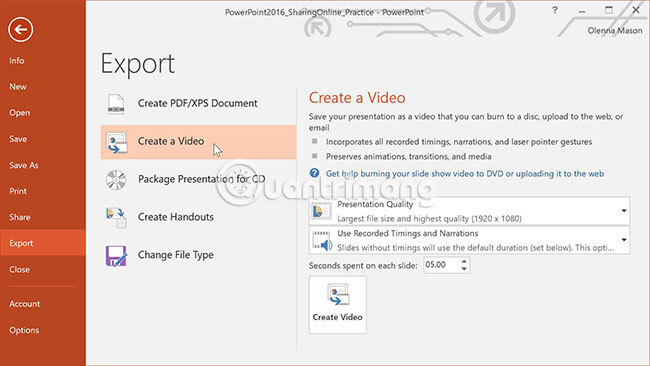
2. Select Export, then click Create a Video. The video export options will appear on the right.
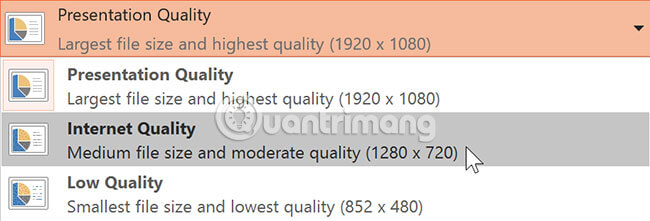
3. Click the drop-down arrow next to the Presentation Quality option to select your desired video size and quality.
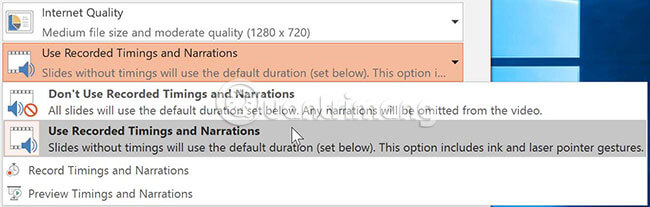
4. Select the drop-down arrow next to Use Recorded Timings and Narrations. Choose Don't Use Recorded Timings and Narrations if you don't have or don't want to use recorded timings. You can also choose Use Recorded Timings and Narrations if you have recorded timings and narration and want to use them in your video.
5. Click on Create Video. The Save As dialog box will appear.
6. Choose the location where you want to save the presentation, then enter a name for it.
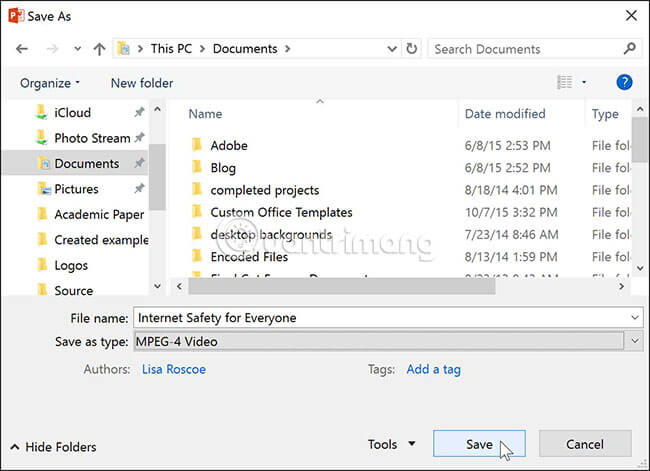
7. Click Save. When PowerPoint creates the video, a status bar will appear at the bottom of the PowerPoint window. Once the process is complete, the video will be ready to view, send, or upload.

After export, play the entire video and check its resolution, audio, slide timing, animations, and captions before uploading or sending it. A video-sharing platform can provide a link for viewers, but review the platform's privacy and audience settings before publishing.
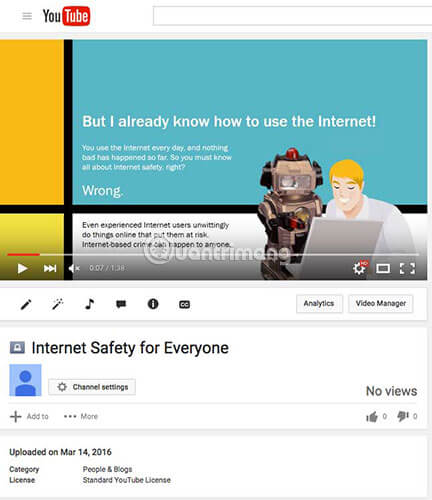
Present the slides online with a current service
The legacy Present Online workflow shown in older PowerPoint 2016 guides depended on a Microsoft service that is no longer a reliable current option. Do not send viewers an old Present Online link and assume it will work.
Choose one of these current approaches instead:
- PowerPoint Live in Microsoft Teams: present the deck inside a Teams meeting when your Microsoft 365 plan supports it.
- Screen sharing: run Slide Show or Presenter View and share the presentation window through your meeting platform.
- Cloud sharing: save the deck to OneDrive or SharePoint and share a view-only or edit link when recipients need asynchronous access.
- Exported video: distribute the reviewed video when the presentation should play without a live presenter.
Sharing checklist
- Remove hidden slides, notes, or private metadata that recipients should not receive.
- Confirm whether viewers may only watch, download, or edit.
- Test the link or video from a recipient's perspective.
- Provide captions or a transcript when narration carries essential information.
For visual consistency, review PowerPoint Slide Master view. The guide to creating clear PowerPoint slides covers additional presentation basics.
Related Articles
 PowerPoint 2019 (Part 32): Sharing Presentations Online: Explained5 minutes read
 Share PowerPoint 2016 Presentations Online5 minutes read
 PowerPoint 2019 (Part 1): Getting Started with PowerPoint: Explained7 minutes read
 10 Useful Tips for You When Presenting with Powerpoint15 minutes read
 Check and Protect Presentations in PowerPoint 20164 minutes read
 50 Alternative Slideshow Applications for PowerPoint10 minutes read
Reader Comments 0
Sign in with email or Google to join the discussion.