Table of Contents
An Excel file is called a workbook. Start with a blank workbook when you need full control, use a template for a prebuilt layout, or open an existing file from local storage or a supported cloud location. Older workbook formats may open in Compatibility Mode, which limits features that the file format cannot store.
How to create a new blank workbook
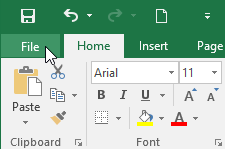
1. Select the File tab. The Backstage view will appear.
2. Select New, then click Blank workbook.
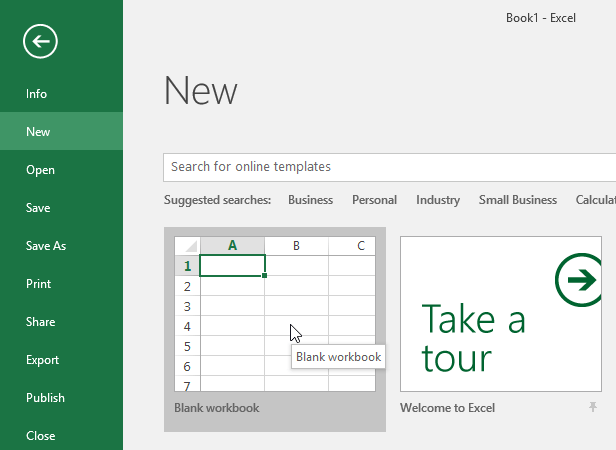
3. A new, blank workbook will appear.
How to open an existing workbook
In addition to creating a new workbook, you often need to open a workbook that has already been saved.
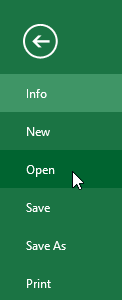
1. Navigate to Backstage view, then click Open.
2. Select Computer, then click Browser. You can also select OneDrive to open files stored on your OneDrive.
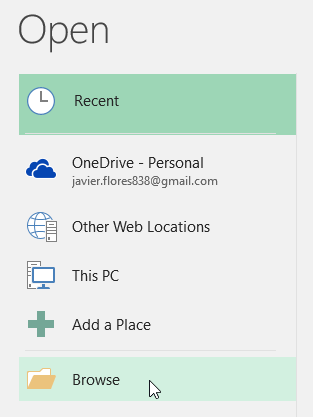
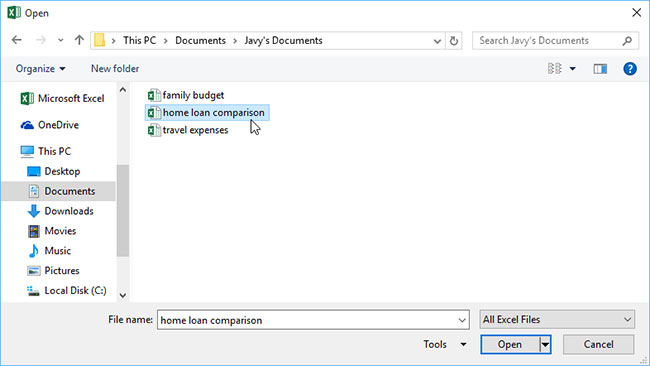
3. The Open dialog box will appear. Locate and select your workbook, then click Open.
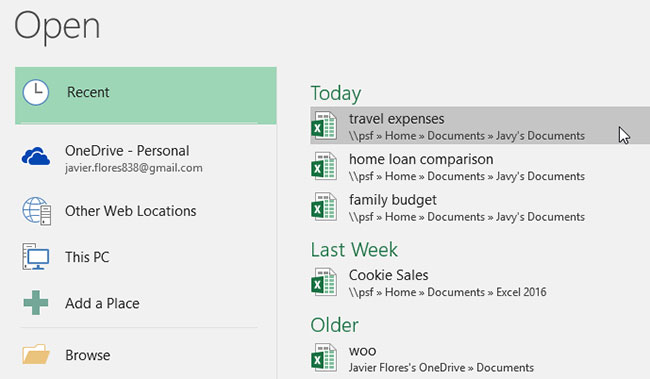
If you opened the workbook recently, select it from the Recent list instead of browsing for the file again.
How to pin a workbook
If you frequently work with the same workbook, you can pin it to the Backstage view for quicker access.
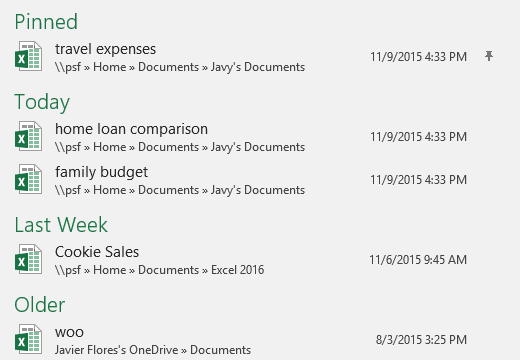
1. Navigate to Backstage view, then click Open. Your recently edited workbooks will appear.
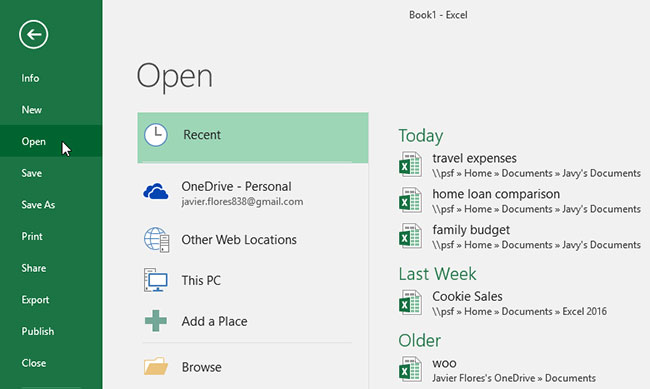
2. Hover your mouse over the workbook you want to pin. A pin icon will appear next to the workbook. Click on the pin icon.
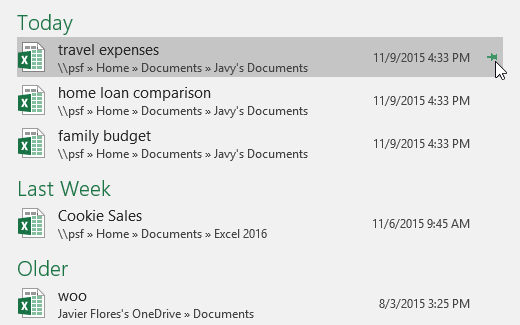
3. The workbook will be in Recent Workbooks. To unpin the workbook, simply click the pin icon again.
Use templates
A template is a predesigned workbook that may include formatting, formulas, charts, and sample structure. It can save setup time, but review formulas, external links, macros, and assumptions before entering real data.
How to create a new workbook from a template
1. Click on the File tab to access the Backstage view.
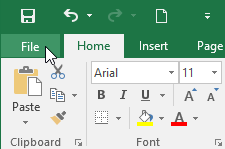
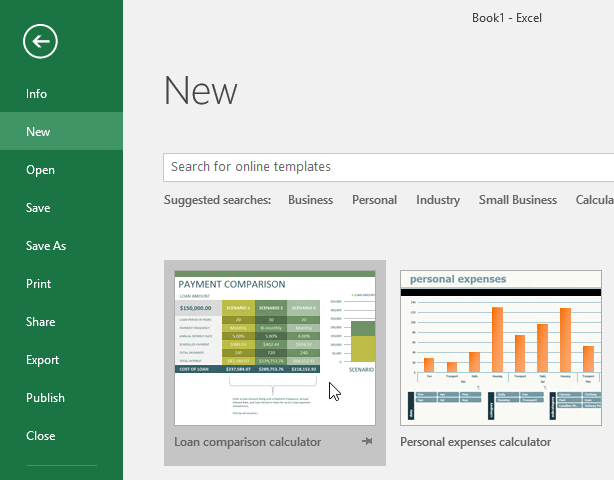
2. Select New. Several templates will appear below the blank workbook option.
3. Choose a template to review.
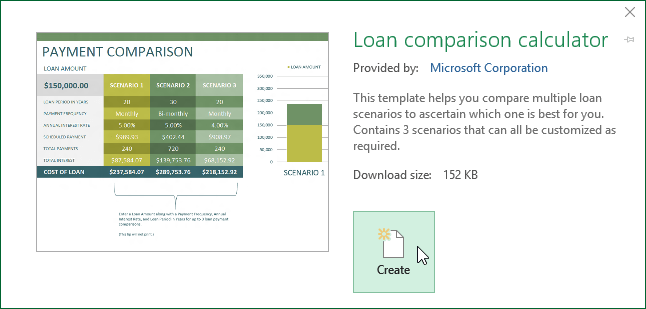
4. A preview of the template will appear, along with additional information on how the template can be used.
5. Click Create to use the selected template.
6. A new workbook will appear with the selected template.
You can also browse templates by category or use the search bar to find something more specific.
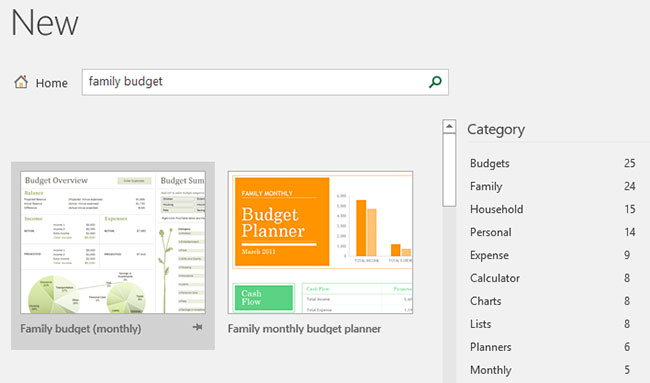
Templates may come from Microsoft or other publishers. Prefer a trusted source, check what the workbook contains, and verify that its formulas and categories fit your task.
Compatibility Mode
Sometimes, you may need to work with workbooks created in earlier versions of Microsoft Excel, such as Excel 2010 or Excel 2007. When you open these types of workbooks, they will appear in Compatibility Mode.
Compatibility Mode disables or limits features that the older file format cannot represent. Excel's current interface remains available, but some commands may be unavailable and newer content may be changed or removed if you save back to the older format.
In the image below, you can see that the workbook is in Compatibility Mode, indicated at the top right of the window next to the file name. This disables some Excel features, which will be grayed out on the Ribbon.
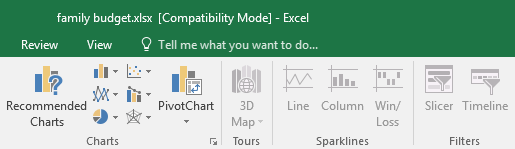
Convert the workbook to a modern format such as .xlsx when you need newer features. If collaborators must use an older Excel version, keep a copy in the original format and use Excel's compatibility checks before sharing.
How to convert a workbook
If you want to access newer features, you can convert the spreadsheet to the current file format.
Keep a backup before converting. Conversion can affect unsupported formatting, formulas, macros, or workbook features, so review the converted copy before replacing the original.
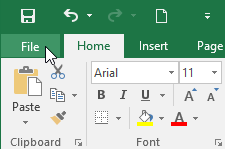
1. Click on the File tab to access the Backstage view.
2. Locate and select the Convert command.
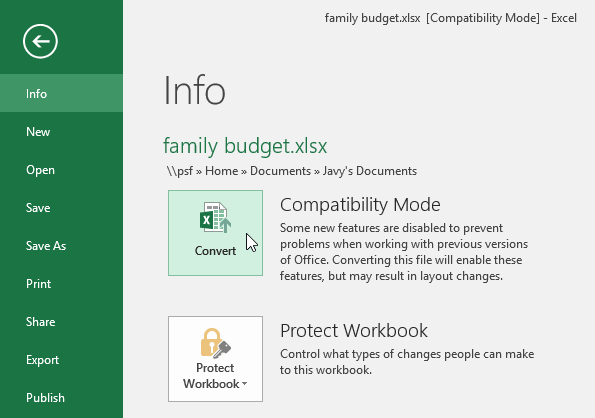
3. The Save As dialog box will appear. Choose the location where you want to save the workbook, enter a file name for the workbook, and click Save.
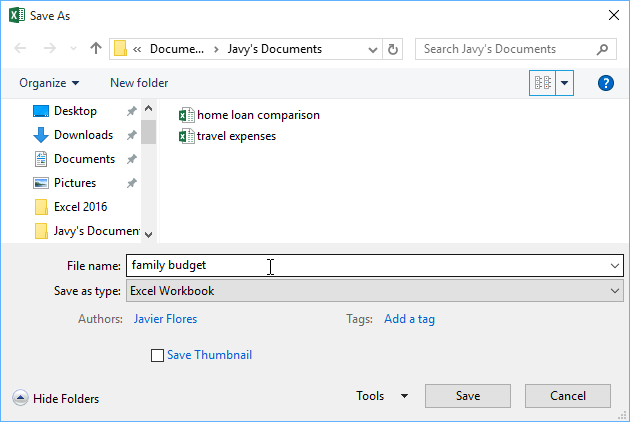
4. Excel saves the converted workbook in the selected modern file format. Open the new copy and verify worksheets, formulas, charts, and formatting.
Choose the right starting point
- Use a blank workbook for custom projects.
- Use a template only after checking its formulas and structure.
- Pin frequently used workbooks, but confirm you are opening the current copy.
- Preserve the original before converting an older file.
For a practical template example, see how to create an inventory list in Excel. New users can also review the guide to getting familiar with Excel.
Related Articles
 5 Nightmares for Excel and How to Fix It: Excel Tips11 minutes read
 Excel 2019 (Part 3): Saving and Sharing Workbooks11 minutes read
 PowerPoint 2019 (Part 2): Creating and Opening Presentations7 minutes read
 Excel 2019 (Part 13): Creating Complex Formulas6 minutes read
 Instructions on How to Automatically Open a Workbook When You Open5 minutes read
 How to Unprotect Excel Sheet8 minutes read
Reader Comments 0
Sign in with email or Google to join the discussion.