Table of Contents
A 3D pop-out effect makes part of a subject appear to extend beyond a picture frame. In Photoshop, the effect is built by positioning a subject over a framed background, clipping the portion that should remain inside the frame, and revealing the outside portion with a layer mask.
What you need
The pop-out effect is an innovative technique in which parts of an image appear to jump out of their boundaries, creating a dynamic 3D effect.
You will need the following resources to complete this tutorial:
- Adobe Photoshop (any recent version)
- Have a basic understanding of the Photoshop interface.
- At least two high-resolution photos
This is what the completed project will look like:
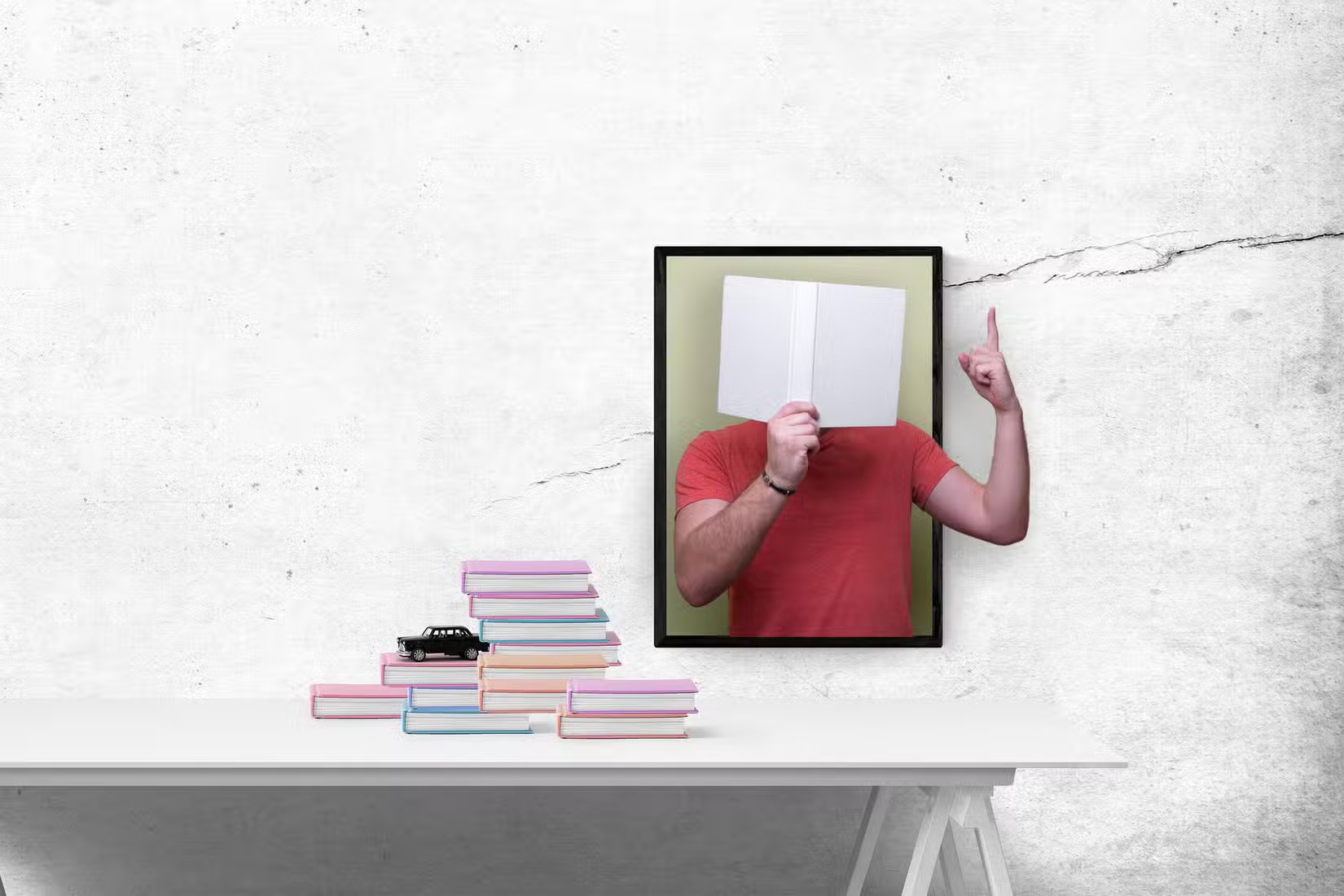
Note : This article uses the latest version of Adobe Photoshop, but you can also try this method on older versions. The basic principles for selecting subjects in an image remain unchanged; only the selection options have expanded in scope. Finally, like all image editing operations in Photoshop, there are multiple ways to create this effect.
Step 1: Set up your project
Finding the right image is half the battle. Here are some tips for choosing the ideal image for your project.
- Avoid blurry or pixelated images, as high-resolution photos with sharp edges will yield the best results.
- Choose images where the subject is easily separated from the background. For example, a subject that stands out against a plain background is easier to select and conceal.
- Action or dynamic pose photos are ideal choices because they create a sense of movement.
- Choose an image where a portion of the subject can "break the frame" and naturally extend outwards. For example, a hand reaching out or a full-body portrait of you stepping out of the frame.
- Use images with plenty of negative space. You have enough room to expand the frame without cropping out essential details.
Tip : Browse through simple images when you start your first project. Search for images with simple backgrounds on various stock photo websites to find royalty-free images.
Step 2: Prepare the background image
The background image, or a portion of the background image, frames the featured image. Working on a duplicate layer of the background will preserve the original image for non-destructive editing. In the following steps, creating a new layer by duplicating the original layer will isolate the pixels and set the context for the pop-out effect.
- Unlock the background layer.
- Rename this layer and copy it ( Ctrl + J ) to preserve the original.
- Select the area where you want to place the second image.
- Right-click on the selected area and click Layer via Copy.
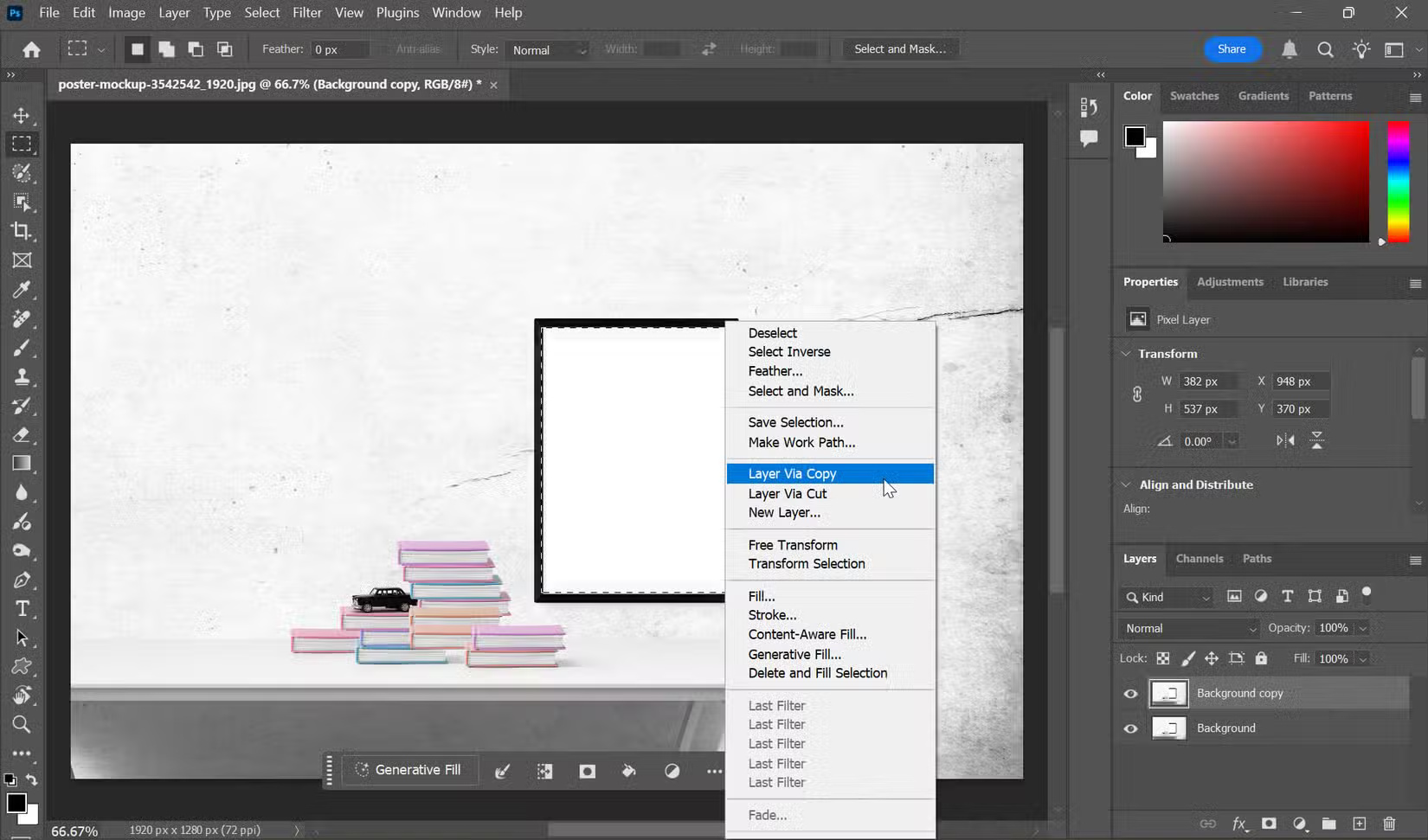
Tip : Photoshop offers several methods for creating selections. In the screenshot above, the author used the Rectangular Marquee to select the empty white area within the image frame.
You can create a solid color adjustment layer instead of a new layer over the duplicate. The pop-out effect might stand out more against a consistent background color. Also, if you need to change the background color later, you can do so without affecting the rest of the layout.
Step 3: Arrange the photos
The pop-out effect works best when part of the object is inside the frame and part is outside.
- Drag the second selected image to create a pop-out effect on the main document.
- Press Ctrl + T to select and scale the image.
- Scale the image so that a significant portion of it lies outside the selected frame in the background layer.
- Temporarily reduce the opacity of the layer to make it easier to adjust the layer's position.
- Restore the layer opacity to 100% after the image is in the correct position.
Proper scaling and positioning are crucial for creating a realistic pop-out effect. Again, over-scaling the top image can create an imbalance between the frame and the pop-out portion of the image.
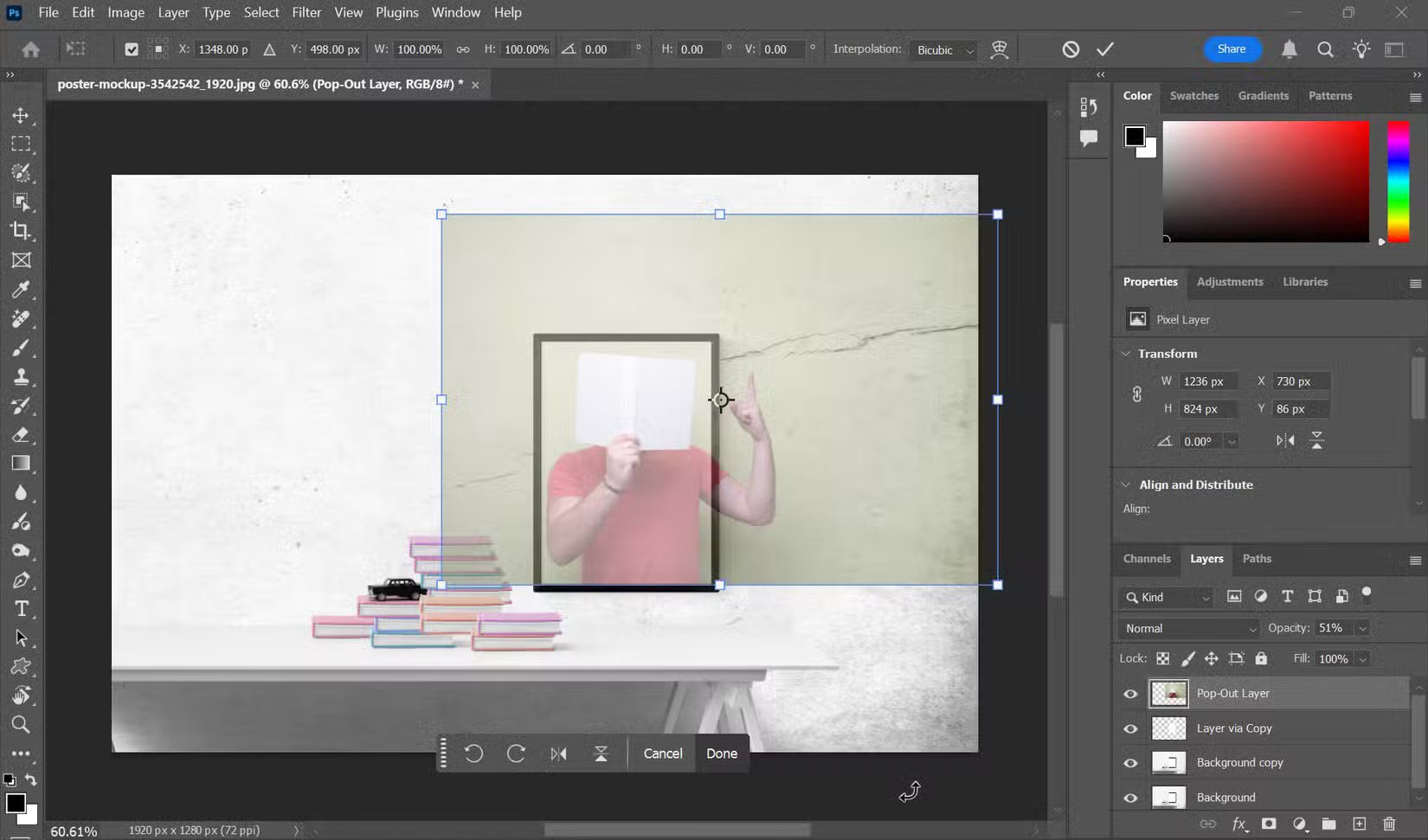
Note : In the latest versions of Photoshop, the Transform tool scales layers proportionally by default. In earlier versions, you had to press the Shift key to maintain the aspect ratio when using the Transform tool.
Step 4: Create a clipping mask
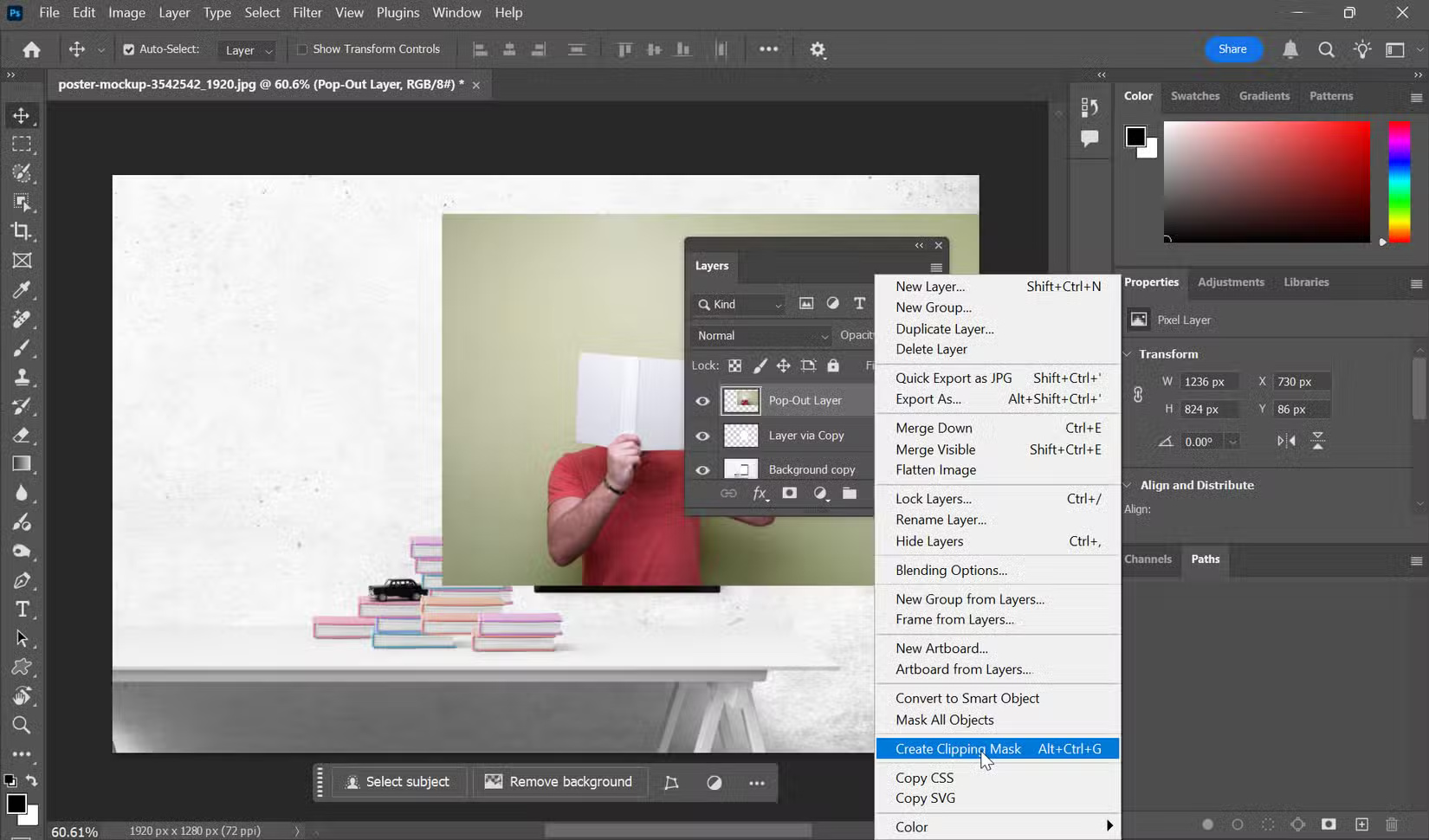
Place the subject image immediately above the layer that defines the inside of the frame. A clipping mask limits the visible portion of the subject to the opaque area of that lower layer, creating a clean inside edge.
To do this, right-click on the image and select Create Clipping Mask.
Step 5: Select the subject
To enhance the 3D illusion effect, you need to isolate the part of the image that will have the pop-out effect applied.
- Duplicate the image layer by pressing Ctrl + J (Windows) or Cmd + J (Mac).
- With the duplicated layer selected, go to Select > Subject.
- Use other selection tools to add to or subtract from the selection area.
This step creates a separate layer for the part of the image that will "stand out," allowing you to work with it independently.
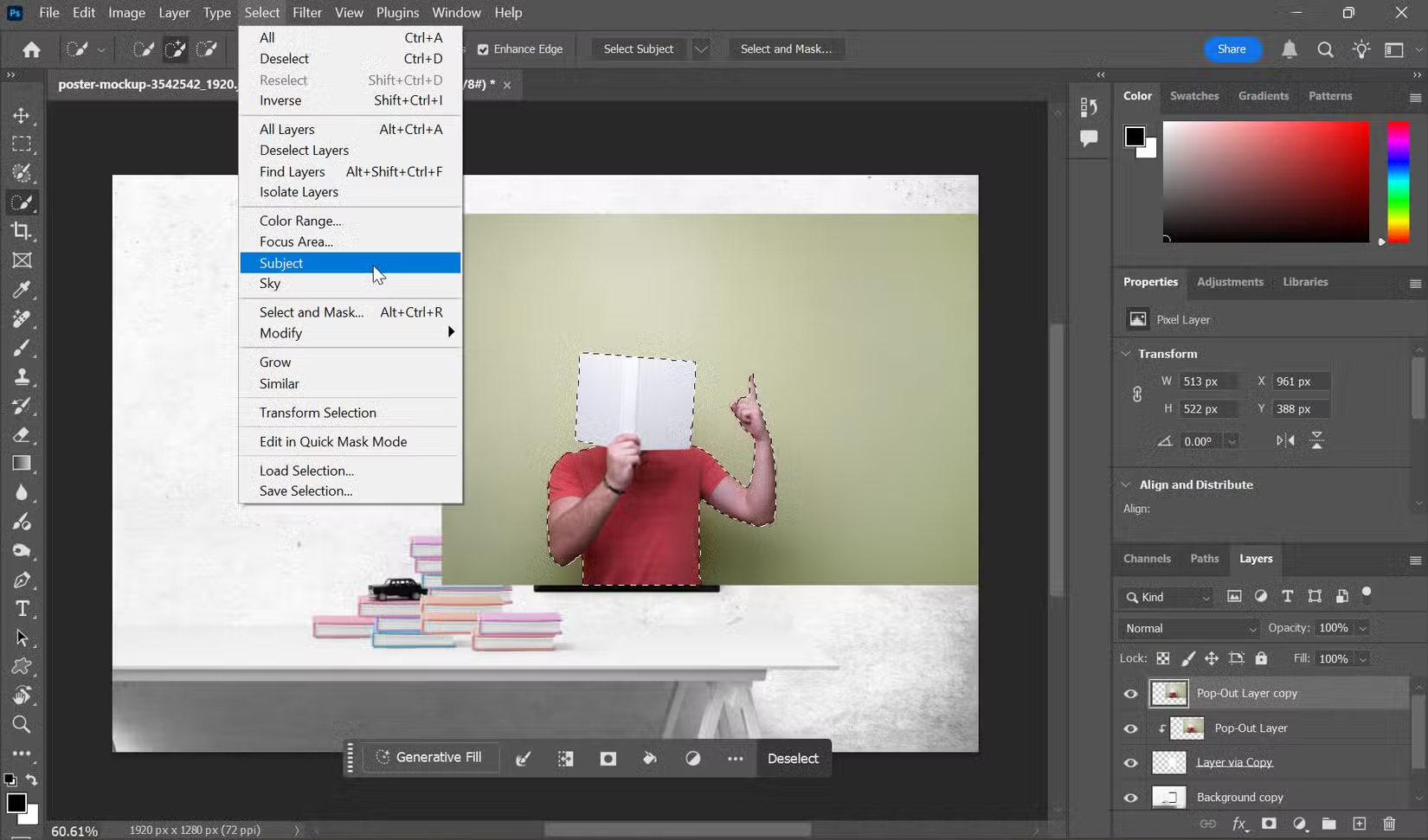
Tip : For more complex, softer selections like hair, use the Select and Mask option from the Photoshop menu (introduced in Photoshop CC 2018) to create smoother edges.
Step 6: Reveal the pop-out area with a layer mask
Combine everything by only displaying the visual elements that create a striking effect.
- Add a layer mask to the duplicated layer.
- Select the Brush tool and make sure the foreground color is set to black.
- Carefully paint over the parts of the image you want to hide, revealing the layer underneath.
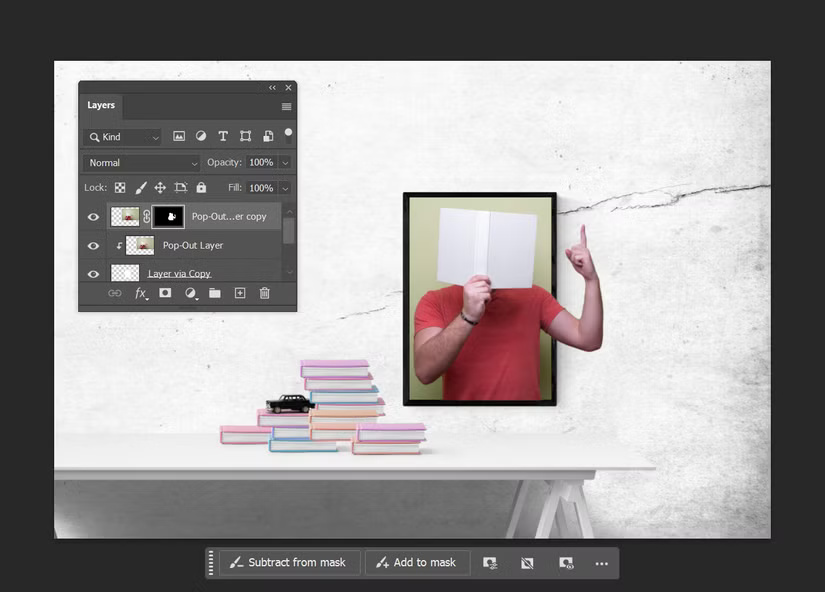
Layer masks allow you to precisely control which parts of the image are subject to the pop-out effect, creating the illusion of depth.
Step 7: Refine and export the effect
From here, you can add subtle effects to the highlighted subject. For example, select the layer with the pop-out subject and add a drop shadow: Layer > Layer Style > Drop Shadow.
Shadows add depth to the effect. Adjusting Color Balance or Hue/Saturation can also help blend the colors between the subject and the background.
Save a layered PSD first so you can revise selections, masks, and positioning later. Then export a separate PNG or JPEG for sharing. Avoid flattening the only editable copy.
Related Photoshop techniques
The tutorial on splitting photos in Photoshop includes another clipping-mask workflow. For layer organization and duplication basics, see basic Photoshop layer operations.
Related Articles
 Tutorial for Creating 3D Photo Effects in Photoshop (Part 1)5 minutes read
 Tutorial for Creating 3D Photo Effects in Photoshop (Part 2)5 minutes read
 Tutorial for Creating 3D Photo Effects in Photoshop (Part 3)6 minutes read
 How to Create a Word Cut Effect on Photoshop12 minutes read
 Create Light Effects and Shadows in Photoshop8 minutes read
 Create Surreal Fire Fire Effect in Photoshop11 minutes read
Reader Comments 0
Sign in with email or Google to join the discussion.