Table of Contents
PowerPoint 2016 organizes presentation tools around the Ribbon, Quick Access Toolbar, slide and thumbnail panes, ruler and guides, view controls, and Backstage view. Knowing what each area does helps you build, arrange, review, save, and present slides more efficiently.
| Area | Purpose |
|---|---|
| Ribbon | Commands arranged in tabs and groups |
| Quick Access Toolbar | Frequently used commands available from any tab |
| Slide pane | Edit the current slide |
| Thumbnail pane | Navigate and reorder slides |
| Backstage view | Open, save, print, export, and share presentations |
Learn about PowerPoint 2016
PowerPoint 2016 is similar to PowerPoint 2013 and PowerPoint 2010. If you've used those versions before, you'll find PowerPoint 2016 familiar. But if you're new to PowerPoint or have more experience with older versions, you should first take some time to familiarize yourself with the PowerPoint 2016 interface.
PowerPoint interface
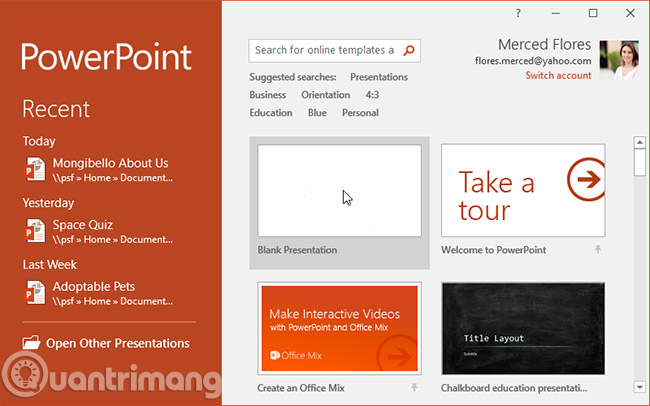
When you open PowerPoint for the first time, the Start Screen will appear. From here, you can create a new presentation, choose a template, and access your recently edited presentations. From this Start Screen, locate and select Blank Presentation to access the PowerPoint interface.
Use the labeled interface image below to locate the main editing and navigation areas.
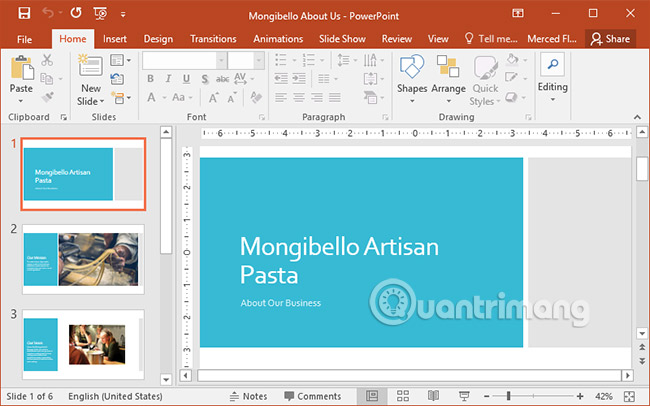
Working with the PowerPoint environment
The Ribbon and Quick Access Toolbar are where you'll find commands to perform common tasks in PowerPoint. The Backstage view gives you various options for saving, opening files, printing, and sharing your document.
Ribbon
PowerPoint uses a tabbed Ribbon system instead of traditional menus. The Ribbon contains multiple tabs, each with several groups of commands. For example, the Font group on the Home tab contains commands for formatting text in your document.
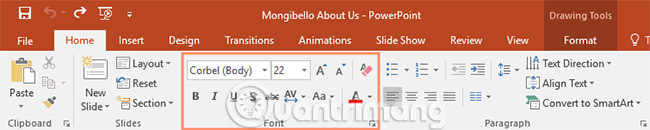
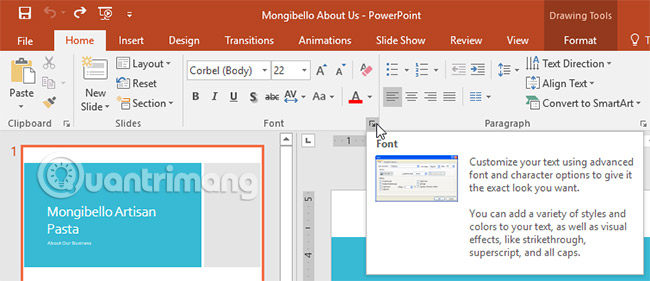
Some groups also have a small arrow in the bottom right corner, which you can click to access more options.
Show and hide the Ribbon
The Ribbon is designed to be responsive to your current task, but you can minimize it if you find it's taking up too much screen space. Click the Ribbon Display Options arrow in the upper right corner of the Ribbon to display the drop-down menu.
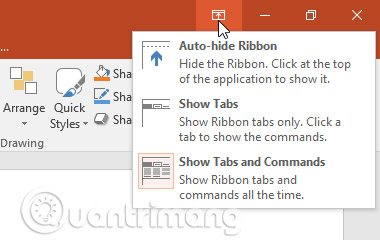
- Auto-hide Ribbon: The Auto-hide option displays your presentation in full-screen mode and completely hides the Ribbon. To show the Ribbon, click the Expand Ribbon command at the top of the screen.
- Show Tabs: This option hides all command groups when they are not in use, but the tabs will remain visible. To display the Ribbon, simply click on a tab.
- Show Tabs and Commands : This option maximizes the entire Ribbon. All tabs and commands will be displayed. This option is selected by default when you open PowerPoint for the first time.
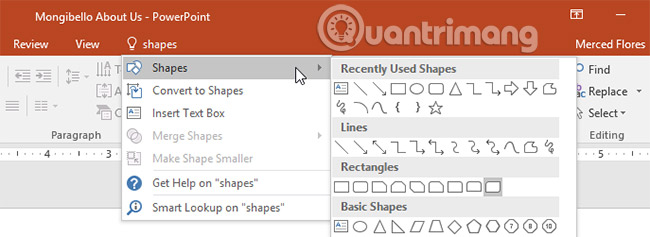
Use the Tell me feature.
The Tell Me field in PowerPoint 2016 searches for commands and help. Type the action you want, then choose a relevant result. In newer PowerPoint versions, a similar field may be labeled Search.
Quick Access Toolbar
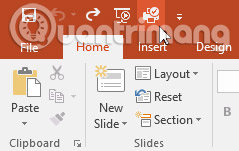
Located just above the Ribbon, the Quick Access Toolbar allows you to access common commands regardless of which tab is selected. By default, it includes the Save, Undo, Redo, and Start From Beginning commands. You can add other commands depending on your preferences.
How to add commands to the Quick Access Toolbar:
1. Click the drop-down arrow to the right of the Quick Access Toolbar.
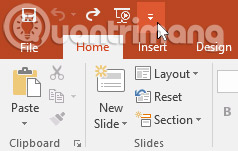
2. Select the command you want to add from the drop-down menu. To select more commands, choose More Commands.
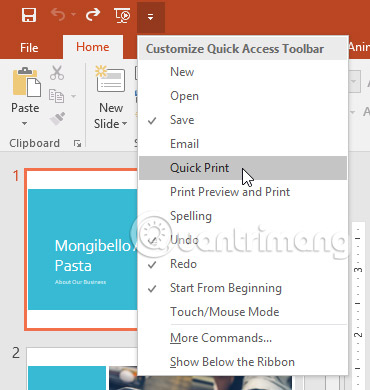
3. This command will be added to the Quick Access Toolbar.
Ruler, guides, and gridlines
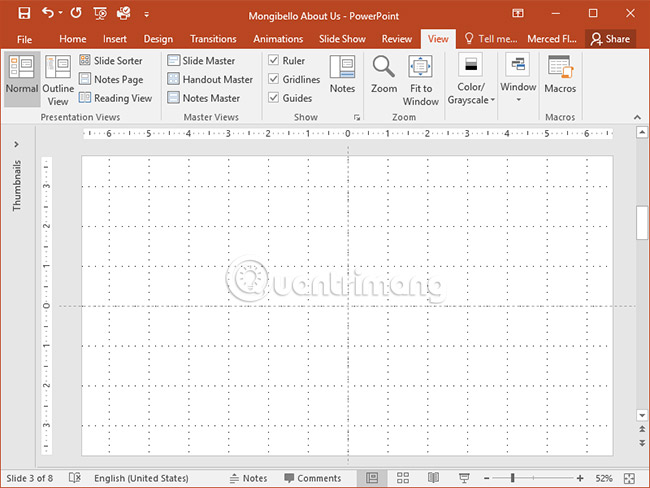
PowerPoint includes several tools to help organize and arrange the content in your presentation, including Ruler, Guides, and Gridlines. These tools make aligning objects in your presentation easier. Simply click the checkboxes in the Show group on the View tab to show and hide these tools.
Zoom and other view options
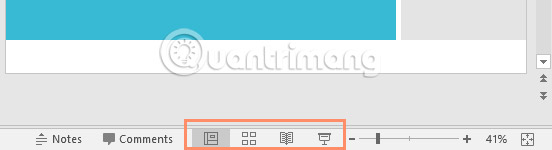
PowerPoint offers a variety of viewing options, changing how your presentation is displayed. You can choose to view your presentation in Normal view, Slide Sorter view, Reading view, or Slide Show view. You can also zoom in and out to make your presentation easier to read.
Switch slide view
Switching between different slide views is easy. Simply locate and select the desired slide view command in the bottom-right corner of the PowerPoint window.
Zoom in and zoom out
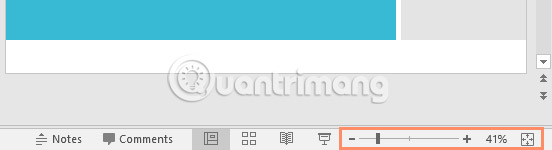
To zoom in or out, click and drag the zoom control slider in the bottom-right corner of the PowerPoint window. You can also select the + or - commands to zoom in or out. The number next to the slider shows the current zoom ratio, also known as the zoom level.
Backstage View
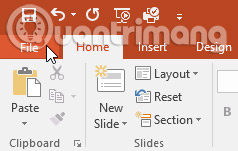
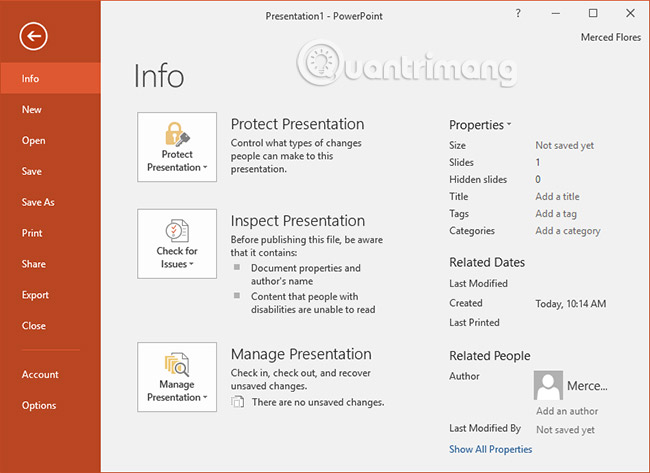
The Backstage view gives you various options for saving, opening, printing, and sharing your presentation. To access the Backstage view, click the File tab on the Ribbon.
The diagram below identifies the main commands available in Backstage view.
Practice!
1. Open PowerPoint 2016 and create a blank presentation.
2. Change the Ribbon Display Options to Show Tabs.
3. Click the drop-down arrow next to the Quick Access Toolbar and add the New, Quick Print, and Spelling commands.
4. In the Tell me tab, type Shape and press Enter.
5. Insert a shape and position it on the slide.
6. Display the Ruler tool if it is not already displayed.
7. Zoom in on the presentation to 120% size.
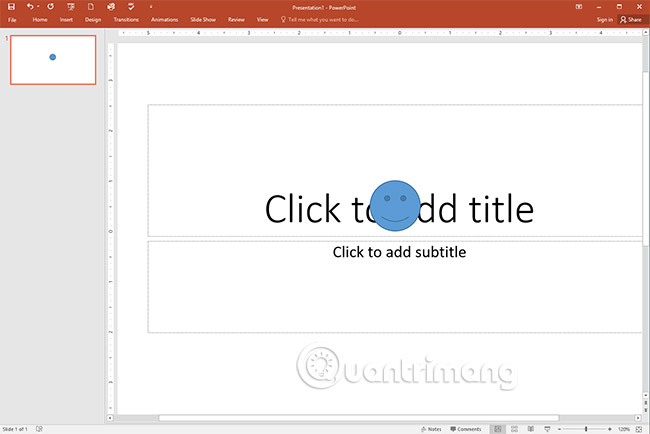
8. When you're finished, your presentation will look like this:
9. Change the Ribbon Display Options back to Show Tabs and Commands.
Continue learning PowerPoint
Use the PowerPoint keyboard shortcut guide for faster editing. For visual design, see eight tips for clearer PowerPoint slides.
Related Articles
 PowerPoint 2019 (Part 1): Getting Started with PowerPoint: Explained7 minutes read
 Link to Download Microsoft PowerPoint 20196 minutes read
 PowerPoint 2019 (Part 11): Presenting Slideshows: Explained9 minutes read
 PowerPoint 2019 (Part 6): Applying Themes: Explained5 minutes read
 PowerPoint 2019 (Part 5): Working with Text: Explained4 minutes read
 5 Tips for Using Professional PowerPoint1 minutes read
Reader Comments 0
Sign in with email or Google to join the discussion.