Table of Contents
Canva can speed up worksheet design with editable templates, but a classroom-ready result still needs clear instructions, enough writing space, readable type, and an answer key. Start with the learning objective, then choose a template that supports it instead of adapting a decorative layout that does not fit the task.
1. Find an appropriate worksheet template
From the Canva home page, search for worksheet and add the subject or activity, such as math worksheet, reading comprehension worksheet, or vocabulary matching worksheet.
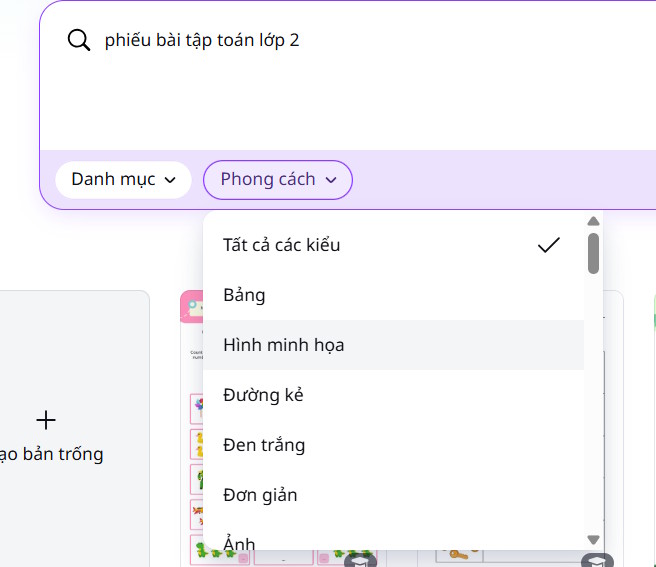
Filter by page orientation, style, language, or grade where those filters are available. Check whether a template is free or contains paid elements before investing time in customization.
2. Choose a layout that fits the activity
Preview several templates and select one with space for the number of questions you need. A strong worksheet should have a clear title, brief directions, consistent numbering, and adequate room for responses.
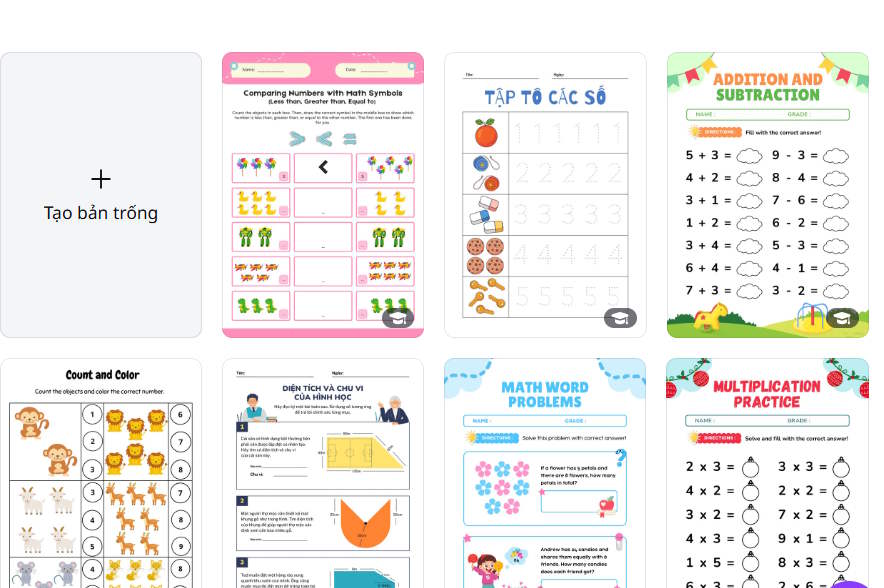
Confirm the intended paper size before editing. US Letter and A4 have different proportions, and changing the size at the end can shift text and graphics.
3. Replace the sample content
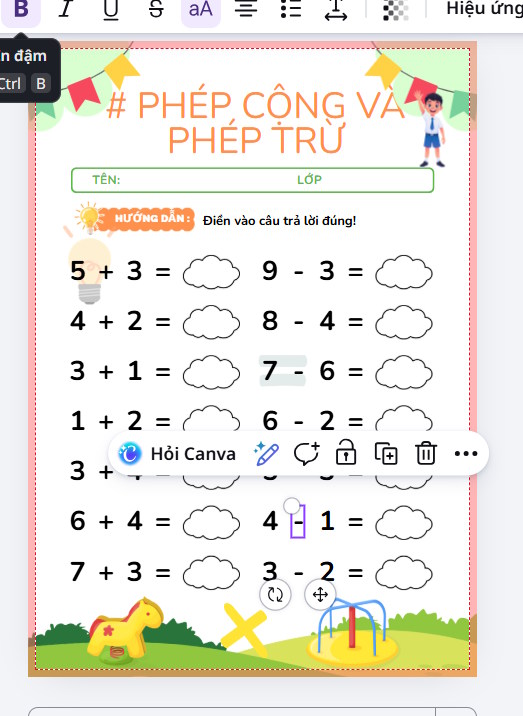
Open the template in the editor and rewrite every placeholder. Keep each instruction specific: tell students whether to circle, match, calculate, label, or write a sentence. Include the number of expected answers where ambiguity is possible.
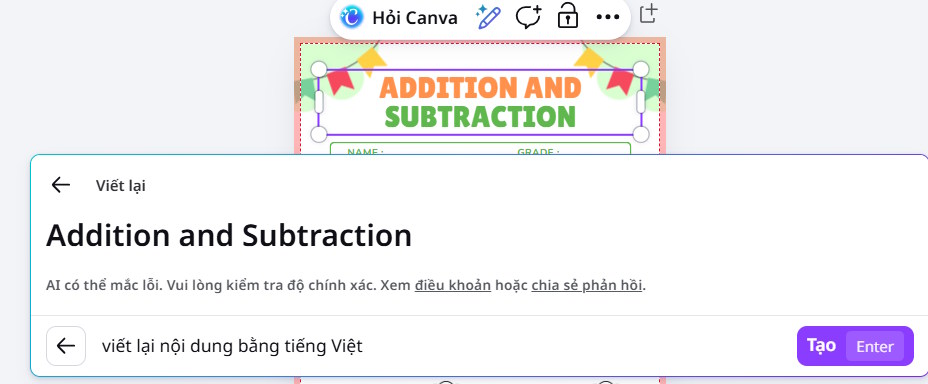
If Magic Write is available on your plan, it can suggest questions or rephrase directions. Treat the output as a draft. Verify facts, calculations, reading level, cultural assumptions, and whether each question has one defensible answer.
4. Add useful visual elements
Open Elements and search for an illustration, icon, shape, or diagram that directly supports the question. Resize and align it without covering answer areas.
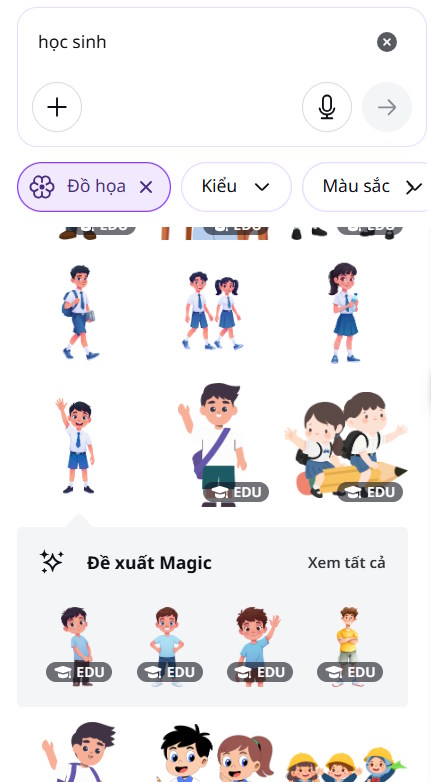
Use visuals sparingly. Decorative images can increase visual load and consume printer ink. Keep strong contrast, avoid very small text, and do not rely on color alone to communicate an answer. Print a grayscale test if students may use black-and-white copies.
5. Create an answer key
Duplicate the completed page and label it Answer Key. Add the correct answers or a scoring guide, then keep that page separate when distributing the student version. For open-ended questions, include acceptable response criteria instead of inventing a single exact answer.
6. Export the worksheet for printing
Select Share > Download. Choose PDF Print for a printable worksheet or PDF Standard when a smaller file is more important. Add crop marks and bleed only if a professional printer requests them.
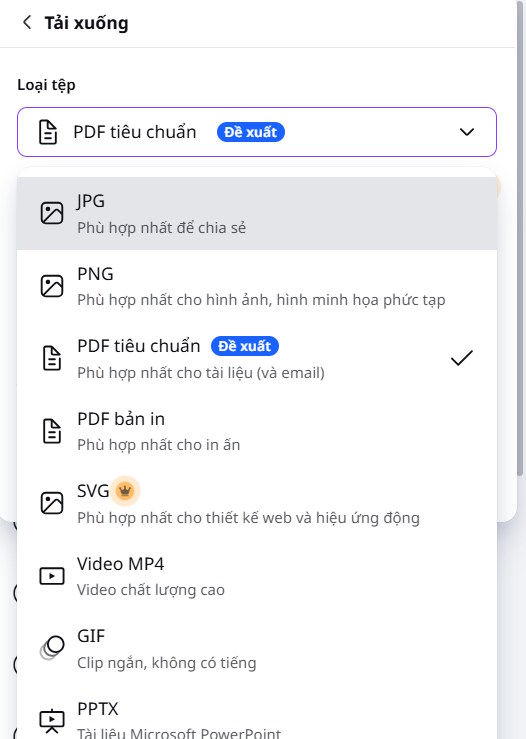
Open the downloaded PDF and check every page at 100% zoom. Print one test copy to confirm that margins are not clipped, response lines are large enough, and light gray elements remain visible. If the worksheet will be completed digitally, also verify that students can type or annotate it in the tool they use.
Final worksheet check
- The task matches the learning objective and student level.
- Directions are complete and examples are correct.
- Questions, answers, and numbering agree.
- Fonts and contrast are readable when printed.
- All graphics are relevant and licensed for the intended use.
- The student copy does not accidentally include the answer key.
Related Articles
 How to Quickly Create Worksheets on Magic School4 minutes read
 Guide to Designing Writing Practice Exercises in Canva4 minutes read
 Guide to Creating 3D Designs Using AI in Canva4 minutes read
 How to Create Mind Maps Using Canva AI6 minutes read
 How to Create AI Graphics on Canva2 minutes read
 How to Design Greeting Cards on Canva AI4 minutes read
Reader Comments 0
Sign in with email or Google to join the discussion.