Table of Contents
Save an Excel workbook early and use Ctrl + S regularly. Choose Save As when you need a separate copy, export to PDF for a fixed-layout document, or export to CSV when another system needs plain tabular data. Cloud storage also supports sharing and collaboration, but you should review each person's view or edit permission.
| Goal | Use |
|---|---|
| Update the current file | Save |
| Create a separate version | Save As |
| Preserve a page layout for distribution | Export to PDF |
| Transfer one sheet as plain tabular data | CSV |
| Collaborate on the same workbook | Share a cloud-saved file |
Save and Save As features
Excel offers two ways to save a file: Save and Save As. These options work in similar ways, with some key differences:
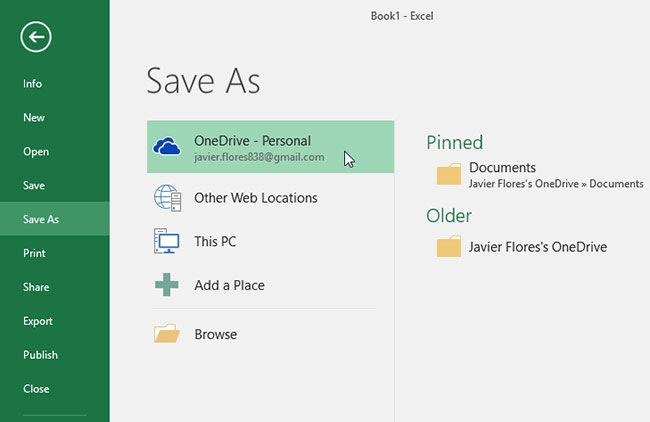
Save : When creating or editing a workbook, you'll use the Save command to save your changes. You'll use this command in almost every situation. When saving a file, you'll only need to choose a name and location the first time. Then, you can simply click the Save command to save it with the same name and location.
Save As : You will use this command to create a copy of the workbook while keeping the original. When using Save As, you will need to choose a different name and/or location for the copied version.
How to save a workbook
It's important to save your workbook whenever you start a new project or make changes to an existing one. Saving documents early and regularly can help prevent your work from being lost if something goes wrong. You'll also need to pay attention to where you save your workbook so you can easily find it later.
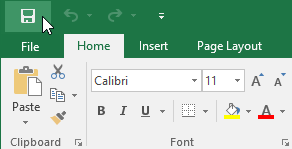
1. Locate and select the Save command on the Quick Access Toolbar.
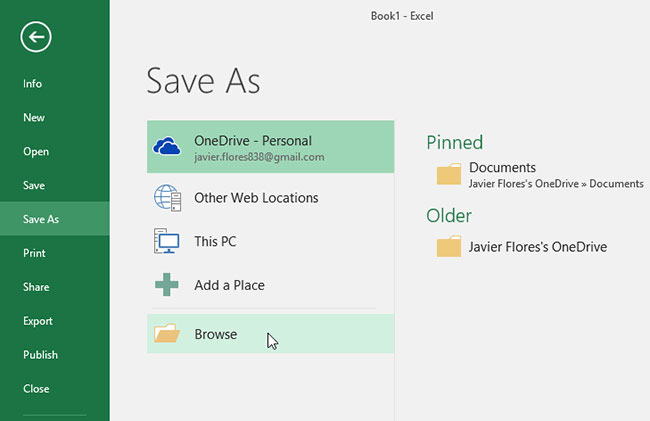
2. If you are saving a file for the first time, the Save As control bar will appear in the Backstage view.
3. Next, you'll need to choose where to save and name the file. To save the workbook to your computer, select Computer, then click Browse. You can also click OneDrive to save the file to your OneDrive.
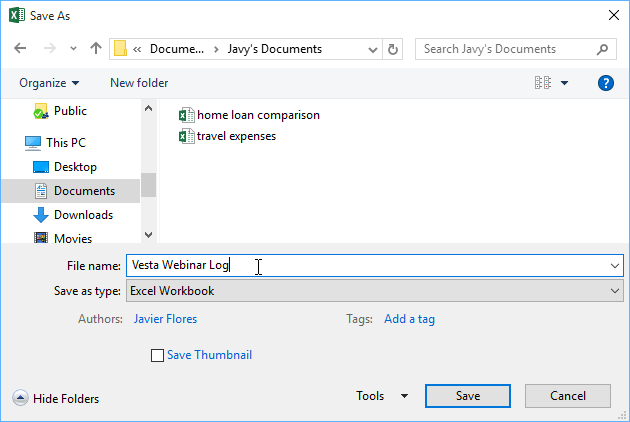
4. The Save As dialog box will appear. Choose the location where you want to save the workbook.
5. Enter a file name for the workbook, then click Save.
6. The workbook will be saved. You can click the Save command again to save your changes when modifying the workbook.
You can also access the Save command by pressing Ctrl + S on your keyboard.
Use Save As to create a copy.
If you want to save a different version of the workbook while keeping the original, you can create a copy. For example, if you have a file named Sales Data, you can save it as Sales Data 2 so you can edit the new file and still reference the original version.
To do this, click the Save As command in the Backstage view. Just like when saving a file for the first time, you will need to choose a save location and name the new file.
How to change the default save location
If you don't want to use OneDrive, you might be frustrated that OneDrive is selected as the default save location. If you find it inconvenient to have to select "Computer" every time, you can change the default save location so that "Computer" is selected by default.
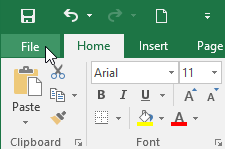
1. Click on the File tab to access the Backstage view.
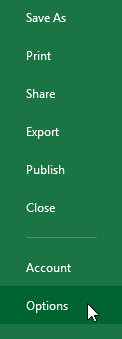
2. Click on Options.
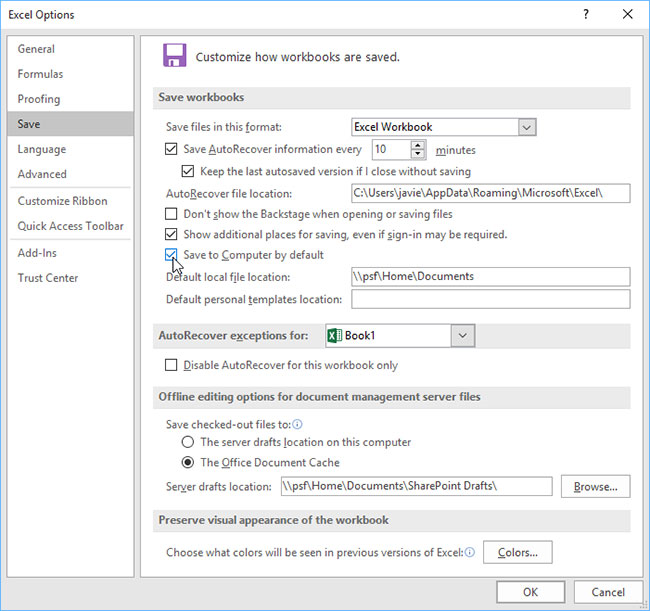
3. The Excel Options dialog box will appear. Select Save, select the box next to Save to Computer by default, and then click OK. The default save location will be changed.
AutoRecover feature
AutoRecover periodically stores recovery information that may help after a crash or an unsaved close. It is a recovery feature, not a replacement for saving the workbook or keeping backups.
How to use AutoRecover
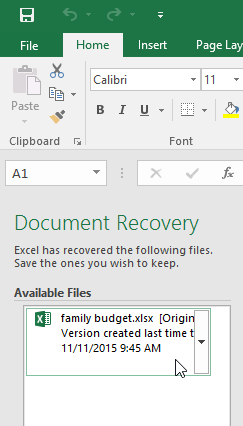
1. Open Excel. If automatically saved versions of the file are found, the Document Recovery panel will appear.
2. Click to open an existing file. The workbook will be restored.
The AutoRecover interval is configurable and is often set to 10 minutes. Check File > Options > Save to confirm the interval and recovery-file location. A recent change may still be missing if the recovery interval had not elapsed.
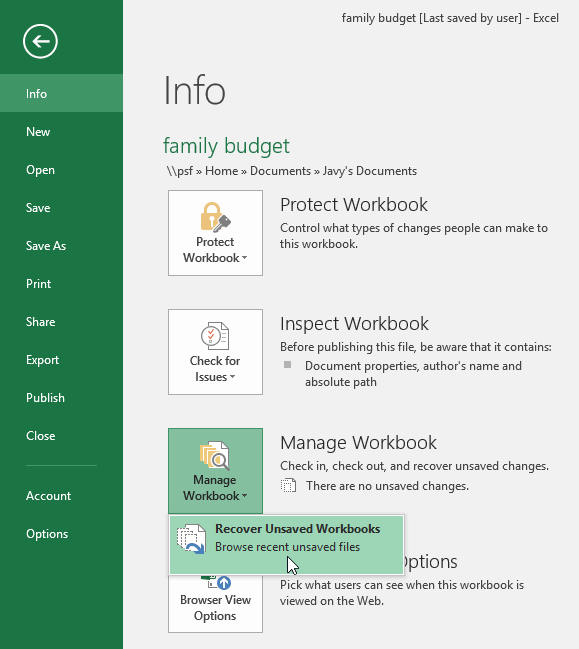
If you can't find the file you need, you can browse through all the automatically saved files from the Backstage view. Simply select the File tab, click Manage Workbook, and then select Recover Unsaved Workbooks.
Export workbook
By default, Excel workbooks are saved in the.xlsx format. However, sometimes you need to use a different file type, such as PDF or Excel 97-2003. It's easy to export your workbook from Excel to many different file types.
How to export a workbook as a PDF file
PDF is useful when recipients need a consistent page layout without requiring Excel. A PDF does not preserve normal workbook formulas or sheet interaction, and it should not be treated as tamper-proof because PDF editing tools exist.
1. Click on the File tab to access the Backstage view.
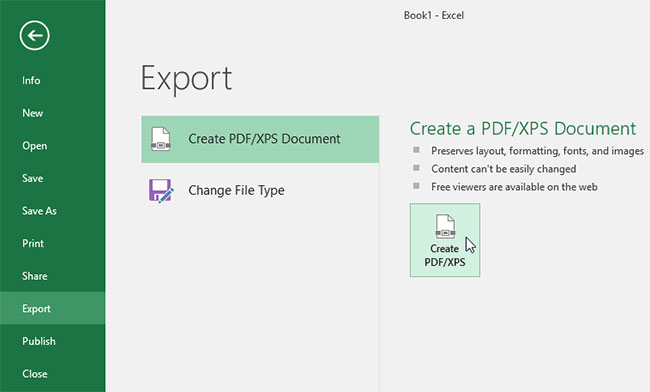
2. Click on Export, then select Create PDF/XPS.
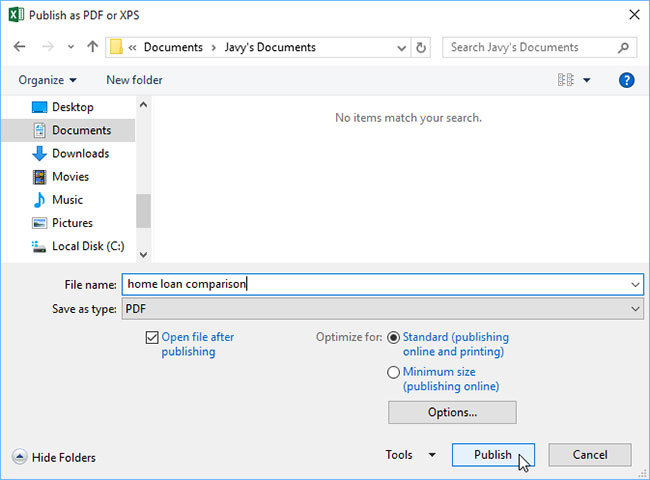
3. The Save As dialog box will appear. Choose the location where you want to export the workbook, enter a file name, and then click Publish.
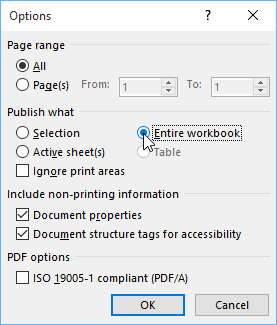
By default, Excel will only export the active worksheet. If you have multiple worksheets and want to save them all in the same PDF file, click Options in the Save As dialog box. The Options dialog box will appear. Select Entire workbook, and then click OK.
Whenever you export a workbook as a PDF, you also need to consider how your workbook data will appear on each PDF page, just like when printing a workbook.
How to export a workbook to other file types
Choose another format only when the recipient or target system requires it. The older Excel 97–2003 format can omit newer features. CSV stores plain tabular text from one worksheet and does not preserve formulas, formatting, charts, or multiple sheets; verify the active sheet, delimiter, and character encoding before distribution.
1. Click on the File tab to access the Backstage view.
2. Click on Export, then select Change File Type.
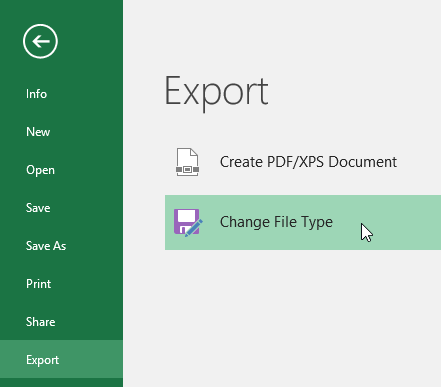
3. Select a common file type, then click Save As.
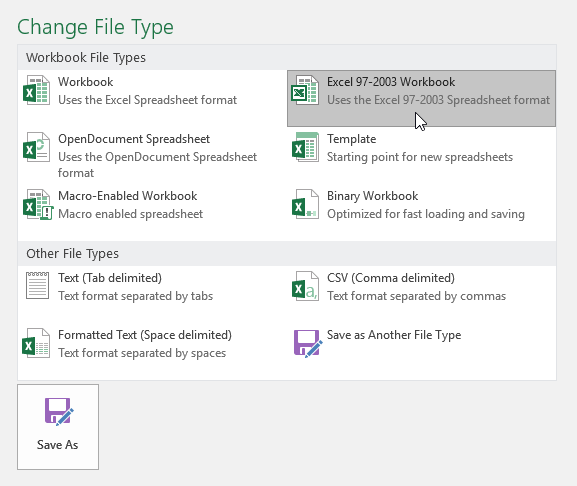
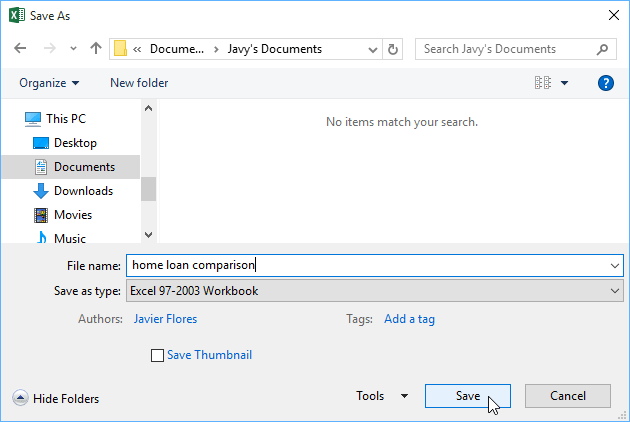
4. The Save As dialog box will appear. Choose the location where you want to export the workbook, enter a file name, and then click Save.
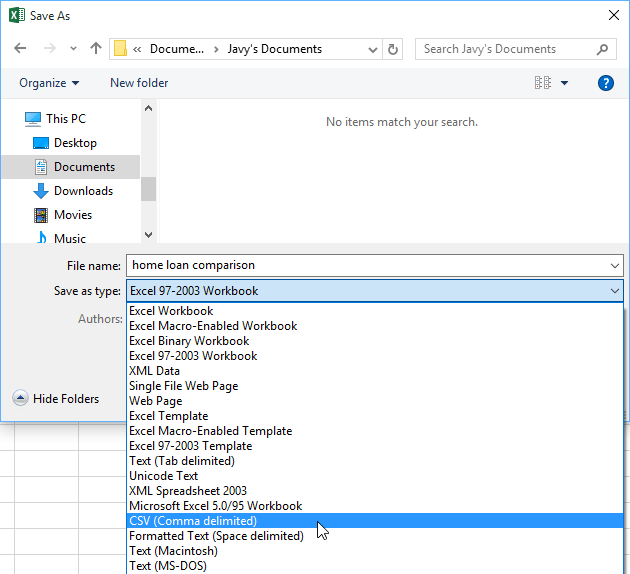
You can also use the Save as type: drop-down menu in the Save As dialog box to save the workbook in various file types.
Share workbook
Excel makes it easy to share and collaborate on workbooks using OneDrive. Previously, if you wanted to share a file with someone, you could send it as an email attachment. While convenient, this system also created multiple versions of the same file, which could be difficult to organize.
When you share a workbook from Excel, you are essentially giving others access to the same file. This allows you and the people you share it with to edit the same workbook without having to keep track of multiple versions.
To co-author a workbook, save it to a supported cloud location such as OneDrive or SharePoint.
How to share a workbook
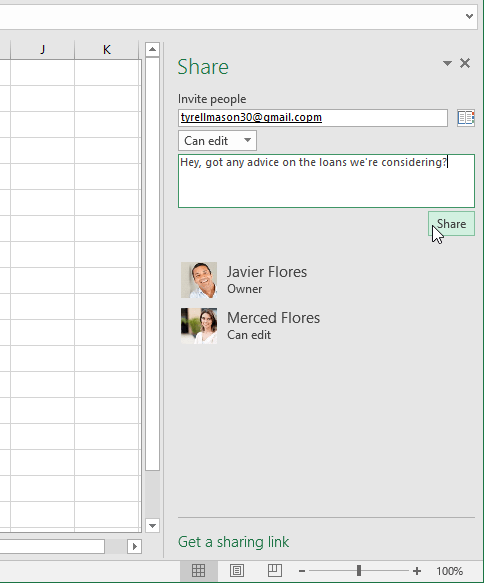
1. Click the File tab to access the Backstage view, then click Share.

2. Excel will return to Normal view and open the Share panel on the right side of the window. From here, you can invite people to share your document, see a list of people who have access to the document, and set permissions to edit or view the document.
Safe workbook-handling checklist
- Confirm the file name and folder before saving.
- Keep a copy before major edits or conversion.
- Open exported files and verify them.
- Review cloud-sharing permissions.
If a sheet was removed by mistake, see recovering a deleted Excel sheet. Before exporting to PDF, review how to fit an Excel worksheet to a page.
Related Articles
 Excel 2019 (Part 2): Creating and Opening Workbooks7 minutes read
 5 Nightmares for Excel and How to Fix It: Excel Tips11 minutes read
 How to Fix Errors Were Detected While Saving Files in Excel 20104 minutes read
 How to Unprotect Excel Sheet8 minutes read
 MS Excel 2007 - Lesson 3: Working with Workbook6 minutes read
 How to Compare Two Excel Files9 minutes read
Reader Comments 0
Sign in with email or Google to join the discussion.