Table of Contents
This Photoshop workflow turns a photo into an editable pencil sketch. Build the black-and-white sketch with an inverted Color Dodge layer, Gaussian Blur, and Levels; then optionally add the photo's original colors, one solid color, or a gradient without altering the base sketch.
| Stage | Steps | Result |
|---|---|---|
| Base sketch | 1–9 | Black-and-white pencil effect |
| Original color | 10–13 | Photo colors blended into the sketch |
| Single color | 14–16 | Monochrome tinted sketch |
| Gradient | 17–20 | Multicolor gradient sketch |
How to turn photos into pencil sketches
Command names can vary slightly by Photoshop version, but the layer, blend-mode, and filter workflow remains the same. Save a layered PSD so every stage stays editable.
Step 1: Duplicate the Background layer
We'll start in Photoshop's Layers panel, where the image appears on the Background layer:
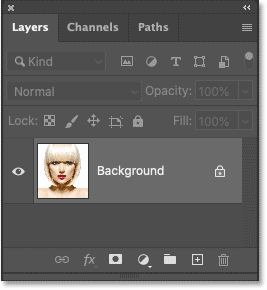
We'll need this image when adding color to the sketch later. So, to be safe, we'll make a copy of it.
Click on the Background layer and drag down to the New Layer icon :
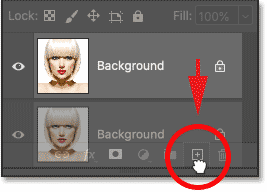
Create a copy of the Background layer.
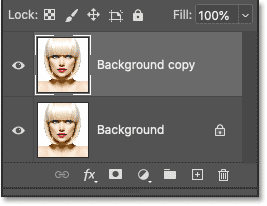
A copy appears above the original:
Step 2: Desaturated the layer
Next, we will remove all the color from the Background copy layer using Photoshop's Desaturate command.
Go to the Image menu in the vertical menu bar at the top of the screen, select Adjustments, and then select Desaturate.
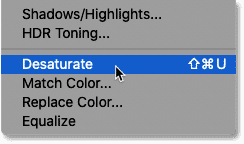
Photoshop desaturates the image, leaving us with a black and white version:
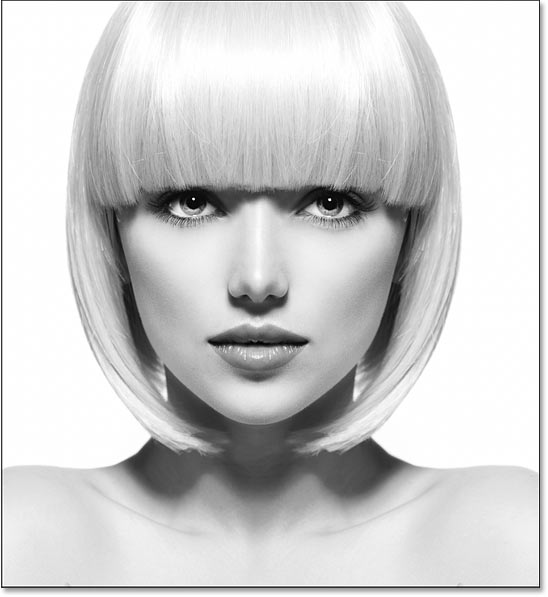
Step 3: Duplicate the desaturated layer.
Return to the Layers panel and create a copy of the desaturated version by dragging the Background copy layer down to the new layer icon:
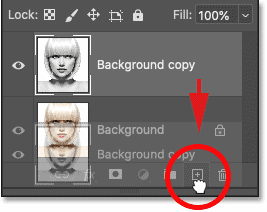
And once again, the copy appears on top of the original:
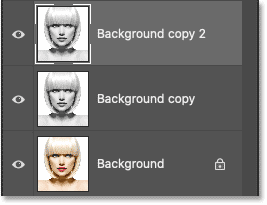
Step 4: Invert the layer
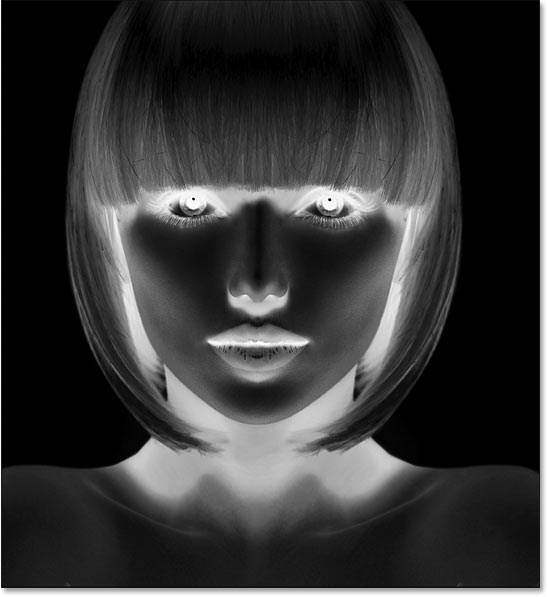
We need to invert the brightness levels on this layer, making the bright areas darker and the dark areas brighter. To do that, we'll use Photoshop's Invert command.
Go to the Image menu, select Adjustments, then select Invert.
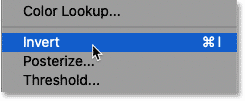
This operation reverses the image, creating a film negative effect.
Step 5: Change the blend mode of the layer to Color Dodge.
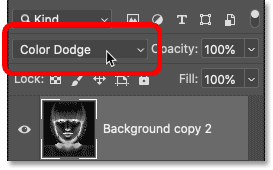
In the Layers panel, change the blend mode of the inverted layer from Normal (default) to Color Dodge.
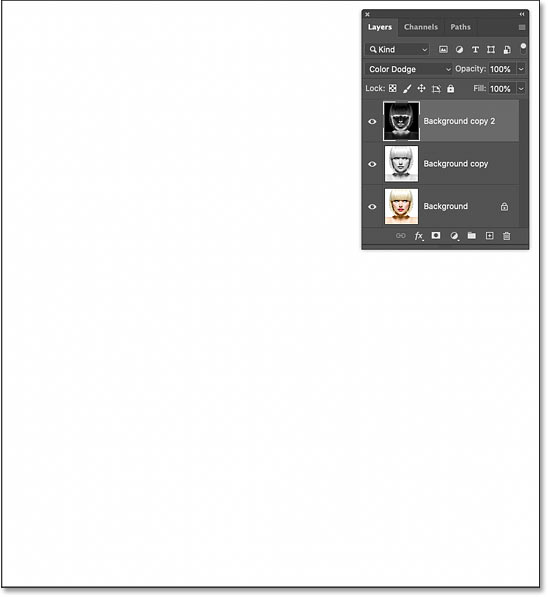
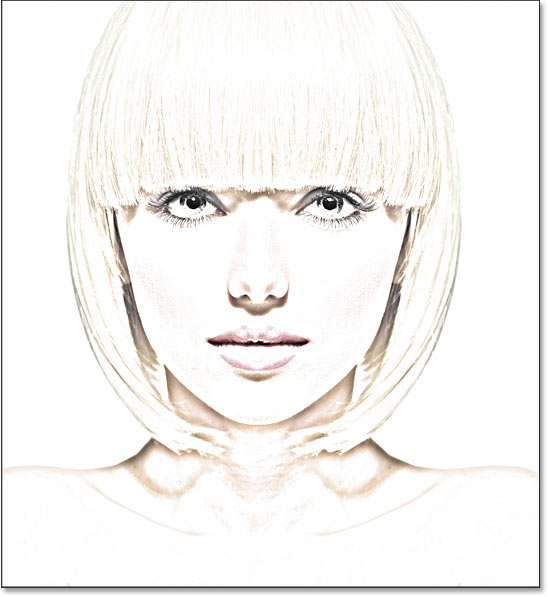
The document turns completely white, although you may see a few scattered black areas depending on your image:
Step 6: Convert the layer into a smart object
To create the sketch effect, we'll blur the inverted layer using Photoshop's Gaussian Blur filter. But to keep the filter settings editable, we'll apply Gaussian Blur as a smart filter. And to do that, we first need to convert the layer into a smart object.
In the Layers panel, click the menu icon in the upper right corner:
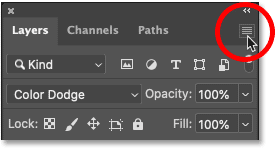
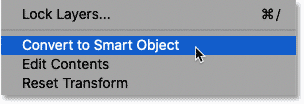
And select Convert to Smart Object from the menu:
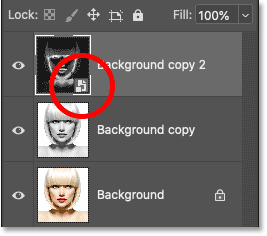
An icon appears in the layer's preview thumbnail, letting us know that the layer is now a smart object and we're ready to apply a filter:
Step 7: Apply the Gaussian Blur filter.
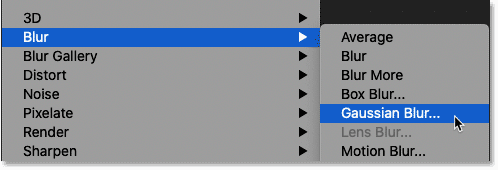
Go to the Filter menu in the menu bar, select Blur, and then select Gaussian Blur.
Next, in the Gaussian Blur dialog box, drag the Radius slider along the bottom to blur the contents of the layer. The sketching effect you achieve will depend on the amount of blur you apply. A lower radius value will create a sketch with fine, smooth lines, while a larger value will create a more realistic sketch.
For example, if we choose a relatively small radius value of 10 pixels:
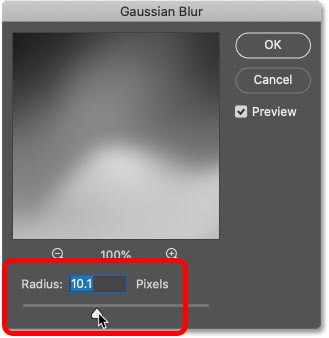
A smaller radius produces finer, smoother lines:
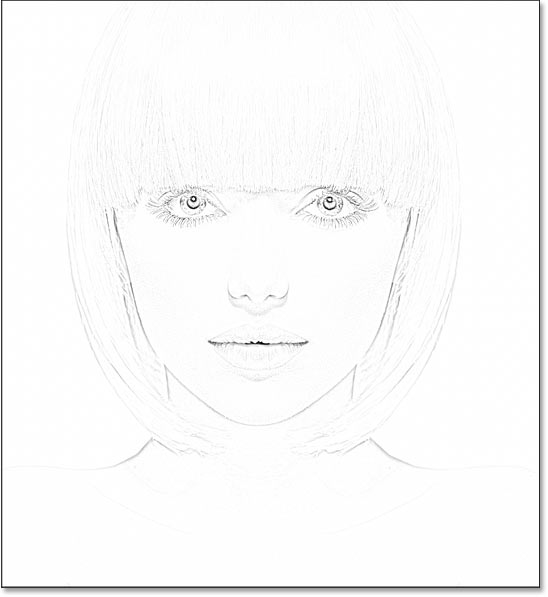
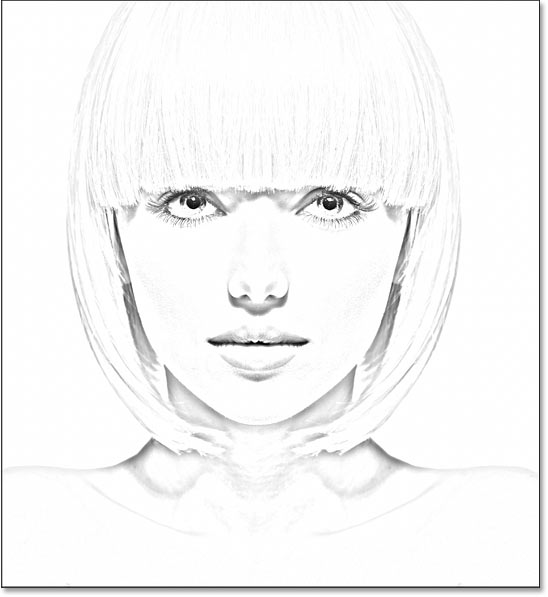
But if we increase the value to a much higher level, such as 45 pixels:
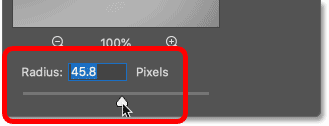
The effect looks more like the original image. The radius value you need will depend on the image and the look you want. So, pay attention to the image as you drag the slider to assess the result.
In this case, the example will use the second, more realistic version. Click OK when you're finished to close the Gaussian Blur dialog box.
How to adjust Gaussian Blur settings
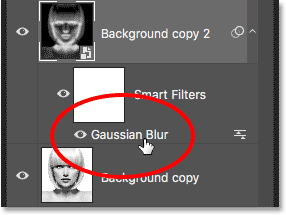
Because we applied the Gaussian Blur filter to a smart object, the Layers panel will display this filter listed as a smart filter below the smart object. You can double-click the word Gaussian Blur at any time to reopen the filter's dialog box and experiment with different settings.
Step 8: Add a Levels adjustment layer.
At this point, the sketch might look too bright with too low contrast. But we can easily darken it by using the Levels adjustment layer and the blend mode layer.
Still in the Layers panel, click the New Fill or Adjustment Layer icon :
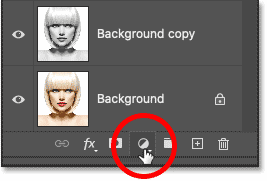
And select Levels from the list:
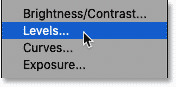
Photoshop adds a Levels adjustment layer above the smart object:
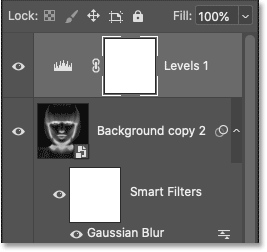
Step 9: Change the blend mode to Multiply
Then, to darken the sketch, simply change the blend mode of the adjustment layer from Normal to Multiply.
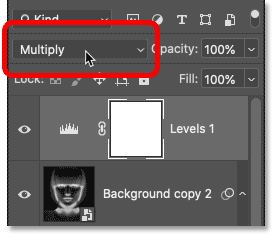
The Multiply blend mode is one of the blend modes that darkens the entire image. And immediately, the sketch looks much darker:
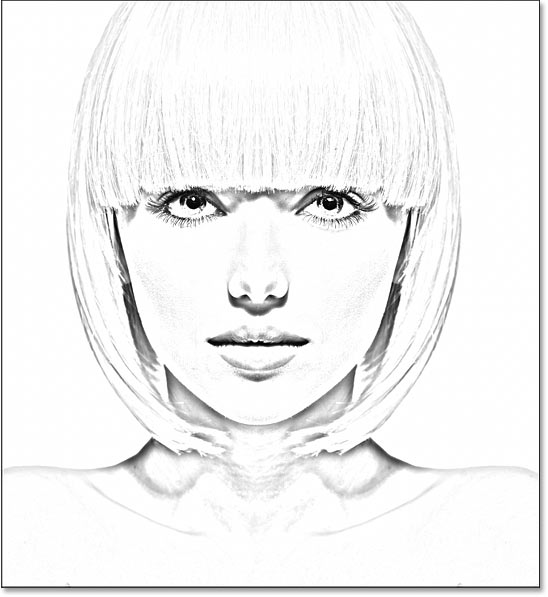
How to adjust brightness
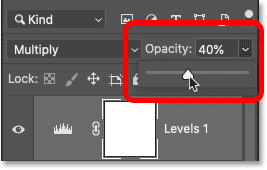
If the sketch looks too dark, reduce the Opacity value of the adjustment layer, located directly opposite the blend mode option in the Layers panel. The more you reduce the opacity from 100%, the more visible the layers below the adjustment layer will become, brightening the sketch.
Reduce the adjustment layer's opacity until the line weight and contrast look balanced:
And with that, we have the black and white sketch version! Next, this article will show you a few different ways to add color:
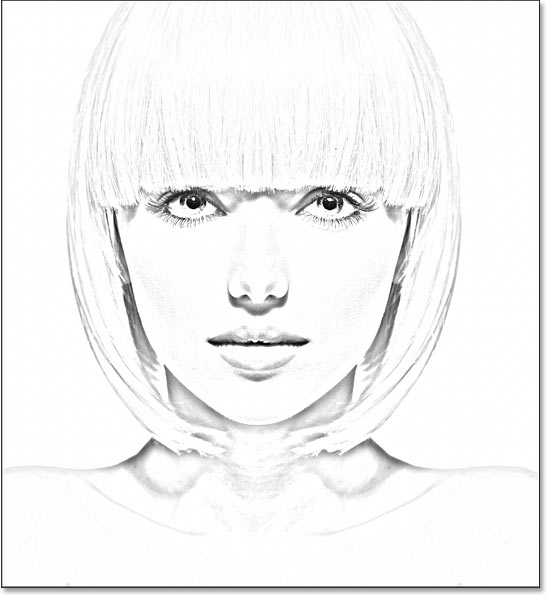
Color the sketch using the original colors of the image.
These next steps will add color to the sketch using colors from the original image. The article will then show you how to color the sketch with a single color, and then with a gradient effect.
Step 10: Duplicate the Background layer again.
In the Layers panel, create a copy of the original image by dragging the Background layer (the original layer at the bottom) down to the New Layer icon.
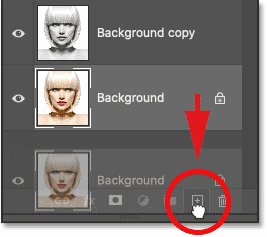
A copy (Background copy 3) appears between the Background and Background copy layers :
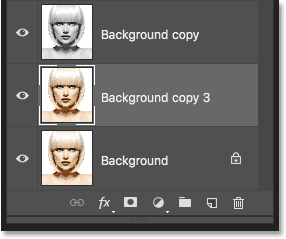
Step 11: Rename the new layer to Color
Right now, our Layers panel is cluttered with copies of the Background layer. They all have names like Background copy, Background copy 2, Background copy 3, but they don't tell us what the layer is being used for. So, let's rename our new layer to something more descriptive.
Double-click directly on the name Background copy 3 to highlight it:
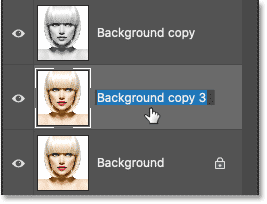
Then rename it to Color. Press Enter (Win) / Return (Mac) on your keyboard to accept it.
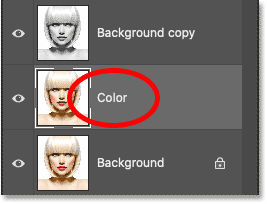
Step 12: Move the Color layer above the adjustment layer.
We need the image to appear above the sketch. So, click on the Color layer and drag it above the Levels adjustment layer. When a blue line appears above the adjustment layer, release the mouse button:
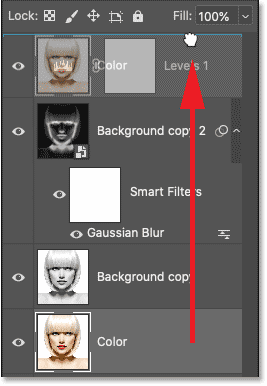
The image is temporarily blocking the sketch from view:
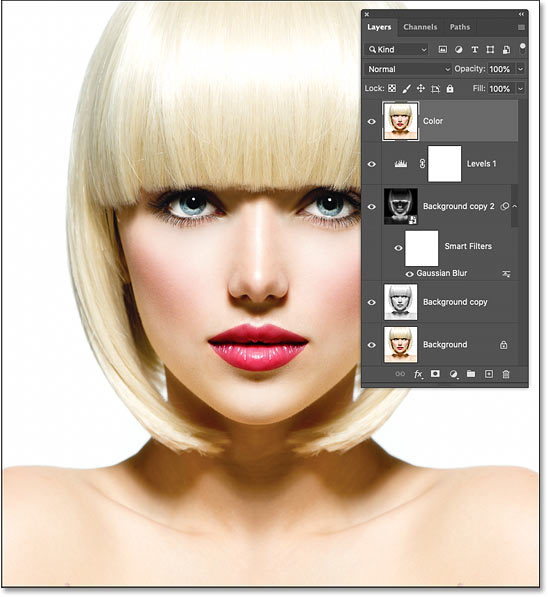
Step 13: Change the blend mode to Color
To blend colors from the image into the sketch, change the blend mode of the Color layer from Normal to Color :
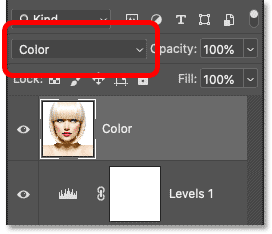
The Color blend mode uses the active layer's hue and saturation while preserving luminosity from the layers below. This restores the photo's color without replacing the sketch detail.
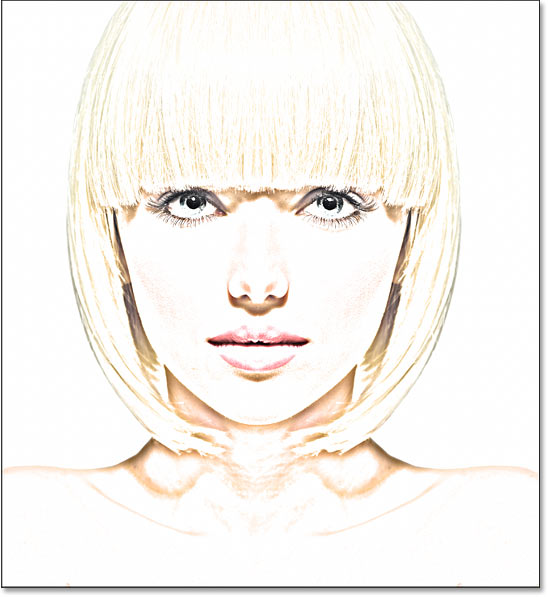
How to adjust color intensity
If the color is too intense, reduce the layer's opacity. For example, reduce it to 50%:
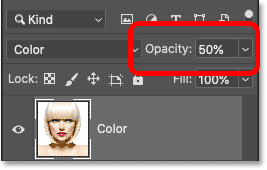
When the opacity is reduced, the colors become more subtle. And that's how to color a sketch using the original colors of the image:
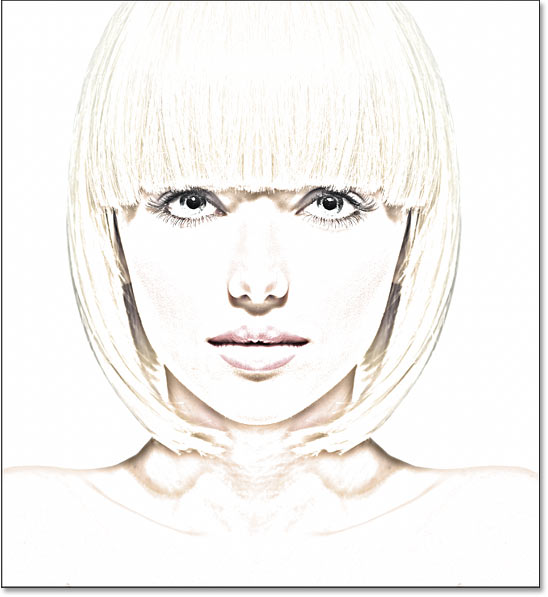
How to color a sketch using a single color
If you'd like to see what your sketch looks like with colors from a photo, you can stop here. Otherwise, check out the second way to add color, this time using a single color. Then, we'll end the tutorial by learning how to color your sketch using a gradient effect.
Step 14: Turn off the Color layer
Before we proceed further, let's turn off the Color layer we used in the previous steps by clicking the display icon (the eye icon) in the Layers panel:
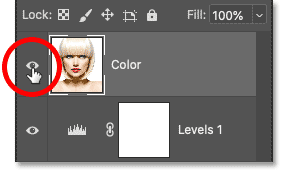
Step 15: Add a Solid Color fill layer
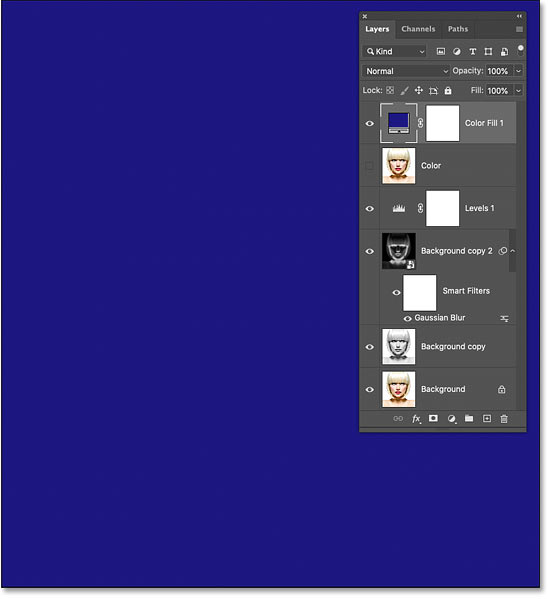
To color the sketch with a single color, we'll use a Solid Color fill layer. Click the New Fill or Adjustment Layer icon at the bottom of the Layers panel.
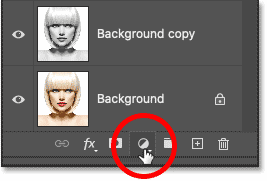
Then select Solid Color from the list:
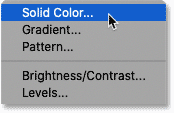
Photoshop opens the Color Picker, where we select the desired color. Don't worry about choosing the wrong color because you can always go back and choose a different one, as we'll see below.
For example, we'll try a shade of blue. Click OK when you're finished to close the Color Picker.
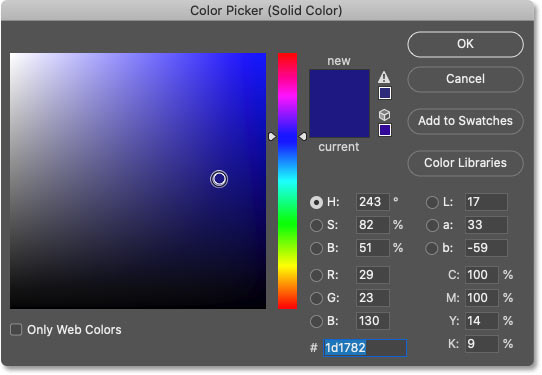
In the Layers panel, the Solid Color fill layer appears above the other layers. And in the document, the color you selected will temporarily block the sketch from view:
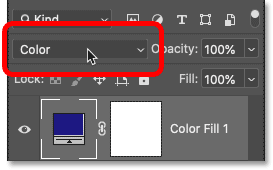
Step 16: Change the blend mode to Color
To blend colors into the sketch, change the blend mode of the fill layer to Color:
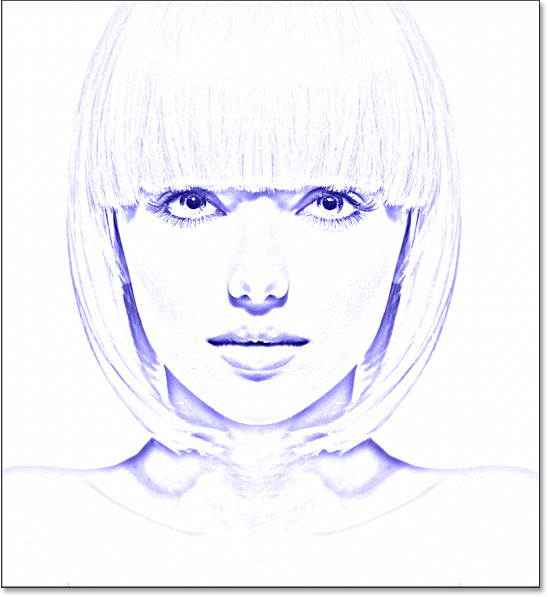
And here's the result with the sketch colored blue:
How to change the color
To try a different color, double-click the color swatch of the fill layer in the Layers panel:
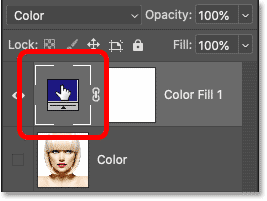
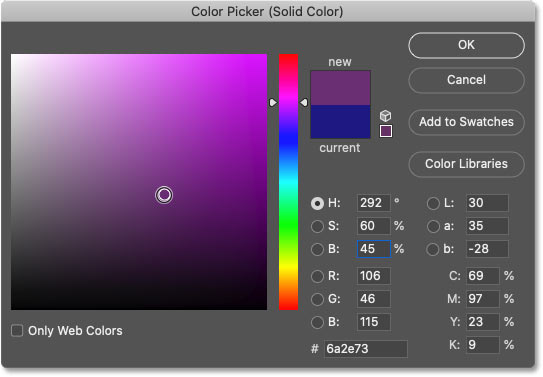
Next, select a new color from the Color Picker. As long as the Color Picker remains open, you can continue selecting different colors and see a preview directly in the document.
For example, we'll select a shade of purple. When you're finished, click OK to close the Color Picker.
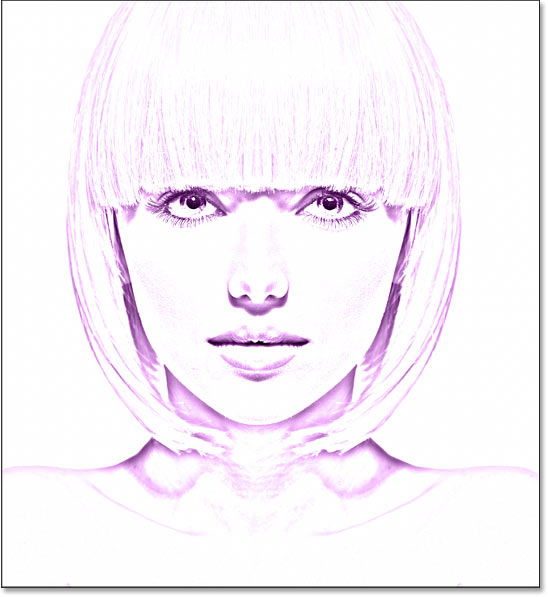
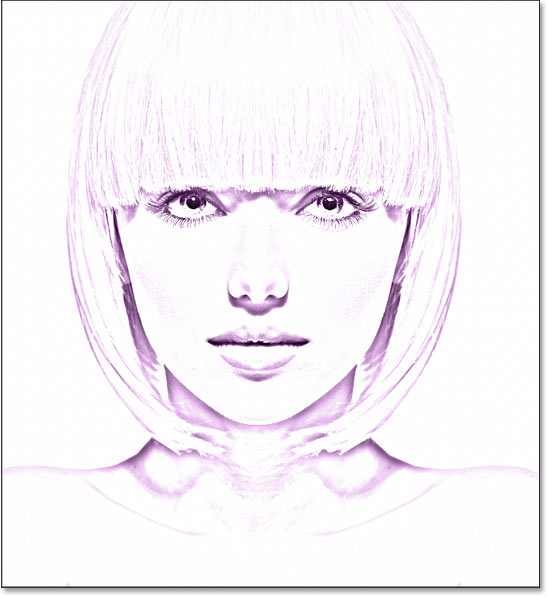
And now the sketch is colored purple:
Adjust color intensity
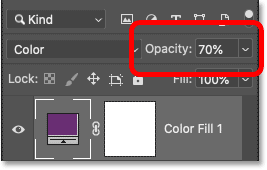
If the color is too dark, reduce the Opacity of the fill layer. For example, reduce it to 70%:
And that's how to add a single color to your sketch! Next, we'll finish things up by learning how to color your sketch using a gradient effect, then the article will show you how to switch between all these different versions to choose the one you like best:
How to color a sketch using a gradient effect.
At this point, we've learned how to convert an image to a black and white sketch, how to restore the original color from the image, and how to add a single color. We'll conclude this tutorial by learning how to colorize the sketch using a gradient effect.
This article won't cover how to create your own custom gradient effects here. Instead, we'll be using one of Photoshop's built-in gradient effects. And in the latest versions of Photoshop (2020 and later), there are many new gradient effects to choose from.
Step 17: Turn off the Solid Color fill layer.
First, if you've followed along from the beginning, turn off the Solid Color fill layer we used in the previous steps by clicking on its display icon in the Layers panel:
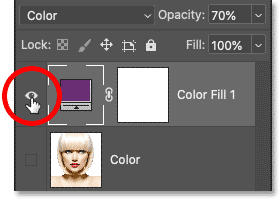
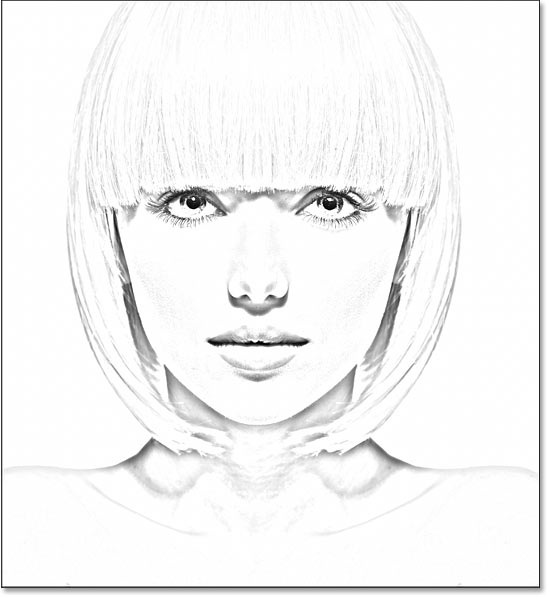
This operation will restore the black and white version of the sketch:
Step 18: Add a Gradient fill layer
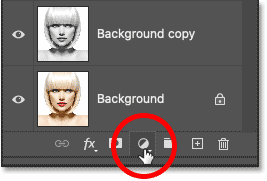
To color the sketch with a gradient effect, we'll use a Gradient fill layer. We'll add this fill layer directly above the Levels adjustment layer. First, click on the Levels adjustment layer in the Layers panel to activate it:
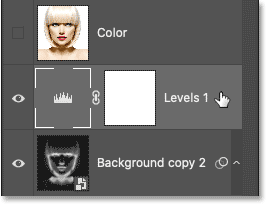
Then, click the New Fill or Adjustment Layer icon again :
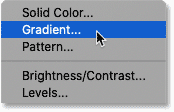
And select Gradient from the list:
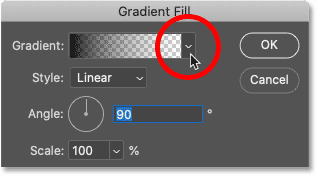
Step 19: Choose a gradient
In the Gradient Fill dialog box, select a gradient by clicking the small arrow next to the gradient pattern:
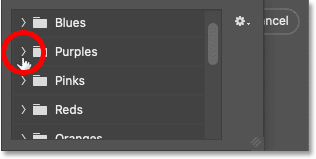
This will open the Gradient selector with many new gradients added in Photoshop 2020. The gradients are divided into groups based on theme (Basics, Blues, Purples, etc.):
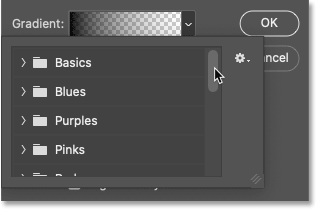
To open a group, click the arrow next to the group's folder icon. Click to open the Purples group:
Next, to select a gradient within the group and close the Gradient selector, double-click the gradient thumbnail:
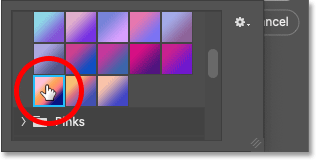
Install gradient
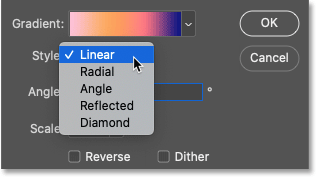
Returning to the Gradient Fill dialog box, you can change the gradient style from Linear (default) to Radial, Angle, Reflected, or Diamond:
You can reverse the order of the gradient colors:

And you can change the angle of the gradient. For example, it will be left at the default of 90 degrees:
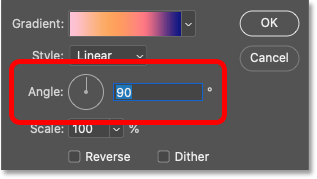
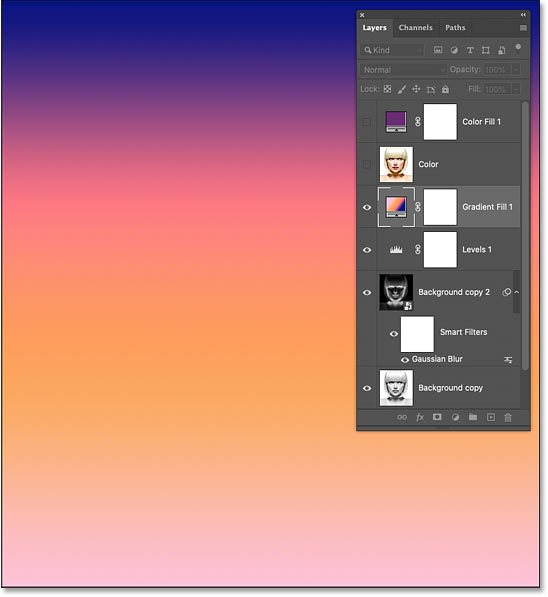
Click OK when you're finished to close the Gradient Fill dialog box. Gradient temporarily blocks the sketch from view:
Step 20: Change the blend mode to Color
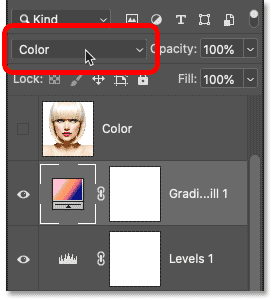
Return to the Layers panel, and select the Gradient fill layer that appears above the Levels adjustment layer. To blend the gradient colors with the black and white sketch, change the blend mode of the Gradient fill layer from Normal to Color.
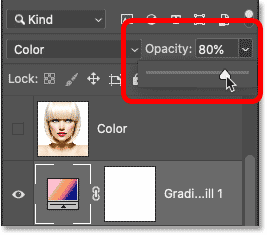
Next, adjust the color intensity if needed by reducing the opacity of the layer.
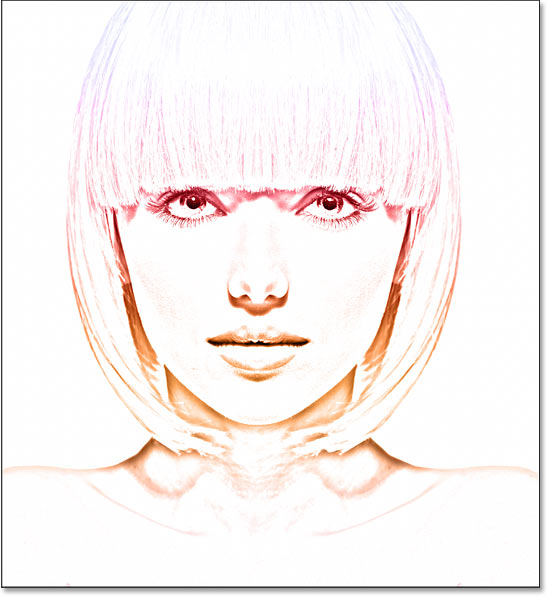
And here is the sketch using gradient colors:
How to select a different gradient or adjust the settings
To try a different gradient or edit any gradient options (Style, Reverse, Angle), double-click the gradient fill layer's color swatch. This will reopen the Gradient Fill dialog box, where you can make any necessary changes.
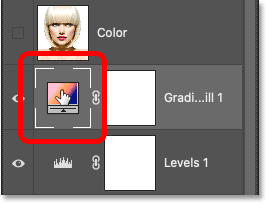
How to switch between sketch color effects
Now that we've colored the sketch with a gradient, what if you want to revert to the original color, or a monochrome version, or even a black and white version? Here's how to switch between the different effects.
Restore the black and white sketch.
To hide all color effects and revert to the black and white version, simply turn off the Color layer, Solid Color layer, and Gradient fill layer using their display icons. For example, the Color and Solid Color layers are turned off, so the Gradient fill layer will also be turned off:
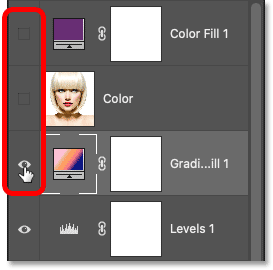
Turn off all three color effect layers, and we'll return to our black and white sketch:
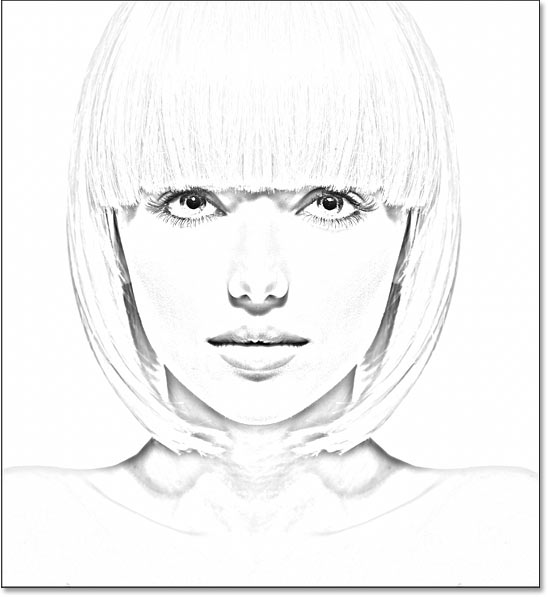
Restore the color version of the sketch.
Next, to enable one of the color effects, click on the icon that displays that effect. For example, this will enable my Color layer. Make sure you only enable one color effect at a time, otherwise they will blend together.
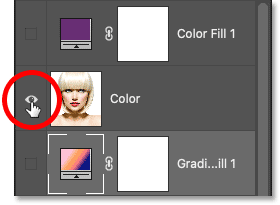
And when we turn on the Color layer, we return to the image's original color:
Save and export the sketch
Keep the layered PSD as the editable master. Turn on only the color treatment you want, then export a separate JPEG or PNG. Recheck the image at 100% zoom so blur halos, excessive contrast, or banding are visible before export.
For layer organization, see basic Photoshop layer operations. For another nondestructive composition, review the tutorial on splitting photos in Photoshop.
Related Articles
 Turn the Digital Image into a Sketch with Sketch Master3 minutes read
 How to Open Sketch Files4 minutes read
 How to Rotate a Photo in Photoshop: Step-by-Step Guide2 minutes read
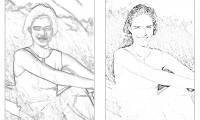 Photoshop CS: Sketches: Image4 minutes read
 How to Turn on 2 Windows in Photoshop to Collate Images3 minutes read
 Use Photoshop Mix to Delete Details in the Image6 minutes read
Reader Comments 0
Sign in with email or Google to join the discussion.