Table of Contents
A cell is the basic unit of an Excel worksheet. Each cell has an address formed from its column letter and row number, such as C5. Understanding cells and ranges makes it easier to enter data, build formulas, copy or move values, and fill a series without changing the worksheet structure accidentally.
| Term | Example | Meaning |
|---|---|---|
| Cell | C5 | One position at column C, row 5 |
| Range | A1:A5 | Adjacent cells from A1 through A5 |
| Formula | =SUM(B2:B8) | A calculation using a range |
| Fill handle | Bottom-right corner of a selection | Copies content or extends a series |
Cells, addresses, and ranges
Each spreadsheet is made up of thousands of rectangles, called cells. A cell is the intersection of a row and a column. In other words, it's where the row and column meet.
Columns are identified by letters (A, B, C), while rows are identified by numbers (1, 2, 3). Each cell has its own name, also known as a cell address, based on its column and row. In the example below, the selected cell is the intersection of column C and row 5, so the cell address is C5.
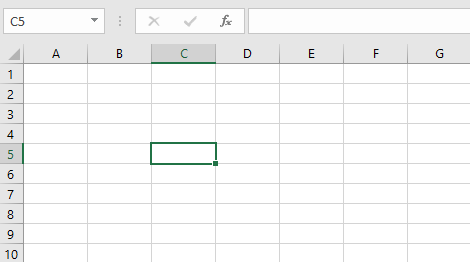
Note that the cell address also appears in the Name box in the upper left corner, and the cell's column and row headers are highlighted when the cell is selected.
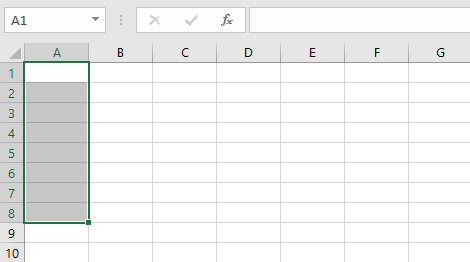
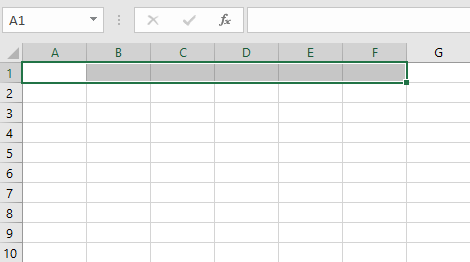
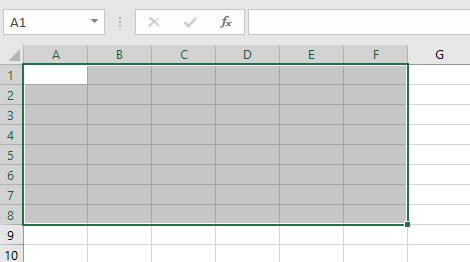
You can also select multiple cells at once. A group of cells is called a cell range. Instead of a single cell address, you would refer to a range of cells using the address of the first and last cells in that range, separated by colons. For example, a range including cells A1, A2, A3, A4, and A5 would be written as A1:A5. See other cell ranges below:
Cell range A1:A8
Cell range A1:F1
Cell range A1:F8
If the columns in your spreadsheet are labeled with numbers instead of letters, you'll need to change the default reference style for Excel.
How to select a cell
To enter or edit cell content, you first need to select the cell.
1. Click on a cell to select it. For example, we will select cell D9.
2. A border will appear around the selected cell, and the column and row headers will be highlighted. The cell will remain selected until you click another cell in the worksheet.
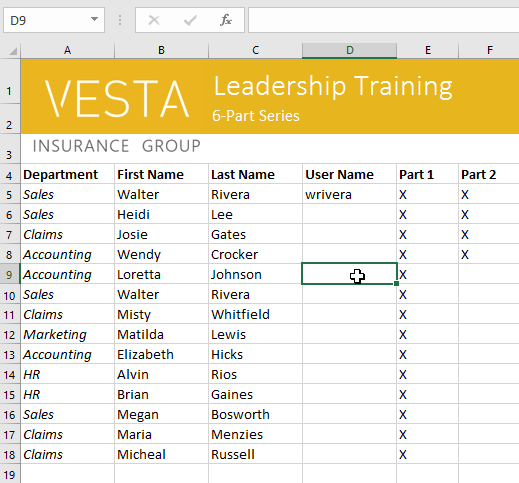
You can also select cells using the arrow keys on your keyboard.
How to select a range of cells
Sometimes you might want to choose a larger group of cells or a range of cells.
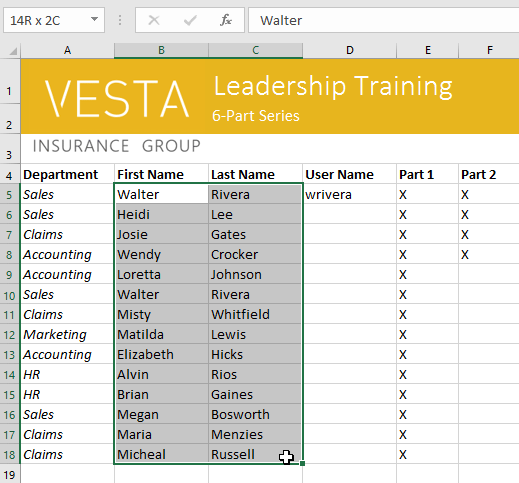
1. Click and drag your mouse until all adjacent cells you want to select are highlighted. For example, this will select the range of cells B5:C18.
2. Release the mouse button to select the desired range of cells. The cells will remain selected until you click on another cell in the worksheet.
Cell contents
A cell can store text, numbers, dates or times, logical values, and formulas. Formatting controls how a value appears, while a formula calculates a result from values or references.
Text : Cells can contain text, such as letters, numbers, and dates.
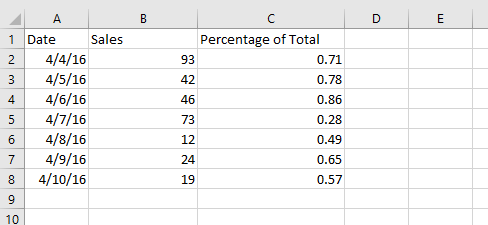
Formatting properties : Cells can contain formatting properties that change how letters, numbers, and dates are displayed. For example, percentages might appear as 0.15 or 15%. You can even change the text or background color of the cell.
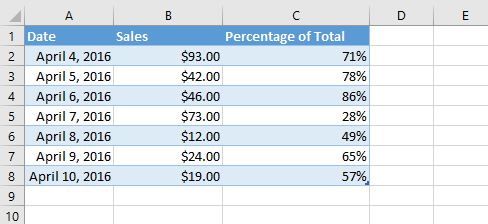
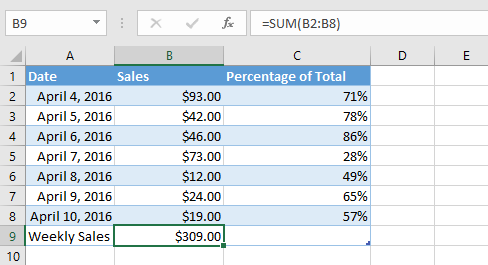
Formulas and functions : Cells can contain formulas and functions that calculate cell values. In the example, SUM(B2:B8) calculates the sum of the values of each cell in the range B2:B8 and displays the result in cell B9.
How to insert content
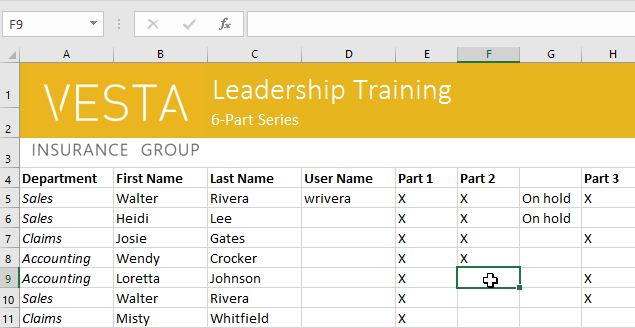
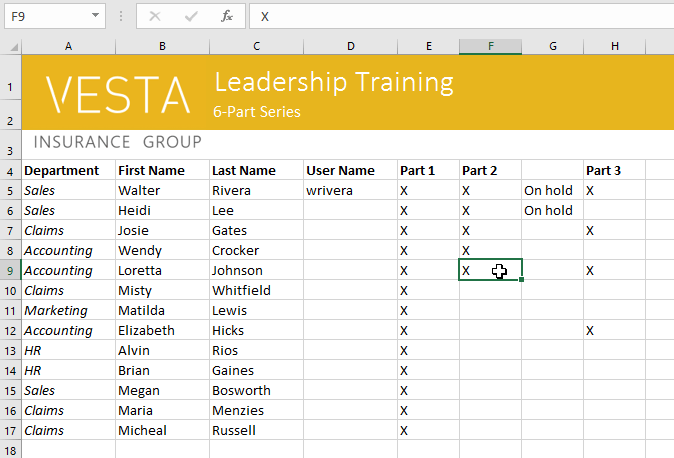
1. Click on a cell to select it. For example, we would select cell F9.
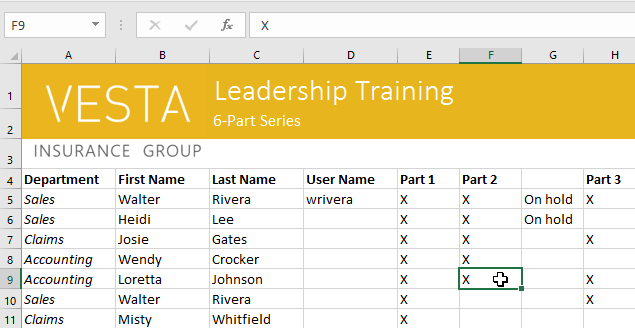
2. Enter something into the selected cell, then press Enter on your keyboard. The content will appear in the cell and the formula bar. You can also enter and edit cell content in the formula bar.
How to delete cell contents
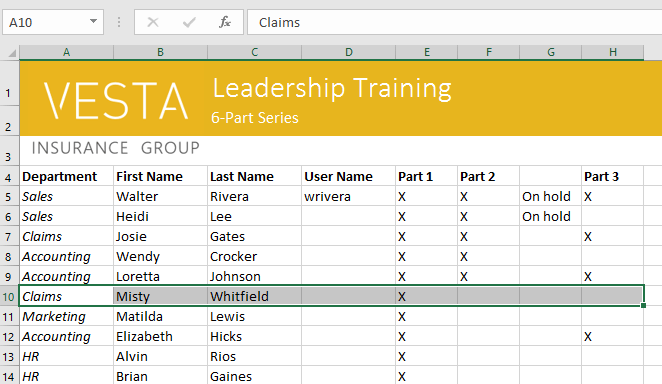
1. Select the cell(s) containing the content you want to delete. For example, we would select the range of cells A10:H10.
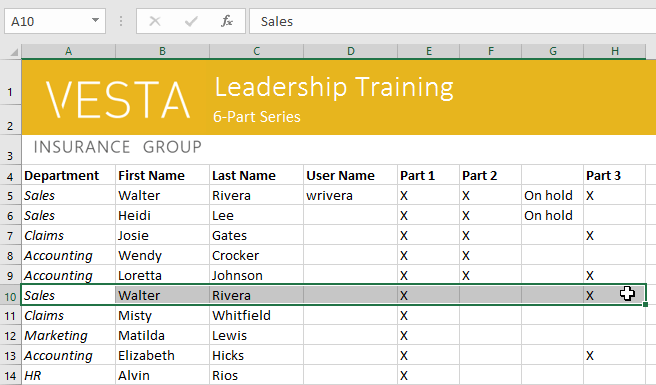
2. Select the Clear command on the Home tab, then click Clear Contents.
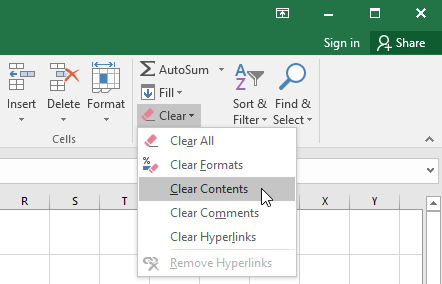
3. The cell content will be deleted.
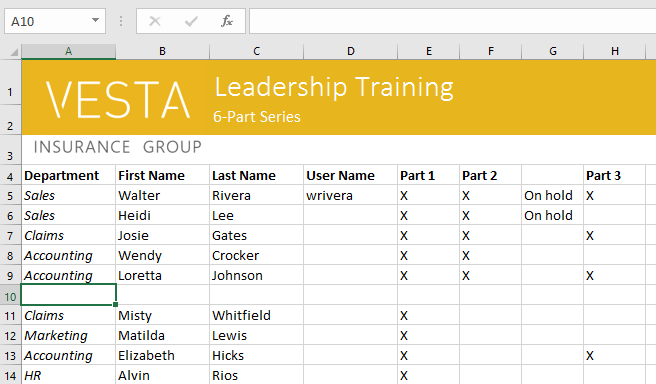
You can also use the Delete key on your keyboard to delete content from multiple cells at once. The Backspace key will only delete content from one cell at a time.
How to delete cells
Clearing contents leaves the cells in place. Deleting cells removes them and shifts surrounding cells up or left, depending on the option you choose. Check nearby formulas and tables before deleting cells because the worksheet structure will change.
1. Select the cell(s) you want to delete. For example, you would select A10:H10.
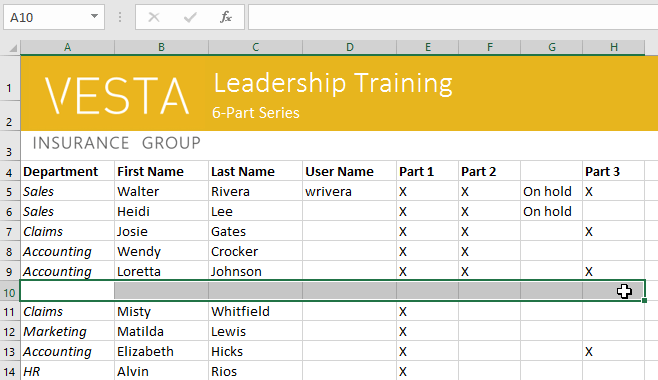
2. Select the Delete command from the Home tab on the Ribbon.
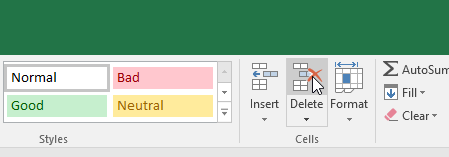
3. The cells below will move up and fill the gap.
How to copy and paste cell content
Excel allows you to copy content already entered into a spreadsheet and paste it into other cells, which can save you time and effort.
1. Select the cell(s) you want to copy. For example, select F9.
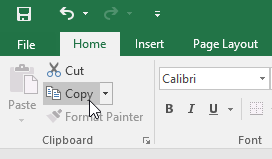
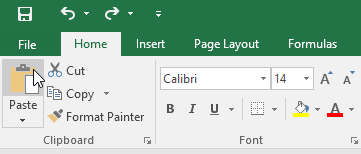
2. Click the Copy command on the Home tab or press Ctrl + C on your keyboard.
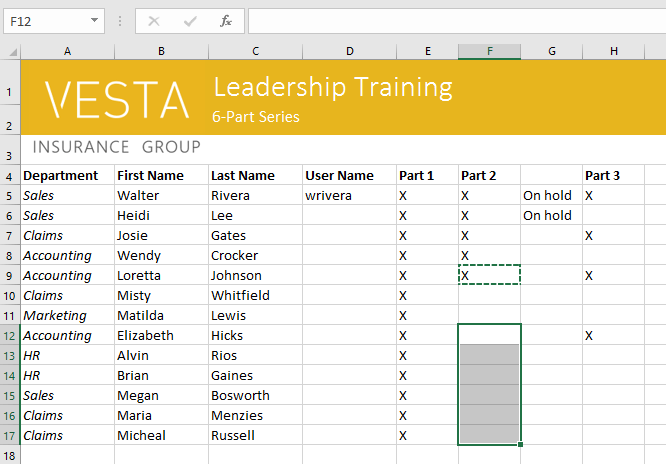
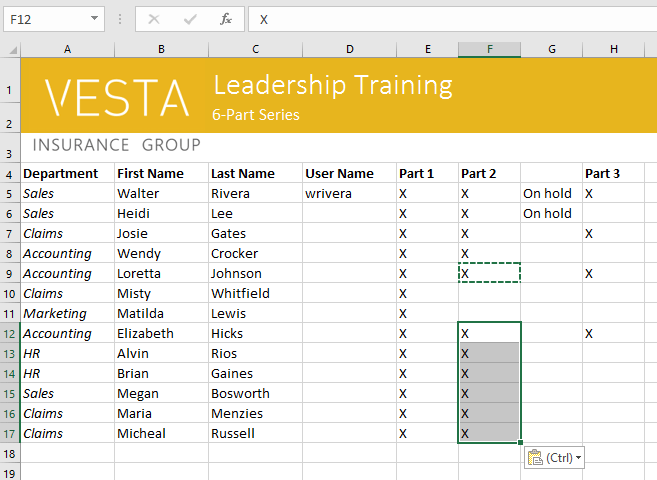
3. Select the cell(s) where you want to paste the content. For example, select F12:F17. The copied cell(s) will have a dashed line around them.
4. Click the Paste command on the Home tab or press Ctrl + V on your keyboard.
5. The content will be pasted into the selected cells.
How to access additional paste options
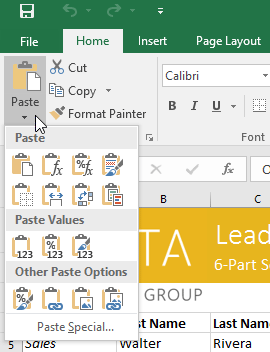
You can also access additional paste options, which are especially convenient when working with cells containing formulas or formatting. Simply click the drop-down arrow on the Paste command to see these options.
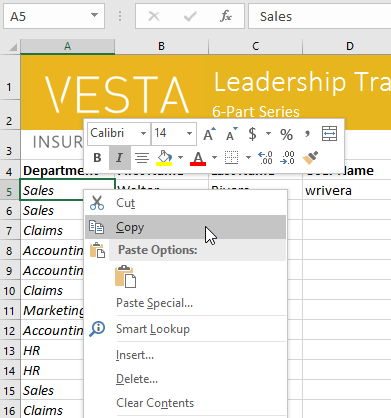
Instead of selecting commands from the Ribbon, you can access commands quickly by right-clicking. Simply select the cell(s) you want to format, then right-click. A drop-down menu will appear where you'll find several commands that are also located on the Ribbon.
How to cut and paste cell content
Unlike copy and paste, Cut moves content from the original cells to a new location.
1. Select the cell(s) you want to cut. For example, we would select G5:G6.
2. Right-click and select the Cut command. You can also use the command on the Home tab or press Ctrl + X on your keyboard.
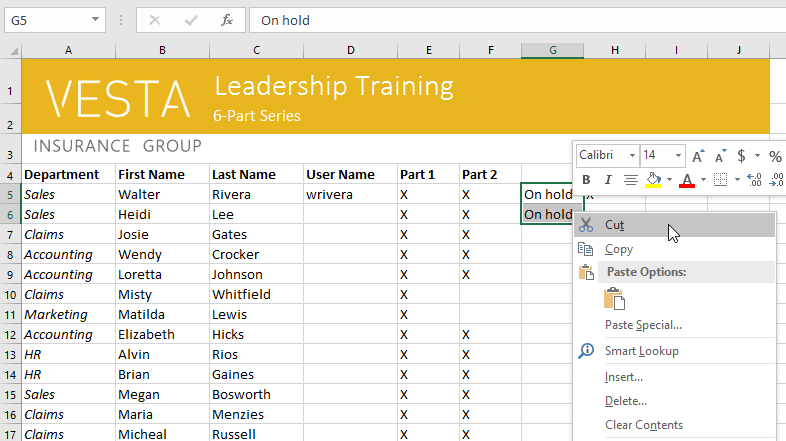
3. Select the cells where you want to paste the content. For example, select F10:F11. The cells that are cut will now have a dashed line around them.
4. Right-click and select Paste. You can also use the command on the Home tab or press Ctrl + V on your keyboard.
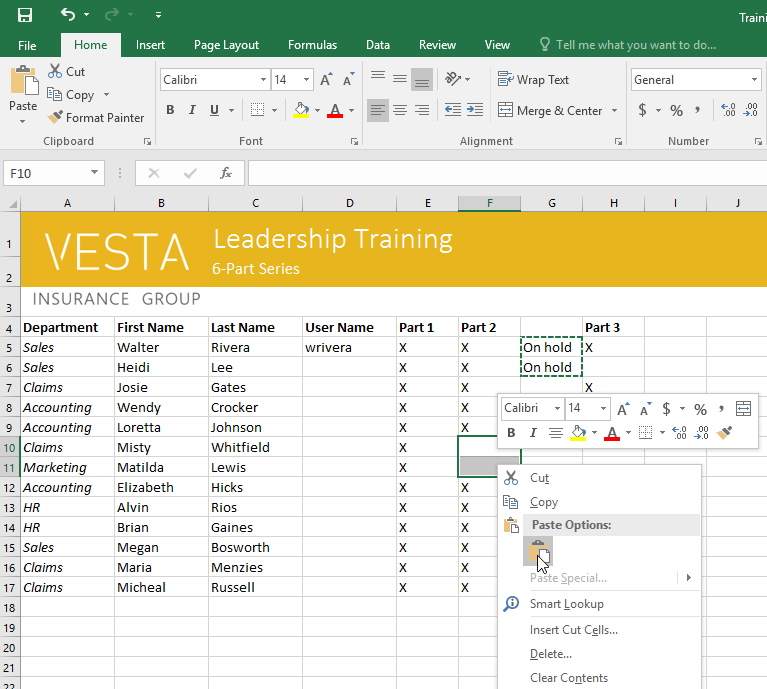
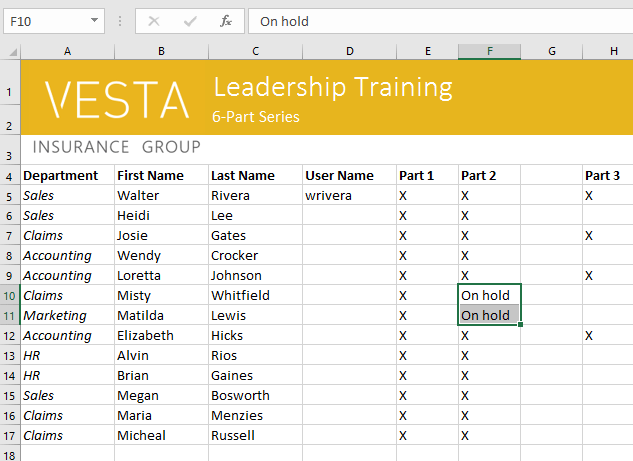
5. The cut content will be removed from the original cells and pasted into the selected cells.
How to drag and drop cells
Instead of cutting, copying, and pasting, you can drag and drop cells to move their contents.
1. Select the cell(s) you want to move. For example, select H4:H12.
2. Hover your mouse over the border of the selected cell(s) until the mouse cursor changes to a four-arrow cursor.
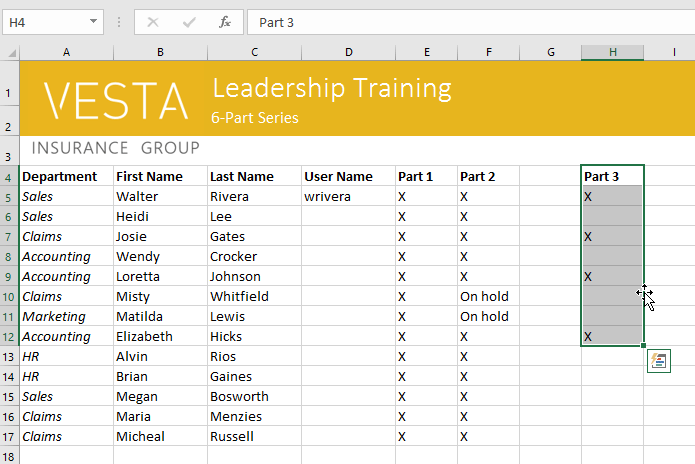
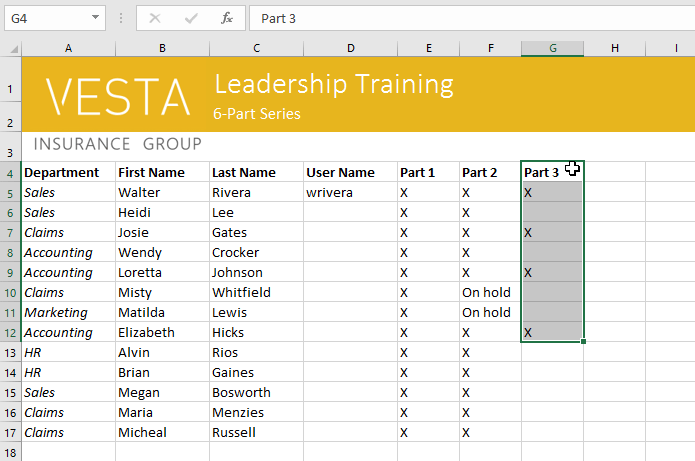
3. Click and drag the cells to the desired position. For example, this will move them to G4:G12.
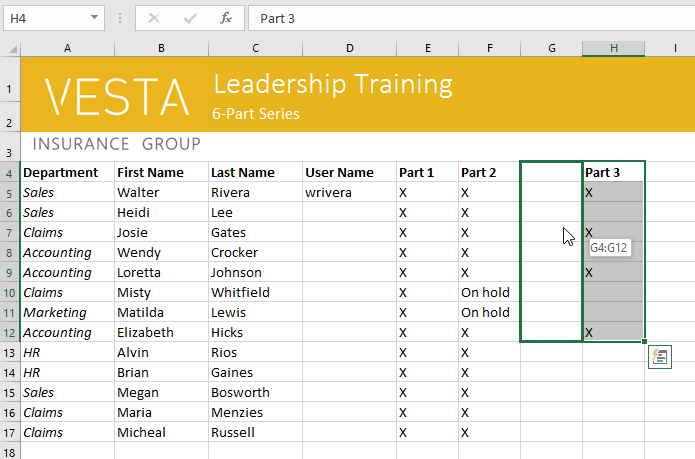
4. Release the mouse button. The cells will be dropped in the selected positions.
How to use the Fill Handle
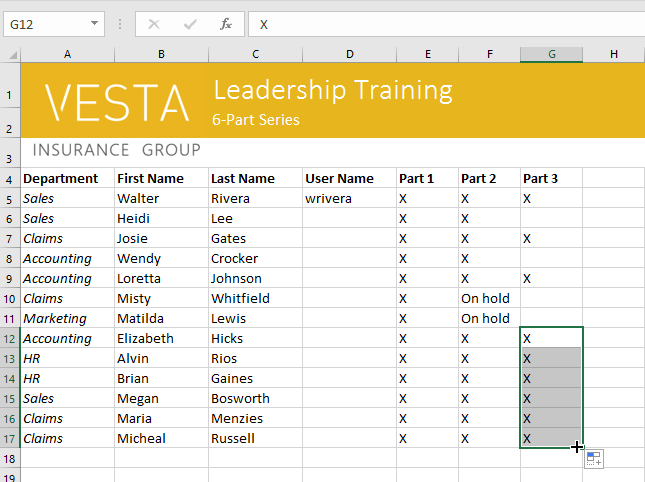
If you are copying cell contents to adjacent cells in the same row or column, fill handle is a good alternative to copy and paste commands.
1. Select the cell(s) containing the content you want to use, then hover your mouse over the bottom-right corner of the cell to make the fill handle appear.
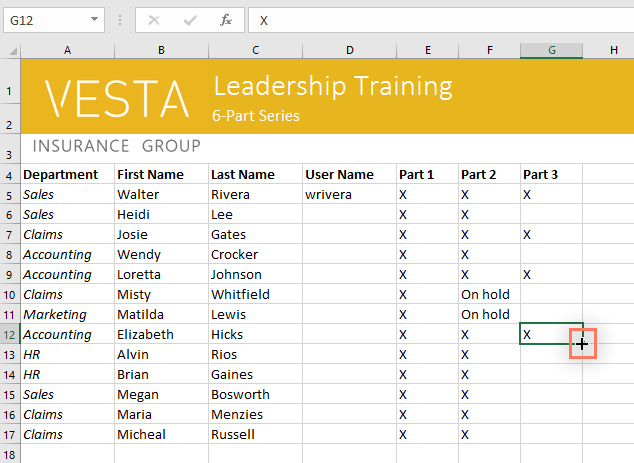
2. Click and drag the fill handle until all the cells you want are selected. For example, this would select G13:G17.
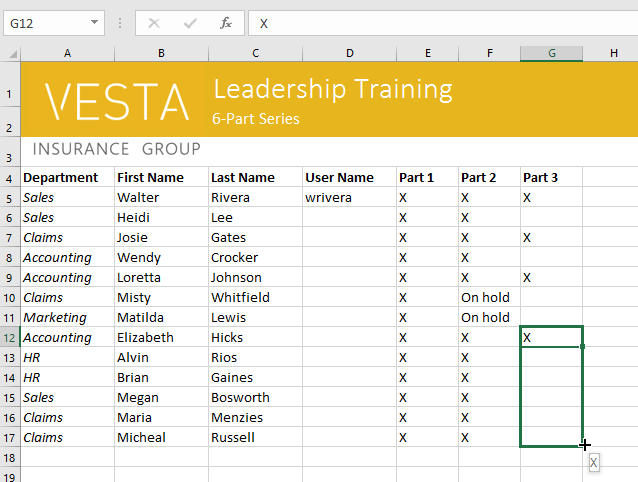
3. Release the mouse button. Excel will copy the content or formula into the selected cells.
How to continue a series with the fill handle
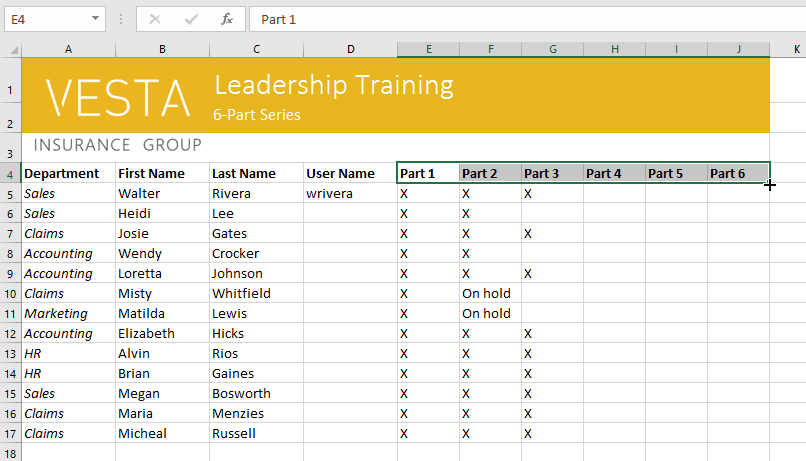
Fill handles can also be used to continue a sequence. Whenever the values in a row or column follow a recognizable sequence, such as numbers (1, 2, 3) or dates (Monday, Tuesday, Wednesday), the fill handle can predict what will happen next in the sequence. In most cases, you will need to select multiple cells before using the fill handle to help Excel determine the sequence order. Let's look at an example:
1. select the cells containing the starting values of the series. For example, select E4:G4.
2. click and drag the fill handle to continue the series.

3. Release the mouse button. If Excel recognizes the pattern, it will continue the series in the selected cells. In the example, Excel added Part 4, Part 5, and Part 6 to H4:J4.
You can double-click the fill handle to copy a formula or value down alongside a neighboring block of data. Check the resulting cells, because Excel's behavior depends on the adjacent range and the starting pattern.
Related Excel basics
The Excel Name Box can select or jump directly to a cell or range. When you are ready to calculate with those ranges, review Excel formulas and functions.
Related Articles
 Complete Tutorial of Excel 2016 (Part 5): Basics of Cells and Ranges11 minutes read
 Excel 2016 - Lesson 5: Basic Concepts of Cells and Ranges12 minutes read
 The Basics of Excel Services in Excel3 minutes read
 How to Use Focus Cell to Highlight Excel Data: Step-by-Step Guide4 minutes read
 How to Make a Spreadsheet in Excel14 minutes read
 Excel 2019 (Part 14): Relative and Absolute Cell References9 minutes read
Reader Comments 0
Sign in with email or Google to join the discussion.