Table of Contents
A PivotTable summarizes a detailed Excel list without changing the source records. You can group transactions by salesperson, month, region, or another category, calculate totals or counts, and rearrange the same fields to answer a different question.
The screenshots show Excel 2019. Recent desktop versions use the same Rows, Columns, Values, and Filters areas, although the ribbon and refresh options may look different.
Prepare the source data
A reliable PivotTable begins with a clean rectangular data set:
- Use one header row with a unique, nonblank name for every column.
- Keep one type of value in each column: dates in a date column, amounts in an amount column, and so on.
- Keep one record per row and avoid blank rows or columns inside the data.
- Do not merge cells or insert manual subtotals in the source.
- Convert the range to an Excel Table with Ctrl+T when new rows will be added regularly; the table range expands with them.
What a PivotTable can answer
In a transaction list, each salesperson may appear on many rows. Manually finding every occurrence and adding it is slow and error-prone.
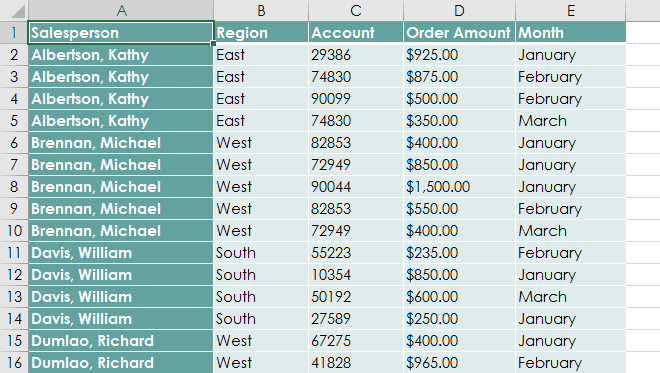
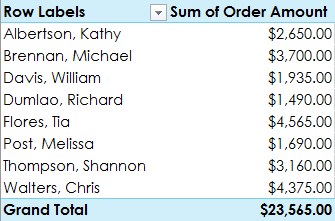
A PivotTable can put Salesperson in Rows and a quantity or amount field in Values to produce one summary row per person.
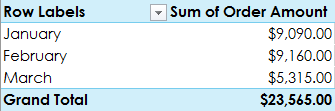
The same source can answer a different question when you rearrange the fields—for example, total sales by month.
Create the PivotTable
- Select a cell in the source Excel Table, or select the full range including its headers.
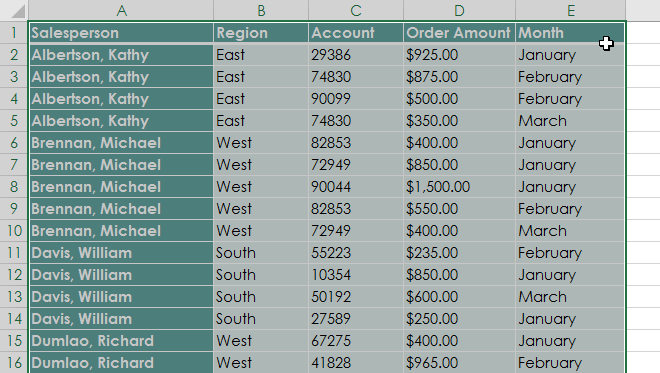
- Open Insert and select PivotTable.
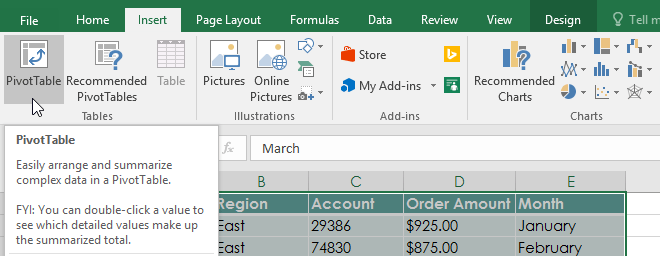
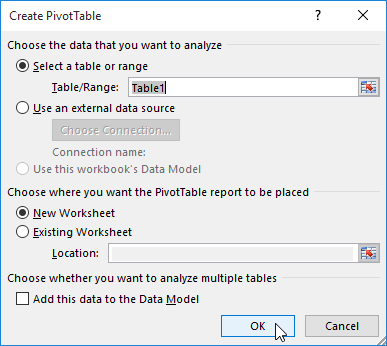
- In Create PivotTable, verify the table or range. Choose New Worksheet for a clean report area, or choose an existing worksheet and specify an empty destination cell.
- Select OK.
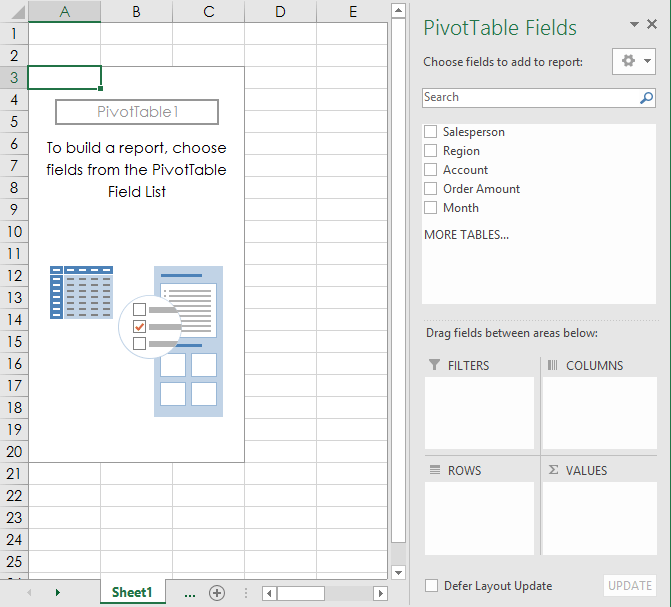
Excel creates an empty PivotTable report and opens the PivotTable Fields pane.
Place fields in the four areas
Each field name comes from a source column header. Drag fields into the area that matches their role:
- Rows: categories listed vertically, such as Salesperson or Region.
- Columns: categories displayed across the report, such as Month.
- Values: numbers to aggregate, such as Quantity or Order Amount.
- Filters: an overall report filter, such as Year or Product Category.
For a total sales amount by salesperson, add Salesperson and Order Amount.
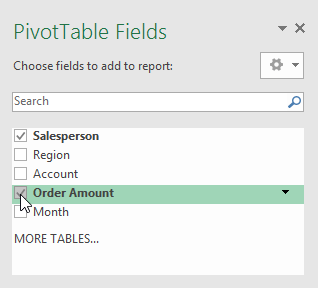
Excel usually places text fields in Rows and numeric fields in Values, but you can drag each field to the intended area yourself.
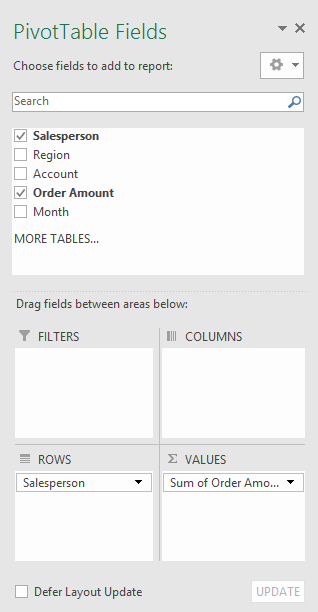
The report updates immediately as the field layout changes.
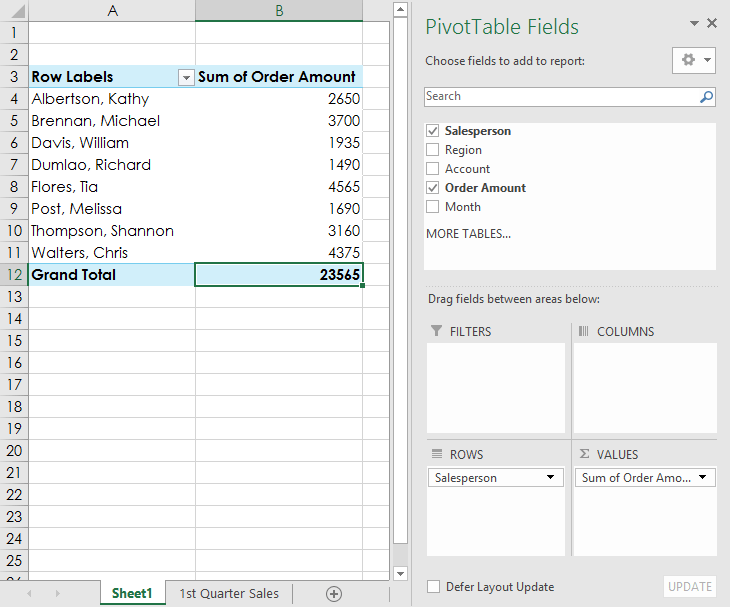
Check Sum, Count, and other calculations
Do not assume the Values area is using the calculation you want. Numeric source data usually becomes Sum of, while text or numbers stored as text often become Count of. Open the field’s menu in Values and select Value Field Settings to choose Sum, Count, Average, Max, Min, or another supported summary.
If an amount unexpectedly shows Count, inspect the source for text values, error values, or mixed types. Correct the source, then refresh the PivotTable.
Format values without losing the setting
Open Value Field Settings > Number Format and choose Currency, Number, Percentage, or the required format. This associates the format with the value field more reliably than formatting individual PivotTable cells from the Home tab.
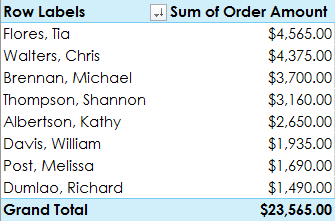
Sort or filter by opening a row or column label menu. Keep formatting restrained: the hierarchy, values, and totals should remain easy to scan after fields are rearranged.
Refresh after source data changes
In Excel 2019, changing source records does not automatically recalculate an existing PivotTable. Right-click inside the PivotTable and select Refresh, or use PivotTable Analyze > Refresh. Use Refresh All when several reports share updated data.
Refreshing a fixed cell range does not include new records outside that range. Either build the PivotTable from an Excel Table or use PivotTable Analyze > Change Data Source to extend it. Some newer Excel versions provide automatic refresh settings, so verify the behavior of the version and workbook you are using.
Add a column field
To break each salesperson’s results out by month, drag Month into Columns.
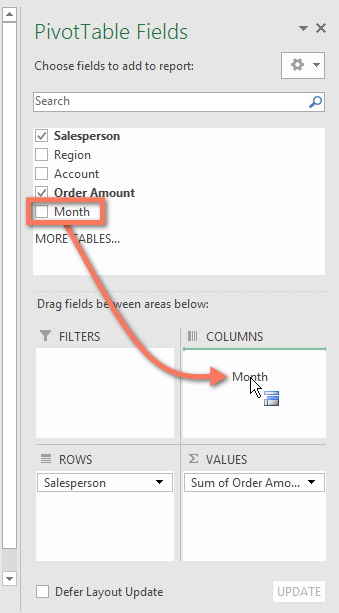
The PivotTable now shows a column for each month, plus totals if grand totals are enabled.
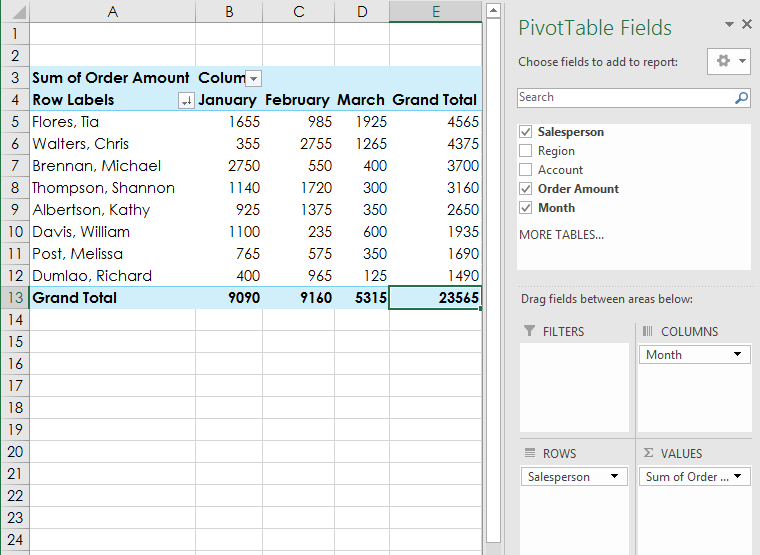
If the source contains full dates rather than a Month field, add the Date field, right-click a date label, and use Group to group by months, quarters, or years when supported by the data.
Change the report’s question
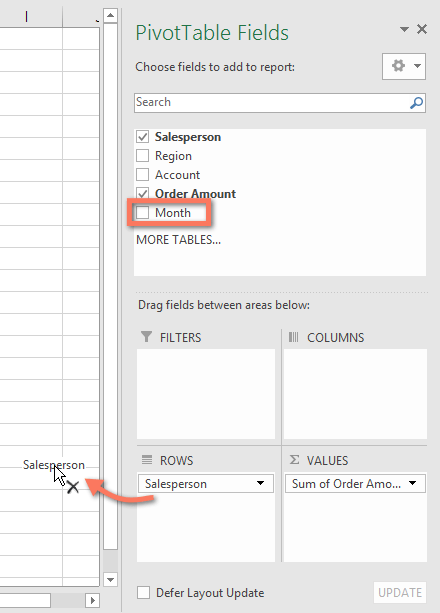
Remove a field by dragging it out of an area or clearing its checkbox. Here, Month and Salesperson are removed from the previous arrangement.
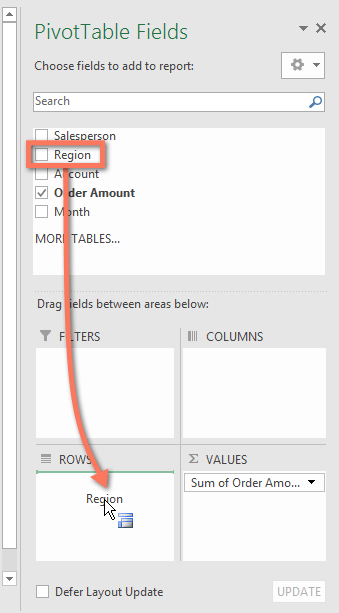
Drag Region to Rows.
The same value field is now summarized by region instead of salesperson.
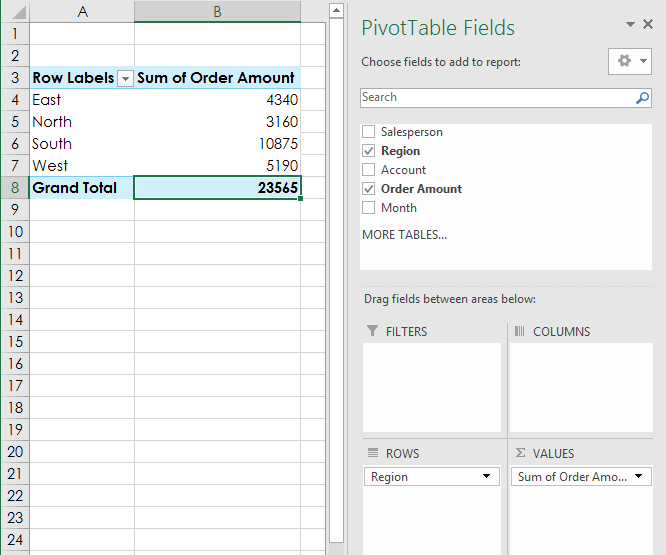
Rearranging fields changes the report, not the underlying transaction list. Give the PivotTable a descriptive heading so readers know which measure and grouping they are viewing.
Common PivotTable checks
- Unexpected Count instead of Sum: correct nonnumeric source values and choose the intended Value Field Settings.
- New rows are missing: refresh and confirm that the data source includes them.
- Fields are missing: check the source headers and use Change Data Source.
- Old items remain in filters: review PivotTable data-retention options after confirming that the source no longer contains them.
- Dates will not group: look for blanks, text-formatted dates, or invalid values in the source column.
- Report is too wide: move a high-cardinality field from Columns to Rows or Filters.
For a version-neutral walkthrough, see How to Create PivotTables in Excel. If the analysis outgrows a workbook or combines large data sources, the comparison of Excel and Power BI helps clarify their different roles.
Microsoft’s current guidance explains how to refresh PivotTable data and change a PivotTable data source.
Related Articles
 Reasons to Use PivotCharts Instead of PivotTables in Excel7 minutes read
 minutes read
 8 Best Features in Excel 2013: Microsoft Excel 20136 minutes read
 Excellent Way in Excel Part 2: Complete Guide7 minutes read
 100 Extremely Useful Excel Tips to Know - Part 111 minutes read
 Excel Computer Test - Part 34 minutes read
Reader Comments 0
Sign in with email or Google to join the discussion.