Table of Contents
Excel collaboration has three separate parts: sharing controls who can open or edit the workbook, comments or notes attach feedback to cells, and co-authoring lets supported Excel versions edit the same cloud file. Store the workbook in OneDrive or SharePoint and review its permissions before inviting anyone.
The screenshots show the Excel 2019 interface as it appeared when this lesson was created. Microsoft later changed the terminology: the old single text boxes are now called notes in Microsoft 365, while modern comments are threaded conversations with replies and @mentions.
Prepare the workbook for collaboration
- Use a supported modern Excel format and avoid compatibility mode.
- Save the file to OneDrive or SharePoint rather than sending separate email attachments.
- Sign in to Excel with the account that owns or has access to the storage location.
- Remove passwords, unsupported objects, or features that block co-authoring if Excel reports a compatibility problem.
- Decide whether each recipient needs edit access or view-only access.
Share the workbook
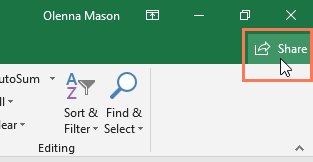
- Select Share in the upper-right corner.
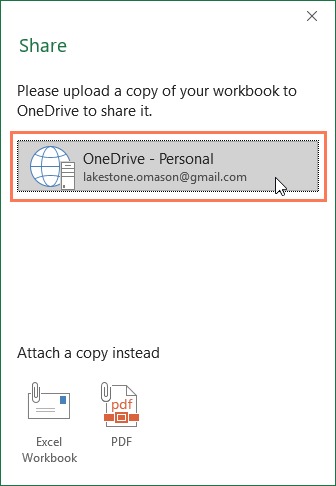
- If prompted, choose the OneDrive or SharePoint location connected to your account and save the workbook there.
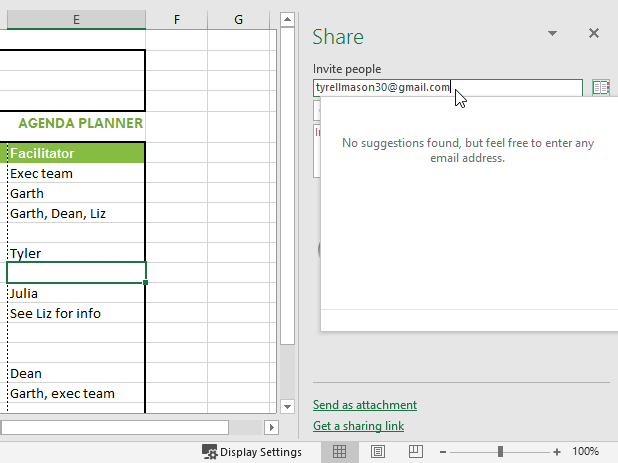
- Enter the recipient’s email address in the Share pane.
- Choose the permission. Select Can edit only when the person should change the workbook; otherwise use a view-only option.
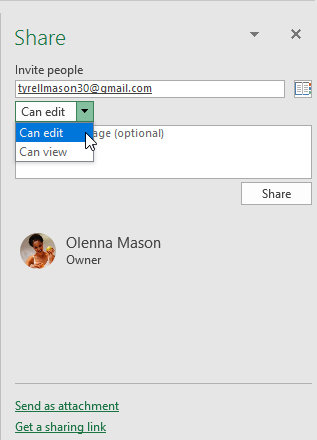
- Add a short message that explains the requested review, then select Share.
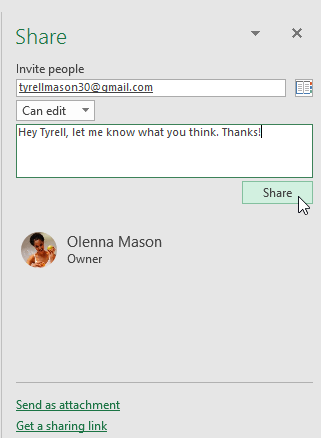
Before sending a link more widely, open its link settings and check whether access is limited to named people, anyone in the organization, or anyone with the link. Organization policy may restrict the available choices. For background on the product editions involved, see the comparison of desktop Office, Microsoft 365, and Office Online.
Comments versus notes
- Modern comment: use for a discussion, reply thread, or @mention. A comment must be posted, and participants can reply or resolve it.
- Note: use for a simple annotation without a conversation. In older Excel releases, this feature was called a comment.
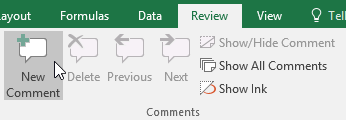
The next screenshots demonstrate the legacy comment workflow in the original Excel 2019 lesson. In current Microsoft 365 builds, use Review > Notes for the same floating text-box behavior and Review > New Comment for a threaded discussion.
Add a legacy comment or current note
- Select the relevant cell, such as D17.
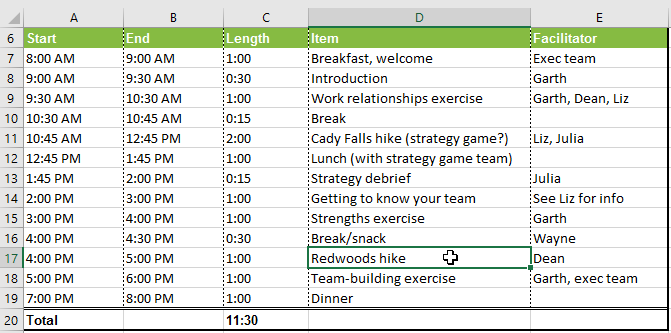
- In the original interface, select Review > New Comment. In a current Microsoft 365 build, select Review > Notes > New Note or press Shift+F2.
- Type a concise annotation, including the action or source the reader needs, then click another cell.
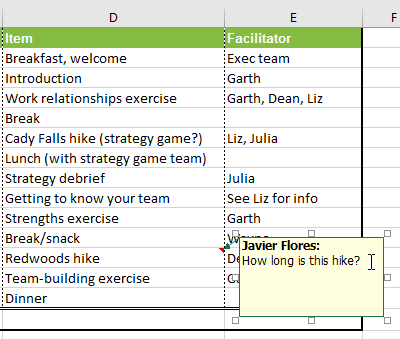
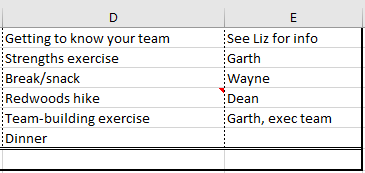
A cell indicator shows that an annotation is attached. Indicator color and shape can vary by Excel version and whether the item is a comment or a note.
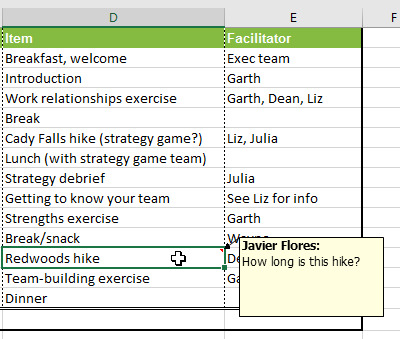
Select or point to the cell to view it, depending on the workbook’s display settings.
Edit a note
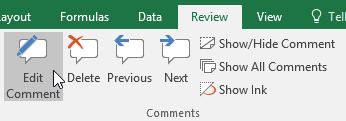
Select the cell and use Review > Edit Comment in the original interface. In current Microsoft 365 builds, use Review > Notes > Edit Note.
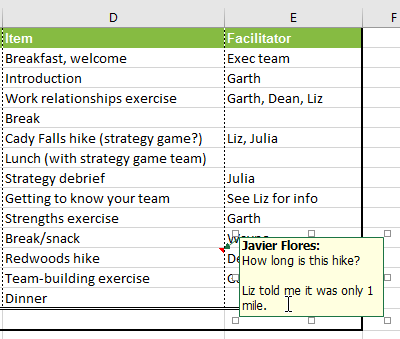
Edit the text, then click outside the box. For a modern threaded comment, open the thread’s menu and edit only a comment you authored.
Show or hide notes
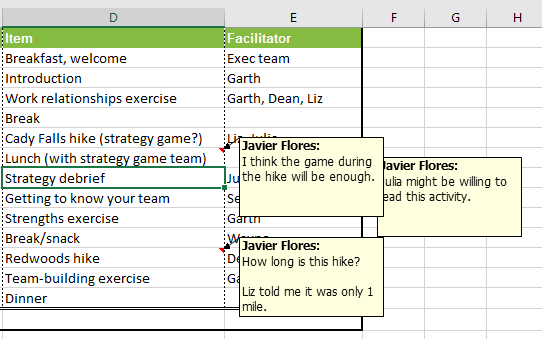
The original Show All Comments command displays every legacy annotation on the sheet.
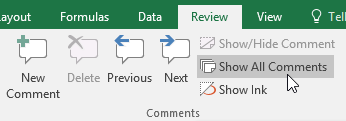
Select the command again to hide the floating boxes.
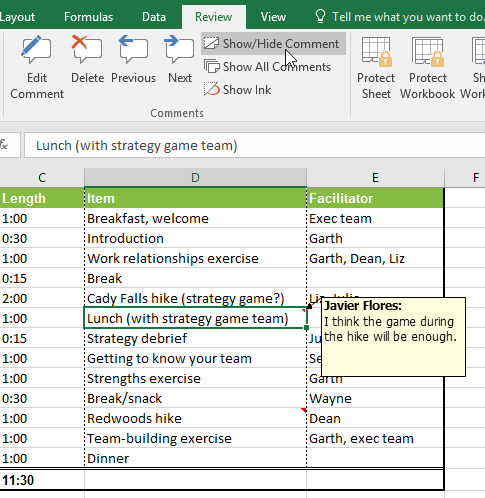
To control one annotation, select its cell and use Show/Hide Comment in the original interface. Current Microsoft 365 builds place the equivalent command under Notes.
Modern comments are reviewed in the Comments pane rather than by leaving every thread open over the grid.
Delete a note or comment
Select the cell containing the item.
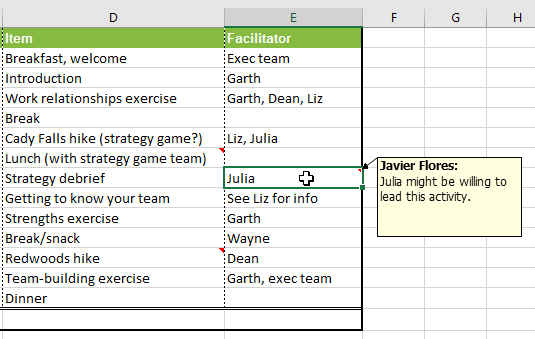
In the original interface, choose Review > Delete in the Comments group. In current builds, choose the delete command for the correct item type—comment or note.
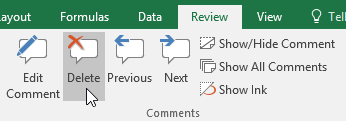
The annotation is removed from the cell.
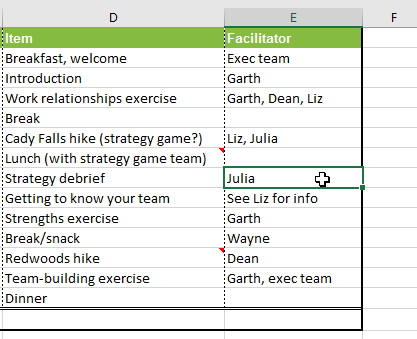
Deletion removes the discussion or annotation. If a modern comment’s conversation is complete but should remain available for reference, use Resolve instead when that option is available.
Co-author the workbook
After eligible editors open the same cloud copy in supported Excel versions, their changes can synchronize through co-authoring. Presence indicators show who is in the file, and colored selections may show where another person is working.
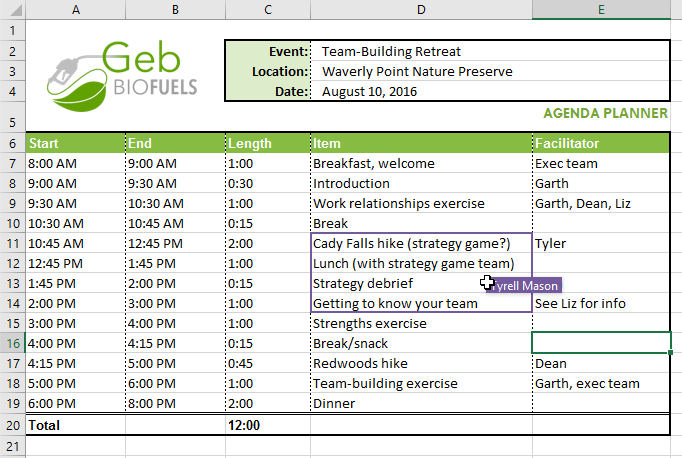
Co-authoring access is not created merely by adding a comment: the recipient must have permission to the workbook. The exact requirements depend on the Excel version, account, storage service, file format, and organizational policy.
Reduce conflicts
- Keep AutoSave on when the shared file and Excel version support it.
- Avoid sorting or restructuring the same range while another person is entering data there.
- Use comments to assign questions rather than overwriting uncertain values.
- Close and reopen a file that has been left open for a long time if synchronization stops.
- If co-authoring is unavailable, verify that everyone is opening the same OneDrive or SharePoint file, not downloaded copies.
Open and restore Version History
Version History is available for files stored in OneDrive or SharePoint. Depending on the build, select the clock/history icon, the file name in the title bar, or File > Info > Version History.
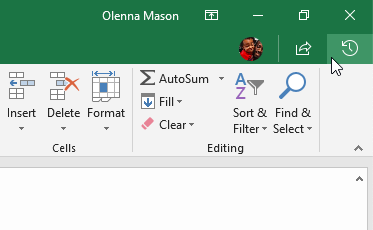
The history pane lists available versions. Open a version first and inspect its timestamp and contents.
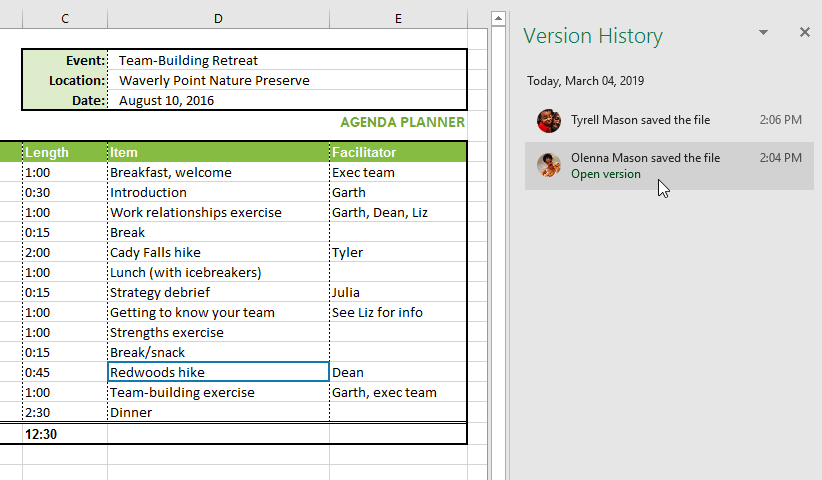
If it is the correct version, select Restore. Restoring makes that version current; it does not mean every later version is immediately erased from the service’s history.
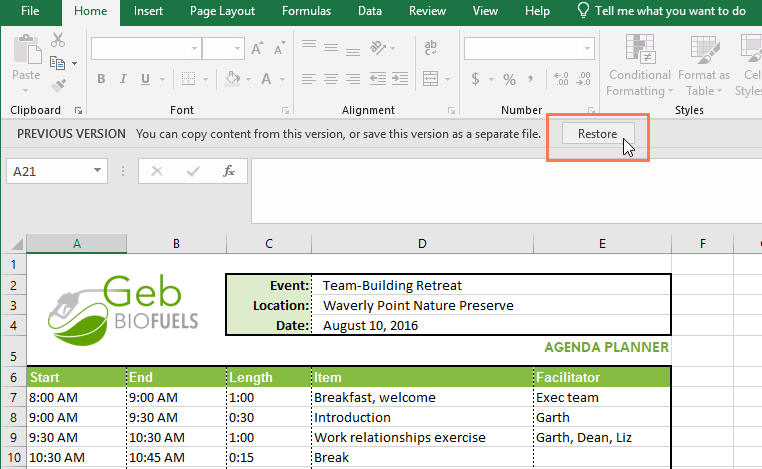
Version retention varies by account and SharePoint library configuration. Do not treat it as the only backup for a critical workbook.
Choose the right review tool
- Use comments for questions and conversations.
- Use notes for simple cell annotations.
- Use Version History to inspect or restore earlier cloud versions.
- Use Show Changes in supported newer Excel builds for a recent change log.
- Treat the hidden legacy Track Changes feature as a compatibility tool, not the default modern collaboration workflow.
If the shared workbook is a report rather than a raw editing grid, organizing its summaries with an Excel PivotTable can reduce accidental edits to source rows.
Microsoft documents the current distinction between threaded comments and notes, common co-authoring problems, and the steps to view previous Office file versions.
Related Articles
 Comments in Excel - Create Comments in Excel4 minutes read
 Add, Create Comments in Excel3 minutes read
 Use Comments Tool in MS Excel3 minutes read
 How to Delete Notes, Comments in Excel4 minutes read
 Use Comment Boxes in Microsoft Word10 minutes read
 Word 2016 Complete Guide (Part 24): How to Use Track Changes and4 minutes read
Reader Comments 0
Sign in with email or Google to join the discussion.