Table of Contents
Goal Seek works backward from a formula result: you specify the result you want, and Excel changes one input cell until the formula reaches that target. It is one of Excel’s three built-in What-If Analysis tools, alongside Scenario Manager and one- or two-variable data tables.
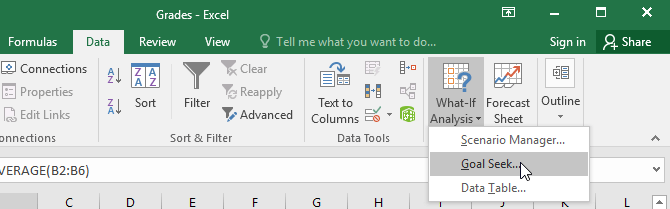
The screenshots show Excel 2019, but the desktop workflow is also available in recent Excel versions under Data > What-If Analysis > Goal Seek.
What Goal Seek can and cannot do
Goal Seek needs three items:
- Set cell: a cell containing a formula.
- To value: the numeric formula result you want.
- By changing cell: one input cell referenced, directly or indirectly, by the formula.
It changes only one input and returns one candidate value. The result is not proof that the target is practical, unique, or optimal. Check business rules, integer requirements, minimums, maximums, and the effect of rounding after it finishes.
Example 1: find the score needed to pass
Suppose four assignment scores are 58, 70, 72, and 60 in B2:B5. The unknown final score is in B6, and B7 contains:
=AVERAGE(B2:B6)If all five assignments have equal weight and the target average is 70, Goal Seek can calculate the needed value in B6.
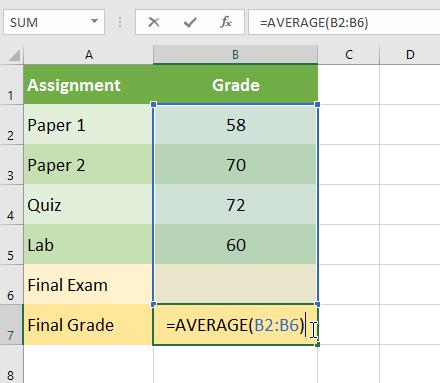
- Select B7, the formula cell.
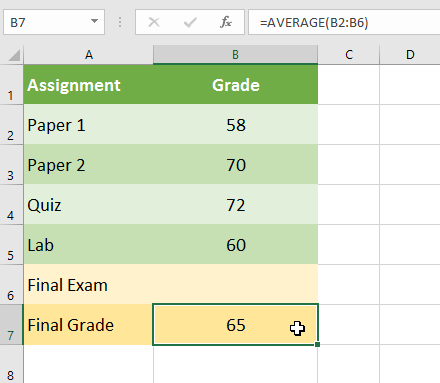
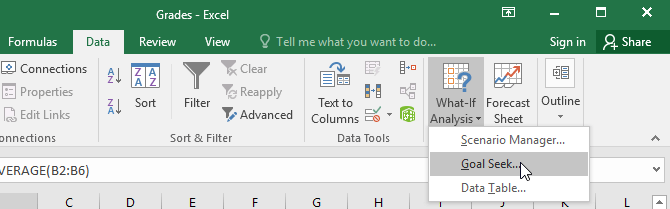
- Open Data > What-If Analysis > Goal Seek.
- Enter B7 in Set cell, 70 in To value, and B6 in By changing cell.
- Select OK.
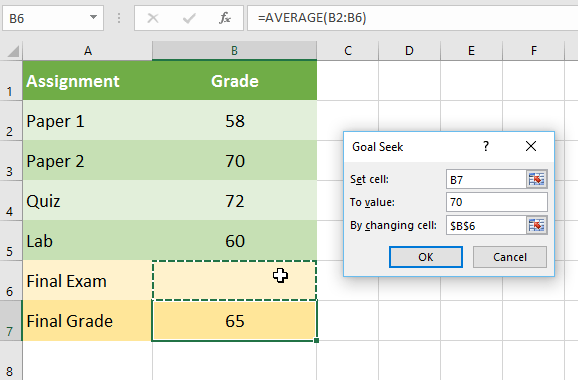
Excel reports whether it found a solution and shows the current result.
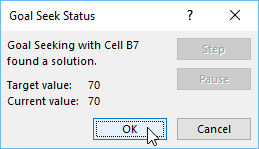
Here, the required final score is 90 because the first four scores total 260 and five scores averaging 70 must total 350.
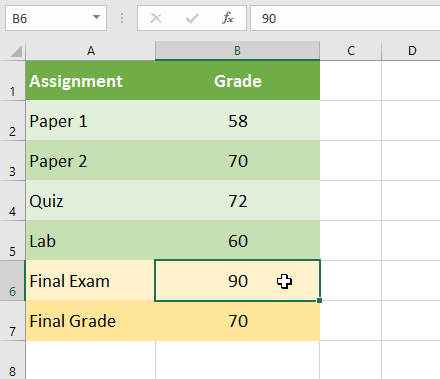
Before accepting that answer, confirm that the course really uses equal weights, that 70 is the exact passing threshold, and that a score of 90 is attainable. If assignments have different weights, the worksheet formula must model those weights before Goal Seek is run.
Example 2: find a guest count within a budget
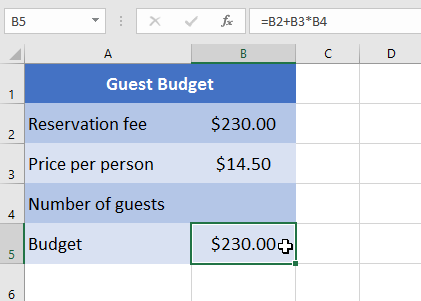
Suppose B2 contains a fixed venue cost, B3 contains the cost per guest, B4 contains the guest count, and B5 contains:
=B2+B3*B4Select B5 because it is the formula whose result must reach the budget.
Open Goal Seek from the Data tab.
Set the dialog as follows:
- Set cell: B5
- To value: 500
- By changing cell: B4
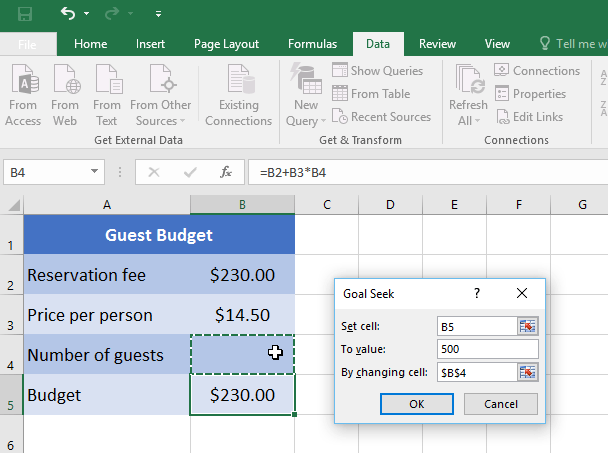
If Excel returns approximately 18.62, that value is a mathematical solution but not a valid guest count. Round down to 18 and recalculate the total to confirm it remains within the $500 limit. Rounding up to 19 could exceed it.
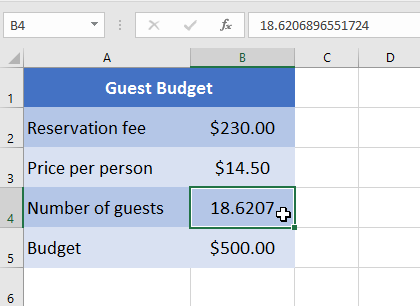
Do not simply change the displayed number format to zero decimal places: that changes only how the decimal appears, not the underlying guest-count value. Enter the allowed integer and verify the formula result.
Troubleshoot Goal Seek
- Set cell is not a formula: Goal Seek must work on a calculated cell.
- Changing cell is not connected to the formula: altering it must affect the set cell.
- The changing cell contains a formula: use an input cell that Excel is allowed to replace.
- No solution or poor convergence: the formula may be discontinuous, the starting value may be unsuitable, or the requested target may be impossible with that model.
- The result violates a constraint: Goal Seek does not enforce integer, nonnegative, capacity, or multi-cell constraints.
Save a copy first if the current input matters. Selecting OK in the Goal Seek Status dialog keeps the changed input; selecting Cancel restores the prior value.
Scenarios and data tables
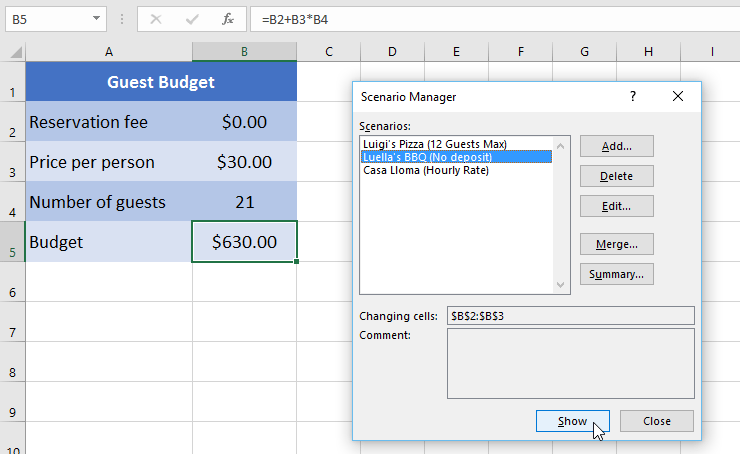
Scenario Manager stores named sets of values for multiple changing cells. It is useful for comparing defined cases such as low, expected, and high costs. A scenario can include up to 32 changing values.
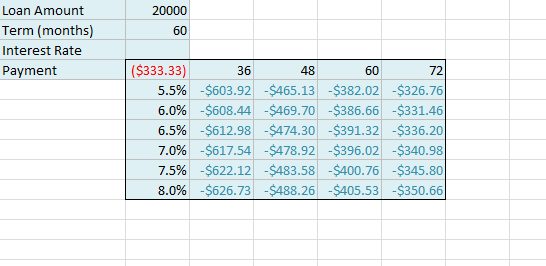
A data table substitutes many possible values for one or two input cells and displays the resulting formula values in a grid. It is useful for sensitivity analysis such as comparing loan payments across several interest rates and terms.
Choose the right analysis tool
- Goal Seek: one target formula and one changing input.
- Scenario Manager: several saved sets of up to 32 changing values.
- Data table: many values for one or two inputs, shown side by side.
- Solver add-in: an objective with multiple changing variables and constraints.
- PivotTable: summarizing existing records rather than solving a formula backward; see how to create PivotTables in Excel.
If cell references and formulas are unfamiliar, begin with the guide to the Excel interface and use the Name Box guide to navigate directly to cells such as B6 or B7.
Microsoft’s introduction to Excel What-If Analysis explains Goal Seek, scenarios, data tables, and Solver in current desktop releases.
Related Articles
 How to Use Excel for Financial Analysis: Complete Guide7 minutes read
 How to Use Quick Analysis in Excel6 minutes read
 How to Run Regression Analysis in Microsoft Excel4 minutes read
 ChatGPT and Its Excel File Analysis Capabilities8 minutes read
 Data Analysis in Excel3 minutes read
 Summary of 50 Excel Shortcuts You Should Know by 2023: Main Insights9 minutes read
Reader Comments 0
Sign in with email or Google to join the discussion.