Table of Contents
To remove formulas while keeping their current results, copy the cells and paste them back as Values. To remove both the formulas and their results, select formula cells with Go To Special and press Delete. Save a backup first because replacing formulas cannot be undone after the workbook is closed.
Replace formulas with values
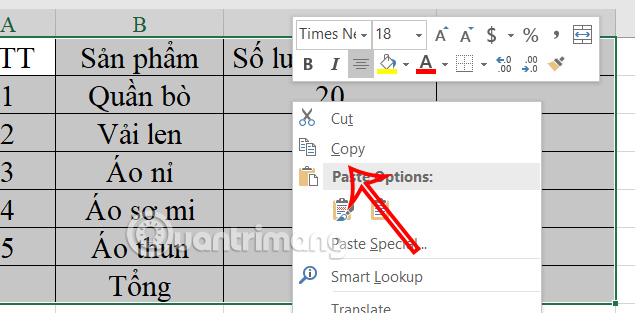
- Select the cells that contain the formulas.
- Press Ctrl+C or choose Home > Copy.
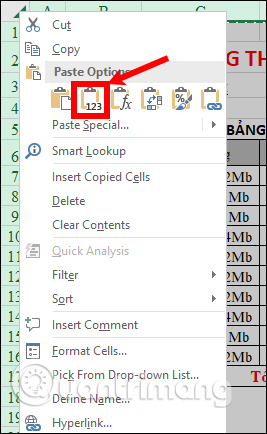
- Right-click the same selection.
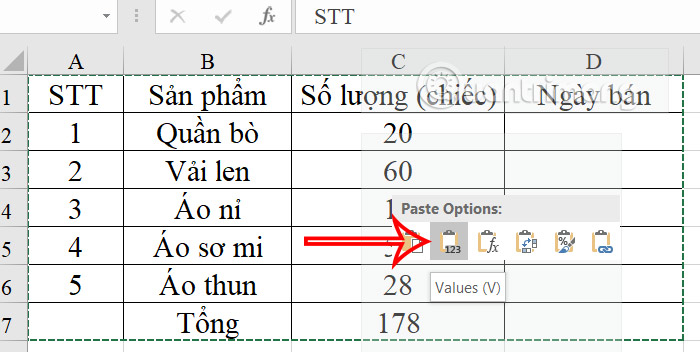
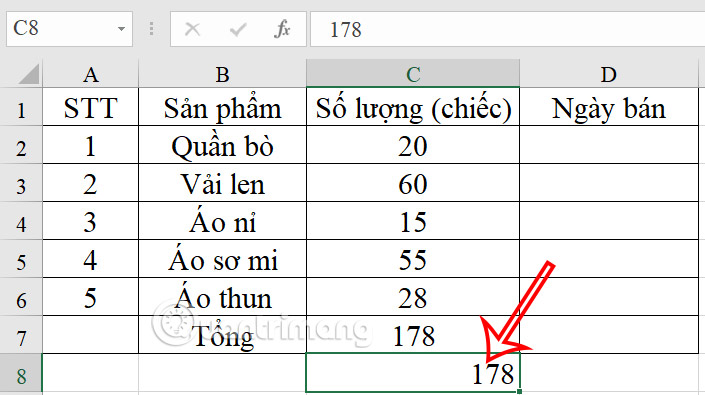
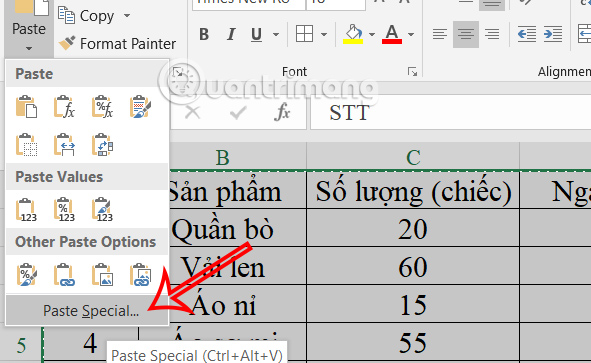
- Under Paste Options, select the Values icon, usually marked 123.
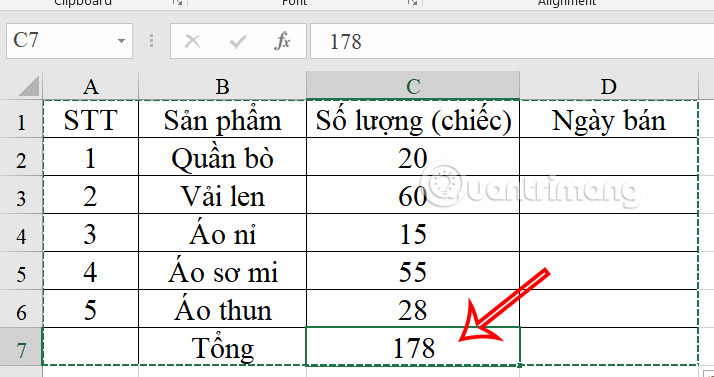
The displayed numbers or text remain, but the formula bar now contains fixed values. Future changes to source cells will no longer update them.
Use the Paste Special dialog
This method is useful when the compact paste icons are difficult to identify:
- Copy the formula cells.
- Right-click the same selection and choose Paste Special.
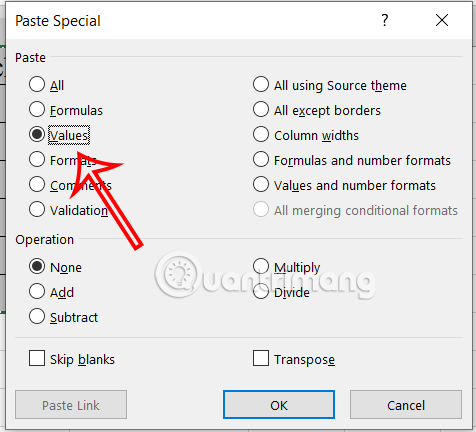
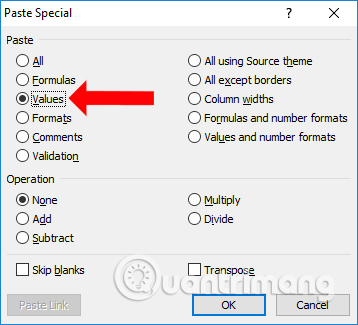
- Under Paste, select Values.
- Leave the operation set to None, then select OK.
Copy formulas as values to another location
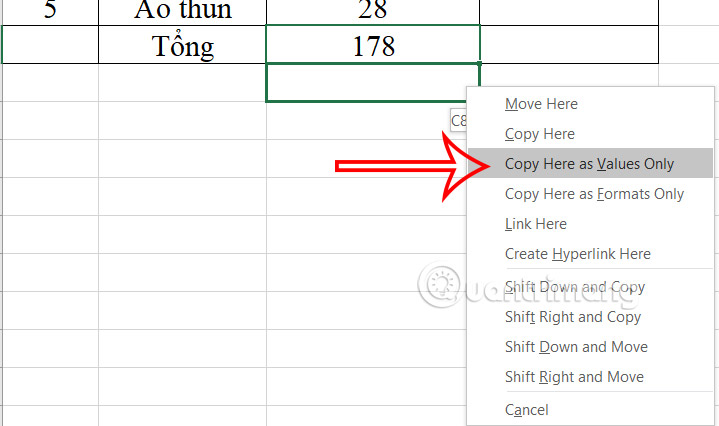
To keep the original formulas and create a fixed copy elsewhere, copy the range, select the destination, and paste as Values. You can also right-drag a selected range to another location and choose Copy Here as Values Only when that option is available.
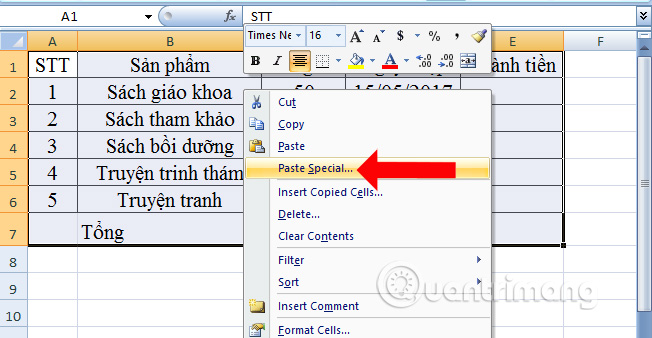
Excel 2007 and older interfaces
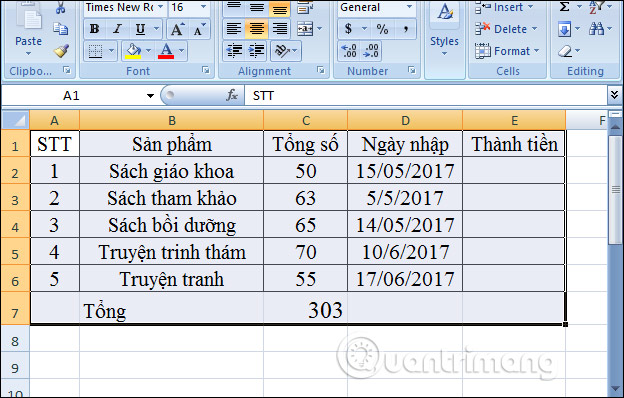
Older Excel versions use the same principle, although the menu looks different. Copy the cells, open Paste Special, choose Values, and select OK.
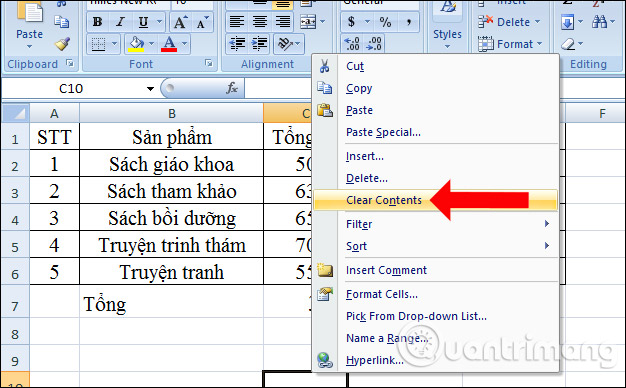
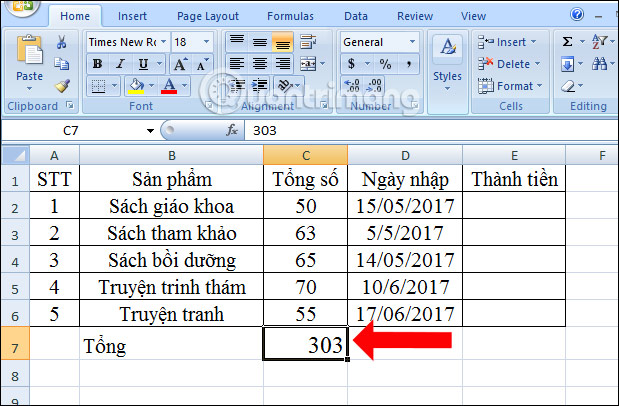
Delete formulas and their results
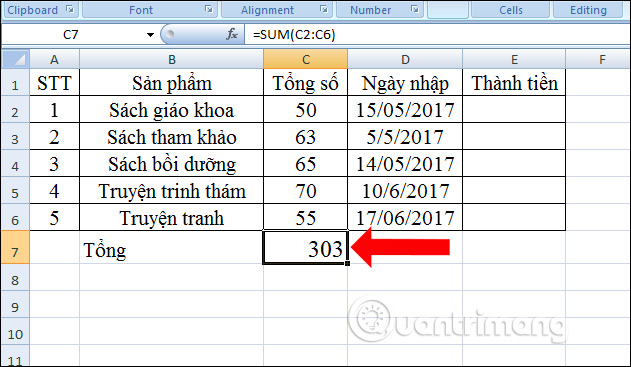
If a worksheet mixes formulas with manually entered data, use Go To Special to select only the formula cells:
- Select the range to inspect, or press Ctrl+A for the active data region.
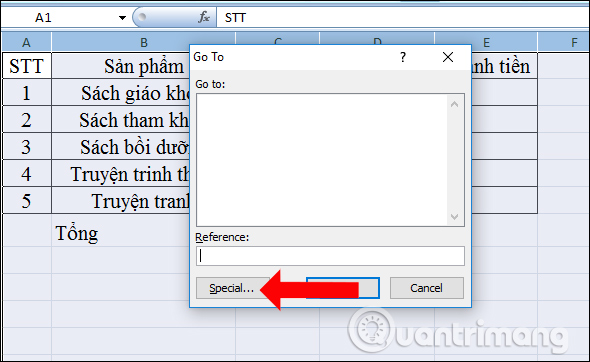
- Press Ctrl+G, then select Special.
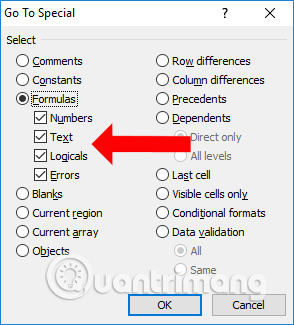
- Choose Formulas. If needed, limit the selection to numbers, text, logical values, or errors.
- Select OK, verify the highlighted cells, and press Delete.
Checks before replacing formulas
- Confirm that calculation is up to date before pasting values.
- Keep a copy of the workbook if the formulas may be needed later.
- Do not select an entire sheet unless every formula should be changed.
- Remember that formatting remains when you paste values over the same cells.
- Check totals and dependent reports after the change.
Related Articles
 How to Delete Quick Recipe on Excel: Excel Formula4 minutes read
 How to Copy Formulas in Excel: Complete Guide11 minutes read
 Learn How to Fix Excel Errors Showing Formulas Not Displaying6 minutes read
 How to Hiding Formulas in Excel: Step-by-Step Guide3 minutes read
 How to Hide Formulas in Excel3 minutes read
 How to Delete All Formulas in Excel Fastest3 minutes read
Reader Comments 0
Sign in with email or Google to join the discussion.