Table of Contents
ChatGPT can turn a plain-language requirement into a draft Excel formula, explain how the formula works, and help troubleshoot errors. The result still needs to be checked in your workbook because Excel versions, regional settings, table layouts, and edge cases can change the correct solution.
The most reliable approach is to describe the sheet precisely, ask for an explanation, and test the formula on a few rows whose answers you already know.
Give ChatGPT enough workbook context
A vague prompt such as “calculate sales” forces the model to guess. Include:
- Your Excel version or whether you use Microsoft 365
- Worksheet and table names
- What each relevant column contains
- The first and last data rows, or whether the data is an Excel Table
- Examples of input and the expected result
- How blanks, errors, duplicates, and unmatched values should behave
- Your regional list separator if Excel uses semicolons instead of commas
Ask the model to explain every range and condition. That makes incorrect assumptions easier to spot before you fill the formula down thousands of rows.
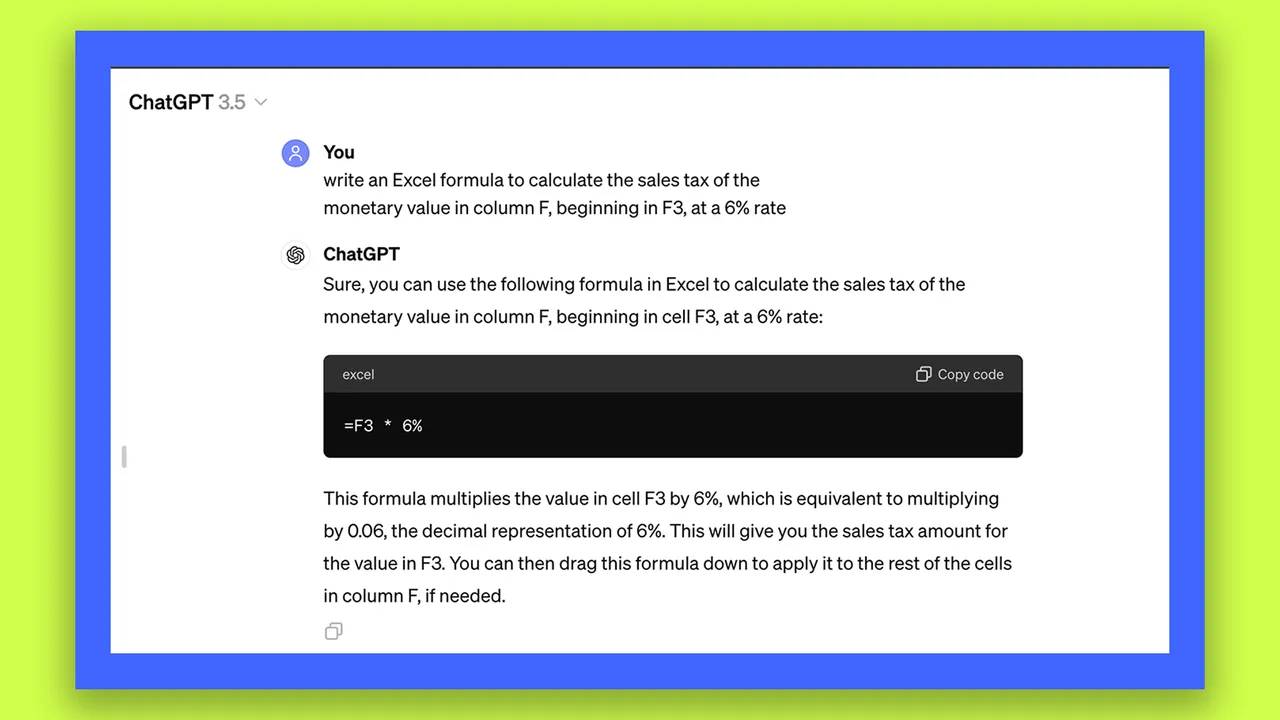
Example 1: sum values with multiple conditions
Assume column A contains the salesperson, column C contains the region, and column D contains revenue. To total Priya's revenue in the West region, ask:
Write an Excel formula that sums column D when column A equals "Priya" and column C equals "West". My data starts on row 2. Explain the formula and show a version that uses criteria cells F2 and G2.A suitable formula for a fixed range is:
=SUMIFS($D$2:$D$1000,$A$2:$A$1000,"Priya",$C$2:$C$1000,"West")Using criteria cells makes the worksheet easier to reuse:
=SUMIFS($D$2:$D$1000,$A$2:$A$1000,F2,$C$2:$C$1000,G2)Check that all ranges have the same dimensions and that revenue cells are numeric. Whole-column references are convenient, but bounded ranges or structured table references can be more efficient in a large workbook.
Example 2: extract the domain from an email address
For Microsoft 365 or another Excel version that supports TEXTAFTER:
=IFERROR(TEXTAFTER(A2,"@"),"")For an older version:
=IFERROR(MID(A2,FIND("@",A2)+1,LEN(A2)),"")The IFERROR wrapper returns a blank when the cell has no at sign. If invalid addresses must be flagged rather than hidden, replace the empty string with a label such as "Check email".
Example 3: rank values and handle ties
To rank the value in B2 from highest to lowest while assigning equal values the same rank:
=RANK.EQ(B2,$B$2:$B$100,0)RANK.EQ uses competition ranking: after a tie, the next rank number is skipped. State the ranking behavior you want because dense ranking, unique ranking, and tie-breaking by another column require different formulas.
Use ChatGPT to clean and transform data
Data-cleaning prompts should describe the exact format instead of asking the model to “fix” a column. Useful tasks include trimming spaces, standardizing case, splitting text, converting numbers stored as text, and parsing a known date pattern.
Remove extra spaces and standardize case
=UPPER(TRIM(B2))TRIM removes repeated standard spaces but may not remove every nonprinting or nonbreaking character copied from another system. If that is a possibility, show the model a sanitized example and ask it to explain each cleaning function it adds.
Convert fixed DD-MM-YYYY text into a date
If A2 always contains a 10-character text value such as 31-12-2026, a locale-independent construction is:
=DATE(VALUE(RIGHT(A2,4)),VALUE(MID(A2,4,2)),VALUE(LEFT(A2,2)))Afterward, format the result cell as a date. This formula assumes every input follows the same valid pattern; add validation if separators, blanks, or invalid days are possible.
Convert a number stored as text
The correct method depends on decimal and thousands separators. For text that follows your current Excel locale, VALUE may be sufficient:
=IFERROR(VALUE(D2),"Check value")Tell ChatGPT which characters represent the decimal and thousands separators so it does not silently interpret a number incorrectly.
Ask ChatGPT to debug an existing formula
Copy the formula—not confidential workbook data—and include the exact error, the intended result, and sample values. Ask the model to check parentheses, absolute references, data types, unavailable functions, and row alignment.
A structured debugging prompt is more effective:
Excel returns #N/A for this formula. I use Excel 2021. A2 contains a product code as text, and Lookup!A2:A500 contains codes that may have leading spaces. Explain the likely cause, propose a formula, and show how to test whether the types match.Be cautious with fixes that simply wrap everything in IFERROR. Hiding an error can also hide a data-quality problem. Use a meaningful fallback only after you understand why the error occurs.
Generate VBA macros carefully
ChatGPT can draft VBA, but a macro can overwrite data, change files, send information, or run other programs. Inspect all generated code and test it on a backup copy with macros disabled by default until you are ready.
For example, this prompt is specific and testable:
Write a VBA macro for a worksheet named Sheet1. From row 2 to the last used row in column C, highlight the cells in columns A:D when column C contains a numeric value below zero. Do not clear other formatting. Add comments and stop with a clear message if Sheet1 is missing.Before running a macro:
- Confirm the workbook and range it can modify.
- Search the code for file deletion, shell commands, network requests, and unexpected workbook access.
- Save a separate backup; macro changes may not be reversible with Undo.
- Step through the code or run it against a small copied worksheet.
- Keep only code that someone on the team can understand and maintain.
Verify every generated formula
- Calculate several cases manually, including a blank and a boundary value.
- Use Excel's formula evaluation tools to follow intermediate results.
- Check that relative and absolute references behave correctly when copied.
- Confirm that functions exist in the target Excel version.
- Test the workbook under the intended regional settings.
- Compare totals or row counts with an independent calculation.
ChatGPT is most useful for shortening the path from a clear requirement to a formula you can inspect. Understanding and testing that formula remains essential—especially when the workbook supports financial, operational, or other consequential decisions.
Related Articles
 Excel Tricks That Let You Write Formulas More Easily8 minutes read
 How to Use Claude AI to Write Excel Formulas Instantly7 minutes read
 What Are the Notable Features of ChatGPT for Excel?8 minutes read
 How to Hide Formulas in Excel3 minutes read
 MS Excel - Lesson 5: Excel Formulas and Functions7 minutes read
 How to Add Rows in Excel Using Formulas5 minutes read
Reader Comments 0
Sign in with email or Google to join the discussion.