
Office information
How to Make PowerPoint Presentation Slides Nice and Fast
Learn how to make PowerPoint Presentation Slides Nice and Fast with clear steps, practical tips, and key considerations for completing the task safely.
Browse more Explore practical Office information guides, useful tools, setup instructions and troubleshooting tips for common tasks, features and problems.
Learn how to make PowerPoint Presentation Slides Nice and Fast with clear steps, practical tips, and key considerations for completing the task safely.
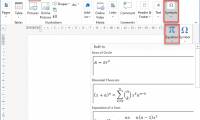
Explore Prepare and Edit Mathematical Expressions in Word with a clear overview, practical guidance, key features, and useful tips to help you make an.
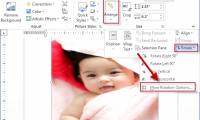
Explore Rotate and Move Images in Word with a clear overview, practical guidance, key features, and useful tips to help you make an informed decision.

Explore Set up the Auto Correct Function in Word with a clear overview, practical guidance, key features, and useful tips to help you make an informed decision.
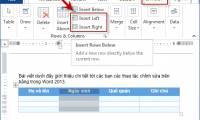
Explore Manipulation Editing on a Table in Word with a clear overview, practical guidance, key features, and useful tips to help you make an informed decision.

Explore Use the Search and Replace Function in Word with a clear overview, practical guidance, key features, and useful tips to help you make an informed.
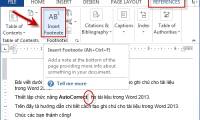
Explore Create Notes for Documents in Word with a clear overview, practical guidance, key features, and useful tips to help you make an informed decision.
Explore Create and Edit Text Boxes in Word with a clear overview, practical guidance, key features, and useful tips to help you make an informed decision.
Learn how to handle Opened Word Documents with Font Errors with clear steps, practical tips, and key considerations for completing the task safely.
Learn how to convert Excel to PDF, Convert Excel Files to PDF Quickly, Keep the with clear steps, practical tips, and key considerations for completing the.
Explore Take Screenshots Quickly, No Need to Install Additional Software with a clear overview, practical guidance, key features with practical examples.

Learn how to edit PDF Files with Foxit PhantomPDF with clear steps, practical tips, and key considerations for completing the task safely and efficiently.
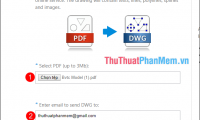
Learn how to convert PDF to AutoCAD Simply in 2 Ways with clear steps, practical tips, and key considerations for completing the task safely and efficiently.

Explore Convert CAD Files to PDF with a clear overview, practical guidance, key features, and useful tips to help you make an informed decision.
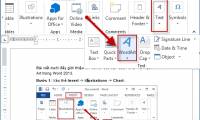
Explore Insert and Edit Word Art in Word with a clear overview, practical guidance, key features, and useful tips to help you make an informed decision.
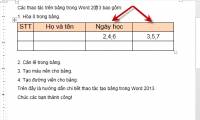
Explore Table Operations in Word with a clear overview, practical guidance, key features, and useful tips to help you make an informed decision.
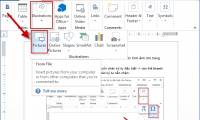
Learn how to insert Images for Text Pages in Word with clear steps, practical tips, and key considerations for completing the task safely and efficiently.
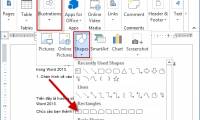
Explore Insert and Edit Drawings in Word with a clear overview, practical guidance, key features, and useful tips to help you make an informed decision.
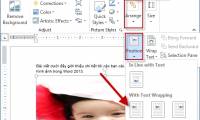
Explore Choose the Display Location of Images in Word with a clear overview, practical guidance, key features, and useful tips to help you make an informed.

Explore Nested Frames and Effects for Images in Word with a clear overview, practical guidance, key features, and useful tips to help you make an informed.