Table of Contents
If you feel you're only scratching the surface, these 5 practical tips will help you set up NotebookLM much better.
NotebookLM is most useful when the notebook contains a deliberate source set and each answer is checked against its citations. It can summarize and connect uploaded material, but source grounding does not guarantee that an interpretation, calculation, or citation span is correct.
Set up a trustworthy notebook first
- Give each notebook one decision, course, client, or research question instead of mixing unrelated projects.
- Prefer primary, current, and complete sources. Record the author, date, jurisdiction, version, and reason each source is included.
- Remove duplicates and clearly label drafts, superseded policies, commentary, and authoritative records.
- Do not upload confidential, personal, copyrighted, or regulated material unless you have permission and the account's data controls meet your requirements.
- Open cited passages before using a factual claim in an assignment, report, or decision.
Prompts that reveal evidence instead of hiding it
- “Answer only from Sources A and B. List each claim with its citation and state what the sources do not establish.”
- “Build a comparison matrix with one row per source: scope, method, date, conclusion, limitations, and conflicts.”
- “Find passages that disagree with the current summary. Quote only the minimum needed and cite each passage.”
- “Create ten retrieval-practice questions. Wait for my answer, then grade it against the cited source and explain the gap.”
Google's current NotebookLM updates describe broader research and output formats, but available features and limits can differ by account and change over time. TipsMake also compares NotebookLM and ChatGPT, explains NotebookLM's source and study features, and lists NotebookLM alternatives.
Start with the messy files and ask questions
Start with the chaos, then discover the patterns
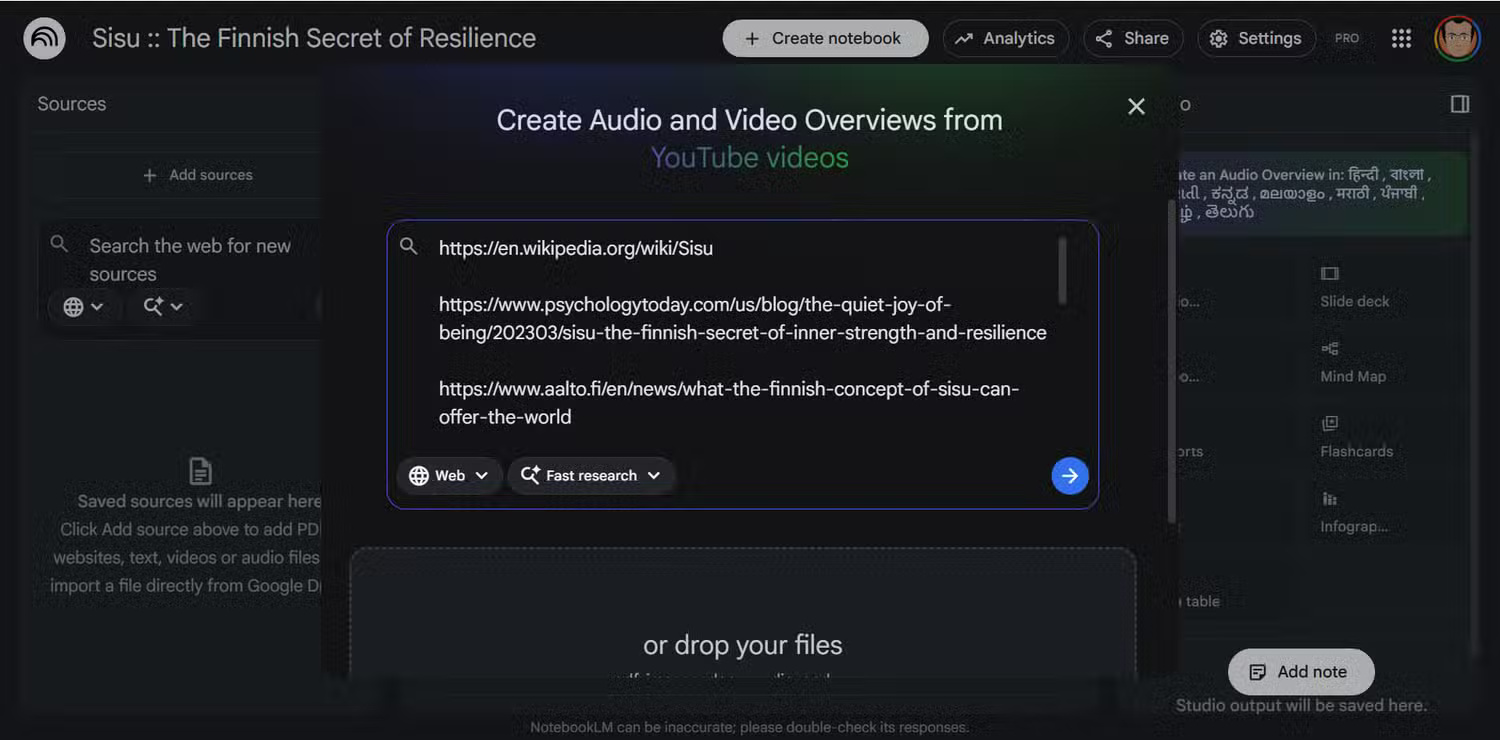
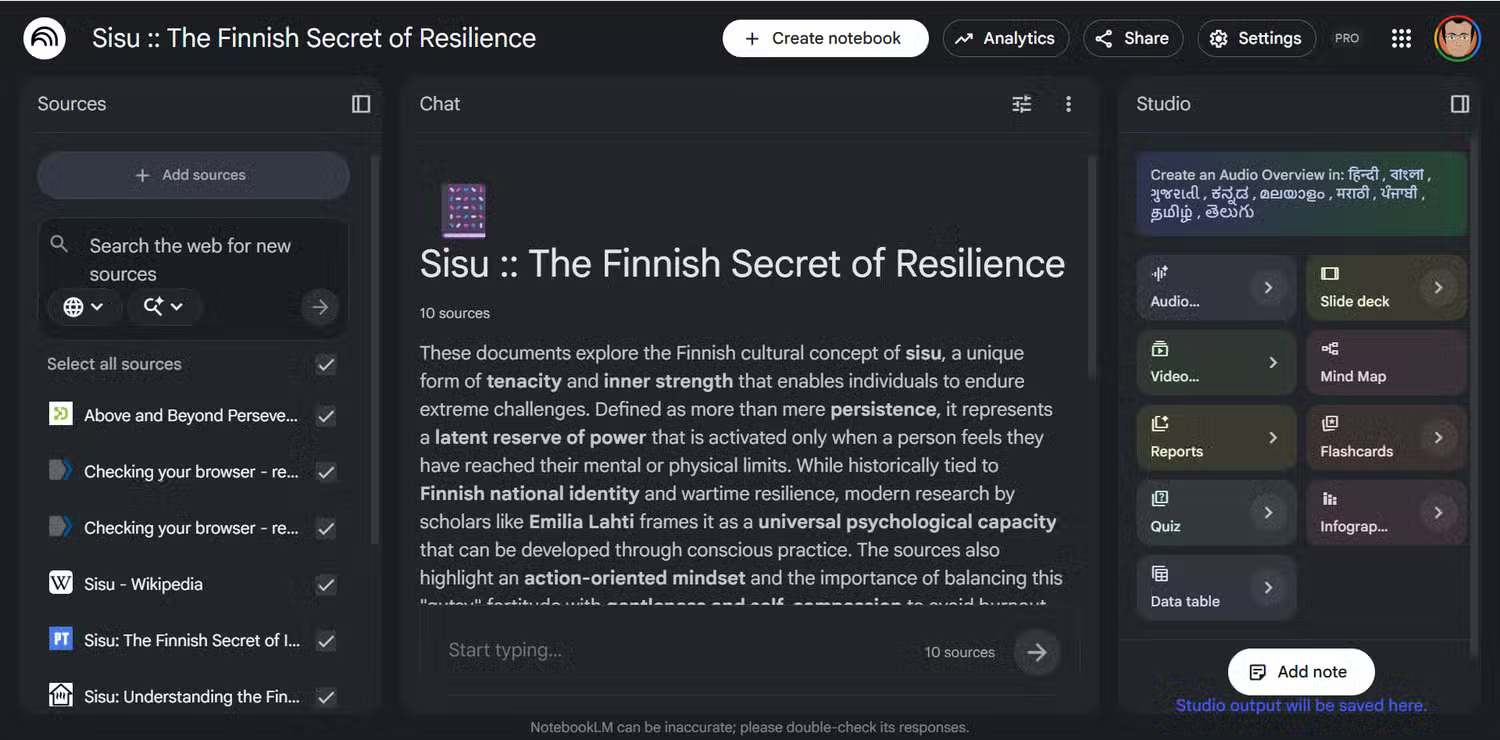
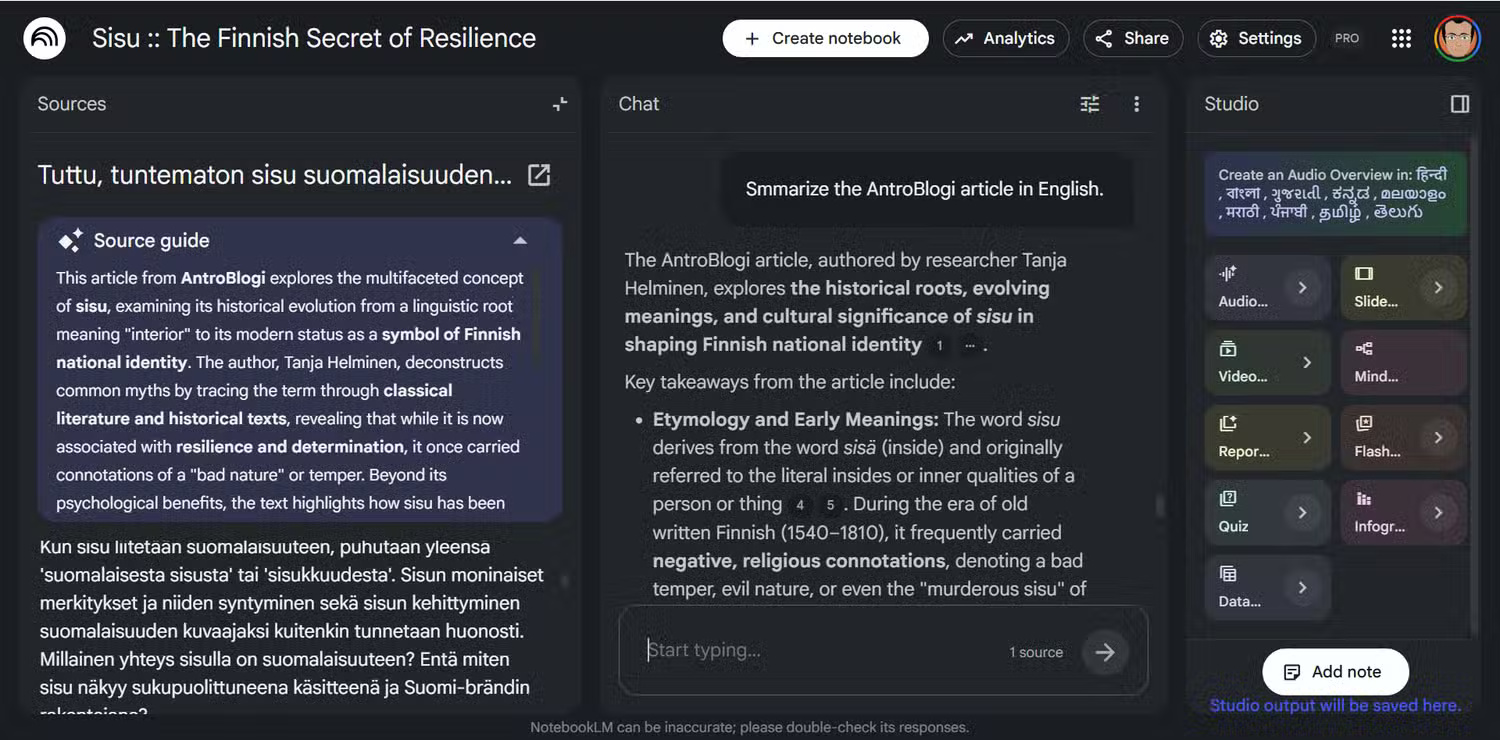
One of the simplest ways to avoid overthinking with NotebookLM is to input your 10 most recent documents. These could be notes, PDFs, articles, or even random files, and start asking questions. The goal of this random start isn't organization; it's discovery. You'll quickly see how the tool connects ideas, highlights patterns, and answers contextually rich questions from familiar documents. You can also combine Gemini with NotebookLM for even deeper exploration.
Initially, this might seem unstructured. Would simply dumping a bunch of files clutter the system? Without a clear topic, the answers might seem disjointed or less accurate than expected.
But that's the key point. This exercise, with a limited set of materials, helps you learn how NotebookLM "thinks" through documents. It's like a brainstorming exercise or a NotebookLM research process for beginners. As NotebookLM finds connections from chaos, you'll be better equipped to see which sources qualify for creating more structured notebooks later on.
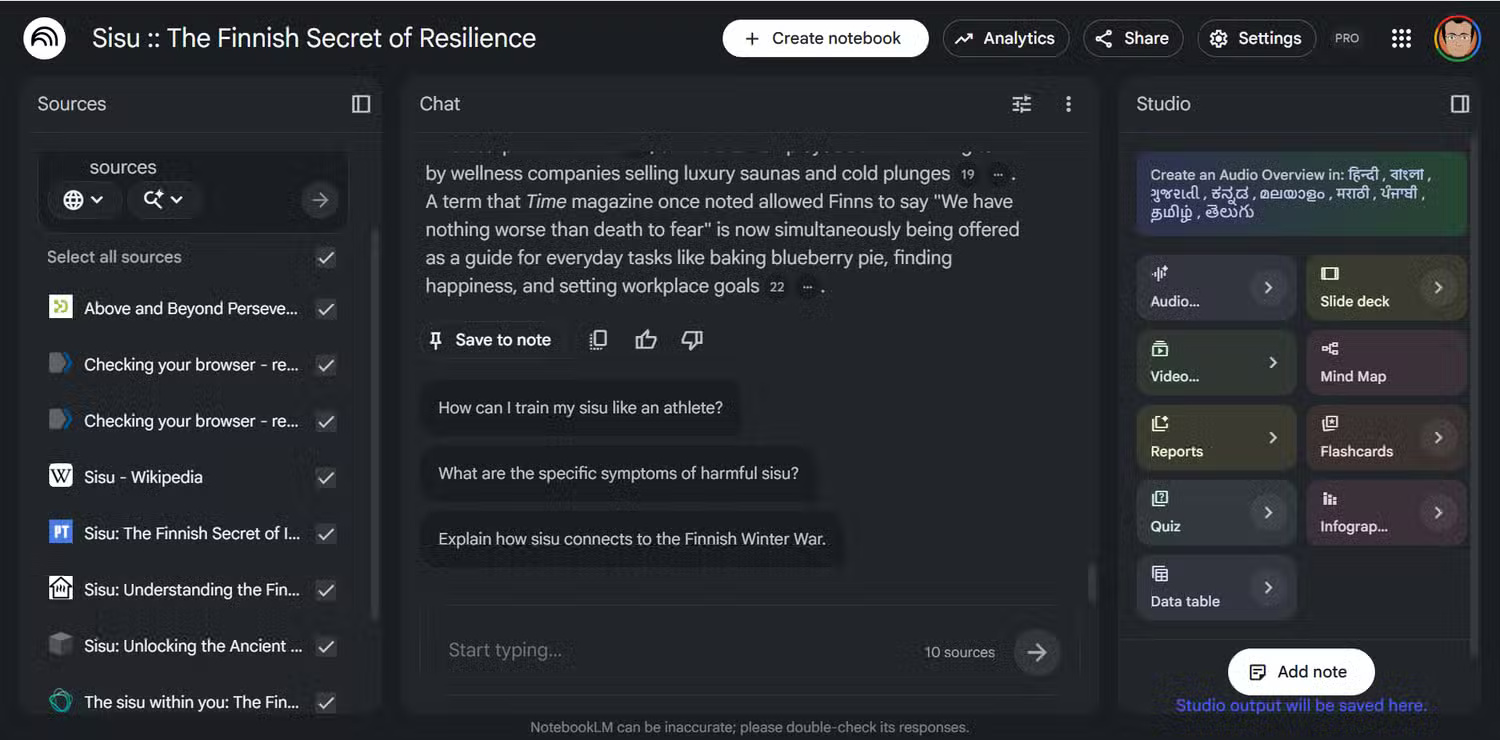
You can analyze these initial source documents with as many prompts as you like. The suggested prompts below each result are also worth exploring.
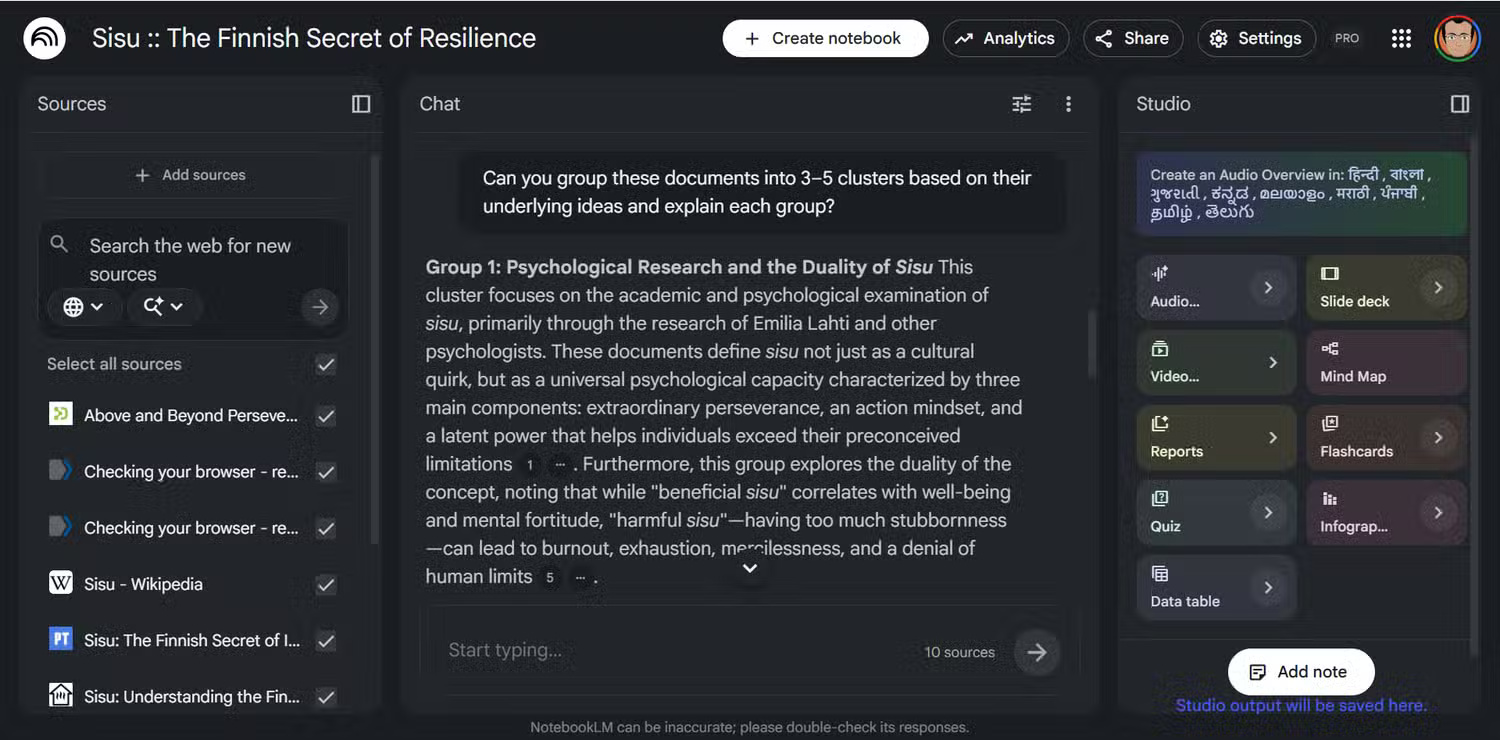
Bạn có thể nhóm các tài liệu này thành 3-5 nhóm dựa trên các ý tưởng cơ bản của chúng và giải thích từng nhóm không?
Tip: Don't overlook valuable resources in foreign languages (see the last screenshot in the library above). NotebookLM supports over 80 languages. You can even create audio overviews in your account's preferred language.
Build a main data warehouse and branch out
Organize once, reuse everywhere
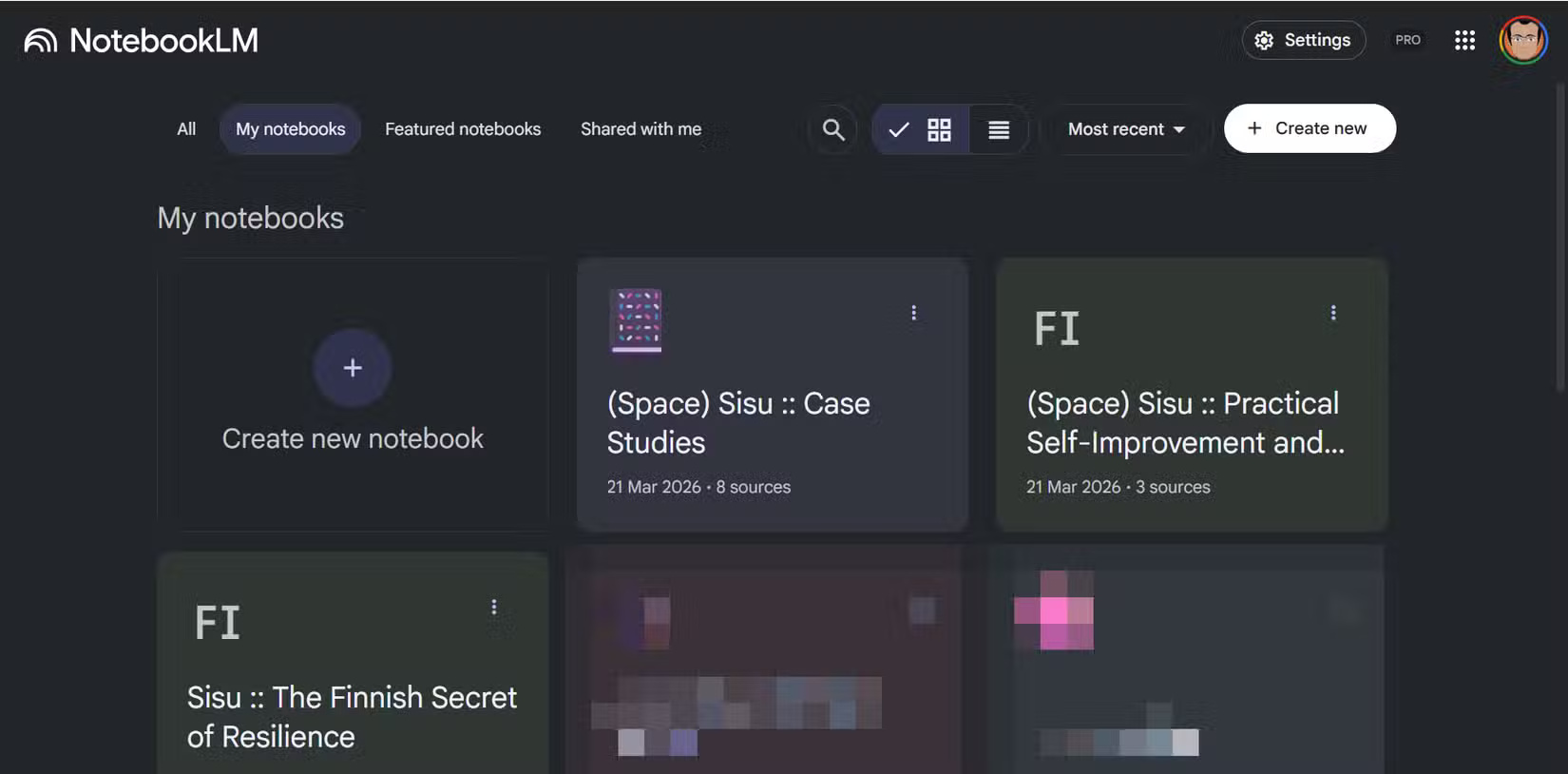
Steven Johnson, author and member of the NotebookLM team, suggested this tip on Google's The Keyword blog. Instead of creating separate notebooks for each topic, maintain a 'master data repository' that stores all your raw documents. Then, create smaller, more focused notebooks, drawing selected sources from that master dataset. The previous prompt can help you understand the groups, which can then lead to the creation of more focused notebooks. For example, a smaller notebook dedicated solely to 'Case Studies' or a notebook for 'Data Crunching'. This can help keep your output sharp without requiring excessive effort.
Creating separate notebooks is neater, but over time, they can also become cluttered with duplicate files. You often lose track of something. For now, think of the smaller notebooks as temporary brainstorming spaces to extract core data and turn it into a quality source.
The method of using a central corpus allows you to concentrate your knowledge once, and then you can remix it endlessly. It's a subtle change, but it makes NotebookLM less like a directory system and more like a flexible thinking tool. It's an alternative to the limitations of NotebookLM's directory structure.
Split large files into smaller parts before uploading
Smaller parts mean better answers
If you're working with large PDF files, ePub textbooks, lengthy research papers, or reports, divide them into chapters or logical sections before uploading. This improves how NotebookLM retrieves and references information, leading to more accurate answers. Keeping your source materials organized also makes referencing citations quicker.
Someone once uploaded an entire book as a single file. It seemed like a time-saving method, but the answers often missed important parts or felt incomplete, especially when asking specific questions.
Dividing the file into smaller parts will solve this problem. Your Chrome browser is a good PDF editor for splitting pages. It provides NotebookLM with clearer boundaries to work with, improving both retrievalability and accuracy. Think of it as allowing the AI to understand the document piece by piece, rather than one huge, incomprehensible document. This also makes using NotebookLM easier if you combine it with other AI applications.
Use prompts that reference your document source
Specify the output, scope, and uncertainty
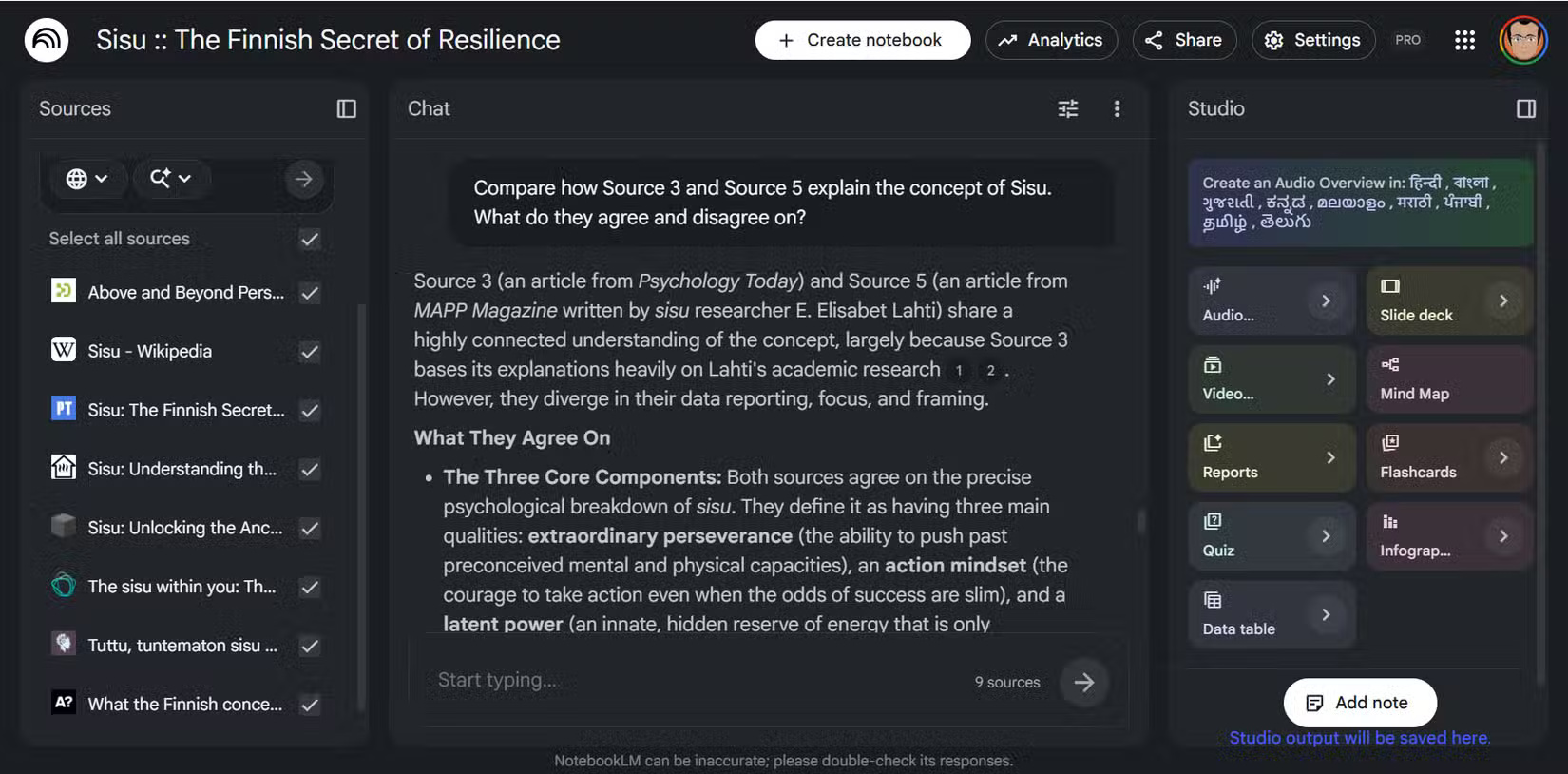
NotebookLM works best when your prompts clearly reference the sources you've uploaded. Instead of asking general questions, direct them to specific documents or sections. For example, when you want to compare two papers or analyze a specific lecture:
"Compare how [Source 1] and [Source 3] explain the concept of [Subject]. In what ways do they agree and disagree?"
Of course, we could think of it as a general chatbot, expecting it to "figure out the answer itself." NotebookLM is a powerful tool, so the results should be quite good. But often the results can also be too broad or vague to be considered useful. And we won't even know what NotebookLM missed.
Once you start basing your prompts on source documents, things change. The answers become sharper, more relevant, and more reliable. NotebookLM doesn't perform web searches. It only uses our documentation, and each prompt suggestion should leverage that.
Providing you with study guidance
Turn NotebookLM into an active tutor
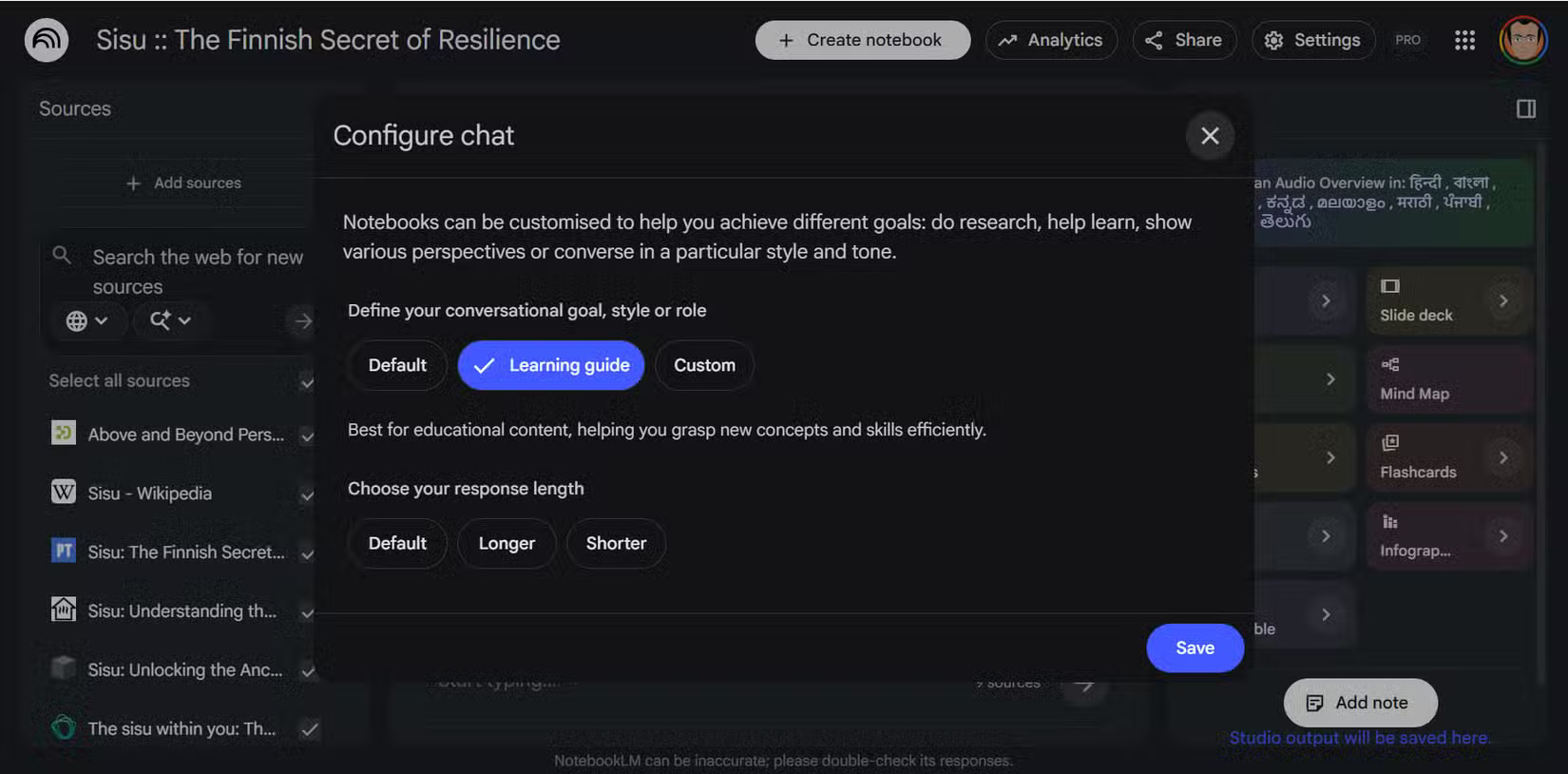
For dense or complex documents, upload your document and ask NotebookLM to guide you using Learning Guide mode. Instead of providing answers, it will ask questions, explain concepts step-by-step, and help you actively interact with the document.
This step might initially seem slower. People are used to receiving quick summaries from all the LLMs, so being initially "checked" by the tool might seem like an unnecessary hurdle.
But that's precisely why it works. This approach transforms passive reading into active learning. Over time, you'll remember more by letting NotebookLM guide you through a topic instead of just summarizing it.
Choose an idea from the above. All these steps are aimed at preparing the environment before you begin using other NotebookLM tools. Any preliminary step, such as splitting a large PDF file or creating a master corpus, will help you test your workflow in the next NotebookLM session. And this can become a template for all future notebooks.
Related Articles
 Unlock the Hidden Potential of Your Smart TV with These 6 Must-have8 minutes read
 How to Unlock the Full Potential of Your Fire TV Stick9 minutes read
 Tips for Using NotebookLM's Mind Mapping Tool9 minutes read
 5 Simple Tricks to Make NotebookLM Smarter When Taking Notes7 minutes read
 Simple Tweaks to Unlock the Full Potential of Your Smart TV Web Browser7 minutes read
 3 Best Chrome Extensions for Gemini Notebook (NotebookLM)12 minutes read
Reader Comments 0
Sign in with email or Google to join the discussion.