Table of Contents
NotebookLM Mind Maps turn the sources in a notebook into an interactive hierarchy of themes and subtopics. The map is most useful as a navigation and questioning tool: it can reveal the structure of a source set, but it does not prove that the structure is complete or that every generated label is accurate.
1. Build one notebook around one decision or question
A focused source set produces a map that is easier to interpret. Define the purpose first—for example, “compare three passwordless authentication standards” or “prepare for Chapter 4”—then include only material that helps answer it.
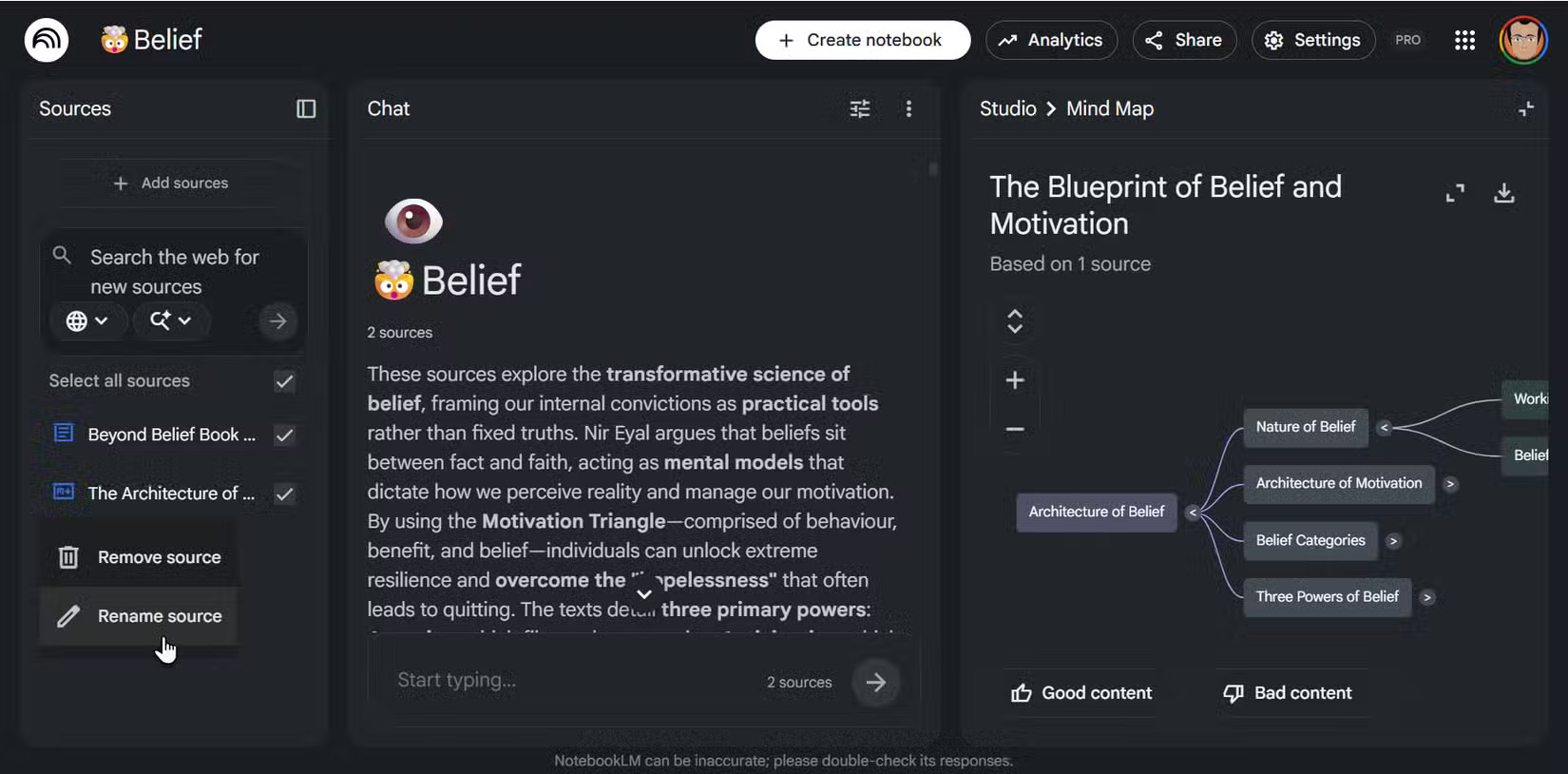
- Separate unrelated projects into different notebooks.
- Remove duplicates, weak summaries, and obsolete versions.
- Rename sources with descriptive titles that include the organization and date when useful.
- Keep primary sources and strong reference material; note whose perspective is missing.
A tidy notebook does not need dozens of sources. It needs enough credible, distinct evidence to represent the question fairly.
2. Generate the map, then inspect the top-level structure
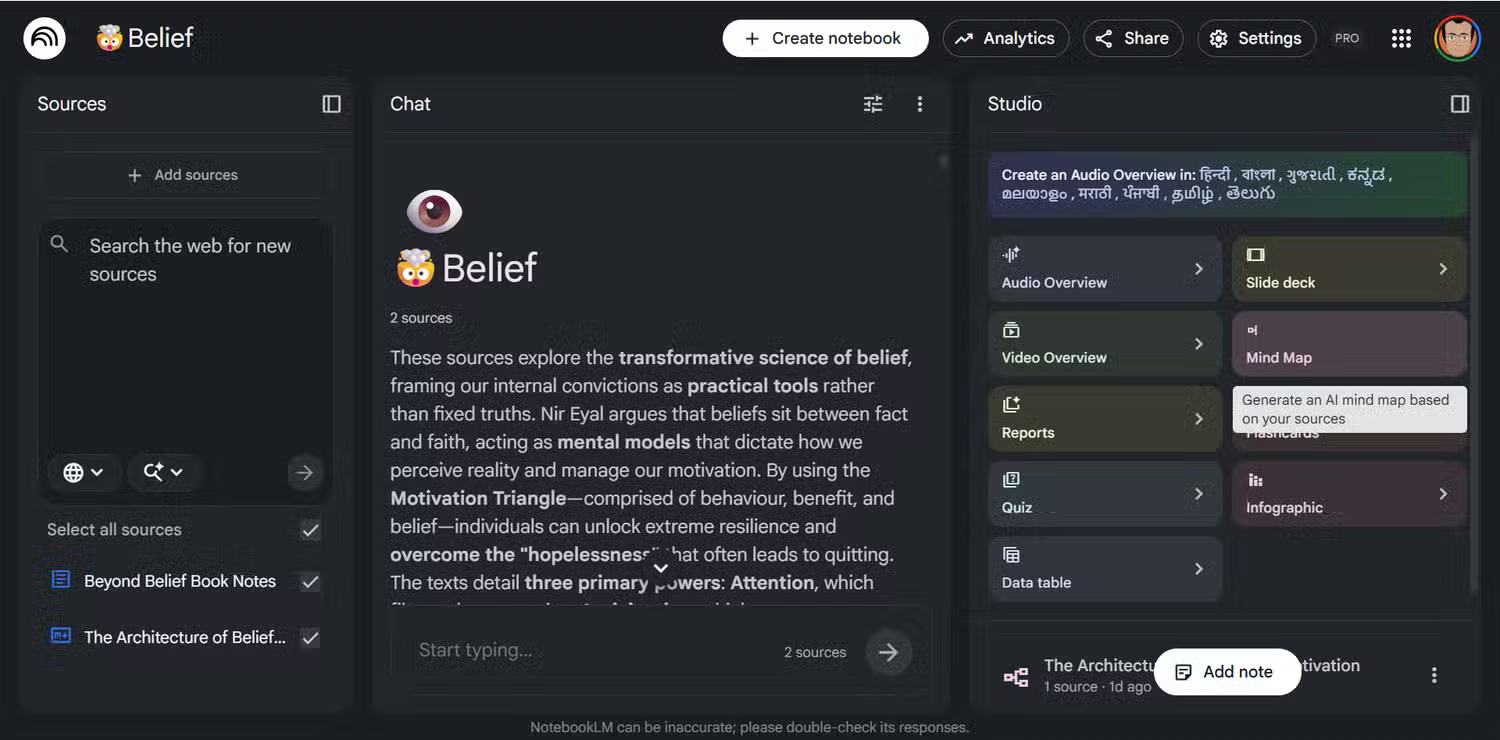
Create a Mind Map from the Studio panel. Before expanding anything, read the first-level branches. Ask:
- Do the categories match the notebook's purpose?
- Are two branches duplicates under different labels?
- Has an important source or viewpoint disappeared?
- Is one branch so broad that it should become its own notebook?
If the map is chaotic, improve the sources instead of trying to force meaning from the diagram. Google describes Mind Maps as interactive visual diagrams generated from sources and notes; it also warns generally that AI features can be inaccurate.
3. Click nodes to investigate—not to accept
Selecting a concept lets you obtain a focused summary and explore that part of the source set. Move from a broad node to a specific one and ask questions that demand evidence:
- “Which sources support this branch?”
- “Show the passage behind this claim and identify the source.”
- “Which sources disagree or use a different definition?”
- “What important limitation is not represented here?”
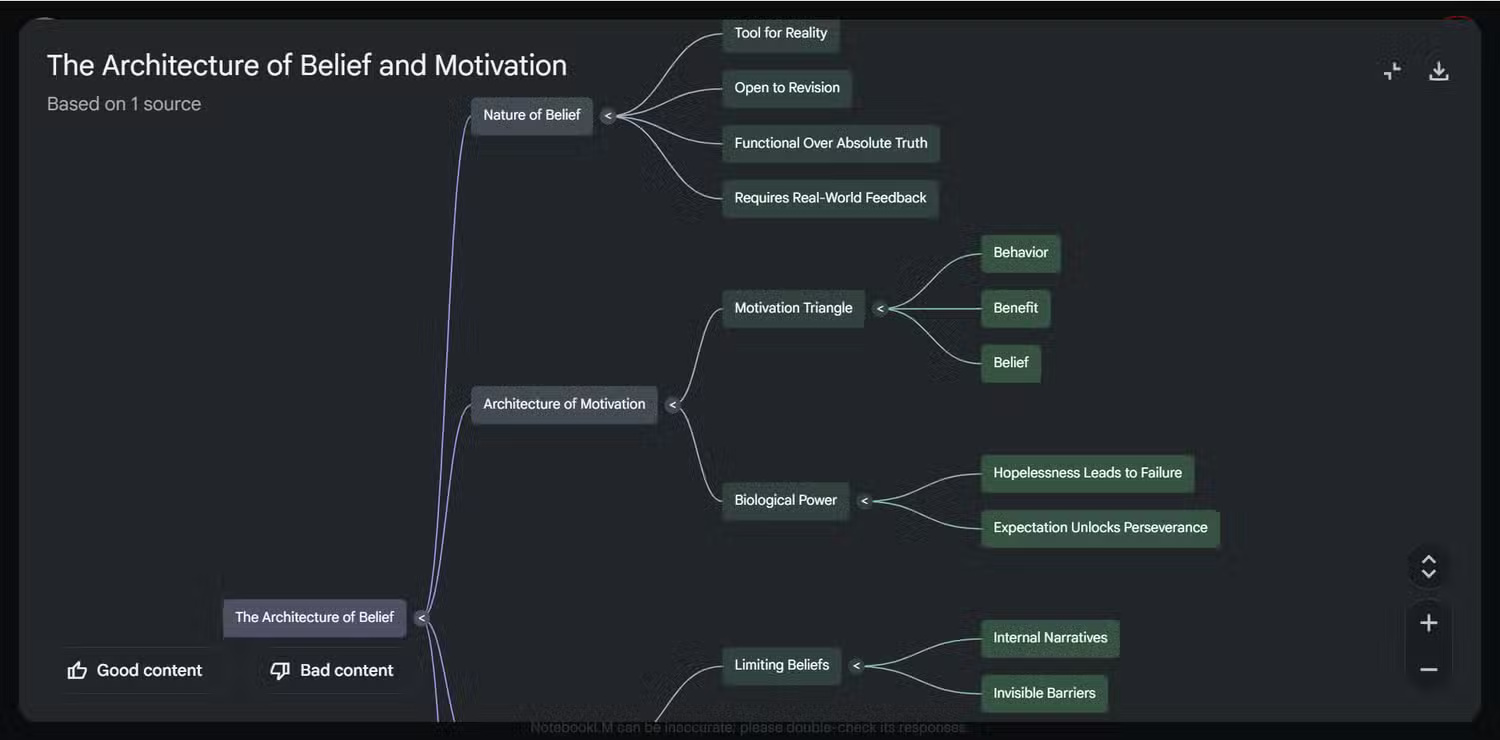
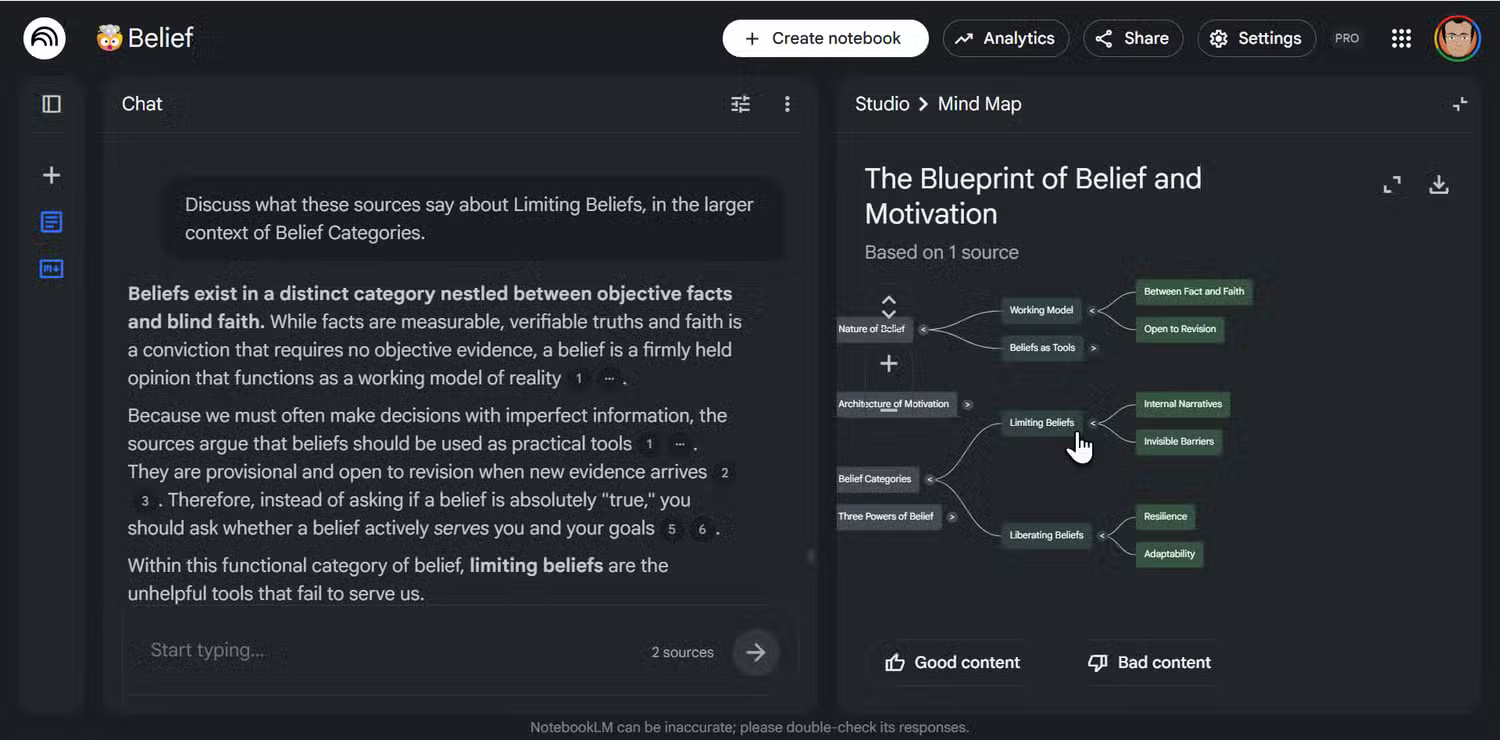
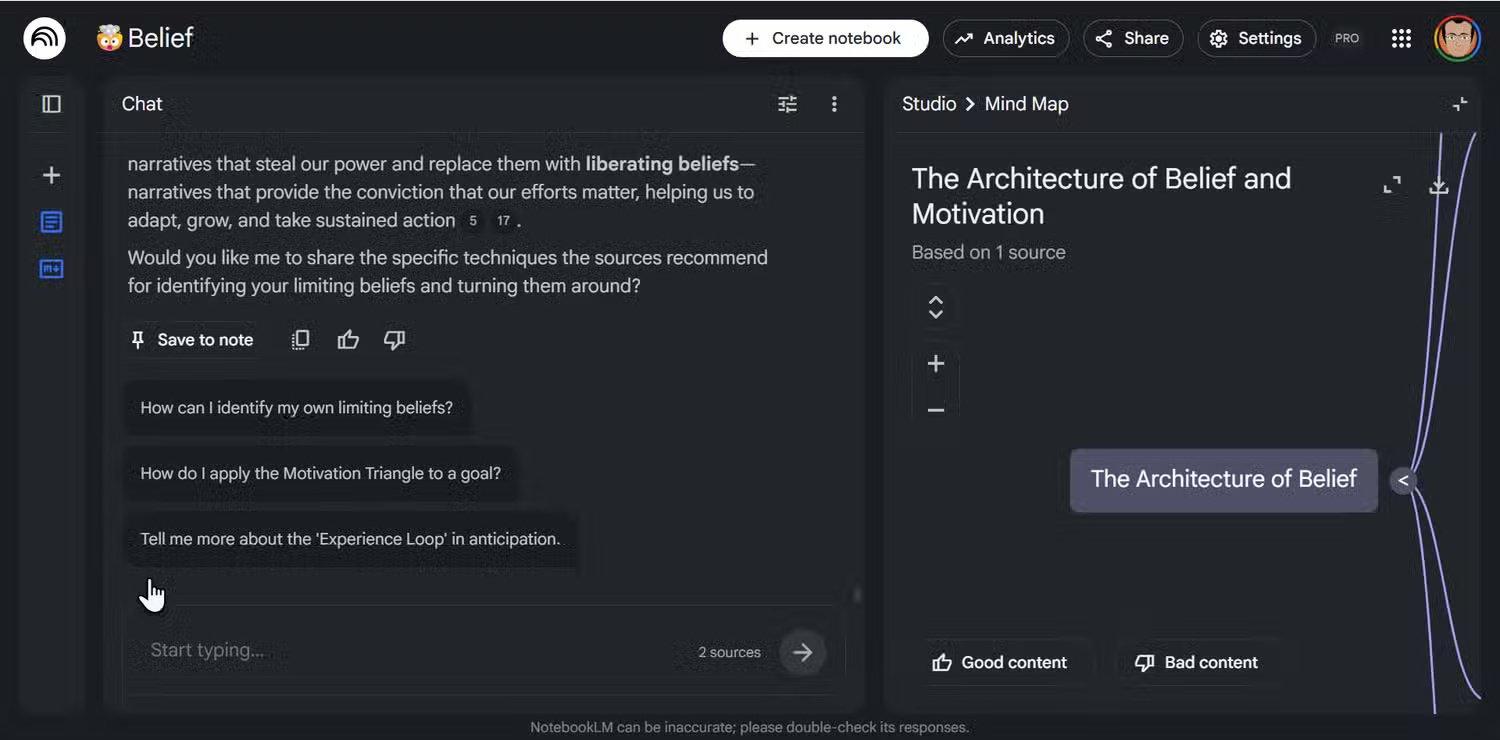
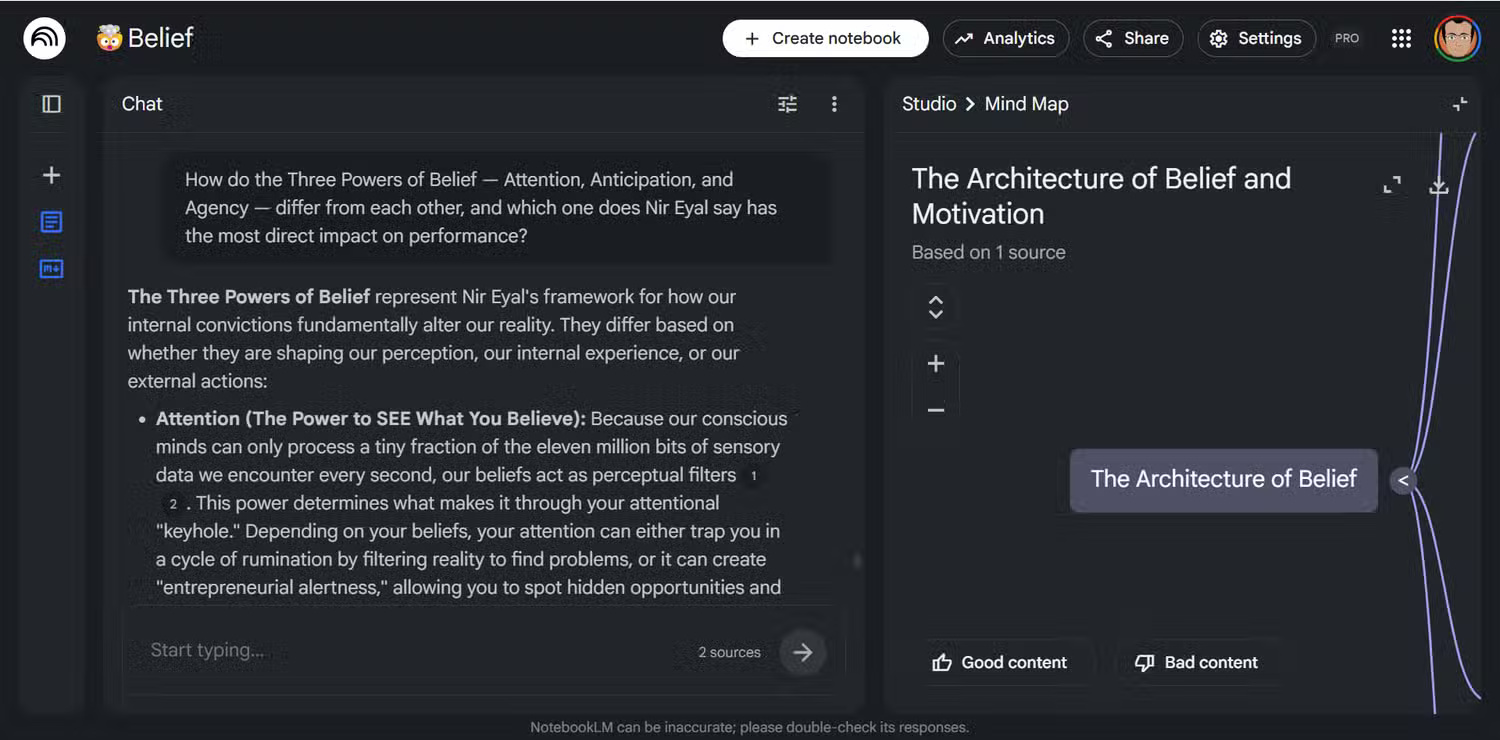
Open the citations or referenced passages and read enough context to verify the summary. A source-grounded answer can still oversimplify, misread a table, or omit a qualification.
4. Convert branches into an editable outline
The hierarchy can seed a report, presentation, study guide, or meeting agenda. Copy the relevant top-level branches into your writing tool as candidate headings, then reorder them around the reader's question rather than keeping the AI's sequence automatically.
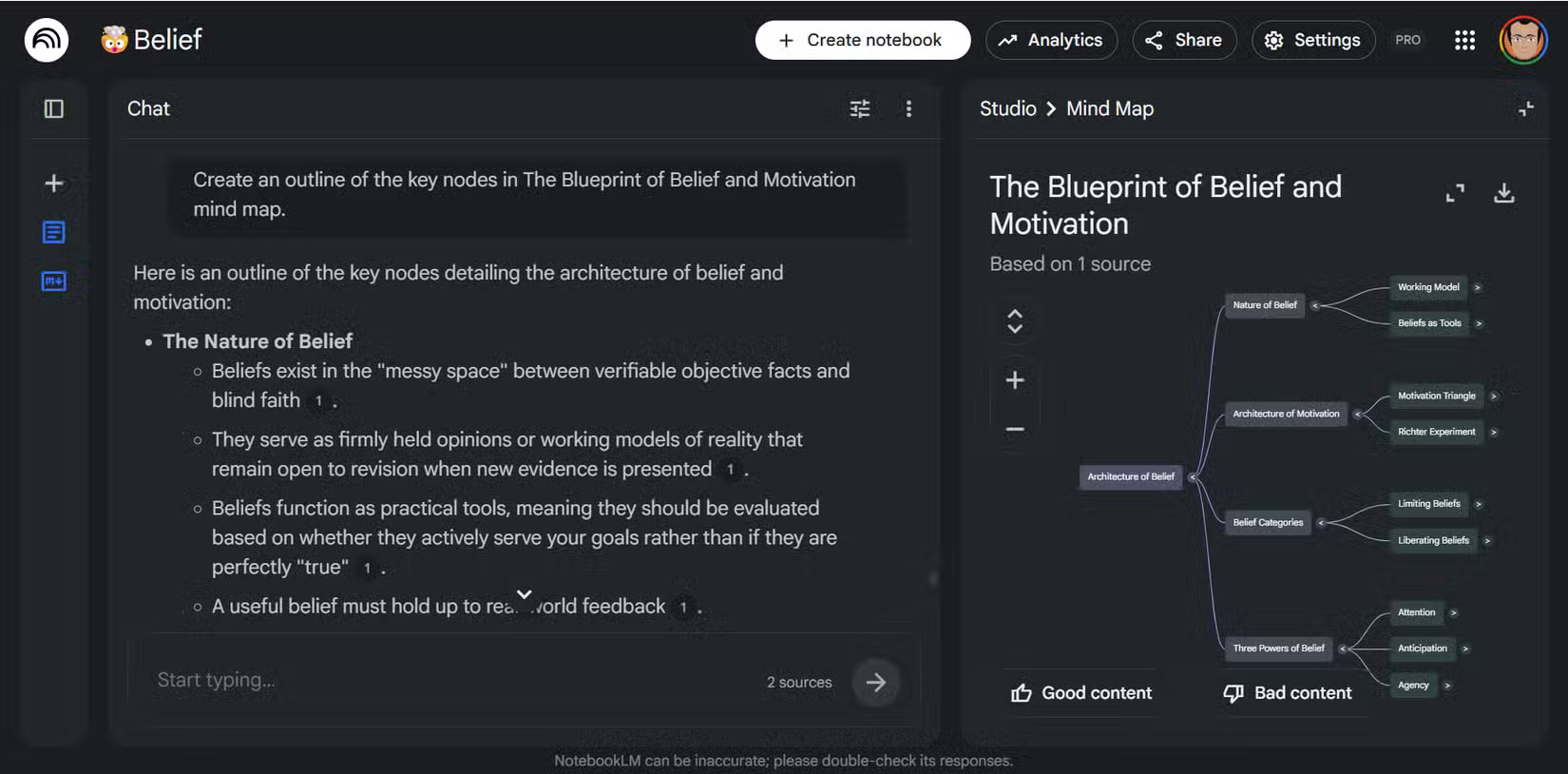
For each heading, add three things outside the map: the claim you plan to make, the source that supports it, and the purpose it serves. Delete branches that are interesting but irrelevant. Add a section manually when the source set supports it but the map missed it.
5. Collapse branches to control detail
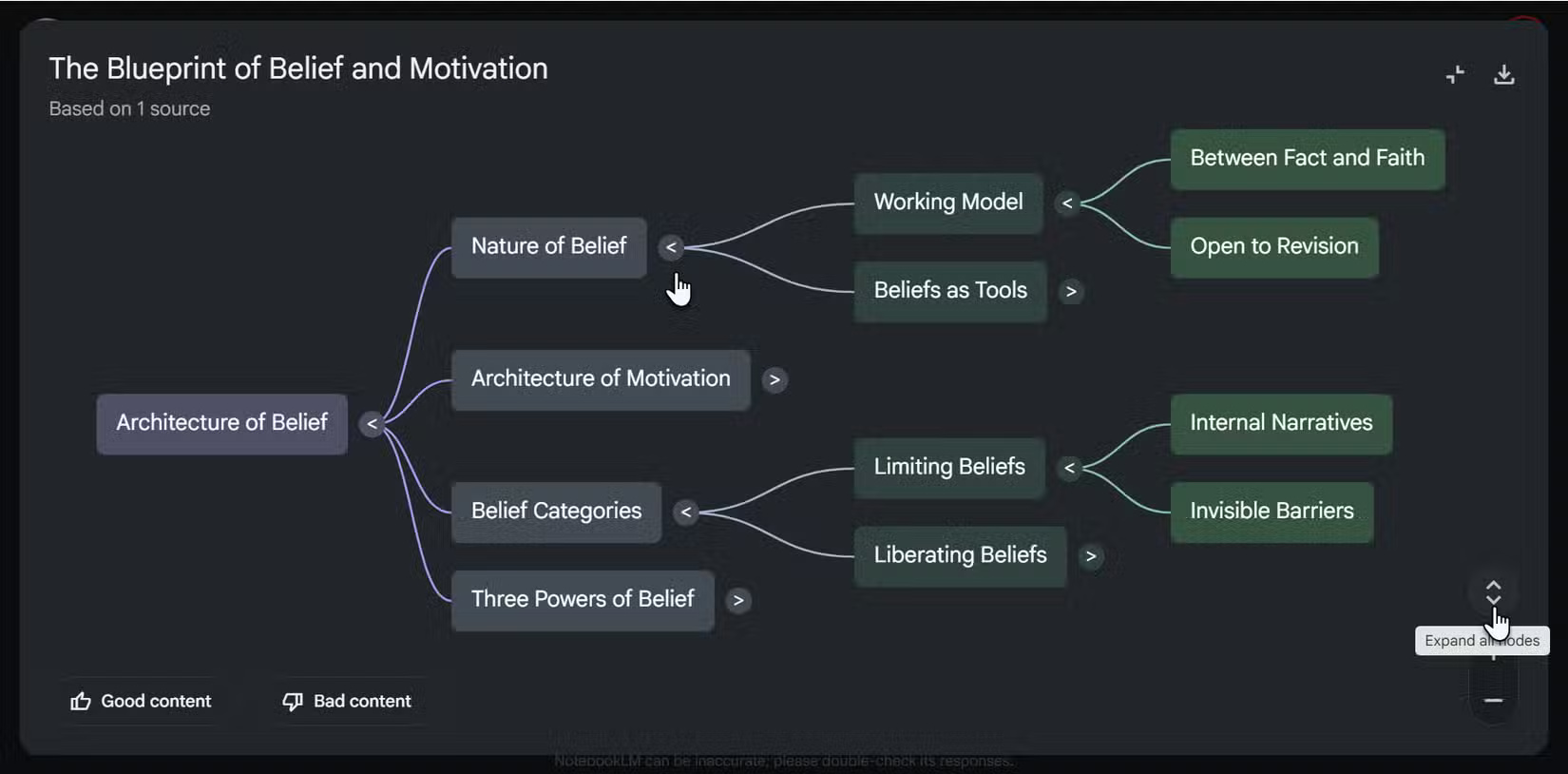
Expand only the area you are studying or drafting. Collapsing a branch reduces visual load; it does not remove the underlying source. Use a repeatable review pass so hidden sections are not forgotten:
- Read all top-level branches.
- Mark the branches relevant to the current task.
- Expand and verify those branches.
- Return to the top and check whether any collapsed branch changes the conclusion.
6. Use weak or missing branches as research tasks
A sparse branch may mean the topic is genuinely minor, the sources do not cover it, or NotebookLM failed to surface it. Turn uncertainty into a task rather than filling the gap with an unsupported claim.
| Map signal | Next action |
|---|---|
| One source dominates a branch | Find an independent source or state that the point rests on one source. |
| Two branches conflict | Compare definitions, dates, methods, and scope in the original passages. |
| A needed topic is absent | Add a reviewed source, then regenerate or create a separate map. |
| Too many tiny branches | Narrow the notebook or merge them manually in the outline. |
| A branch has no useful citation | Do not use it as evidence. |
7. Match the map to the final format
A presentation usually needs fewer branches than a literature review. A study plan may organize by concepts and prerequisites, while a project plan needs actions, owners, dependencies, and dates that the source map may not contain. Treat the mind map as an input to the final structure, not the finished deliverable.
Google's Mind Maps announcement explains the core interactive behavior. For help choosing between a source-centered notebook and a general chatbot, see TipsMake's NotebookLM vs. ChatGPT comparison.
Final review
Before relying on a map, verify its important nodes against the cited source passages, check publication dates, look for missing perspectives, and make sure the outline answers the original question. The value of NotebookLM's Mind Map is not that it replaces reading; it helps you decide what to read next and how the pieces may connect.
Related Articles
 Best AI Tools for Creating Mind Maps7 minutes read
 4 Tools to Help Create an Online Mind Map8 minutes read
 Mind Mapping in PowerPoint4 minutes read
 The Best Thinking Mapping Software Today9 minutes read
 5 Best Mind Mapping Software: Mind Map Software6 minutes read
 The Best Mind Mapping Software5 minutes read
Reader Comments 0
Sign in with email or Google to join the discussion.