Table of Contents
This practical guide explains how to unlock the full potential of your fire tv stick. Follow the steps in order, review the requirements first, and use the troubleshooting notes when a setting or option does not work as expected.
8. Personalize screensavers
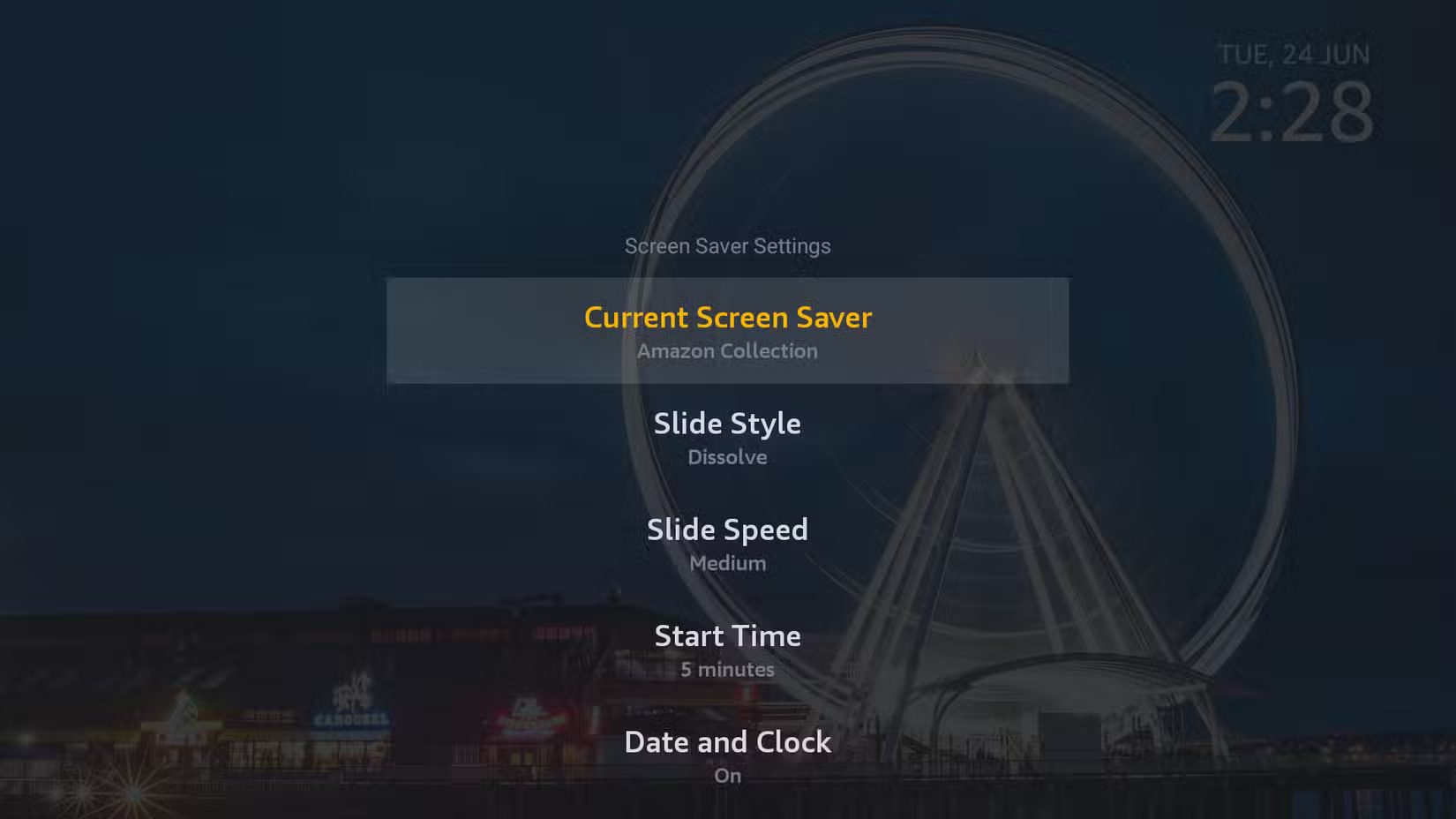
First, you'll need to upload your photos to Amazon Photos using your phone. Every Amazon account comes with 5GB of free photo storage, and if you're a Prime member, you get unlimited photo storage at no extra cost.
Once your photos are uploaded, grab your Fire TV remote and go to Settings > Display & Sounds > Screensaver. Select Amazon Photos as the source, then choose the album or folder you want to display. You can also adjust the slideshow style, set the speed at which it changes, adjust the start time, and even add extras like a clock and weather for a little extra style.
7. Using the Fire TV Remote app
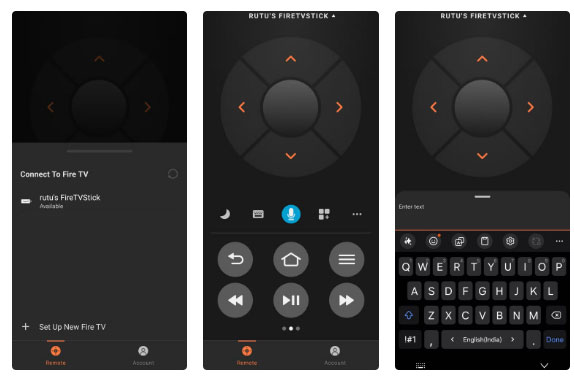
If you've ever found yourself rummaging around on the couch looking for your Fire TV Stick remote, it might be time to install the Fire TV Remote app on your phone. This app lets you control everything right from your phone. As long as your phone is on the same Wi-Fi network as your Fire TV, you're all set.
The app is also perfect if you have more than one Fire TV device at home. You can easily switch between them within the app without having to re-pair or mess with any settings again.
- Download Fire TV for iOS | Android (free)
6. Mirror your phone screen to Fire TV
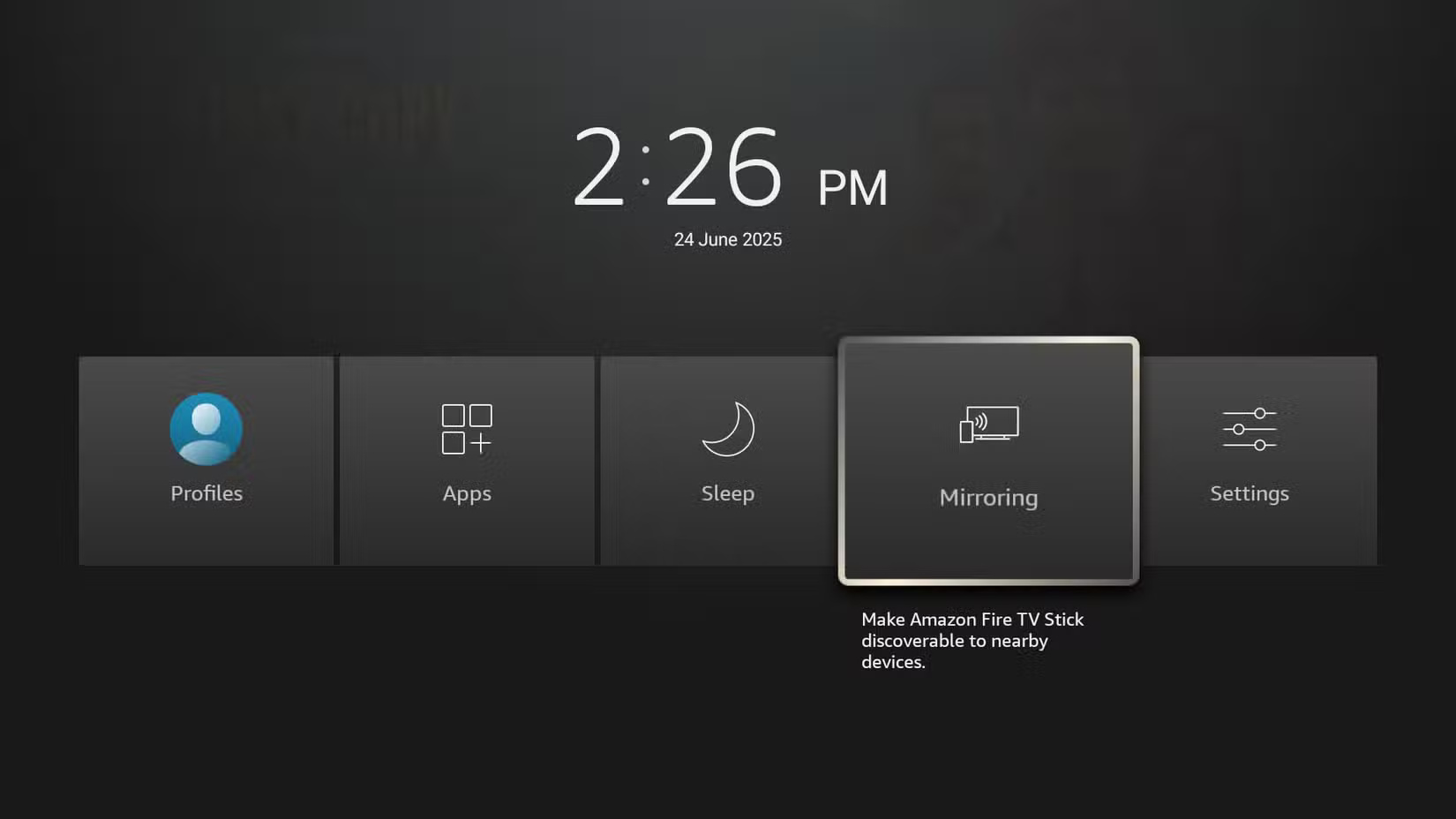
To do this, first make sure both your Fire TV Stick and your phone are connected to the same Wi-Fi network. Then, press and hold the Home button on your Fire TV remote and select Mirroring .
Now, on your Android phone, swipe down to open Quick Settings and tap on the Screencast or Smart View option. If you don't find these options in the Quick Settings panel, you may need to open the Settings app. If you're on an iPhone, you'll need a free app like AirScreen to get it to work. Either way, mirroring your phone screen to your Fire TV Stick is pretty simple.
5. Use Developer Options
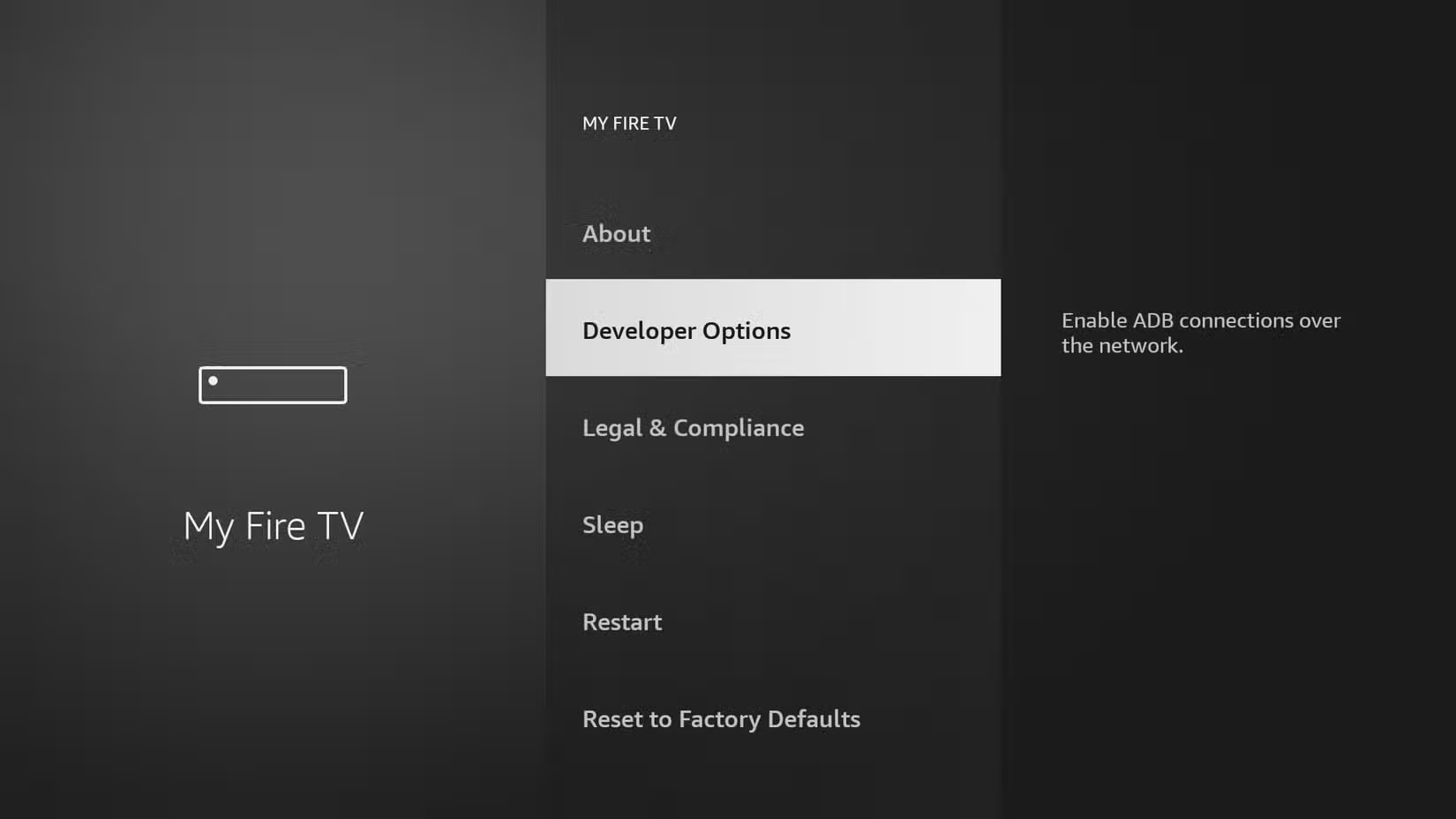
'Developer Options' may seem like it's for techies or programmers, but it actually includes some really useful tools. To enable it, go to Settings > My Fire TV > About and press the select button on your remote on the name of your Fire TV Stick seven times. You'll see a message saying you're now a developer. Then, exit out and go to Settings > My Fire TV , where you'll see a new section called Developer Options .
With Developer Options, you can enable ADB debugging, which allows you to connect your Fire TV Stick to your phone or computer.
4. Sideload the application
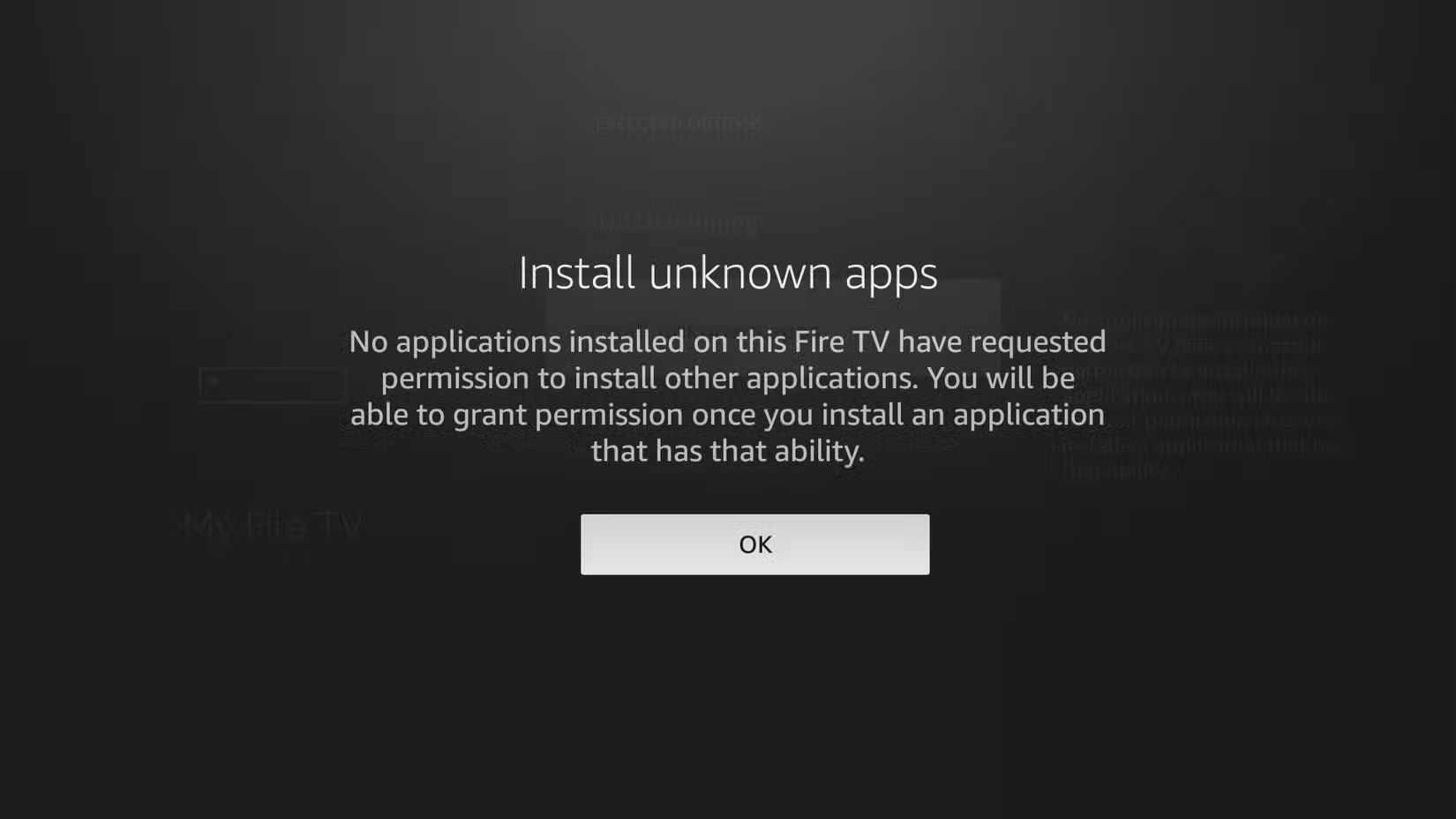
The Amazon Appstore has a ton of apps, but you're not limited to what's available there. Since Fire TV runs a modified version of Android, you can sideload apps onto it just like you would on an Android phone.
The process isn't too complicated either. First, enable Developer Options on your Fire TV Stick. Then, enable installation from unknown sources. Next, download the APK file for the app you want to your phone or computer. Once you have the file, you can use an app like Send Files to TV or Downloader to transfer it and install it right on your Fire TV Stick.
3. Add storage to Fire TV
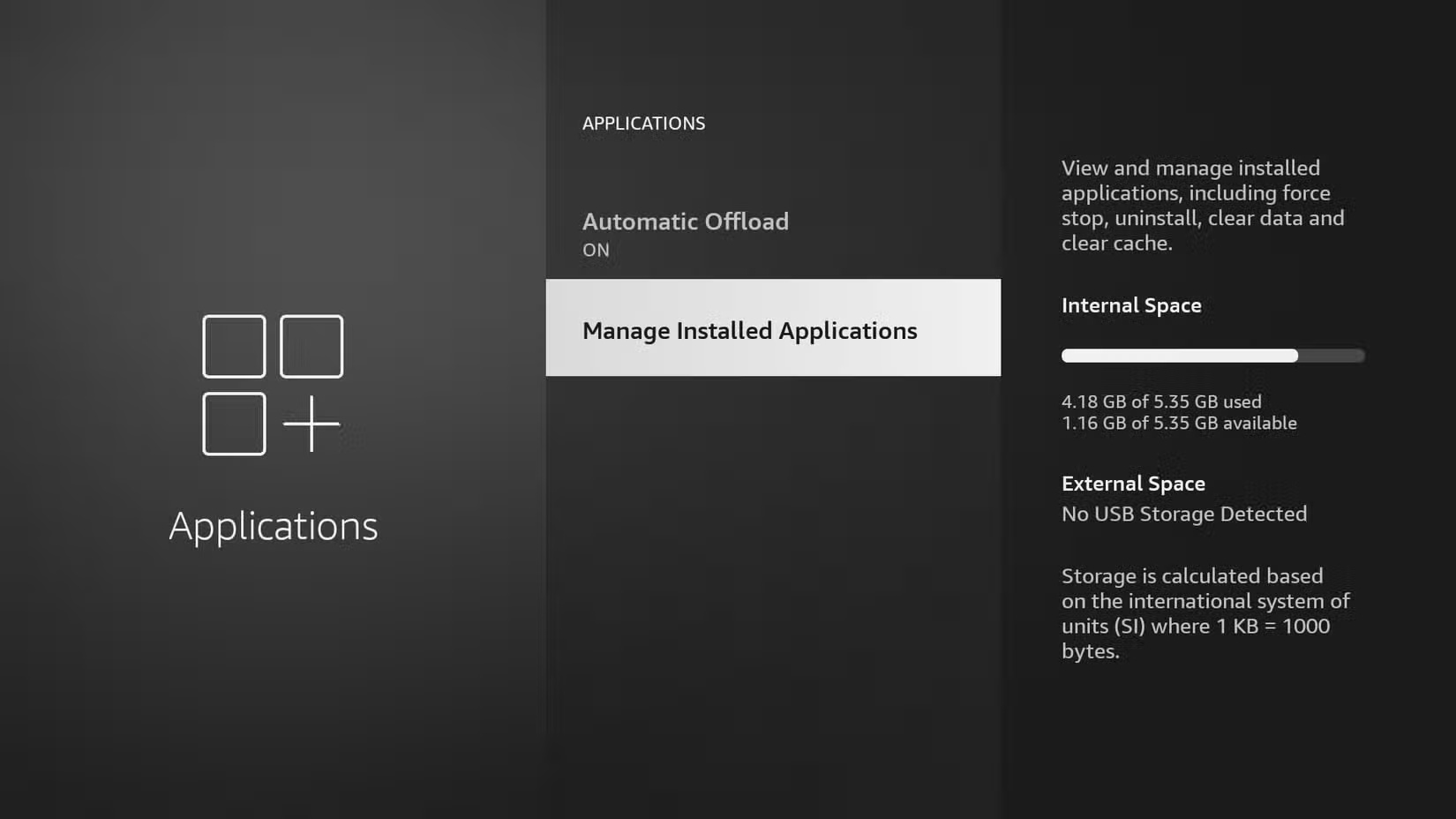
Most Fire TV Sticks only come with about 8GB of storage, and you can't even access all of that. With streaming apps, background updates, cached files, and anything else you sideload, that space can fill up faster than you think.
Thankfully, you can easily expand the Fire TV Stick's storage. It has a micro-USB port that can be used with an OTG (On-The-Go) cable. This little adapter lets you plug in a USB flash drive or even a microSD card (with the right adapter).
2. Use Bluetooth headphones, keyboard, and mouse with Fire TV
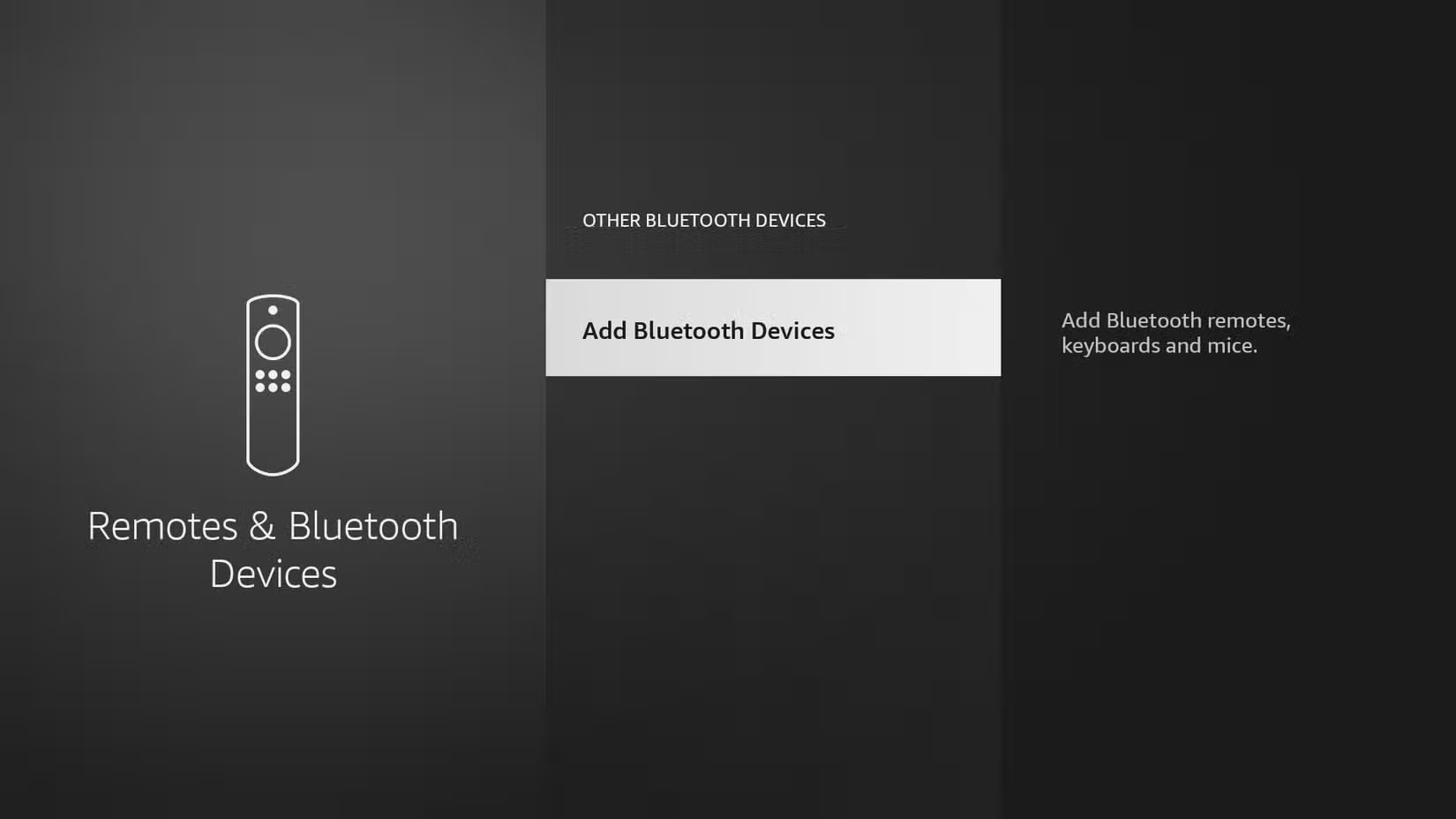
You don't necessarily need to use a remote or your phone to control the Fire TV Stick. Since it supports Bluetooth, you can connect a Bluetooth keyboard or mouse, and honestly, that can make a huge difference.
To connect a Bluetooth device to your Fire TV Stick, go to Settings > Controllers & Bluetooth Devices > Other Bluetooth Devices > Add Bluetooth Devices . Make sure your headphones, keyboard, or whatever device you want to connect to is in pairing mode, then select it when it appears on your screen.
1. Take your Fire TV Stick with you when you travel
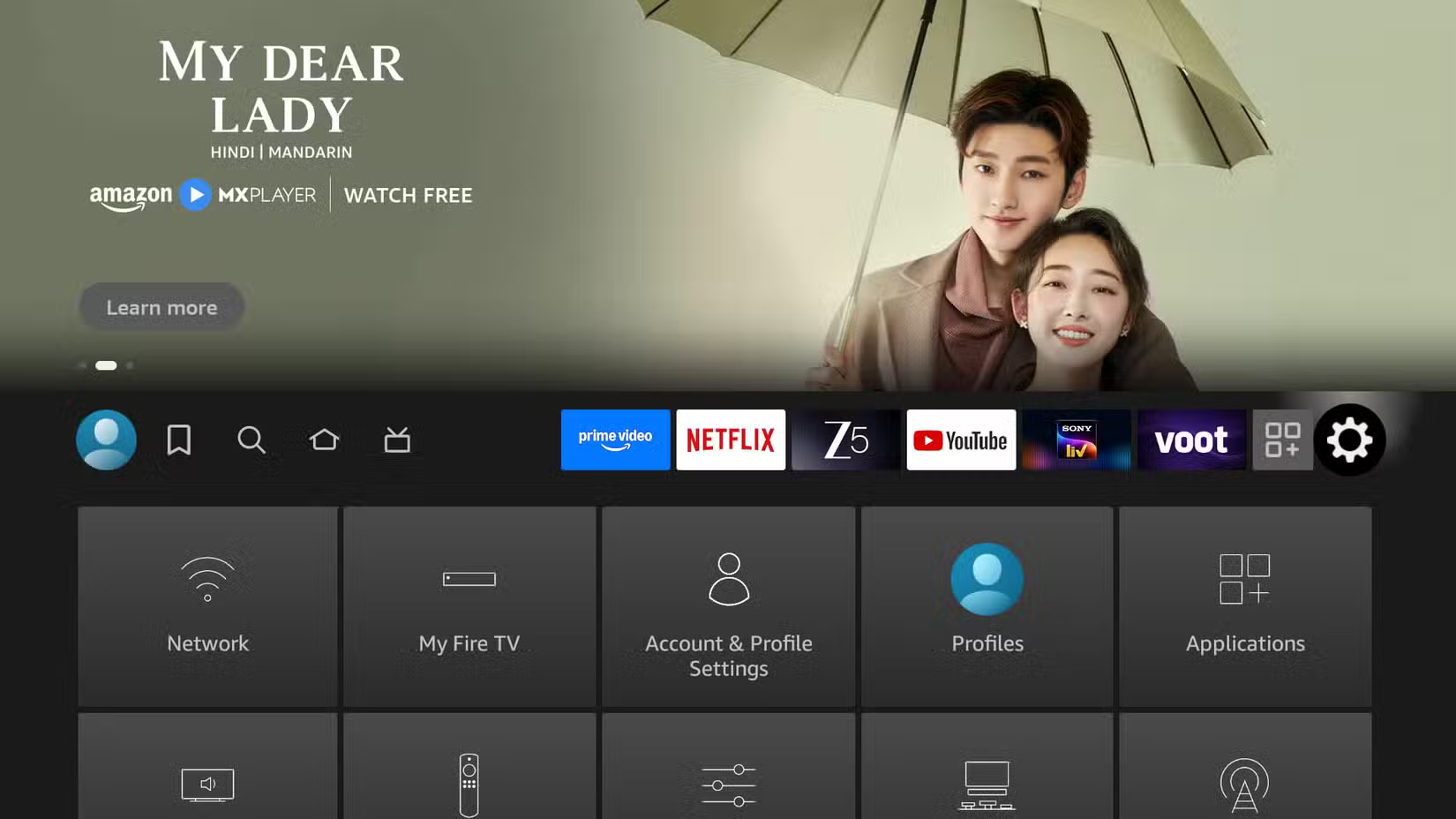
The best part about the Fire TV Stick is its portability. If you're traveling, you can take the Fire TV Stick with you. As long as you have a TV with an HDMI port and a Wi-Fi connection—most hotels and Airbnbs do—you can plug it in, connect to the internet, and start streaming like you never left home.
Your run-of-the-mill Fire TV Stick has a lot to offer. Spend a few minutes exploring the menus, trying out new apps, and tweaking a few settings. You'll be surprised at how fun, useful, and powerful it becomes once you dig in.
FAQ
What should you know about 8. Personalize screensavers?
First, you'll need to upload your photos to Amazon Photos using your phone. Every Amazon account comes with 5GB of free photo storage, and if you're a Prime member, you get unlimited photo storage at no extra cost.
What should you know about 7. Using the Fire TV Remote app?
If you've ever found yourself rummaging around on the couch looking for your Fire TV Stick remote, it might be time to install the Fire TV Remote app on your phone. This app lets you control everything right from your phone. As long as your phone is on the same Wi-Fi network as your Fire TV, you're all set.
What should you know about 6. Mirror your phone screen to Fire TV?
To do this, first make sure both your Fire TV Stick and your phone are connected to the same Wi-Fi network. Then, press and hold the Home button on your Fire TV remote and select Mirroring.
What should you know about 5. Use Developer Options?
'Developer Options' may seem like it's for techies or programmers, but it actually includes some really useful tools. To enable it, go to Settings > My Fire TV > About and press the select button on your remote on the name of your Fire TV Stick seven times. You'll see a message saying you're now a developer. Then, exit out and.
Related Articles
 7 Fire TV Stick Apps You Shouldn't Miss6 minutes read
 How to Access the Secret Developers Menu on Fire TV Stick4 minutes read
 How to Customize Fire TV Stick Wallpaper6 minutes read
 Why Is the Amazon Fire TV Stick 4K Better Than Chromecast in 2025?6 minutes read
 7 Apps to Enhance Your Fire TV Experience: Practical Guide5 minutes read
 How to Install Kodi on Amazon Fire Stick: Practical Guide6 minutes read
Reader Comments 0
Sign in with email or Google to join the discussion.