Table of Contents
This guide provides a clear, practical overview of "Simple Tweaks to Unlock the Full Potential of Your Smart TV Web Browser". It organizes the most useful details, explains important considerations, and highlights the steps or choices that matter most.
6. Switch to a TV-friendly browser
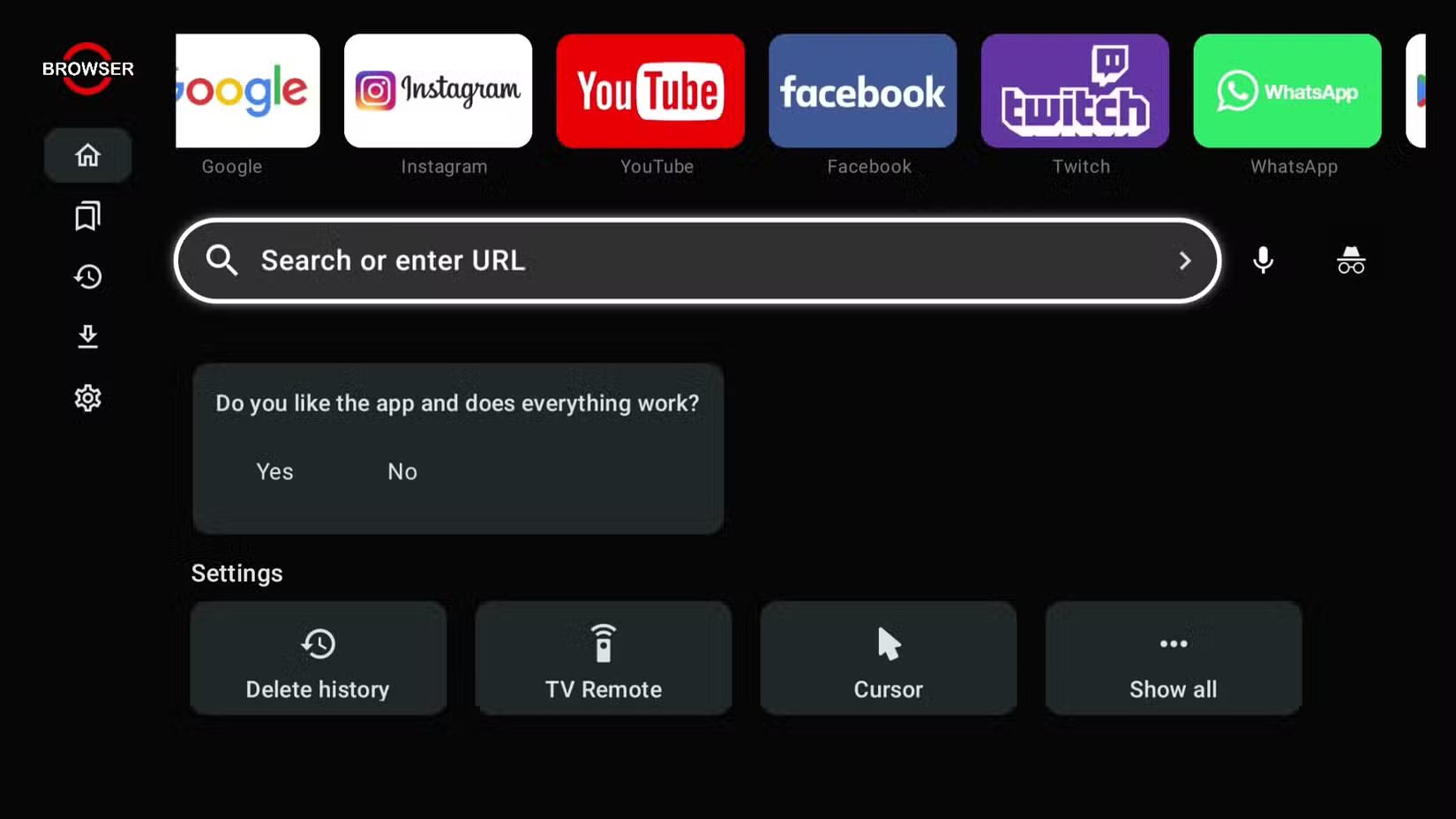
The first step to making browsing on your Smart TV less frustrating is choosing the right browser. Your TV may have a browser pre-installed, but in most cases, it's not the best choice.
You'll need a browser designed specifically for TVs that offers the necessary features. There are a few good ones worth trying, like Opera Browser, TV Bro, and Puffin TV Browser. There's one simply called " Browser." It's not flashy, but it works well enough that you won't want to throw your remote across the room.
5. Bookmark frequently visited websites
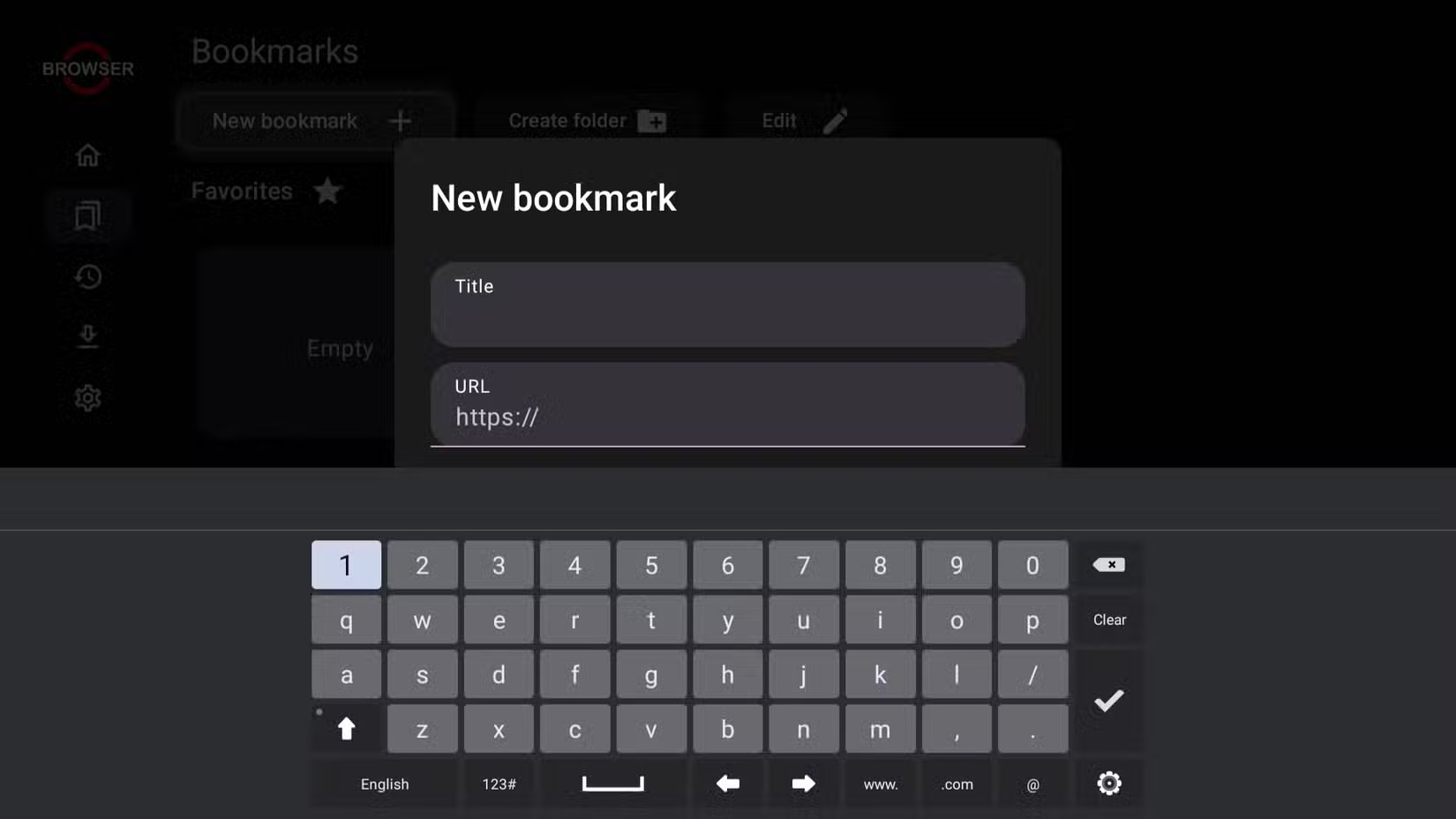
One of the most frustrating things about browsing the web on a Smart TV is typing. Even if you use your phone as a keyboard (which is actually useful), it can still be more tedious than it needs to be. That's why it's a good idea to bookmark your favorite sites.
Most TV browsers come preloaded with shortcuts to sites like YouTube, Google, or Facebook, but you don't have to limit yourself to just those. You can add your favorite news sources, streaming sites, or recipe blogs that you visit often.
4. Zoom in and adjust font size
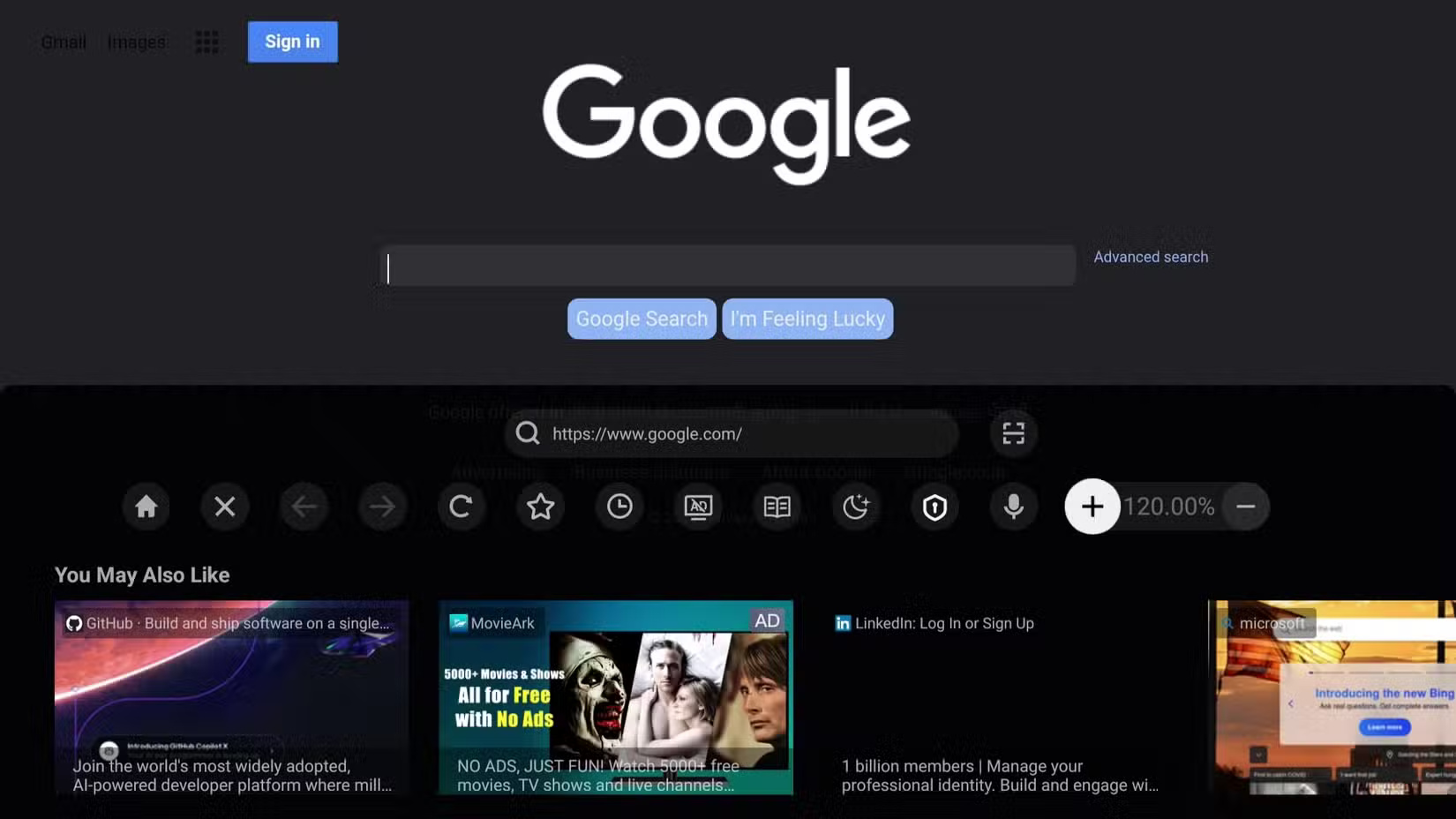
Depending on how far away your sofa is from the screen, the size of your TV, and of course how cooperative your eyes are, the default size of text and buttons on your browser can be ridiculously large or annoyingly small. Increasing the zoom level or increasing the font size can make things much easier to read.
Some Smart TVs also allow users to adjust the font size system-wide from the settings menu. If you want to make text easier to read without making everything else on the screen bigger, this is your best option.
3. Explore and customize browser settings
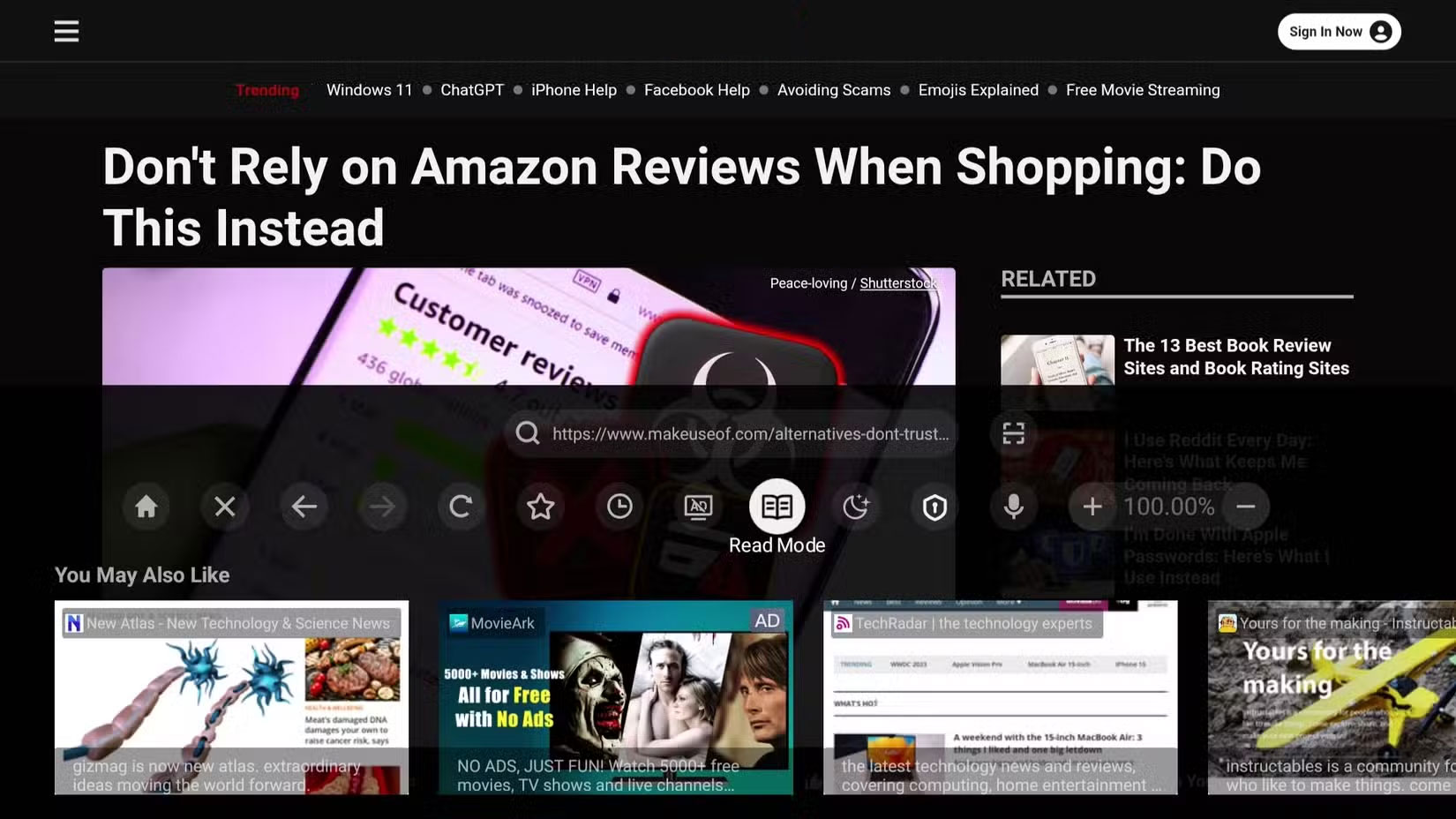
Your browser's default settings may not work well for you. However, taking a few minutes to explore and adjust these settings to your liking can significantly improve your browsing experience.
Also, check to see if you can enable an ad blocker in your Smart TV's browser settings, or install an ad blocker if the extension supports it. Ads can be a minor annoyance when browsing the web on a laptop, but they can be much more disruptive on a TV. Floating video ads or full-screen pop-ups can be 10 times more annoying when they take up your entire living room screen.
2. Use a wireless keyboard and mouse
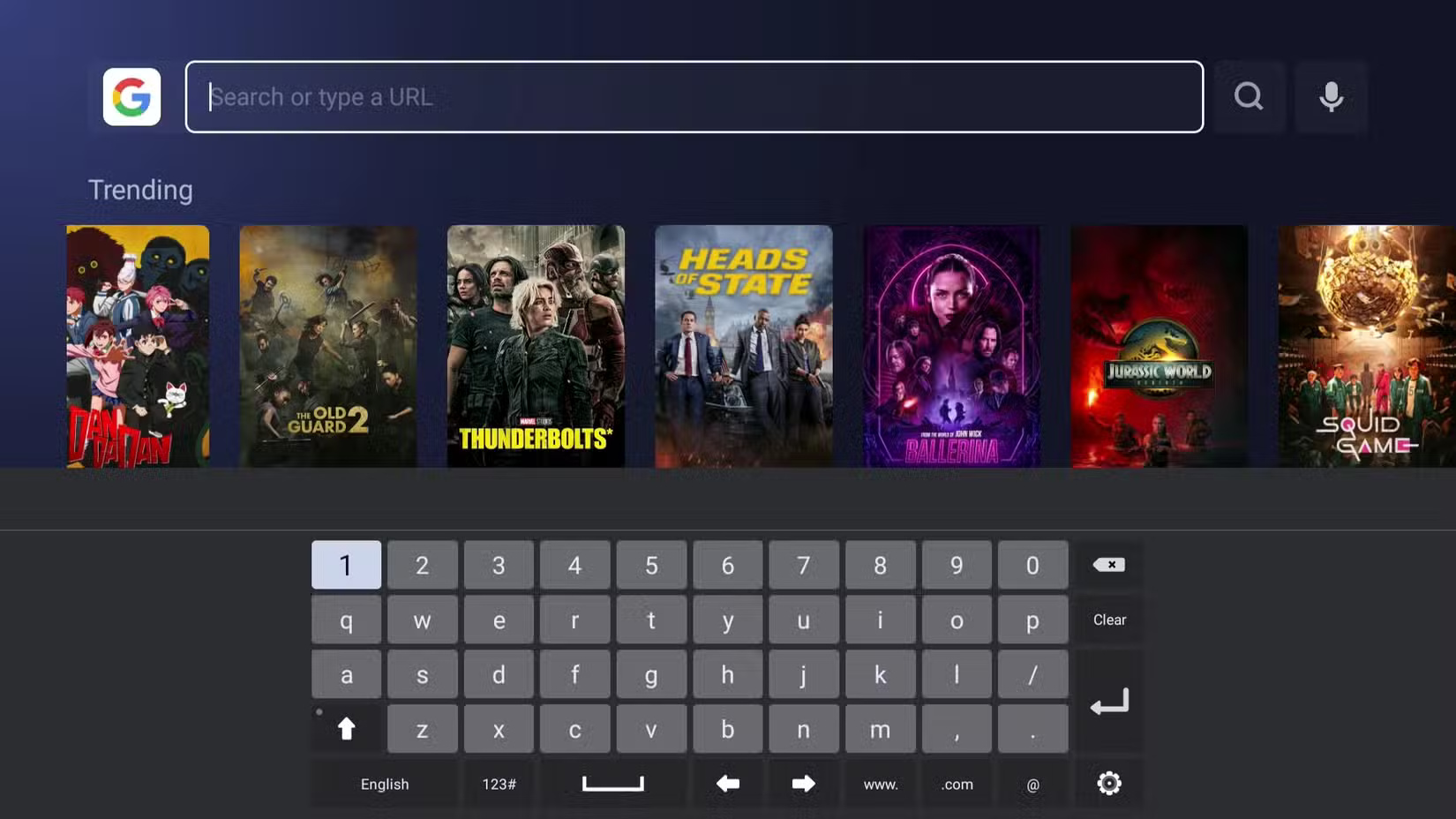
Using a Smart TV remote to click can be very slow and each letter you type feels like torture. For a more PC-like experience, you can connect a keyboard or mouse to your Smart TV.
Most Smart TVs support Bluetooth, and all have USB ports that you can plug a dongle into. You can easily use a wireless keyboard and mouse, or opt for a wired one if you don't mind cables running from your entertainment center.
1. Transfer content from phone
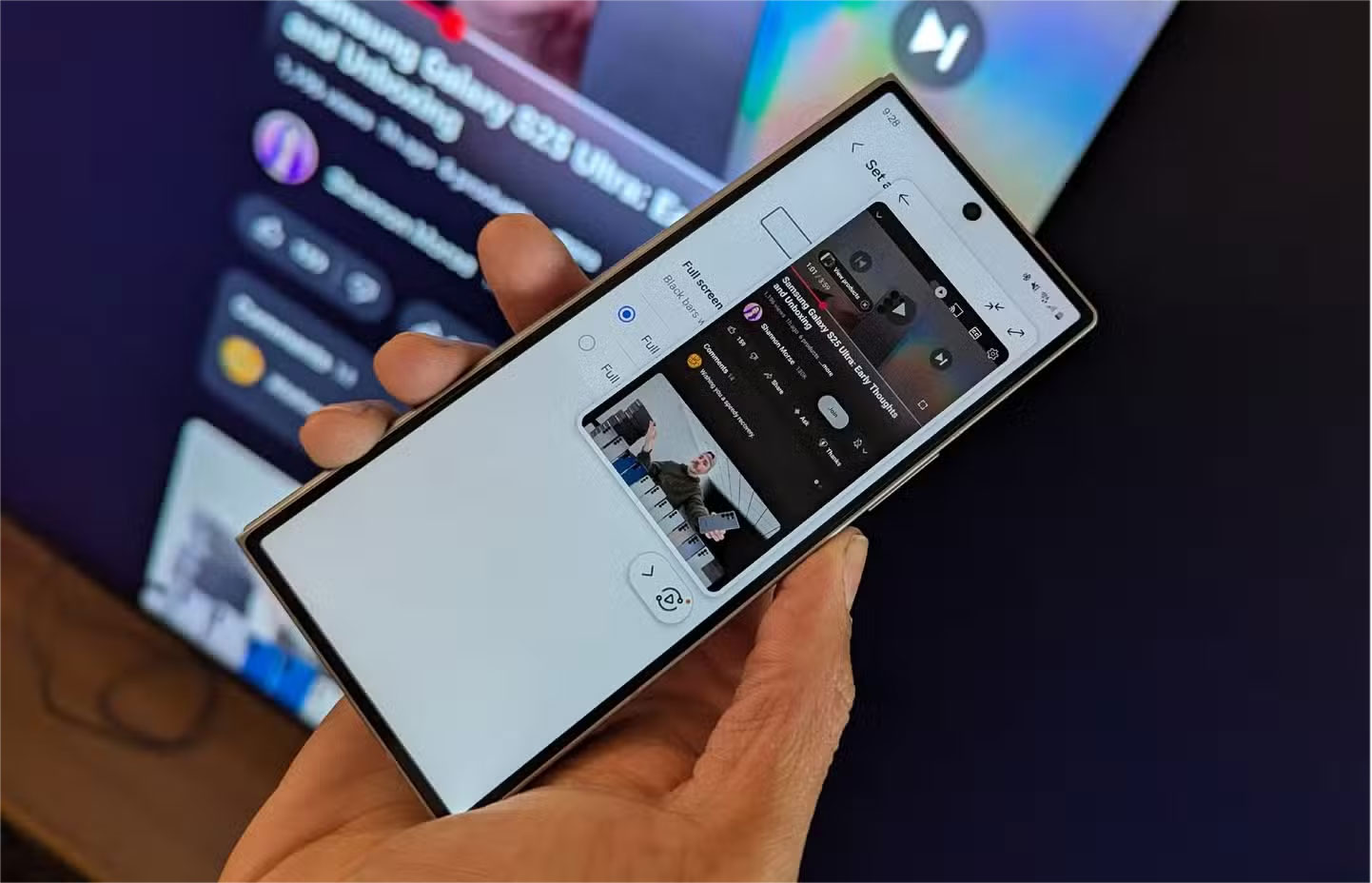
No matter how hard you try, browsing the web on a Smart TV can never be as smooth as it is on your phone or laptop. If you don't want to have to find the right browser, adjust settings, or hook up a keyboard and mouse, the easiest solution is to mirror your phone screen to your TV.
Most Smart TVs support screen mirroring, whether through Apple's AirPlay, Google's Chromecast, or built-in tools like Samsung Smart View or LG Screen Share. Just open a browser on your phone, connect to the same Wi-Fi network as your TV, and mirror your screen to enjoy browsing on the big screen.
With a few small tweaks, you can turn a clunky experience into something surprisingly useful. It'll never replace your laptop or phone, of course, but it doesn't have to be a horrible experience either.
FAQ
What should you know about 6. Switch to a TV-friendly browser?
The first step to making browsing on your Smart TV less frustrating is choosing the right browser. Your TV may have a browser pre-installed, but in most cases, it's not the best choice.
What should you know about 5. Bookmark frequently visited websites?
One of the most frustrating things about browsing the web on a Smart TV is typing. Even if you use your phone as a keyboard (which is actually useful), it can still be more tedious than it needs to be. That's why it's a good idea to bookmark your favorite sites.
What should you know about 4. Zoom in and adjust font size?
Depending on how far away your sofa is from the screen, the size of your TV, and of course how cooperative your eyes are, the default size of text and buttons on your browser can be ridiculously large or annoyingly small. Increasing the zoom level or increasing the font size can make things much easier to read.
What should you know about 3. Explore and customize browser settings?
Your browser's default settings may not work well for you. However, taking a few minutes to explore and adjust these settings to your liking can significantly improve your browsing experience.
Related Articles
 Unlock the Hidden Potential of Your Smart TV with These 6 Must-have8 minutes read
 How to Change HDR Settings on Smart TV for Better Picture Quality7 minutes read
 Tweaks to Make Your Old Smart TV Work Again8 minutes read
 How to Unlock the Full Potential of Your Fire TV Stick9 minutes read
 Are You Using the Full Potential of the Buttons on Your Android Phone?8 minutes read
 A Few Simple Tweaks to Use Your Smart TV as a Second Screen7 minutes read
Reader Comments 0
Sign in with email or Google to join the discussion.