Table of Contents
Third-party Chrome extensions can fill workflow gaps around NotebookLM: moving an AI conversation into a notebook, exporting a generated mind map, or collecting multiple YouTube sources. The three extensions below target those tasks, but none is made or supported by Google.
Before installing any extension, verify the developer and extension ID on the Chrome Web Store, read the requested permissions, check the latest update and privacy disclosure, and test it with non-sensitive material. An extension that can read a page may also be able to read prompts, responses, source text, or account information displayed on that page.
1. Kortex Notebook: save content from other AI tools
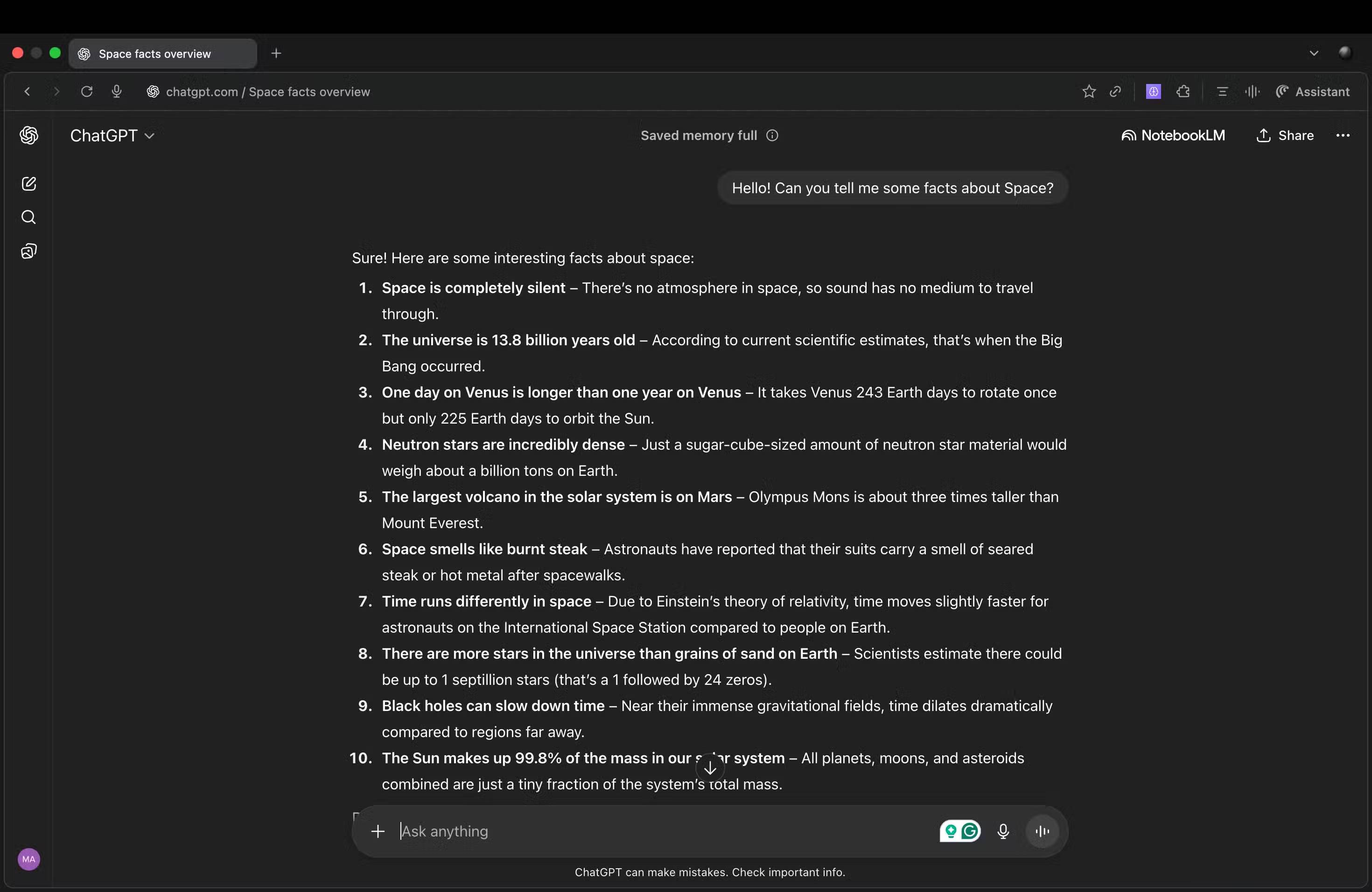
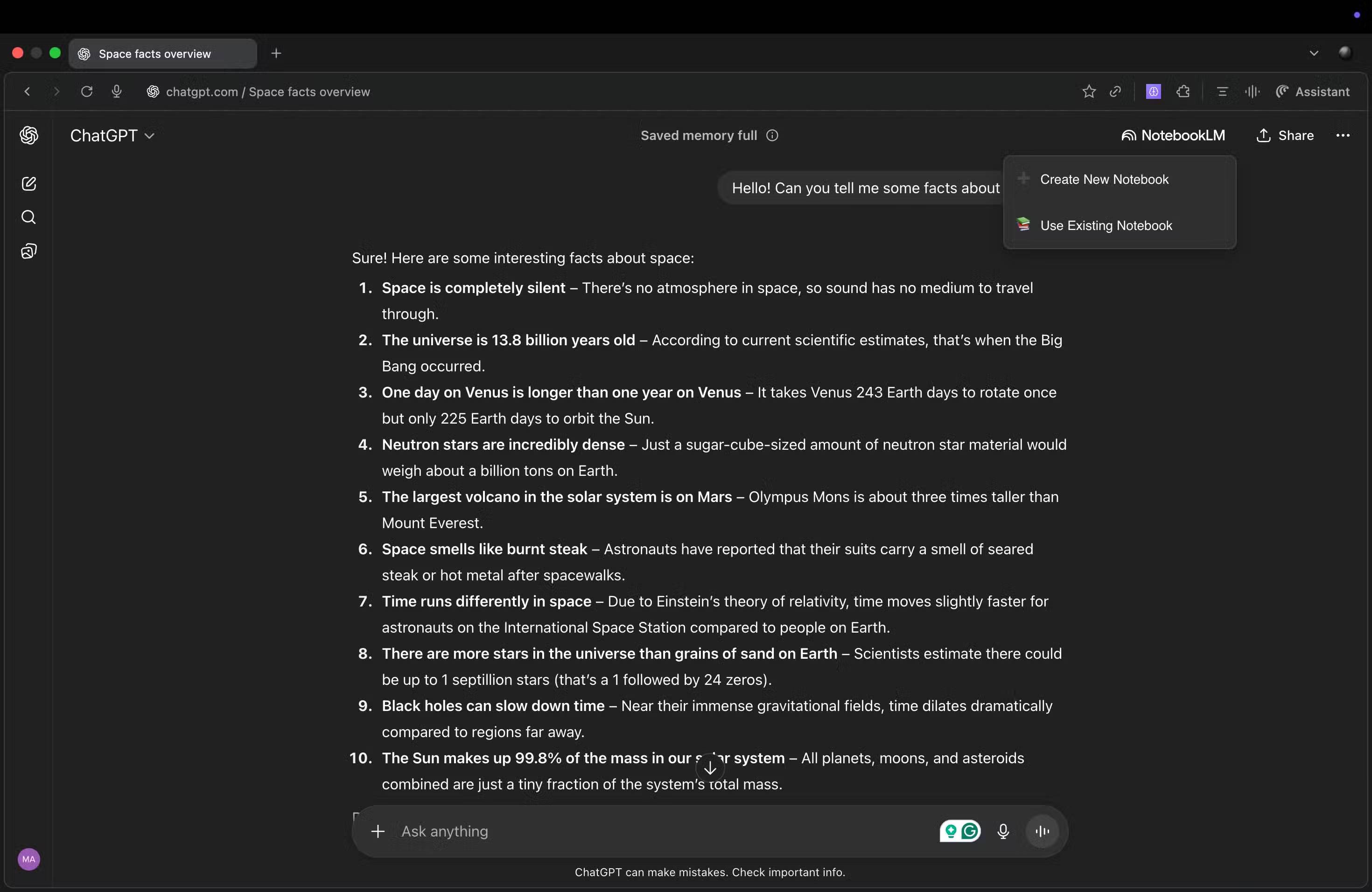
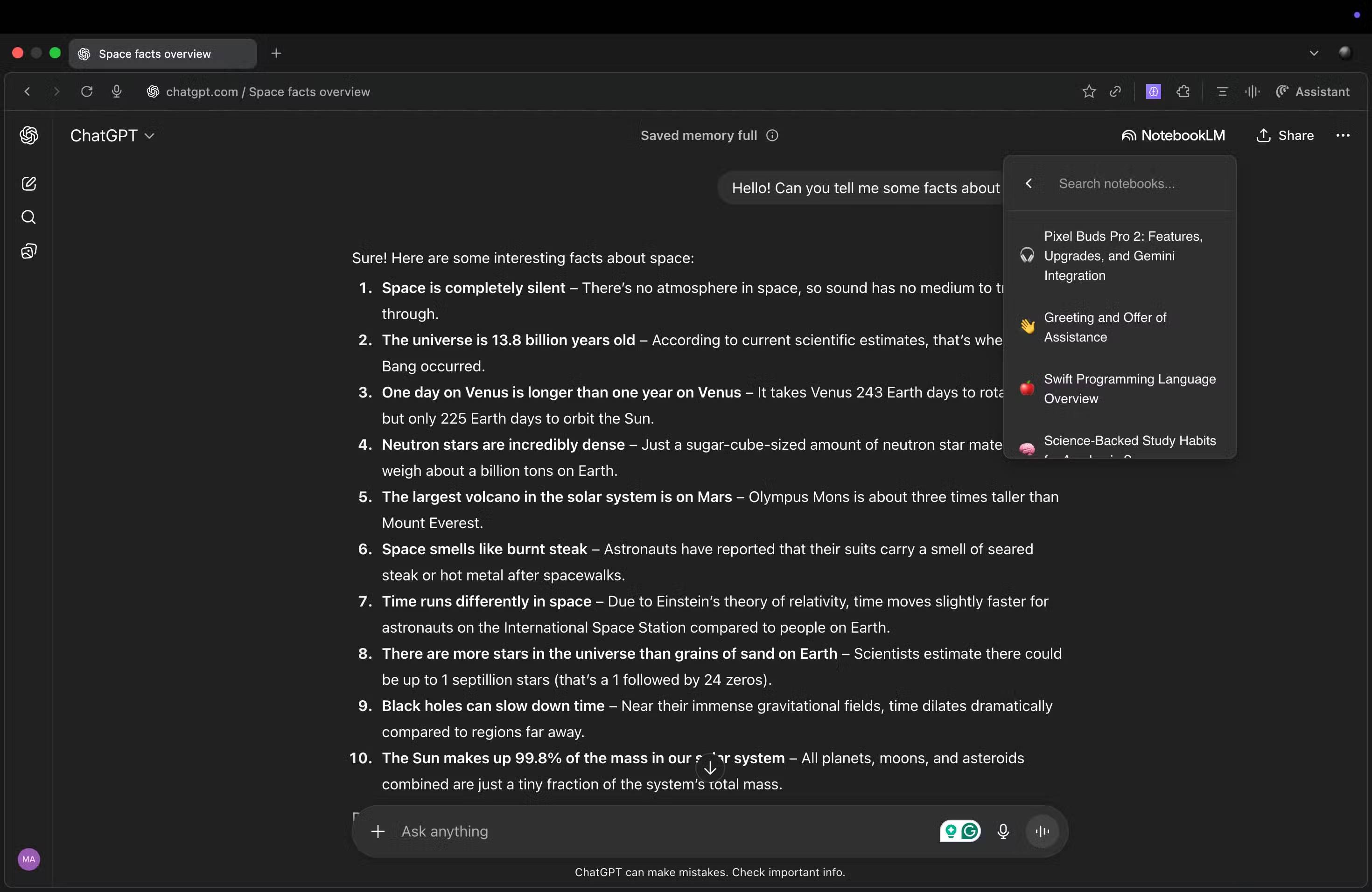
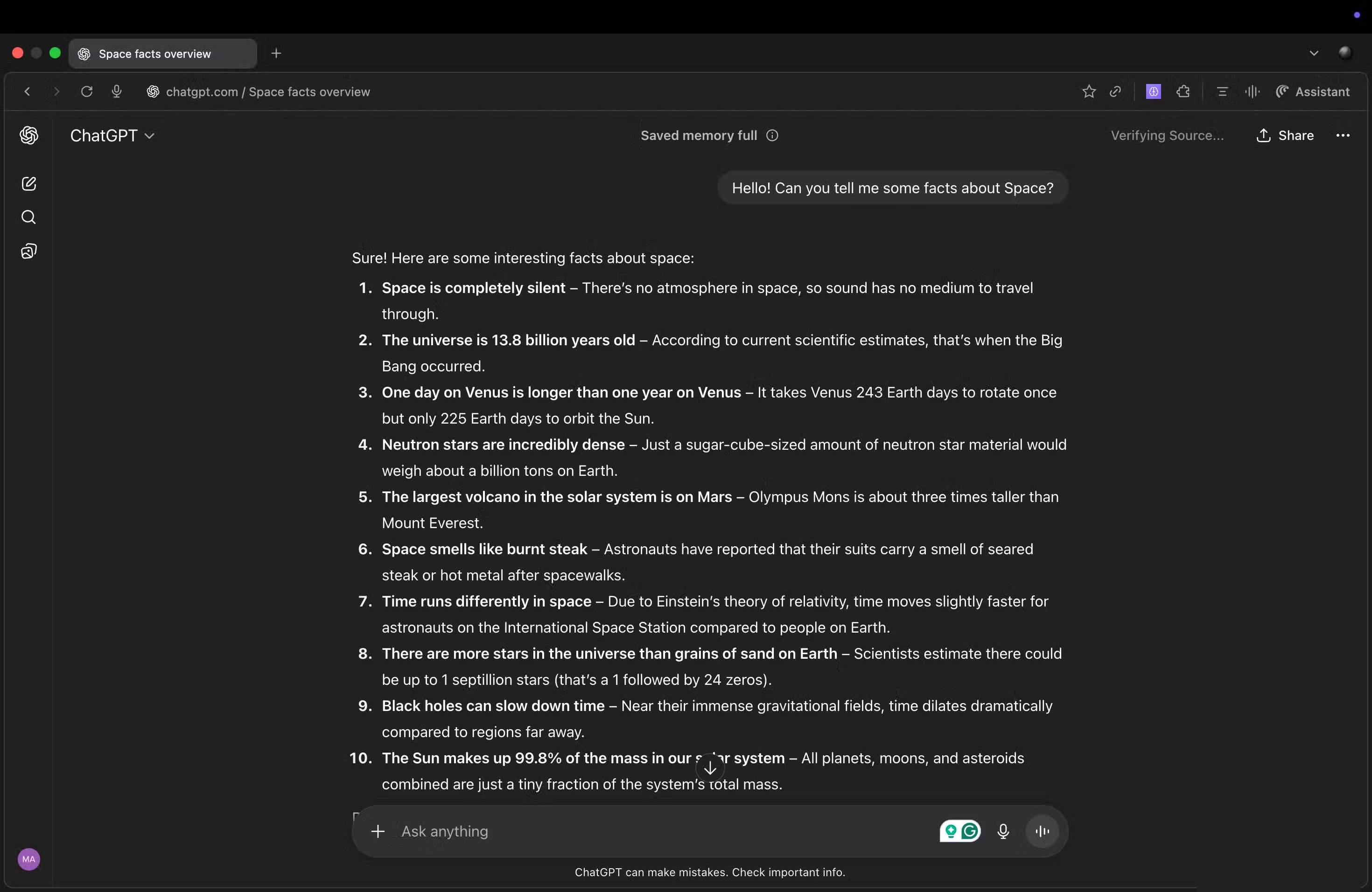
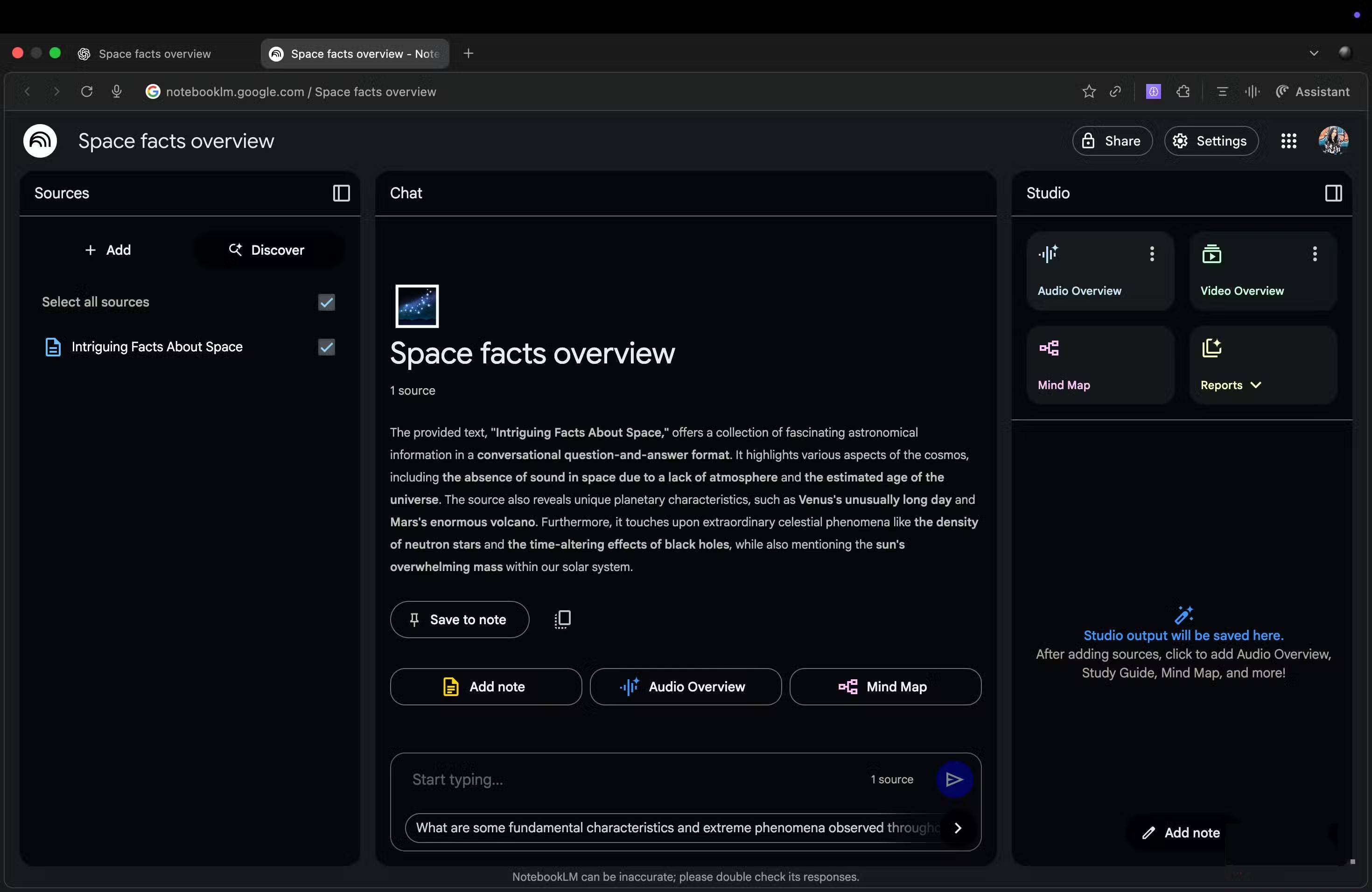
Kortex Notebook adds capture and NotebookLM-oriented controls to supported sites. Its core use case is sending material from an AI conversation or web page into a new or existing notebook without manually selecting, copying, changing tabs, and pasting.
When it is useful
- Saving a useful ChatGPT, Gemini, Claude, or Perplexity exchange as a source.
- Capturing a web page or selected material while researching.
- Organizing sources and prompts with features that are not present in NotebookLM's standard interface.
The exact feature set may depend on the current extension version and plan. Review the generated source after import: chat labels, code blocks, tables, citations, and collapsed content may not survive conversion perfectly. NotebookLM will treat the imported conversation as source material, but that does not make factual claims in the conversation reliable.
Privacy check
Kortex needs access to supported pages to capture their content. Do not use one-click import for confidential customer data, private code, legal material, or health information until your organization has reviewed the extension's permissions, data handling, and any optional cloud-sync features. Chrome's site-access setting can be restricted to specific sites or changed to “On click” when the extension supports that workflow.
2. NotebookLM Mindmap Extractor: move a map into an editable tool
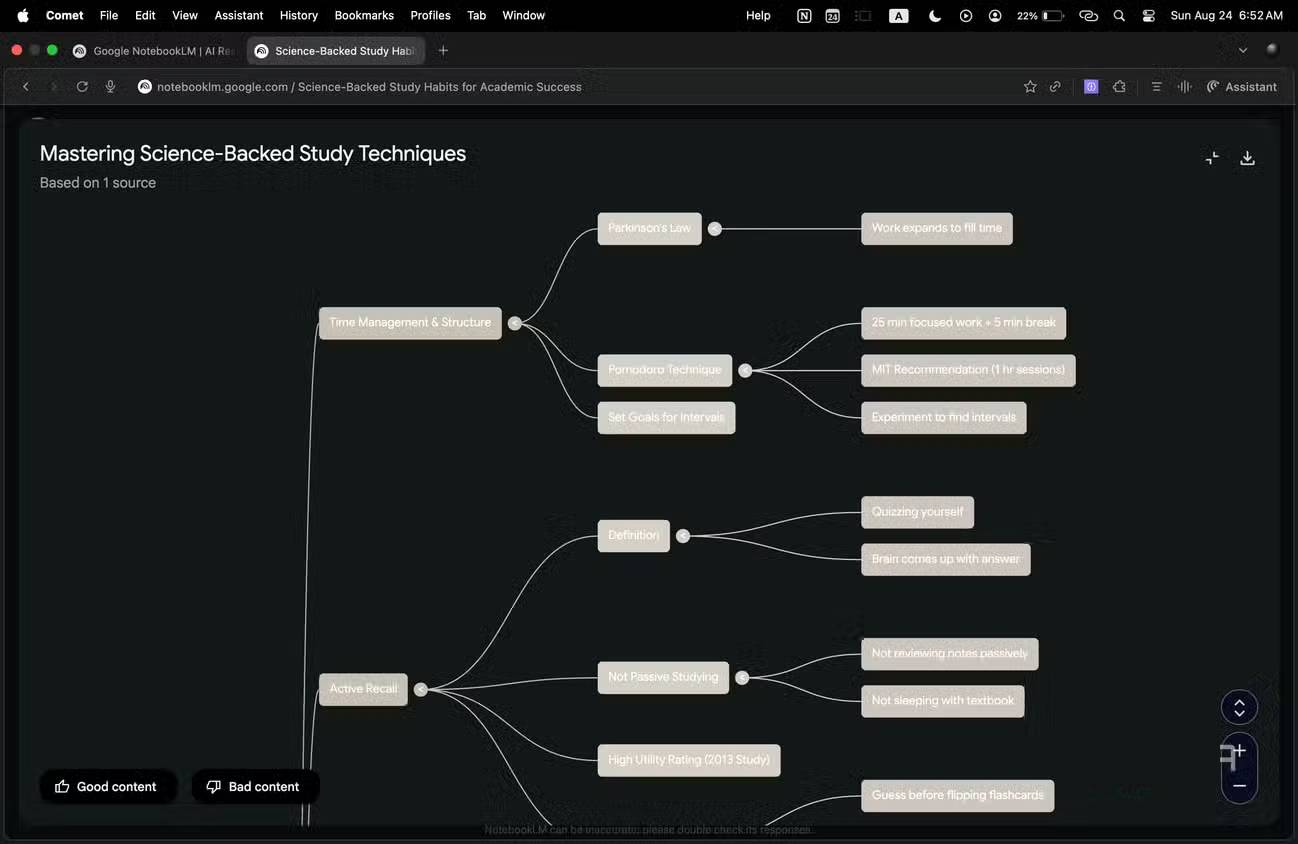
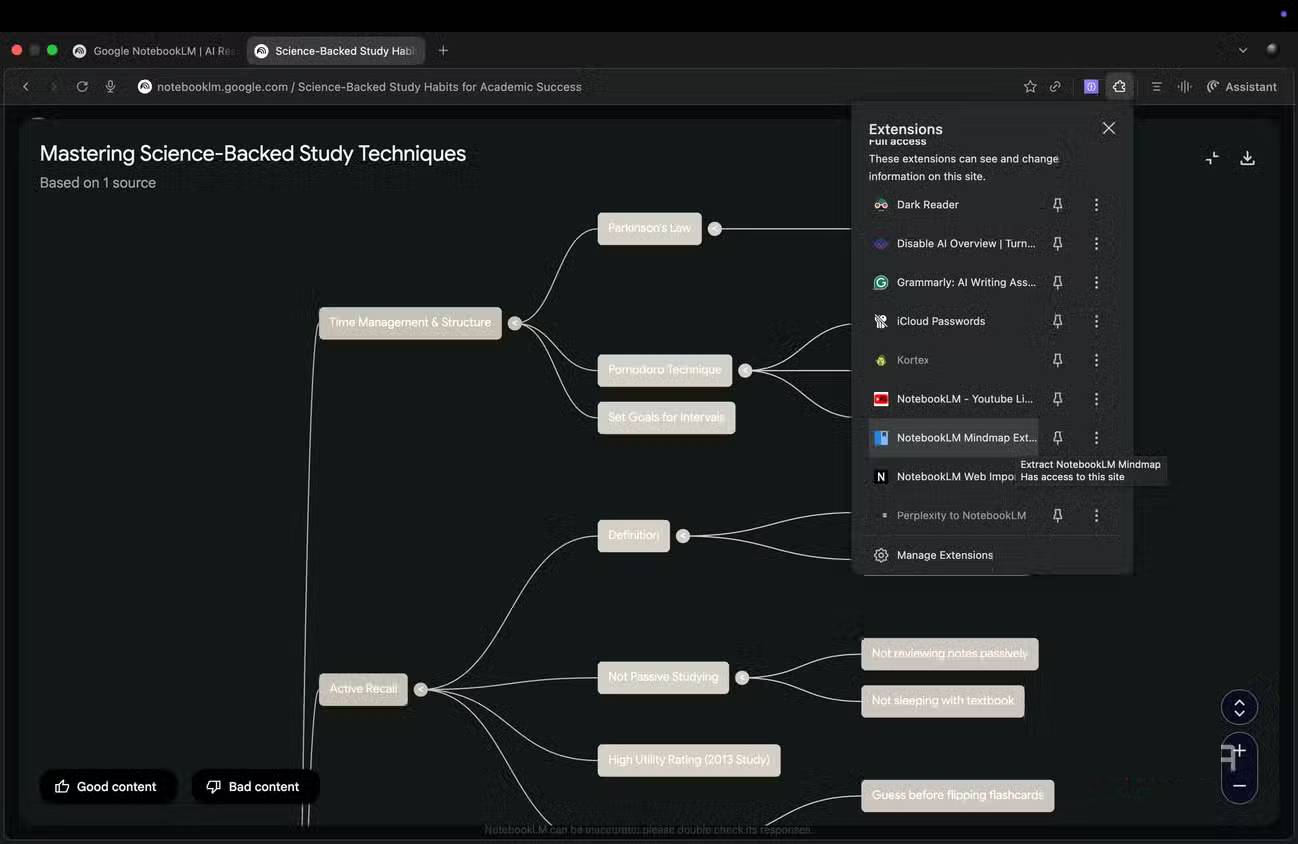
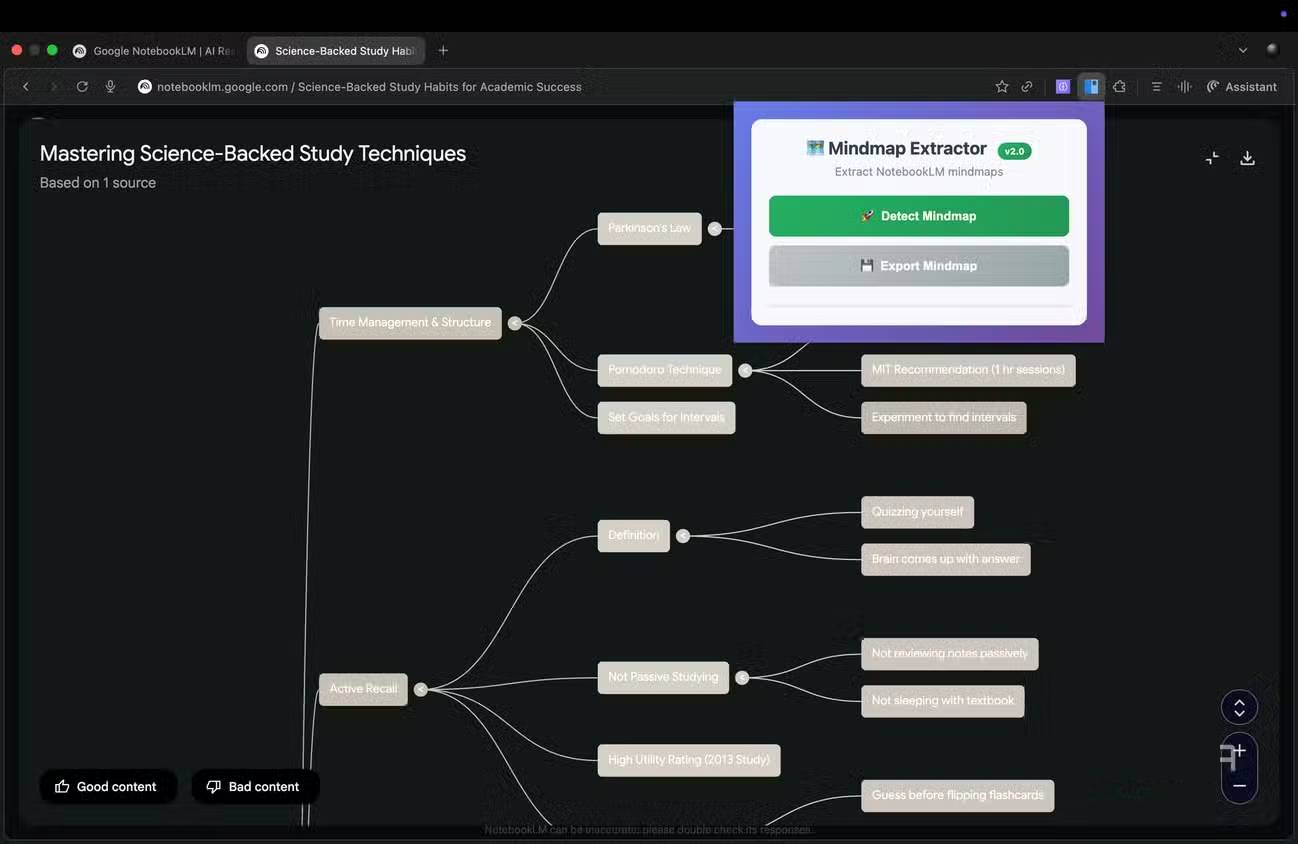
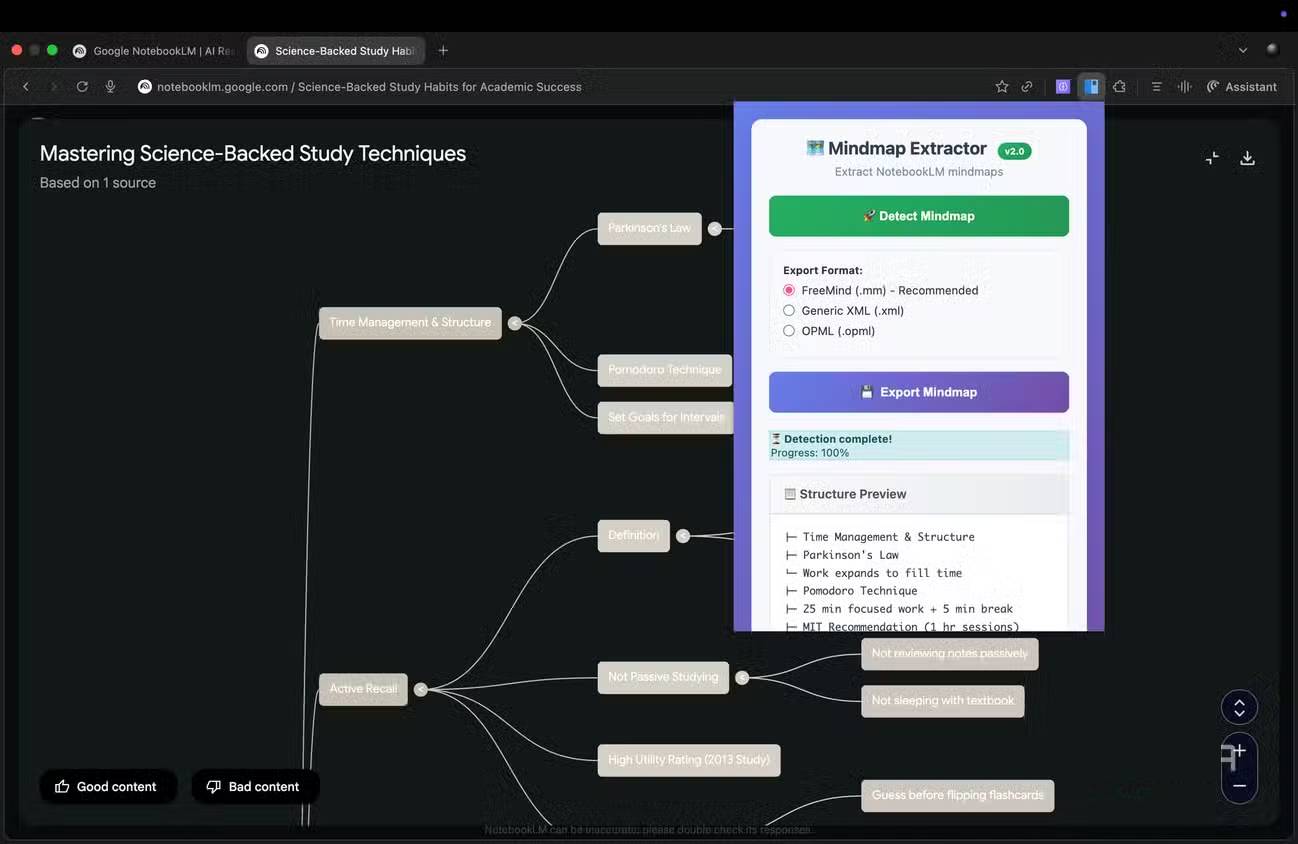
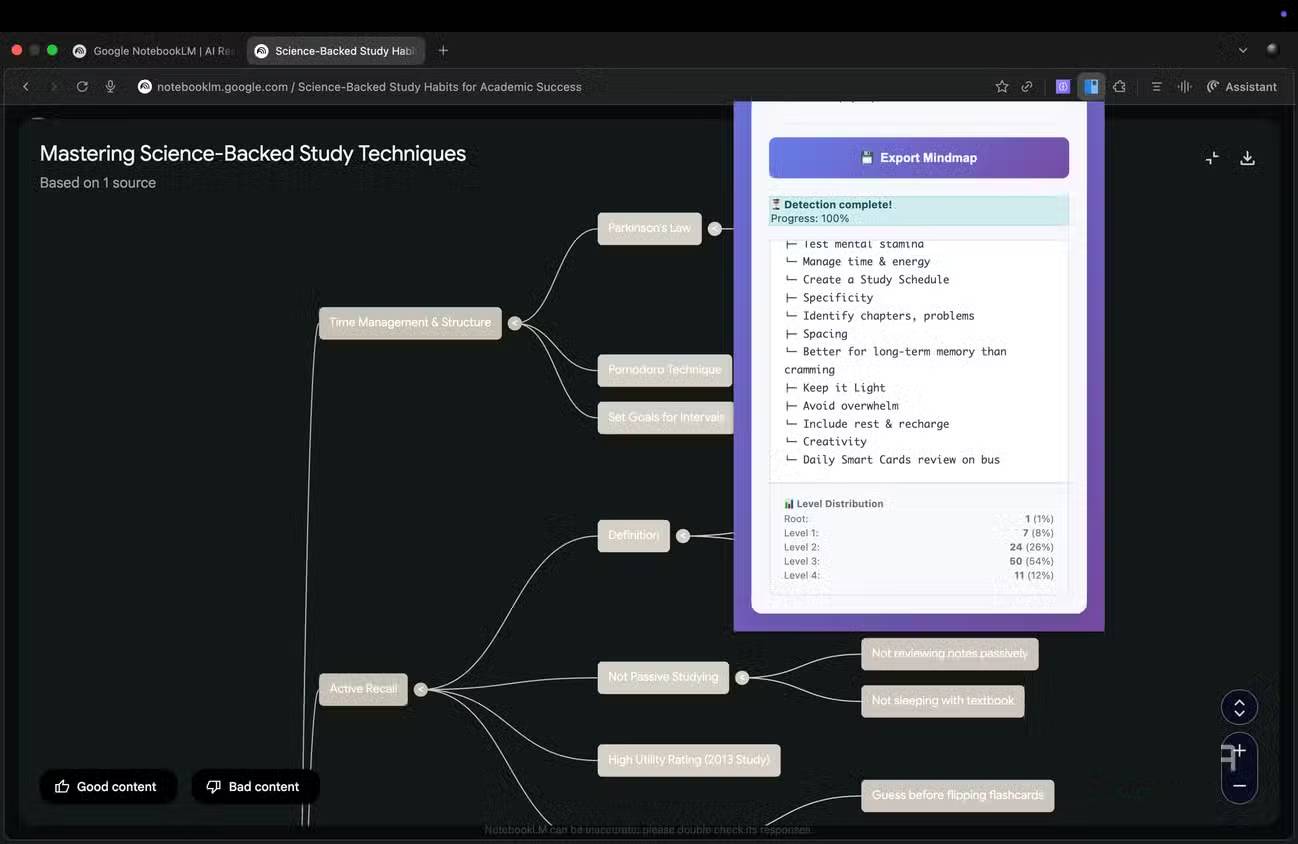
NotebookLM Mindmap Extractor reads a mind map displayed in NotebookLM and exports its hierarchy in portable formats such as FreeMind .mm, OPML, or structured XML. You can then open a compatible file in XMind, Freeplane, or another mind-mapping application and edit the branches.
How to use it
- Generate and open the mind map in NotebookLM. Expand branches whose content you need if the extension's current instructions require it.
- Select the extension from Chrome's Extensions menu.
- Choose Detect Mind Map.
- Select an export format and download the file.
- Import the result into a compatible mind-map editor and inspect the hierarchy.
The export captures structure, not necessarily the original visual design. Colors, coordinates, links, citations, or collapsed nodes may be changed or omitted. Keep the original notebook until you have confirmed that all important branches were transferred.
When a native download is enough
If you only need to place the map in a document or presentation, NotebookLM's image download may be simpler and avoids granting a third-party extension page access. Use a structured export only when you need editable nodes, a reusable outline, or migration into another mapping tool.
3. NotebookLM YouTube Link (Source) Automator: collect video sources
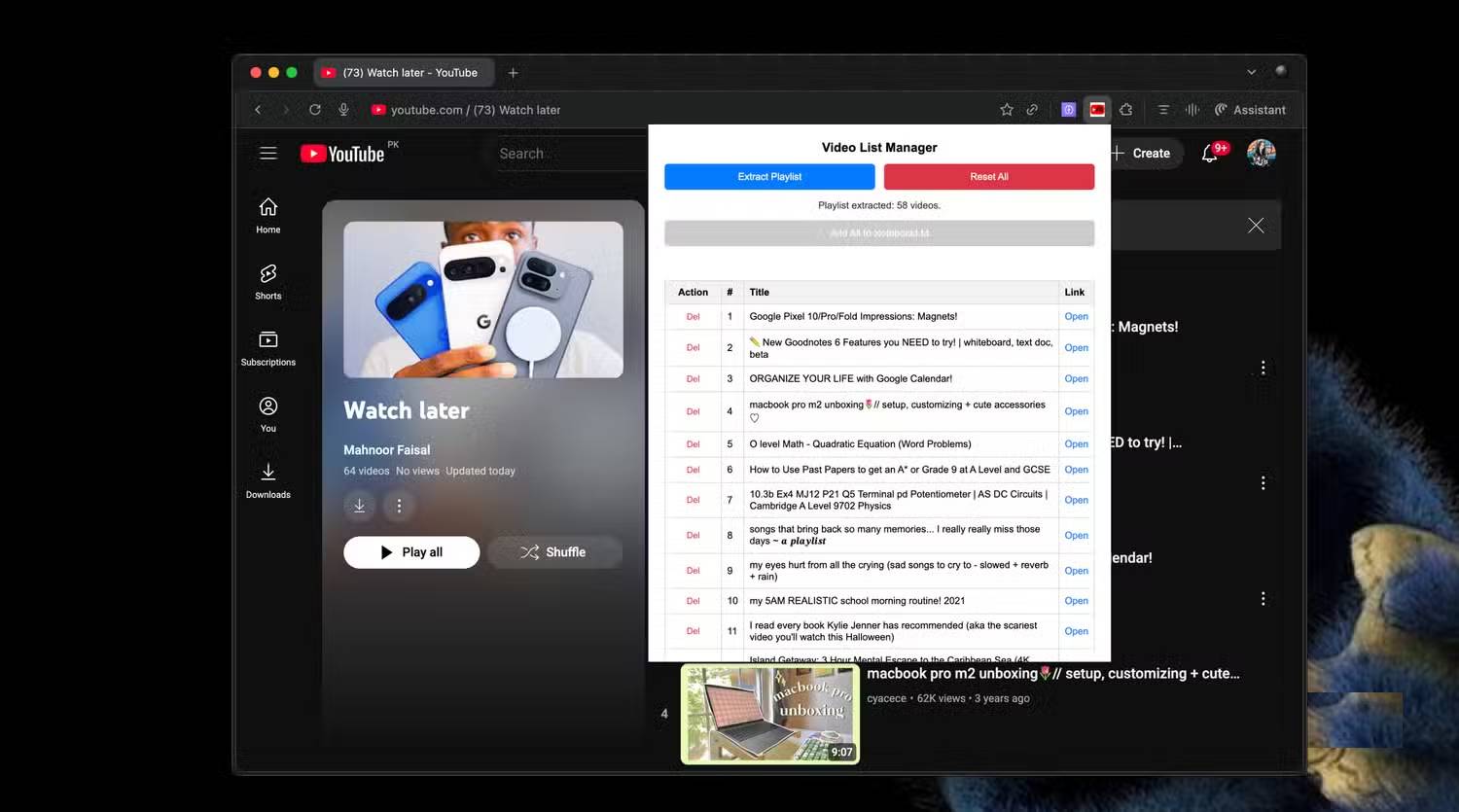
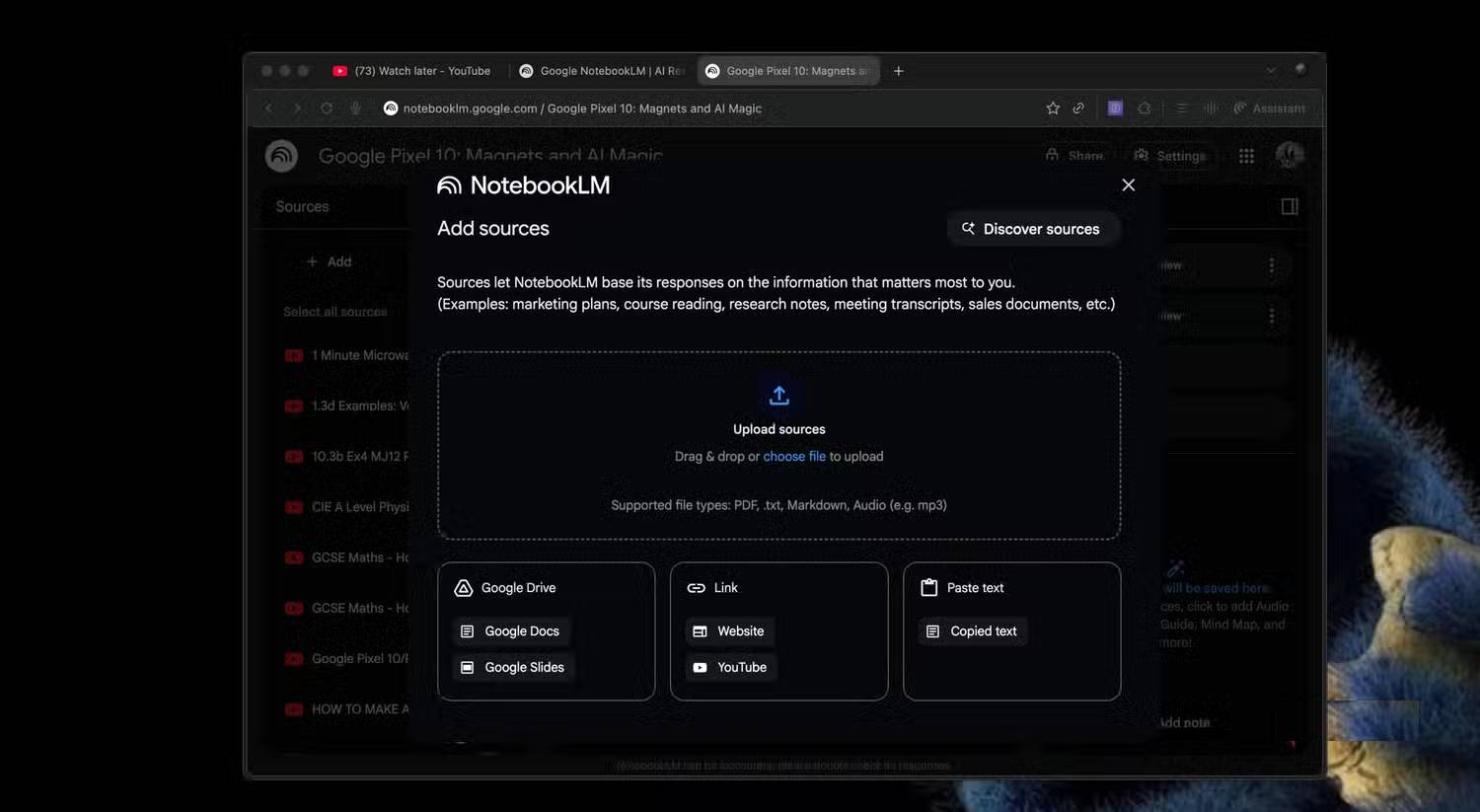
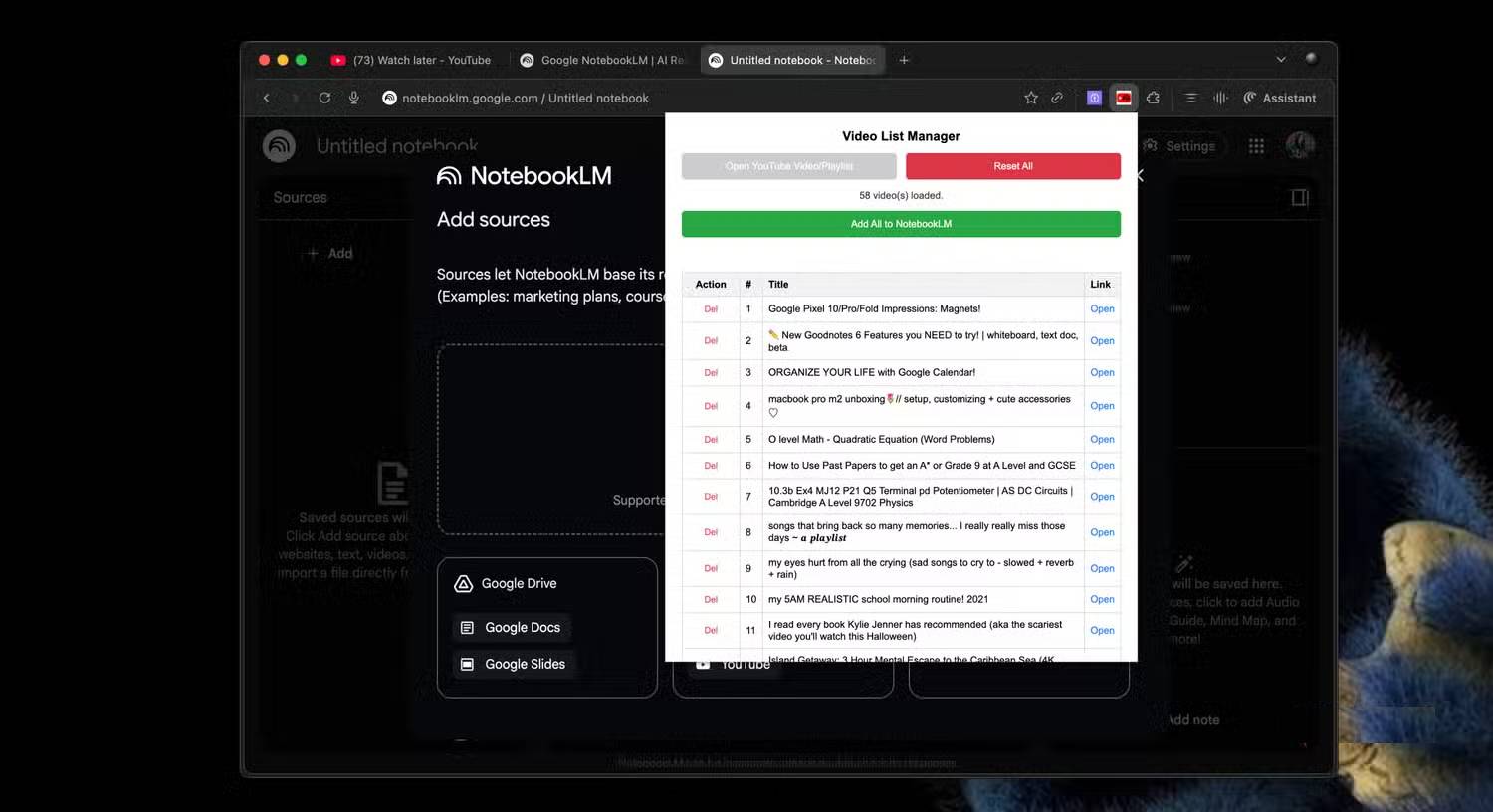
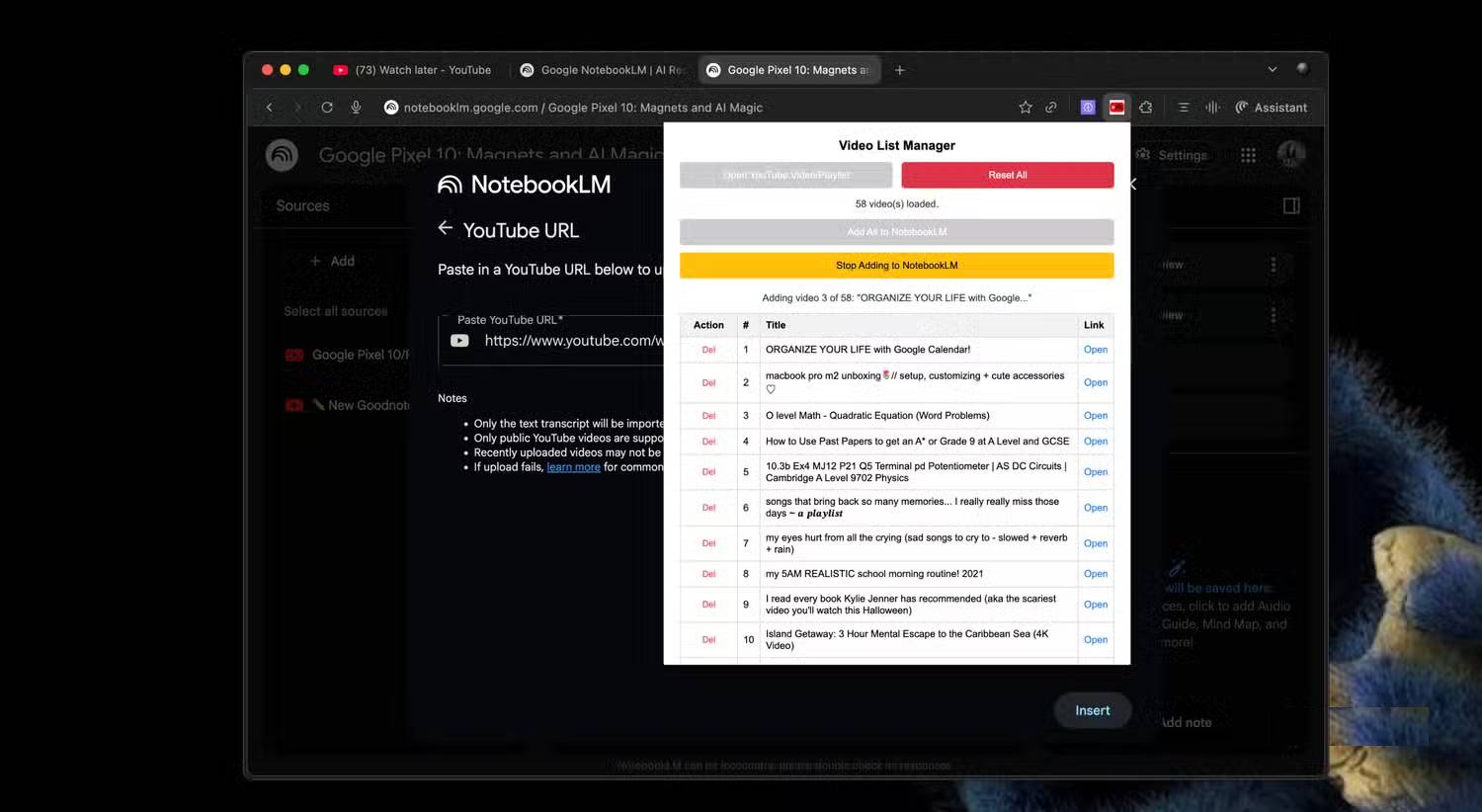
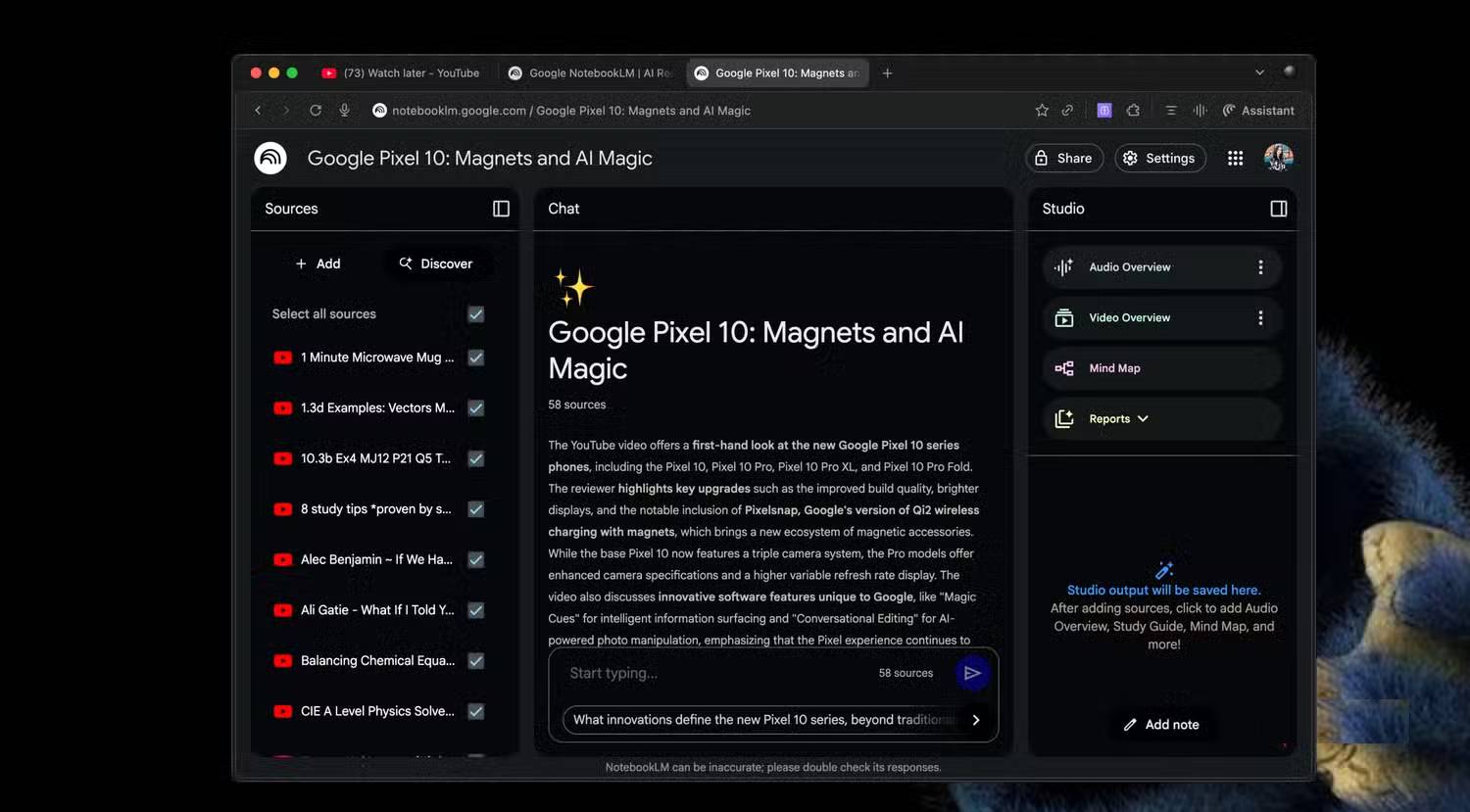
NotebookLM - YouTube Link (Source) Automator collects links from a YouTube video or playlist and sends them to a NotebookLM notebook in a batch. It is useful for lecture series, conference playlists, or a curated research queue where adding every URL by hand would be tedious.
A typical workflow
- Open the relevant YouTube video or playlist.
- Open the extension and collect the current video or visible playlist entries.
- Review the collected titles and remove unrelated, duplicated, private, or unavailable videos.
- Open the destination notebook and use the extension's add command.
- Wait for NotebookLM to finish processing and check each source for an available transcript.
Bulk collection does not guarantee that NotebookLM can use every video. A source may fail if it is private, age-restricted, unavailable in your region, lacks a usable transcript, or exceeds a current product limit. Playlist caps and batch behavior can also change between extension releases.
NotebookLM analyzes the imported transcript, not the full visual content of a YouTube video. Important charts, demonstrations, on-screen text, and editing context may be absent. Open the original video when those details matter, and do not cite a generated summary without checking the source.
How to install these extensions more safely
- Use the Chrome Web Store listing, not a copied installer or ZIP file.
- Match the extension name, developer, and ID with the listing you intended to install. Similar names are common.
- Read the permissions before selecting Add extension. Treat “Read and change all your data on all websites” as broad access.
- After installation, open Chrome > Extensions > Manage extensions > Details and restrict site access where practical.
- Remove an extension you no longer use. Recheck permissions after major updates because features and data practices can change.
Which extension should you choose?
- Choose Kortex when the main task is moving conversations or web research into NotebookLM.
- Choose Mindmap Extractor when you need to edit a NotebookLM map in dedicated mind-mapping software.
- Choose YouTube Link Automator when you have a curated batch of video URLs to add as sources.
Install only the extension that solves a recurring task. Every browser add-on increases the code and permissions operating in your browser, so a manual workflow can be the better choice for occasional use or sensitive notebooks.
Related Articles
 4 Chrome Extensions to Help You Surf the Web Faster5 minutes read
 How to Fix Chrome Extensions Not Working on Windows 105 minutes read
 How to Control Gadgets That Work on Chrome: Chrome Utility4 minutes read
 3 Tools That Make NotebookLM Much More Useful14 minutes read
 5 Best Chrome Extensions That Google Just Removed7 minutes read
 Top 7 Most Useful Chrome Extensions You Should Try8 minutes read
Reader Comments 0
Sign in with email or Google to join the discussion.