Table of Contents
This guide will show you how it can make research and learning more dynamic, practical, and enjoyable.
Current interface: NotebookLM is generally organized around Sources, Chat, and Studio. The older screenshots in this guide may show Notebook Guide or menu positions that have since moved, but the core workflow remains: add sources, select the relevant subset, ask grounded questions, verify citations, and create outputs.
NotebookLM grounds answers in the sources you provide; it does not train a new private model on each notebook. Grounding reduces unrelated answers but does not prevent mistakes, missing context, or unsupported interpretation.
For more focused work, see TipsMake's guides to NotebookLM settings, organizing sources with Auto-label, and NotebookLM study features.
However, NotebookLM is much more than that. It can quickly summarize complex documents, answer specific questions about them, and even convert them into summaries, study guides, or podcasts.
Another advantage is that we no longer have to switch between different windows or applications to ask questions, create summaries, or take notes — NotebookLM brings AI closer to content.
This guide will show you how it can make research and learning more dynamic, practical, and enjoyable.
What is NotebookLM?
NotebookLM is Google's source-grounded research and learning workspace. It uses selected documents, webpages, media, and other supported sources as context for answers and generated outputs; it does not train a separate model for each notebook.
Source-grounded assistance
Many note-taking tools have recently integrated AI features into their products. But NotebookLM is unique in that it is built entirely on AI. When you use NotebookLM, it's almost as if the AI is a partner, reading your documents with you.
NotebookLM can highlight key points in dense documents, provide concise summaries, and help you learn material faster. It can also help you understand how different documents on the same topic relate to each other.
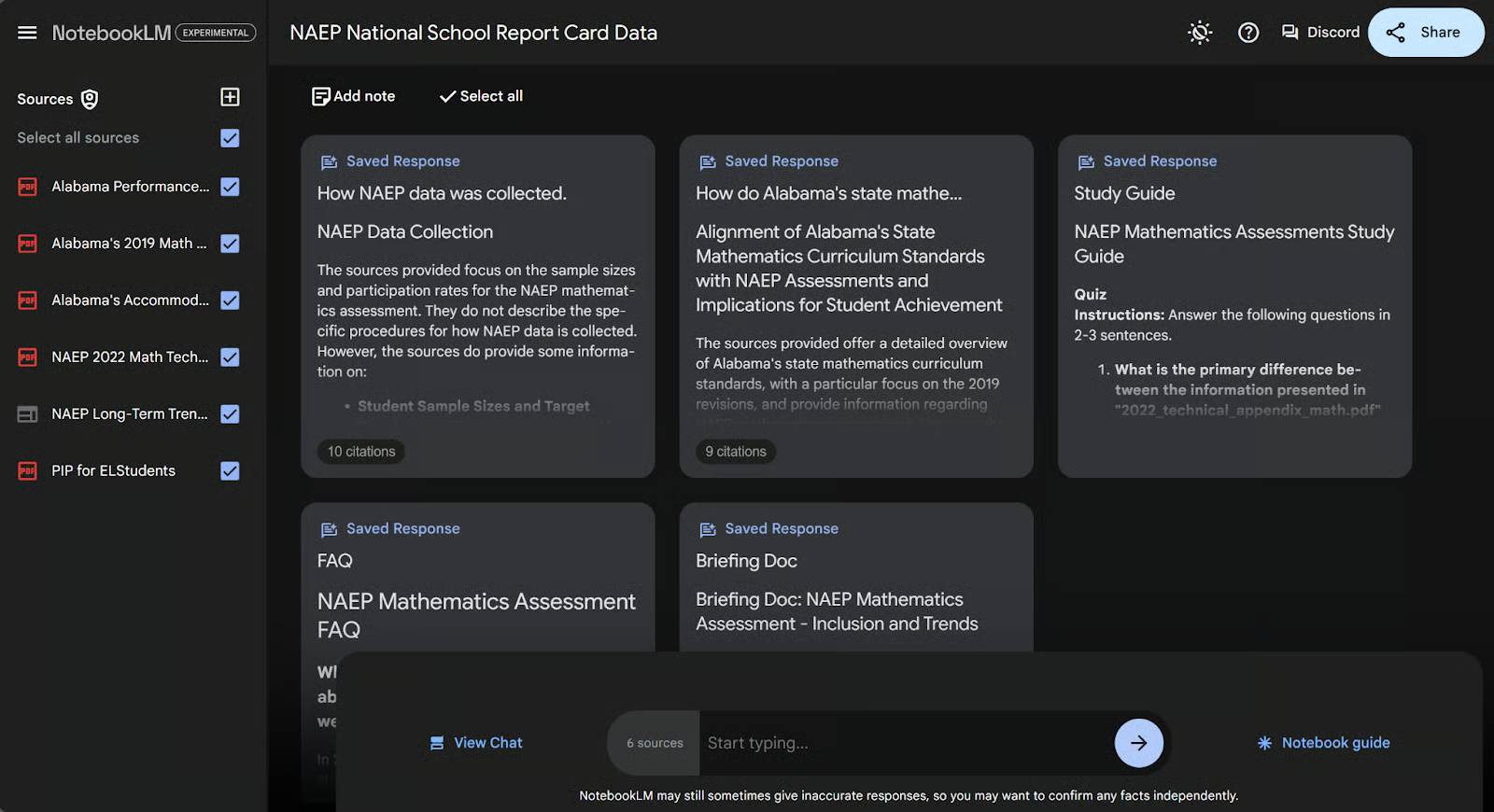
Below, you can see an example of how NotebookLM is used. On the left are some national and state (specifically Alabama) math education materials that the author has uploaded. On the right, NotebookLM has created a series of notes summarizing the information from those materials.
How source grounding works
Who among us hasn't copied text into ChatGPT and asked it to summarize it for us? While this is a great use case for ChatGPT, it's not perfect. The model will deviate from the document you uploaded and incorporate other ideas it has learned. And this effect is exacerbated the further your conversation strays from the copied text.
However, NotebookLM still focuses on the specific documents you've uploaded. When you upload a document—whether it's a PDF, Google Docs, or other text file—NotebookLM learns the information contained within it and adjusts its response based on those sources.
NotebookLM attempts to ground responses in the active source set and provides citations that help you inspect the supporting passage. A citation can still be incomplete or misapplied, so open it and verify the claim.
You can see this clearly when uploading a unique work of fiction. Writers can use this product to query their own works to ensure clarity, coherence, and consistency. For example, an author has uploaded a fictional story that they requested ChatGPT to create. Because the story is included as a source, NotebookLM can answer from that text. It can still overlook details or infer beyond what the author wrote, so use citations when checking continuity.
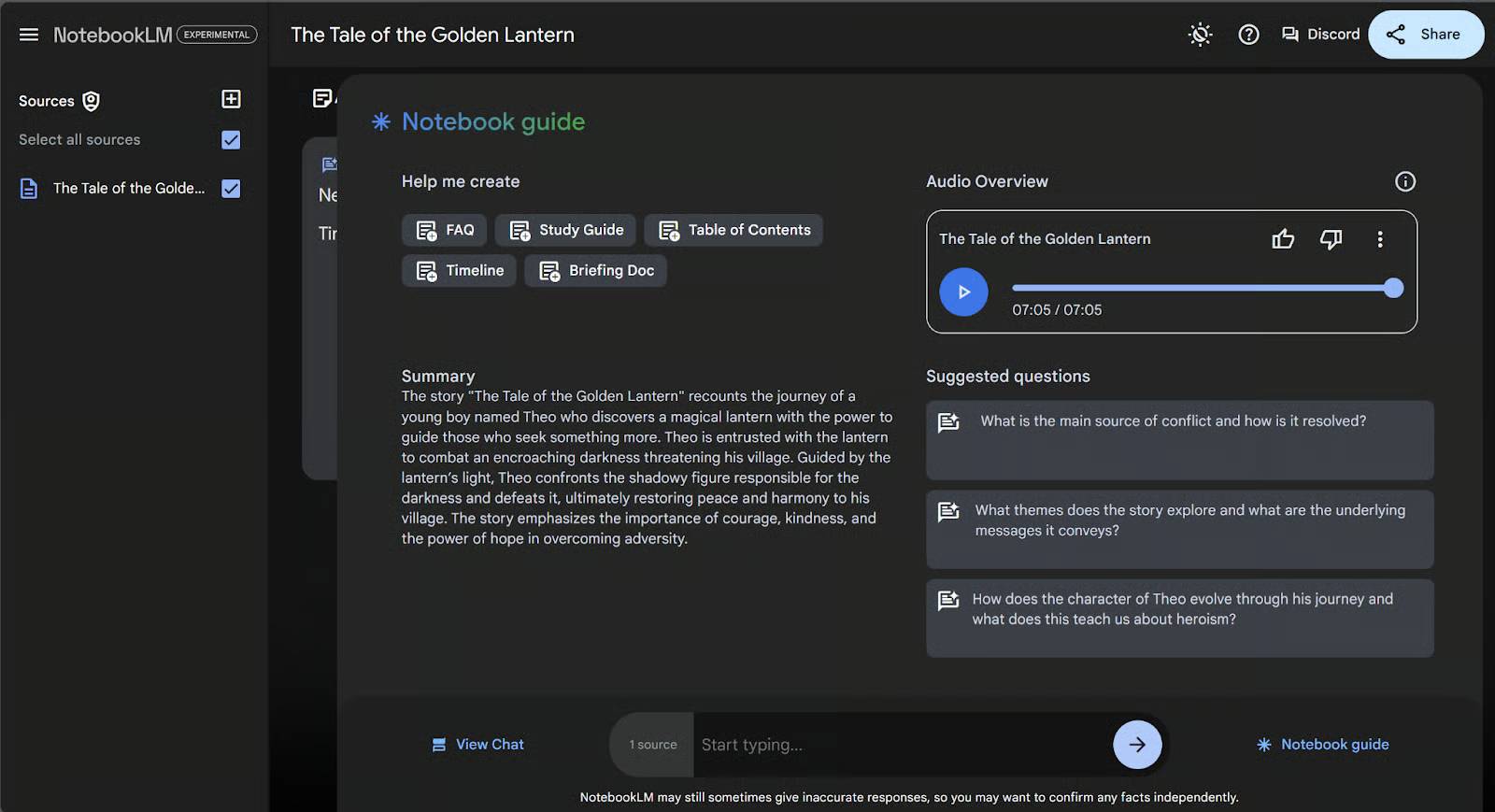
Below, you can see that NotebookLM has created a summary, podcast, and suggested questions based on this fictional story.
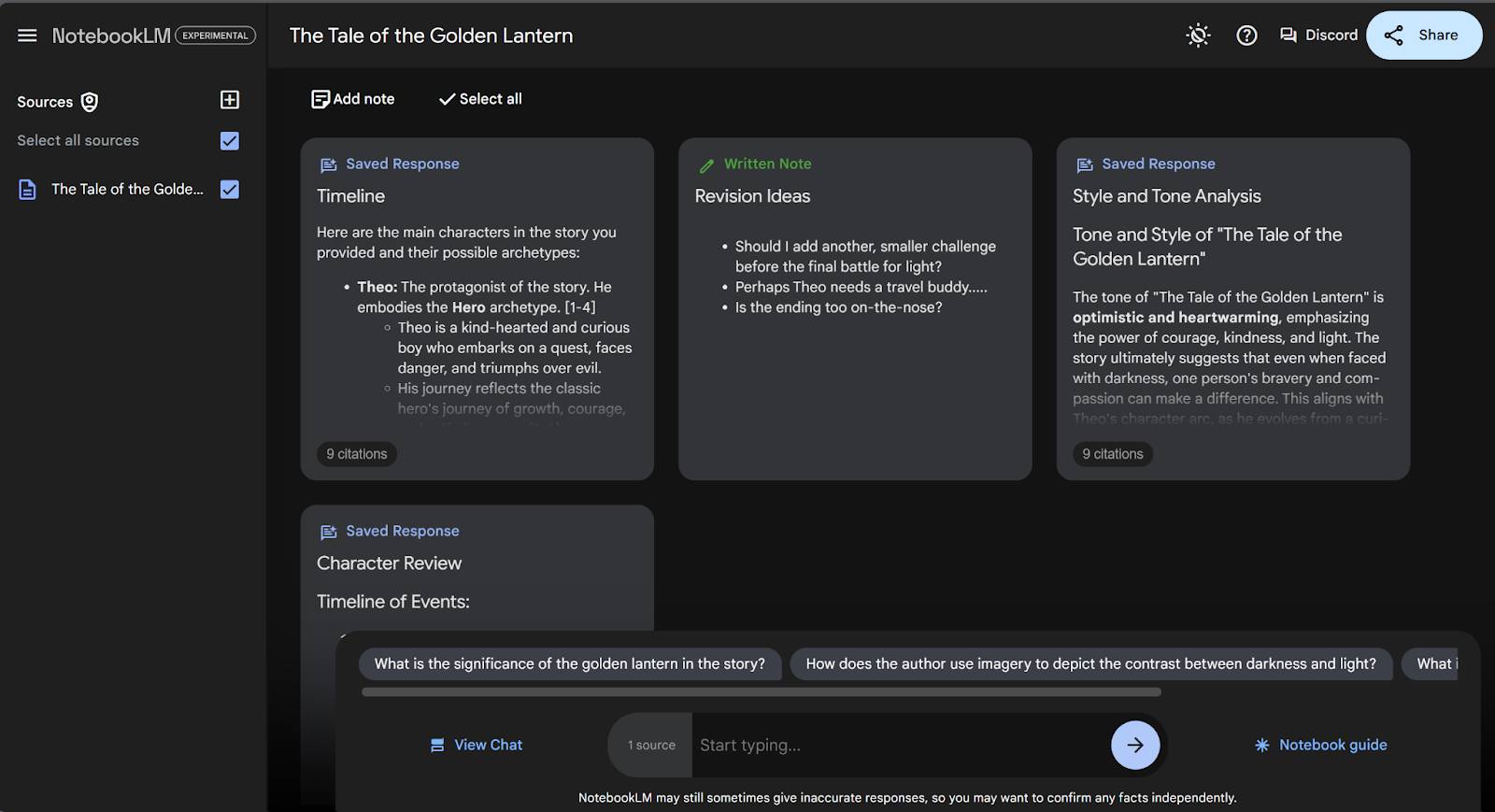
Saved responses and handwritten notes can keep useful material inside the notebook. Generated notes do not automatically become accurate or on-topic; review and label them clearly.
Audio Overviews
One of NotebookLM's standout features is its ability to create curated podcasts based on your material. Instead of struggling with a dense research paper, you can listen to two AI voices conversing and summarizing the content.
Audio Overviews can provide a useful orientation or review, but listening while multitasking is not a substitute for checking the source when details matter. When testing this product, the author was able to exercise for 7 minutes while listening to a customized podcast describing the Federal Reserve's September 2024 Greylist. The article encourages you to try this feature if you haven't already.
While this is already a great feature, it's not hard to imagine its potential future applications. What if you could receive personalized news podcasts, custom book summaries, or even detailed recordings of your meeting notes? This could be a glimpse into the future of content consumption, where we listen to content tailored specifically for us.
Get started with NotebookLM
To start using NotebookLM, visit the NotebookLM website and sign in with your Google account.
After logging in, you'll see easy-to-understand instructions to get started with your first notebook. Click Create.
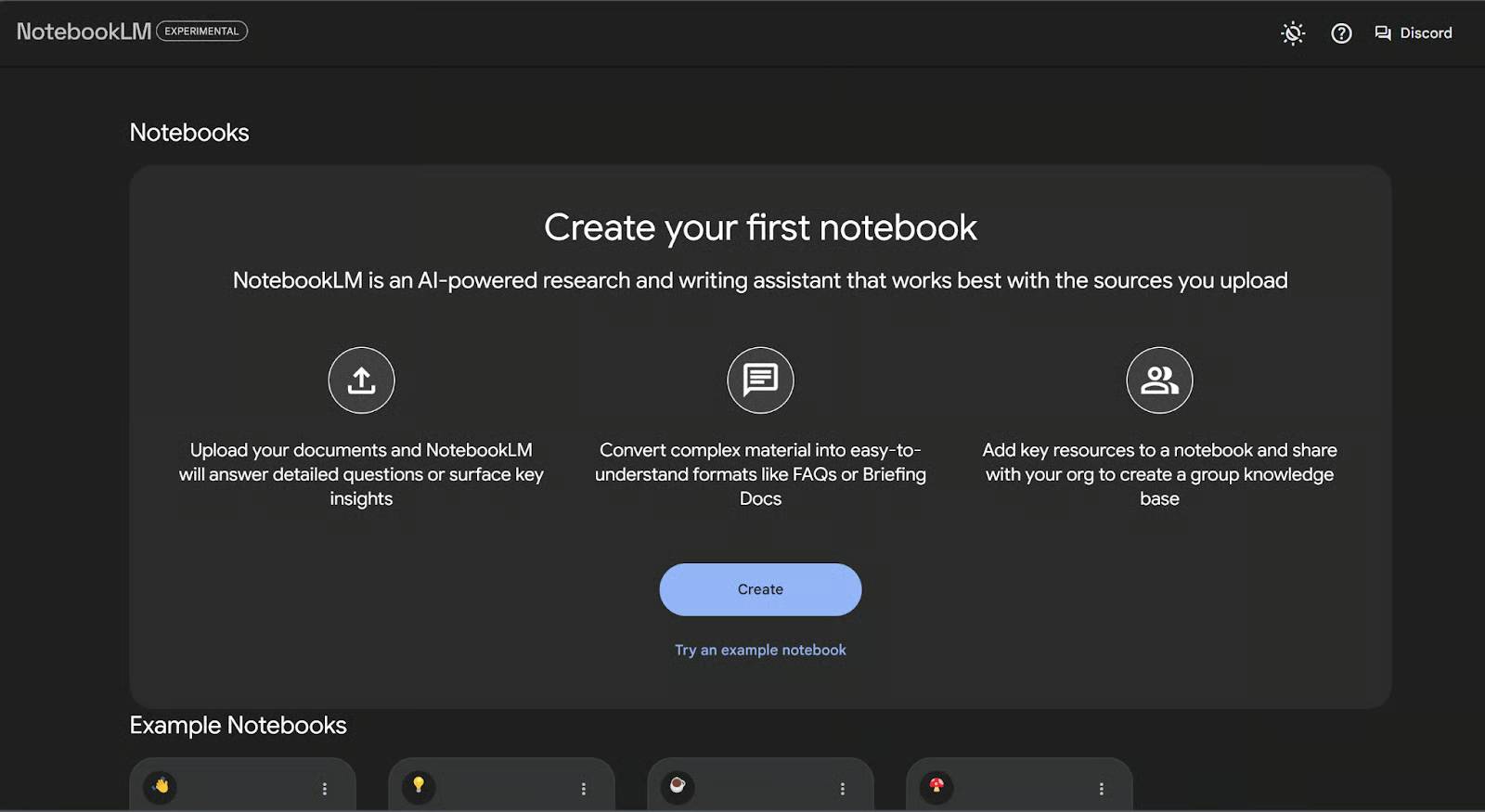
You will be asked to upload a document to start your notebook.
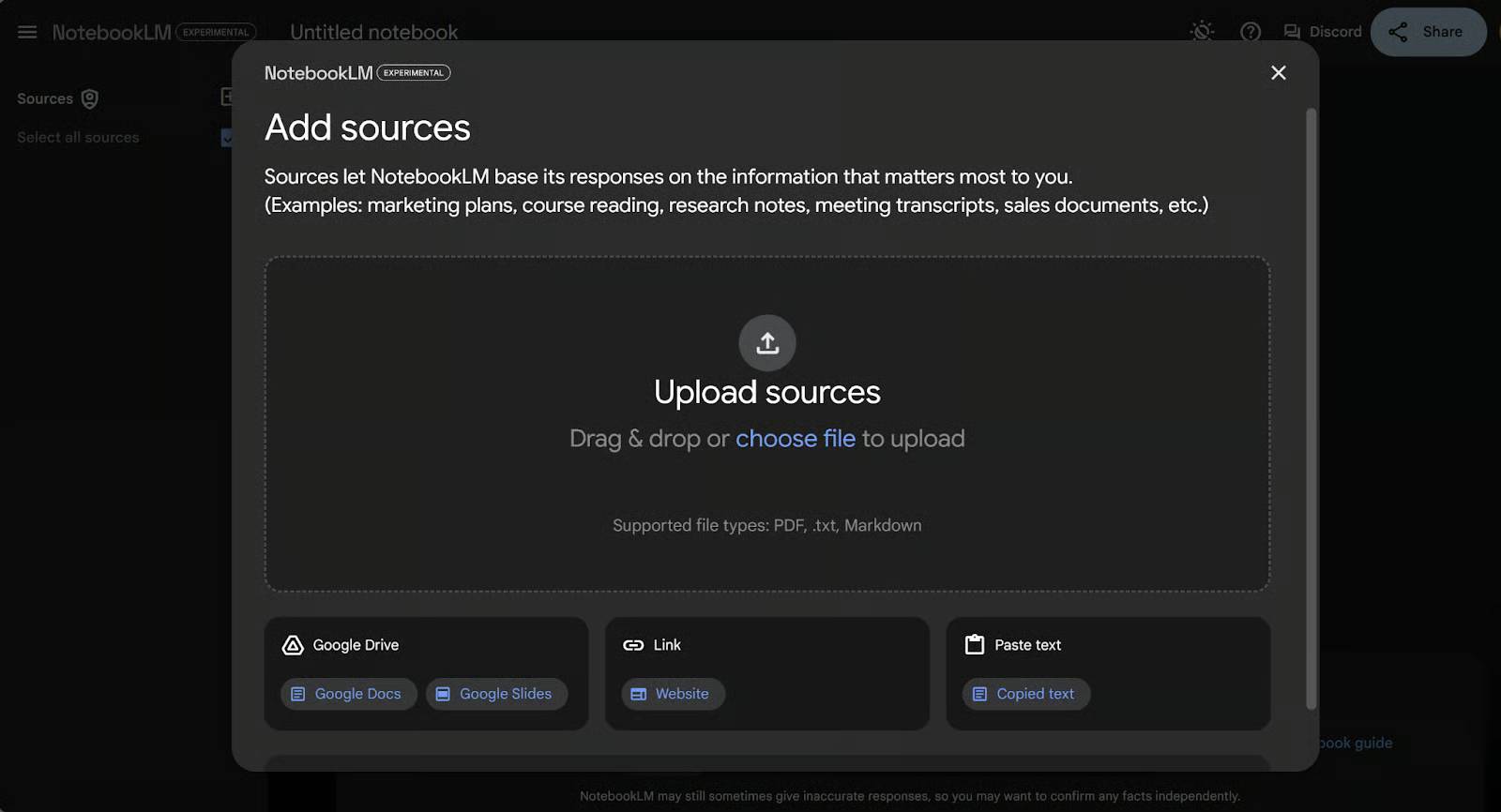
NotebookLM supports multiple source types. The exact list varies by product version and may include files, Google Drive items, webpages, YouTube, audio, or pasted text. In the interface shown here, the available options included:
- You can upload files from your computer in PDF,.txt, or Markdown format.
- You can link directly to a website using its URL.
- You can copy and paste text directly into the notebook.
- You can link to the Google Doc.
- You can link to Google Slides.
Simply select the option containing the information you are interested in and link to your document.
Before uploading, check the limits shown for your account and consider these practical constraints:
- Source-count and size limits vary by plan and can change. Check the current limit in NotebookLM instead of relying on this older figure.
- Support for spreadsheets and other formats changes over time. If a file type is not accepted, export the relevant sheet as a supported file while preserving column headers and context.
- Larger documents may take longer to process. If you're working with dozens of files, you might want to prioritize primary sources to get details faster.
Once your document is uploaded, NotebookLM is ready to go.
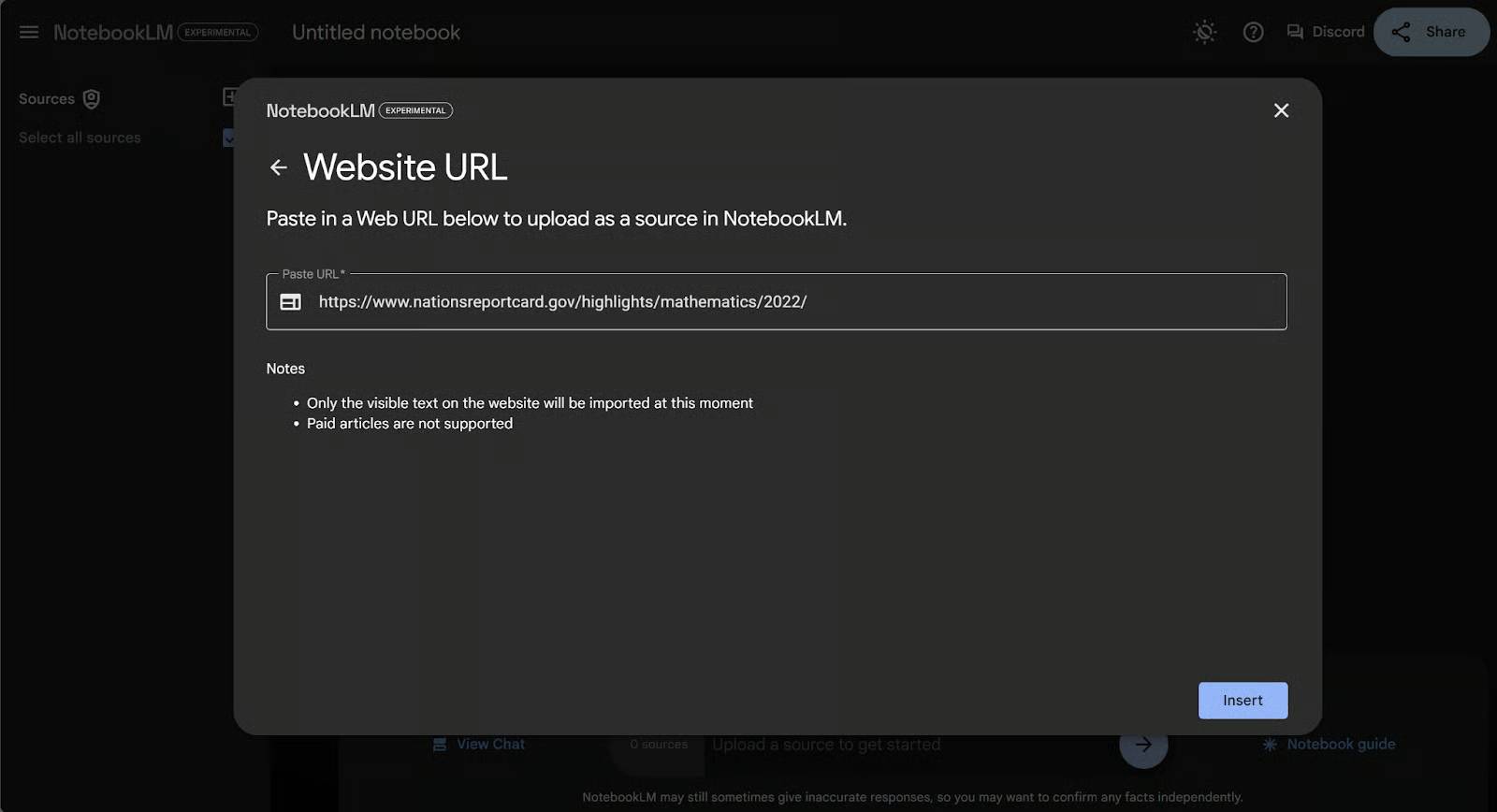
Key features of NotebookLM
Let's explore the features of NotebookLM through our example document.
Sources, Chat, and Studio
When you upload a document to NotebookLM, the first thing you'll see is a dashboard called Notebook Guide.
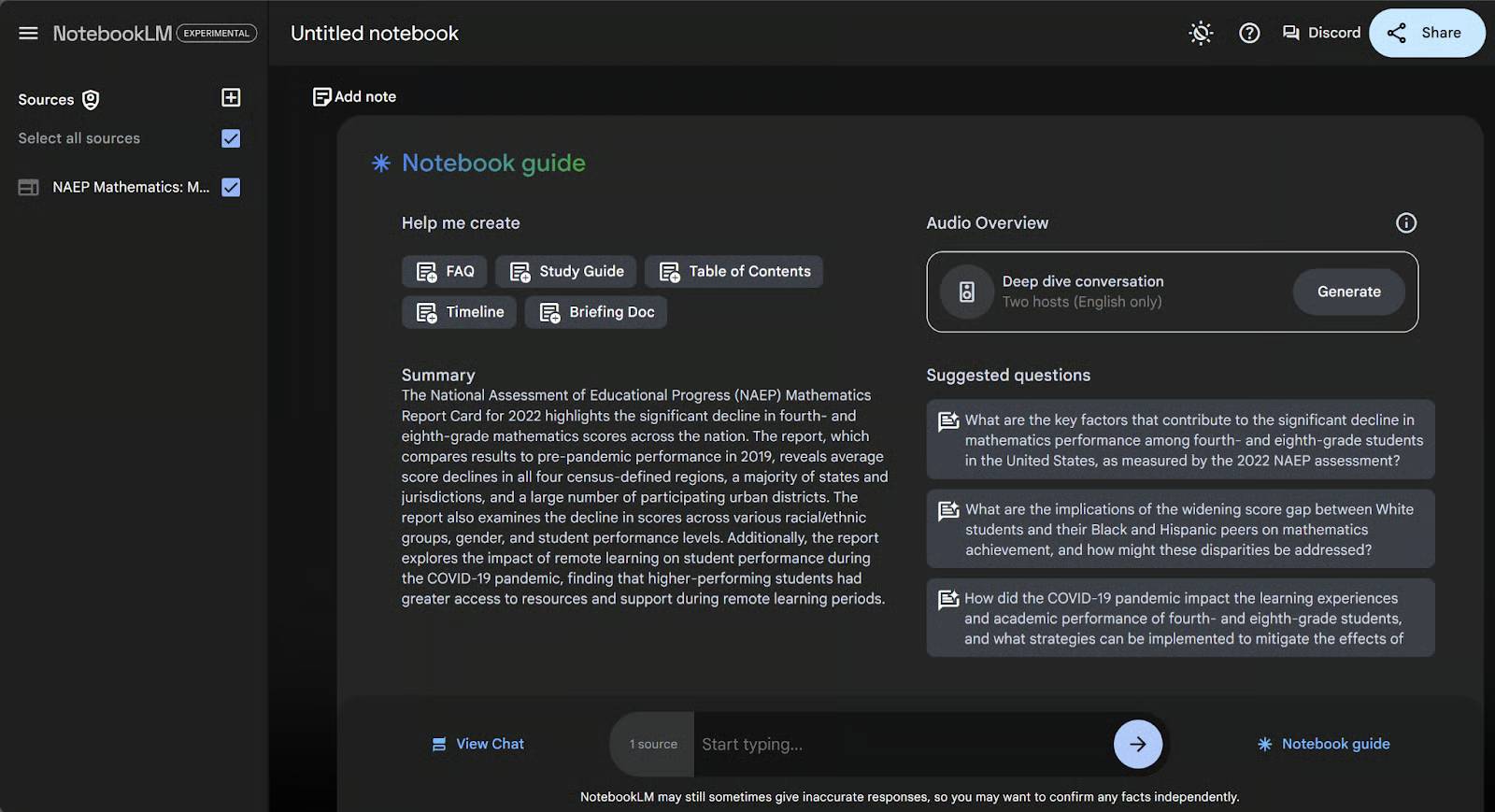
This control panel contains:
- Automatically summarize the documents you have uploaded.
- Suggested questions you might want to ask, tailored to your document.
- Buttons to create several standard summary document types, such as a summary document or table of contents.
- A prompt for creating personalized podcasts.
Ask a question
One of the best parts of NotebookLM is that it lets you ask questions in natural language about the documents you've uploaded. There are three ways you can ask a question:
- You can click on one of the suggested questions on the right side of the Notebook Guide.
- You can start typing your own question in the bar at the bottom of the page.
- You can click on View Chat in the bottom left corner of the page to go to the chat page and enter your question in the bar.
Enter a specific question in Chat and name the evidence or format you need. For example, type 'What are the five biggest takeaways from this document?' into the bar at the bottom.
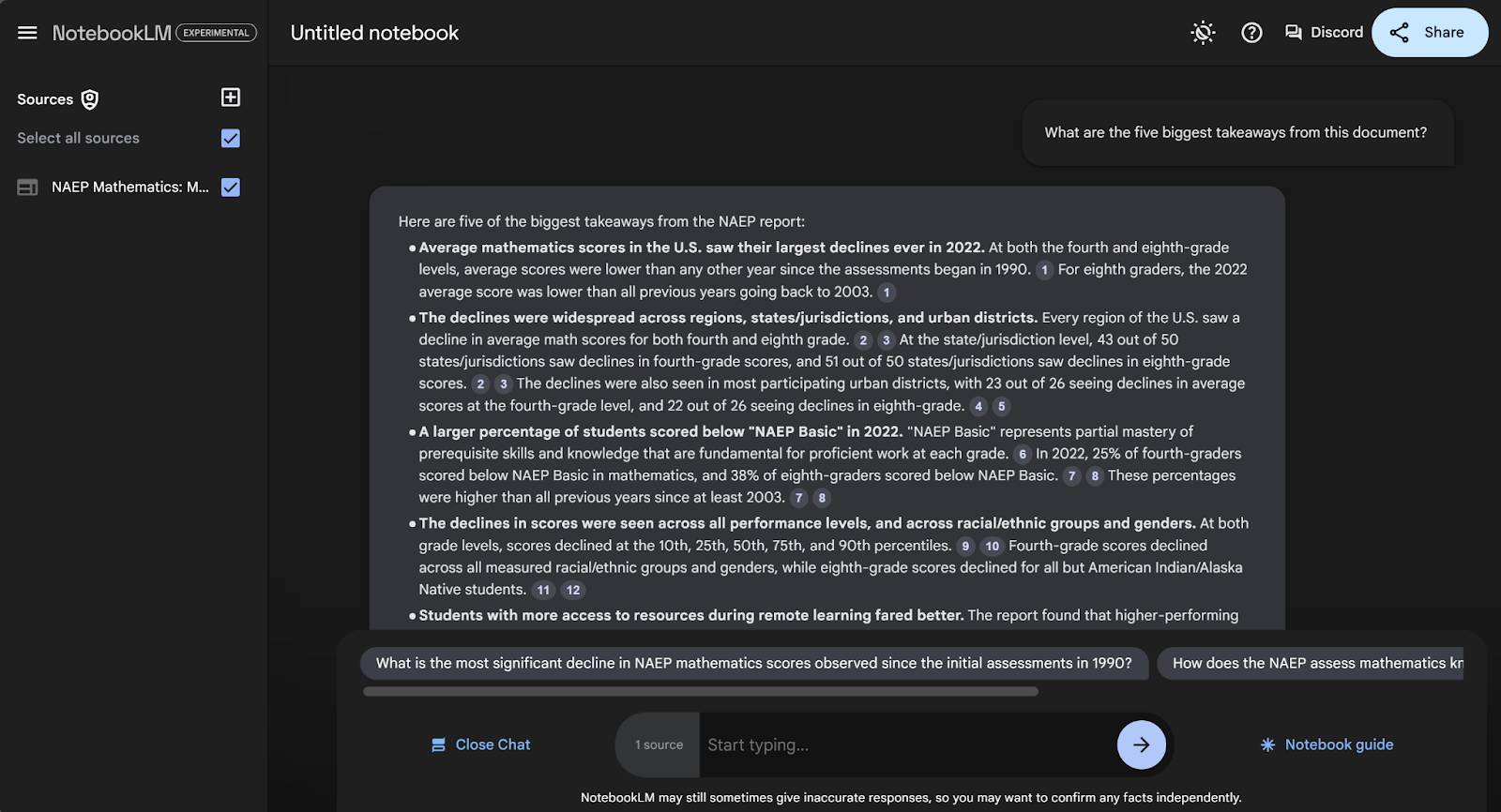
Here, the author asked for the five most important points extracted from the document, and the AI provided a bulleted list.
In addition to simply answering the question, NotebookLM also provides specific citations to show you where it got the answer from. These are displayed as small numbers in gray ovals next to the information. When you hover over or click on a number, the specific location in the document will appear. Let's click on number 3, for example.
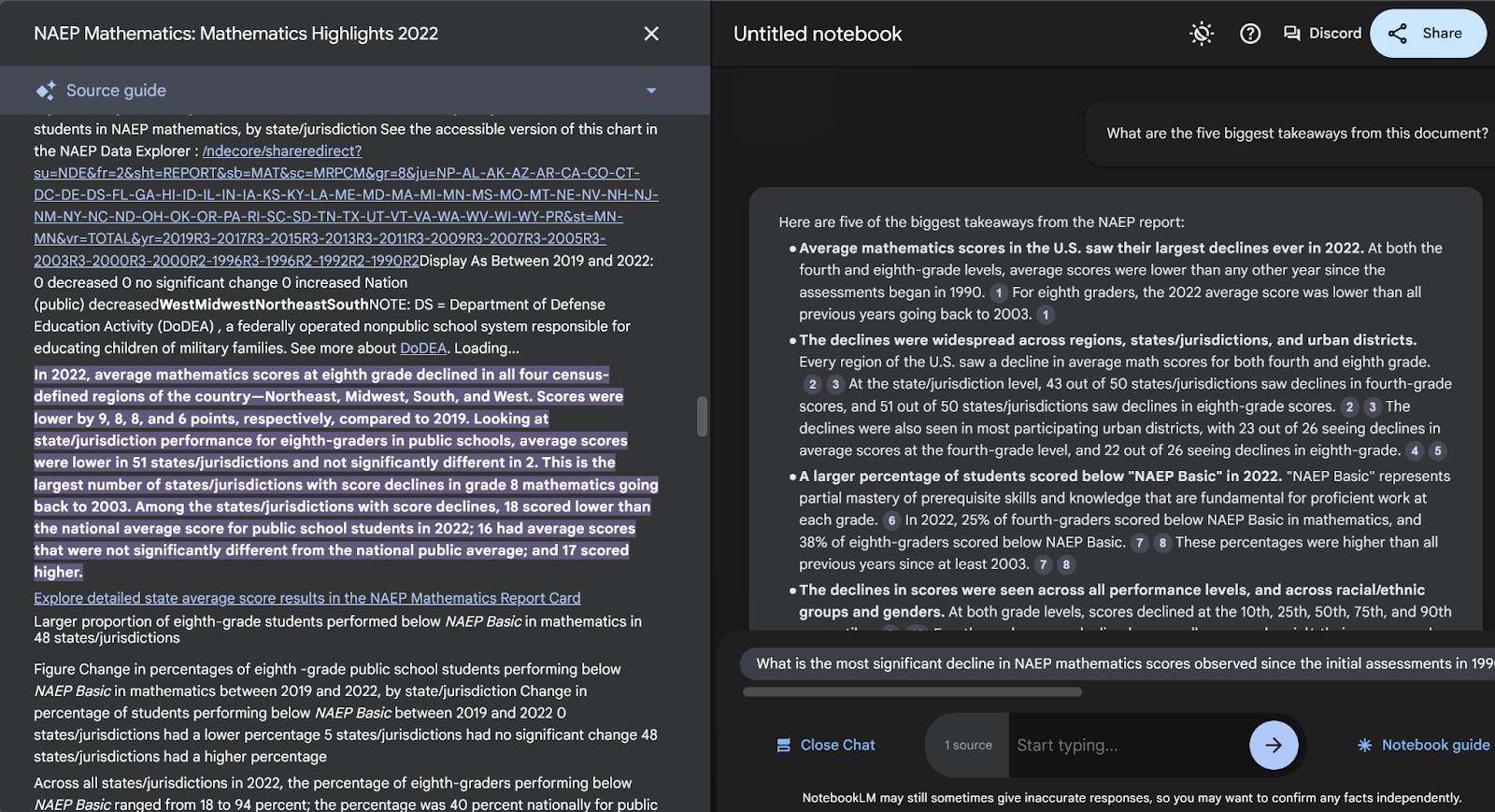
When you click on reference number 3 in the answer, a 'Source guide' will open on the left side, showing the specific reference to that sentence in the answer. The specific location is highlighted. Open each citation and confirm that the highlighted passage supports the complete sentence, not merely a related phrase.
Ask for synthesis, comparisons, and ideas
In addition to asking questions, you can ask the AI to generate ideas for you on this chat page. For example, ask the AI to brainstorm ideas to improve math education in the United States.
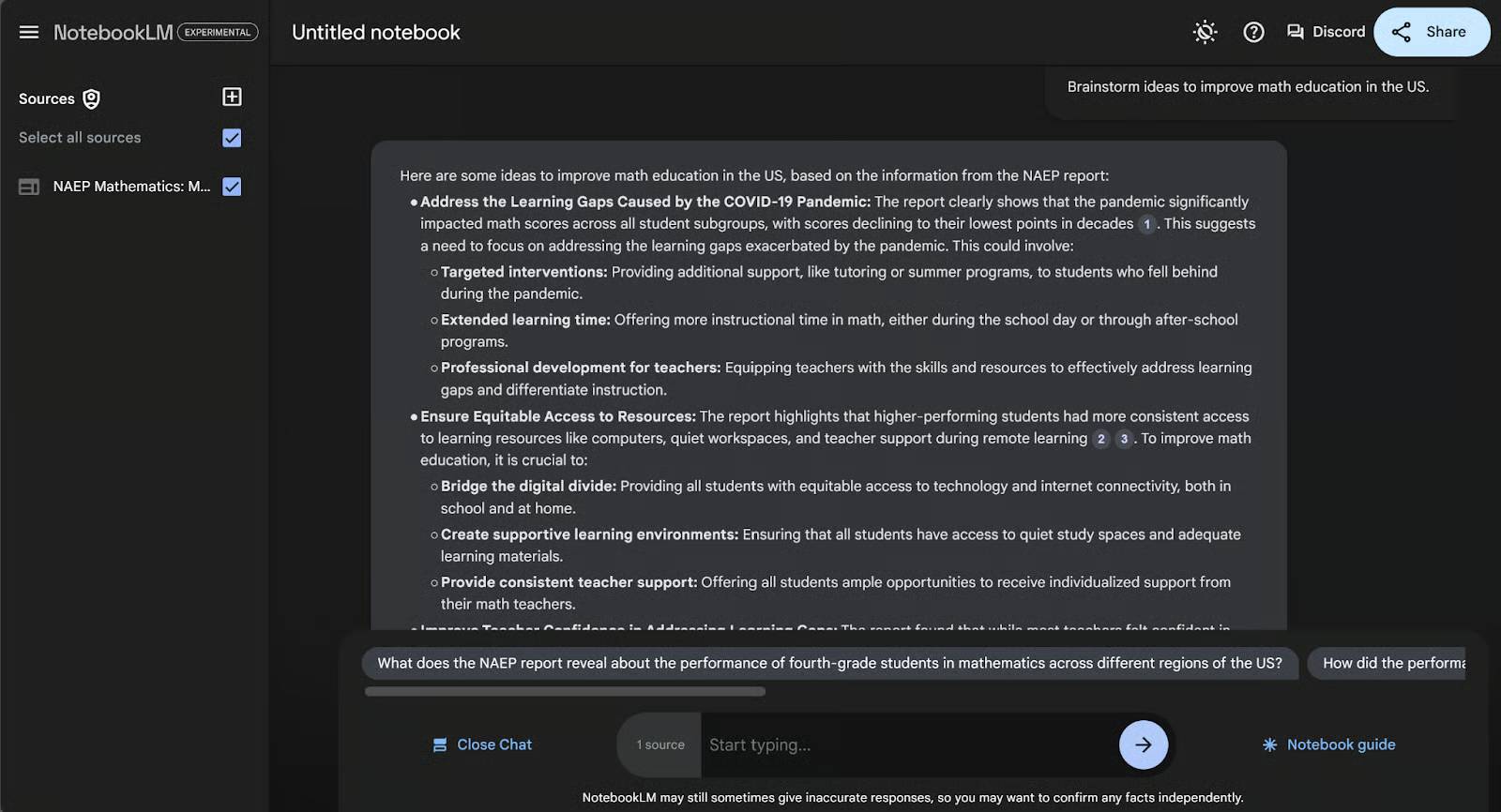
Here, the prompt asks for possible solutions based on the document. Treat generated ideas as proposals and separate them from claims directly supported by a source.
Or how about something more abstract? Perhaps we need to create an awareness campaign and want a concise way to explain this material. Let's ask NotebookLM to write a haiku poem about the problem and its solutions.
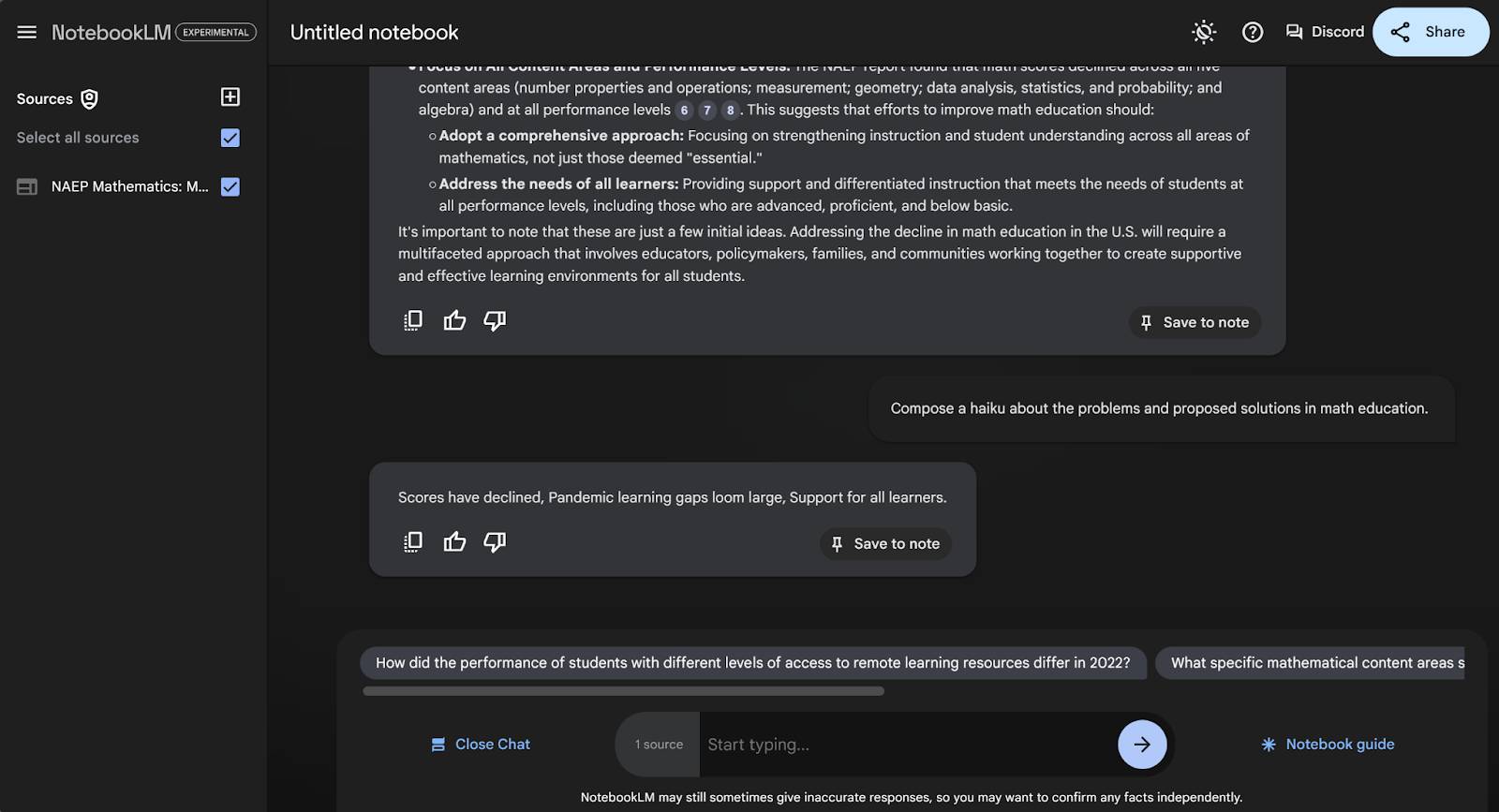
If you wish to retain any part of the conversation, remember to save the responses as notes by clicking " Save to note" in the bottom-right corner of each AI response in the chat.
Save useful responses and write notes
When neither the note-taking instructions nor the chat window are open, the default screen is the notes page.
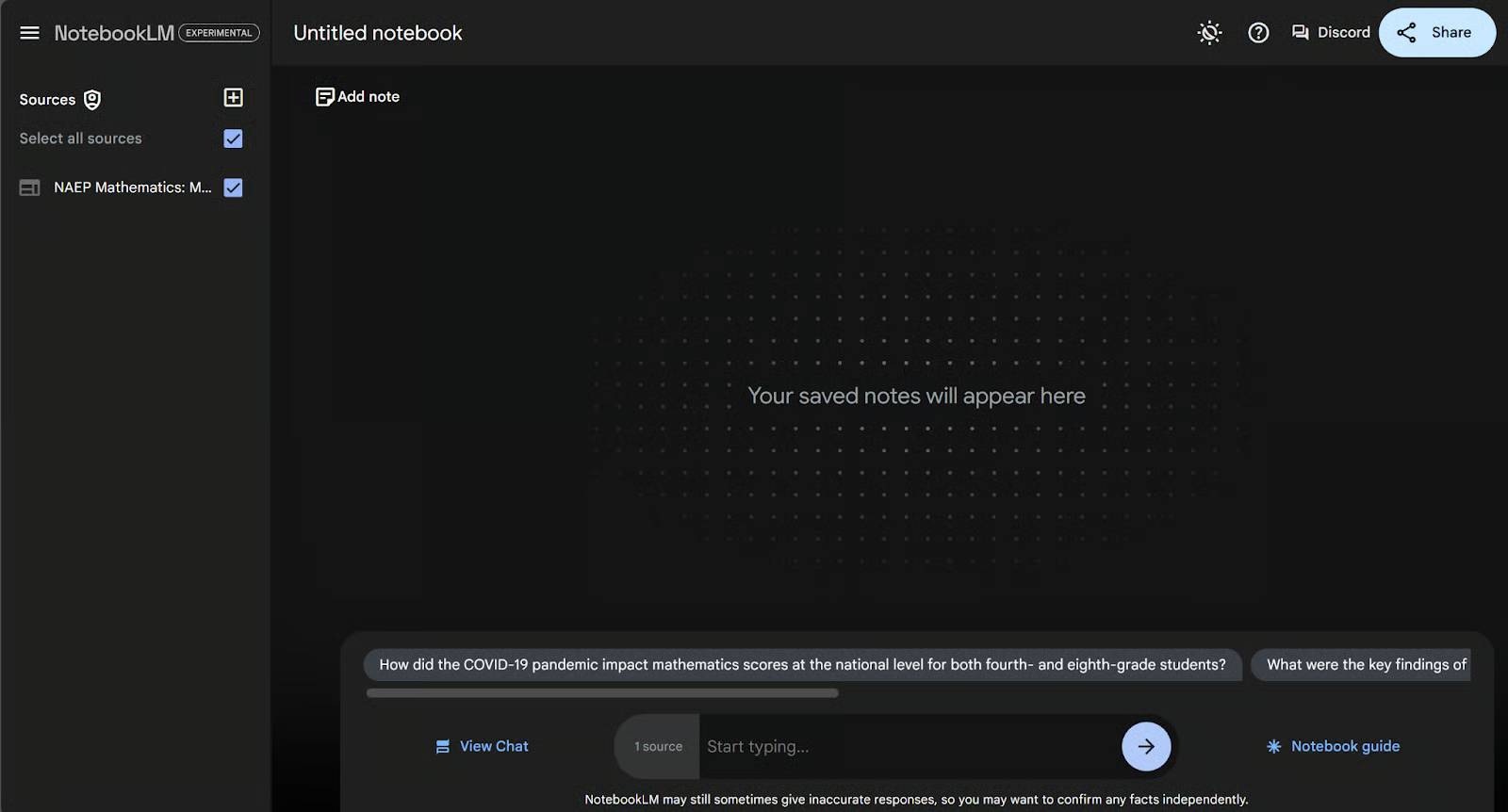
The default notes page currently has no notes. We need to fill in some notes there.
Let's start filling out notes on this page. There are two types of notes: handwritten notes and AI-generated notes.
Handwritten notes are notes you type yourself. To create a new note, click Add note at the top of the notes page. This will create a new blank note for you.
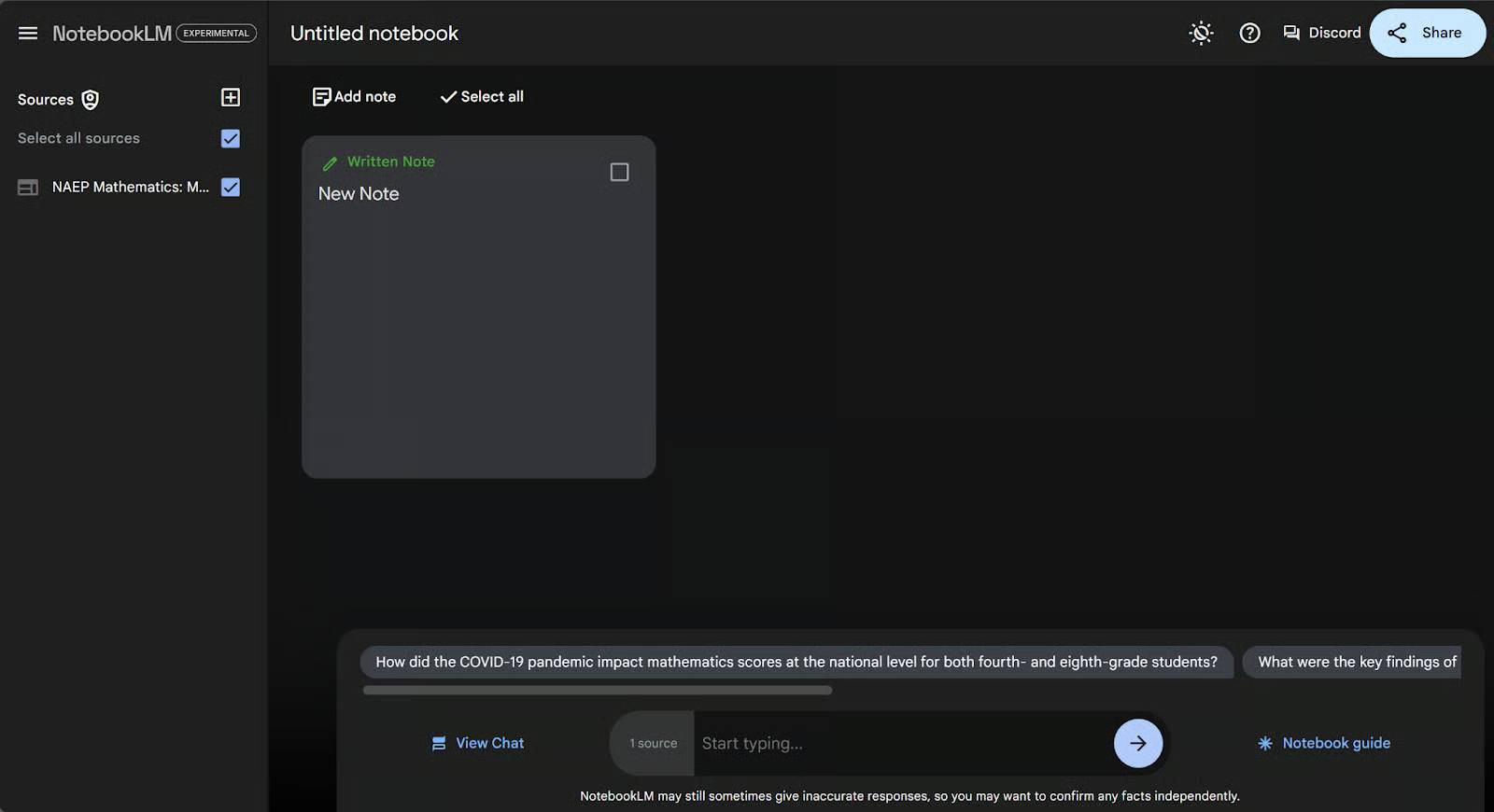
To edit this note, click on it. It will expand to the middle of the screen. You can change the title (default is New Note ) and add text to the note.
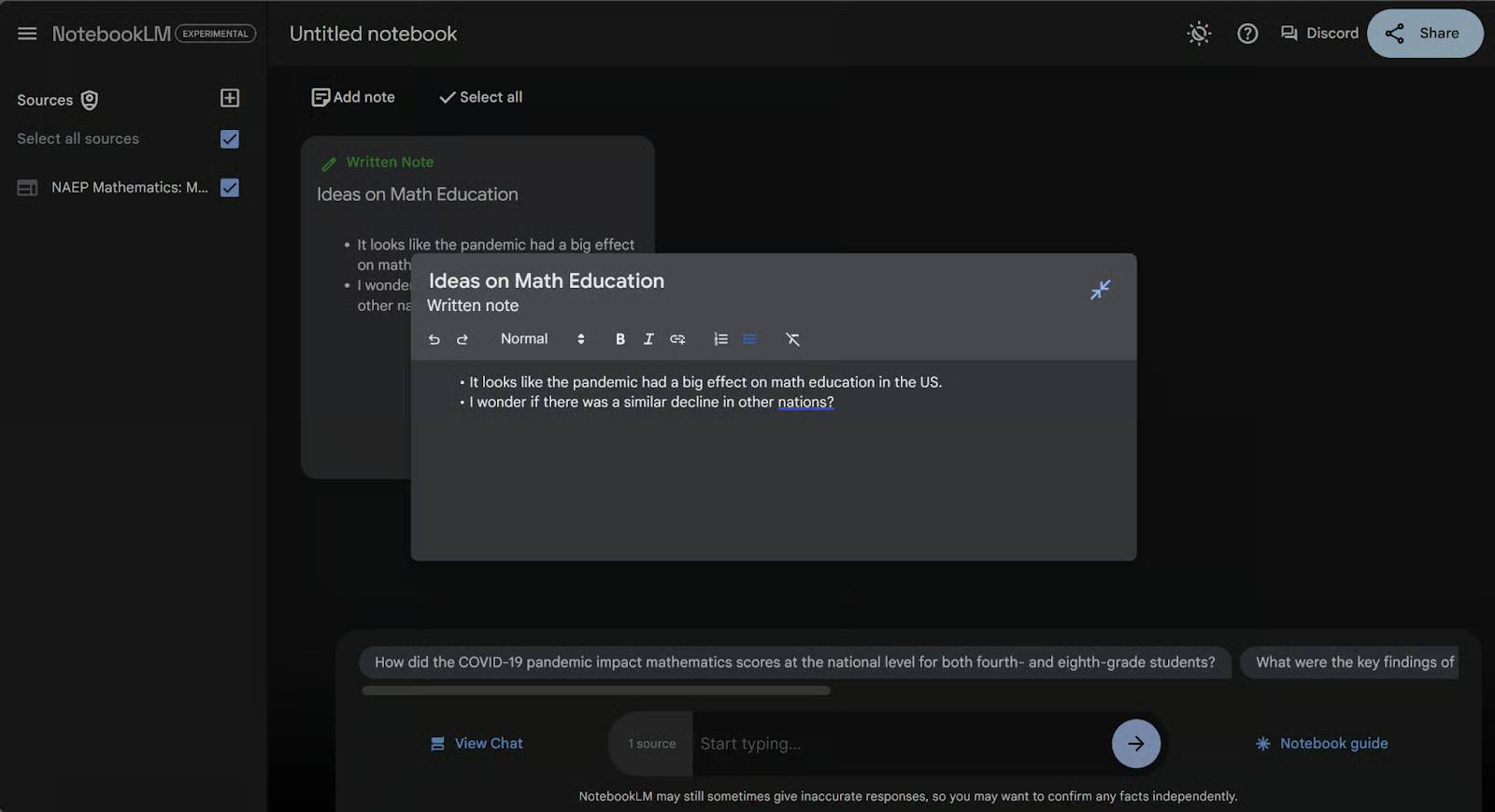
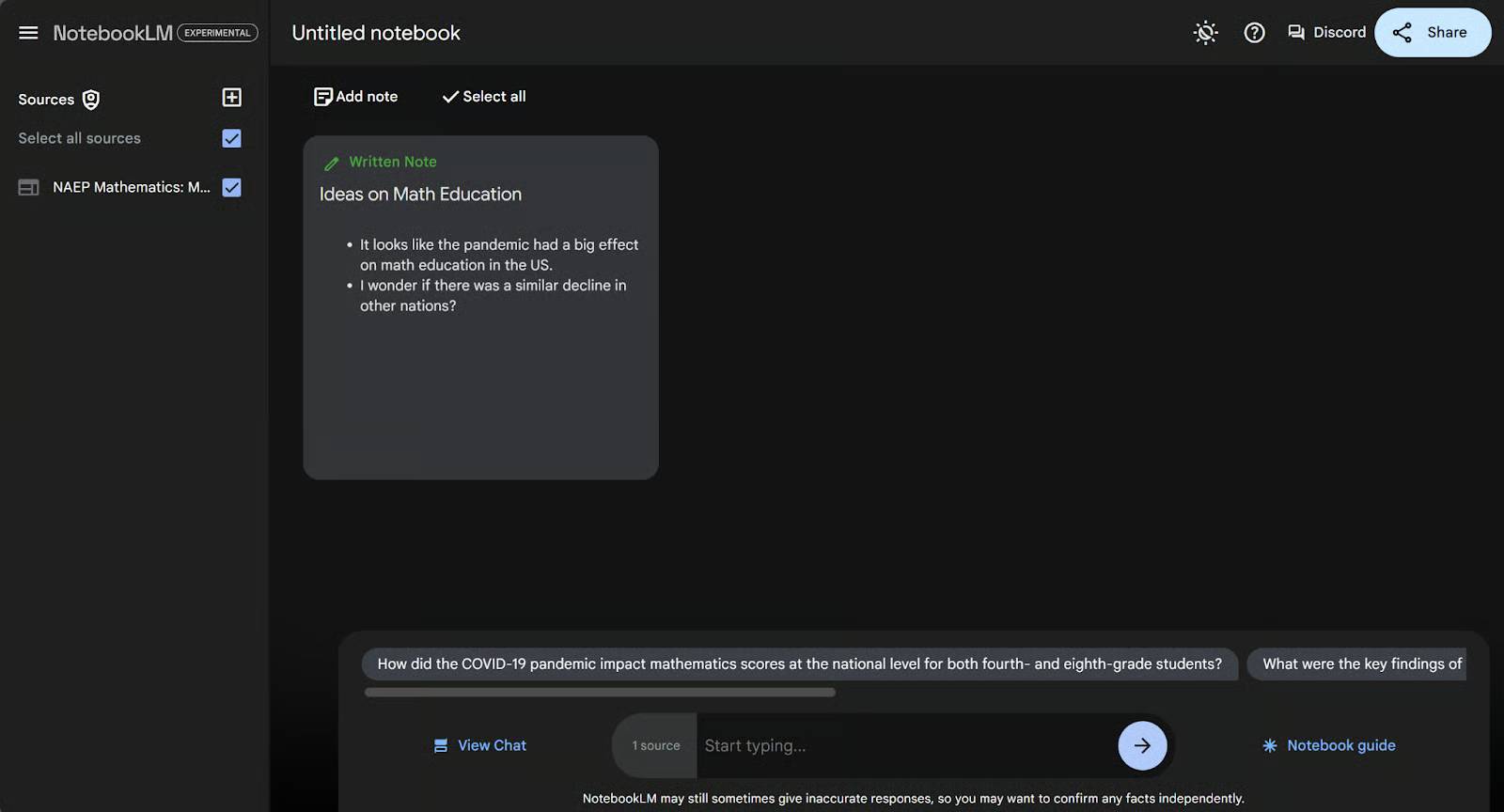
Notes are updated automatically as you type. After you finish writing a note, you can click anywhere outside the note to minimize it. Your handwritten notes are added to the notes page and labeled in green as " Written Note." This helps distinguish them from notes written by AI.
Now, let's create a note using the AI. Go back to the conversation by clicking View Chat, and ask it to provide a step-by-step plan to improve math education over the next year.
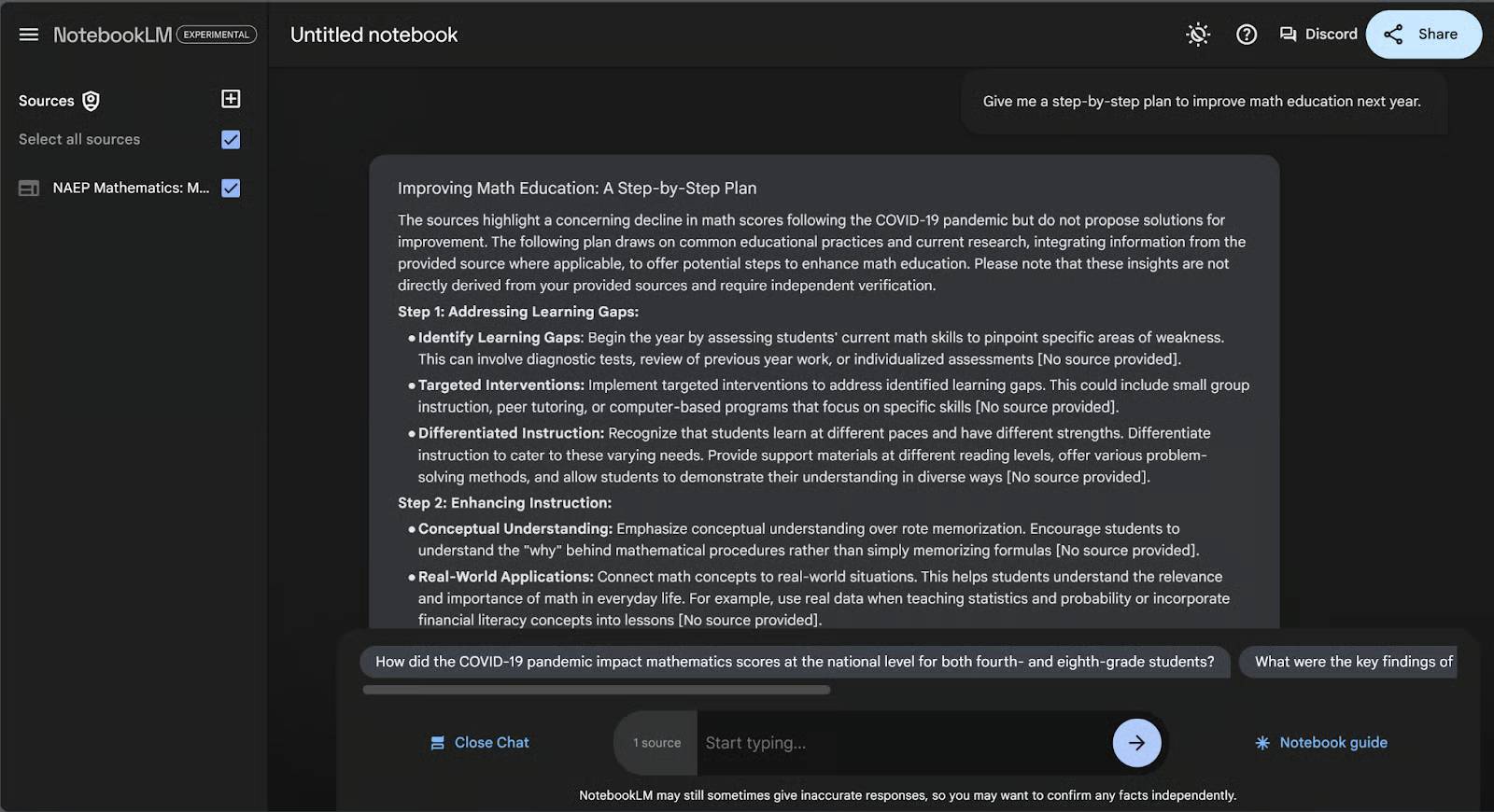
If you scroll to the bottom of the answer, you'll find a "Save to note" button in the bottom-right corner. This will turn the AI's answer into a saved note.
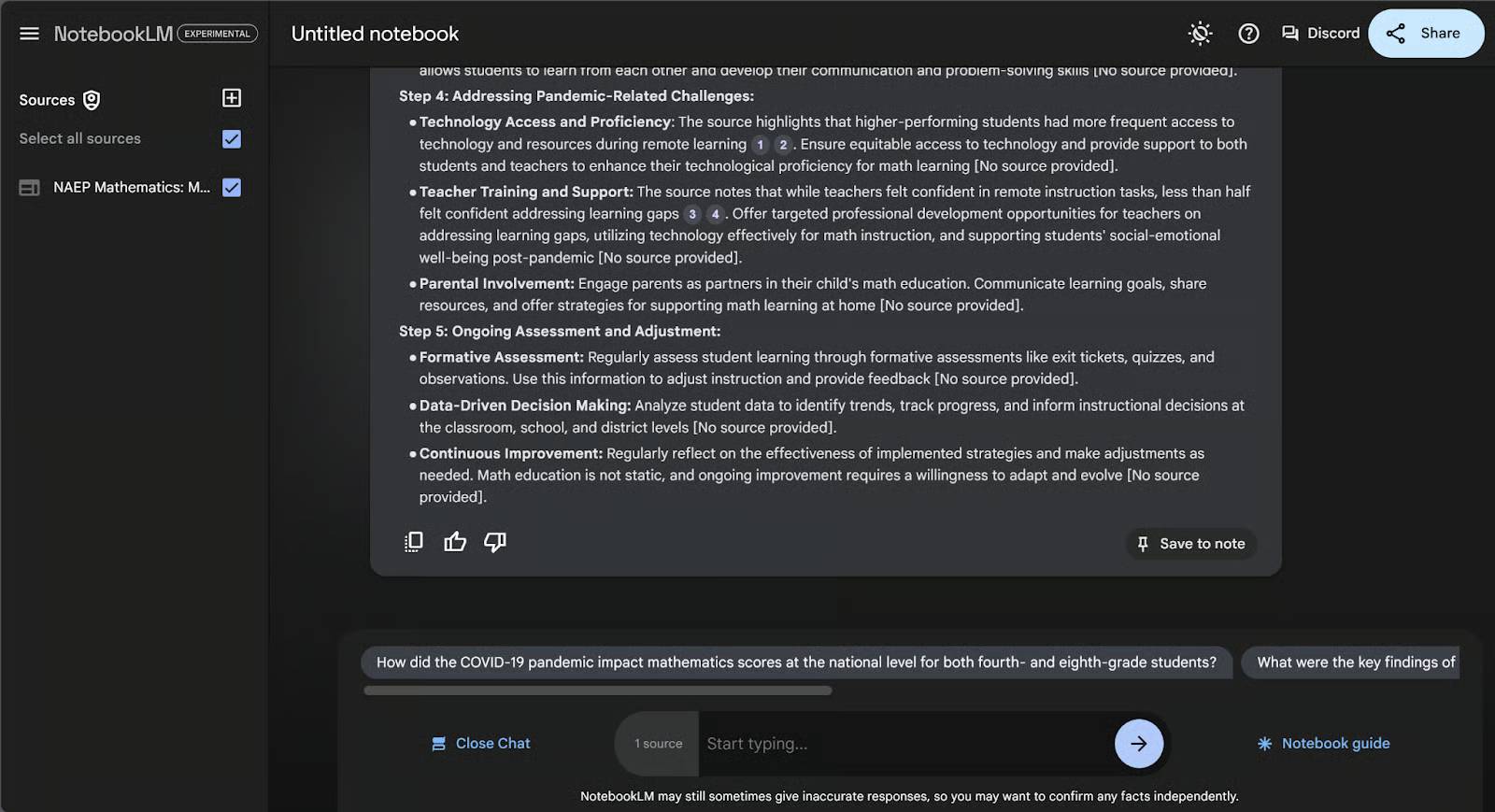
Now, we'll see our handwritten notes from before and the AI-generated notes, both on the notes page. The AI-generated notes are labeled in blue as Saved Response.
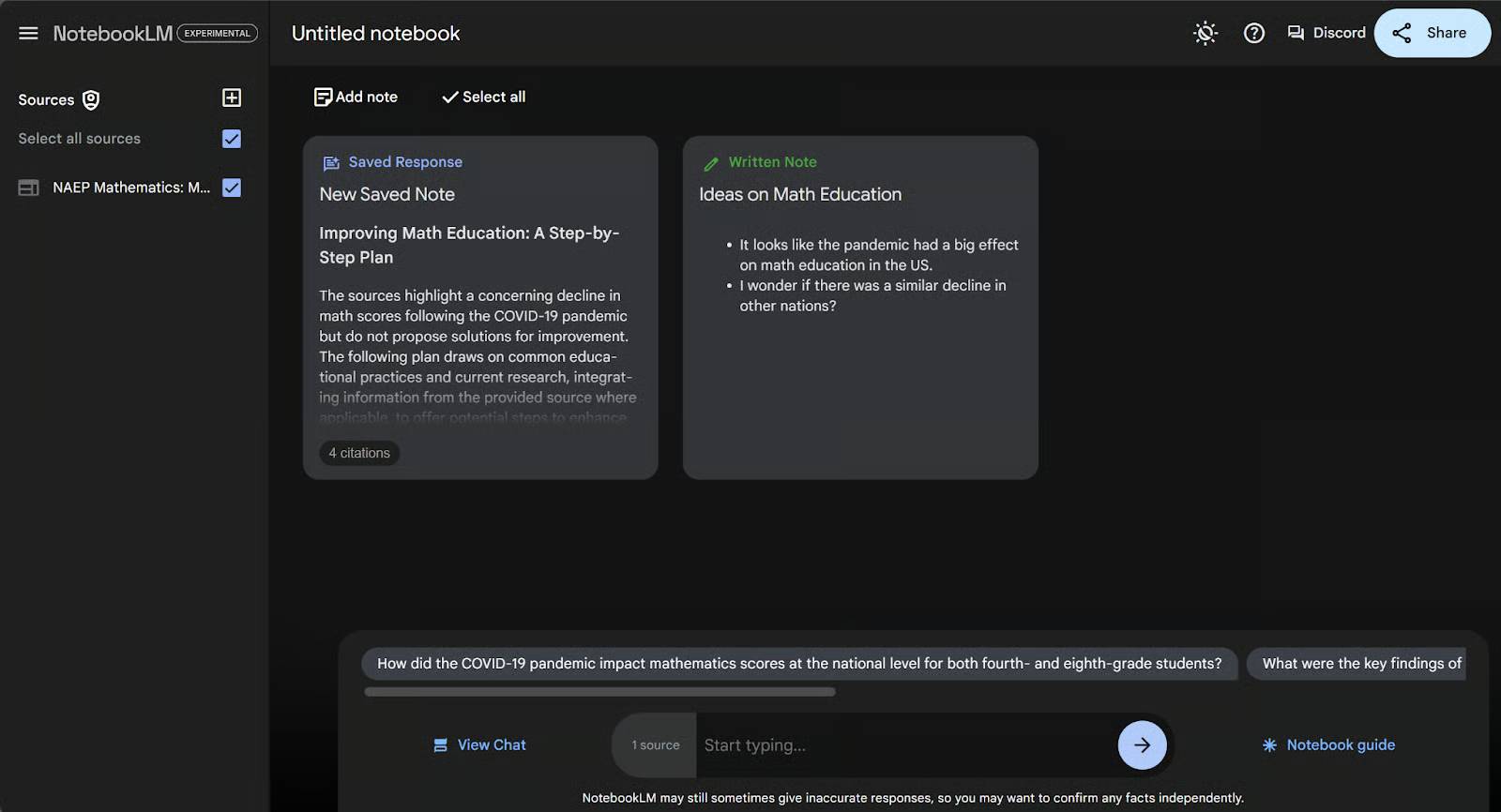
"New Saved Note," which we can change by clicking on the note. However, it is not possible to edit any other parts of this note.
You can see how we can quickly and easily consolidate all our thoughts into one neatly organized area in this section. And keeping the best chat results organized here is also very easy.
Create an Audio Overview
One of NotebookLM's most groundbreaking features is its ability to create custom podcasts with two AI voices discussing your document. This isn't just text-to-speech software – a podcast isn't a spoken transcript. Instead, it's a conversation between two speakers discussing the key points of the document. The format is truly like listening to a podcast. The voices sound natural and expressive.
Let's try creating a podcast about the NAEP documentation, for example. First, navigate to Notebook Guide by clicking the button in the bottom-right corner.
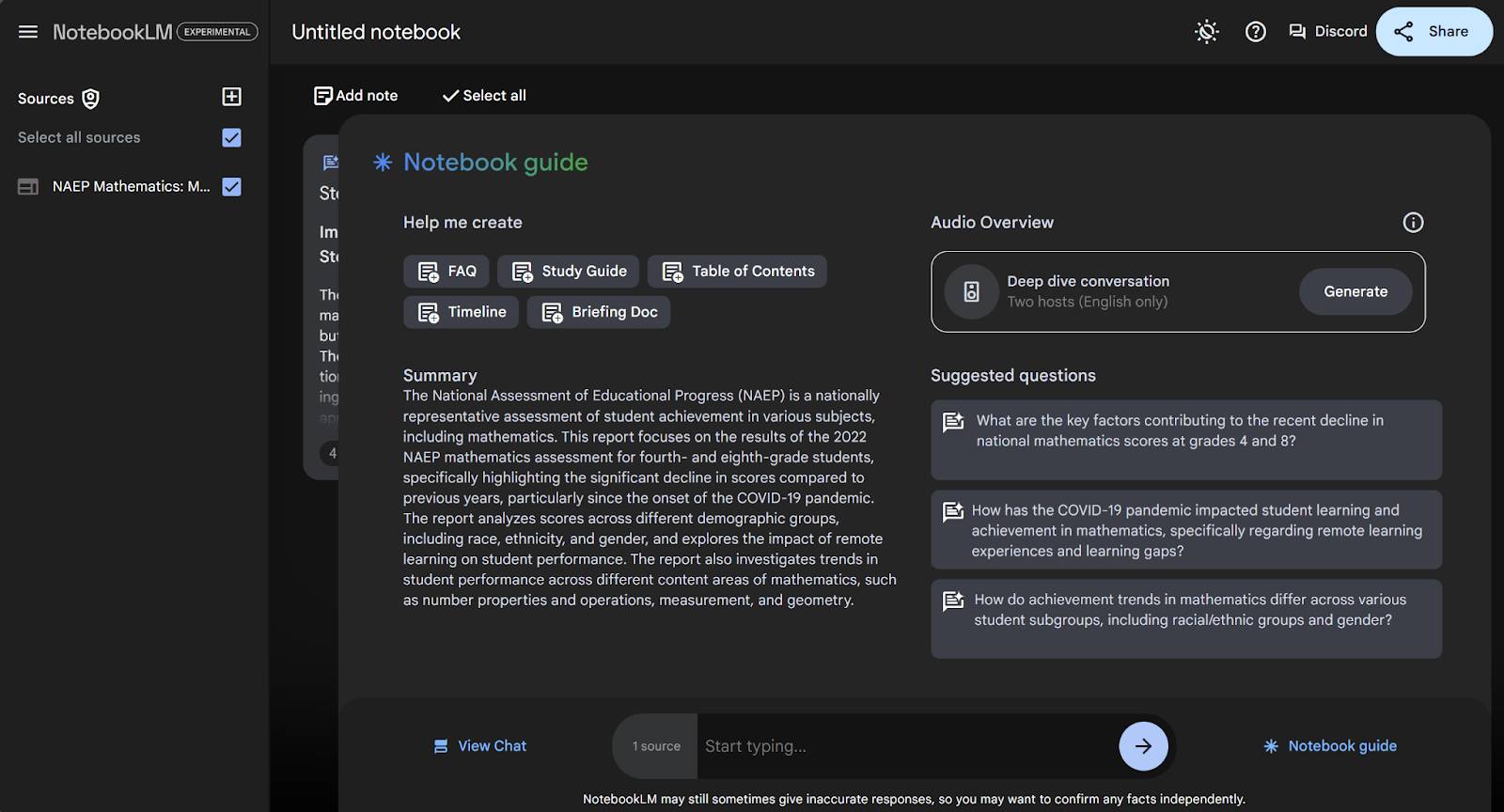
The podcast format is essentially an in-depth conversation. Simply click Generate below Audio Overview and wait a few minutes for the podcast to be created.
Audio Overviews are selective summaries. They can omit important qualifications or present generated dialogue as if it were authoritative, so use them for orientation and return to the cited material.
For example, in any podcast, the voice might offer examples of their personal life, say things like 'stay tuned next time,' or sometimes pause for commercials that aren't there.
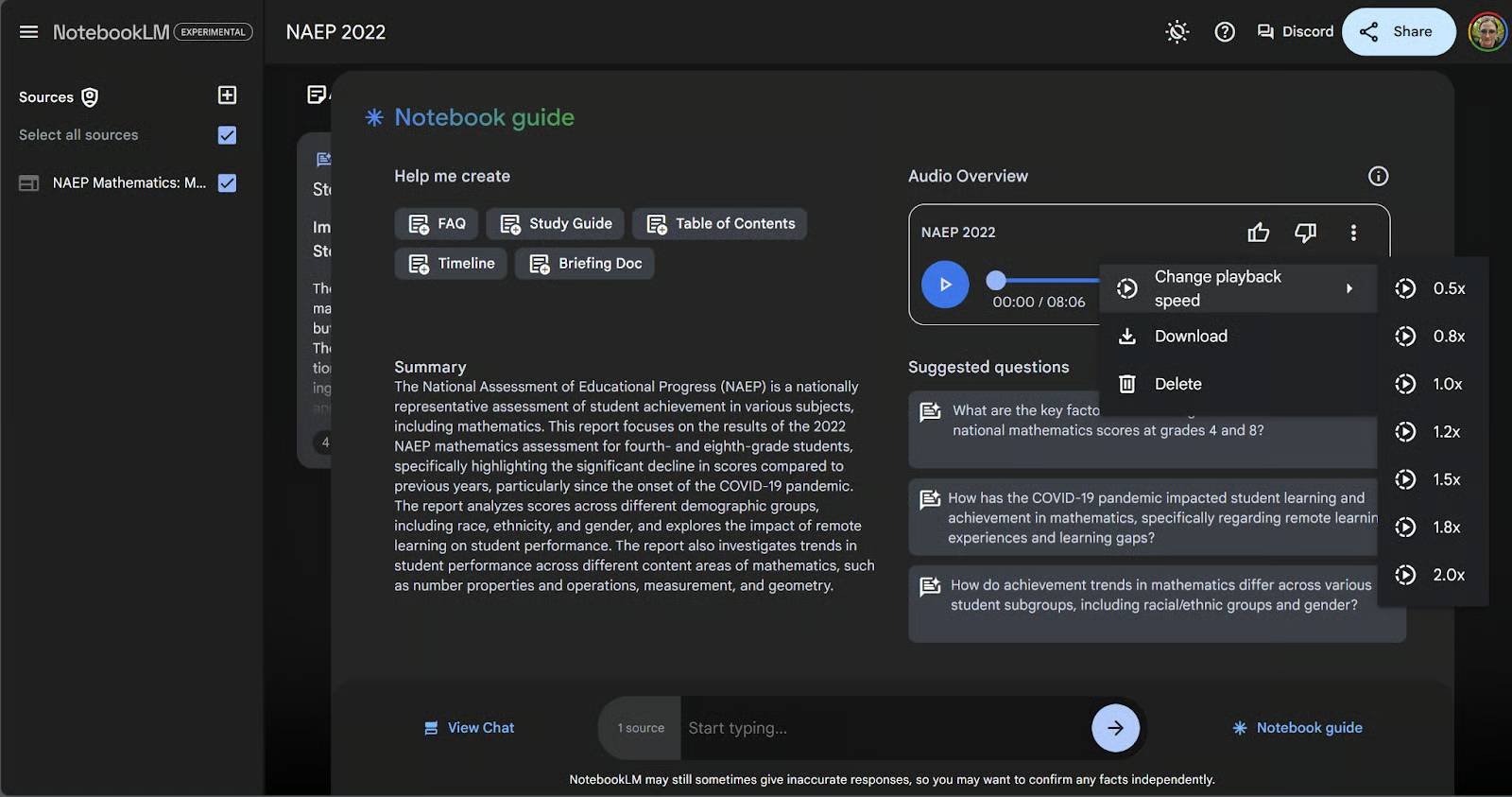
You'll have a few options after creating your podcast. If you click the three dots in the upper right corner of the podcast rectangle, you'll see options to change the playback speed, download the file, or delete the podcast. If you delete it, you can create a new podcast.
Create structured Studio outputs
Studio can turn the active source set into supported formats such as study aids, reports, presentations, tables, infographics, or audio and video outputs. Available formats vary by account and rollout.
Select an available Studio format, review its customization controls, and state the audience, scope, evidence requirements, and desired length before generation.
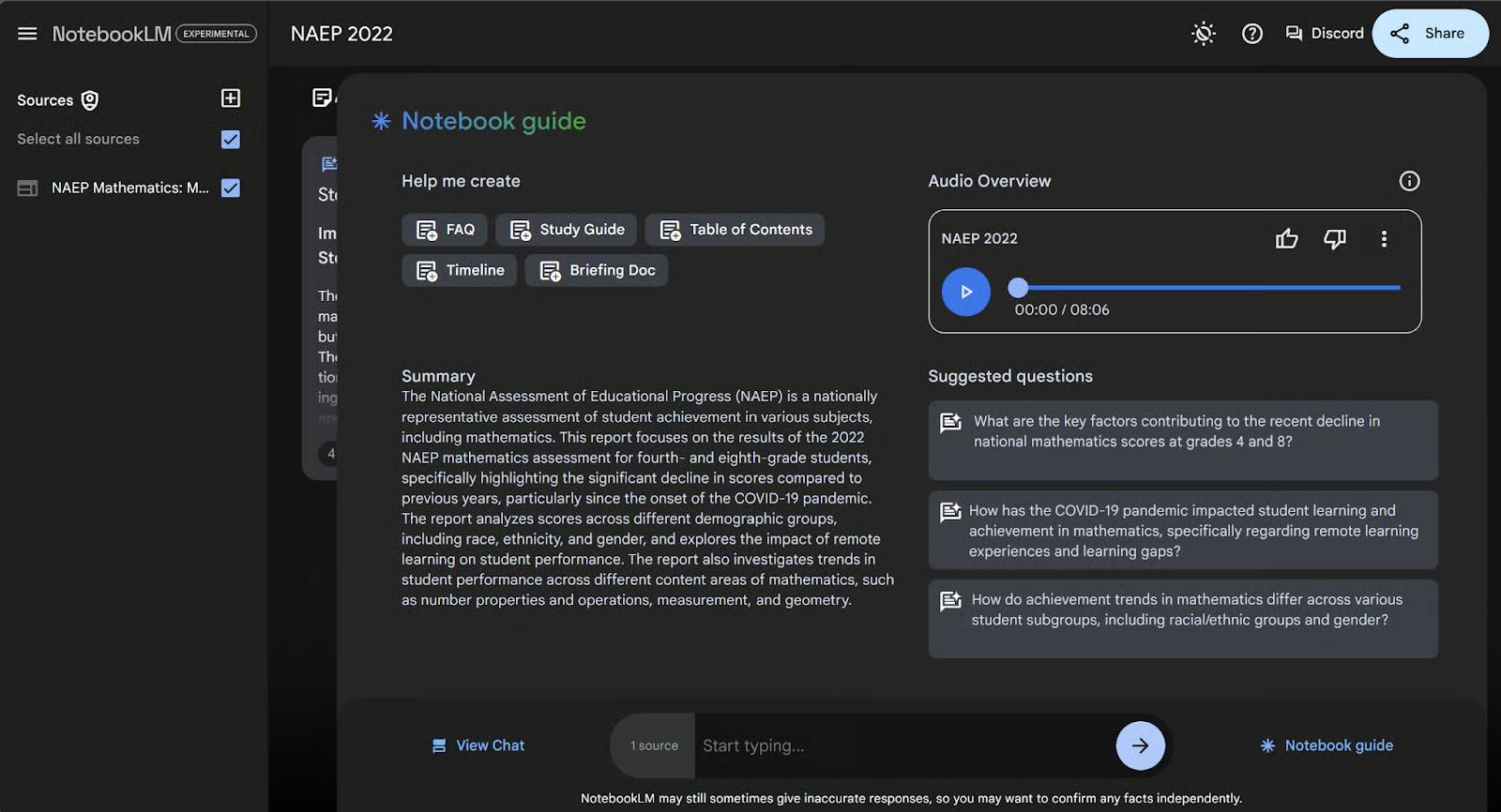
Let's try this in our example by clicking the FAQ button.
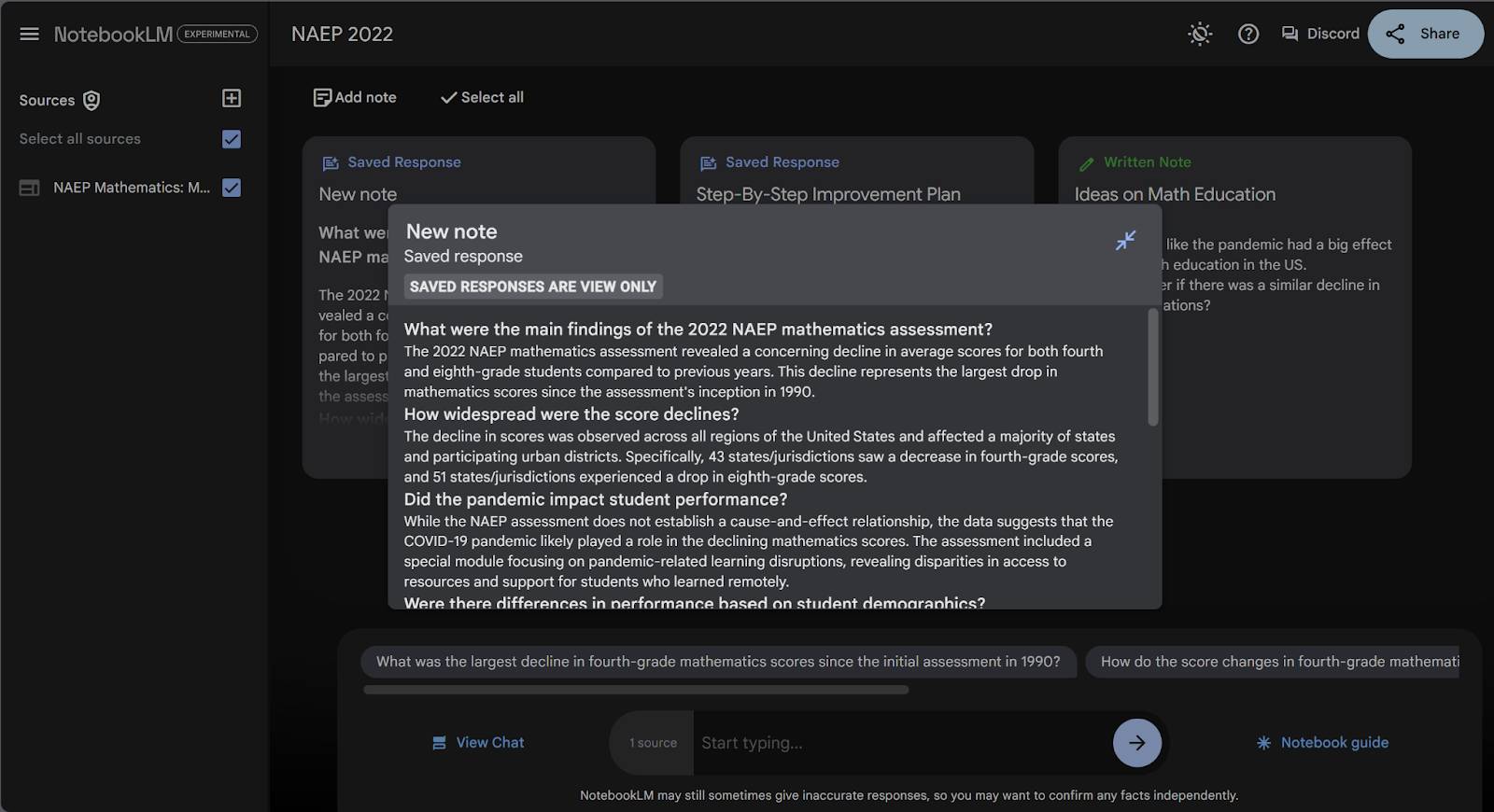
As you can see, this has created a new note on the notes page with the blue label 'Saved Response'. Inside this note is a curated FAQ section for government documentation. For example, it would be renamed to 'FAQ'.
But what if we want a formatted note that isn't one of the five buttons listed in the Notebook Guide? We can always request specific formatting in the chat bar at the bottom. Let's ask for an interview scenario between a reporter and a mathematics education expert.
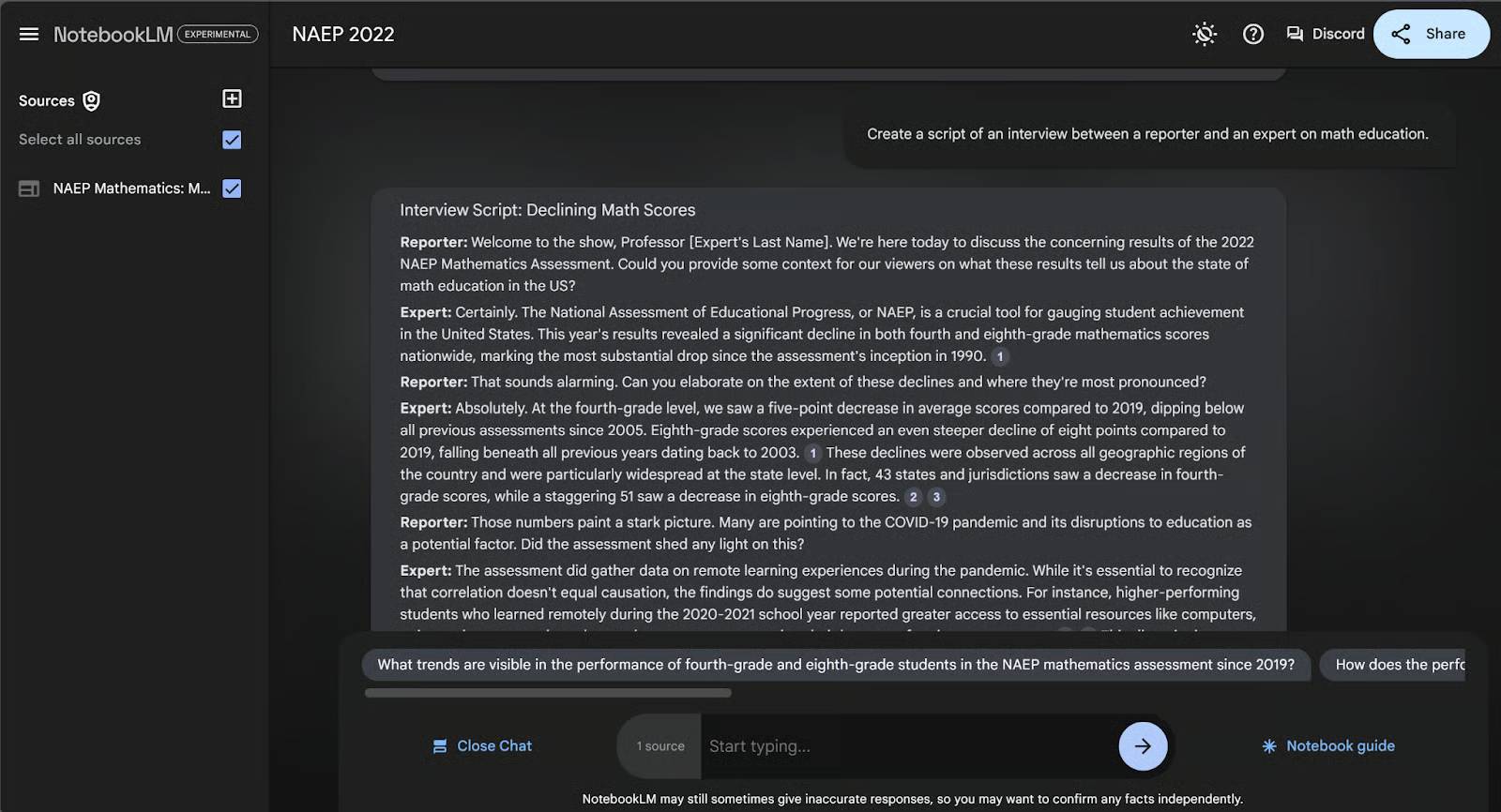
When you enter this request into the chat bar, it will take you to the chat page. You can scroll to the bottom of this reply block and click "Save to note" to create a formatted note. This is what the new note looks like after renaming it.
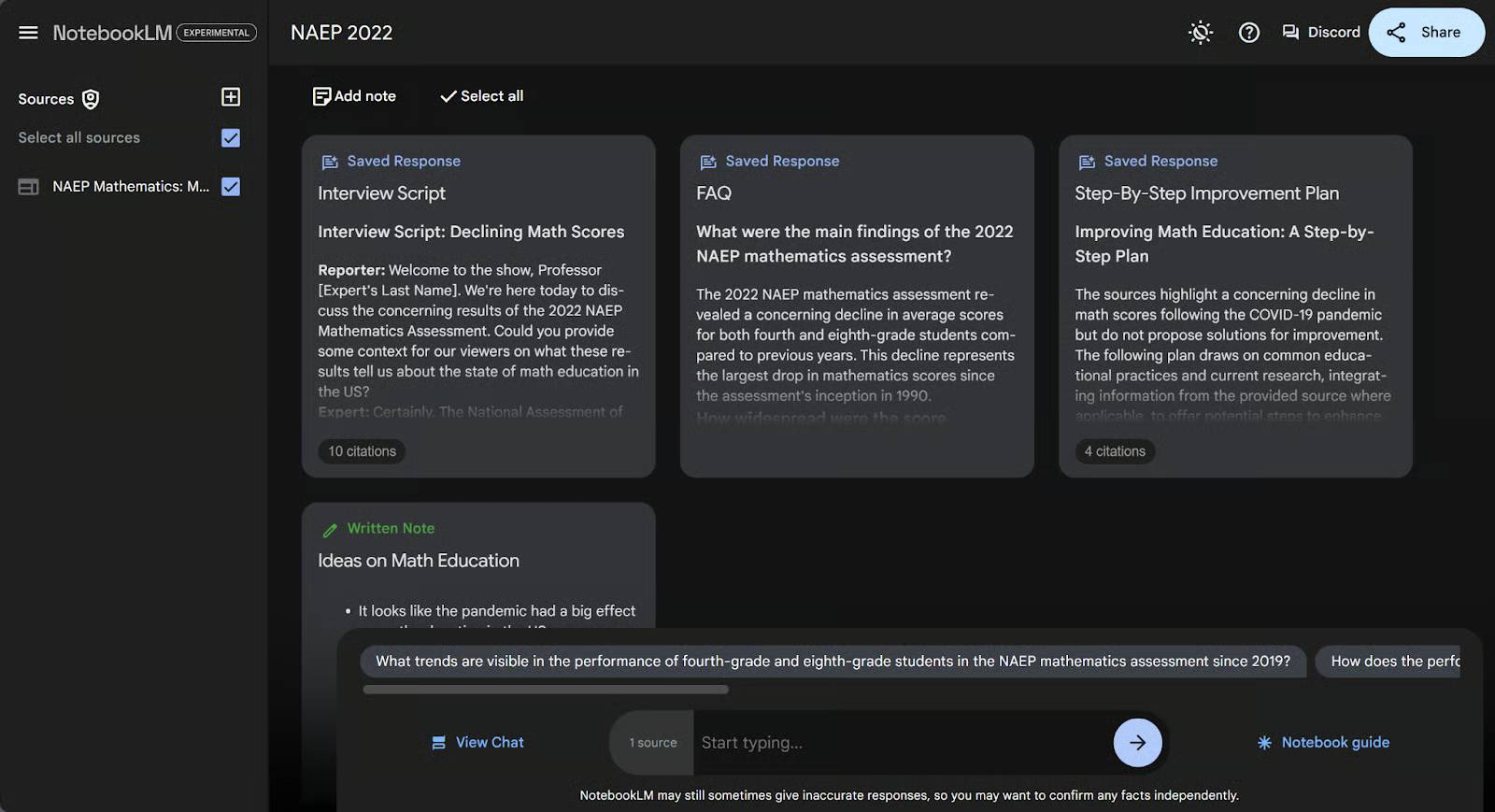
Save only material you expect to reuse, give it a descriptive title, and keep source-grounded findings separate from your own interpretation.
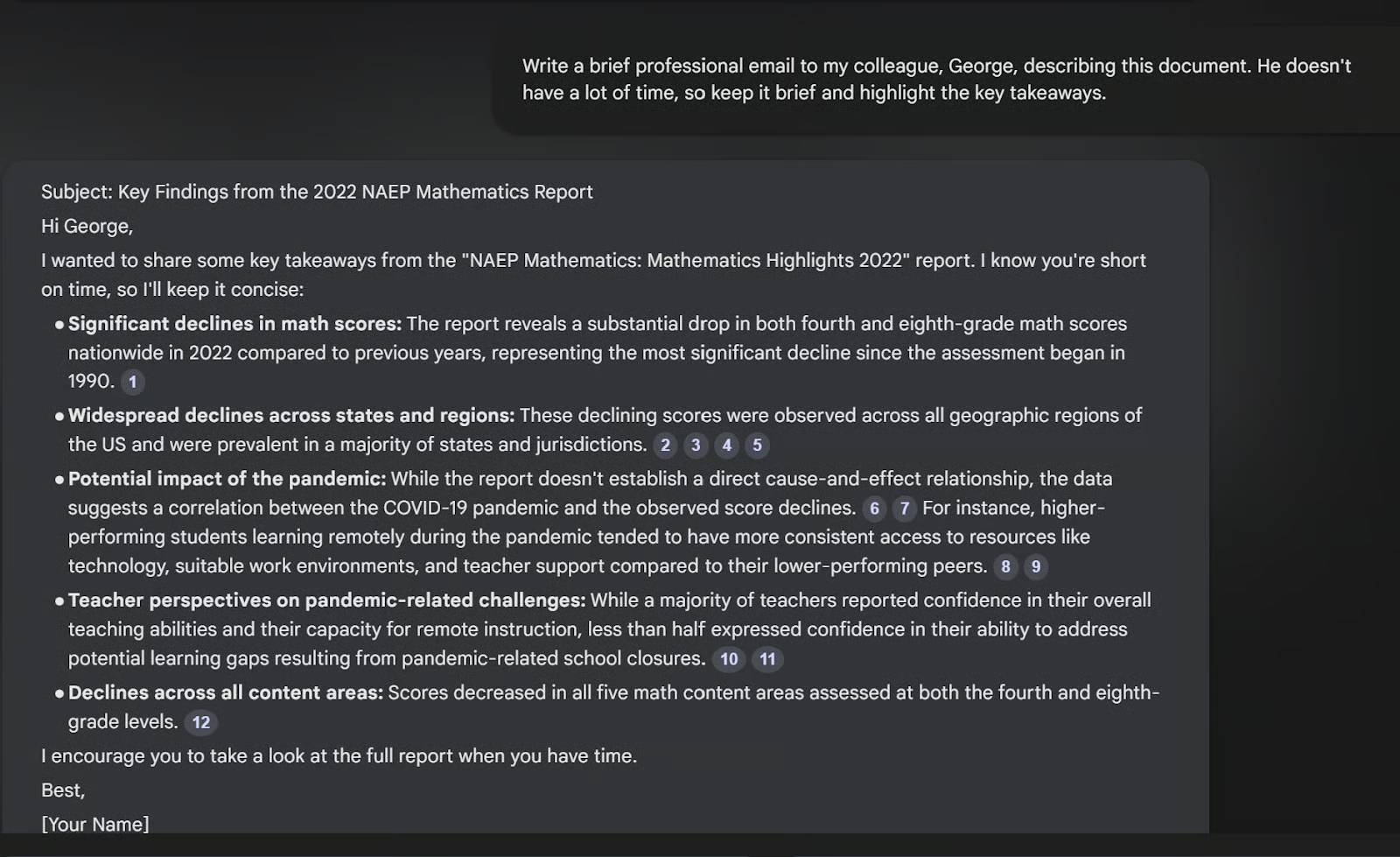
You can also request a structured format in Chat, such as a comparison table, outline, or draft email. Verify every claim and revise the tone before sharing it.
Related Articles
 Guide to Creating Discussion Forums Using NotebookLM4 minutes read
 5 Tips to Unlock the Full Potential of NotebookLM8 minutes read
 Cursor AI: User Guide with 10 Practical Examples13 minutes read
 How to Share NotebookLM Publicly6 minutes read
 Instructions on Creating Flashcards and Quizzes on NotebookLM5 minutes read
 Guide to Creating Lesson Plans Using NotebookLM4 minutes read
Reader Comments 0
Sign in with email or Google to join the discussion.