Table of Contents
When you have more than 5 sources, the Auto-label button will appear in NotebookLM's Sources panel. With just one click, NotebookLM will analyze all your sources.
Availability note: Auto-label is a product feature that may roll out by account, plan, language, or notebook size. If the button or a menu path in these screenshots is missing, check NotebookLM's current interface and release information rather than repeatedly re-uploading sources.
Labels organize sources; they do not evaluate source quality. A cluster with one strong primary source may be more useful than a cluster with ten repetitive summaries. Verify authorship, publication date, methodology, and citations separately.
For more context, see TipsMake's guide to NotebookLM study features and its comparison of NotebookLM and ChatGPT.
When Auto-label is available in the Sources panel, it analyzes the selected source set and proposes themed groups. Review the names and membership because an automatic category can be too broad, ambiguous, or wrong.
The auto-label feature eliminates clutter instantly
With just one click, you can reorganize a messy notebook
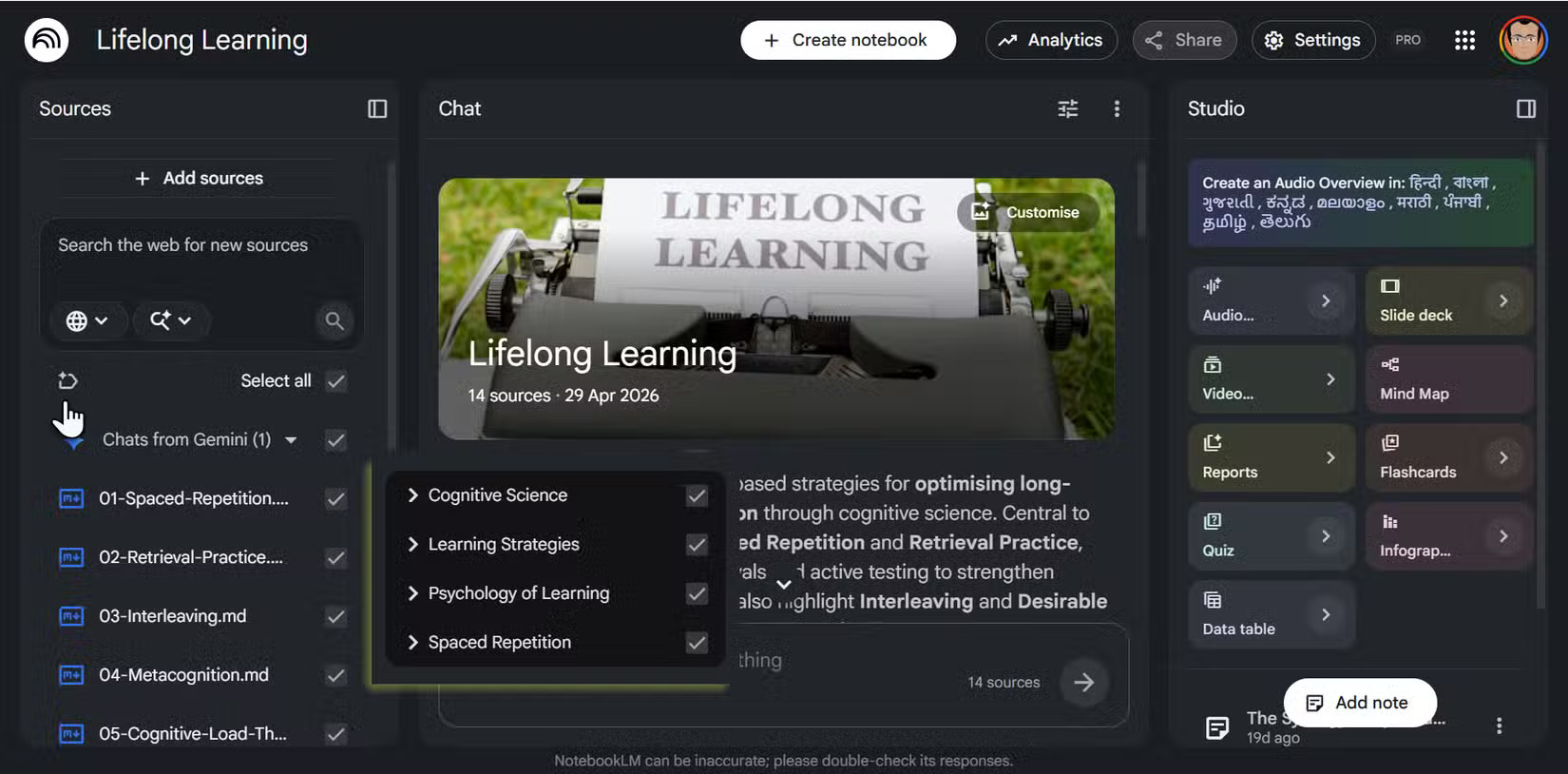
When you have five or more sources in a notebook, an Auto-label button will appear in the Sources panel. Click on it, and NotebookLM will read the content of each source and organize them into topic clusters. The AI truly reads and automatically groups your sources into high-level categories. You don't need to rename sources or worry about upload order.
Generated clusters can provide a useful first pass, but accuracy varies with document titles, language, overlap, and source quality.
Labels don't need to be fixed. If you want to see your traditional layout, select Return to list view. NotebookLM lets you switch back and forth. To create your own label names, you can create a new label, rename it, and manually mark up the relevant sources.
Labels help you identify gaps before you begin
Quickly identify blind spots in your source material
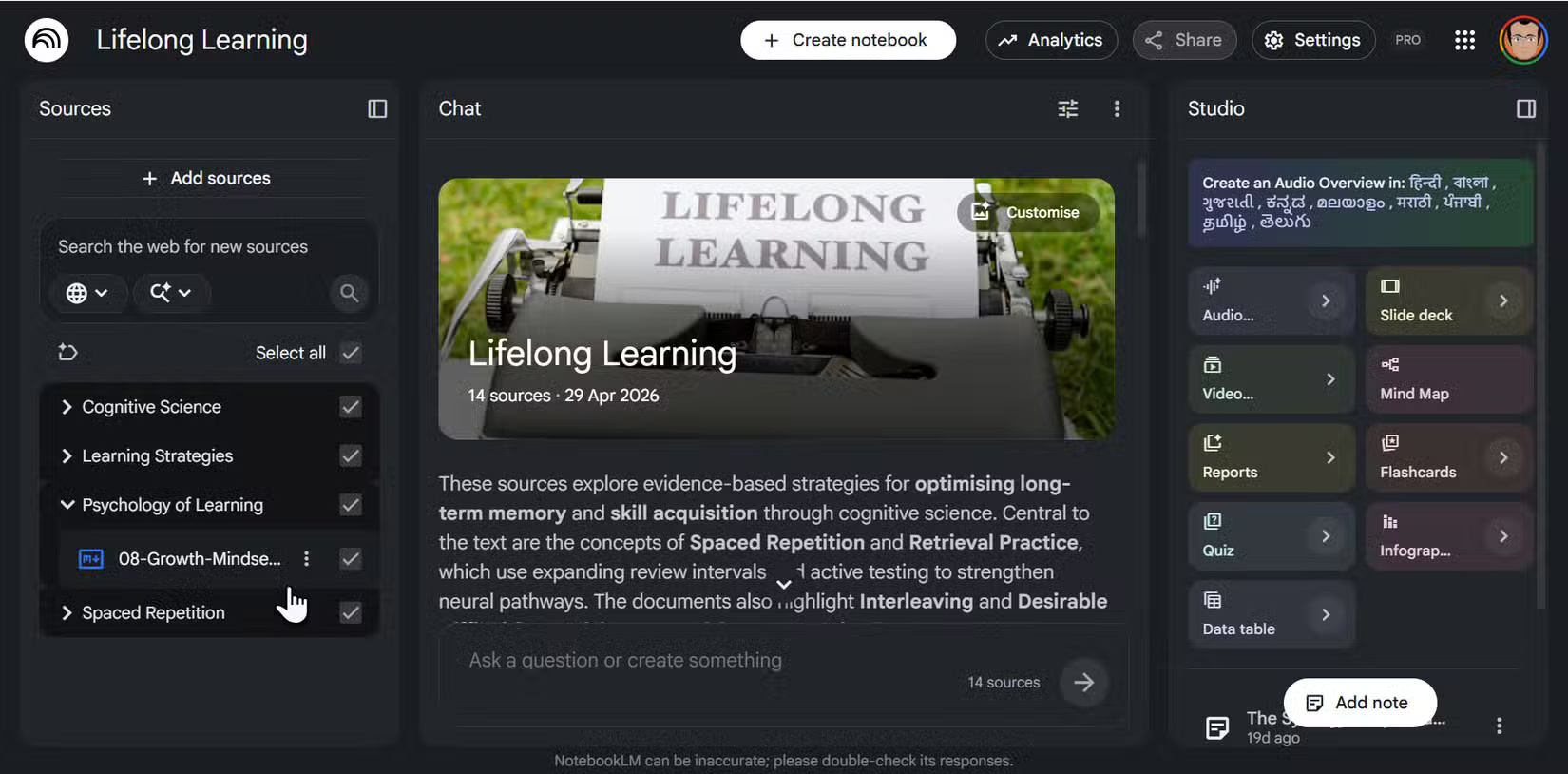
Once the sources are labeled, this table becomes a visual checklist for your research. A small cluster can prompt a coverage check, while a large cluster may reveal duplication. Neither count proves that the research is balanced; relevance and evidence quality matter more than equal numbers.
Previously, with a long list of sources, getting such an overview was impossible. You would typically just select and deselect documents and check the abstracts as the first step when starting a project. Now, you can inspect topical coverage before prompting, while assessing source quality separately.
Therefore, consider the label clusters. If a cluster appears to have few sources, add more. When you add new documents, they won't disrupt the existing layout. Instead, they appear in an alphabetical list below your already labeled categories as unlabeled sources. To organize them, click the Auto-label button and select Reorganize unlabeled sources.
Note: A full rearrangement will erase all custom edits and rebuild the groups from scratch.
You can filter sources while chatting
Focus NotebookLM's tools on exactly what you need
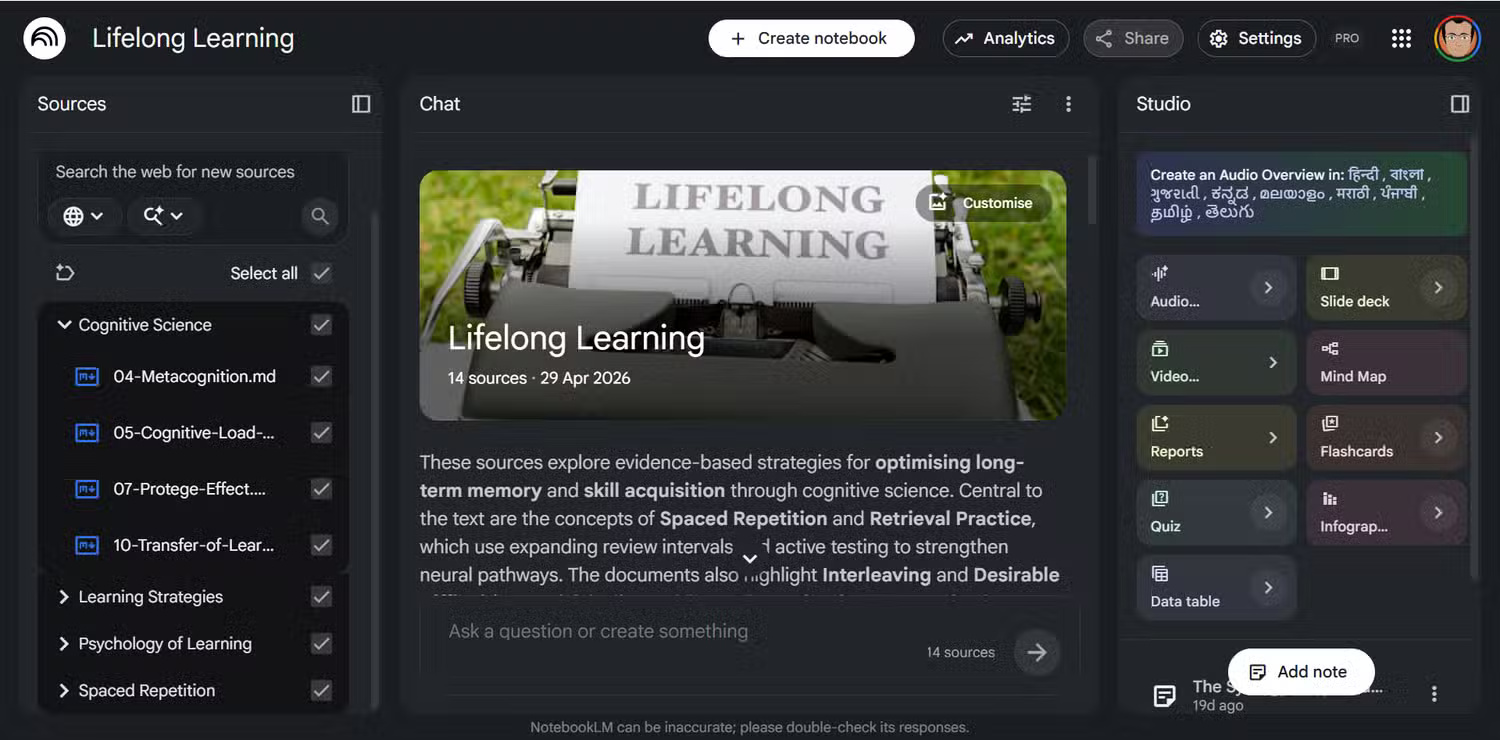
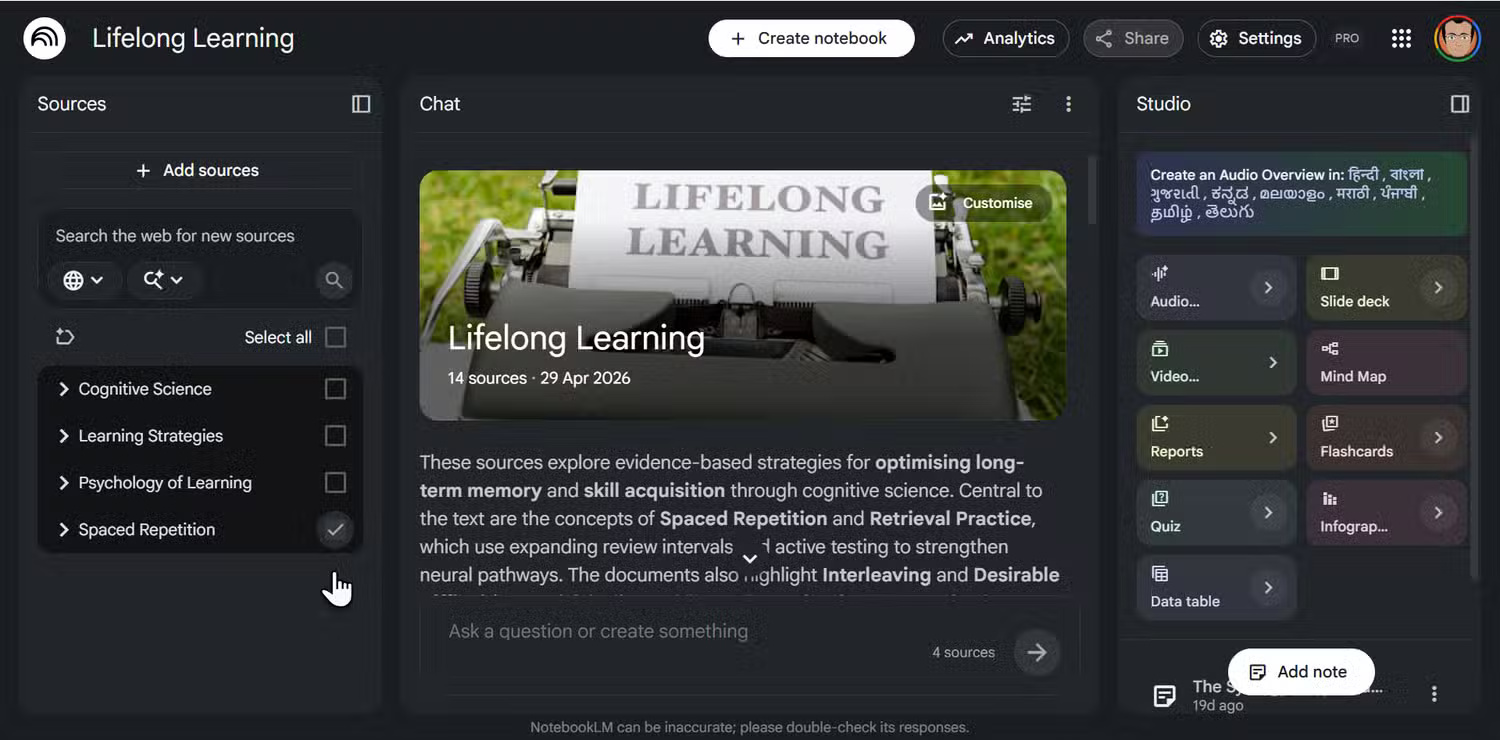
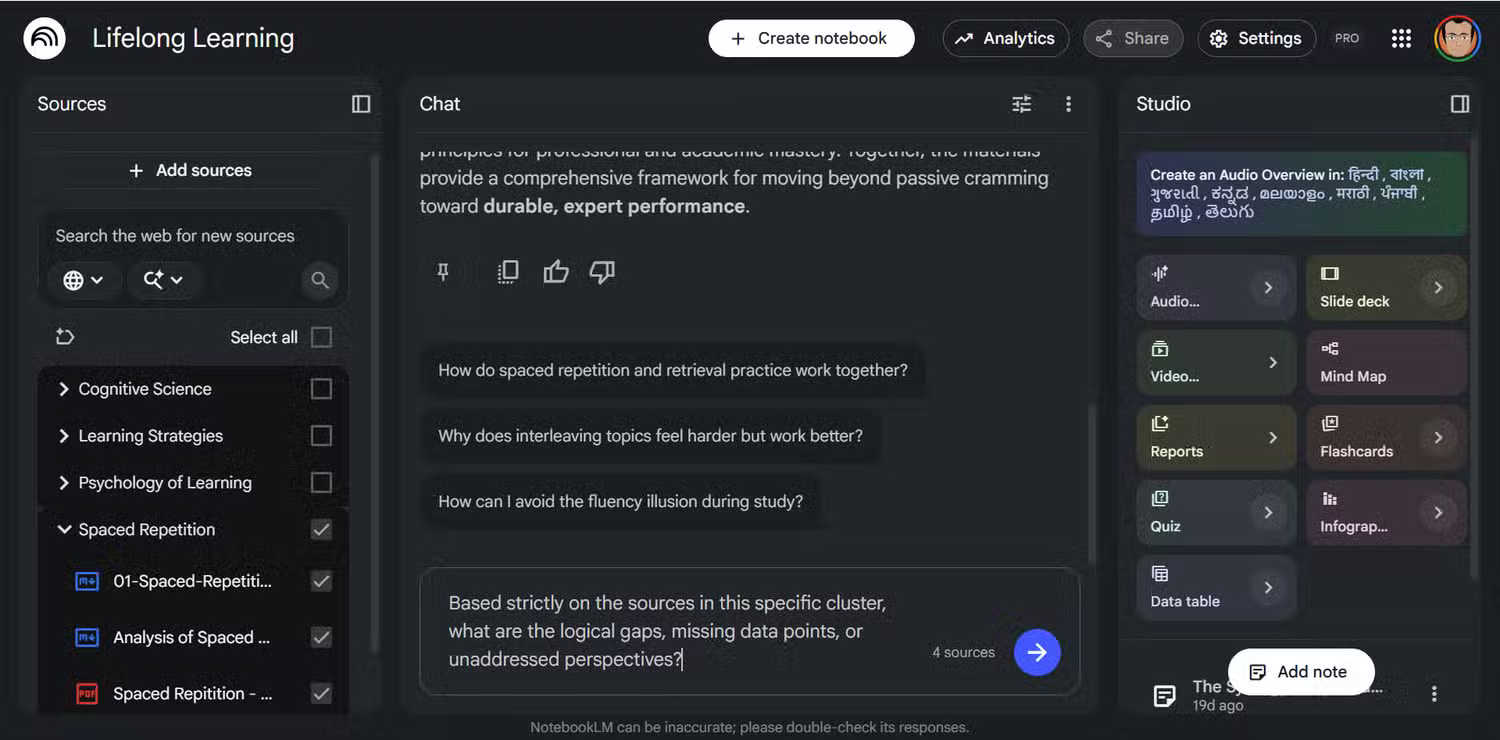
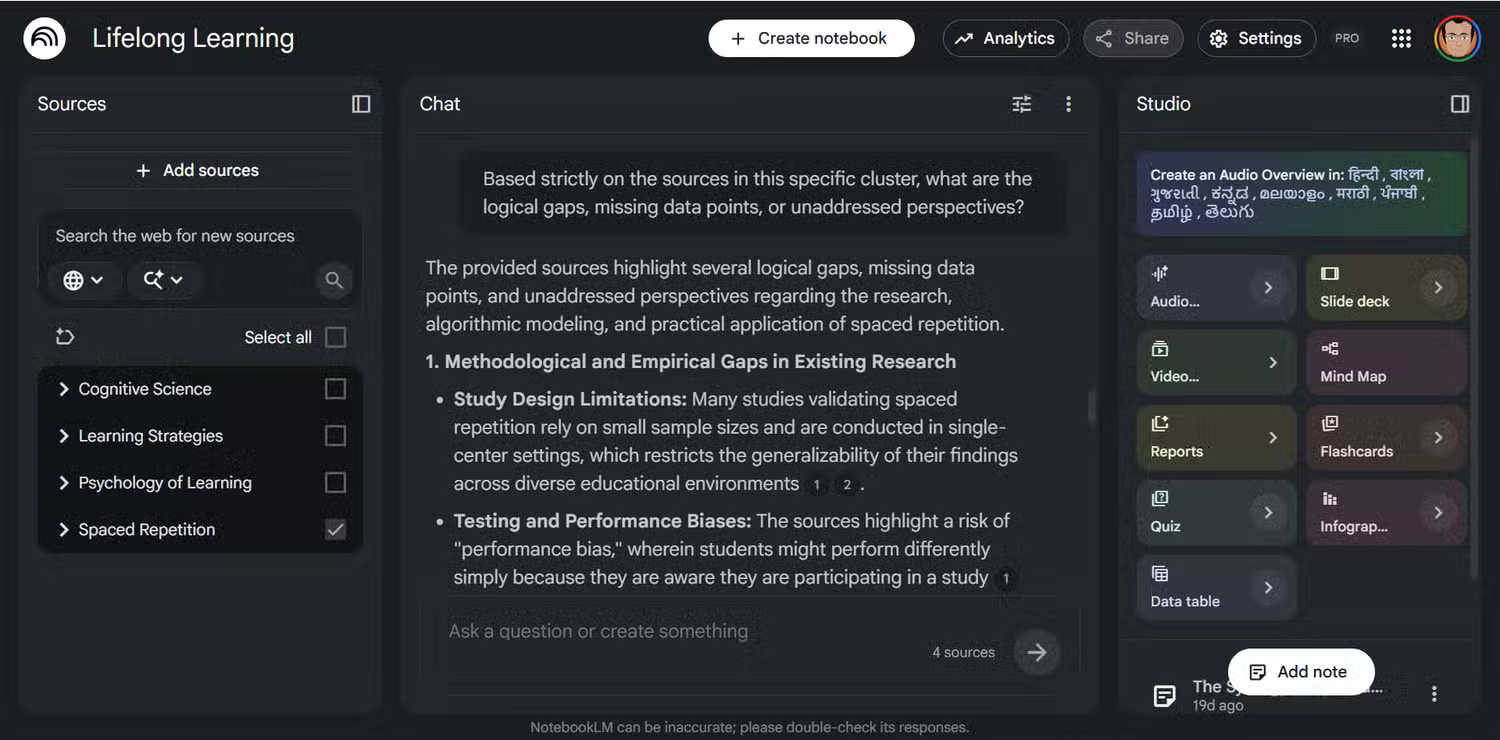
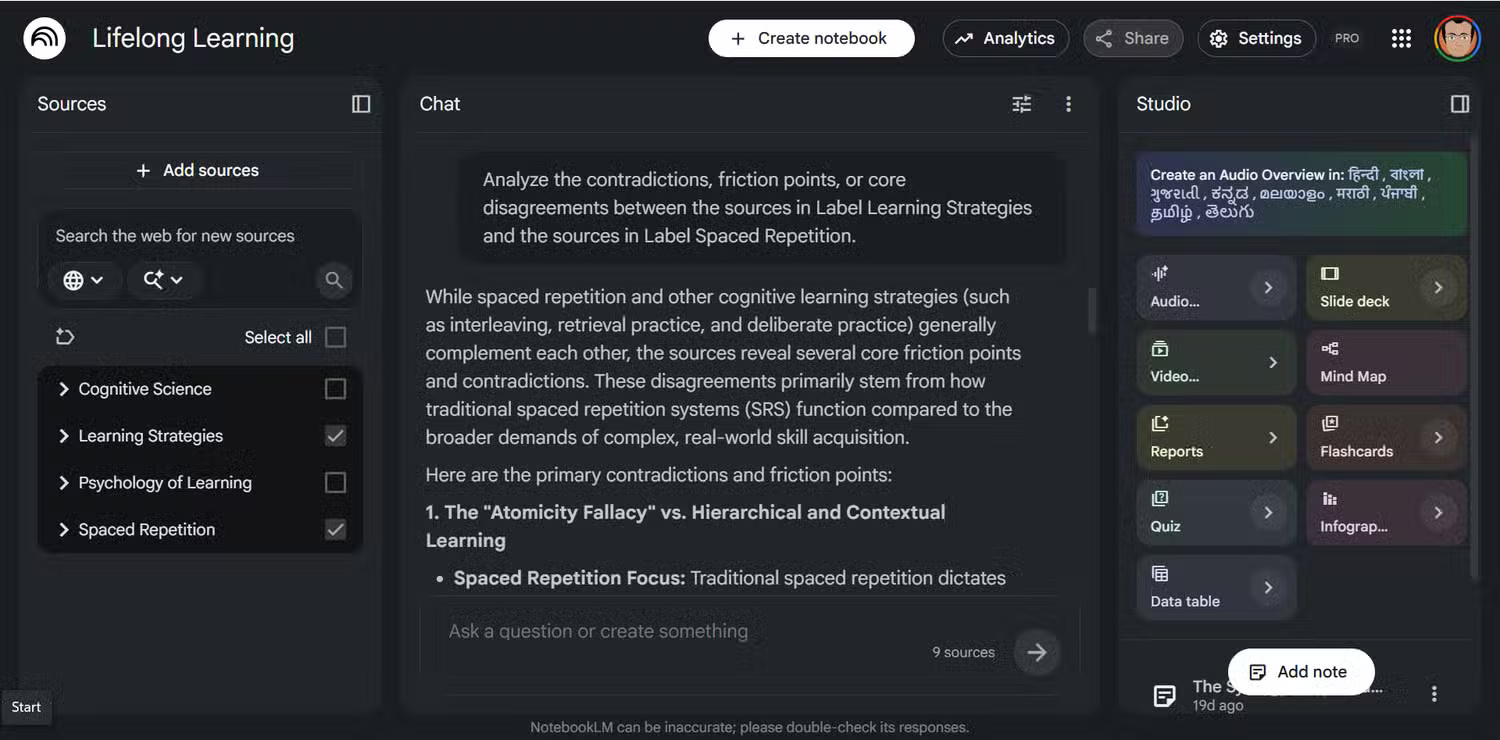
Labels are like little sandboxes. You can turn entire groups of labels on and off while chatting with NotebookLM. Select one or two labels and turn off all the others. NotebookLM will ground the response in the active sources, but the answer can still omit, misinterpret, or combine details incorrectly. For example, build a section based on case studies? Just enable that group. It's like an extra layer of private knowledge base.
Many people used to think this was unnecessary because NotebookLM's responses were based solely on the documents we uploaded. But focused sources produce better answers. When you use even NotebookLM's well-designed prompts across 30 sources, the answers still include things you don't need from other topics.
Narrowing the active sources can make an answer more focused and easier to verify. It does not guarantee faster generation or factual accuracy. You can use the chat tool to identify shortcomings in your research.
Based on the sources within this specific group, what are the logical gaps, missing data points, or aspects that have not been addressed?
A source can belong to multiple labels
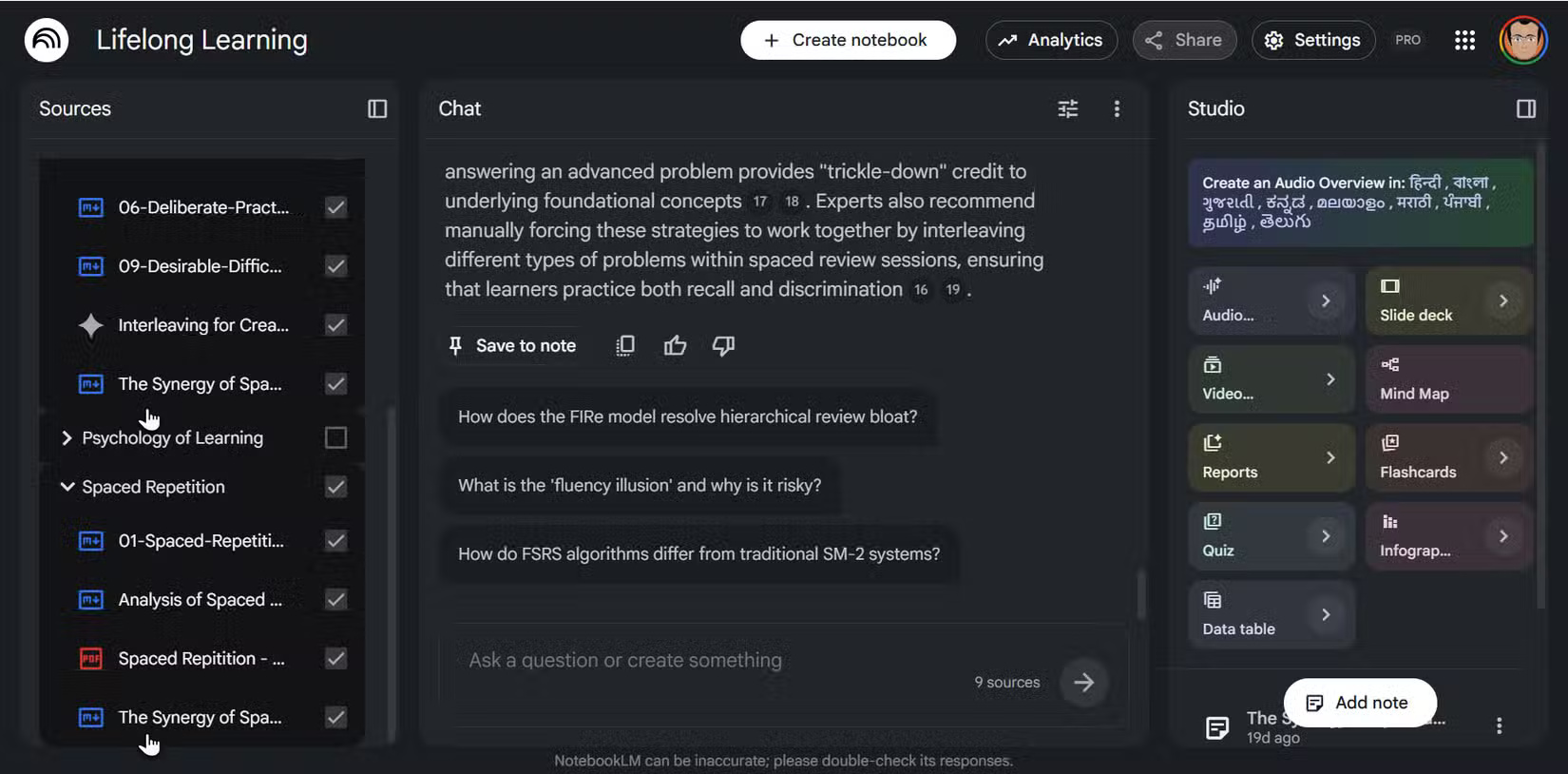
NotebookLM allows a single source to carry more than one label. A research paper on "The Synergy of Spaced Repetition and Retrieval Practice" can be in both "Spaced Repetition" and "Learning Strategies." A market report can be in both "Data Sources" and "Competitive Analysis" simultaneously. The system will tag it wherever appropriate.
Here, labels don't function like folders; it's more like a tagging system than a filing cabinet. This multi-label support feature is incredibly helpful for research. A multi-label source can appear in each relevant view without duplicating the underlying document.
Now you can compare clusters to find valuable research sources. For example, select two opposing or adjacent categories and suggest a conversation (see screenshot in the gallery above):
Analyze the core contradictions, points of conflict, or disagreements between the sources in Label A and the sources in Label B.
Use label clusters to produce accurate Studio results
Break down the learning and information retrieval process using Labels
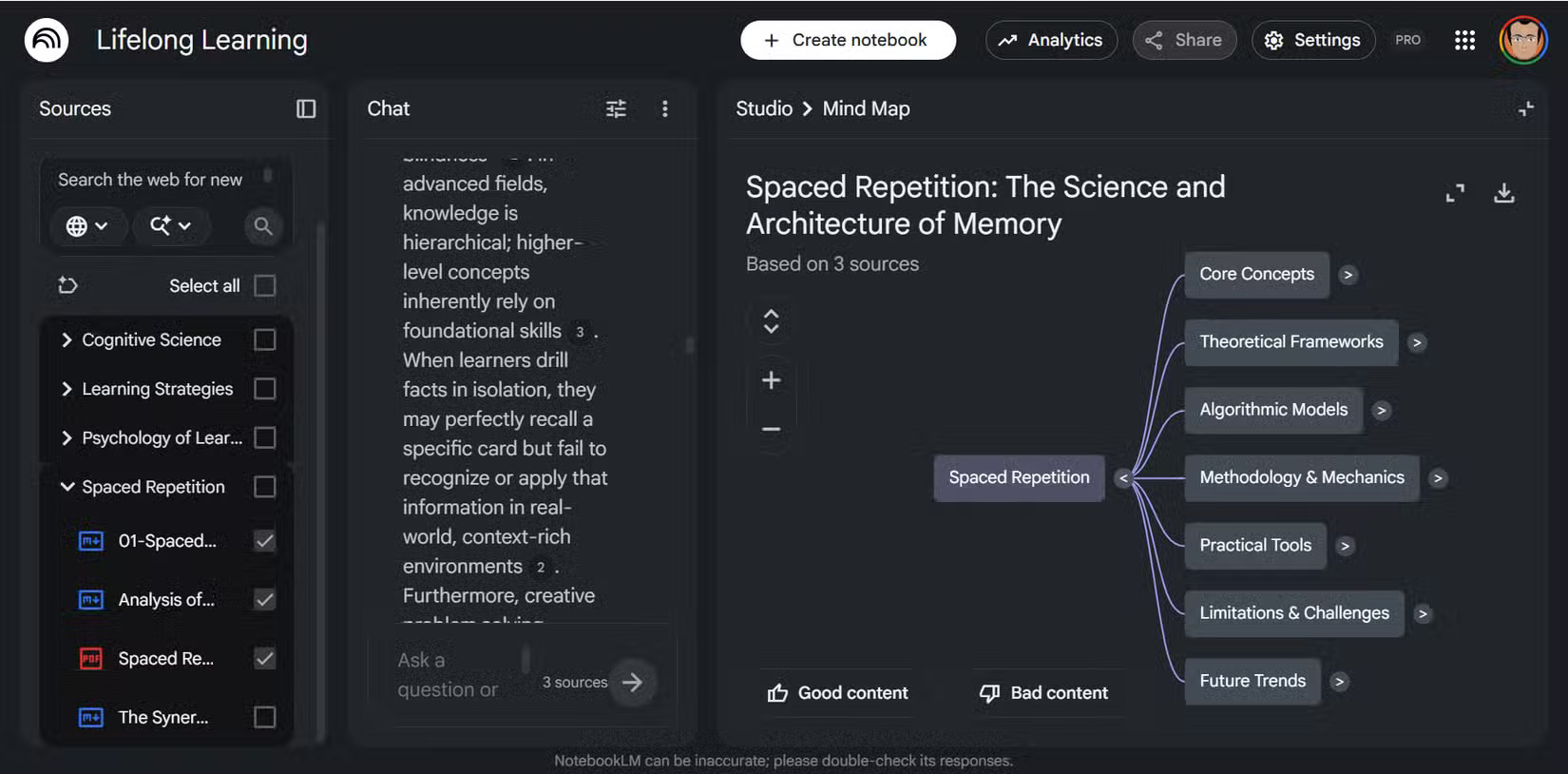
Instead of creating a generic Audio Overview, Slide Deck, or Flashcard set for your entire notebook, you can select a single set of labels and generate Studio results.
This can produce a more focused output for a subtopic, though citations, omissions, and generated wording still need review. For example, many people always find it difficult to process mind maps from too many sources on the limited screen of a laptop.
This is especially helpful for improving the quality of NotebookLM's Audio Overview. A large and mixed source set can lead to a broad Audio Overview that does not emphasize the section you need. Keeping it specific not only saves time but also makes it easier to analyze and add your own follow-up questions to the podcast.
A practical label workflow
Start with automatic groups, rename unclear labels, apply more than one label where appropriate, then filter to a small source set for each question or Studio output. Re-run organization only after noting that a full rearrangement may replace custom edits.
Related Articles
 NotebookLM's New Feature Makes Researchers' Dreams a Reality8 minutes read
 How Is NotebookLM Becoming a Comprehensive 'Creative Studio'?7 minutes read
 How to Combine Gemini with NotebookLM to Improve the Quality of Research Reports11 minutes read
 How to Get Better Deep Research Results in NotebookLM9 minutes read
 How to Share NotebookLM Publicly6 minutes read
 NotebookLM's Latest Feature Allows Creating Videos from Notes5 minutes read
Reader Comments 0
Sign in with email or Google to join the discussion.