Table of Contents
Tiny10 is a third-party modification of Windows 10 created by NTDEV. It removes apps and system components to reduce the size of the installation. Use the information below to evaluate it before putting it on a PC you depend on. A smaller installation can come with missing features and a different update experience.
What Tiny10 removes
What you get depends on the release. Tiny10 builds can omit bundled apps and features that Windows software expects. Check for the Store, security components, drivers, and accessibility tools if you need them. A release’s Tiny10 label is separate from the name and support lifecycle of its Microsoft base edition.


What the original comparison shows
The screenshots compare specific installations. A smaller application list or lower idle memory use isn’t a reliable prediction of how a particular app will run on your computer.
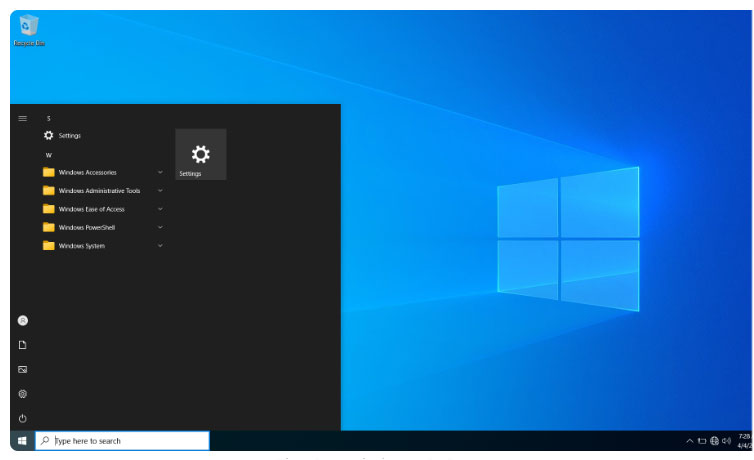
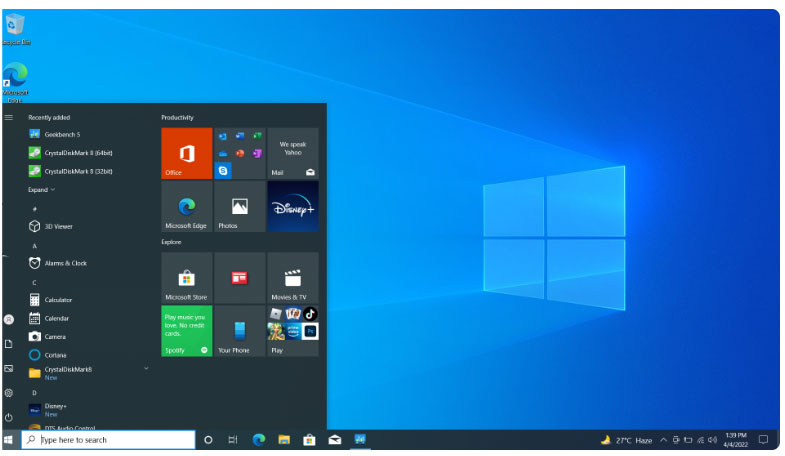
Compare Tiny10 and Windows 10 Start menu
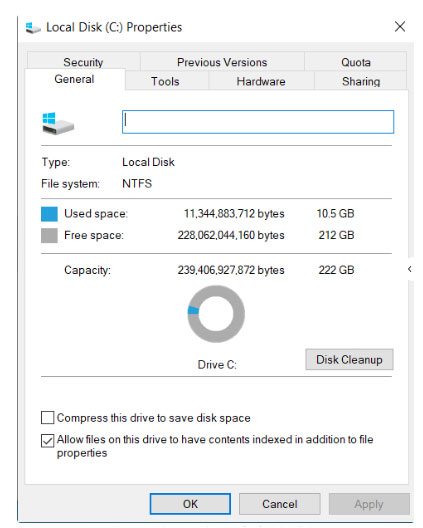
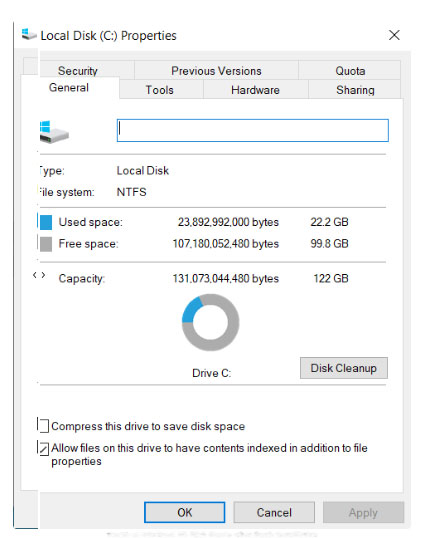
Disk space after installing new operating system
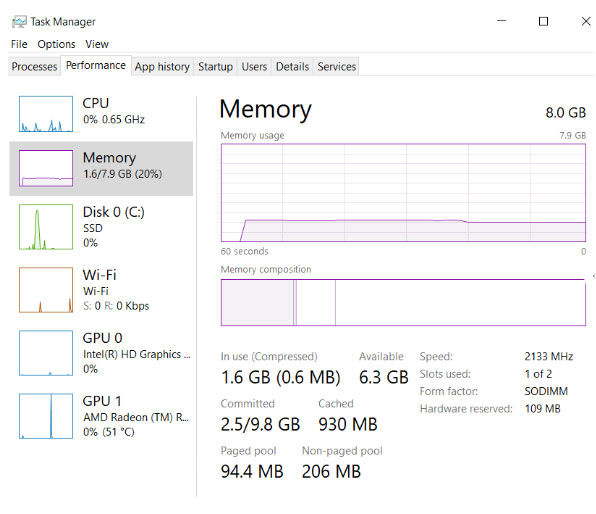
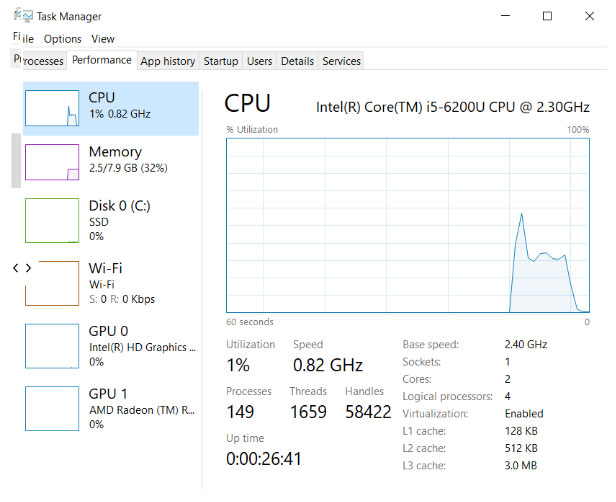
Tiny10 Task Manager vs Windows 10
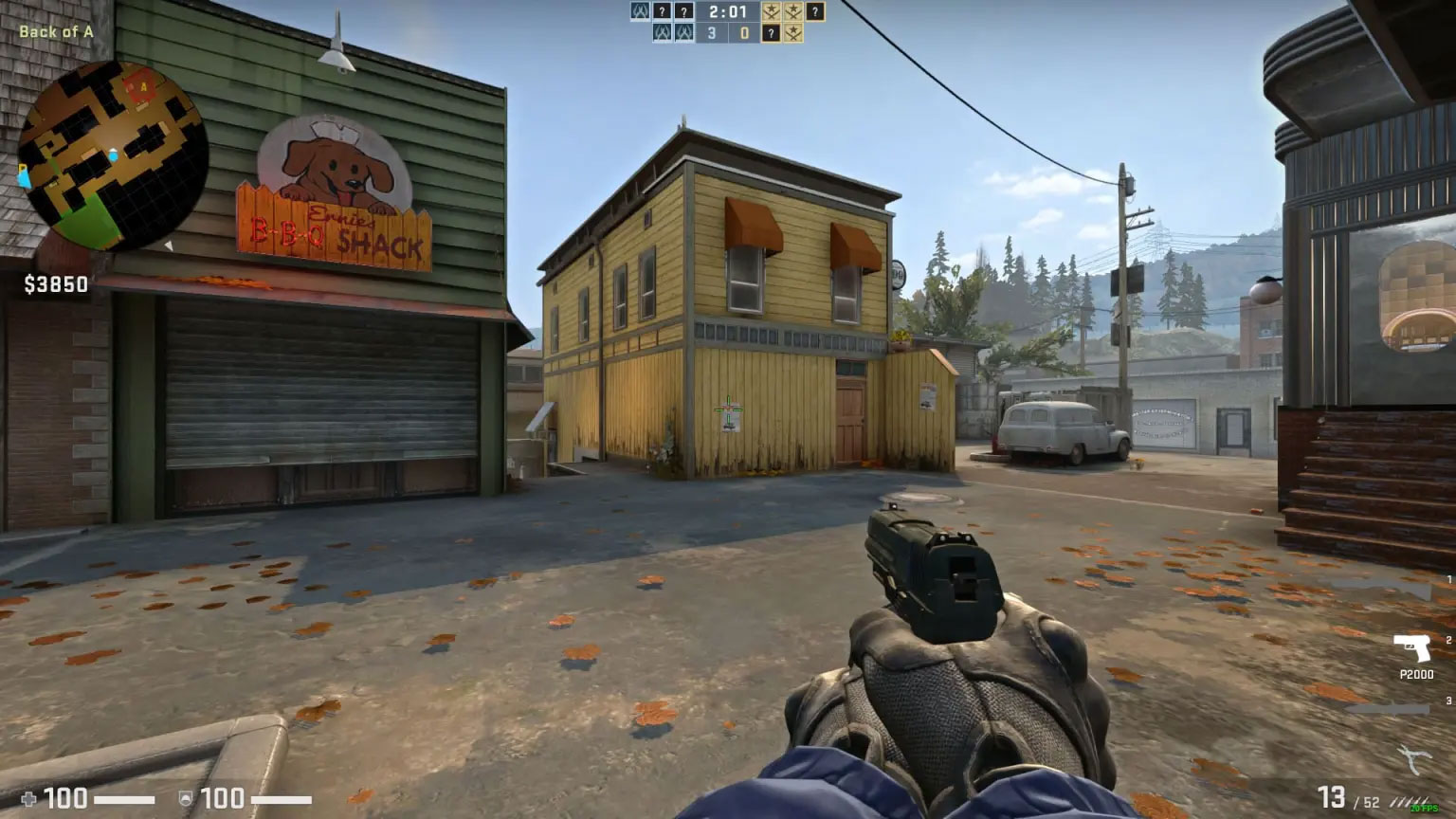
The old benchmark images provide context for that comparison. Exact results can vary with drivers, Windows updates, test settings, and background activity. The gaming screenshot also reflects an older game and software setup.
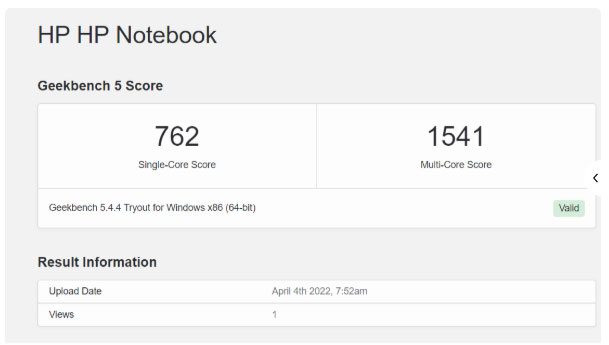
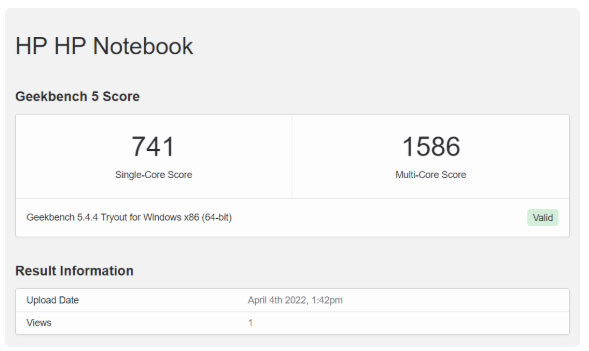
Tiny10 Geekbench score vs Windows 10
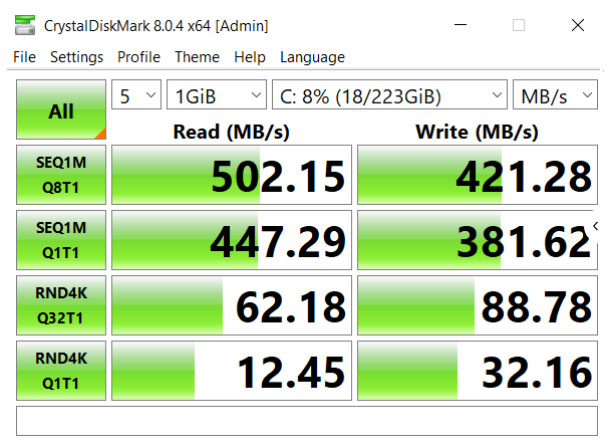
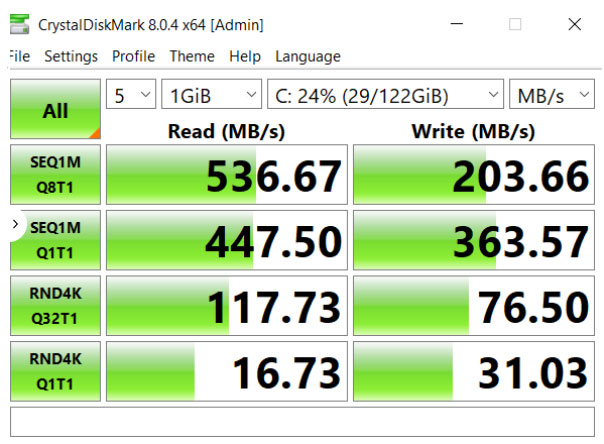
Tiny10’s CrystalDiskMark test vs Windows 10
If you want to evaluate it, use a disposable test system
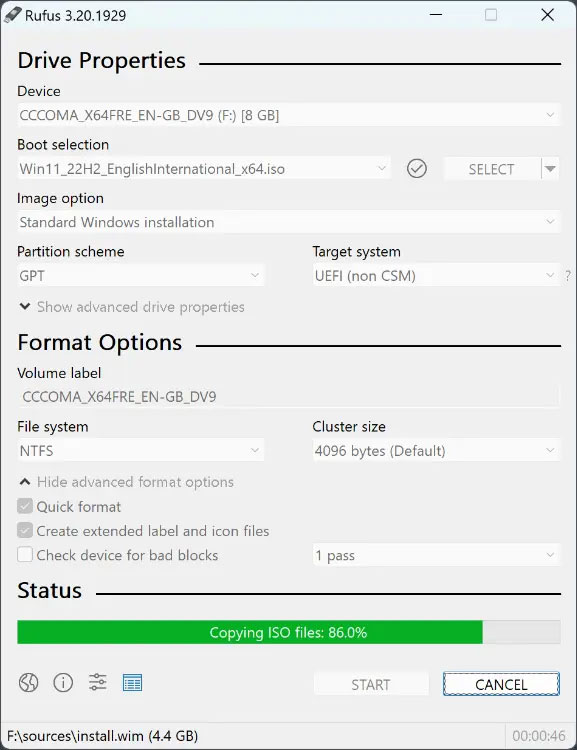
Consider a virtual machine with a blank virtual disk. Verify where your image came from, keep personal files and accounts out of the test environment, and check updates and device support before relying on it. Installing from an image on a physical computer can erase the wrong drive if you select the wrong target. These screenshots and video show the earlier installation workflow.
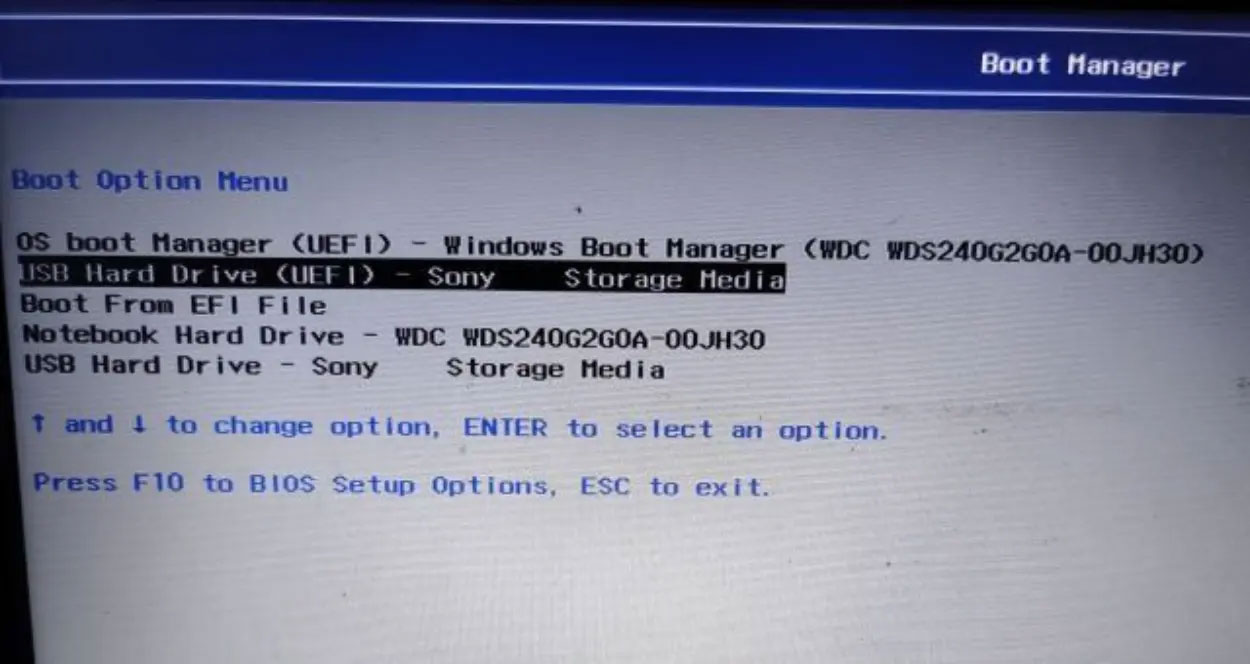
Choose a supported option for everyday work
If your PC supports Windows 11, use Microsoft’s installation media and keep security updates enabled. If the problem is simply poor performance, try these Windows performance checks first. For an older PC you mainly use for the web, try a supported Linux distribution or check whether the model supports ChromeOS Flex. Test important apps and hardware before replacing the operating system.
Reader Comments 0
Sign in with email or Google to join the discussion.