Table of Contents
An SSL/TLS error means the browser could not verify or complete the encrypted connection to a website. Visitors should not bypass the warning on a login, payment, email, or other sensitive page. Website administrators need to identify whether the cause is an expired or mismatched certificate, an incomplete trust chain, unsupported TLS configuration, or insecure page resources.
“SSL” remains a common label, but modern HTTPS connections use TLS. Browser messages include Your connection is not private, Warning: Potential Security Risk Ahead, Certificate not trusted, and Certificate name mismatch.
If you are visiting the website
- Check the address. A misspelled or unexpected domain can indicate a phishing page. Do not continue.
- Check date, time, and time zone. A significantly incorrect clock can make a valid certificate appear expired or not yet valid.
- Try another reputable site. If many HTTPS sites fail, update the browser and operating system, then restart the device.
- Sign in to a public Wi-Fi portal. A hotel or airport network may be intercepting the first request until you accept its terms. Open the network's documented sign-in page; never install an unknown certificate to get online.
- Test another network. If the warning occurs only on one workplace, school, or security-filtered network, contact its administrator. TLS inspection must be intentionally managed.
- Report a single-site failure. If the clock and device are correct and only one site fails on several networks, the site's owner probably needs to repair its certificate configuration.
Do not launch a browser with a flag that ignores certificate errors, install a root certificate from an unverified source, or enter credentials after clicking through a warning. HSTS-enabled sites may correctly prevent bypassing an invalid certificate.
TipsMake's guide to the “Your connection is not private” warning covers device-side checks in more detail.
Common causes for website administrators
| Symptom | Likely cause | Correct direction |
|---|---|---|
| Expired or not yet valid | Certificate dates or server/client clock | Renew and deploy the current certificate; verify time synchronization |
| Name mismatch | Requested hostname is absent from the certificate SAN list | Issue a certificate containing every served hostname and configure the correct virtual host |
| Untrusted issuer | Self-signed leaf, private CA, obsolete client, or wrong certificate | Use a publicly trusted CA for public sites or correctly manage the private trust store |
| Incomplete chain | Server omits required intermediate certificates | Serve the leaf certificate with the correct intermediate chain |
| Handshake/protocol failure | TLS versions, ciphers, SNI, proxy, or server configuration | Inspect server logs and test from multiple current clients |
| Page loads with blocked elements | HTTPS page requests HTTP resources | Replace, upgrade, or remove every insecure resource |
Untrusted certificate or incomplete chain
Browsers trust a set of root certificate authorities. A public site's leaf certificate normally links through one or more intermediate certificates to a trusted root. The server sends the leaf and needed intermediates; it normally does not send the root itself.
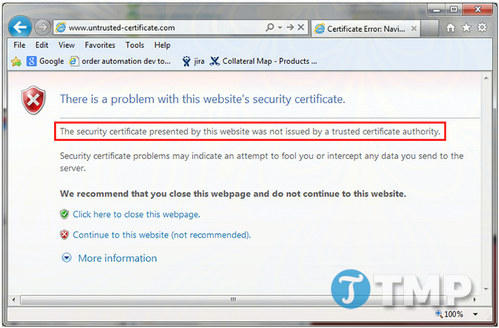
Self-signed certificates
A self-signed certificate can be appropriate for a controlled development or internal environment where administrators securely distribute the trust anchor. It is not appropriate for an ordinary public site because visitors' browsers have no established reason to trust it. Use a publicly trusted certificate authority for an internet-facing site.
Missing intermediate certificate
If the server sends only the leaf certificate, some clients cannot build a path to a trusted root. Install the full chain supplied or documented by the certificate authority and retest. Do not combine unrelated intermediates or depend on a browser having cached one from another visit.
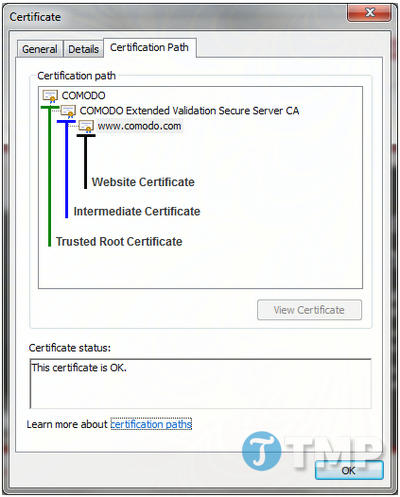
Let's Encrypt's certificate glossary explains the leaf, intermediate, root, and certificate-chain roles.
Certificate name mismatch
The hostname in the browser must appear in the certificate's Subject Alternative Name extension. A certificate valid for example.com is not automatically valid for www.example.com, api.example.com, an internal server name, or the server's IP address.
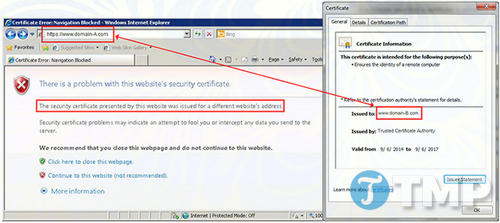
Fix the configuration by:
- issuing a certificate that includes each required hostname in SAN;
- redirecting alternate hostnames only after they can complete a valid TLS handshake;
- configuring each HTTPS virtual host to serve the intended certificate;
- checking load balancers, CDNs, reverse proxies, and old servers for stale certificates;
- including an IP address in the certificate only when clients genuinely connect by that IP and the CA policy supports it.
A wildcard such as *.example.com covers one subdomain level but not the bare example.com name and not deeper names such as a.b.example.com. A multi-name SAN certificate is often clearer when the set of hostnames is known.
Modern clients use Server Name Indication (SNI), allowing many HTTPS sites to share an IP address. A shared IP alone is therefore not an error; incorrect SNI or virtual-host configuration can still make the server present the wrong certificate.
Mixed content on an HTTPS page
Mixed content occurs when an HTTPS document requests a resource over HTTP. Current browsers may upgrade some resource types automatically and block others, which can break scripts, styles, frames, downloads, images, audio, or video.
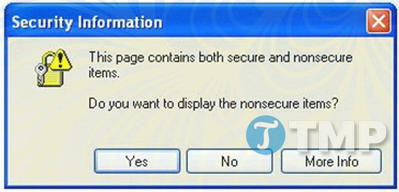
Website owners should:
- serve first-party resources over HTTPS;
- change internal references to HTTPS URLs or safe relative paths such as
src="/assets/app.js"; - replace or remove third-party resources that are unavailable over HTTPS;
- search templates, stylesheets, JavaScript, database content, redirects, canonical tags, and embedded media for
http://references; - use browser developer tools and a Content Security Policy in report-only mode to find remaining requests before enforcing a policy.
Mozilla's mixed-content guidance explains how browsers treat insecure subresources. TipsMake also has an illustrated explanation of why browsers block mixed content.
Move a site from HTTP to HTTPS safely
- Install and test a valid certificate on every hostname.
- Update internal links, canonical URLs, structured data, hreflang, sitemaps, and resource references to HTTPS.
- Redirect each HTTP URL to its matching HTTPS URL with a server-side permanent redirect.
- Keep robots.txt available and ensure it does not block important HTTPS resources.
- Verify the HTTPS properties in search and analytics tools, submit updated sitemaps, and monitor crawl errors.
- Set Secure on cookies that must travel only over HTTPS; use HSTS only after every required subdomain and redirect has been tested.
Google's HTTPS migration guidance recommends permanent redirects and HTTPS canonicalization. Do not maintain duplicate HTTP and HTTPS versions as separate indexable pages.
Final verification for administrators
Test from a clean browser and at least one additional operating system or network. Inspect the certificate hostname, validity period, issuer, full chain, negotiated TLS version, redirects, and console mixed-content errors. Also verify the CDN or load balancer separately from the origin. A successful test on the administrator's own browser is not enough if that browser has cached intermediates or trusts a private root.
TipsMake's security and privacy tools can help with basic inspection, but production certificate changes should still be validated against the CA and server documentation.
Related Articles
 Tips or Troubleshooting Connection Problems on Outlook7 minutes read
 How to Fix Windows Errors Not Connected to the Printer9 minutes read
 Troubleshooting Connection Issues in Outlook5 minutes read
 Instructions to Fix Wi-Fi Connection Error on iOS 63 minutes read
 How to Troubleshoot Network Outages and Internet Connection4 minutes read
 How to Fix Errors Your Connection Is Not a Private4 minutes read
Reader Comments 0
Sign in with email or Google to join the discussion.