Table of Contents
HomeGroup was a Windows 7 feature for sharing libraries and printers between PCs on a trusted home network. This guide explains the original setup process for systems that still run Windows 7, but it should be treated as a legacy procedure.

Before creating a HomeGroup
- Connect every participating Windows 7 PC to the same router or local network.
- Set the network location to Home network, not Public. Use this only on a network you trust.
- Make sure Network Discovery and File and Printer Sharing are enabled.
- Keep password-protected sharing enabled unless you understand the access implications.
- Confirm that the clocks on the PCs are reasonably synchronized and IPv6 remains enabled on the network adapters.
HomeGroup is different from a Windows workgroup. A workgroup helps PCs discover and authenticate to one another; HomeGroup added a simpler library-sharing interface and a generated password.
Create a HomeGroup in Windows 7
- Right-click the network icon in the notification area and select Open Network and Sharing Center.
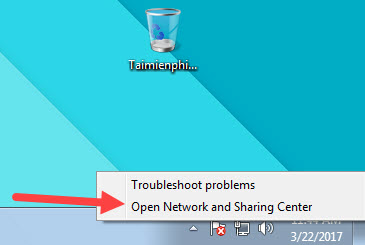
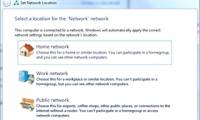
- Check the active network location. If it is not already a home network, click the location link beside the connection.
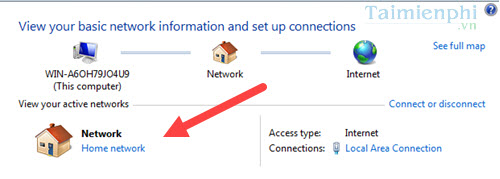
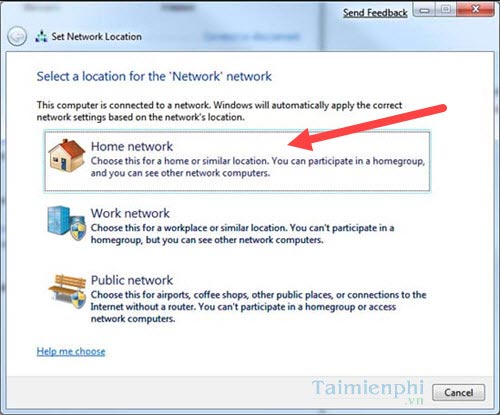
- Select Home network. Do not choose this profile on a hotel, airport, café, or other untrusted network.
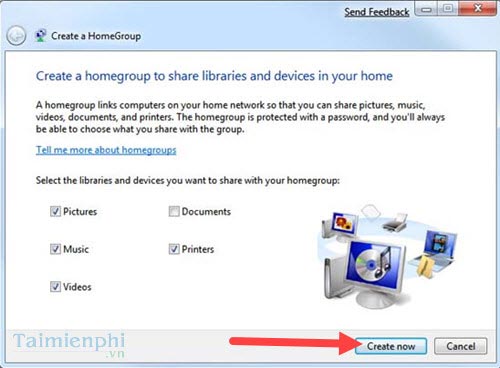
- Open HomeGroup from Control Panel or follow the HomeGroup prompt, then select Create a homegroup.
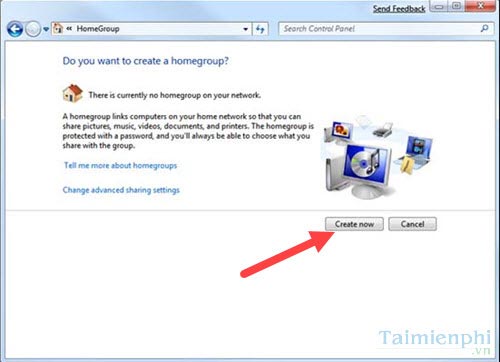
- Choose which libraries and devices to share. Typical options include Pictures, Music, Videos, Documents, and Printers. Share only what the other users need, then click Next.
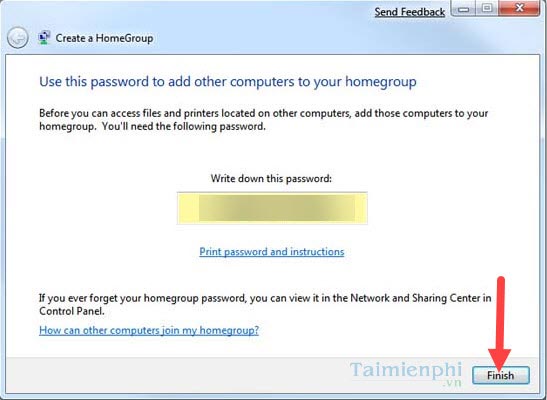
- Windows displays a generated HomeGroup password. Copy it exactly or print it, then store it somewhere private. Click Finish.
Review sharing settings
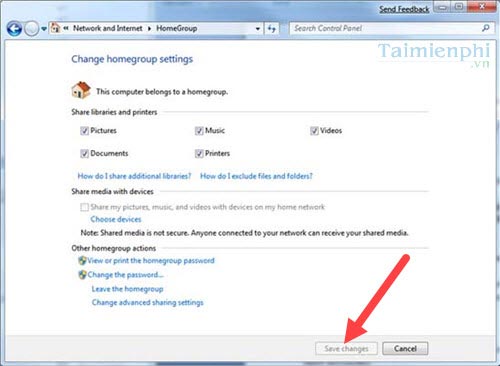
Return to the HomeGroup control panel to change shared libraries, stream media, view or change the password, or leave the HomeGroup. Saving the generated password is safer than trying to memorize it.
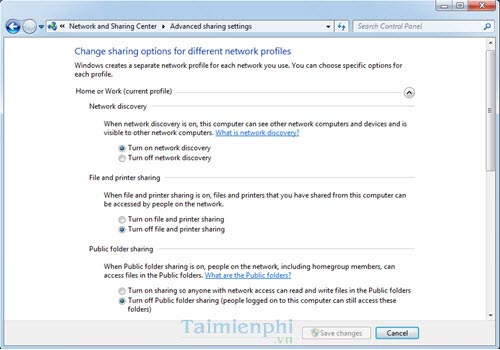
For lower-level settings, open Network and Sharing Center > Change advanced sharing settings. On the Home or Work profile, verify Network Discovery and File and Printer Sharing. Avoid disabling password-protected sharing simply to fix discovery; doing so can make shared content available more broadly on the local network.
TipsMake's guide to enabling Network Discovery explains the related controls in more detail.
Join the HomeGroup from another Windows 7 PC
- Connect the second PC to the same trusted home network and set its location to Home network.
- Open Control Panel > Network and Internet > HomeGroup.
- When Windows detects the existing HomeGroup, select Join now.
- Choose which libraries or printers this PC will share.
- Enter the password generated on the first PC and complete the wizard.
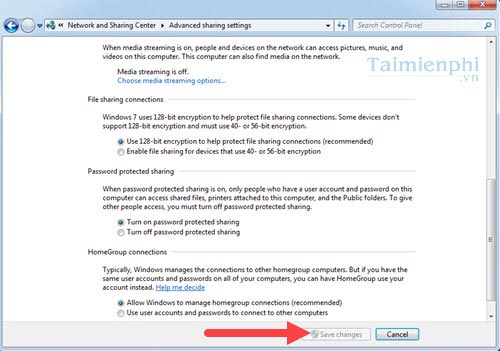
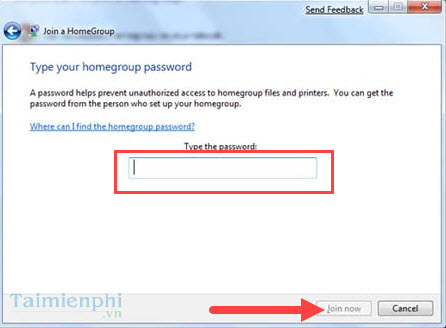
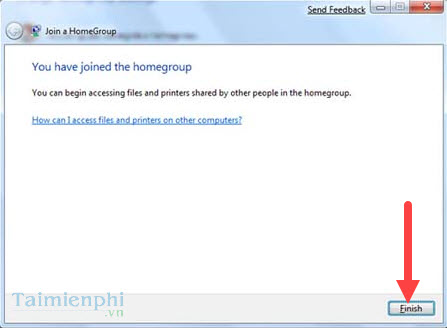
After joining, shared libraries appear under Homegroup in Windows Explorer. You can also right-click an item and use Share with to grant read-only or read/write access, depending on the item and selected permission.
Troubleshoot a HomeGroup that is not detected
- Confirm every PC is on the same local network and uses the Home network profile.
- Temporarily connect by Ethernet to rule out Wi-Fi client isolation or guest-network restrictions.
- Verify Network Discovery, File and Printer Sharing, and the required Windows services are running.
- Check that third-party firewall software allows local file sharing.
- Make sure no other HomeGroup was created separately. A PC can join only one HomeGroup at a time.
- Generate or view the password again on an existing member instead of repeatedly guessing it.
What to use on newer versions of Windows
Microsoft confirms that HomeGroup was removed from Windows 10 version 1803. On Windows 10 or Windows 11, share a specific folder with selected users through File Explorer, share a network printer, or use a supported cloud service. See TipsMake's guides to sharing a folder and sharing files across Windows, macOS, and Linux.
If a Windows 7 computer must remain online for legacy software, limit its network access, keep reliable offline backups, and plan a migration rather than treating HomeGroup as a current sharing solution.
Related Articles
 Network Connection with Windows 7 Homegroup7 minutes read
 What Is HomeGroup? How to Use and Set Up on Windows6 minutes read
 Instructions for Setting Up and Managing Homegroup on Windows 1010 minutes read
 How to Replace Windows Homegroup8 minutes read
 Hide and Turn Off the Homegroup Feature on Windows 74 minutes read
 Delete the Homegroup Icon on the Windows Desktop 83 minutes read
Reader Comments 0
Sign in with email or Google to join the discussion.