Table of Contents
If Outlook shows Working Offline, Disconnected, or repeatedly leaves messages in the Outbox, first determine whether the problem affects the internet connection, the mail service, one account, or only the desktop app. The repair steps below apply mainly to classic Outlook for Windows; new Outlook has different controls.
1. Check the service and connection
- Open a website to confirm the computer is online.
- Sign in to the mailbox through its official web interface. If webmail also fails, the account, password, service, or organization may be the cause.
- If this is a work or school Exchange account, ask whether Microsoft 365 or the organization's Exchange server is experiencing an outage.
- Restart Outlook, and disconnect any VPN or proxy only if your administrator says it is safe to do so.
On a slow or intermittent link, Cached Exchange Mode can keep classic Outlook usable; see these tips for working with a slow connection.
2. Turn off Work Offline in classic Outlook
Look at the status bar. If it says Working Offline, open the Send/Receive tab and select Work Offline once. The button should no longer appear selected, and the status should change after Outlook reconnects.
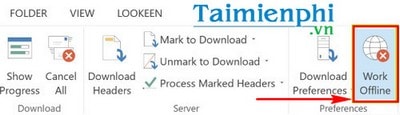
If the status is Disconnected rather than Working Offline, toggling the button may not solve the underlying server or authentication problem.
3. Check the Outbox and account credentials
- Remove or reduce a very large attachment that is blocking the Outbox.
- Open File > Account Settings > Account Settings and run the available repair or test command for the account.
- Complete any password, multi-factor authentication, or consent prompt.
- For POP or IMAP accounts, verify server names, ports, encryption, and authentication against the mail provider's current documentation—do not copy settings for a different provider.
If Outlook displays error 0x800CCC0E, use the focused Outlook send/receive troubleshooting guide.
4. Start classic Outlook in Safe Mode
Press Windows + R, enter outlook.exe /safe, and press Enter. If Outlook connects in Safe Mode, disable recently added COM add-ins one at a time under File > Options > Add-ins. Restart normally after each change.
5. Repair a PST only when there are data-file symptoms
A network connection error alone does not prove that an Outlook data file is corrupt. Use the Inbox Repair tool when Outlook reports that it cannot open a PST or the set of folders, or when there is other evidence of file damage.
- Close Outlook and back up the PST.
- Find the file under File > Account Settings > Account Settings > Data Files and note its location.
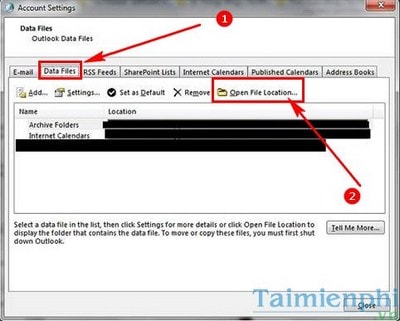
- Locate and open
SCANPST.EXEin the installed Office folder. - Browse to the PST, select Start, and choose Repair if errors are found. Keep the backup option enabled.
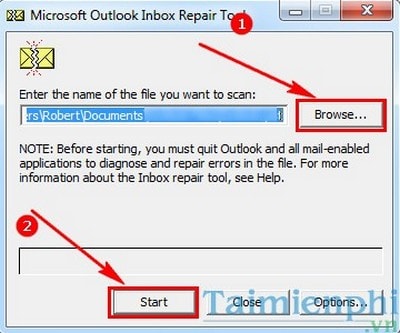
Follow Microsoft's Outlook data-file repair instructions for paths that match your Office version. SCANPST checks local data files; it does not test the Exchange server.
6. Rebuild an OST with caution
An OST is an offline cache for a server mailbox, not a file to convert into another format. For an Exchange or Microsoft 365 account whose server copy is complete, Outlook can recreate the OST. Before deleting or renaming it, confirm the mailbox is accessible in webmail and that no unsynchronized local changes are needed. Then close Outlook, rename the OST to a backup name such as account.ost.old, and reopen Outlook to let it resynchronize.
Do not use this method for a PST, and do not assume every OST can be discarded safely. Ask the administrator when the mailbox uses retention, archives, or nonstandard synchronization.
7. Repair the Office installation
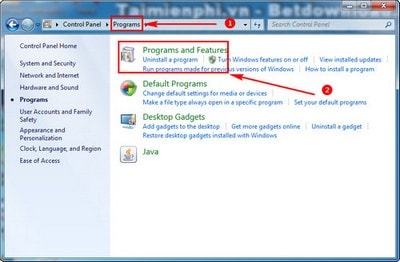
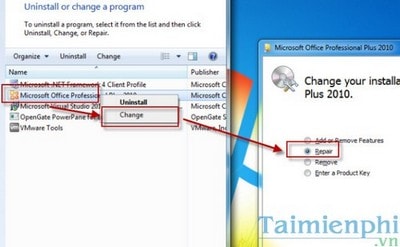
On current Windows versions, open Settings > Apps > Installed apps, find Microsoft 365 or Office, select Modify, and start with Quick Repair. If necessary, use Online Repair, which takes longer and may require reactivation or a larger download.
Older Control Panel steps are shown below.
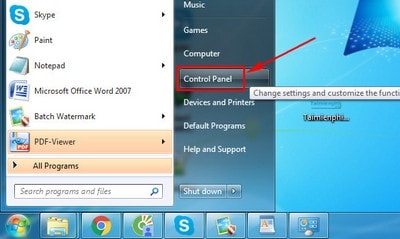
Restart Windows and test Outlook again.
8. Create a new classic Outlook profile
A new profile can resolve damaged account configuration, but do not delete the old profile until the new one works and any local PST files are accounted for.
- Close Outlook.
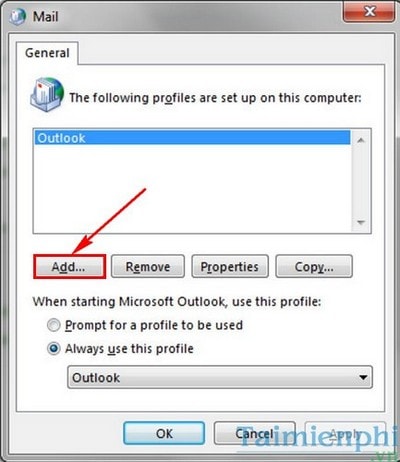
- Open Control Panel, search for Mail, and select Show Profiles.
- Select Add, name the profile, and configure the account.
- Choose Prompt for a profile to be used for testing, or set the new working profile as the default.
- Open Outlook and let it synchronize fully.
When to contact support
Contact the mail administrator or provider when webmail fails, several users are affected, the account is blocked, modern authentication is required, certificates are invalid, or server settings are managed centrally. Record the exact status message, error code, time, account type, and whether the problem occurs on another network or device.
Related Articles
 Tips or Troubleshooting Connection Problems on Outlook7 minutes read
 Microsoft Outlook Acceleration Tips5 minutes read
 How to Scheduling Sending Emails and Delaying Sending Emails in7 minutes read
 Instructions for Pinning Emails in Outlook: What to Know5 minutes read
 minutes read
 Instructions on Selecting Multiple Emails in Outlook: Explained4 minutes read
Reader Comments 0
Sign in with email or Google to join the discussion.