Table of Contents
When Windows shows “No internet” or a network disappears, first determine whether the problem affects one device, one connection type, or the entire home network. Work through the checks below in order; the early steps are quick and do not erase network settings.
1. Check the connection controls
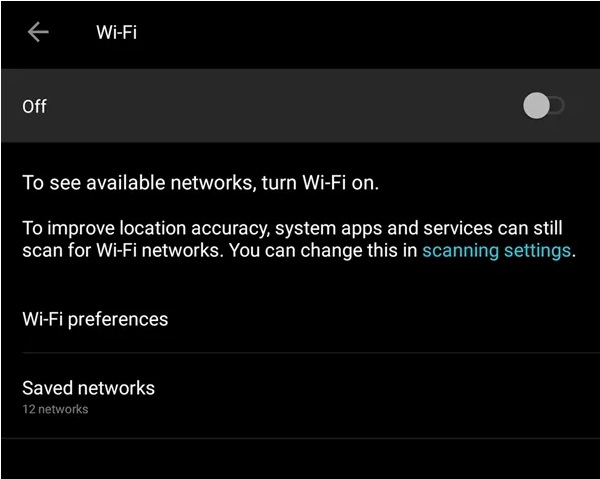
Open the taskbar Quick Settings panel and confirm that Wi-Fi is on and Airplane mode is off. On laptops, also check any physical wireless switch or function-key shortcut. Then open Settings > Network & internet to see the current connection status.
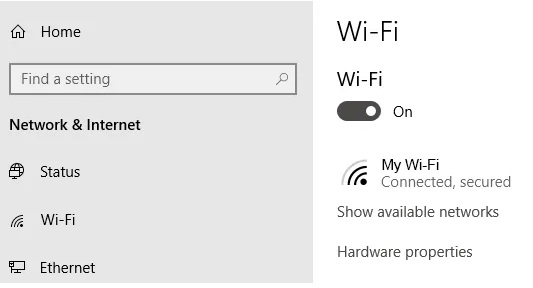
If a phone or tablet also cannot connect to the same Wi-Fi network, the router or internet service is a more likely cause than the Windows PC.
2. Inspect cables, lights, and the modem
For Ethernet, reseat the cable at both ends and check for link lights on the PC, adapter, or router. Try another known-good cable and a different router port. For the router, make sure the WAN/Internet cable is connected to the correct port rather than a LAN port.
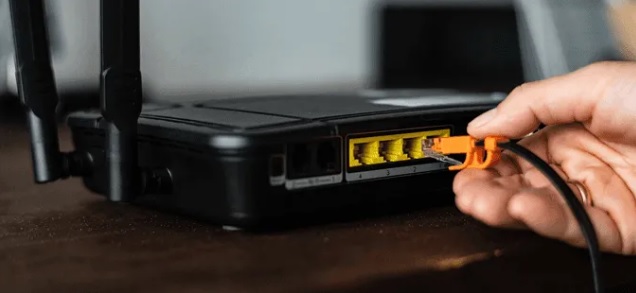
If the modem has a red or unlit connection indicator, consult the ISP's status page or contact the provider. Do not factory-reset the modem while an outage is suspected.
3. Test signal and location
Move the PC temporarily into the same room as the router. Walls, floors, metal objects, crowded channels, and some appliances can weaken Wi-Fi. If the connection works nearby, improve router placement, try another supported band, or investigate interference rather than changing Windows system files.
For a focused checklist, use TipsMake's Wi-Fi troubleshooting assistant.
4. Restart the PC and network equipment
Restart Windows first. If other devices are also affected, unplug the modem and router from power, wait about 30 seconds, reconnect the modem, and let it finish starting before reconnecting the router. A reboot can clear a temporary fault, but it does not fix recurring signal, cabling, or ISP problems.
A factory reset is different: it erases the Wi-Fi name, password, ISP settings, and other custom configuration. Use it only when you have the setup details and the router documentation.
5. Forget the Wi-Fi network and reconnect
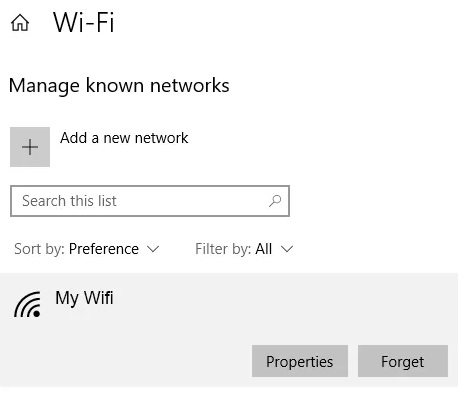
Confirm that you selected the correct network name (SSID). If the saved profile or password is wrong, go to Settings > Network & internet > Wi-Fi > Manage known networks, select the network, and choose Forget. Reconnect and enter the current password carefully.
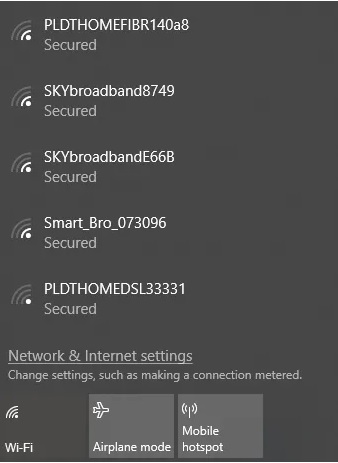
If the password was recently changed, every saved device will need the new one. See the guide to changing a Wi-Fi password if you administer the router.
6. Check automatic IP and DNS settings
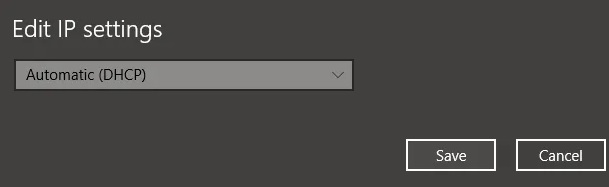
Most home networks use DHCP to assign an IP address, gateway, and DNS servers automatically. In Windows 11, open Settings > Network & internet, select Wi-Fi or Ethernet, open the active network properties, and check IP assignment. Choose Automatic (DHCP) unless the network administrator gave you a static configuration.
Windows 10 uses similar controls under Settings > Network & Internet. The screenshots below show that earlier interface.
Open Windows Terminal or Command Prompt and run ipconfig. An IPv4 address beginning with 169.254 often means the PC did not obtain an address from DHCP. TipsMake's guide to the 169.254 address problem explains the next checks.
7. Narrow down DNS, router, and internet failures
Use these tests from Windows Terminal or Command Prompt:
ipconfig /all
ping 127.0.0.1
ping YOUR_ROUTER_ADDRESS
ping 1.1.1.1
nslookup tipsmake.com- If the router does not reply but local loopback works, focus on Wi-Fi, Ethernet, the adapter, or the router.
- If a public IP replies but domain lookup fails, investigate DNS configuration.
- If neither public IP nor domain works on any device, check the modem, router WAN status, and ISP.
A router or firewall can block ping, so no reply is evidence to investigate, not proof that a device is offline.
8. Run the Windows network troubleshooter
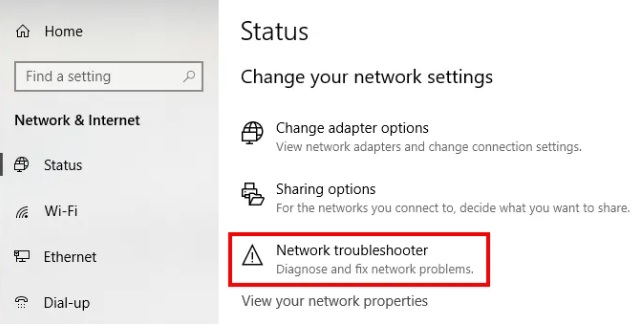
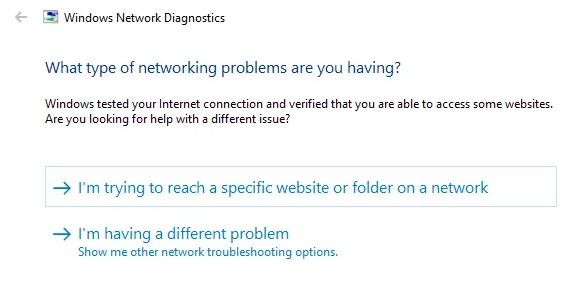
On Windows 11, open the Get Help app and run the Network and Internet troubleshooter. Older Windows versions expose a Network troubleshooter in Settings. It can check the adapter, configuration, and common connectivity failures.
Microsoft maintains separate current instructions for Wi-Fi problems and Ethernet problems.
9. Update Windows and the network adapter driver
Install pending updates from Settings > Windows Update, then restart. If the issue began after a driver change, open Device Manager, expand Network adapters, open the affected adapter's properties, and consider Roll Back Driver when available. Otherwise, obtain the appropriate driver from the PC or adapter manufacturer.
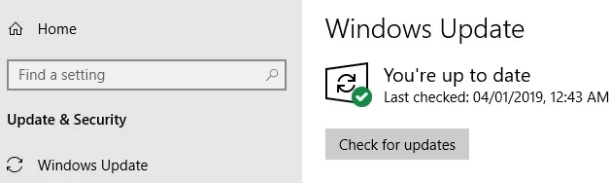
Avoid random driver-download sites. Note the adapter model before uninstalling anything so you can reinstall it if the network remains unavailable.
10. Reset the network stack only as a last step
First try renewing DHCP and clearing the DNS cache from an elevated terminal:
ipconfig /release
ipconfig /renew
ipconfig /flushdns
If Winsock is damaged, run the following command and restart Windows:
netsh winsock resetWindows also provides Network reset. On Windows 11, go to Settings > Network & internet > Advanced network settings > Network reset. On Windows 10, go to Settings > Network & Internet > Status > Network reset.
Network reset removes and reinstalls network adapters and can affect VPN clients, virtual switches, static addresses, and saved configuration. Record anything important before using it, restart when prompted, and recheck whether the network profile should be Public or Private afterward.
When to escalate
- Only one PC fails: contact the PC or network-adapter manufacturer after driver and hardware checks.
- Every device fails: contact the ISP or router vendor with modem lights, outage information, and test results.
- Only one website or app fails: the service, DNS, proxy, VPN, firewall, or account may be responsible; the internet connection itself may be working.
- Connection repeatedly drops: record the time, affected devices, connection type, signal level, and relevant Event Viewer entries before seeking support.
Related Articles
 How to Connect a PS4 to Hotel Wi-Fi8 minutes read
 How to Fix Internet Connection Errors9 minutes read
 Common Network Connection Errors and Solutions5 minutes read
 Troubleshoot Connectivity Problems in the Network -- Part 511 minutes read
 Some Troubleshooting Tips for Internet Connection7 minutes read
 How to Arrange Network Connection on Windows 105 minutes read
Reader Comments 0
Sign in with email or Google to join the discussion.