Table of Contents
“Slow Wi-Fi” can describe several different problems: weak wireless coverage, a busy home network, a slow device, an overloaded website, or an internet connection that is underperforming. The fastest route to a fix is to isolate the bottleneck instead of changing random settings.

Identify which part is slow
| Test result | Likely area to investigate |
|---|---|
| Ethernet is fast, Wi-Fi is slow | Signal, interference, band, channel, router placement, or wireless client |
| One device is slow on every network | Device driver, radio capability, VPN, security software, or background traffic |
| All devices are slow, including Ethernet | Modem, router WAN performance, ISP service, or line fault |
| Only one site or app is slow | That service, DNS, route, peering, account, or application |
| Speed is good but calls and games lag | Latency, jitter, packet loss, or upload queue saturation |

1. Establish a clean wired baseline
- Connect a capable computer to the main router with a known-good Ethernet cable.
- Pause downloads, cloud backups, updates, streaming, and other speed tests.
- Disconnect any VPN and close proxy software for the baseline.
- Run several tests, record the median download, upload, idle latency, and loaded latency, and note the test server.
- Repeat at different times, especially when the problem normally occurs.
A test over Wi-Fi alone cannot tell whether the ISP or the wireless link is responsible. Also check that the Ethernet link negotiates at a rate high enough for the internet plan.
2. Compare Wi-Fi near and far from the router
Use the same device and test server near the router, then in the problem room. A large drop with distance points to coverage or interference. Move the router into an open, central position, use 5 GHz or 6 GHz at short range where supported, and keep 2.4 GHz for range and compatible low-bandwidth devices.
TipsMake's home Wi-Fi improvement checklist covers placement, bands, channels, access points, and mesh systems. If the connection drops entirely, use the broader network connection troubleshooting steps.
3. Use more than one speed test
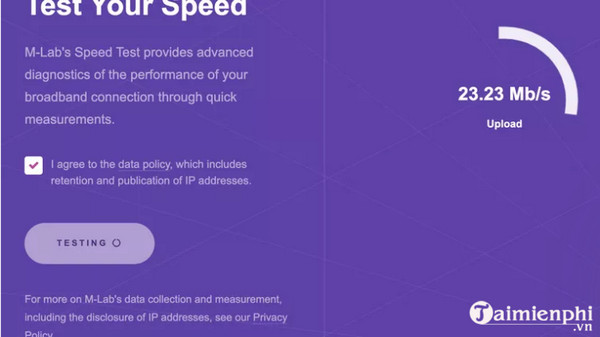
Measurement Lab's NDT test reports single-stream download and upload performance plus latency-related metrics. That methodology may differ from multi-stream services such as Fast.com or Speedtest, so different results do not automatically mean one is wrong.
Keep these variables consistent when comparing results:
- same device and wired or wireless connection;
- same test service and, where possible, same server;
- similar time of day and network load;
- same VPN state;
- several runs rather than one unusually fast or slow result.
4. Check local bandwidth use and latency under load
Open the router's client or traffic page and look for active downloads, backups, cameras, game updates, and cloud synchronization. Upload saturation is a common reason that a connection with a good download speed still feels unresponsive.
If the router supports modern QoS or smart queue management, enter realistic connection rates and prioritize calls, work, or gaming traffic. A per-device cap is useful for a persistently heavy guest or backup client; see how to limit Wi-Fi bandwidth without breaking DHCP.
5. Test the modem, router, and cables
- Restart the modem and router in the order recommended by the ISP.
- Check the WAN and Ethernet cables and try another known-good port.
- Install current router firmware from the vendor or ISP.
- Confirm that the router's WAN and LAN ports can handle the subscribed speed.
- Check for overheating, frequent restarts, or modem error indicators.
Do not factory-reset ISP equipment without recording its configuration and confirming that a reset is appropriate.
Does a VPN prove ISP throttling?
No. A VPN comparison can be a clue, but it is not proof. A VPN changes the destination, route, server, encryption overhead, packet size, and sometimes the transport behavior. A faster result through a VPN may reflect different peering or routing rather than deliberate throttling; a slower result is common because the tunnel adds work and distance.

Run a more useful VPN comparison
- Use a reputable VPN with a nearby server and record the selected location.
- Run the direct and VPN tests on Ethernet, using the same device and speed-test service.
- Alternate direct and VPN runs several times rather than testing each only once.
- Repeat at the time the suspected slowdown occurs and again off-peak.
- Compare routes, latency, loss, and application behavior, not only the largest Mbps value.

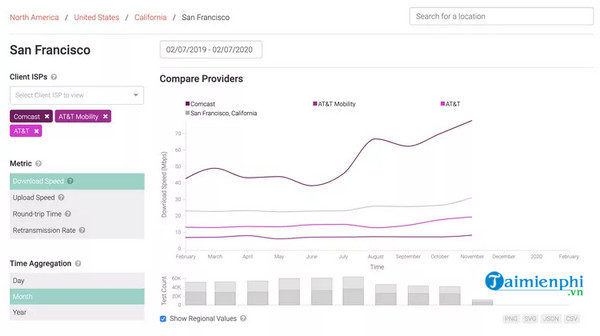
For suspected application-specific differentiation, use a purpose-built measurement method. M-Lab lists tests for speed, blocking, and traffic differentiation on its internet measurement tests page. Read each test's methodology and data policy.
What to do with the evidence
- Wi-Fi bottleneck: improve placement, band and channel choices, or add a wired access point or well-placed mesh node.
- One slow device: update its Wi-Fi driver and operating system, check background transfers, and test without optional VPN or security software conflicts.
- Busy connection: schedule large transfers, configure QoS, or choose a plan with more upload capacity.
- Router bottleneck: replace equipment only after verifying port speed, CPU load, supported Wi-Fi generation, and coverage needs.
- ISP or line problem: contact the provider with wired results, dates, times, modem indicators, and evidence from repeated tests.
- Persistent route or peering problem: provide traceroute and application examples to the ISP; a VPN may be a temporary workaround, not a diagnosis.
Compare the measured service with the plan's stated terms, including whether advertised speeds are “up to,” whether a minimum or typical rate is specified, and how the provider handles congestion or data limits. A repeatable wired test is far more useful to technical support than a single Wi-Fi screenshot.
Related Articles
 How to Speed Up Your Internet on a Mac14 minutes read
 How to Speed Up Slow Internet Connection12 minutes read
 Speed up Internet Connection by Using Cmd Command on Windowsxp //3 minutes read
 Your Windows 10 Computer Is Slow to Connect to the Internet, This6 minutes read
 Tips to Speed up the Internet, Connect to the Network Faster4 minutes read
 How to Speed up a Slow Internet Connection13 minutes read
Reader Comments 0
Sign in with email or Google to join the discussion.