Table of Contents
A router can prevent one device or large transfer from overwhelming a shared internet connection. Depending on the model, the feature may be called Speed Limit, Bandwidth Control, QoS, Traffic Control, or Device Priority. The exact menus differ, but the setup principles are the same.

Choose a limit or a priority
| Feature | Best use | Effect |
|---|---|---|
| Per-device speed limit | Guest, backup, or streaming device | Sets a maximum upload or download rate |
| QoS or device priority | Gaming, calls, or work device | Gives selected traffic better service when the connection is busy |
| Guest-network limit | Visitors or untrusted devices | Separates access and may cap the whole guest network |
A hard cap is not always the best answer. If the goal is smooth calls or gaming, modern QoS that manages queueing under load can preserve responsiveness without permanently slowing every other device.
Measure the connection before configuring it
- Connect by Ethernet if possible and run several speed tests when the network is otherwise quiet.
- Record the median download and upload rates.
- Check the units used by the router. Most older interfaces use Kbit/s or Kbps; newer apps may use Mbit/s or Mbps.
Unit check: 1 Mbps is approximately 1,000 Kbps, while 8 megabits equal 1 megabyte. Therefore, 60,000 Kbps is 60 Mbps, or at most about 7.5 MB/s before protocol overhead. A limit of 2,048–10,240 Kbps is roughly 2–10 Mbps, not 256 Kbps–1 Mbps.
Log in to the router securely
Use the router manufacturer's app or enter the management address printed on the device or listed as the network's default gateway. TipsMake explains how to find the default gateway when the address is unknown.
Sign in with the router administrator account, not the Wi-Fi password unless they are intentionally the same. Change any default administrator password and back up the current configuration before editing QoS or DHCP. Do not enable remote administration just to perform this local change.
Modern routers: set QoS or a device speed limit
- Open Advanced, QoS, Traffic Control, or Connected Devices.
- Enter the measured total upload and download bandwidth if the router asks for it. Some models can run their own speed test.
- Select the target device by its recognizable name or MAC address.
- Choose either a maximum speed or a priority level. Apply a modest limit first.
- Save, then test the limited device and an important device simultaneously.
TP-Link's current QoS instructions use total bandwidth plus application or device priority. Routers that expose a direct Speed Limit control can cap a selected client without creating an IP-range rule.
Legacy TP-Link Bandwidth Control
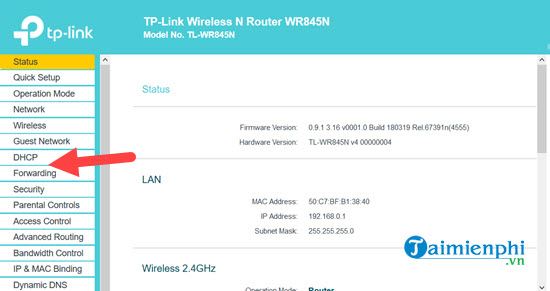
The screenshots below show an older TP-Link TL-WR845N-style interface. Firmware versions vary, so use the labels on your router and its model-specific manual.
1. Reserve an address for the target device
Open the DHCP client list, identify the device, and create a DHCP Address Reservation for its MAC address. This keeps the same local IP assigned to that device, which makes an IP-based rule reliable.
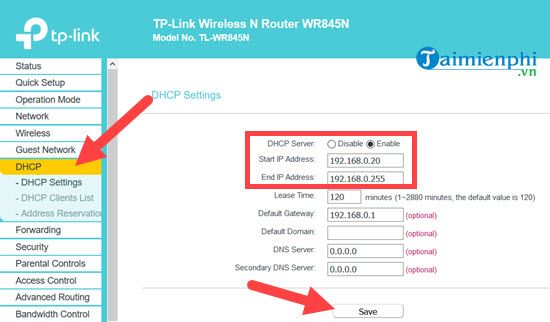
.255. On a common /24 home subnet, .255 is the broadcast address and cannot be assigned to a client. Keep the router's valid pool or use a reservation that does not conflict with it.2. Enter the total WAN bandwidth
Open Bandwidth Control, enable it, and enter the connection's total upstream and downstream rates. In this legacy interface:
- Egress Bandwidth is upload through the WAN port.
- Ingress Bandwidth is download through the WAN port.
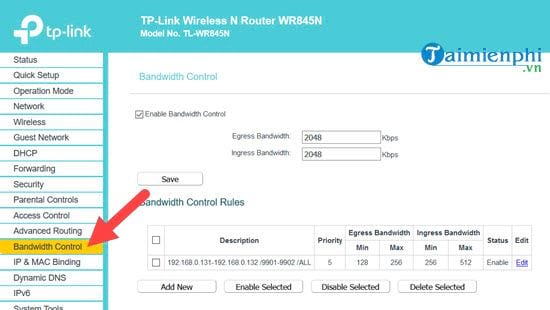
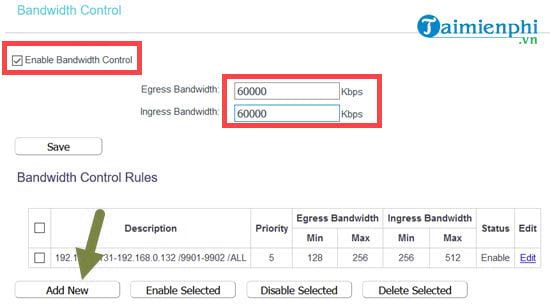
Use a realistic rate at or slightly below the stable measured capacity. An exaggerated value can prevent the router from controlling queues effectively; a value that is too low wastes available bandwidth.
3. Add a rule for one device
Select Add New, enable the rule, and enter the reserved IP address as both the start and end of the IP range. A single address gives that client its own cap. If a range is entered, devices in that range may share the rule's allocation, depending on the firmware.
Leave the port range and protocol at their all-traffic values unless you are deliberately shaping a particular application. Set minimum values only when you intend to guarantee bandwidth; set maximum ingress and egress values to cap the device.
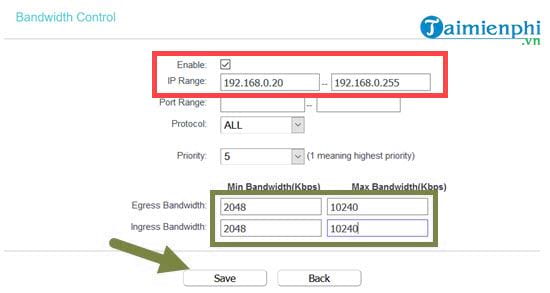
For example, on a 60 Mbps download and 20 Mbps upload plan, a guest device might be capped at 10 Mbps down and 2 Mbps up. The appropriate numbers depend on the work, calls, streaming, and number of users on that network.
4. Save and reboot only if required
Save or apply the rule. Reboot the router only if the interface or manual says the change requires it.
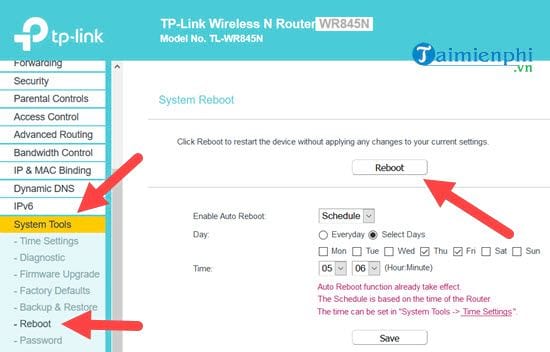
Reboot means restarting with the current configuration. It does not restore the router to factory settings. Do not choose Reset or Factory Defaults, because that can erase internet, Wi-Fi, and security settings.
Verify the result
- Run a speed test on the limited device and confirm it stays near the intended maximum.
- Start a large transfer on that device while using a call, game, or work app on another device.
- Check whether latency and responsiveness improve, not only whether the speed number falls.
- Review the client list after a day; randomized MAC addresses can cause a phone to appear as a new device and bypass a MAC-based rule.
If the rule has no effect, confirm that this device is using the reserved IP, the router is operating as the gateway rather than only as an access point, hardware acceleration is not bypassing the feature, and the configured units are correct. TP-Link's official Bandwidth Control guide documents the legacy IP-rule behavior.
Manage access fairly and securely
Use transparent limits in a workplace and follow organizational policy rather than silently targeting individuals. At home, a guest network is usually cleaner than sharing the primary credentials. If unknown devices appear, change the password using the appropriate Wi-Fi password instructions, use WPA2 or WPA3 where supported, disable obsolete WPS methods, and update the router firmware. TipsMake's guide to keeping unauthorized users off Wi-Fi covers the related security checks.
Related Articles
 Don't Waste Your Internet Traffic, Use These 5 Bandwidth6 minutes read
 What Is Bandwidth?4 minutes read
 How to Set Windows Updates Download Bandwidth Limit in Windows 104 minutes read
 How to Calculate Network Bandwidth and Transmission Required6 minutes read
 How to Limit the Bandwidth of Windows Update on Windows 103 minutes read
 How to Limit Download Speed of IDM4 minutes read
Reader Comments 0
Sign in with email or Google to join the discussion.