Table of Contents
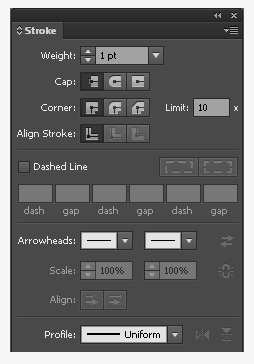
A stroke is the visible outline of an Illustrator path. The Stroke panel controls its color, weight, alignment, caps, joins, dashes, arrowheads and variable-width profile. A path can have a stroke without a fill, and the Appearance panel can add more than one stroke to the same object.
Apply a basic stroke
- Select the path or object. For an edge inside a Live Paint group, use the Live Paint Selection tool.
- Activate the Stroke box in the toolbar, Color panel, Control panel or Properties panel.
- Choose a stroke color from Color or Swatches.
- Open Window > Stroke and set the weight.
- For a closed path, choose center, inside or outside alignment when the output and path type support it.
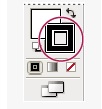
Center places half the stroke on each side of the path. Inside keeps the stroke within a closed path, while Outside places it beyond the boundary. Use consistent alignment when objects must share exact visible edges. Open paths are normally centered because they do not enclose an inside area.
Create a variable-width stroke
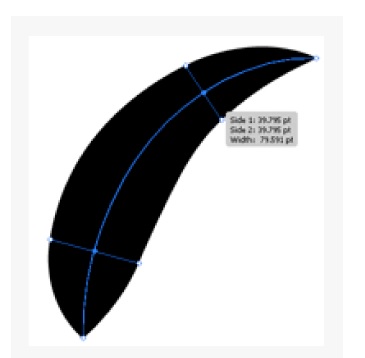
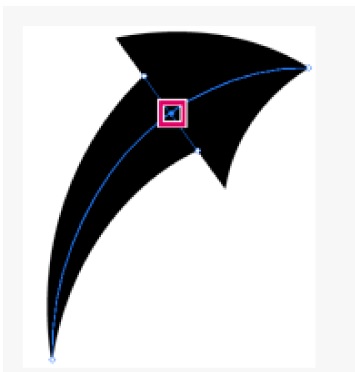
Select the Width tool (Shift+W), then drag outward or inward on a stroked path. Illustrator creates a width point that controls the stroke on each side of the path.
- Drag the width point along the path to reposition it.
- Drag one side handle to create an asymmetric width at that point.
- Shift-click to select multiple width points for coordinated editing.
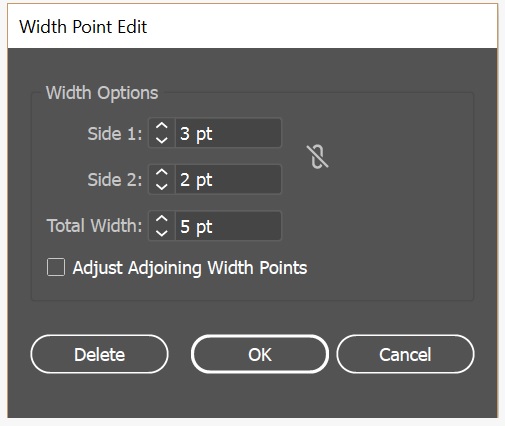
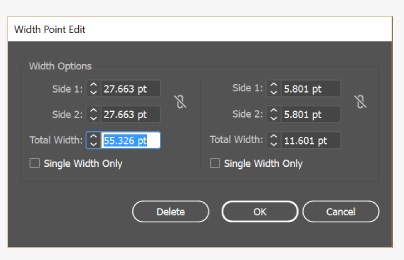
- Double-click a width point to enter numeric Side 1 and Side 2 values.
- Drag endpoint width handles toward zero to create tapered ends.
Create a discontinuous width change
Place two nearby width points with different values, then move one onto the other. The stacked points allow the stroke width to change abruptly instead of blending smoothly between values.
When an object has multiple strokes in the Appearance panel, make the intended stroke active before using the Width tool.
Save and reuse a width profile
After creating the variable width, open the Width Profile menu in the Stroke, Control or Properties panel and save the profile. Apply the named profile to other compatible paths to keep a set of illustration strokes consistent.
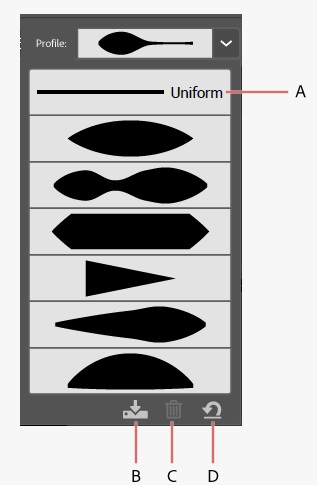
Select Uniform to remove a variable profile from a selected stroke. Resetting the default profile set can delete custom profiles, so keep a sample file containing important strokes.
Create dashed and dotted lines
- Select the stroked path and open the Stroke panel.
- Enable Dashed Line; choose Show Options from the panel menu if the controls are hidden.
- Enter alternating dash and gap values. Illustrator repeats the sequence.
- Choose whether to preserve the exact pattern or adjust dashes so corners and endpoints align consistently.
- Select an appropriate cap style.
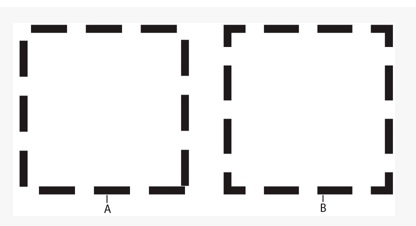
For a dotted line, use a very short or zero-length dash with a Round Cap and a gap large enough to separate the dots. The stroke weight controls dot diameter. Check the visual result rather than relying on one numeric recipe.
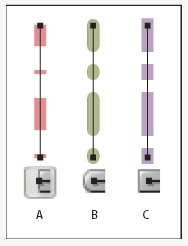
Choose caps and joins
| Setting | Result |
|---|---|
| Butt Cap | Square end that stops at the endpoint |
| Round Cap | Semicircular end extending beyond the endpoint |
| Projecting Cap | Square end extending beyond the endpoint by half the stroke weight |
| Miter Join | Sharp corner; limited by the Miter Limit |
| Round Join | Rounded outer corner |
| Bevel Join | Flattened outer corner |
If a sharp miter becomes an unexpectedly beveled corner, increase the Miter Limit cautiously or choose a round or bevel join. Very acute angles can create long spikes.
Add and align arrowheads
Select an open path, then choose start and end arrowheads in the Stroke panel. Scale the arrowheads independently or link their scale values, swap the start and end styles, and choose whether the arrow tip extends beyond the path endpoint or sits on it.
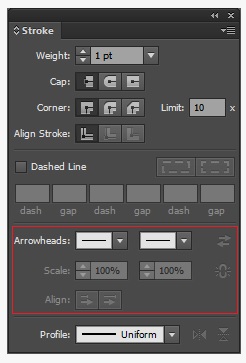
To remove an arrowhead, choose None for that end. Before sending artwork to another application or production system, test whether live arrowheads are preserved; expand a duplicate only when the destination cannot interpret the appearance.
Stroke panel quick reference
| Control | Use it for |
|---|---|
| Weight | Overall line thickness |
| Align Stroke | Center, inside or outside placement on closed paths |
| Cap | Ends of open paths and dashes |
| Join | Corners between segments |
| Miter Limit | Threshold for sharp joins to become beveled |
| Dashed Line | Dash and gap sequences |
| Width Profile | Reusable variable thickness |
| Arrowheads | Start and end markers |
Common stroke problems
- The path looks thicker after scaling: check whether Scale Strokes & Effects is enabled for the transformation.
- Edges no longer align: compare center, inside and outside alignment on the selected objects.
- Dashes look uneven at corners: switch between exact dash lengths and corner-adjusted alignment.
- A width edit affects the wrong line: select the intended stroke in the Appearance panel.
- Arrowheads are oversized: reduce their scale independently of the path’s stroke weight.
Adobe’s current stroke reference covers width profiles, dashes, caps, joins and arrows, while the Width tool guide explains variable strokes. On TipsMake, practice with straight Illustrator paths, learn the Shape Builder tool, or review Fill and Stroke color basics.
Related Articles
 What Is Adobe Illustrator? Learn Adobe Illustrator for What5 minutes read
 Stroke: Causes, Identification Signs and Emergency Golden Time4 minutes read
 Getting to Know Adobe Illustrator14 minutes read
 AI Software Shortcuts: Common Adobe Illustrator Shortcuts9 minutes read
 Tutorial Drawing. 'Unicorn' in Adobe Illustrator11 minutes read
 Nutrition for People Suffering from Stroke: What to Eat and What7 minutes read
Reader Comments 0
Sign in with email or Google to join the discussion.