Table of Contents
For a simple writing setup in Obsidian, keep drafts in one folder or vault and close the sidebars while you write. If you keep losing your place as the page moves, try Typewriter Scroll. Add a theme or fullscreen plugin only if it solves another distraction you notice.
Give drafts a predictable place
Start with a Drafts folder and a reusable note with a working title and a place for the first paragraph. Use a separate vault if you want different settings or a workspace apart from your research notes. If you prefer to link drafts directly to your existing notes, keep the folder in the same vault.


Keep the current line in view
In Obsidian’s community plugin browser, look for Typewriter Scroll. Review the plugin before enabling it. Open a draft and type past the bottom of the editor to see whether keeping the line centered feels comfortable. If you try a focus or dimming option, check that you can still reread nearby lines easily.
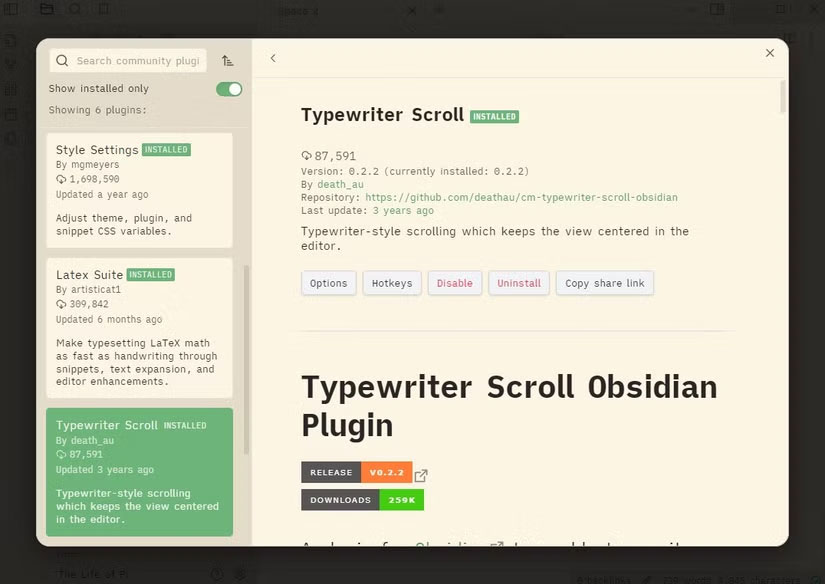
Adjust the appearance and hide extra controls
Try the Typewriter theme from Settings > Appearance if you prefer a plain writing surface. Set the font size and contrast so the draft stays readable in your usual lighting.
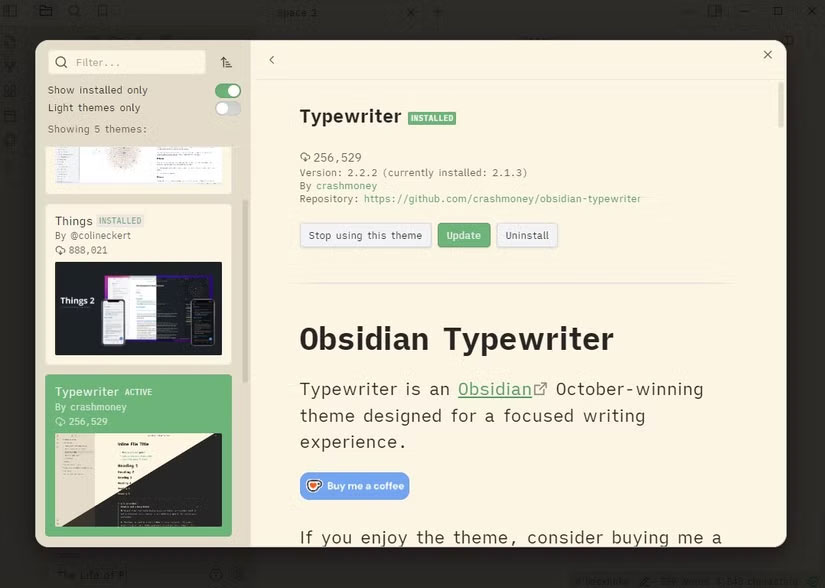
Collapse Obsidian’s sidebars first. If you want to hide more of the interface, the Fullscreen mode plugin adds a command for the active pane. Try it from the command palette and learn how to exit before assigning a hotkey.
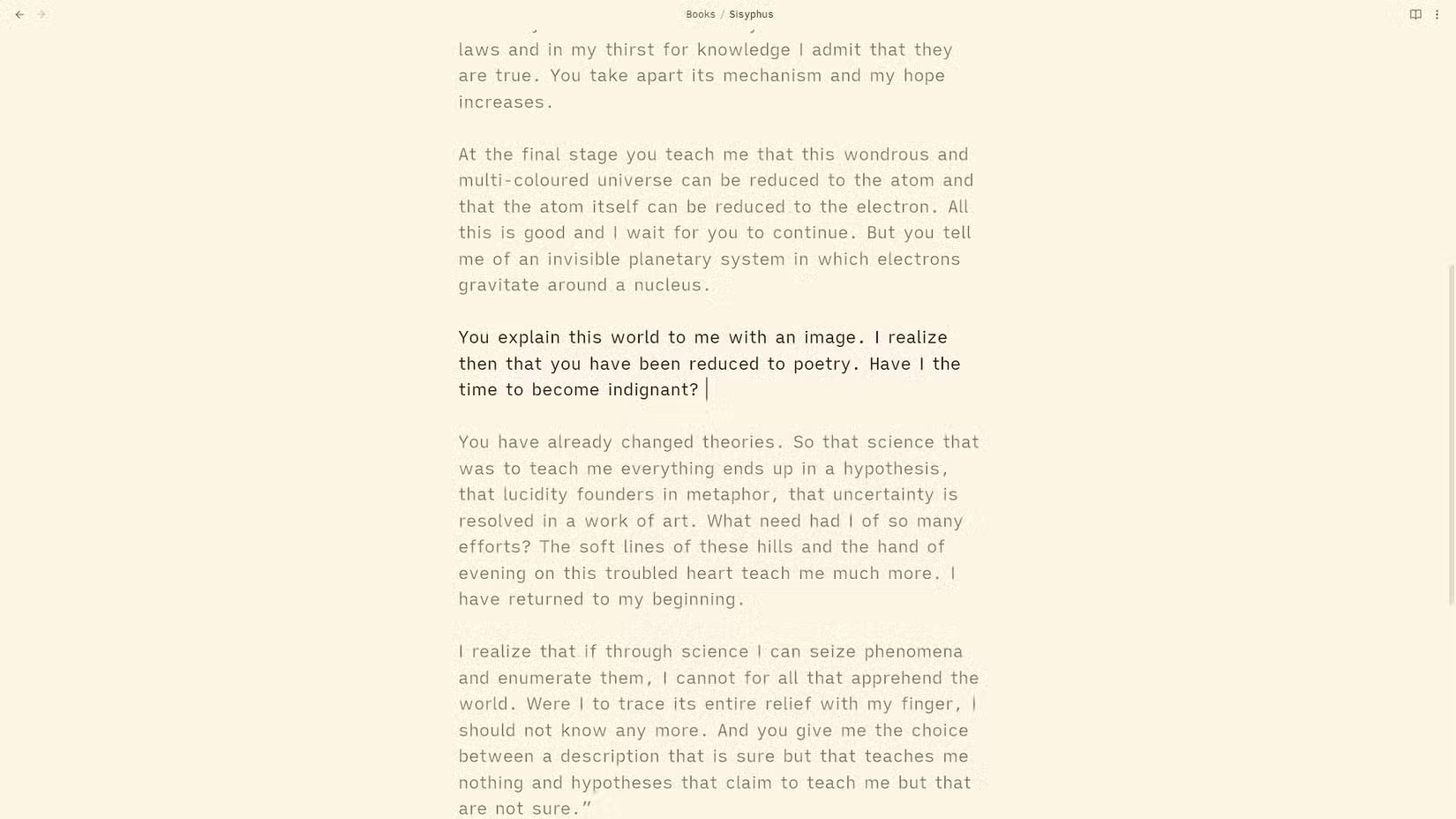
Draft a page before adding more options. For a starting point with headings and simple formatting, see the Markdown syntax guide and Obsidian notes overview.
Related Articles
 What is Obsidian Note-Taking? Obsidian User Manual
 How to Connect an Obsidian Vault to NotebookLM
 Why Notepad is a Favorite Writing Tool
 Instructions for downloading and installing Minimal ADB and Fastboot
 What Is Obsidian? A Practical Guide to Local Markdown Notes
 How to Use Obsidian With Local AI Image Generation
Reader Comments 0
Sign in with email or Google to join the discussion.