Table of Contents
Learn how to turn off priority capture feature to make iPhone camera better with clear steps.
Most people never touch this setting because they don't know it exists. Others leave it on because it sounds useful. In fact, turning it off can make your iPhone photos look better than before.
What does "Faster Shooting Priority" actually do?
Less waiting, less processing
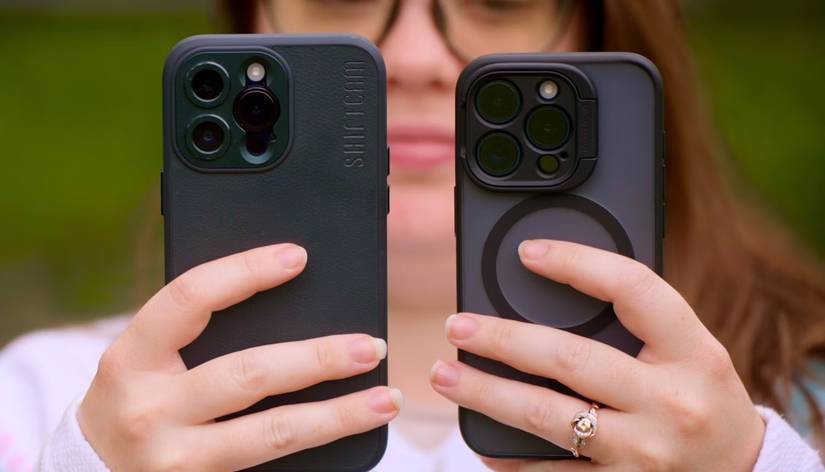
At first glance, the iPhone's "Faster Capture Priority" feature seems obvious. After all, who doesn't want their iPhone camera to take photos faster? It can be great for those blink-and-miss moments. The question is what your iPhone sacrifices to achieve that speed.
When you enable this setting, your iPhone prioritizes speed over everything else, and in the process, it skips some of the behind-the-scenes image processing that normally happens when you tap the shutter button. And that processing is more important than you might think.
Note : This setting does not affect Burst mode or Live Photos. These features use a separate capture process, so they work the same whether this setting is on or off.
Why might turning this feature off improve image quality?
Good things take time
The iPhone has a lot of work to do every time you take a photo. It captures multiple frames before and after you press the button. Then it combines them using HDR and computational photography to get better detail, brighter shadows, and a more balanced image. All of this happens in just a few seconds, but it plays a huge role in why iPhone photos often look so good right out of the box.
With Priority Capture turned on, your iPhone will do some of that work because there just isn't enough time. Instead, it focuses on capturing a single moment as quickly as possible.
Turning this setting off gives your iPhone more time to do its best work. You may notice a noticeable difference in low light. With it off, your iPhone will have more time to reduce noise and balance highlights and shadows properly.
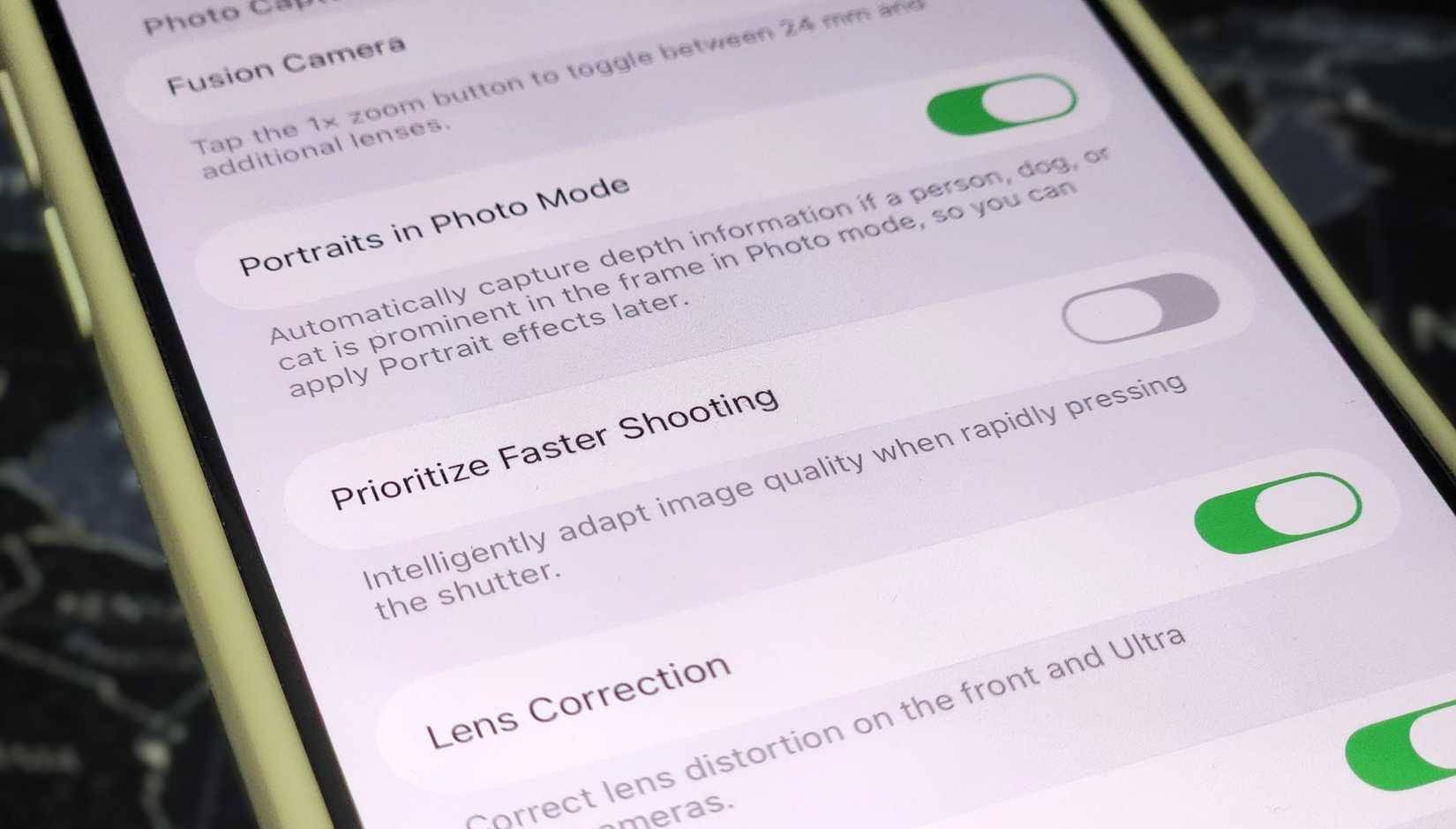
Turning off Priority Shutter mode is a simple matter of a few taps, although you won't find the option in the Camera app. Instead, you'll have to dig into your iPhone's Settings menu, which can be annoying when you really need it. To do this, go to Settings > Camera and turn off the Priority Shutter toggle.
This feature is not bad if you use it sparingly
A useful tool at the right time
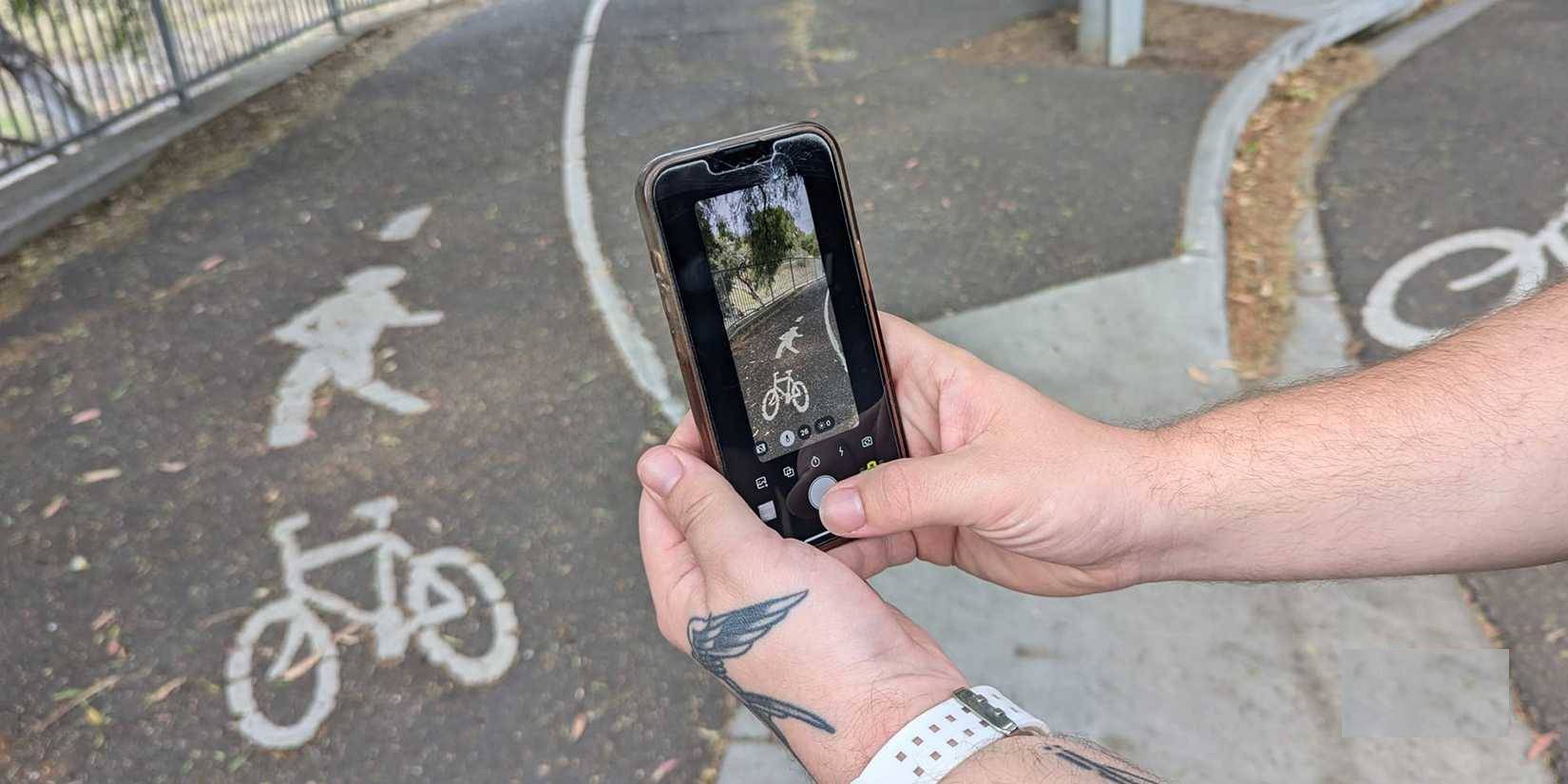
Faster Shutter Priority isn't a bad setting, but it only makes sense in certain situations. There are times when speed is more important than perfect image quality. For example, if you want to take pictures of children or pets that are constantly moving, this setting can be really useful. It reduces shutter lag and lets you take multiple photos without waiting for the camera to do any heavy processing.
This feature is also useful if you want more natural, less processed photos and want to edit them yourself later. Some people really like this feature because it gives them more control over the final result.
For most people, however, that's not the case. If you're the type of person who just points and shoots and wants your photos to look great right out of your camera roll, then it often makes more sense to turn this feature off.
Other things you can do to take faster shots
Speed does not affect quality
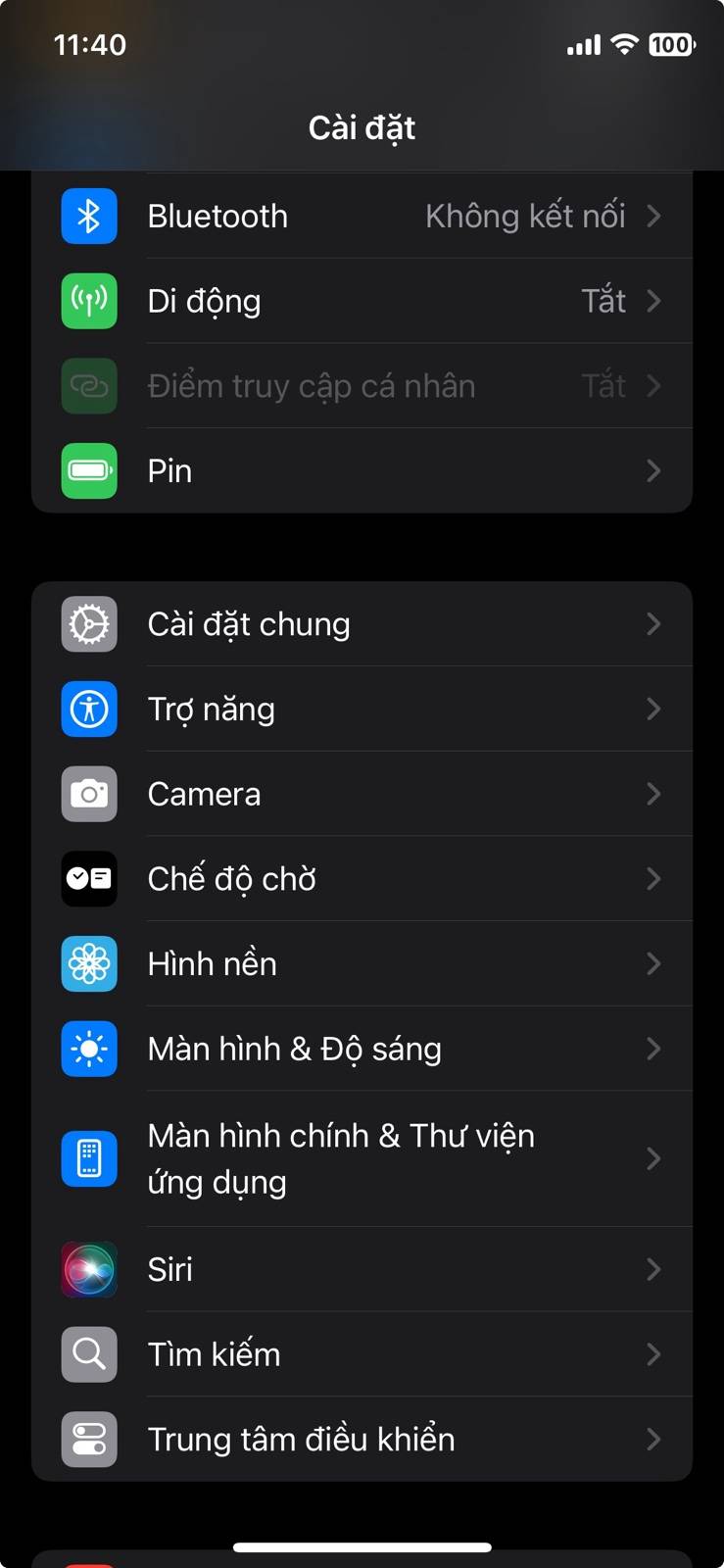
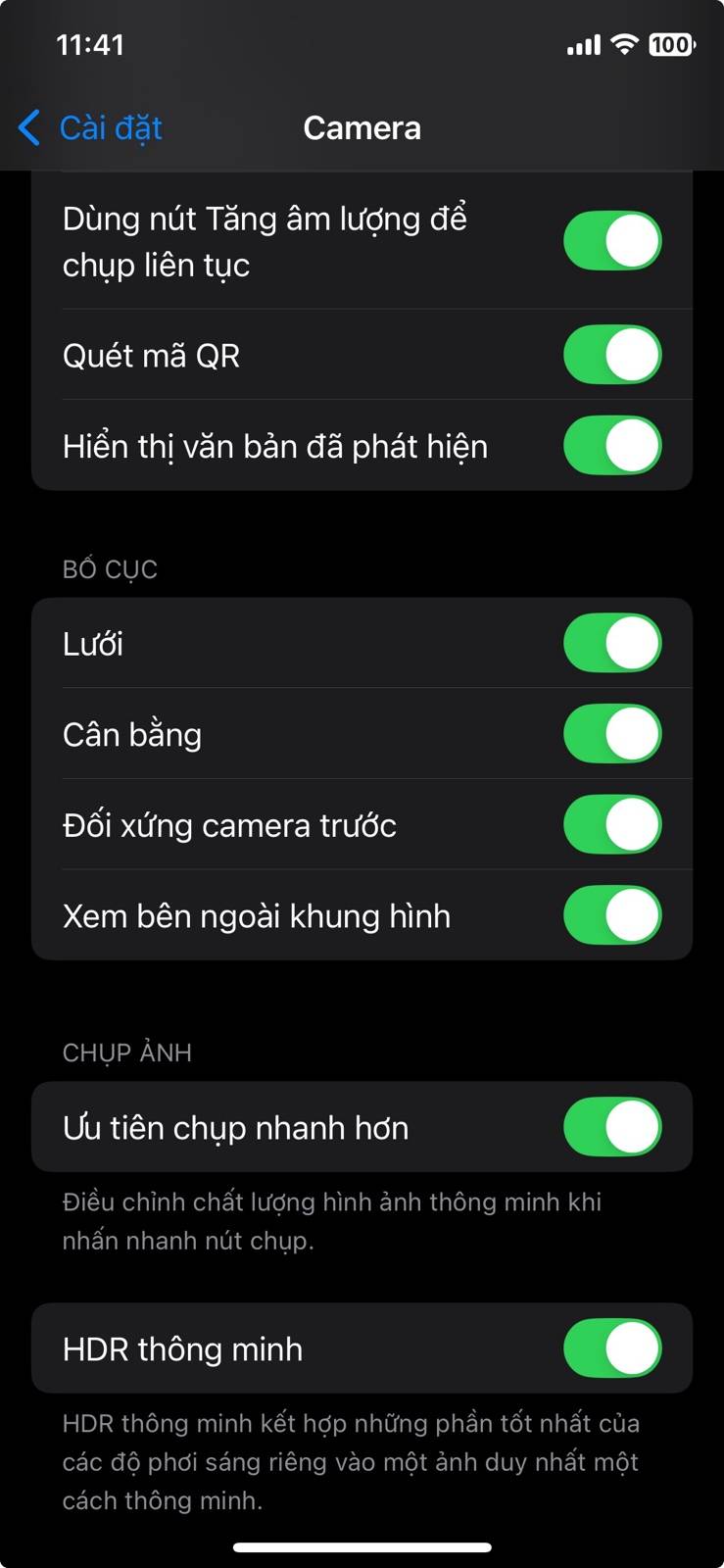
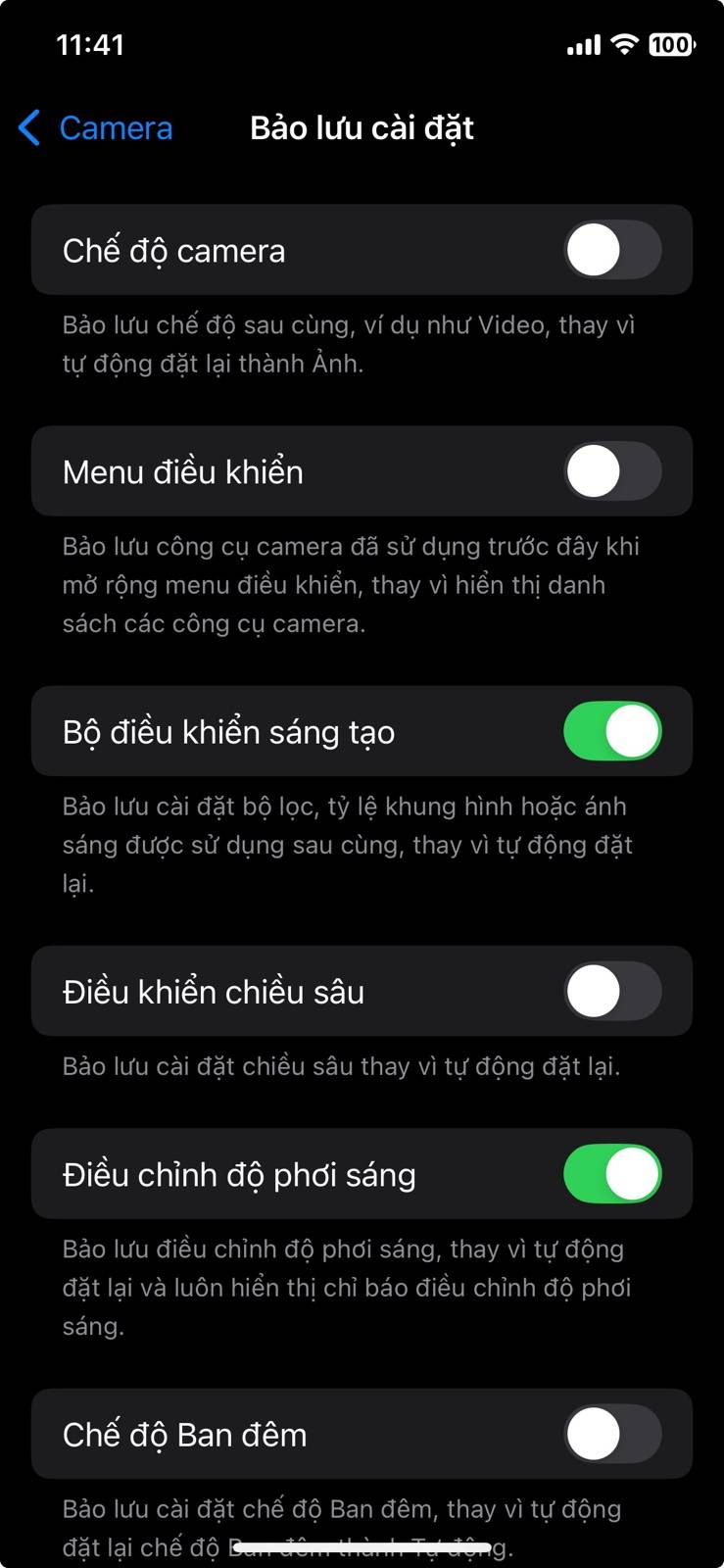
If you're looking for speed, there are better ways to do it than simply enabling faster shooting options. For example, you can use the Keep Settings option to have your iPhone remember how you last used the Camera app. That way, if you always shoot in Photo mode with Live Photos turned off, the Camera app will always be ready as soon as you open the app.
You can also turn on Grid and Level . While these features don't actually make your camera shoot faster, they do help you shoot faster. Grid helps you frame your subject using the rule of thirds, while Level helps you keep your shots straight without having to guess. When your camera is set up to match your habits, you'll naturally shoot faster with fewer mistakes.
Final Thoughts
Use this guide as a practical checklist for how to turn off priority capture feature to make iphone camera better. Work through the steps in order, verify each result, and adjust the options to match your needs.
FAQ
What do you need before following this How to Turn Off Priority Capture Feature to Make iPhone Camera Better guide?
Review the required tools, accounts, settings, or materials mentioned in the article. Learn how to turn off priority capture feature to make iPhone camera better with clear steps.
What are the main steps for how to turn off priority capture feature to make iphone camera better?
Follow the sections in order, especially What does "Faster Shooting Priority" actually do?, Less waiting, less processing, Why might turning this feature off improve image quality?. Complete each step before continuing and verify the result as you go.
What should you do if the process does not work as expected?
Recheck the prerequisites, update the relevant app or service, review the settings, and repeat the step that caused the issue. Use any troubleshooting notes included in the guide.
Related Articles
 How to Turn Off Audio Capture on iPhone Lock iOS 104 minutes read
 Turn on the Secret Feature of iPhone Camera on iOS 114 minutes read
 How to Record Dual Video on iPhone 17: Step-by-Step Guide3 minutes read
 How to Fix iPhone Camera Error Simply and Effectively5 minutes read
 How to Turn on iPhone Camera Cleaning Notification3 minutes read
 Small Tips to Turn on 2 Flash at the Same Time on iPhone4 minutes read
Reader Comments 0
Sign in with email or Google to join the discussion.