Table of Contents
When you upgrade to iOS 26.2, the Reminders app gets the option to enable more urgent notifications. Here's how to set alarm-style reminders on your iPhone.
When you upgrade to iOS 26.2, the Reminders app gets the option to enable more urgent notifications. When You should be sure you don't miss something important, you can set alarm-style reminders that work just like the alarm on your iPhone, with a snooze button and a slide-to-stop slider. Here's how to set alarm-style reminders on your iPhone.
How to create alarm styles for reminders on iPhone
Step 1:
First You should Go to Settings On your iPhone then scroll down tap on Apps Then tap on Reminders app .
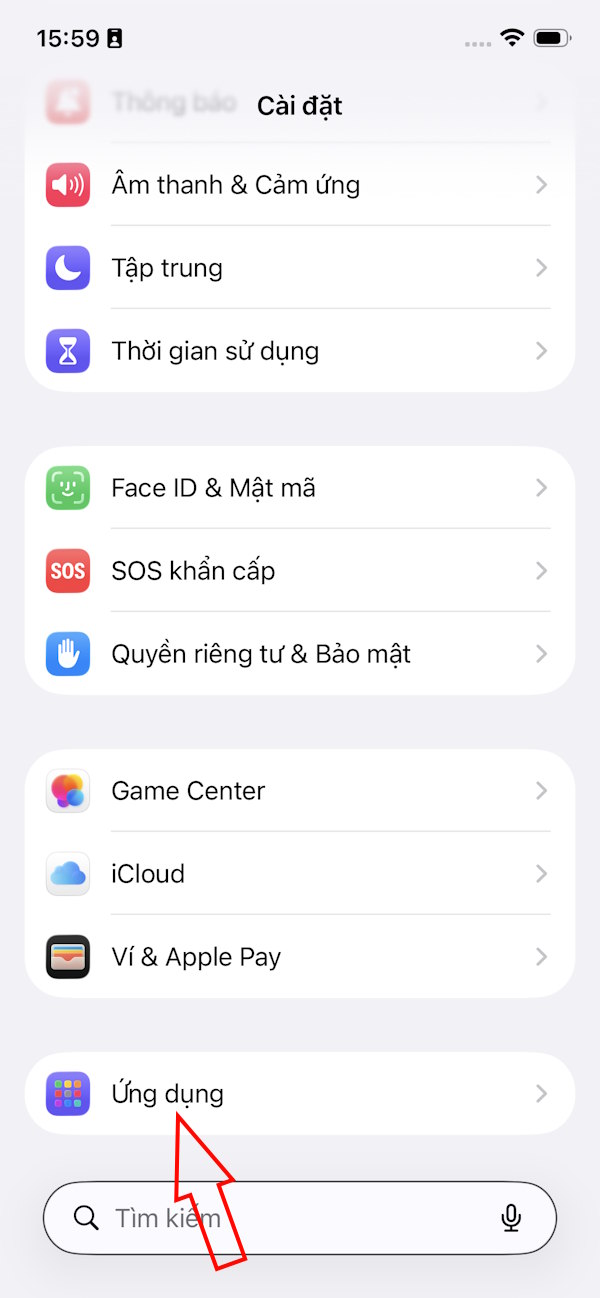
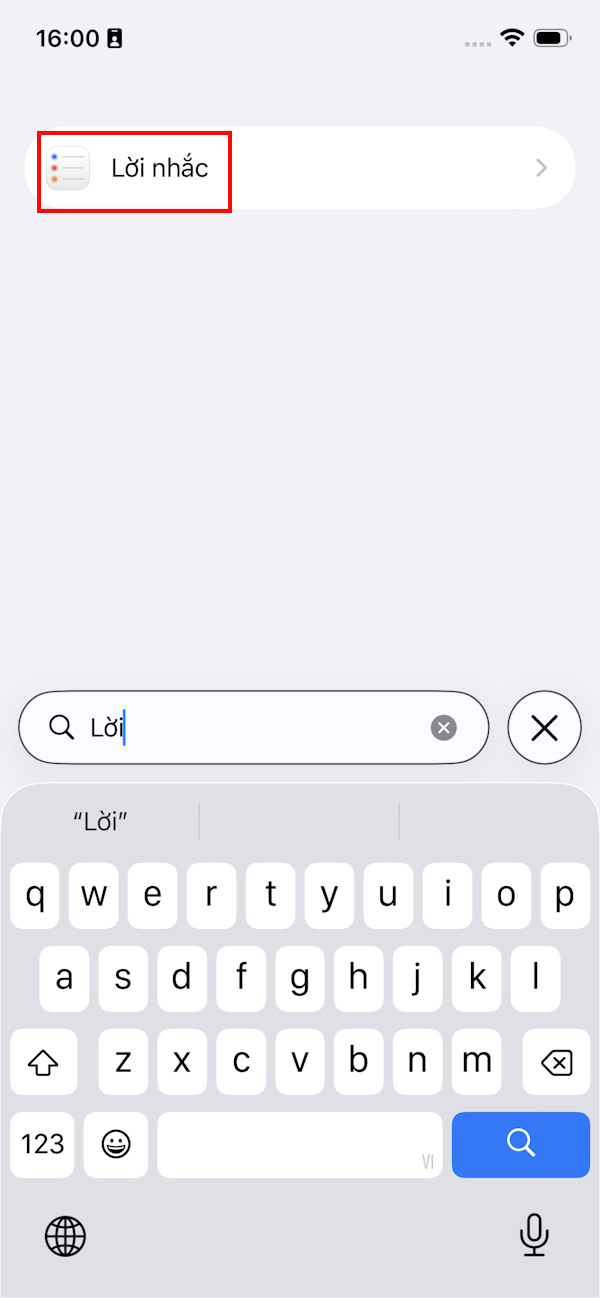
Step 2:
Go to the next interface, in The Allow Reminder access section , enable The Alarm mode To be able to create an alarm reminder style on the phone.
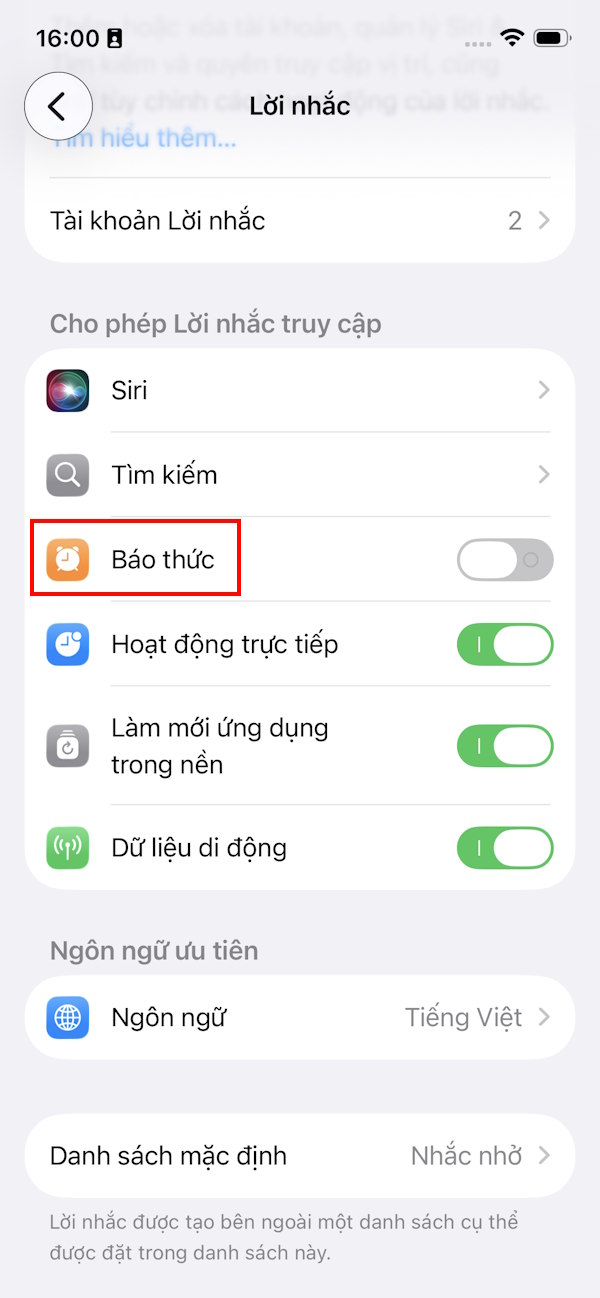
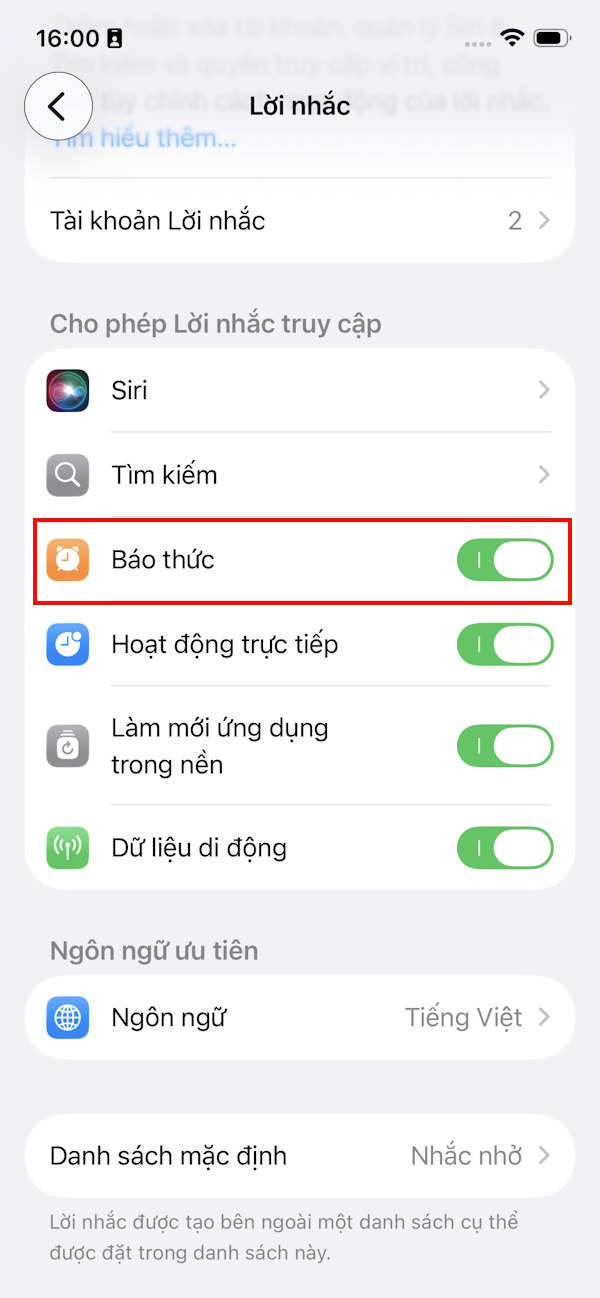
Step 3:
You Open the Reminders app Then Tap the plus sign to add a new reminder . Then we Tap the ⓘ icon Next to the reminder.
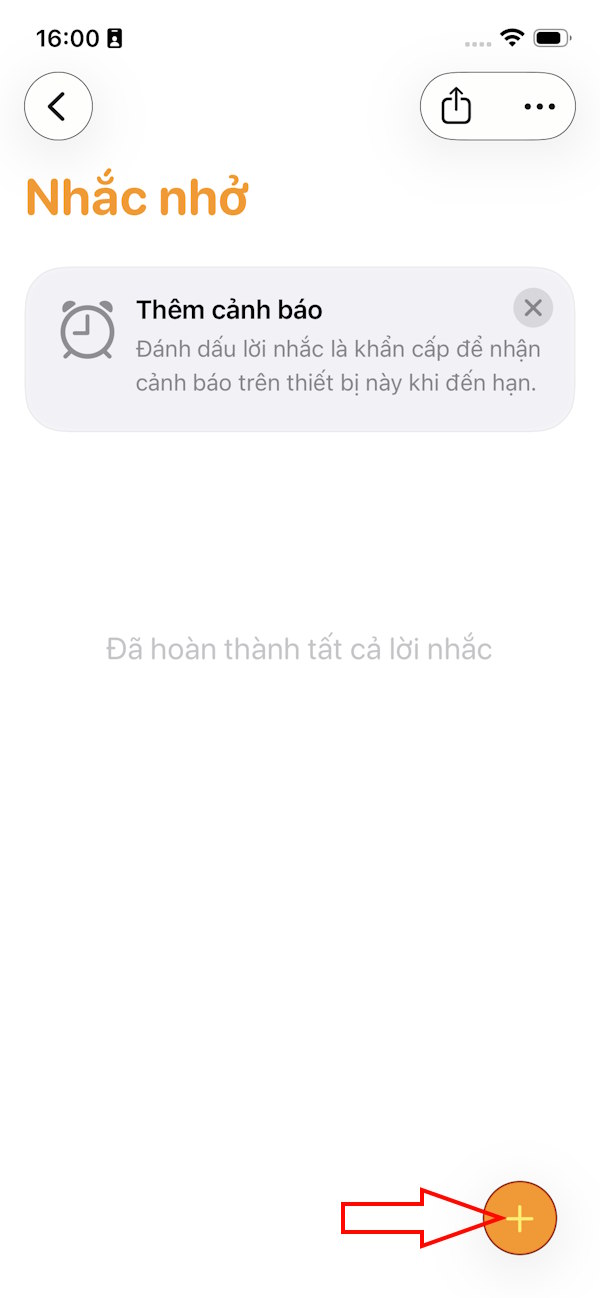
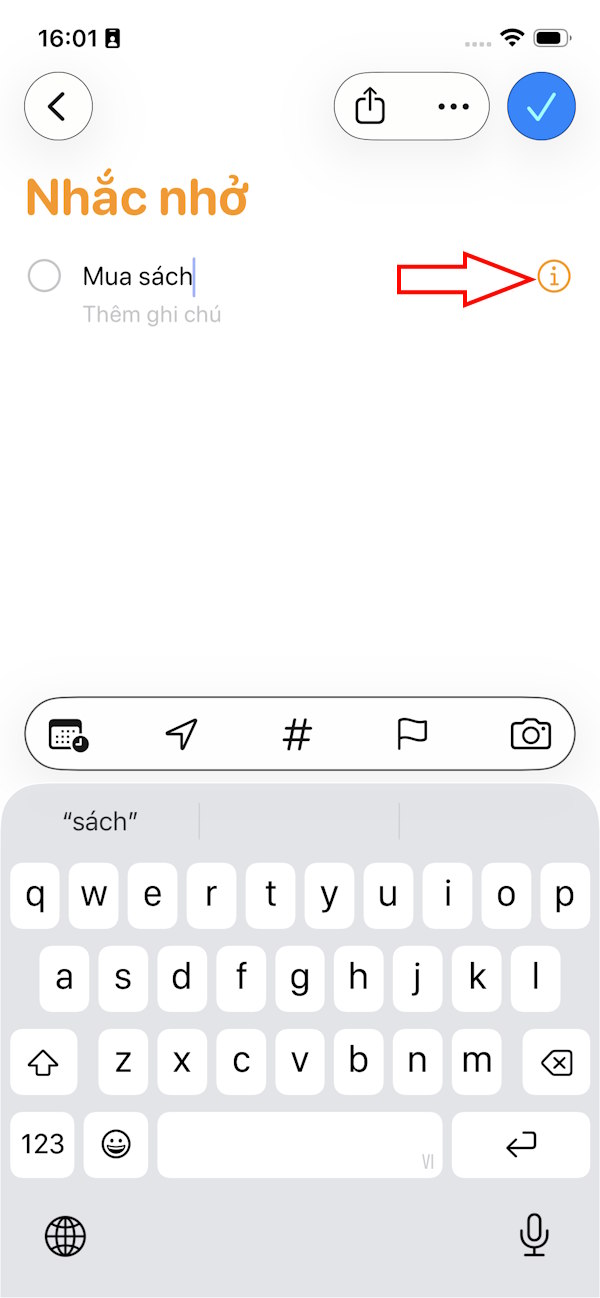
Step 4:
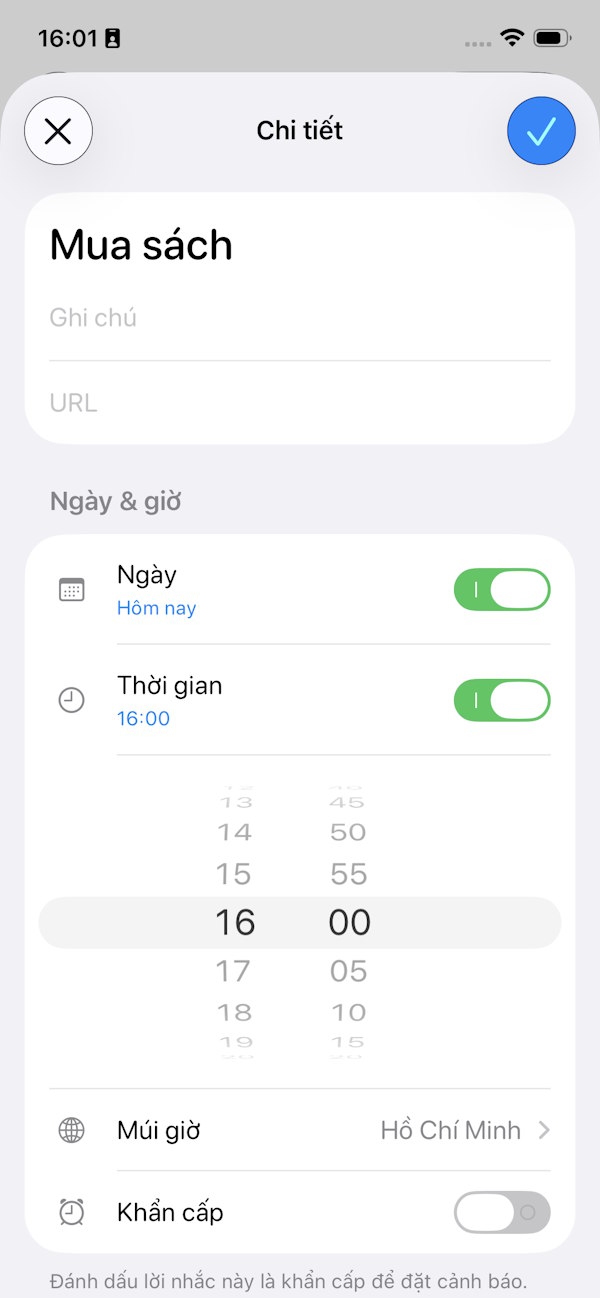
You Select the day to create the alarm For the reminder, then select The time for the reminder .
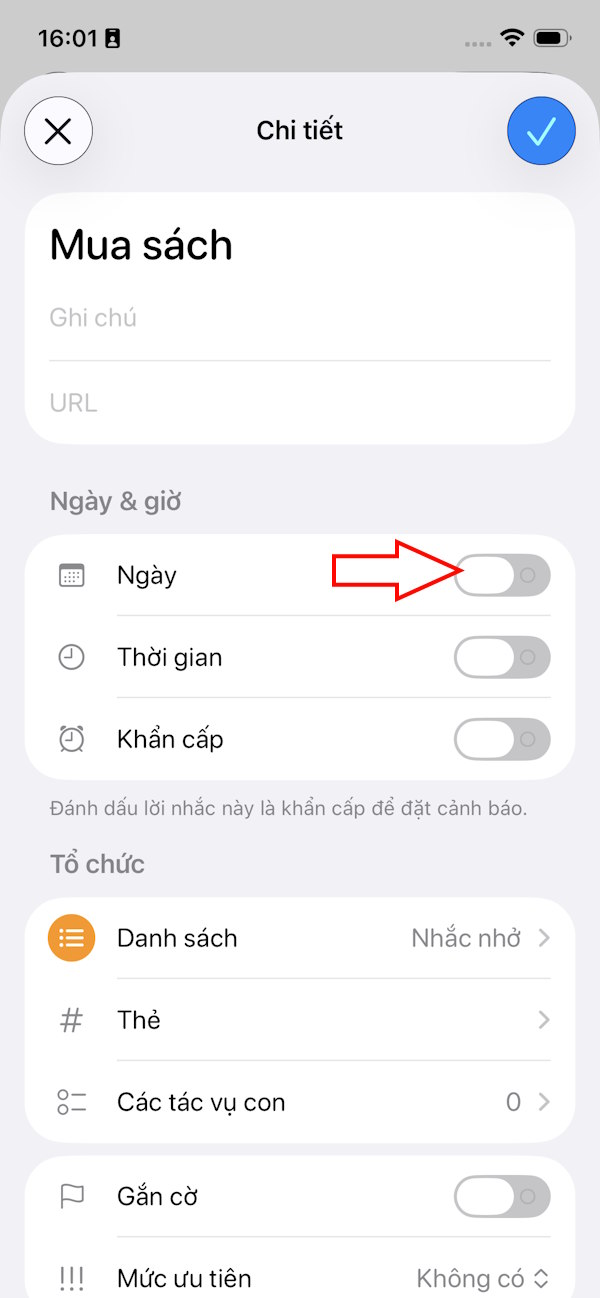
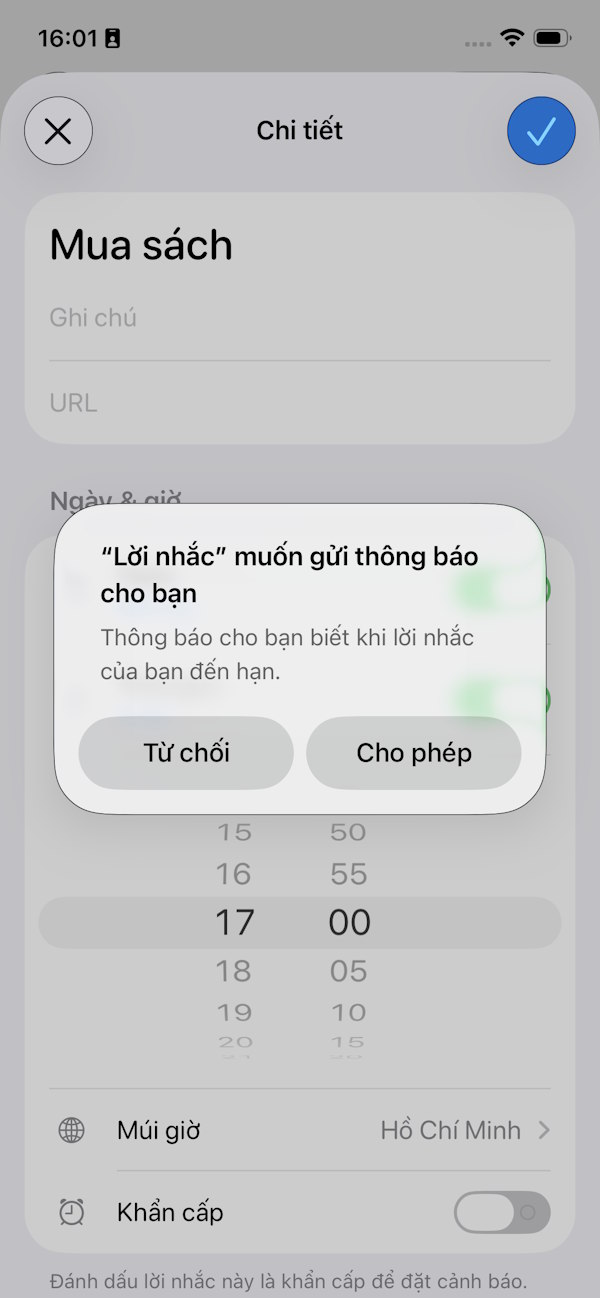
Step 5:
Now you need To enable Emergency mode To enable alarm style for reminders on iPhone.
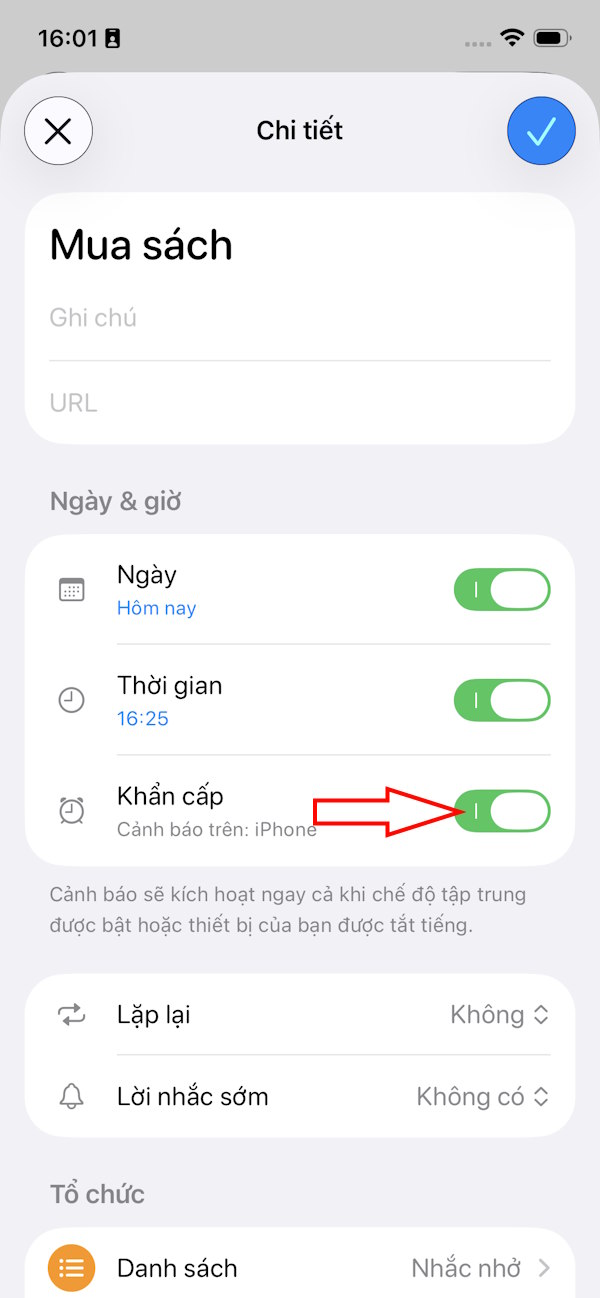
When the reminder time comes, your iPhone will sound the alarm. You'll see a snooze option and a slide to stop button on the screen. To replace the snooze button with a done button, continue.
Step 6:
Go to Settings then select Apps then tap Reminders. Under Urgent Reminders you Enable Complete from alert .
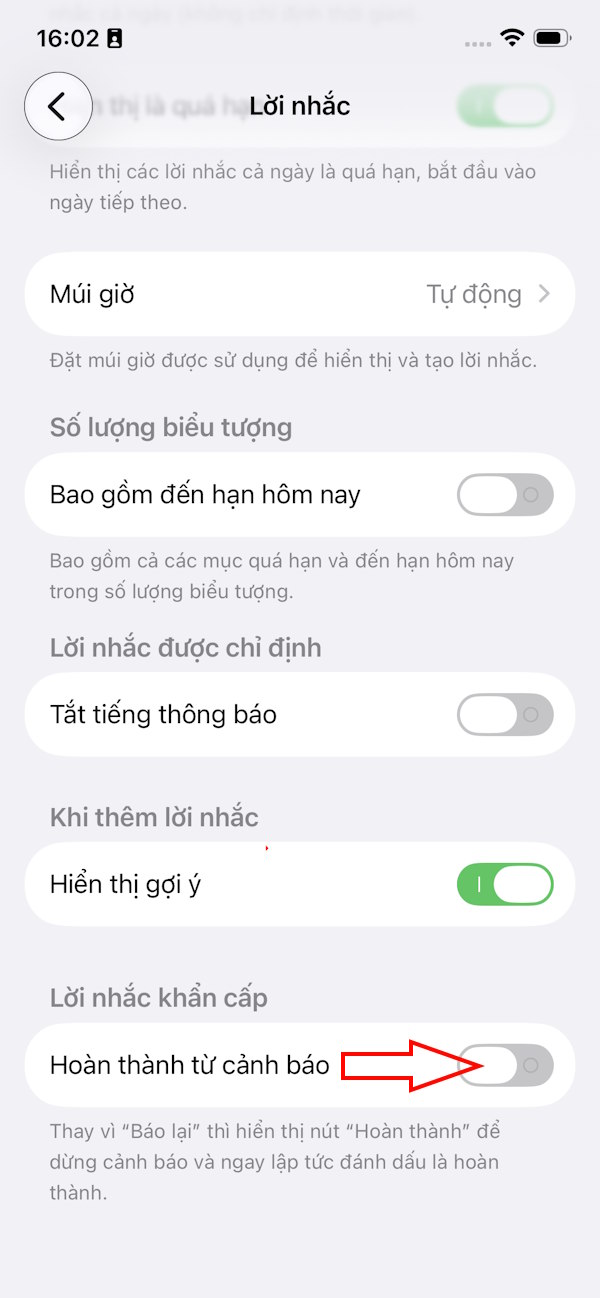
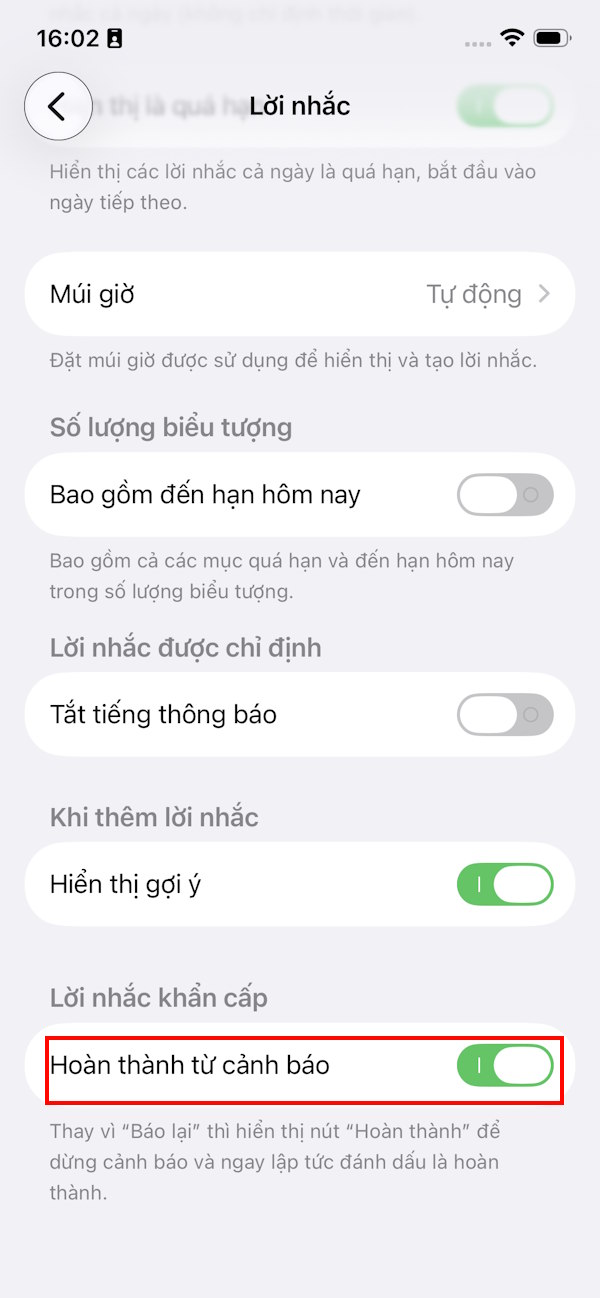
When this setting is enabled, you can simply tap the Done button when a reminder alarm comes up without having to go into the app to tap done like before.
FAQ
How do you set alarm style for reminders on iPhone: step-by-step guide?
In practical terms, when you upgrade to iOS 26.2, the Reminders app gets the option to enable more urgent notifications. Here's how to set alarm-style reminders on your iPhone.
What should you check before getting started?
Review the requirements, compatible device or software version, and any warnings described in the guide before making changes.
What should you do if the steps do not work?
Repeat the steps in order, confirm that your app or system is up to date, and review the troubleshooting details provided above.
Related Articles
 How to Create Interesting Math-style Alarms on iPhone5 minutes read
 iPhone Has Strange Alarm Problem: Complete Guide3 minutes read
 Create Alarm on Iphone: How to Change the Alarm Sound on Iphone2 minutes read
 How to Organize the List in the Reminders App on Iphone and Ipad3 minutes read
 iOS 26.1 Beta 2: What You Need to Know3 minutes read
 How to Set Up Early Notifications for Reminders on iOS 173 minutes read
Reader Comments 0
Sign in with email or Google to join the discussion.