Table of Contents
With the latest changes to One UI 8, Samsung has added new gestures that make typing faster and smoother.
With the latest changes to One UI 8, Samsung has added new gestures to make typing faster and smoother. These shortcuts let you handle everyday tasks like copying, pasting, or undoing text with just a simple swipe.
Each direction is customizable, so you can decide what each gesture does. You can even assign a swipe to start voice typing, open Writing Assist, switch languages, or activate your most-used shortcuts.
Swipes have replaced taps.
Copy, paste, undo - all with a swipe
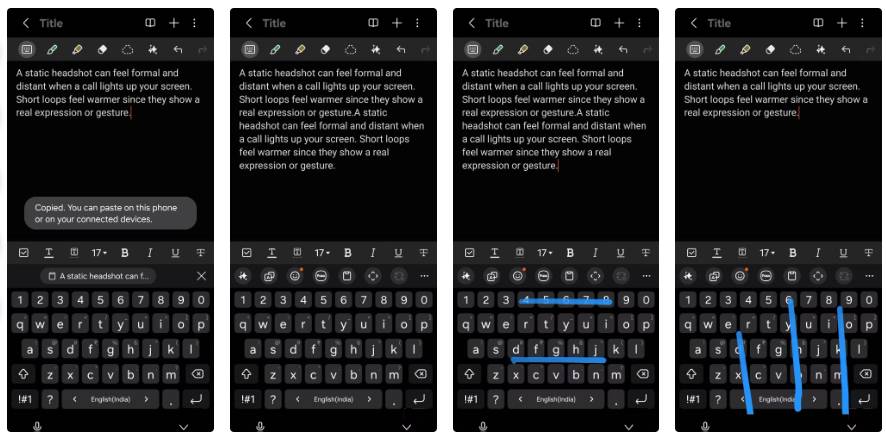
After setting up a few gestures on the Samsung keyboard, type a quick note to see how they work. Swiping up with two fingers sends the text to the clipboard, and swiping down pastes it into another app. What used to take several taps is now done with a single swipe sequence.
Undo and redo are equally effective. A two-finger swipe to the left will undo what you deleted, while a swipe to the right will redo your last change. These gestures also apply to apps that use the Samsung keyboard, so copying from Samsung Notes and pasting into WhatsApp or Gmail takes just a moment. No more tapping the copy or paste icons.
Then, add a few three-finger shortcuts to round things out. Set up swiping up to launch Writing Assistant for quick sentence refinement, and swiping down to open the emoji panel for quick reactions. Choose actions that match what you do most, like switching languages or starting voice typing.
Set it up once and make it your own
Customize gestures to fit your workflow
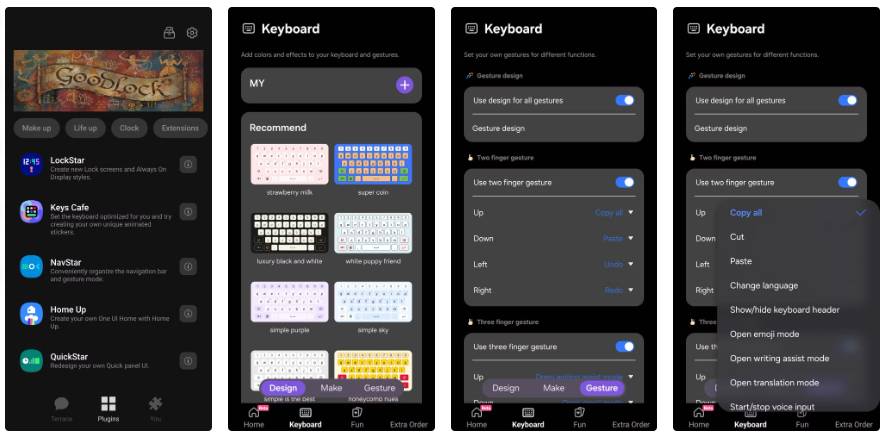
All of these features are located in Samsung's Keys Café module in Good Lock. If your phone is running One UI 8 or later, update Keys Café from the Galaxy Store and launch it. Under Keyboard -> Gesture , you'll see two toggles, one for two-finger gestures and one for three-finger gestures.
To keep the animations on all swipes, enable the Use design for all gestures option at the top of this page . Below, tap the Gesture design Option to open Theme Park from the Good Lock suite. Here, you can adjust the appearance of gestures by changing their effects, colors, and movement styles. In the Etc Tab, you can control the thickness, speed, and transparency of the line to personalize how gestures appear when you type.
Set Copy and Paste for up and down, Undo and Redo for left and right. With three fingers, use Writing Assistant when swiping up and the emoji panel when swiping down.
Once complete, the gestures should work immediately. Setup is quick and you rarely need to do it again unless you want to change it. Preferences are saved across reboots and updates. If the gesture options don't appear, update Good Lock and Keys Café and then test again.
What a keyboard can do besides typing
Fine-tune details for better control
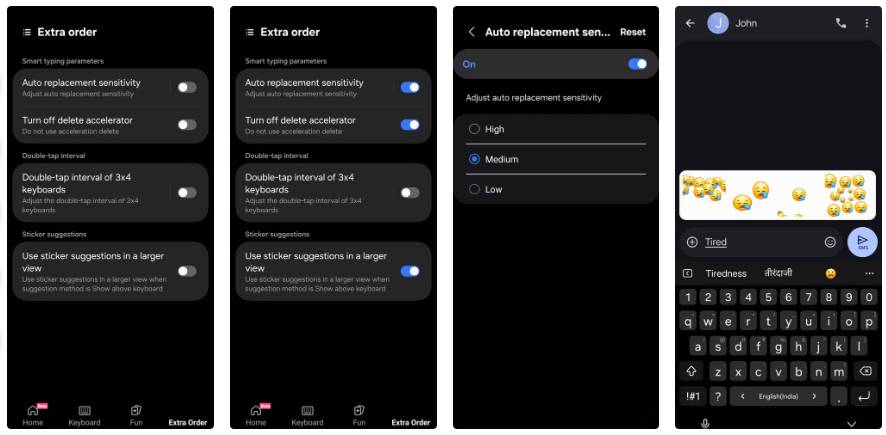
While you're still in Keys Café, open Extra order . This section includes settings that make the Samsung keyboard easier to use. Start with Auto replacement sensitivity . This determines how quickly autocorrect responds to what you type. Higher sensitivity makes the keyboard change unfamiliar words more often. Lowering the sensitivity makes corrections more selective, which is useful when you use names, slang, or multiple languages.
Next, enable the Turn off delete accelerator Option. Normally, holding down the Backspace Key will start deleting entire words after a short delay. With this option enabled, the keyboard will delete letters one by one. This takes longer, but gives you precise control when editing long messages or neat paragraphs. If you want to adjust the response speed of each tap, go to Keyboard settings -> Swipe, touch, and feedback -> Backspace speed . Set it to Slow For detailed editing, or switch to Normal Or Fast When deleting shorter lines.
Finally, enable the Use sticker suggestions in a larger view Option. When you type words like Love Or Tired , the keyboard will suggest matching emojis or stickers above the keys. Enlarging that strip makes it easier to spot and select quickly. Together, these tweaks help reduce typos, prevent over-delete, and make the keyboard respond the way you want.
FAQ
What is new about samsung's new keyboard gestures make typing incredibly fast?
In practical terms, with the latest changes to One UI 8, Samsung has added new gestures that make typing faster and smoother.
Why does this update matter?
The article highlights that copy, paste, undo - all with a swipe After setting up a few gestures on the Samsung keyboard, type a quick note to see how they work.
Is the change available to everyone?
Availability may depend on the product version, region, account, or rollout stage described in the article.
Related Articles
 How to Practicing Fast Keyboard Typing, Effective 10-finger Typing7 minutes read
 4 Tips to Type Vietnamese Fast8 minutes read
 To Improve Typing Speed, Visit These 5 Websites5 minutes read
 How to Type Fast - Guide You How to Practice Fast Typing Without Looking at6 minutes read
 Simple Way to Learn to Type Fast without Looking at the Keys4 minutes read
 Learn to Type Fast so That You Can Save 21 Days a Year5 minutes read
Reader Comments 0
Sign in with email or Google to join the discussion.