Table of Contents
Samsung Galaxy phones keep showing the Incorrect Touch Protection notification. But this notification is also annoying to you, and you can turn it off by following the instructions below.
Samsung Galaxy phones constantly display the Accidental Touch Protection notification because we have activated the accidental touch protection feature on the phone. When this feature is enabled, the phone will not unlock if you accidentally touch it, such as putting it in your pocket or backpack. But this notification also annoys you, and you can turn it off according to the instructions below.
What is accidental touch protection on Samsung?
Samsung has a feature called 'Accidental Touch Protection' that helps prevent accidental touches to the screen when the phone is in a dark place, such as a pocket or bag. If this feature is enabled on your Galaxy phone, the phone won't wake up automatically until you unlock it yourself.
This feature uses your phone's light sensor to keep the screen inactive and prevent accidental touches. It's available on most Samsung Galaxy phones.
How to disable accidental touch protection on Samsung
Step 1:
Go to Settings then Select Display To change the content displayed on the screen.
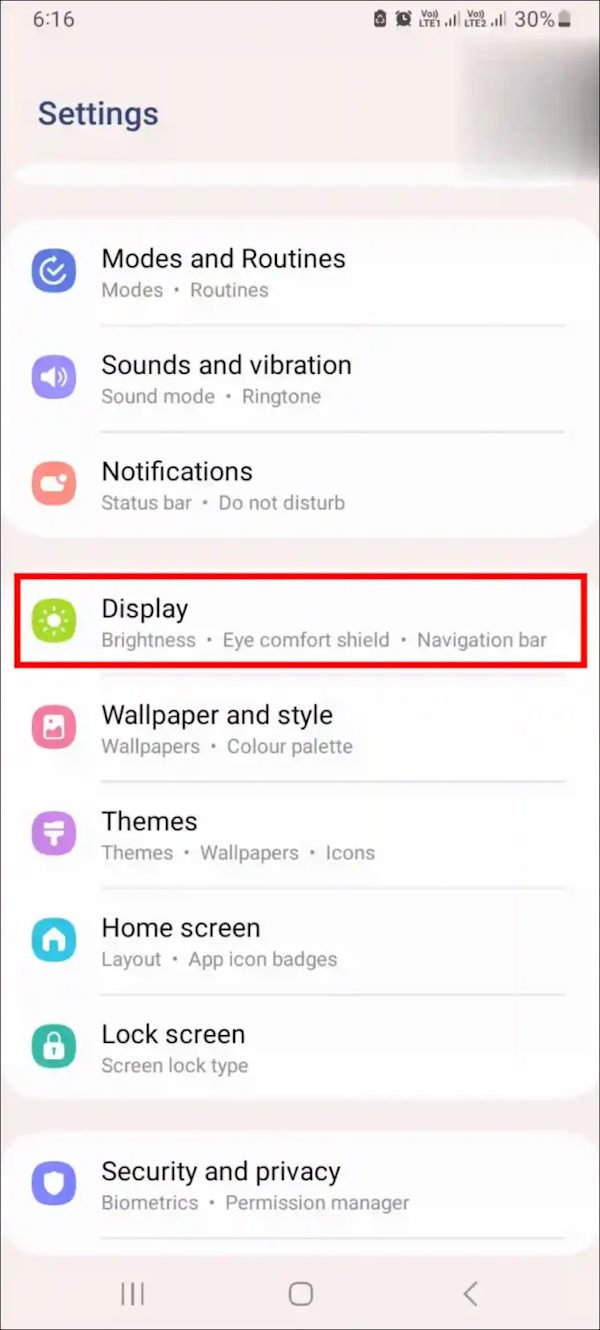
Step 2:
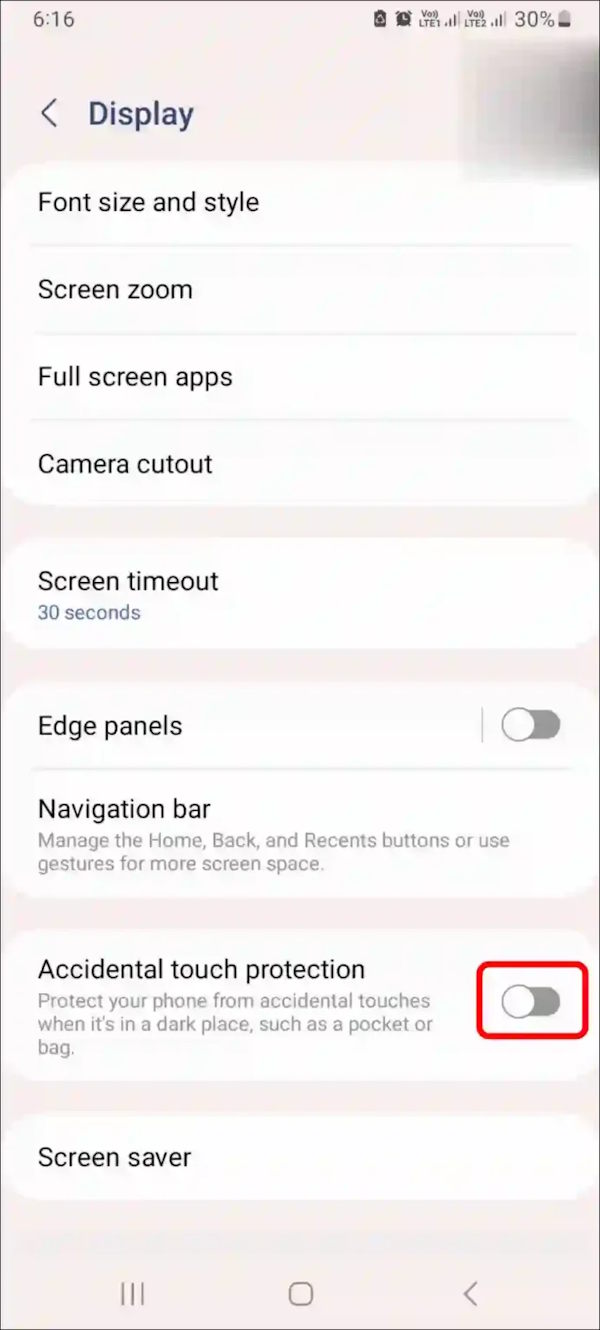
Go to the next interface, the user clicks on Accidental Touch Protection . Now you just need to turn this Mode off.
FAQ
How do you disable accidental touch protection on samsung: step-by-step guide?
In practical terms, samsung Galaxy phones keep showing the Incorrect Touch Protection notification. But this notification is also annoying to you, and you can turn it off by following the instructions below.
What should you check before getting started?
Review the requirements, compatible device or software version, and any warnings described in the guide before making changes.
What should you do if the steps do not work?
Repeat the steps in order, confirm that your app or system is up to date, and review the troubleshooting details provided above.
Related Articles
 Why You Shouldn't Disable System Integrity Protection on Mac9 minutes read
 How to Disable Touch ID on iPhone, iPad?5 minutes read
 Why Is Customization Service a Privacy Nightmare on Samsung Phones7 minutes read
 To Touch Twice to Unlock the Screen on Your Samsung Phone5 minutes read
 The Best Touchscreen Phones 20115 minutes read
 How to Disable Touch Screen in Windows 114 minutes read
Reader Comments 0
Sign in with email or Google to join the discussion.