Table of Contents
Apple's iPhone 17 series not only introduces upgraded hardware but also adds a new camera feature called Dual Capture.
Apple's iPhone 17 lineup not only introduces upgraded hardware, but also adds a new camera feature called Dual Capture. This mode lets you record video from both the front and rear cameras at the same time, creating a picture-in-picture style video. Here's how to enable Dual Capture and how to use it.
How to record dual video on iPhone 17
Open the Camera app and swipe right to switch to Video mode. Press the Video button again or swipe up near the record button to access the video mode options menu. Select The Dual Capture icon To enable the feature.
Once enabled, a new Dual Capture toggle will appear in the top right corner of the screen.
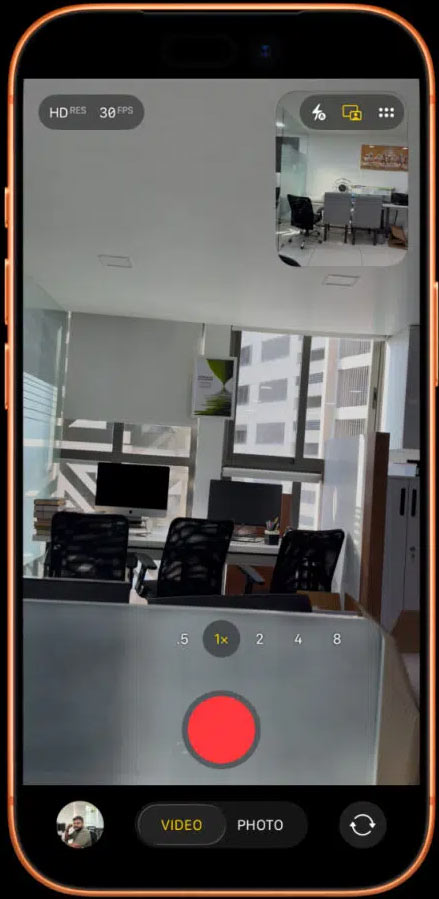
When Dual Capture is enabled, you will have dual video recording features:
- Lens switching on Pro models: iPhone 17 Pro and Pro Max let you switch between the main, ultra-wide, and telephoto lenses while still using the front camera.
- Move the PiP window: Drag the selfie view around to avoid covering important details. (Note, the movement will be recorded in the final video.)
Some limitations of Dual Capture iPhone 17
Apple's Dual Capture feature also has some limitations:
- You can only record in 1080p or 4K at 24/30fps.
- The rear camera is always the main view, while the front camera is locked into the PiP window.
- Unlike the Snapchat camera which offers three different split screen layouts, this camera doesn't have a split screen layout or the option to swap views.
- Both feeds are merged into a single video file, limiting editing flexibility.
FAQ
How do you record dual video on iPhone 17: step-by-step guide?
In practical terms, apple's iPhone 17 series not only introduces upgraded hardware but also adds a new camera feature called Dual Capture.
What should you check before getting started?
Review the requirements, compatible device or software version, and any warnings described in the guide before making changes.
What should you do if the steps do not work?
Repeat the steps in order, confirm that your app or system is up to date, and review the troubleshooting details provided above.
Related Articles
 How to Record iPhone and iPad Screen Videos on the Computer7 minutes read
 How to Record iPhone Screen Video, How to Record iPhone5 minutes read
 'Secret' Video Capture Tips on iPhone5 minutes read
 How to Record Facetime Calls on Mac, iPhone and iPad6 minutes read
 How to Record Using a Webcam: Complete Guide6 minutes read
 How to Record Live Video Sent on Whatsapp3 minutes read
Reader Comments 0
Sign in with email or Google to join the discussion.