Table of Contents
You can find quite a few Android widgets that can help improve your phone. If you are confused about where to start, here are some useful Android widgets that you should start using right away.
If your Android home screen is getting cluttered with app icons, there's a better way to organize it and make it look better. Widgets are the unsung heroes of phone customization. They sit right on your home screen, giving you quick access to information and features without having to dig through the app drawer.
You can find quite a few Android widgets that can help improve your phone. If you are confused about where to start, here are some useful Android widgets that you should start using right away.
6. Google Clock
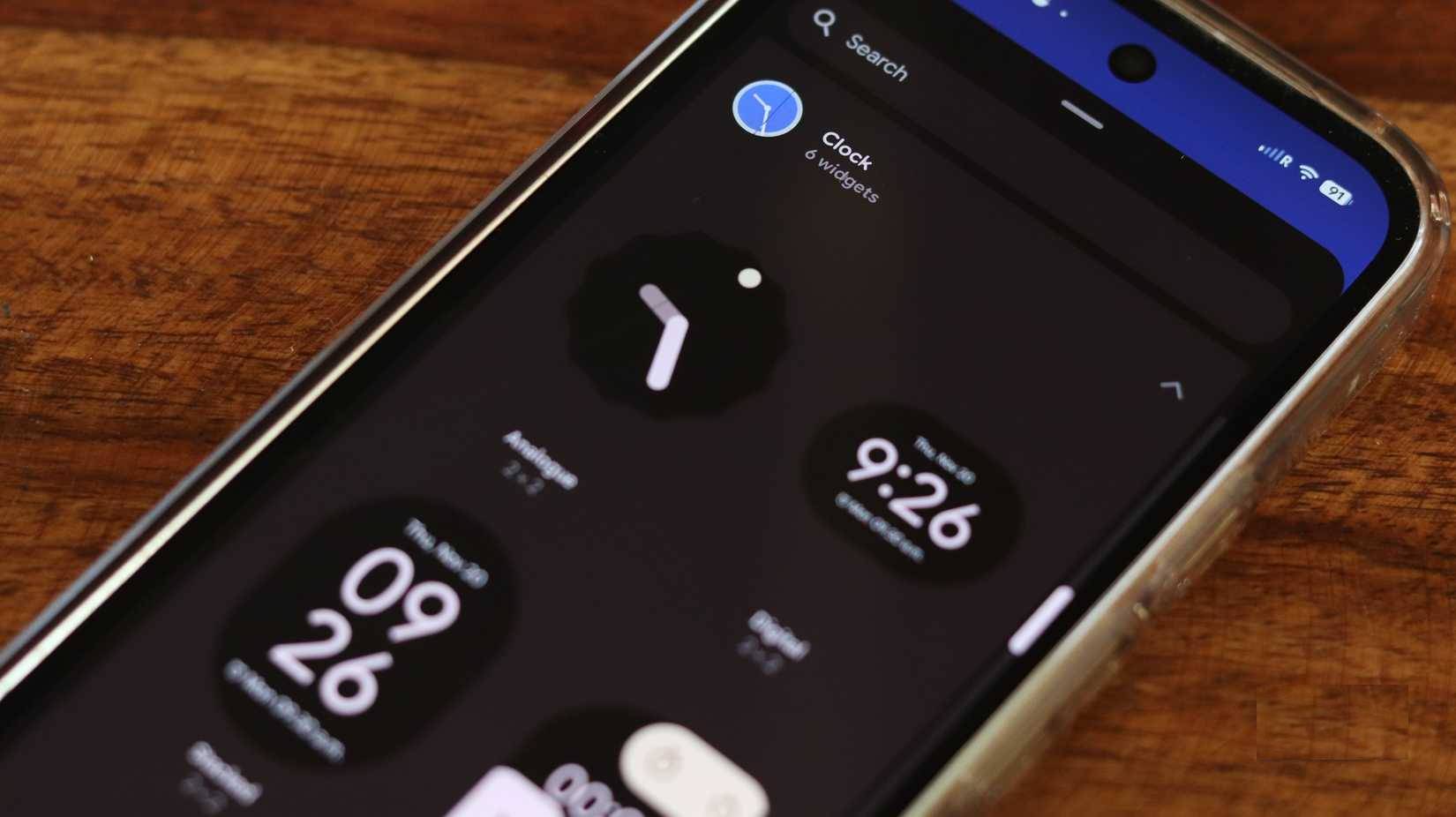
It may sound boring, but the Google Clock widget has been the default home screen widget for as long as Android has had widgets, and for good reason. It's not flashy and doesn't do anything special, but it's one of the basic widgets that most home screens are built on.
This is one of the first widgets you'll see when you open the Android widget menu. You can see the time clearly and unobstructed in the top corner of your phone, alongside alarms and important notifications. There are also quite a few customization options to help you get the clock look exactly how you want it.
Note that depending on your Android version, phone manufacturer's skin, and skin, this widget may look very different from device to device, but you can always download and install the Google Clock app from the Play Store to get the stock version.
5. Google Calendar
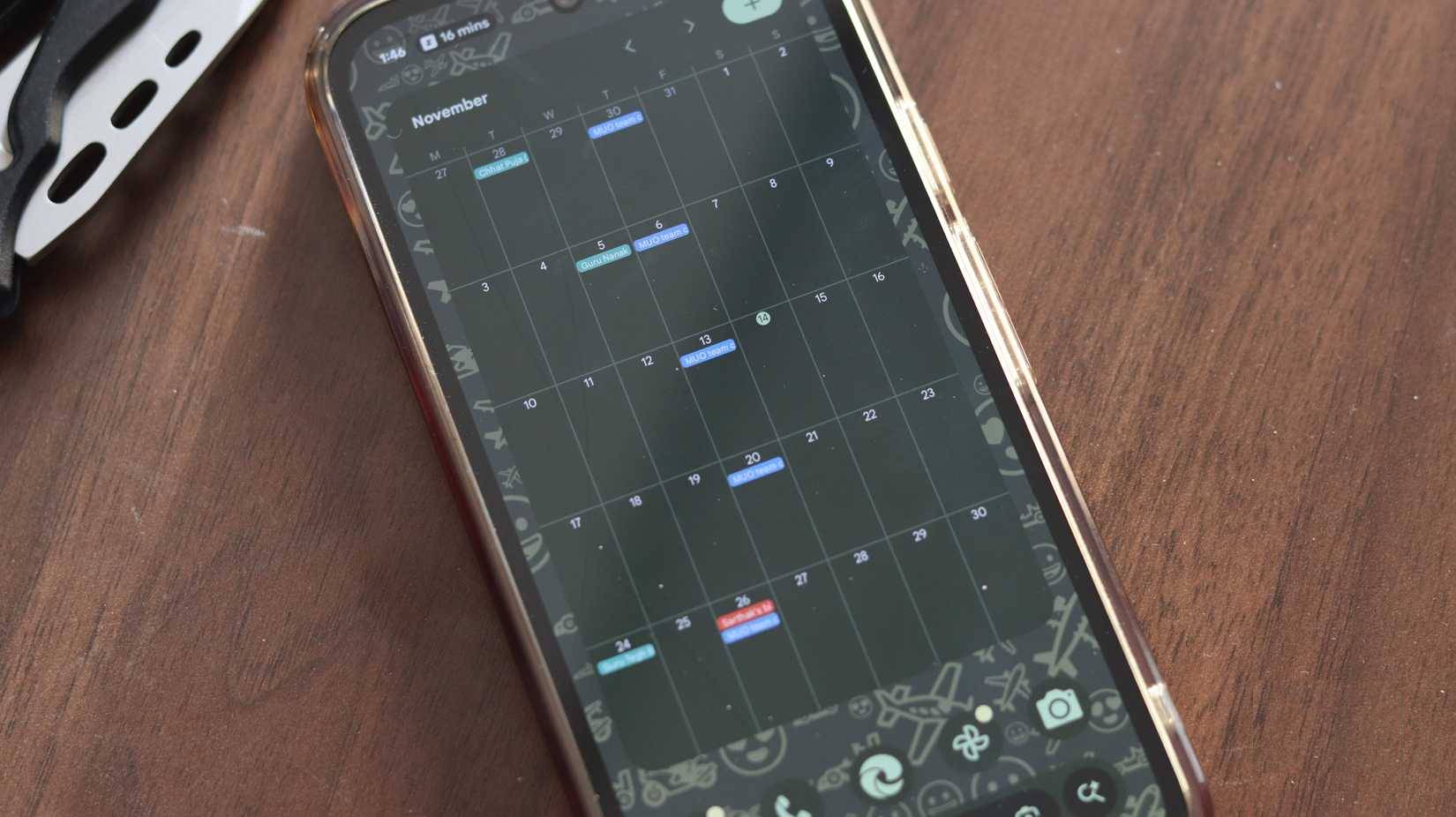
If you have an Android phone, chances are you're already using the Google ecosystem, including Google Calendar. It has two widgets you can choose from: a month view that shows everything that's coming up, and a week view for more detailed planning.
We recommend using the month view widget. It shows everything from birthdays to holidays to important dates at a glance without having to open the calendar app. You can tap on any day to get more details and access the calendar instantly.
4. Keep Notes
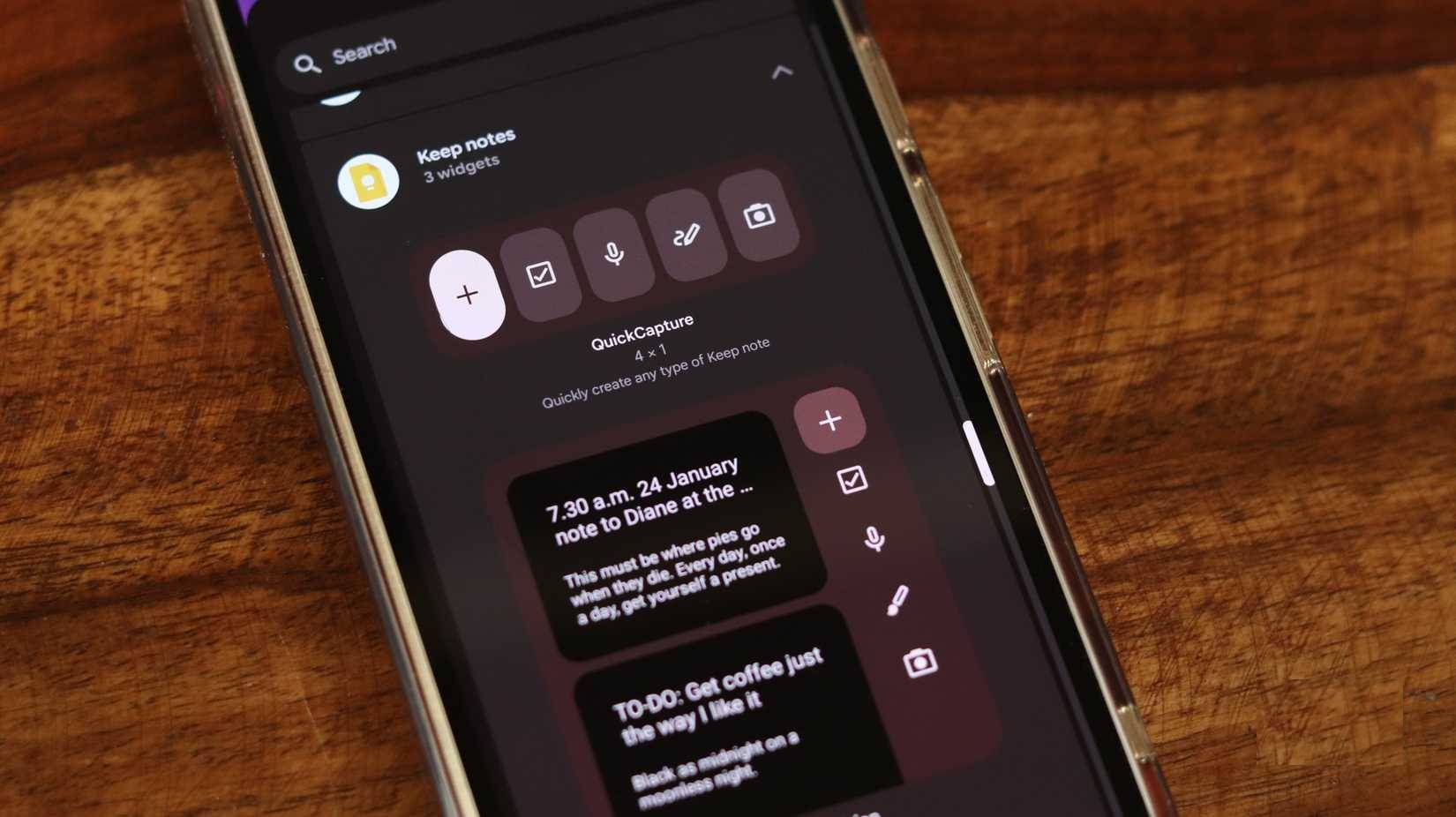
Taking notes should be easy, and Google Keep 's note-taking widget makes it easy. Instead of digging through the app drawer, you can see recent notes on your home screen and add new ones instantly.
You can even add filters to only show notes with specific labels. That way, you can quickly find the information you need without getting lost in a sea of random notes.
3. Shazam
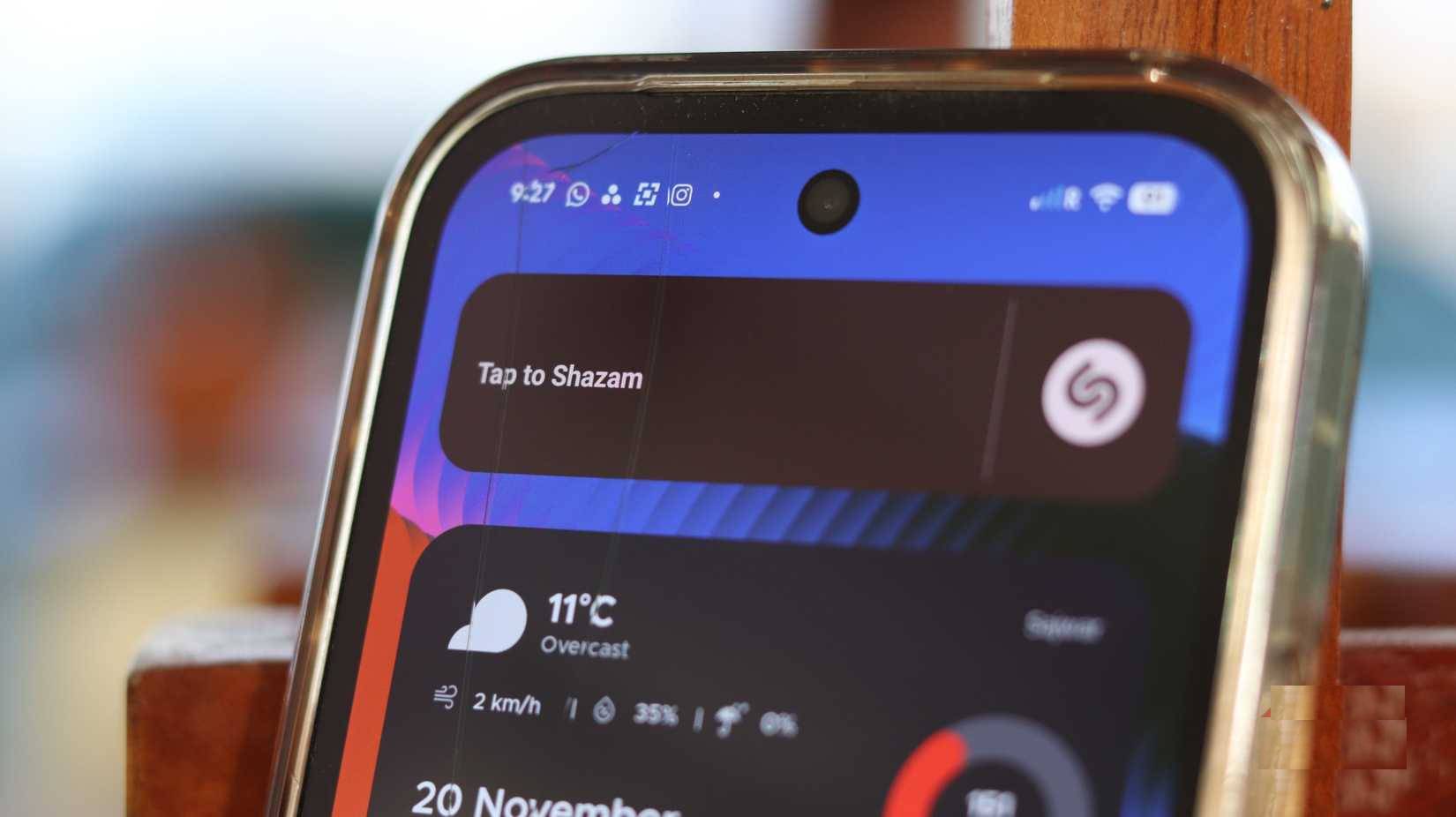
If you don't have a Pixel, finding the song that's playing around you can be a daunting task. Now Playing is one of those Pixel-exclusive features that you can port to any Android phone, but if you want to save time, Shazam is the way to go.
As you might expect, the app comes with a handy tap-to-launch Shazam widget, which lets you identify songs right from your home screen. When you're out and about and need to quickly identify a song, this widget is much faster than searching the app. It's also significantly faster than using Google Search's song recognition feature.
2. TickTick
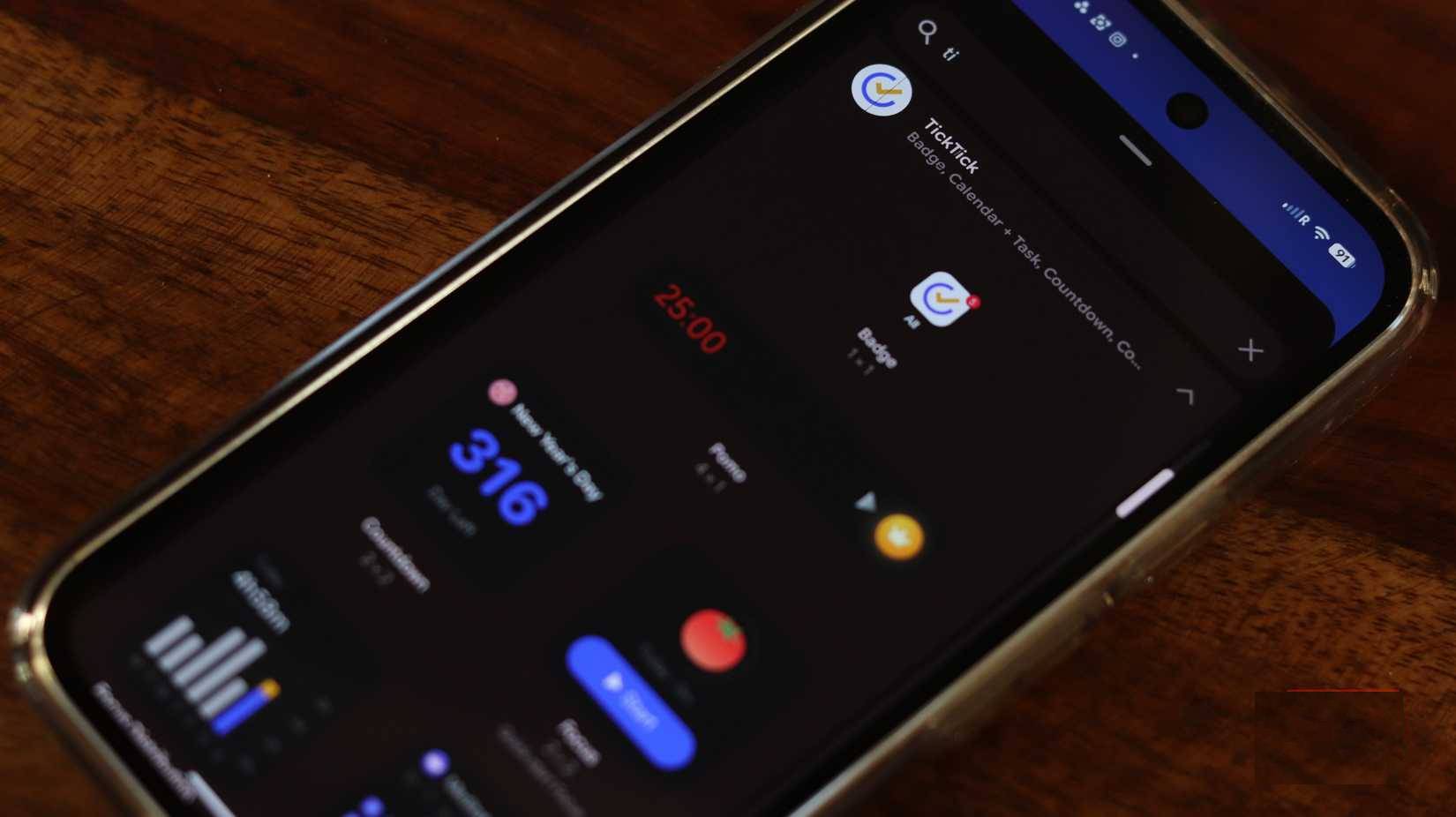
If you're looking to boost your productivity, the TickTick app has a ton of widgets that can help. The app itself is a comprehensive productivity tool that can track habits, focus, notes, to-do lists, and more. Widgets allow you to access this information right on your home screen.
You can use TickTick's Focus, Countdown, and Habit Heat Map widgets. These widgets help you stay on track by using Pomodoro timers, counting down to important days, and tracking your progress on tasks and habits right from your home screen.
1. Overdrop
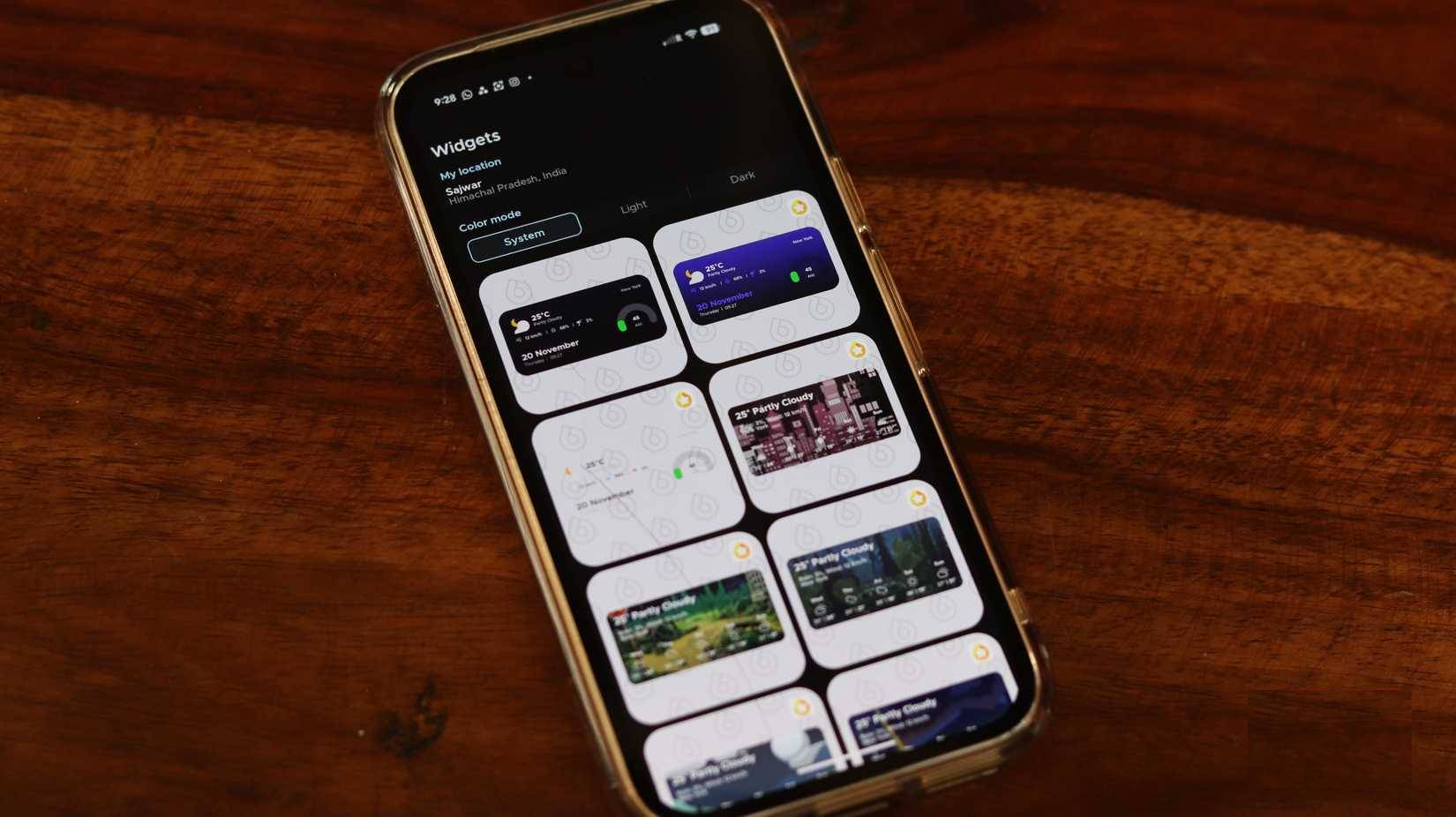
The built-in Android weather widget is fine, but if you're looking for more information, the Overdrop weather widget is definitely one of the best options you can use. The app has many customization options for how it looks and what information you want to see. As for the widgets, they're clearly laid out and can even fit into smaller spaces if you're running low on space on your home screen.
Even the most basic Overdrop widget will show you temperature, wind, precipitation, AQI, your location, day, time, and date. You can easily replace multiple widgets on your home screen with one Overdrop widget and still get the same amount of information without having to scroll through dozens of different widgets.
FAQ
What should you know about the options in this guide?
In practical terms, there are quite a few Android widgets that can help improve your phone. If you are confused about where to start, here are some useful Android widgets that you should start using right away.
Which option is the best choice?
The best choice depends on your priorities, compatibility, budget, and the specific features discussed in the comparison.
What should you compare before deciding?
Compare core features, limitations, ease of use, compatibility, and long-term value before making a decision.
Related Articles
 Widgets: What Is a Widget on Android?4 minutes read
 10 Must-have Widgets on Android Phones: Complete Guide9 minutes read
 9 Best Iphone Widgets5 minutes read
 Instructions for Overlaying Widgets on Android: Complete Overview4 minutes read
 15 Android Widgets Make iPhone Users Crave8 minutes read
 How to Reset Utilities on Windows 113 minutes read
Reader Comments 0
Sign in with email or Google to join the discussion.