Table of Contents
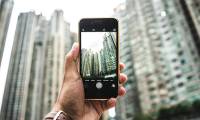
You probably know how to take a selfie or a quick sunset shot with your iPhone, but the camera can do so much more. Behind the simple interface are hidden features and clever tricks that can take your photography experience to the next level.
- 8 Great Hidden Features in iOS 26
6. Mute the shutter button sound
If you've ever taken a photo and had the silence of your life interrupted by a loud shutter sound, you know how frustrating it can be. You might be trying to capture a sleeping pet or take a candid street photo without drawing attention, but that loud click can easily ruin everything.
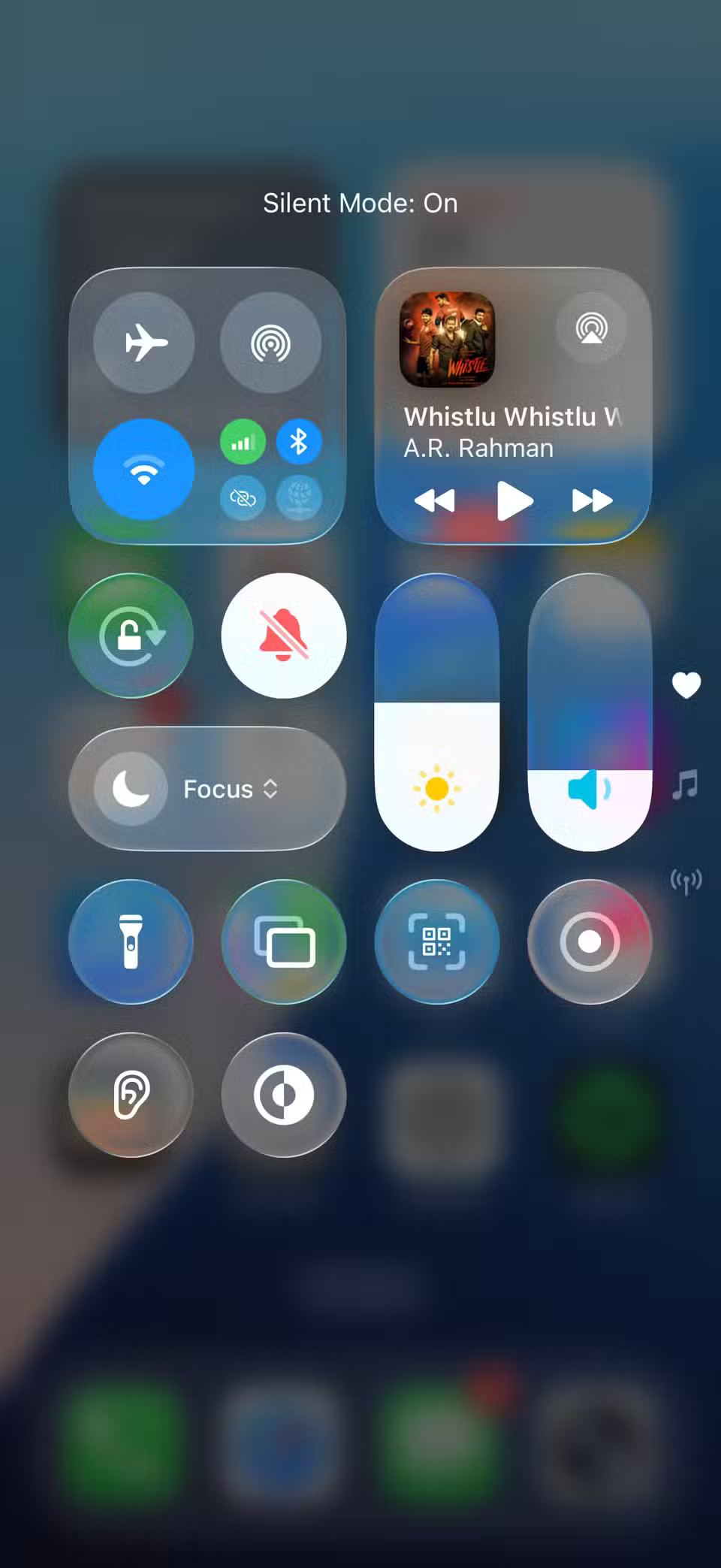
While the iPhone doesn't have an option to mute the shutter sound for privacy reasons, there are a few workarounds. The quickest way is to put your iPhone into silent mode using the Ring/Silent switch or the Action button. You can also do this using Control Center on your iPhone.
5. Choose a photography style that suits your aesthetic
One of the best (or worst, depending on your preference) things about the iPhone camera is that it automatically enhances your photos. This way, your photos always look perfect without any additional editing.
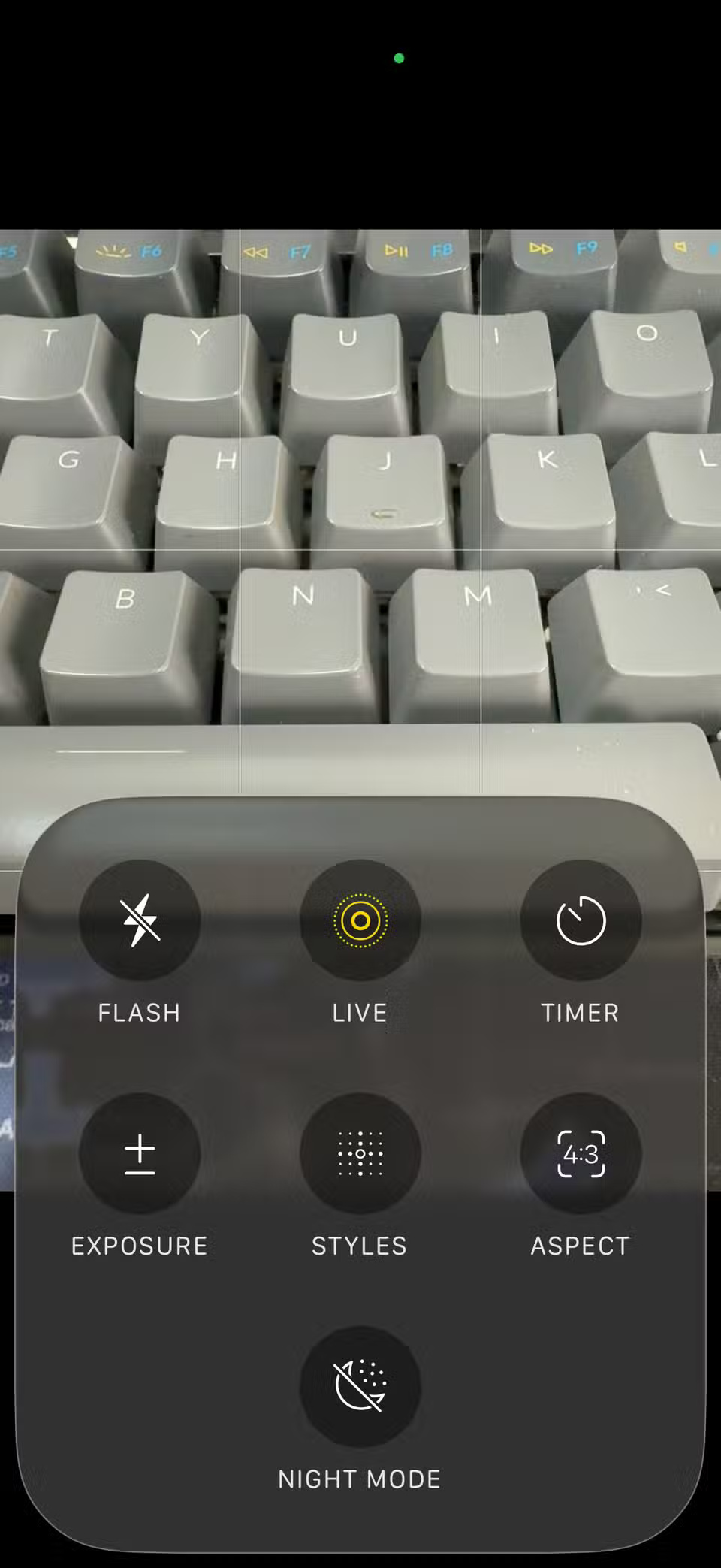
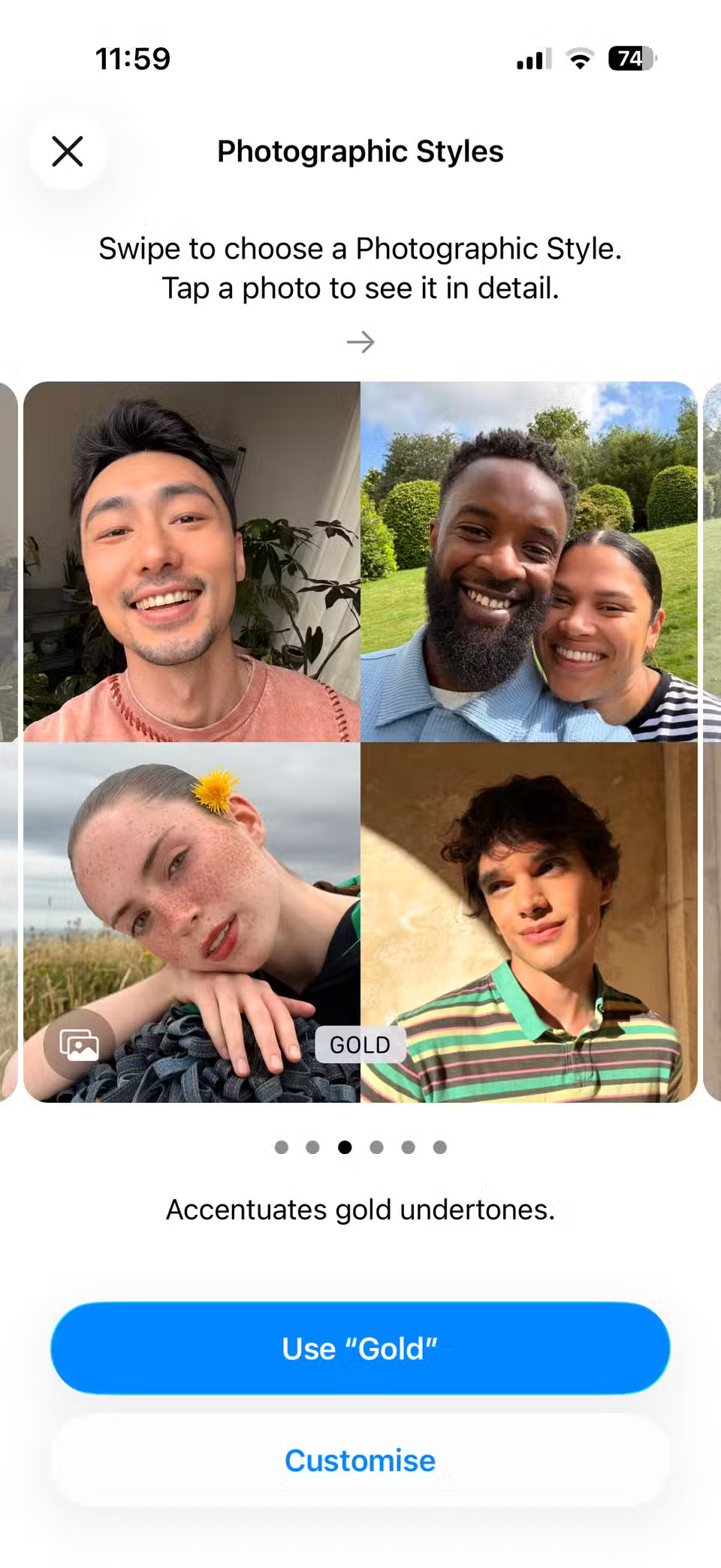
Unlike filters, which create obvious layers of effects, Photographic Styles subtly adjust elements like color tone and warmth while preserving natural skin tones. The result is photos that look better straight out of the box, but don't feel "edited."
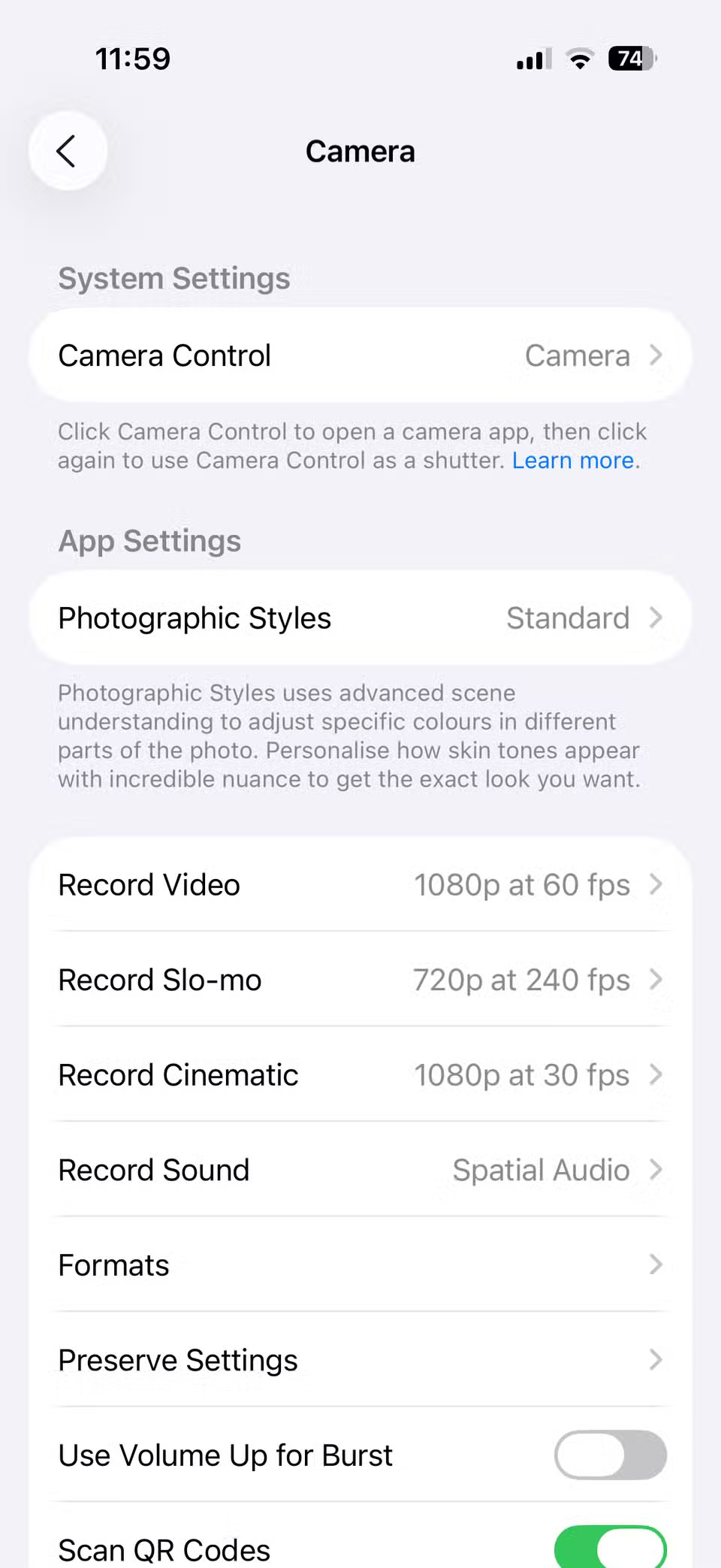
The magic comes from choosing the right style, though. To try it out, open the Camera app, tap the arrow at the top of the screen, then tap the Photographic Styles icon (three stacked squares). From there, browse through the options and pick the style you like. You can also go to Settings > Camera > Photographic Styles to set a default look.
4. Lock favorite camera settings
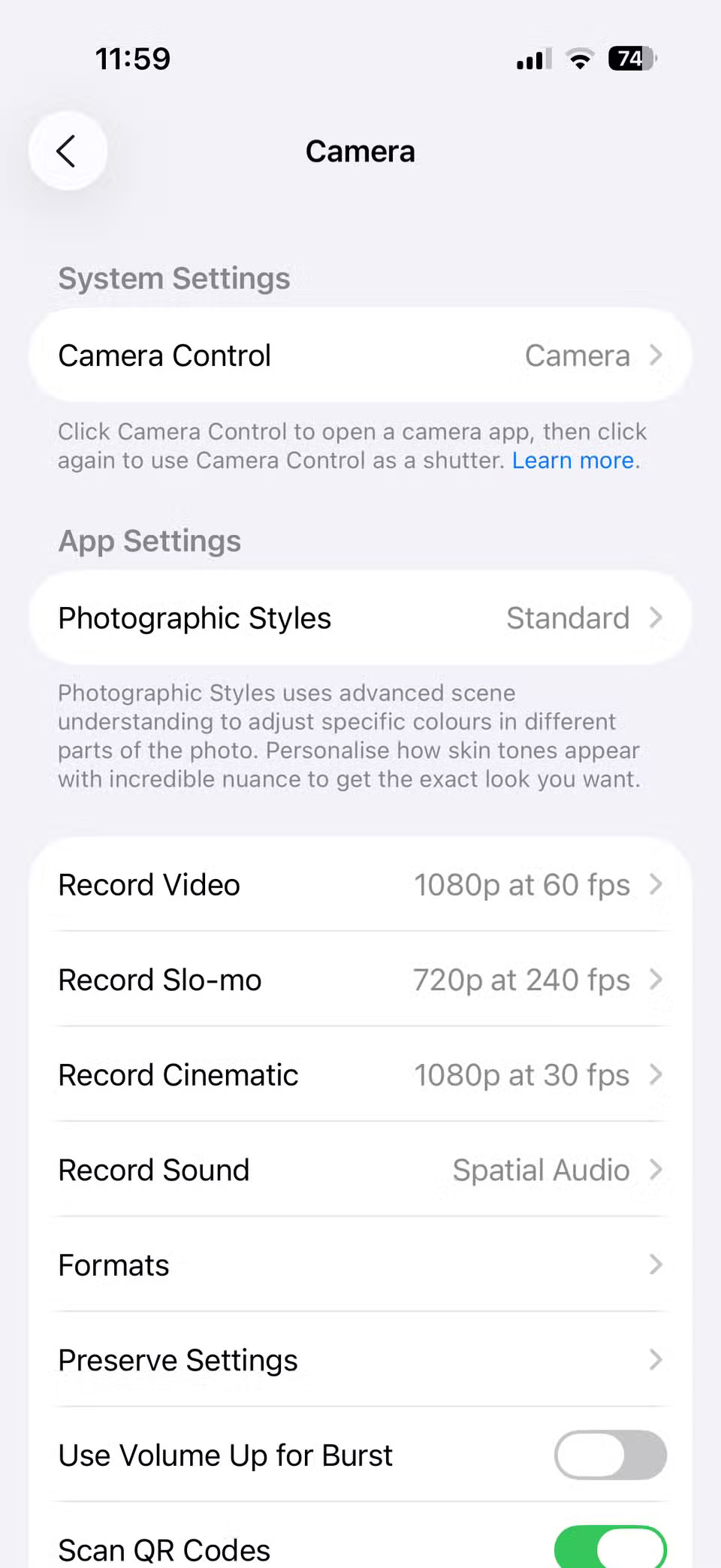
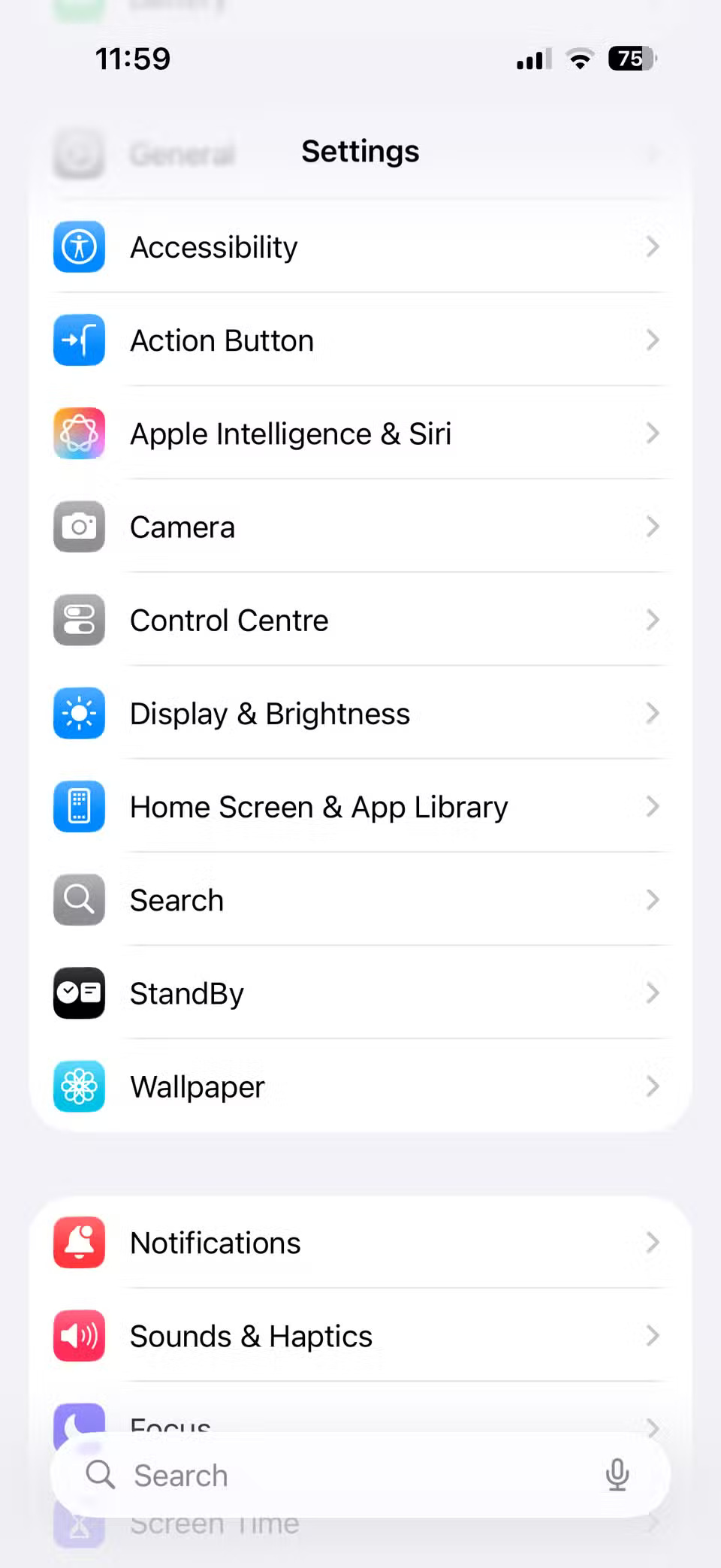
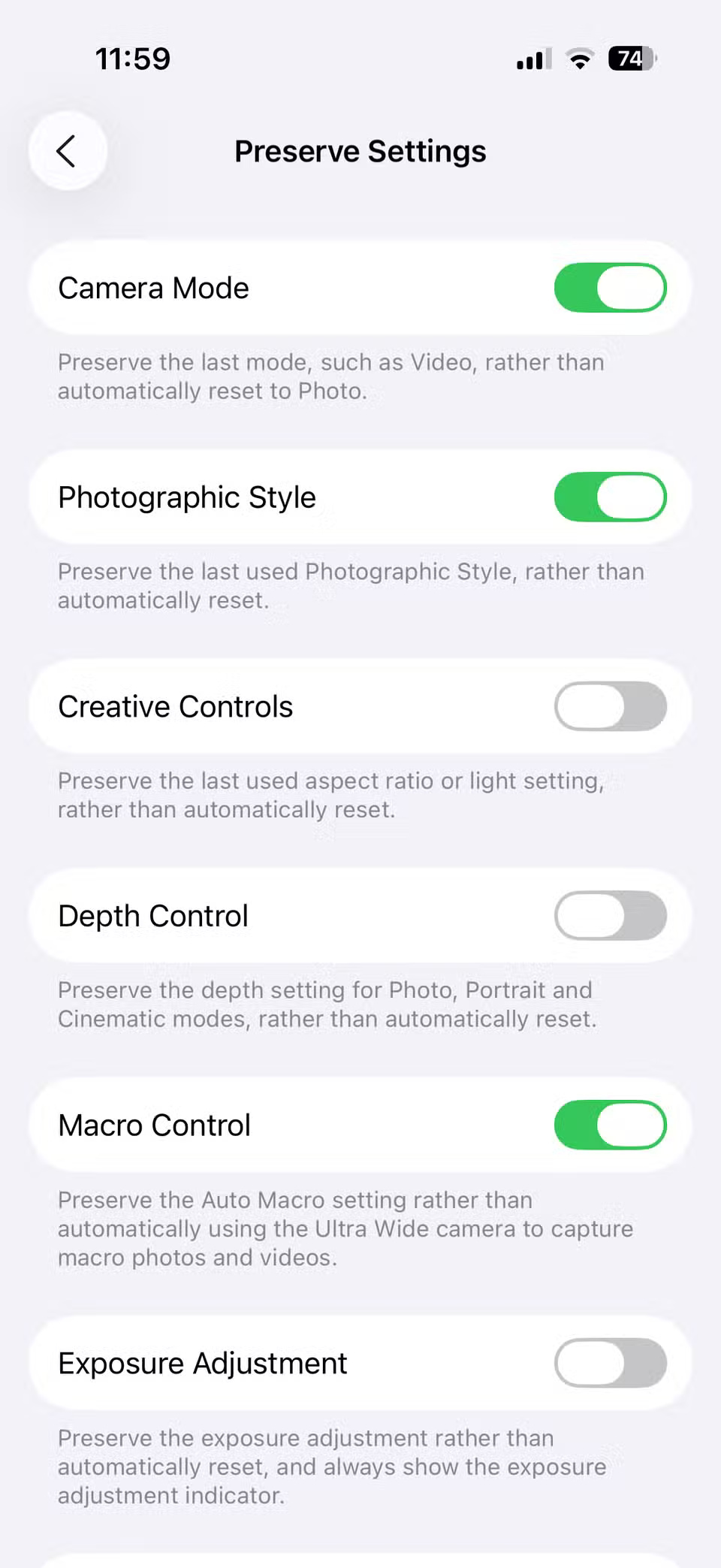
Preserve Settings locks in your preferred settings, so the camera always opens the way you want it to. It can save the last shooting mode you used, the filter you selected, your exposure adjustments, and even whether Night Mode is on or off.
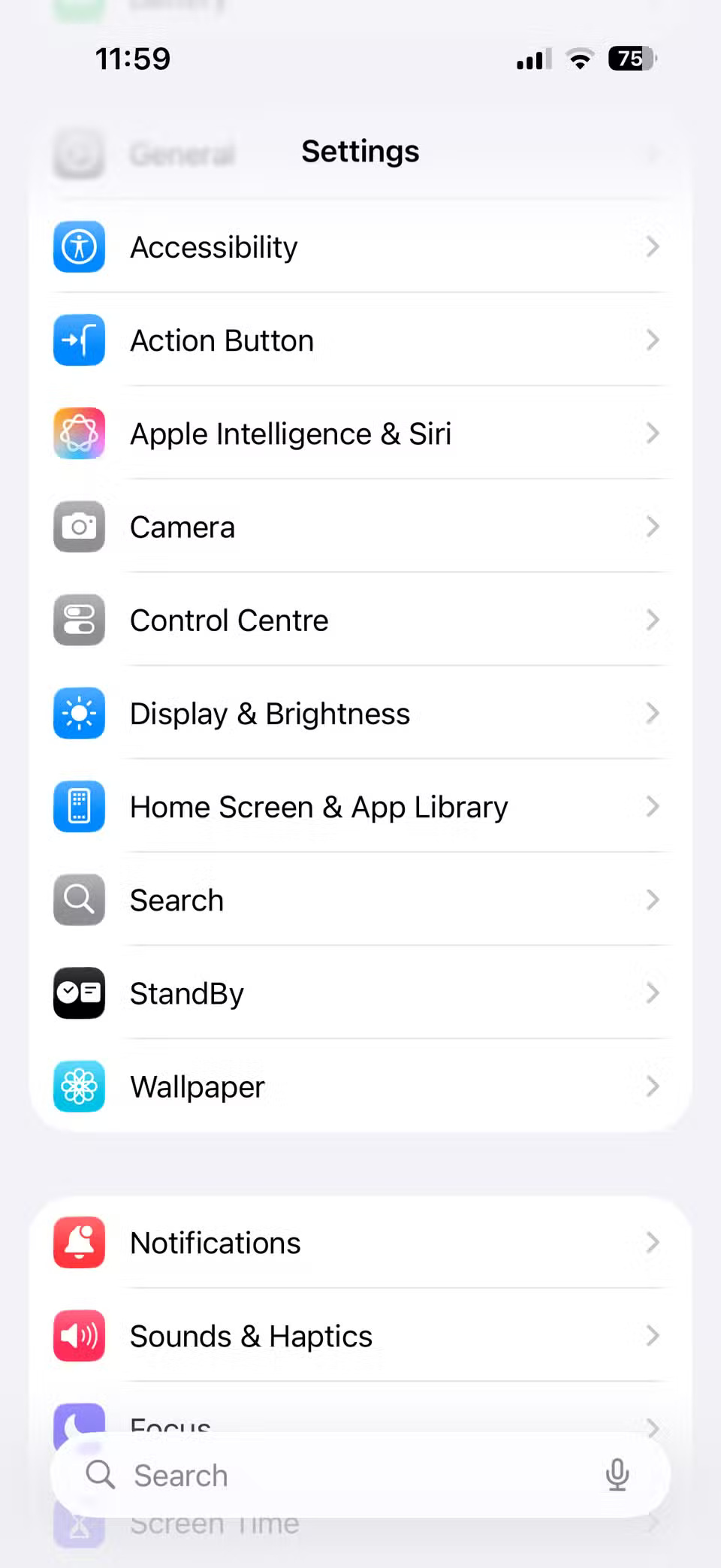
To set it up, go to Settings > Camera > Preserve Settings . You'll see a few options, like Camera Mode, Photographic Style, Depth Control, Exposure Adjustment, Night Mode, and Live Photo. Turn on the toggles for the options you want the Camera app to remember.
3. Record video without exiting photo mode
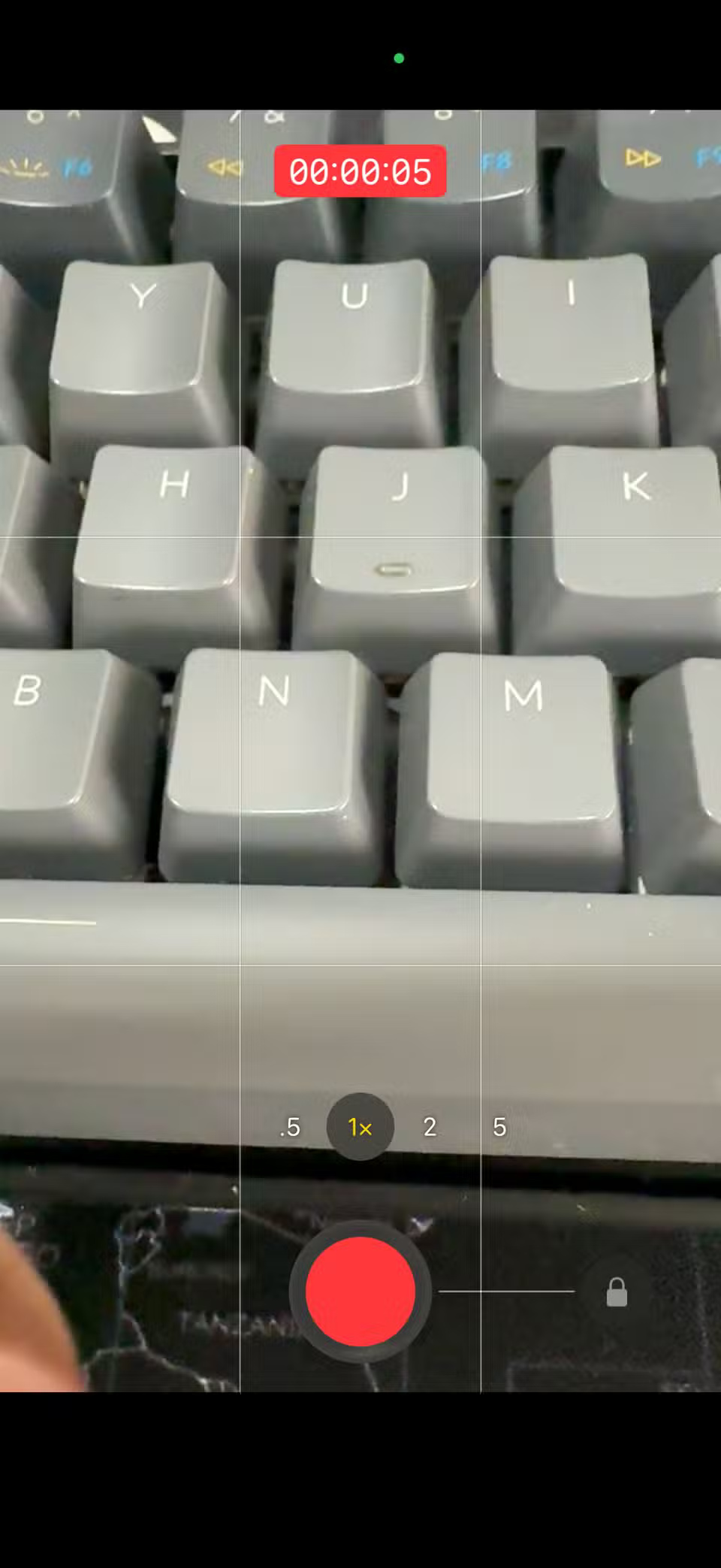
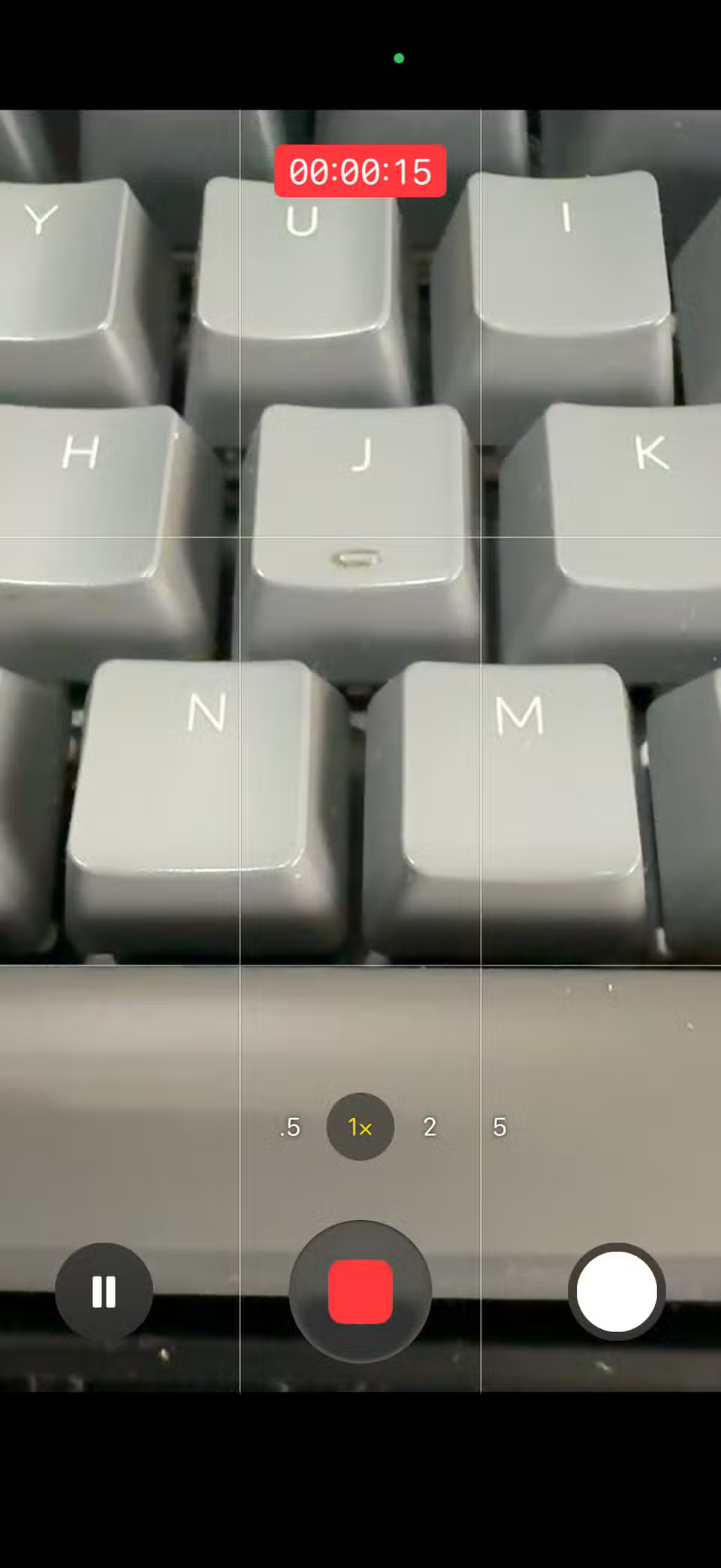
When you're in Photo mode, press and hold the shutter button. Instead of taking a photo, your iPhone will start recording a video. It will continue recording as long as you hold your finger down, just like Snapchat.
If you want, you can also lock video recording to avoid pressing the button. To do so, slide the shutter button to the right and it will continue recording without you holding the button down.
2. Get gentle reminders to clean your lenses
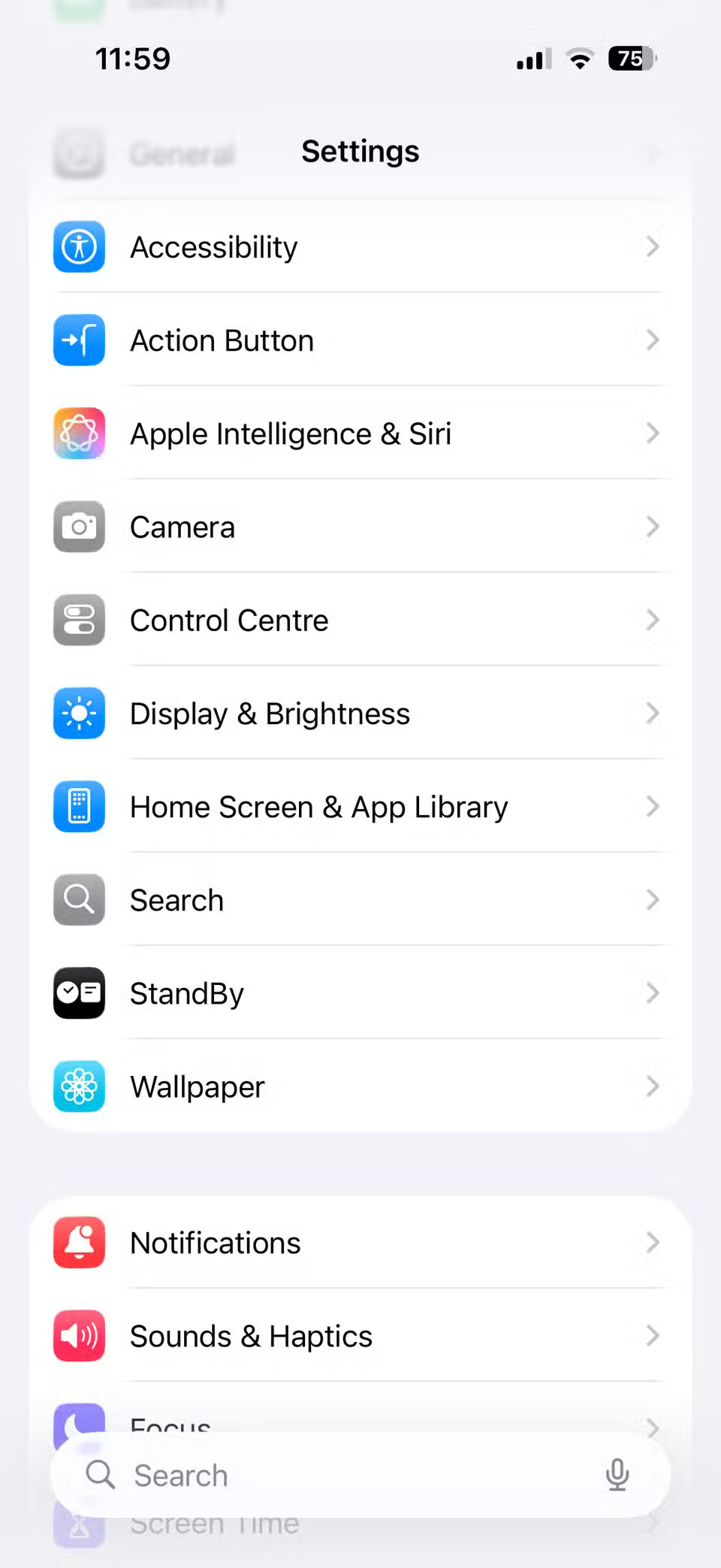
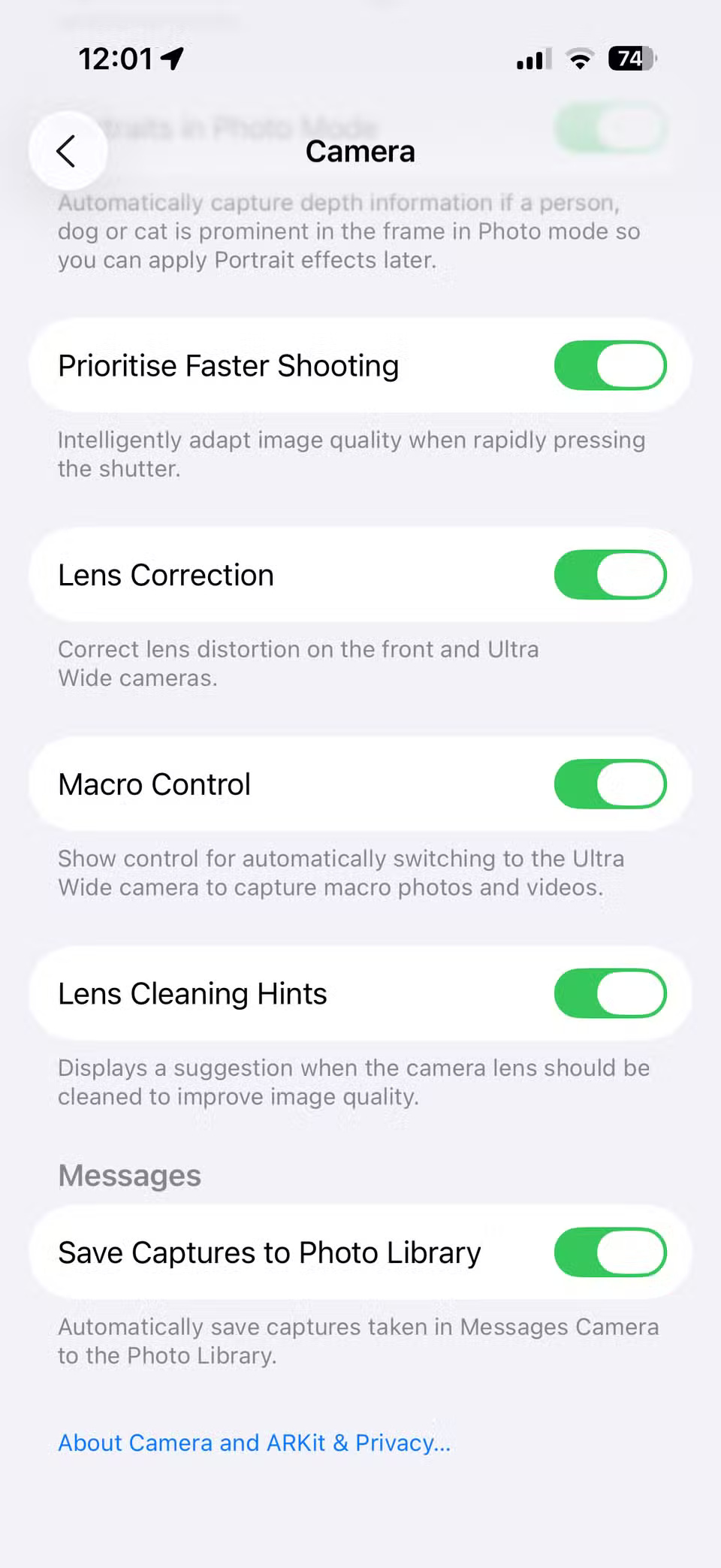
It's easy to forget something as simple as cleaning your lens, but your iPhone can actually remind you. If the Camera app notices a blurry or unusually blurry photo, you'll see a gentle reminder that it's time to give your lens a quick wipe. To enable it, go to Settings > Camera and turn on Lens Cleaning Hints .
1. Rotate GIF
Sometimes a single photo isn't enough to capture a moment, and a full video can be too much. Live Photos can help, but if you want to easily share across multiple platforms, creating a GIF is the perfect middle ground.
Unlike some Android phones, the iPhone Camera app doesn't have a default "shoot a GIF" button. However, you can still create GIFs using Apple's Shortcuts app. To do this, you'll first need to take a photo in burst mode. In the Camera app, swipe the shutter button to the left and hold to start taking a burst of photos. When you're done, release the shutter button.
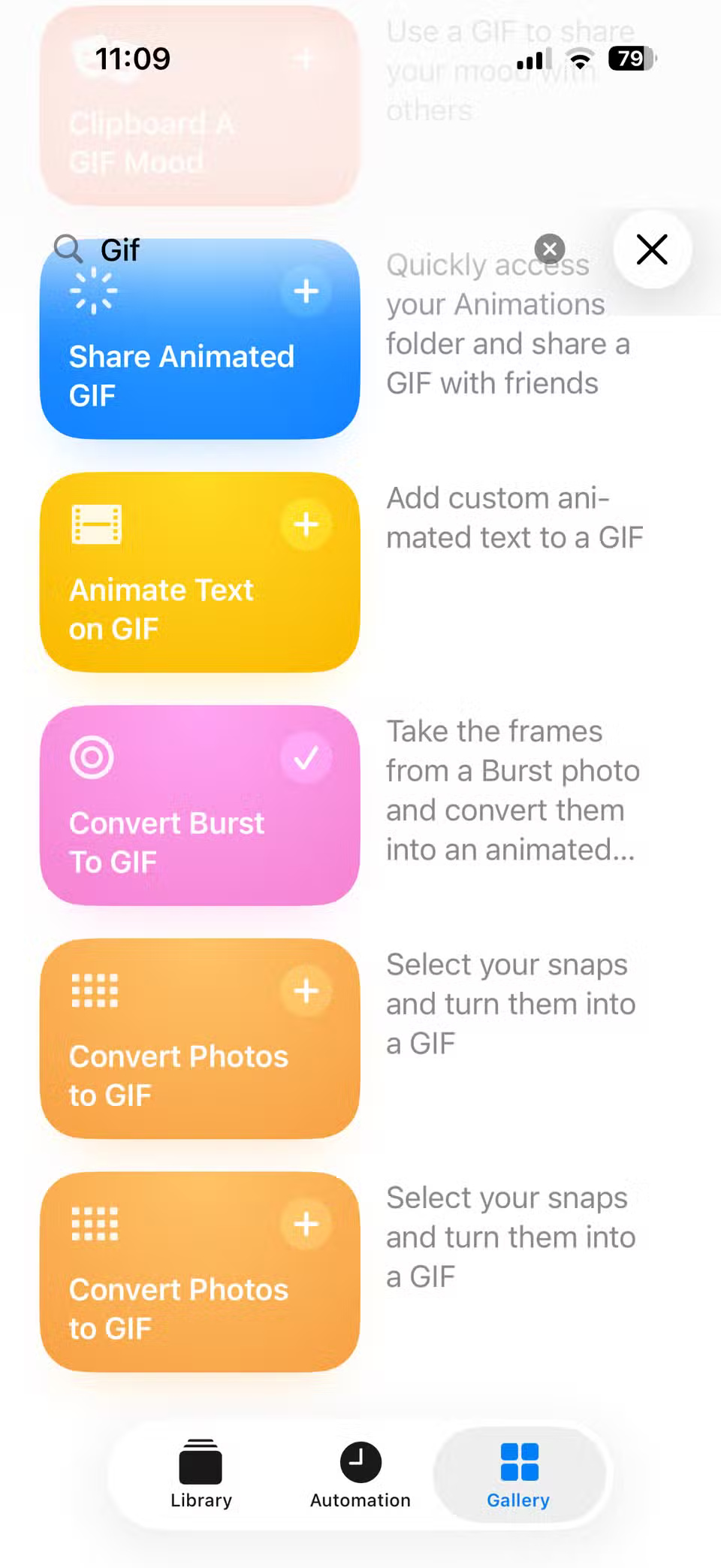
After you've taken a burst of photos, open the Shortcuts app on your iPhone. If you don't see it, download it from the App Store first. Go to the Gallery tab in the Shortcuts app and search for GIF . Then, tap the plus icon next to Convert Burst to GIF to add the shortcut to your Library.
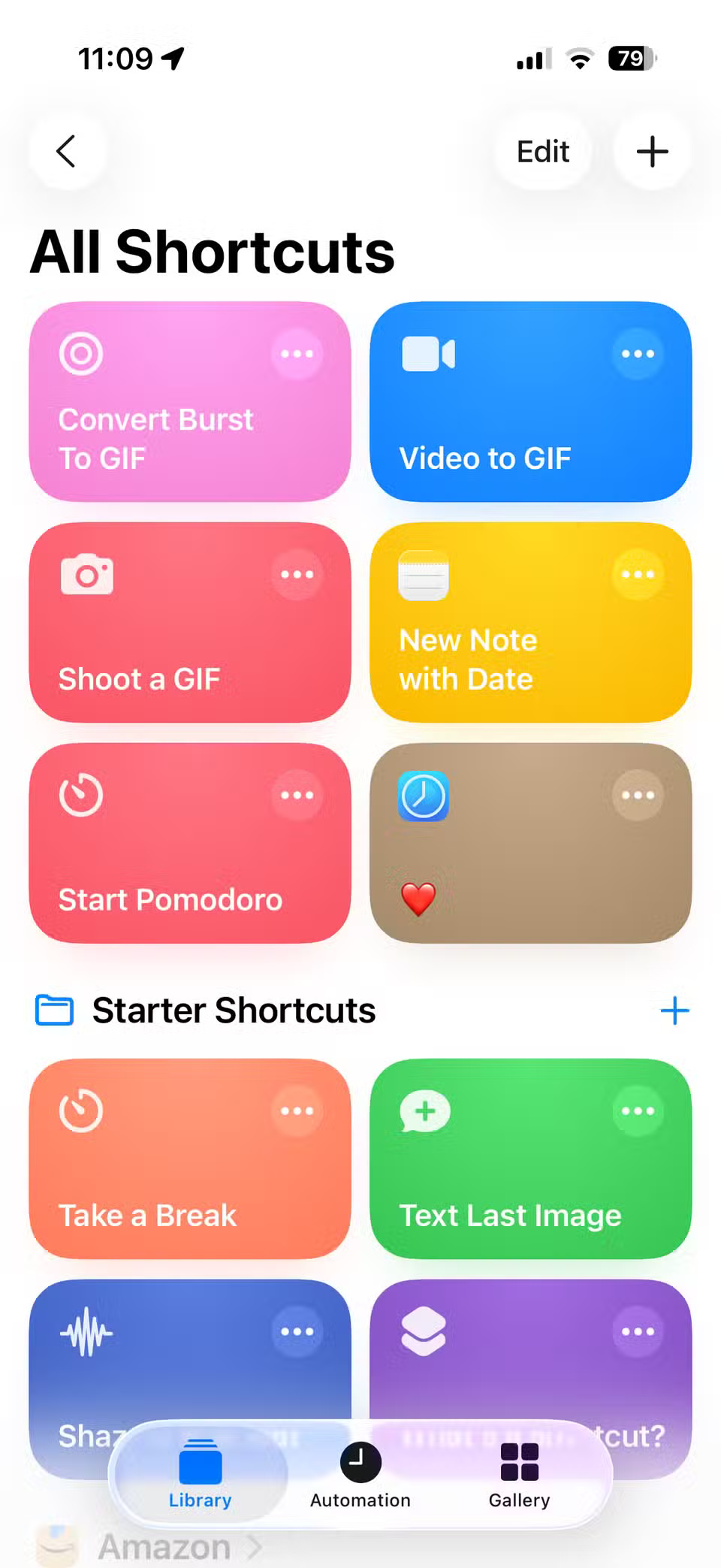
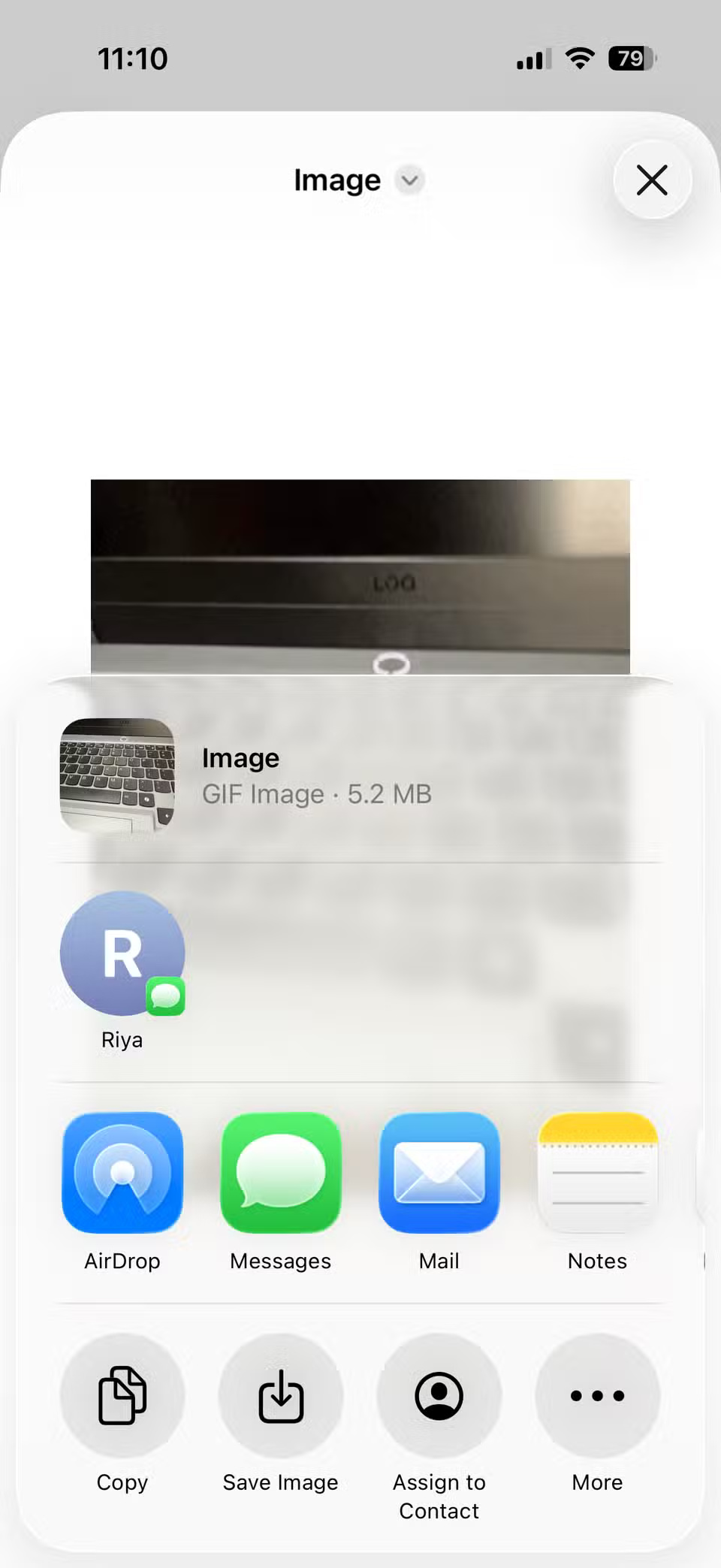
Now, head over to the Library tab, tap Convert Burst to GIF , and select the burst photo you want to use. In just a few seconds, your GIF will be ready. You can then tap the share icon to send it directly or save it to your Photos or Files app.
Final Thoughts
Overall, 6 Secrets About iPhone Cameras No One Tells You is best understood by considering the main facts, practical context, and limitations together. Use the details above as a clear starting point and confirm time-sensitive information when necessary.
FAQ
What does this article explain about 6 Secrets About iPhone Cameras No One Tells You?
You probably know how to take a selfie or a quick sunset shot with your iPhone, but the camera can do so much more. Behind the simple interface are hidden features and clever tricks that can take your photography experience to the next level.
What should you know about 6. Mute the shutter button sound?
If you've ever taken a photo and had the silence of your life interrupted by a loud shutter sound, you know how frustrating it can be.
Should time-sensitive details be verified?
Yes. Software features, game codes, product specifications, prices, and research findings can change. Confirm important details with an official or primary source when accuracy affects your decision.
Related Articles
 How to Shoot Multiple Cameras at the Same Time on iPhone3 minutes read
 3 Secrets on the iPhone Cover If Known, Your iPhone Will Be6 minutes read
 iPhone 2019 Can Have 3 Rear Cameras (Triple Camera)3 minutes read
 Surveillance Camera: Should Buy Wired or Wi-Fi?11 minutes read
 iPhone 16 Will Have a Vertical Camera Like the iPhone 12 '''2 minutes read
 Smartphone Cameras Will Gradually Replace DSLR Cameras Completely9 minutes read
Reader Comments 0
Sign in with email or Google to join the discussion.