Table of Contents
The iPhone 17 is equipped with an 18MP 'Center Stage' selfie camera that allows you to automatically switch between portrait and landscape modes without having to rotate the device.
iPhone 17 Overview
The iPhone 17 brings some big changes to the selfie camera, replacing the old 12MP TrueDepth lens with a new 18MP 'Center Stage' camera. But it's not just the higher resolution that's notable – it's the ability to Automatically switch between portrait and landscape modes Without rotating the phone.
This is an extremely convenient feature, allowing you To comfortably take selfies in familiar positions While still being able to adjust the photo composition as desired.
But there's more to 'Center Stage' — here's a detailed guide on how to get the most out of this unique feature.
1. Open the Camera app
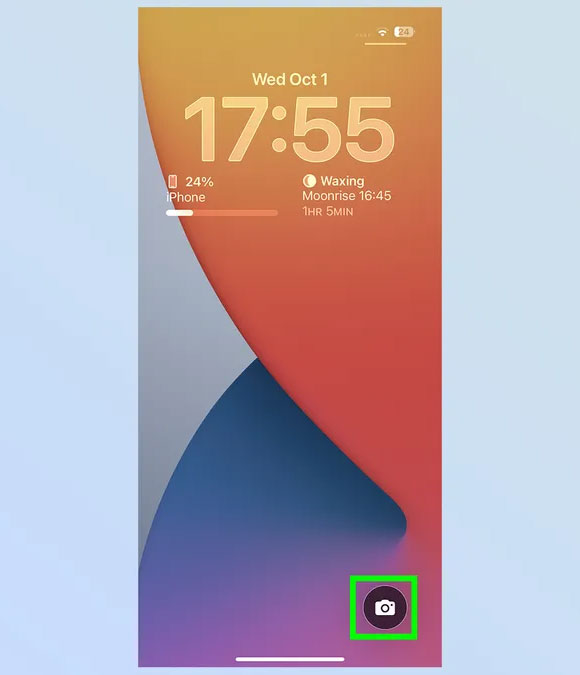
First, open the Camera app in your favorite way:
- Tap the Camera Icon on the home screen
- Tap Camera Control
- Or swipe from The lock screen To quickly turn it on
All methods work the same, so you can choose whichever one you like.
2. Switch to front camera
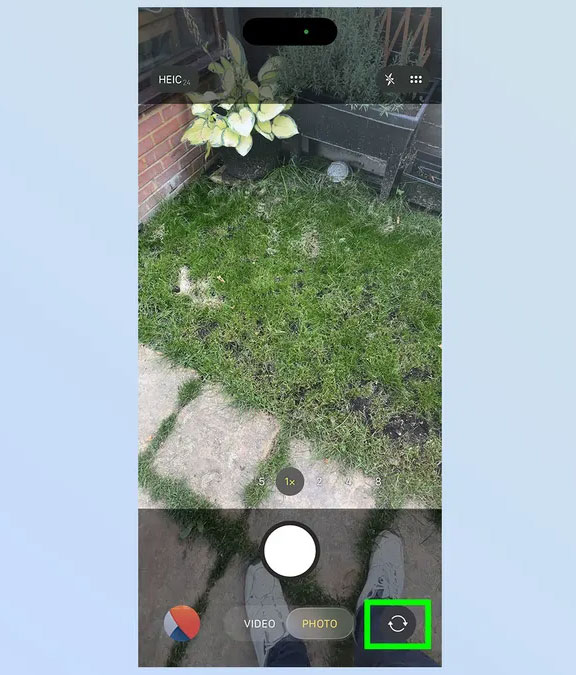
Next, switch to the front camera by tapping The camera switch icon In the bottom right corner of the screen.
3. Press the Orientation switch
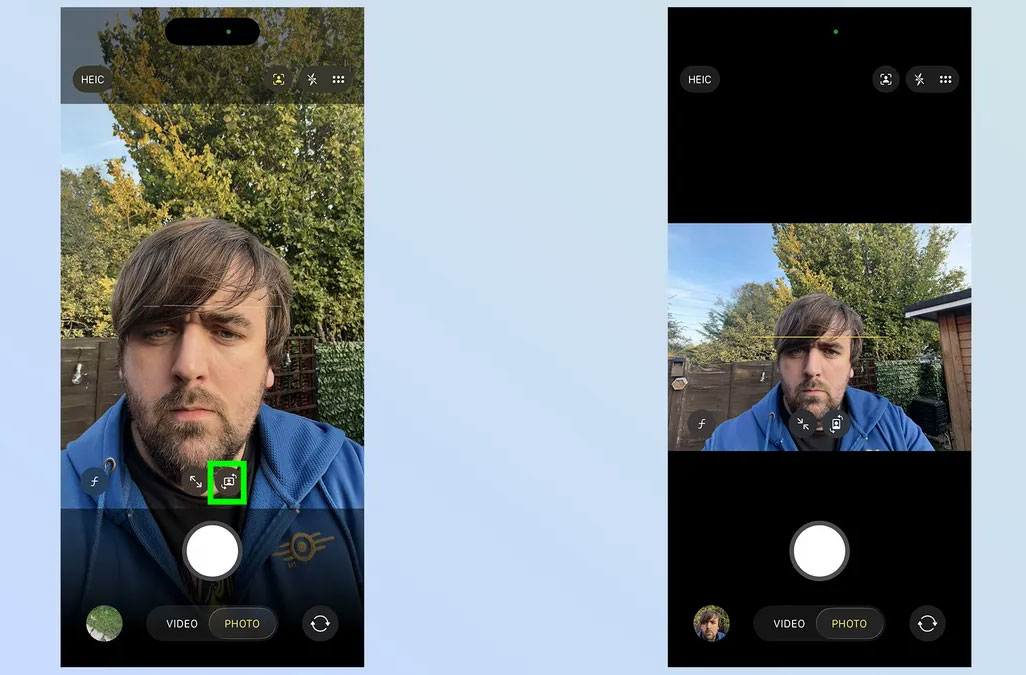
Once the front camera is on, you'll see The navigation button Located just above the camera shutter button (the large white circle at the bottom of the screen).
Tap it to switch between Portrait And Landscape mode , no matter which orientation you're holding your phone.
4. Zoom in/out
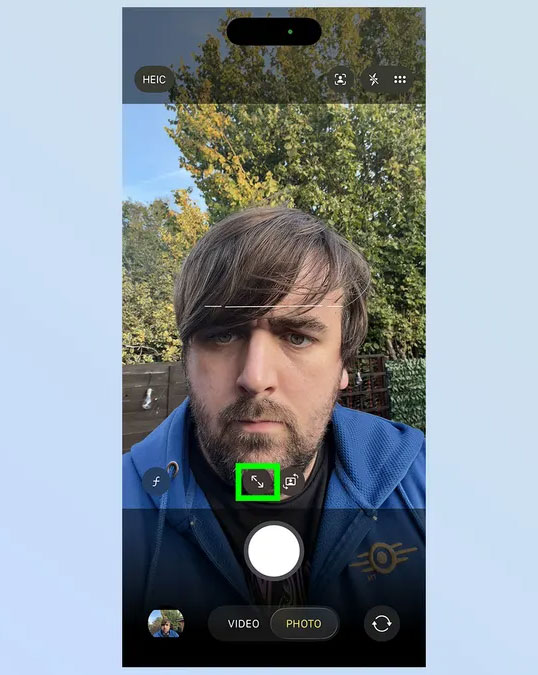
Right next to the navigation button is The Zoom button . It works similarly to the zoom feature on previous iPhones, but Doesn't display a specific zoom parameter .
- Click once to Zoom out
- Click again to Zoom in
5. Customize automatic features
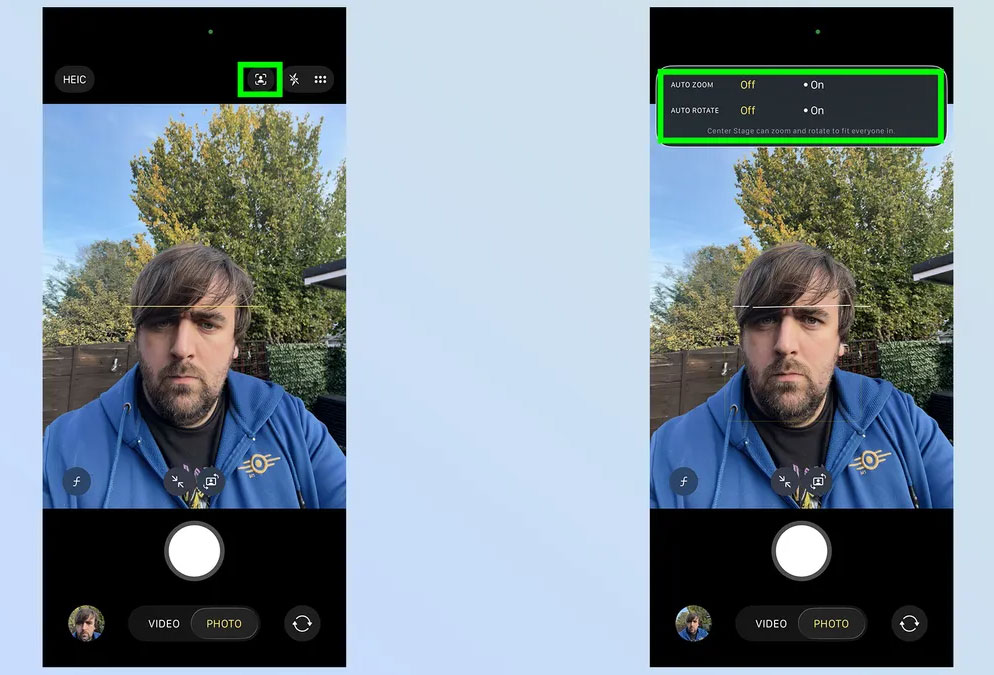
Look up at the top corner of the Camera app, next to The quick settings menu , and you'll see an icon of A person in a square . Tap it to open the Center Stage Option.
Here you can enable or disable features:
- Auto Zoom
- Auto Rotate
Note that if you enable these two features, you Won't be able to use the Zoom or Orientation buttons manually — and conversely, if you adjust manually, the automatic options will be turned off.
The iPhone 17's 'Center Stage' camera is one of those underrated but incredibly useful Features. It gives you Creative freedom to shoot from any angle , no matter how you hold your phone. With just a few simple steps, you can take full advantage of the versatility of this new selfie camera.
FAQ
How do you use the center stage feature on iPhone 17?
In practical terms, the iPhone 17 is equipped with an 18MP 'Center Stage' selfie camera that allows you to automatically switch between portrait and landscape modes without having to rotate the device.
What should you check before getting started?
Review the requirements, compatible device or software version, and any warnings described in the guide before making changes.
What should you do if the steps do not work?
Repeat the steps in order, confirm that your app or system is up to date, and review the troubleshooting details provided above.
Related Articles
 iPhone 17 Selfie: What You Need to Know5 minutes read
 What Is the Apple Center Stage Feature? What Is the Effect?5 minutes read
 Tips for Taking ''selfie'' Photos That Are Not Upside Down on iPhone3 minutes read
 5 Apps to Take 'Must-have' Selfie Photos on Android Phones8 minutes read
 Top Smartphone Owns the Best Selfie Camera3 minutes read
 Top 5 Best Selfie Smartphones of 20208 minutes read
Reader Comments 0
Sign in with email or Google to join the discussion.