Table of Contents
Many people have been using Android for years, but only recently realized how many settings they've completely overlooked.
Many people have been using Android for years, but only recently realized how many settings they've completely overlooked. Android is famous for its "hands-off" approach, giving you tons of options to customize it to your liking.
5. Hide notification content on lock screen
Prevent others from peeking
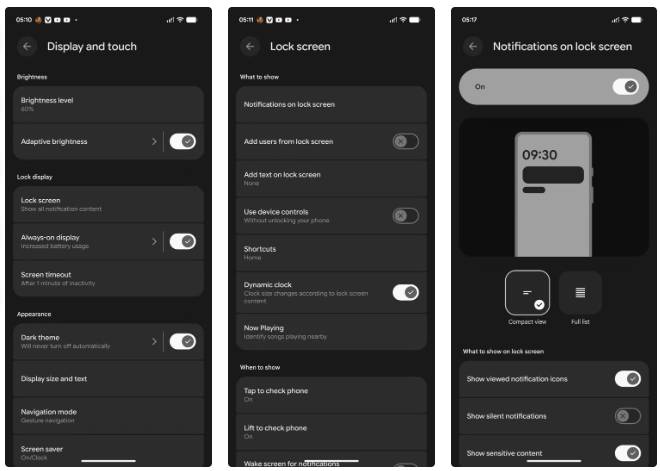
Whether your phone is unlocked or not, Android still lets you see notifications on the lock screen.
That means anyone who can glance at your screen can see your recent updates by default. Luckily, you can change this default behavior to keep Android lock screen notifications private by hiding the notification details. You can do this by going to Settings > Notifications > Notifications on lock screen , then turning off Show sensitive content . This will ensure that only the notification icon is shown, not the content, unless you unlock the screen.
4. Set screen lock and reduce screen timeout
Timeout earlier and lock screen
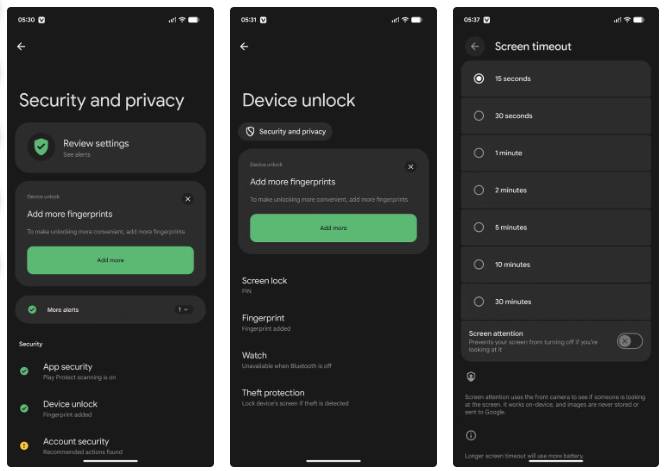
By default, your Android phone has no security features. You swipe up and access everything on your device. That's not private because almost anyone can access your messages, pictures, videos, and any other private data stored on your device.
That's why the first thing You should do after unboxing your device is add a screen lock mechanism, using a PIN, pattern, password, fingerprint, or face unlock. To set up a lock mechanism, go to Settings > Security & privacy > Device unlock > Screen lock , select the screen lock mechanism you want, then follow the instructions to complete the process.
3. Customize Quick Settings
Put frequently used options at your fingertips
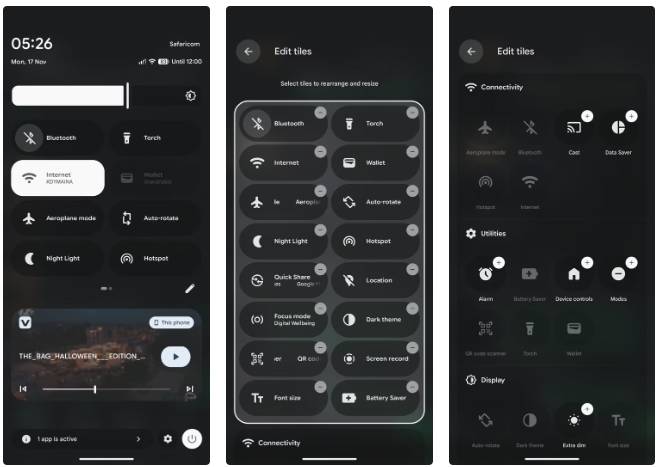
The Quick Settings menu on Android lets you access various functions or navigate to locations without going through the menu.
To customize Quick Settings, follow these steps:
- Swipe down twice from the top of the screen.
- When the Quick Settings panel appears, tap Edit (the pencil icon) at the bottom of the tiles. This will open the entire panel, showing all the different options available.
- To add a specific tile to the Quick Settings panel, tap and hold the tile and drag it to the top or tap the plus (+) icon in the upper-right corner.
- To delete a particular tile, drag it from the top to the bottom or tap the minus (-) icon in the upper right corner of that tile.
2. Enable Developer Options
Unlock advanced customization
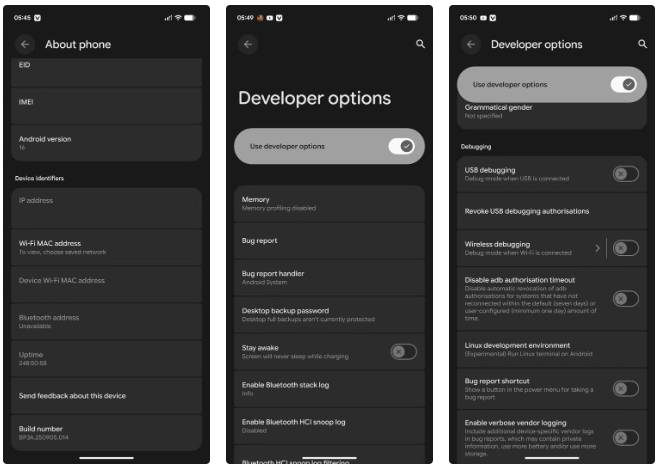
Developer Options is a hidden feature on Android that lets you unlock advanced settings to customize your device even more. And that opens up a world of possibilities for you.
You can enable Developer Options by opening Settings , selecting About phone , and tapping Build number Repeatedly until you see a pop-up confirming the feature has been enabled (you may need to enter your PIN or password to enable it). Once Developer Options are enabled, you can access them by going to Settings > System > Developer options . Note that even if you're not a developer, there are still some developer options worth tweaking that will make your Android phone run better.
1. Turn on Advanced Protection
Enhanced phone security
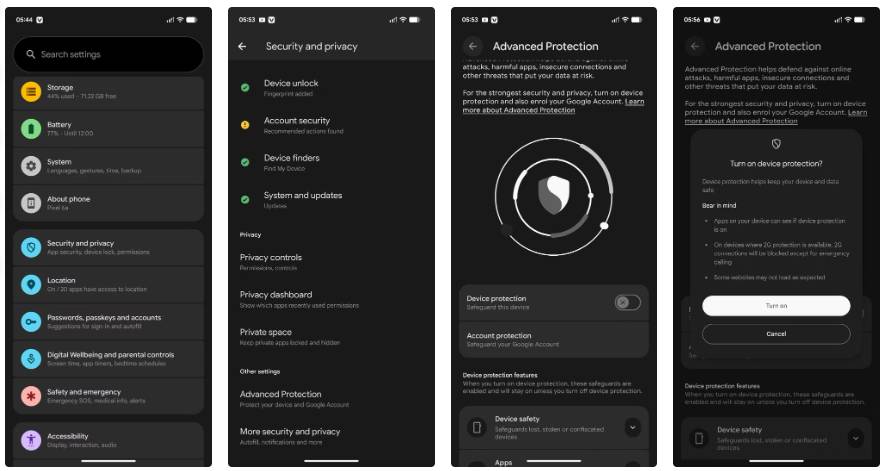
Advanced Protection was added in Android 16 to enhance the security of your device. It works by enabling various security features already present on Android to enhance the security of your phone. When Advanced Protection is enabled, your device will monitor you to prevent threats. For example, when this feature is enabled, your device will block the ability to install apps outside of the Play Store.
To turn on Advanced Protection, follow these steps:
- Open the Settings app and tap Security and privacy .
- On the Security and privacy page, scroll down and tap Advanced Protection .
- On the next page, enable the slider next to Device protection And confirm your action by tapping Turn on .
Most of us use our phones on autopilot, accepting whatever default settings the manufacturer has set for us. However, those default settings aren't always the best. The first thing you should do after upgrading to a new device is to adjust those settings to suit your specific needs.
FAQ
What should you know about the options in this guide?
In practical terms, many people have been using Android for years, but only recently realized how many settings they've completely overlooked.
Which option is the best choice?
The best choice depends on your priorities, compatibility, budget, and the specific features discussed in the comparison.
What should you compare before deciding?
Compare core features, limitations, ease of use, compatibility, and long-term value before making a decision.
Related Articles
 6 Useful Android Settings You May Not Know Yet9 minutes read
 Android Phone Default Settings Are a Privacy Nightmare11 minutes read
 Changing Your DNS to 1.1.1.1 on Android and iPhone Is Very Simple5 minutes read
 How to Change This Hidden Setting on Android to Make Everything Run Twice as Smoothly7 minutes read
 How to Use Bottom Quick Settings to Change the Location to Open5 minutes read
 The First 6 One UI 8 Settings You Should Change on Every Samsung: Key Facts6 minutes read
Reader Comments 0
Sign in with email or Google to join the discussion.