Table of Contents
To create a UEFI bootable USB with Rufus, select the correct USB drive and ISO, choose GPT with a UEFI target, and let Rufus choose a compatible file system. Rufus will erase the selected drive, so copy anything important from it before you click Start.
What you need
- A USB flash drive large enough for the ISO. An 8GB drive is enough for many installers, but check the actual ISO size.
- A bootable ISO obtained from the operating-system publisher or another source you trust.
- The current version of Rufus from its official website.
- A Windows PC on which you can run Rufus with administrator rights.
Disconnect other removable drives if possible. This makes it less likely that you will select and erase the wrong device.
Create the UEFI bootable USB
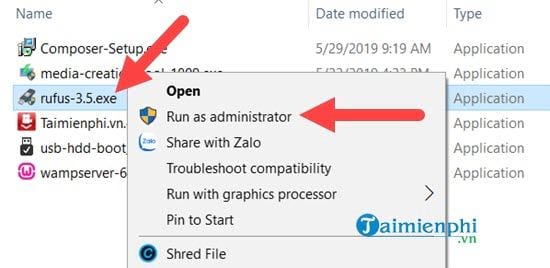
- Open Rufus. Run the downloaded executable and approve the Windows administrator prompt.
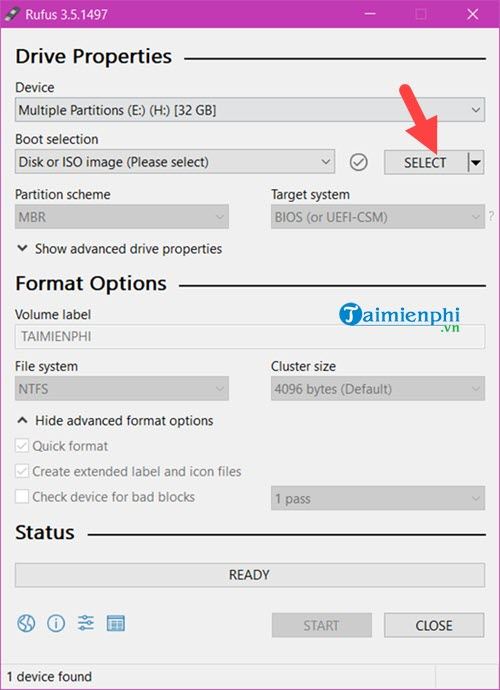
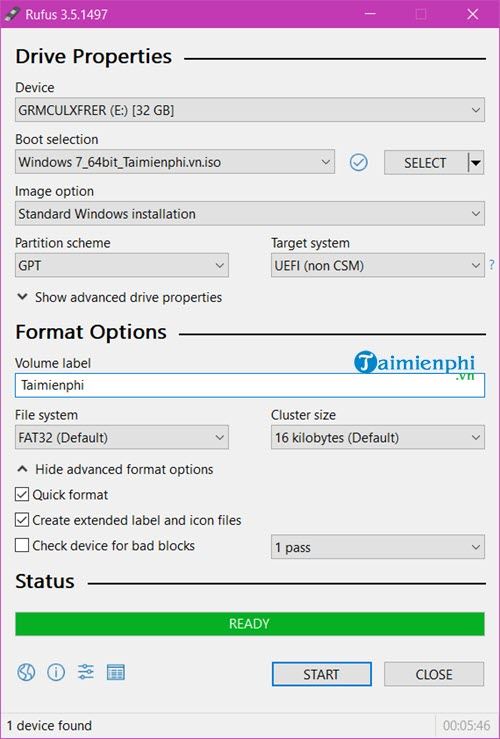
- Select the destination USB. Under Device, verify the drive's name and capacity. Do not rely on the drive letter alone.
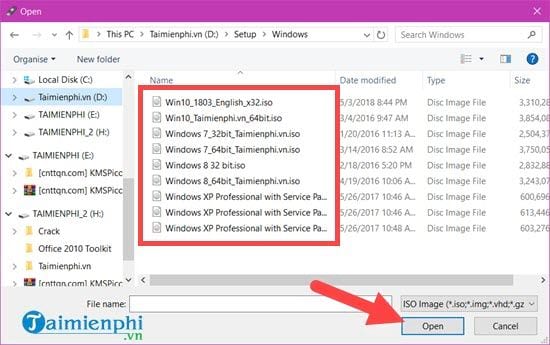
- Choose the ISO. Click Select, browse to the image file, and open it.
- Set the boot mode. For a modern UEFI-only installation, choose GPT as the partition scheme and UEFI (non CSM) as the target system. If the destination PC uses legacy BIOS or Compatibility Support Module mode, these settings may not boot; use the configuration that matches its firmware.
- Leave advanced values at their safe defaults. Keep the cluster size at Default unless the operating-system documentation specifically requires something else. Rufus may select FAT32 or NTFS based on the ISO and its files. Do not force FAT32 when the image contains a file larger than FAT32 supports.
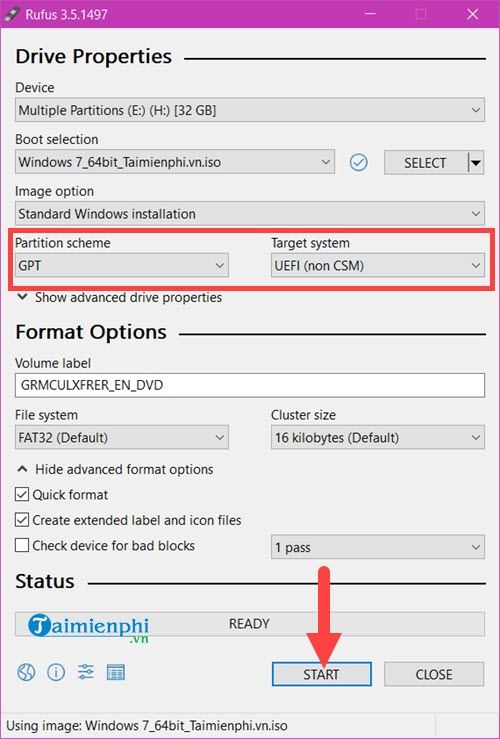
- Start and confirm the erase warning. Click Start. Rufus may ask how to write the image or present installer-specific options. Read each prompt and keep the default unless you understand why it must change.
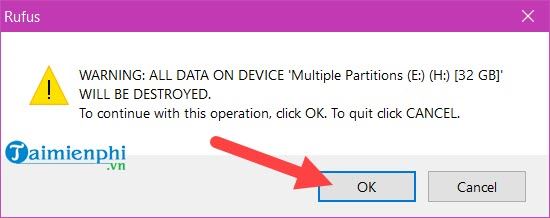
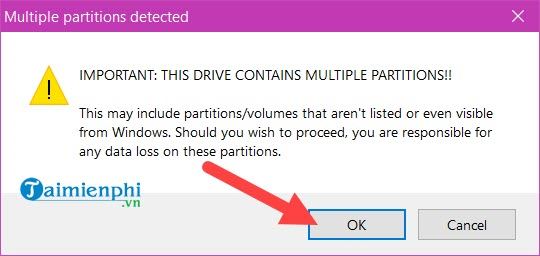
The warning applies to the entire selected USB device, including existing partitions. Confirm again that this is the correct drive before proceeding.
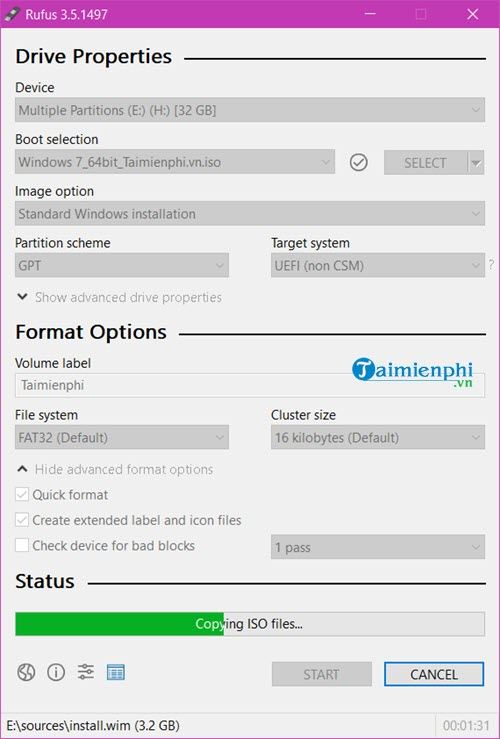
- Wait for completion. Do not unplug the drive while Rufus is writing or verifying data. Duration depends on the USB device, port, and ISO size.
- Eject the USB safely. When the status returns to Ready with no error, close Rufus and use Windows' eject command before removing the drive.
Boot the destination PC
Connect the USB to the powered-off computer, start it, and open the one-time boot menu. The key varies by manufacturer and may be Esc, F9, F10, F11, or F12. Select the entry labeled with the USB name and, when shown, its UEFI prefix.
Before installing, you can check whether the USB is bootable. If you are comparing tools, see our overview of bootable USB creation software.
Troubleshooting
The USB does not appear in the boot menu
- Try another USB port, preferably a port directly on the computer rather than a hub.
- Confirm that the firmware is set to UEFI mode if you created a GPT/UEFI drive.
- Recreate the drive after verifying that the ISO itself supports UEFI boot.
- Check the computer maker's instructions before changing Secure Boot. Do not disable firmware security merely as a first troubleshooting step.
Windows says it cannot install to the selected disk
The installer boot mode and disk partition style may not match. If you booted the USB in UEFI mode, Windows generally expects an appropriate GPT installation target. Back up the disk before converting or deleting any partitions; those operations can erase data.
Rufus reports an error
Reconnect the drive, close software that may be using it, and run Rufus again. Persistent write or verification errors can indicate a failing or counterfeit USB drive. Use another known-good drive rather than trusting installation media that completed with errors.
Related Articles
 Download Rufus 3.13: Utility to Create Bootable USB Open5 minutes read
 Instructions for Creating UEFI Standard USB Boot Using Rufus4 minutes read
 Rufus - the Easiest USB Boot Creation Application: Key Facts16 minutes read
 How to Create Windows 10 Installation USB Using Rufus, Boot3 minutes read
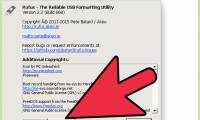 USB: How to Use Rufus5 minutes read
 Instructions for Creating Windows Installation USB on Both6 minutes read
Reader Comments 0
Sign in with email or Google to join the discussion.