Table of Contents
Hiren's BootCD is a very useful and indispensable tool for both computer professionals and non-professionals. This article from TipsMake will guide you on how to create a Hiren's BootCD on a USB/CD. Follow along to learn how.
How to create a Hiren's BootCD on a USB/CD
Table of Contents:
Method 1. Using Grub4dos .
Method 2. Using yumi-multiboot .
Method 3. Watching a video tutorial on how to create a Hiren's Boot USB .
Instructions for creating a Hiren's BootCD on a USB/CD
Preparation: You will need a USB drive with a minimum capacity of 1 GB or a blank CD.
Method 1 : Using Grub4dos
Step 1
Download Hiren's BootCD to your computer here: Download Hiren Boot
Step 2
Download and install Grub4dos on your computer. You can download the latest version of Grub4dos here: Download Grub4dos
Step 3
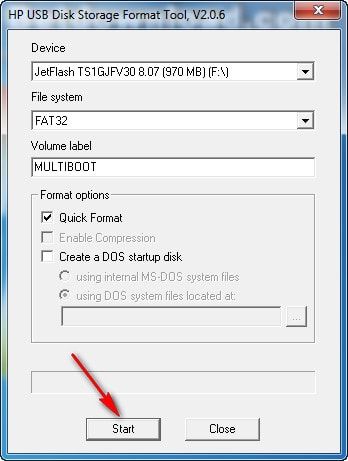
Plug the USB drive into your computer to format it. It's recommended to use HP USB Disk Storage Format Tool software to format the USB drive.
Step 4
Set up a DOS environment on the USB drive using Grub4dos.
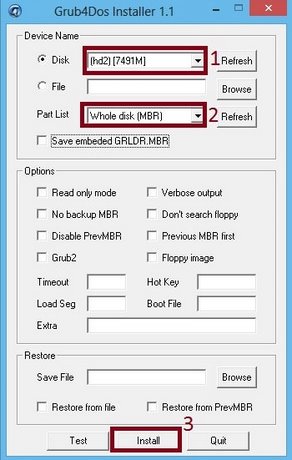
Open the Grub4dos file as Administrator. The program interface will look like this:
- Select your USB drive.
- Select the Whole disk (MBR) type . If not, click Refresh next to reload.
- Click Install to create DOS for the selected USB drive.
- Wait 30 seconds, then a black window will appear -> press Enter to exit this window.
Step 5
Copy the data to the USB drive.
The files include: menu.lst and grldr from Grub4dos
Windows Menu , autorun , and the HBCD folder from Hiren's BootCD.
The above is how to create a Hiren's BootCD for a USB drive. For a CD, you can use BurnCDCC in Hiren's BootCD; simply run the file and point to the ISO file to let it run automatically, and you've successfully created it.
Method 2 : Using yumi-multiboot
Step 1
You can download the latest version of Yumi here: Download Yumi
Step 2
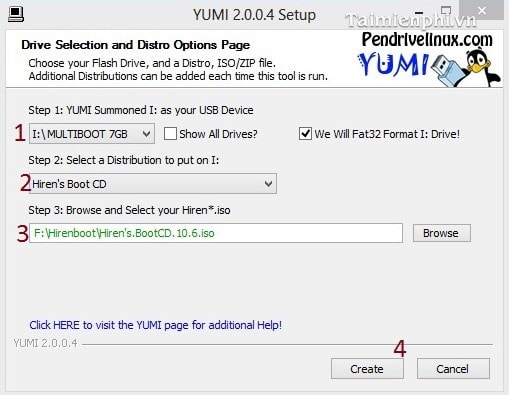
Operating in Yumi.
- Select the USB drive you want to create.
- Select Hiren's Boot CD .
- Point to the Hiren's Boot .iso file.
- Click Create -> Next .
In the article above, we have guided you on how to create a Hiren's BootCD on a USB/CD, so you can use the USB to restore your computer by ghosting it in case of Windows operating system corruption, instead of using a CD, partitioning the hard drive, etc.
Watch the video tutorial on how to create a Hiren's Boot USB.
Related Articles
 Learn About Hiren's BootCD PE8 minutes read
 Hiren's Bootcd PE: A Practical Guide8 minutes read
 How to Create Hiren's Bootcd PE Using ISO2USB9 minutes read
 How to Create a Hiren's BootCD Bootable USB Drive for Windows Rescue4 minutes read
 Detailed Guide on Creating a Multi-Purpose Bootable USB Drive4 minutes read
 How to Create Windows Pe Rescue Disk7 minutes read
Reader Comments 0
Sign in with email or Google to join the discussion.