Table of Contents
There are many ways to test the read and write speed of a USB drive, a topic TipsMake has discussed many times. In this article, we'll explore another extremely simple way to test USB read and write speeds using familiar tools.
tipsmake.com has repeatedly discussed the issue of testing USB read and write speeds, a topic of great interest to users, especially those with computer knowledge who want to learn more about their newly purchased devices. Different USB drives have different capacities and speeds when copying data to and from the drive.
In this article, TipsMake will introduce you to a tool for testing the read and write speeds of your USB drive.
How to test the read and write speed of a USB drive
In this article, TipsMake will use a very familiar software called DLC Boot, a very useful tool for installing and recovering Windows. DLC Boot has many tools, including a way to test the read and write speed of a USB drive, but first, let's download DLC Boot here.
- Additionally, you will need WinRAR decompression software to extract the files if your computer does not have it installed.
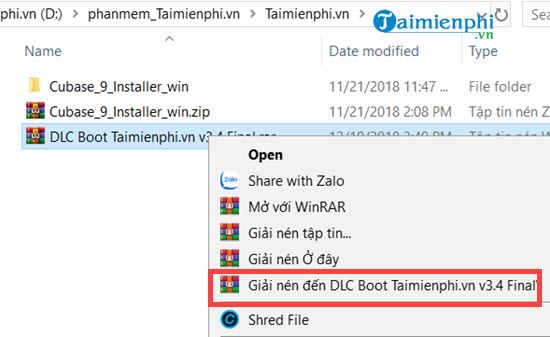
Step 1: After the DLC Boot process is complete, proceed to extract the tool according to the instructions in the image below.
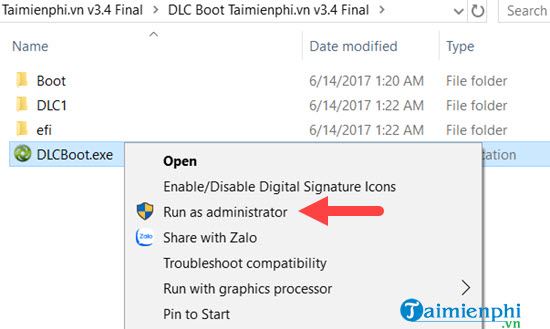
Step 2: Next, access the extracted folder > select the DLCBoot.exe file > right-click > Run as administrator .
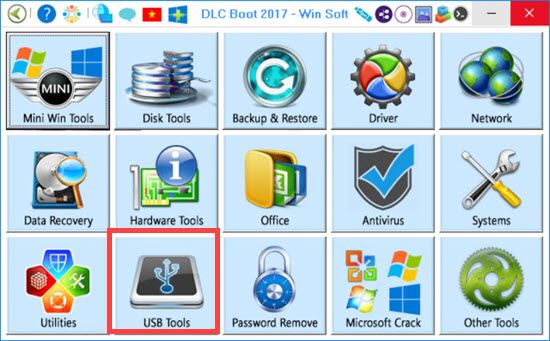
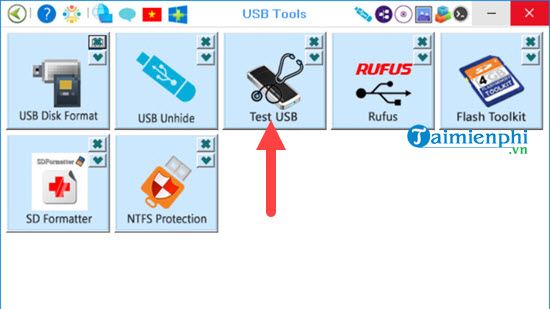
Step 3: When the DLC Boot interface appears, find the USB Tools section ; this section contains all the tools related to USB.
Step 4: In USB Tools, select Test USB to test the read and write speed of the USB drive.
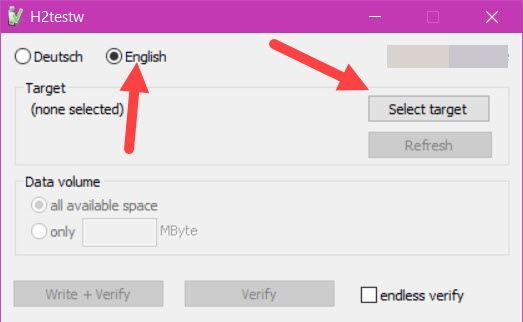
Step 5: Here you select English as the language > choose Select Target to select the hard drive or USB drive to test.
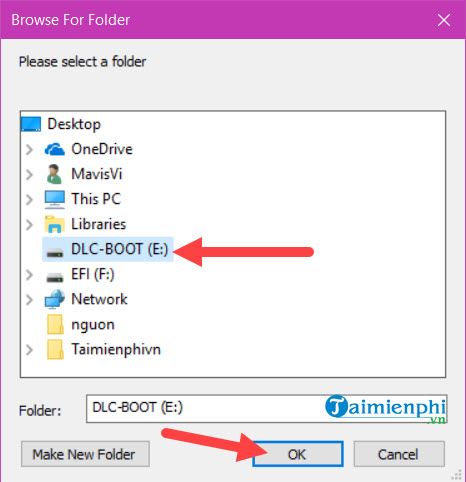
Next, select the USB drive that you previously plugged into the computer, or any hard drive you want, not just the USB read/write speed test.
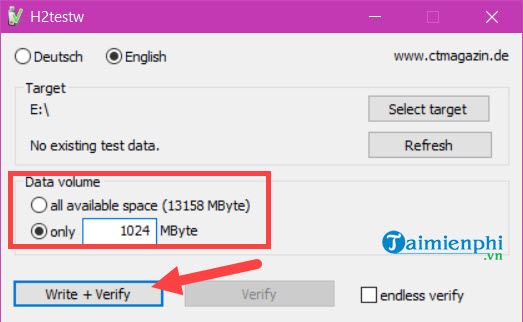
Step 6: In the Data volume section, you have two options to test the read/write speed of your USB drive: use the entire USB drive capacity for testing (this will take a long time) or use a specific number of MB. Here, TipsMake chooses 1024 MB for a faster test. If you have more time, you should choose a larger amount for a more accurate test of the USB drive's read/write speed.
At the start, the system will display a message stating that if you only test the empty space, you won't be able to identify errors in the data sections. Press OK to skip this step and continue testing the USB read/write speed.
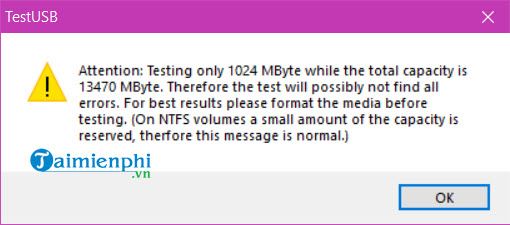
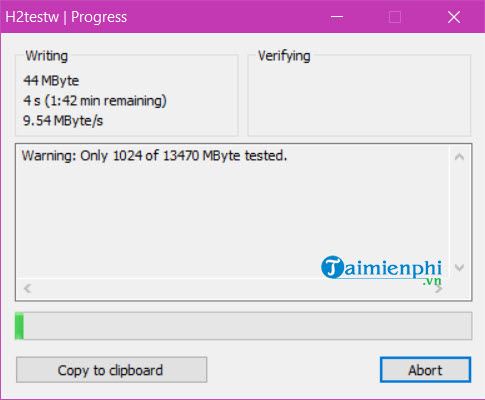
Step 7: Start the DLC Boot tool to begin testing the read and write speed of the USB drive. Please note that this test will have some impact on the USB drive and your computer, so it's best to let everything run until the test is complete.
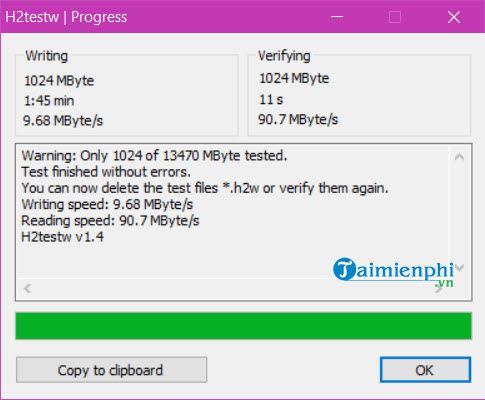
Step 8: Wait a while for the USB read/write speed test to complete. You will see a reading speed of 90.7 MB/s and a writing speed of 9.68 MB/s . Here you know the actual speed when copying or reading files.
Note: You should test the USB read/write speed multiple times for the most accurate results, using different file sizes each time.
So, we've completed the method for testing the read and write speed of a USB drive. Using DLC Boot to check the speed, you'll see that this tool is quite simple, but it's helpful when you don't have any other software on your computer. There are many other tools for testing the read and write speed of USB drives, as well as HDD and SSD drives, available at TipsMake that you can explore.
Alternatively, you can use USB speed testing tools available here; these are some of the best USB speed testing tools according to user reviews.
Related Articles
 Drive: 4 Ways to Test SSD Speed and Performance6 minutes read
 Software to Check the Read and Write Speed of SSD Hard Drives, HDD Best11 minutes read
 5 Best Windows Speed Test Applications on Windows7 minutes read
 How to Increase the Read and Write Speed of HDD, SSD on the Computer5 minutes read
 How to Check the Read and Write Speed of HDD, SSD, USB Drives with3 minutes read
 How to Test SSD - Check SSD Speed3 minutes read
Reader Comments 0
Sign in with email or Google to join the discussion.