Table of Contents
Creating a bootable USB drive using Grub4dos is an effective way to install and fix operating system errors. You can refer to the instructions below for creating a bootable USB drive using Grub4dos.
Grub4dos helps you create a compact and simple bootable USB drive, which is very useful when you want to back up, restore, or reinstall Windows on your computer. Even better, it helps you effectively ghost Windows 10.

How to create a bootable USB drive using Grub4dos to install and fix operating system errors
Guide to Creating a Bootable USB Drive Using Grub4dos
Preparation:
- USB drive with a capacity of 1GB or more. - Hiren BootCD
software (any version) - Grub4dos software
Note: For Windows 10, 8.1, and 8 operating systems, to launch software, you need to right-click on the executable file and select " Run as administrator" .
Step 1 : Format the USB drive. You should use HP USB Disk Storage Format Tool software to format the USB.
Tip: If your USB drive shows errors when formatting, you can refer to the article "Fixing USB drive formatting errors" .
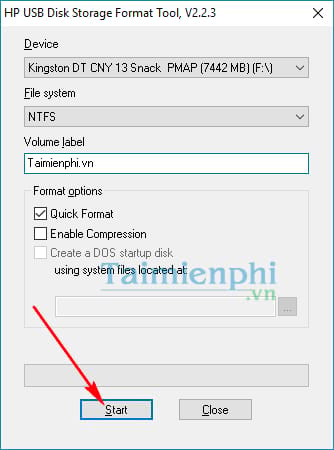
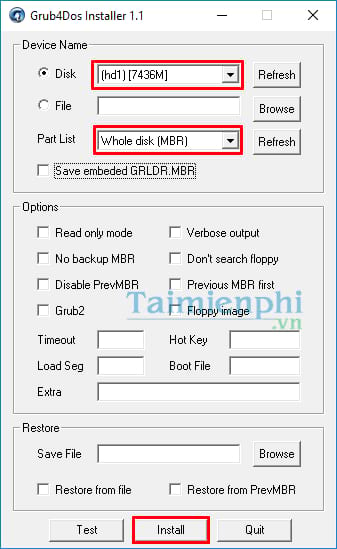
Step 2 : Launch the Grub4dos software.
- In the Disk section, click Refresh to detect and select the USB drive you want to create Hiren's Boot from.
- Similarly, in the Part List, click Refresh and select Whole disk (MBR).
- After completing the setup, press Install to install.
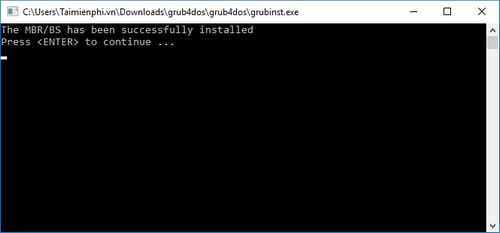
Step 3: A command dialog box will appear stating that the MBR/BS setup on the USB is complete. Press any key or press Enter to finish.
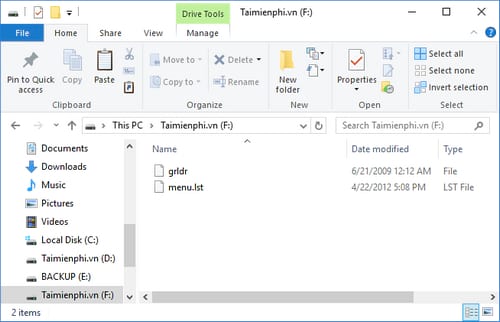
Step 4: Next, copy the two files grldr and menu.lst from the extracted grub4dos.zip file to your USB drive.
Step 5: Open the folder containing the Hiren's Boot.iso file, extract the Hiren's Boot.iso file, and copy all the extracted files to your USB drive.
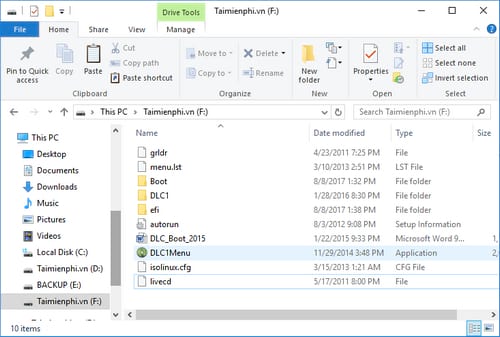
Test the bootable USB drive after creation.
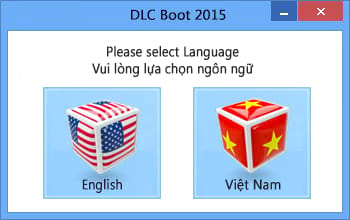
To check if this USB drive is working and if there are any errors in your process, simply double-click the DLC1Menu file and select your language (here, tipsmake chooses Vietnamese).
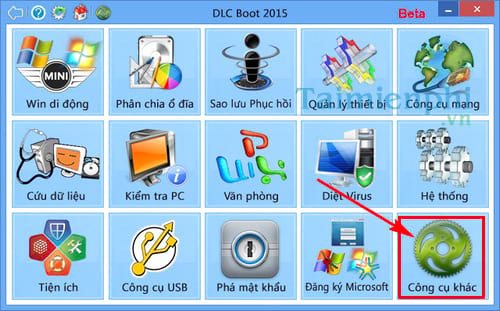
The DLC Boot 2015 interface will appear; select " Other tools" .
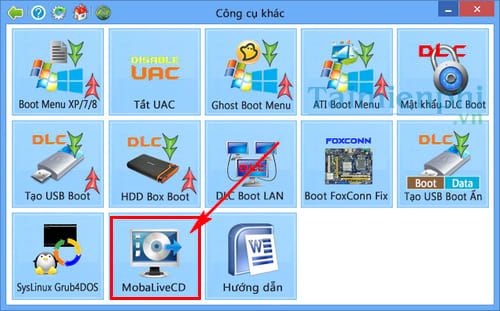
Next, click on the MobaLiveCD option .
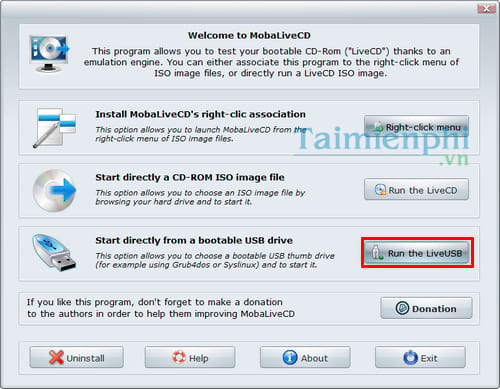
The MobaLiveCD window will appear; click on the " Run the LiveUSB" option.
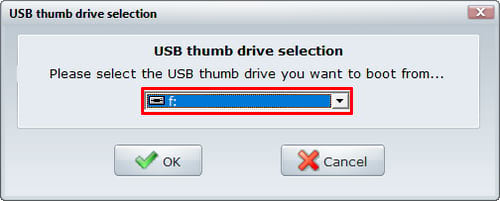
Select your USB source and press OK.
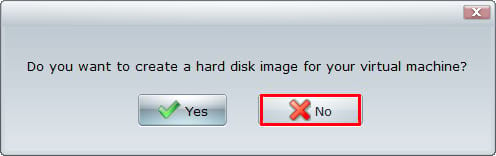
Select No
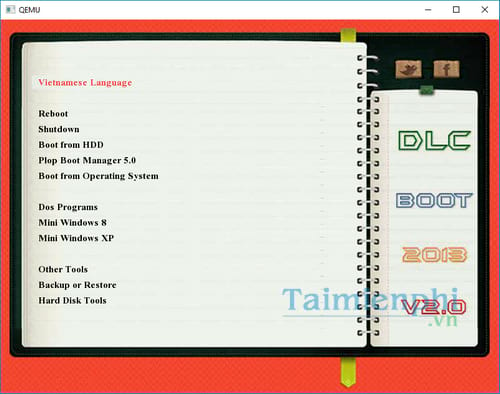
The Hiren's Boot interface will then appear as shown below, depending on the version you extracted to the USB drive earlier. From now on, you have a versatile USB drive to help you quickly repair your computer.
Errors encountered during the USB boot creation process.
- Performing the operations in the wrong order
- Incorrect or missing files were extracted from the Hiren's Boot CD.
- Typically, if you have antivirus software enabled, it may be blocking the reading of the autorun file created on the bootable USB drive. This results in the autorun file being created but without content, causing errors when booting from the USB drive.
The article above has guided you on how to create a bootable USB drive using Grub4dos. This allows you to use the USB drive to restore a Ghost image or reinstall the operating system whenever your computer encounters problems and you don't have a CD drive. Depending on the version of Hiren's Boot CD you download, the interface and file components may vary after extraction. However, generally, after following the steps above, you should have successfully created a bootable USB drive using Grub4dos. Good luck!
Watch the video tutorial on how to create a USB drive with Hiren's Boot functionality.
Related Articles
 4 Tools to Create USB Boot Install Windows 105 minutes read
 Detailed Guide on Creating a Multi-Purpose Bootable USB Drive4 minutes read
 Create Windows 10 Boot USB6 minutes read
 How to Create a Bootable macOS Big Sur Installation Drive6 minutes read
 Create Windows 10 Bootable USB, Install Windows 10 Using USB11 minutes read
 How to Install Windows 10 Using a Bootable USB Drive - a Guide from a to Z10 minutes read
Reader Comments 0
Sign in with email or Google to join the discussion.