Table of Contents
A Windows 7 ISO can be used without a DVD, but mounting it in an existing Windows session is not always the right installation method. Use a virtual machine if you only need a legacy application, or create bootable USB media for a clean installation on physical hardware. Running setup.exe from a mounted ISO is appropriate only when the existing Windows environment and the intended upgrade path are compatible.
Windows 7 is out of support, so it should not be used as an everyday internet-connected system. You also need a legitimate ISO and a valid license; postponing product-key entry during setup does not provide a free license.
Choose the installation method first
| Goal | Recommended method | Why |
|---|---|---|
| Run one old application | Virtual machine | Keeps the legacy system separate from the host and is easy to snapshot or remove. |
| Clean-install a physical PC | Bootable USB | Starts independently of the current operating system and can manage disk partitions safely. |
| Start a supported in-place setup from Windows | Mounted ISO | Convenient, but only when Windows Setup supports the source and target versions. |
If you need physical installation media, see our guide to USB boot creation tools and then test that the USB boots before changing the disk.
Before you begin
- Back up personal files and create recovery media for the currently installed system.
- Confirm that the PC manufacturer provides Windows 7 drivers for storage, USB, networking, graphics, and the chipset.
- Match the ISO's edition and architecture to the license and hardware.
- Keep the device disconnected from the public internet unless a legacy task genuinely requires network access.
- Do not convert or format a partition merely to follow a tutorial. Disk operations can cause data loss and should be performed only after a verified backup.
Option 1: Install Windows 7 in a virtual machine
This is usually the least disruptive option for a legacy program. Create a new VM in VirtualBox, VMware, or Hyper-V; allocate a virtual disk; attach the licensed ISO to the VM's virtual optical drive; and boot the VM. The Windows installer then runs inside the virtual computer rather than changing the host's partitions.
Our VirtualBox and VMware comparison can help you choose a platform. After installation, disable unneeded shared folders, clipboard sharing, USB passthrough, and networking. A VM reduces disruption but does not make an unsupported operating system secure.
Option 2: Mount the ISO in an existing Windows installation
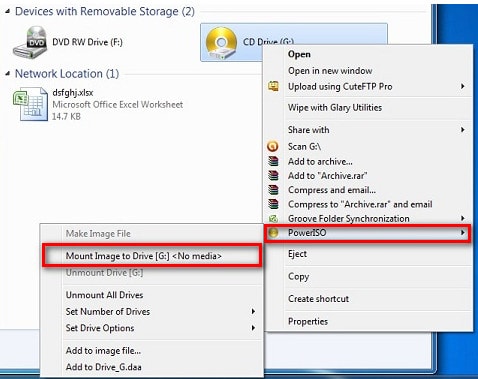
Current Windows versions can normally mount an ISO from File Explorer. On an older system, a tool such as PowerISO can create a virtual optical drive. The following screenshots show the legacy PowerISO workflow; menu wording may differ by version.
- Mount the image. In File Explorer or My Computer, right-click the virtual drive, choose the PowerISO mount command, and select the Windows 7 ISO.
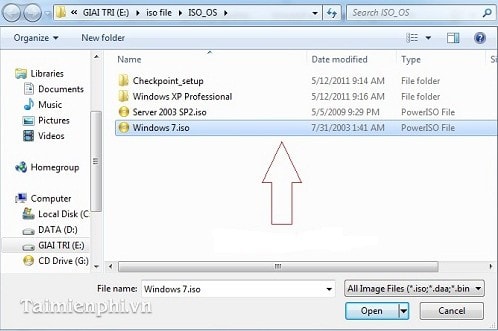
- Inspect the mounted files. Open the virtual drive and confirm that the setup files are present. If the ISO came from an unverified third party, stop rather than running it.
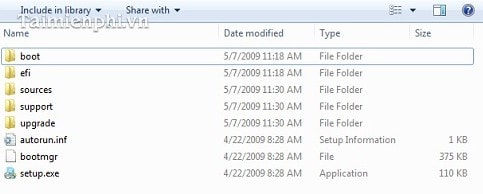
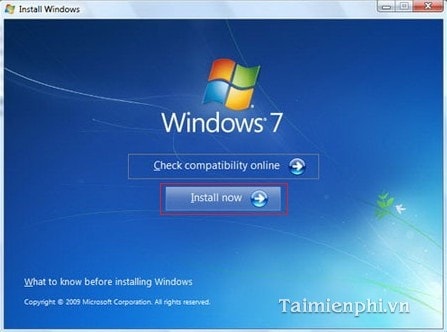
- Start Setup only for a compatible scenario. Double-click
setup.exe, review any compatibility warning, and choose Install now. Do not use this route to erase the partition that is currently running Windows.
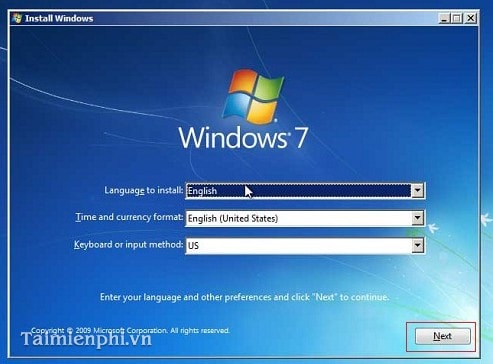
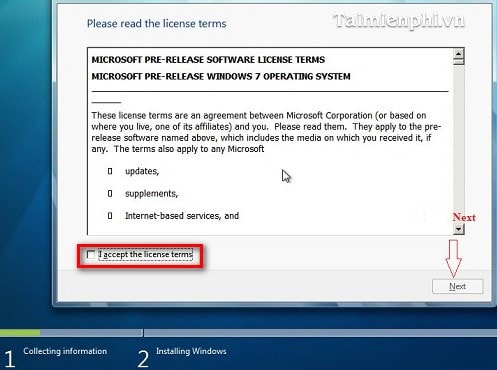
- Review language and license options. Select the correct language and keyboard settings, read the license terms, and continue only if your license covers the selected edition.
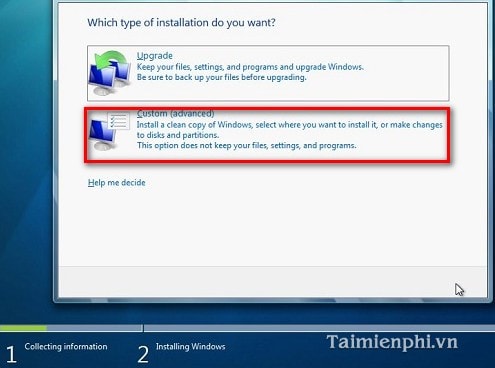
- Choose the installation type carefully. Upgrade attempts to retain supported data and applications; Custom installs a fresh copy and can overwrite data. If Setup does not clearly support the intended path, cancel and use bootable media or a VM instead.
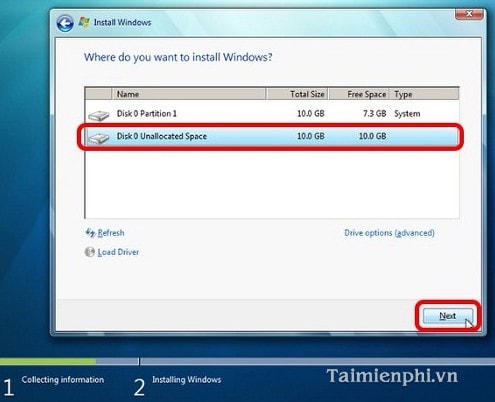
- Verify the destination. Check the partition name, size, and available space before clicking Next. Never select a partition based only on its drive letter because letters can change in Windows Setup.
- Let Setup restart. Keep the computer connected to power. Do not remove installation files or force a shutdown while files are being copied and configured.
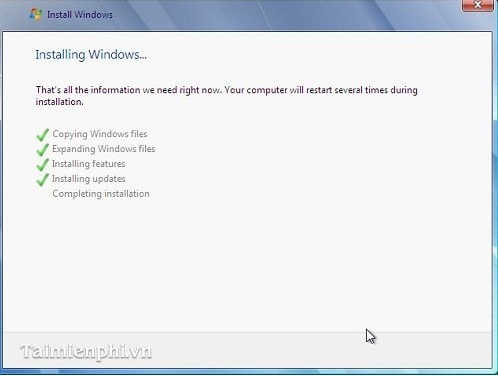
When a mounted ISO will not work
A mounted ISO cannot install Windows onto a blank disk because it depends on an already running operating system. It may also fail when attempting an unsupported downgrade, crossing incompatible architectures, or installing on hardware without Windows 7 drivers. In those cases, do not bypass compatibility checks; use a VM or bootable USB and keep a supported recovery option available.
After installation
Install only drivers obtained from the hardware manufacturer, activate Windows with the valid license for that edition, and restore files from the backup. Treat the computer as a limited-purpose legacy system. For ordinary browsing, email, and sensitive accounts, use a supported operating system that receives security updates.
Related Articles
 Instructions to Increase the Virtual Hard Drive Capacity on Virtualbox5 minutes read
 How to Install Windows 7 Using a DVD, USB Drive, or Hard Drive5 minutes read
 Instructions for Fixing Errors Do Not Install Vmware Tools3 minutes read
 Create Dualboot System with Windows 7 and 8 Using VHD5 minutes read
 How to Installing Virtual Drive4 minutes read
 Delete the Virtual Drive in Windows 73 minutes read
Reader Comments 0
Sign in with email or Google to join the discussion.